Page 251 of 564
Audio system
13
5
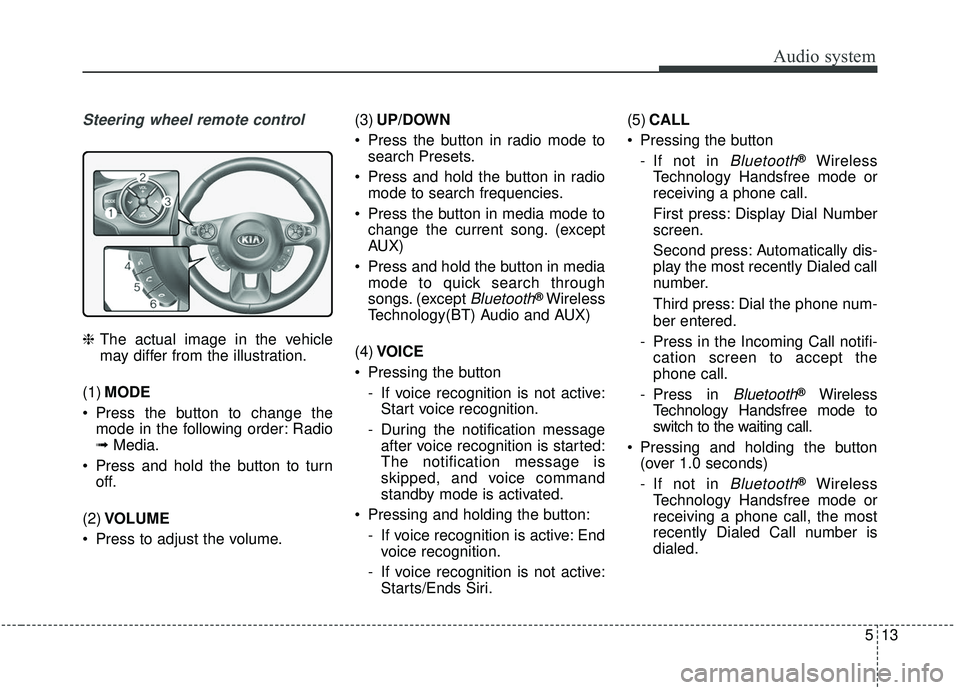
Steering wheel remote control
❈ The actual image in the vehicle
may differ from the illustration.
(1) MODE
Press the button to change the mode in the following order: Radio
➟ Media.
Press and hold the button to turn off.
(2) VOLUME
Press to adjust the volume. (3)
UP/DOWN
Press the button in radio mode to search Presets.
Press and hold the button in radio mode to search frequencies.
Press the button in media mode to change the current song. (except
AUX)
Press and hold the button in media mode to quick search through
songs. (except
Bluetooth®Wireless
Technology(BT) Audio and AUX)
(4) VOICE
Pressing the button - If voice recognition is not active:Start voice recognition.
- During the notification message after voice recognition is started:
The notification message is
skipped, and voice command
standby mode is activated.
Pressing and holding the button: - If voice recognition is active: Endvoice recognition.
- If voice recognition is not active: Starts/Ends Siri. (5)
CALL
Pressing the button - If not in
Bluetooth®Wireless
Technology Handsfree mode or
receiving a phone call.
First press: Display Dial Number
screen.
Second press: Automatically dis-
play the most recently Dialed call
number.
Third press: Dial the phone num-
ber entered.
- Press in the Incoming Call notifi- cation screen to accept the
phone call.
- Press in
Bluetooth®Wireless
Technology Handsfree mode to
switch to the waiting call.
Pressing and holding the button (over 1.0 seconds)
- If not in
Bluetooth®Wireless
Technology Handsfree mode or
receiving a phone call, the most
recently Dialed Call number is
dialed.
Page 272 of 564
Audio system
534 If a
Bluetooth®Wireless Technology
connection is lost due to abnormal
conditions while a
Bluetooth®
Wireless Technology device is con-
nected (communication range
exceeded, device power OFF,
communication errors, etc.), the
disconnected
Bluetooth®Wireless
Technology device is searched for
and automatically reconnected.
If you want to disable the
Bluetooth®
Wireless Technology device auto-
connect function, turn the
Bluetooth®Wireless Technology
function OFF on your device.
Consult the user manuals for indi-
vidual devices to see whether
Bluetooth®Wireless Technology is
supported.
Handsfree call quality and volume may vary depending on the type of
Bluetooth®Wireless Technology
device.
Some
Bluetooth®Wireless Technology
devices are subject to intermittent
Bluetooth®Wireless Technology
connection failures. In this case,
use the following method. 1) Turn the
Bluetooth®Wireless
Technology function off on your
Bluetooth®Wireless Technology
device ➟Turn it on and try
again.
2) Delete the paired device from both the audio system and
Bluetooth®Wireless Technology
device, then pair again.
3) Power down your
Bluetooth®
Wireless Technology device ➟
Turn it on and try again.
4) Completely remove the battery from your
Bluetooth®Wireless
Technology device; reinsert it,
reboot, and attempt connection.
5) Restart the vehicle and reat- tempt connection.
✽ ✽NOTICE
-Bluetooth®Wireless Technology
specifications
• Power Class 2: -6 to 4 dBm
• Aerial power: Max 3 mW
• Frequency range: 2400 to 2483.5 MHz.
Pairing a Bluetooth®Wireless
Technology device
Information on pairing Bluetooth®
Wireless Technology devices
Pairing refers to the process of pair-
ing
Bluetooth®Wireless Technology
cell phones or devices with the
system prior to connection. This is
a necessary procedure for
Bluetooth®
Wireless Technology connection
and usage.
Up to five devices can be paired.
Pairing
Bluetooth®Wireless
Technology device is not allowed
while vehicle is moving.
Pairing the first Bluetooth
®Wireless
Technology device
Press the [PHONE] button on the
audio system or the [CALL] button
on the steering wheel remote control
➟ Search for the vehicle from the
Bluetooth®Wireless Technology
device, and pair ➟ Enter the passkey
on the
Bluetooth®Wireless Technology
device or approve passkey ➟
Bluetooth®Wireless Technology pair-
ing completed.
Page 273 of 564
![KIA SOUL 2019 Owners Manual Audio system
35
5
1. When the [PHONE] button on the
audio system or the [CALL] button
on the steering wheel remote con-
trol is pressed, the following screen
is displayed. Devices can now be
paired.
(](/manual-img/2/40387/w960_40387-272.png "KIA SOUL 2019 Owners Manual Audio system
35
5
1. When the [PHONE] button on the
audio system or the [CALL] button
on the steering wheel remote con-
trol is pressed, the following screen
is displayed. Devices can now be
paired.
(")
Audio system
35
5
1. When the [PHONE] button on the
audio system or the [CALL] button
on the steering wheel remote con-
trol is pressed, the following screen
is displayed. Devices can now be
paired.
(1) Vehicle Name: Searched name in
Bluetooth®Wireless Technology
device
.
✽ ✽ NOTICE
The vehicle name in the image above
is an example. Refer to your device
for the actual name of your device.
2. Search for available Bluetooth®
Wireless Technology devices in
the
Bluetooth®Wireless Technology
menu of your
Bluetooth®Wireless
Technology device (cell phone,
etc.). 3. Confirm that the vehicle name in
your
Bluetooth®Wireless Technology
device matches the vehicle name
shown on the audio screen, then
select it.
4-1. For devices that require passkey entry, a passkey entry screen is
shown on your
Bluetooth®
Wireless Technology device.
- Enter the passkey ‘0000’, inyour
Bluetooth®Wireless
Technology device.
4-2. For devices that require passkey confirmation, the following
screen is shown on the audio
system. A 6-digit passkey input
screen is shown in the
Bluetooth®Wireless Technology
device. - After confirming that the 6-
digit passkey on the audio
screen and the
Bluetooth®
Wireless Technology de vice are
identical, select [OK] in your
Bluetooth®Wireless Technology
device.
✽ ✽ NOTICE
The 6-digit passkey in the image
above is an example. Refer to your
vehicle for the actual passkey.
Page 274 of 564
![KIA SOUL 2019 Owners Manual Audio system
536Pairing a second Bluetooth
®Wireless
Technology device
Press the [SETUP] button on the
audio system ➟ Select [Bluetooth] ➟
Select [Connections] ➟ Select [Add
New].
- The pairing](/manual-img/2/40387/w960_40387-273.png "KIA SOUL 2019 Owners Manual Audio system
536Pairing a second Bluetooth
®Wireless
Technology device
Press the [SETUP] button on the
audio system ➟ Select [Bluetooth] ➟
Select [Connections] ➟ Select [Add
New].
- The pairing")
Audio system
536Pairing a second Bluetooth
®Wireless
Technology device
Press the [SETUP] button on the
audio system ➟ Select [Bluetooth] ➟
Select [Connections] ➟ Select [Add
New].
- The pairing procedure from this point is identical to [Pairing the first
Bluetooth device].✽ ✽ NOTICE
•Bluetooth®Wireless Technology
standby mode lasts for three min-
utes. If a device is not paired with-
in three minutes, pairing is can-
celed. Start over from the begin-
ning.
• For most Bluetooth
®Wireless
Technology devices, a connection
is established automatically after
pairing. Some devices, however,
require separate confirmation
when connecting after pairing. Be
sure to check your Bluetooth
®
Wireless Technology device after
pairing to confirm that it has con-
nected.
Connecting Bluetooth®Wireless
Technology devices
If there are no connected devices
Press the [PHONE] button on the
audio system or the [CALL] button in
the steering wheel remote control ➟
List of paired
Bluetooth®Wireless
Technology devices ➟Select the
desired
Bluetooth®Wireless Technology
device from the list ➟ Connect
Bluetooth®
Wireless Technology.
Page 280 of 564
Audio system
542
Starting/ending voice recognition,and settings
Starting voice recognition
Press the [VOICE] button on the
steering wheel remote control to
start voice recognition and see the
voice recognition screen. Ending voice recognition
In voice recognition mode, say the
command ‘Exit’ to end voice recog-
nition.
Press the [Exit] on the bottom left corner of the screen to end voice
recognition.
Press and hold the [VOICE] button
on the steering wheel remote con-
trol to end voice recognition. Quick-starting voice recognition
(manual control)
Normally, to start voice recognition,
you must wait for the voice prompt
before saying a command. This
involves some waiting time. To run
the function immediately to select
the commands displayed on the
screen.
This feature is useful if the voice prompt takes too long or the sys-
tem fails to properly recognize your
voice commands.
Page 281 of 564
Audio system
43
5
Skip voice prompt
While the voice prompt is playing,
press the [VOICE] button on the
steering wheel remote control to
skip the voice prompt and place
the system in standby for your
voice commands.
This feature is useful if the voice prompt takes too long or you
already know the voice command
for the desired function. Extending voice recognition standby
time
After voice recognition is started
and the voice prompt and beep
sound (‘Beep~’) are played, the
system enters standby for user
voice commands for five seconds.
During this five-second standby,
press the button again to play the
beep sound (‘Beep~’), and extend
voice command standby time by
five seconds.
If you do not say a command for five seconds, you are prompted by
voice to repeat your command.
Page 287 of 564
Audio system
49
5
Siri
✽ ✽
NOTICE - Using Siri
• Android device is not supported to
use Siri.
• If you want to use Siri, you have to connect your iOS device to the
multimedia system through
Bluetooth
®Wireless Technology.
(Please check whether your iOS
device supports Siri and turning
Siri On)
• If the iOS version is changed, the functions and response may be dif-
ferent according to the iOS device
and the latest version.
• Siri automatically stops in the fol- lowing events.
1) Outgoing and incoming phone calls.
2) Media (USB, etc.) is connected. (Siri mode is maintained when
iPod
®s are connected)
3) Rear camera is activated
(if
equipped).
4) Vehicle is started or engine is
turned off. (Continued)(Continued)
5) Screen transition buttons, such as RADIO or MEDIA, are
selected.
6) When a pop-up message is dis- played on the screen due to
accidental execution of Siri.
• The microphone is located above the driver’s seat. To ensure proper
Siri, state your voice while main-
taining proper driving posture.
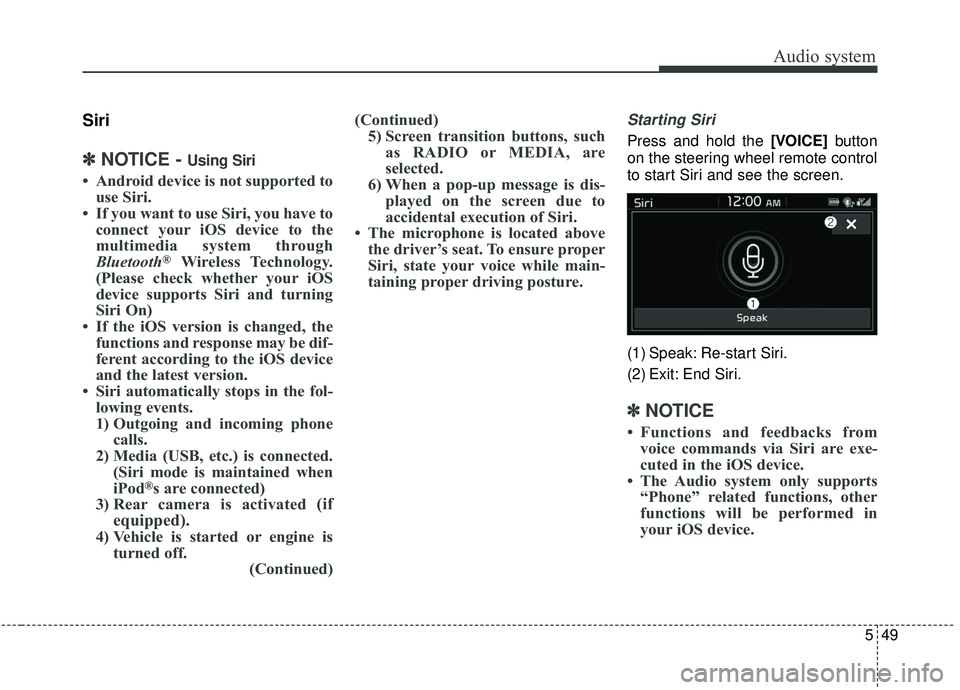
Starting Siri
Press and hold the [VOICE] button
on the steering wheel remote control
to start Siri and see the screen.
(1) Speak: Re-start Siri.
(2) Exit: End Siri.
✽ ✽ NOTICE
• Functions and feedbacks from
voice commands via Siri are exe-
cuted in the iOS device.
• The Audio system only supports “Phone” related functions, other
functions will be performed in
your iOS device.
Page 295 of 564
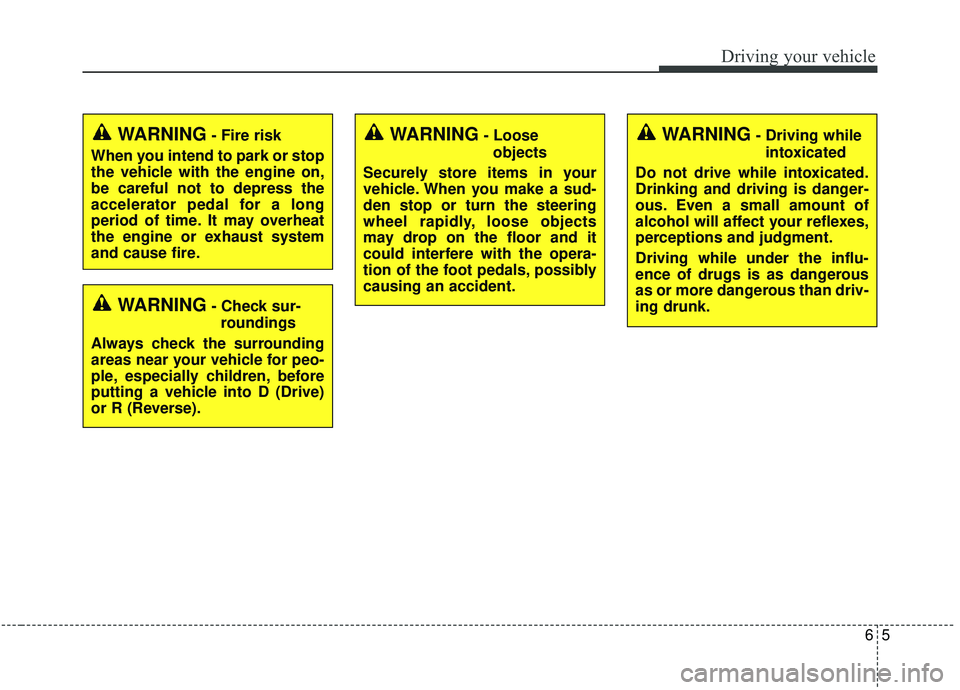
65
Driving your vehicle
WARNING- Check sur-roundings
Always check the surrounding
areas near your vehicle for peo-
ple, especially children, before
putting a vehicle into D (Drive)
or R (Reverse).
WARNING- Fire risk
When you intend to park or stop
the vehicle with the engine on,
be careful not to depress the
accelerator pedal for a long
period of time. It may overheat
the engine or exhaust system
and cause fire.WARNING- Loose objects
Securely store items in your
vehicle. When you make a sud-
den stop or turn the steering
wheel rapidly, loose objects
may drop on the floor and it
could interfere with the opera-
tion of the foot pedals, possibly
causing an accident.WARNING- Driving while intoxicated
Do not drive while intoxicated.
Drinking and driving is danger-
ous. Even a small amount of
alcohol will affect your reflexes,
perceptions and judgment.
Driving while under the influ-
ence of drugs is as dangerous
as or more dangerous than driv-
ing drunk.
![KIA SOUL 2019 Owners Manual Audio system
542
Starting/ending voice recognition,and settings
Starting voice recognition
Press the [VOICE] button on the
steering wheel remote control to
start voice recognition and see the
voice re](/manual-img/2/40387/w960_40387-279.png "KIA SOUL 2019 Owners Manual Audio system
542
Starting/ending voice recognition,and settings
Starting voice recognition
Press the [VOICE] button on the
steering wheel remote control to
start voice recognition and see the
voice re")
![KIA SOUL 2019 Owners Manual Audio system
43
5
Skip voice prompt
While the voice prompt is playing,
press the [VOICE] button on the
steering wheel remote control to
skip the voice prompt and place
the system in standby for your](/manual-img/2/40387/w960_40387-280.png "KIA SOUL 2019 Owners Manual Audio system
43
5
Skip voice prompt
While the voice prompt is playing,
press the [VOICE] button on the
steering wheel remote control to
skip the voice prompt and place
the system in standby for your")