Page 287 of 564
Audio system
49
5
Siri
✽ ✽
NOTICE - Using Siri
• Android device is not supported to
use Siri.
• If you want to use Siri, you have to connect your iOS device to the
multimedia system through
Bluetooth
®Wireless Technology.
(Please check whether your iOS
device supports Siri and turning
Siri On)
• If the iOS version is changed, the functions and response may be dif-
ferent according to the iOS device
and the latest version.
• Siri automatically stops in the fol- lowing events.
1) Outgoing and incoming phone calls.
2) Media (USB, etc.) is connected. (Siri mode is maintained when
iPod
®s are connected)
3) Rear camera is activated
(if
equipped).
4) Vehicle is started or engine is
turned off. (Continued)(Continued)
5) Screen transition buttons, such as RADIO or MEDIA, are
selected.
6) When a pop-up message is dis- played on the screen due to
accidental execution of Siri.
• The microphone is located above the driver’s seat. To ensure proper
Siri, state your voice while main-
taining proper driving posture.
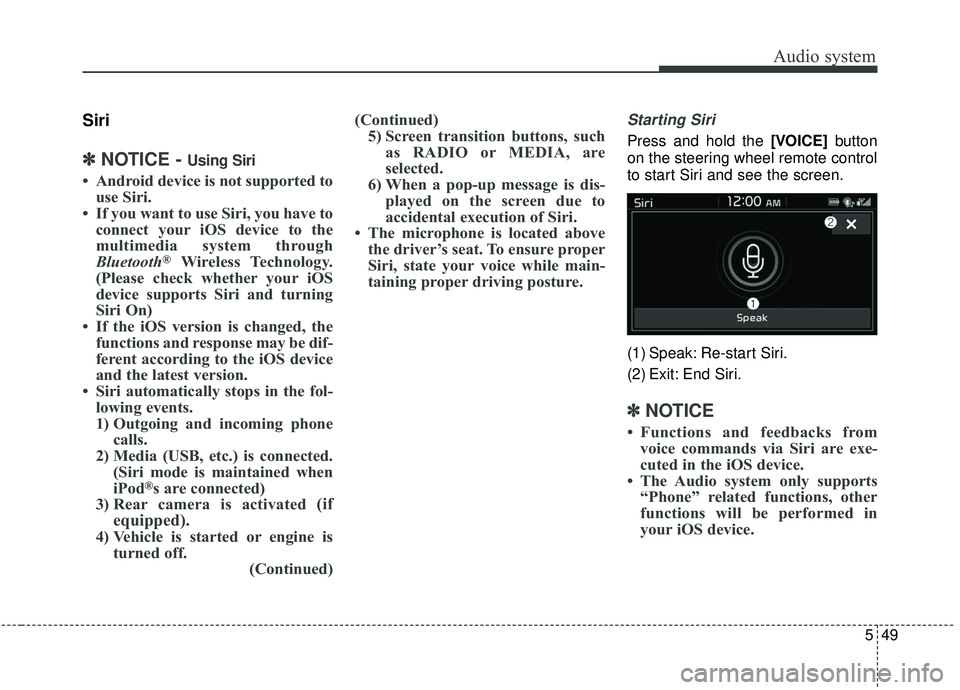
Starting Siri
Press and hold the [VOICE] button
on the steering wheel remote control
to start Siri and see the screen.
(1) Speak: Re-start Siri.
(2) Exit: End Siri.
✽ ✽ NOTICE
• Functions and feedbacks from
voice commands via Siri are exe-
cuted in the iOS device.
• The Audio system only supports “Phone” related functions, other
functions will be performed in
your iOS device.
Page 288 of 564
![KIA SOUL 2019 Owners Manual Audio system
550
Setup
Setup is the screen to control Audio
system settings.
Press the [SETUP]button on the
audio system.
Display
Press the [SETUP] button on the
audio system ➟ Select [Display].
M](/manual-img/2/40387/w960_40387-287.png "KIA SOUL 2019 Owners Manual Audio system
550
Setup
Setup is the screen to control Audio
system settings.
Press the [SETUP]button on the
audio system.
Display
Press the [SETUP] button on the
audio system ➟ Select [Display].
M")
Audio system
550
Setup
Setup is the screen to control Audio
system settings.
Press the [SETUP]button on the
audio system.
Display
Press the [SETUP] button on the
audio system ➟ Select [Display].
Mode: Set the screen brightness to be adjusted automatically accord-
ing to ambient lighting conditions
or set the screen to stay bright or
dark continuously.
Illumination: The brightness of the audio screen can be changed.
Sound
Press the [SETUP] button on the
audio system ➟ Select [Sound].
Position: Sound balance and fader can be adjusted.
Tone: Sound tone color can be adjusted.
Speed Dependent Volume: Automatically adjust volume based
on vehicle speed.
Beep: Select whether to play a beep sound when the screen is
touched.
Date/Time
Press the [SETUP] button on the
audio system ➟ Select [Date/Time].
Set Time: Set the time displayed on the audio screen.
Time Format: Choose between 12- hour and 24-hour time formats.
Set Date: Set the date displayed on the audio screen.
Bluetooth
Press the [SETUP] button on the
audio system ➟ Select [Bluetooth].
Connections: Control pairing, dele- tion, connection and disconnection
of
Bluetooth®Wireless Technology
devices.
Auto Connection Priority: Set the connection priority of
Bluetooth®
Wireless Technology devices when
the vehicle is started.
Download Contacts: Contacts can be downloaded from connected
Bluetooth®Wireless Technology
devices.
Bluetooth Voice Prompts: Play or mute voice prompts for
Bluetooth®
Wireless Technology device pair-
ing, connection and errors.
WARNING
- Date/Time Setting Distraction
Adjusting the date/time setting
while driving can result in a loss
of vehicle control that may lead
to an accident, severe personal
injury, and death.
Page 289 of 564
Audio system
51
5
✽ ✽
NOTICE
• When paired devices are deleted,
the call history and contacts of the
device saved to the audio system
are deleted.
• For Bluetooth
®Wireless Technology
connections with low connection pri-
ority, some time may be required for
the connection to be established.
• Contacts can be downloaded only from the currently connected
Bluetooth
®Wireless Technology
device.
• If no Bluetooth
®Wireless Technology
device is connected, the Download
Contacts button is disabled.
System
Press the [SETUP] button on the
audio system ➟ Select [System].
Memory Information: View My Music memory usage.
Voice Recognition Guidance: Adjust the length of the voice
recognition prompt.
Language: Change the user lan- guage.
Screen Saver
Set the information displayed when
the audio system is switched off or
the screen is turned off.
Press the [SETUP] button on the
audio system ➟ Select [Screen
Saver].
Analog: An analog clock is dis- played.
Digital: A digital clock is displayed.
None: No information is displayed.
Display Off
To prevent glare, the screen can be
turned off with the audio system in
operation.
Press the [SETUP] button on the
audio system ➟ Select [Display Off].
✽ ✽
NOTICE
Use ‘Screen Saver’ to set the infor-
mation to be displayed when the
screen is turned off.