2019 Hyundai Tucson phone
[x] Cancel search: phonePage 290 of 685
4-15
Multimedia System
4
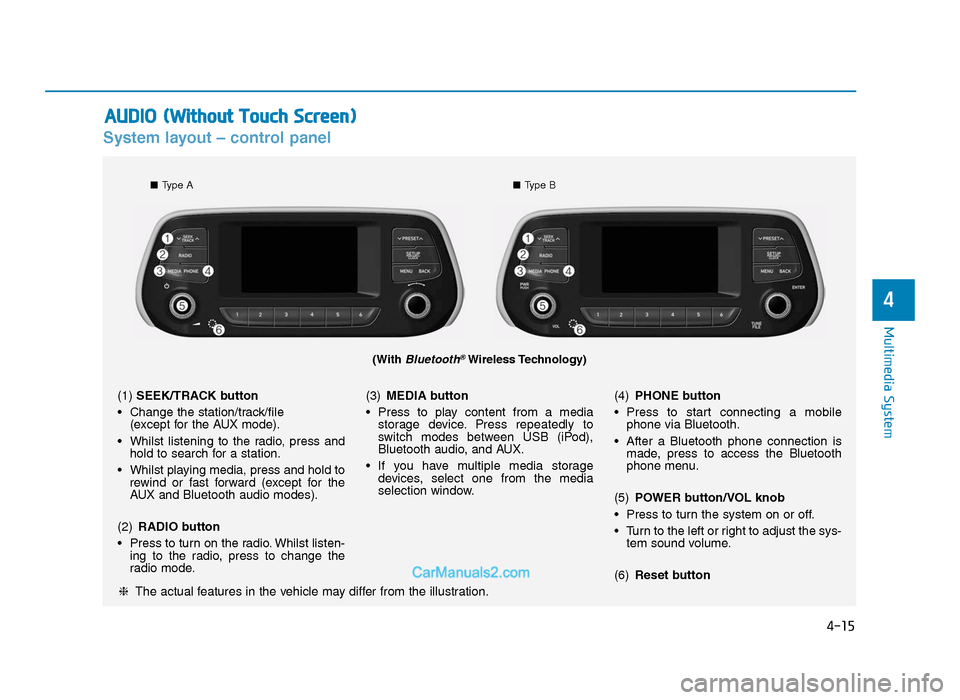
System layout – control panel
(With Bluetooth®Wireless Technology)
❈The actual features in the vehicle may differ from the illustration.
(1) SEEK/TRACK button
• Change the station/track/file (except for the AUX mode).
• Whilst listening to the radio, press and hold to search for a station.
• Whilst playing media, press and hold to rewind or fast forward (except for the
AUX and Bluetooth audio modes).
(2) RADIO button
• Press to turn on the radio. Whilst listen- ing to the radio, press to change the
radio mode. (3)
MEDIA button
• Press to play content from a media storage device. Press repeatedly to
switch modes between USB (iPod),
Bluetooth audio, and AUX.
• If you have multiple media storage devices, select one from the media
selection window. (4)
PHONE button
• Press to start connecting a mobile phone via Bluetooth.
• After a Bluetooth phone connection is made, press to access the Bluetooth
phone menu.
(5) POWER button/VOL knob
• Press to turn the system on or off.
• Turn to the left or right to adjust the sys- tem sound volume.
(6) Reset button
■Type A ■Type B
AUDIO (Without Touch Screen)
TLe UK 4.qxp 5/10/2018 12:04 PM Page 15
Page 292 of 685
4-17
Multimedia System
4
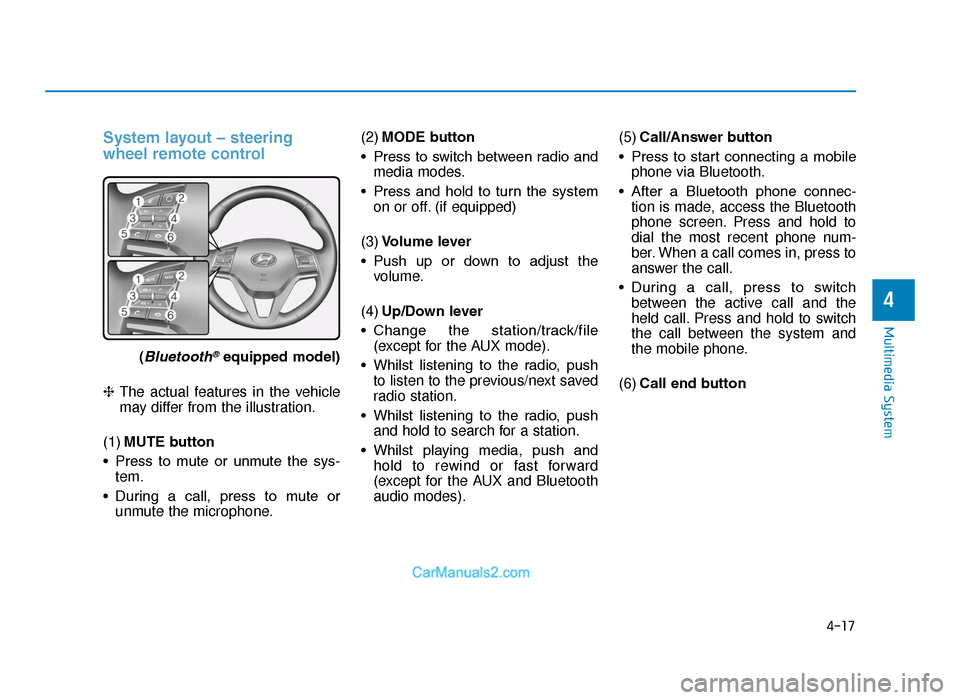
System layout – steering
wheel remote control
(Bluetooth®equipped model)
❈ The actual features in the vehicle
may differ from the illustration.
(1) MUTE button
• Press to mute or unmute the sys- tem.
• During a call, press to mute or unmute the microphone. (2)
MODE button
• Press to switch between radio and media modes.
• Press and hold to turn the system on or off. (if equipped)
(3) Volume lever
• Push up or down to adjust the volume.
(4) Up/Down lever
• Change the station/track/file (except for the AUX mode).
• Whilst listening to the radio, push to listen to the previous/next saved
radio station.
• Whilst listening to the radio, push and hold to search for a station.
• Whilst playing media, push and hold to rewind or fast forward
(except for the AUX and Bluetooth
audio modes). (5)
Call/Answer button
• Press to start connecting a mobile phone via Bluetooth.
• After a Bluetooth phone connec- tion is made, access the Bluetooth
phone screen. Press and hold to
dial the most recent phone num-
ber. When a call comes in, press to
answer the call.
• During a call, press to switch between the active call and the
held call. Press and hold to switch
the call between the system and
the mobile phone.
(6) Call end button
TLe UK 4.qxp 5/10/2018 12:04 PM Page 17
Page 293 of 685
4-18
Multimedia System• Do not operate the system
whilst driving. Driving whilst
distracted may result in a loss
of vehicle control, potentially
leading to an accident, severe
personal injury, or death. The
driver’s primary responsibility
is the safe and legal operation
of a vehicle, and any handheld
devices, equipment, or vehicle
systems which divert the dri-
ver’s attention from this
responsibility should never
be used during operation of
the vehicle.
(Continued)
WARNING
- About driving
(Continued)
•Avoid watching the screen
whilst driving. Driving whilst
distracted may lead to a traffic
accident. Stop your vehicle in
a safe location before using
functions that require multiple
operations.
• Stop your vehicle first before
using your mobile phone.
Using a mobile phone whilst
driving may lead to a traffic
accident. If necessary, use the
Bluetooth Handsfree feature
to make calls and keep the
call as short as possible.
• Keep the volume low enough
to hear external sounds.
Driving without the ability to
hear external sounds may
lead to a traffic accident.
Listening to a loud volume for
a long time may cause hear-
ing damage.
•Do not disassemble or modify
the system. Doing so may
result in an accident, fire, or
electric shock.
• Do not allow liquids or foreign
substances to enter the sys-
tem. Liquids or foreign sub-
stances may cause noxious
fumes, a fire, or a system mal-
function.
• Stop using the system if it
malfunctions, such as no
audio output or display. If you
continue using the system
when it is malfunctioning, it
may lead to a fire, electric
shock, or system failure.
• Do not touch the antenna dur-
ing thunder or lightning
because such an act may
cause electric shock.
WARNING
- About handling the system
TLe UK 4.qxp 5/10/2018 12:04 PM Page 18
Page 300 of 685
4-25
Multimedia System
4
Using the media player
You can play music stored in various
media storage devices, such as USB
storage devices, smartphones, and
iPods.
1. Connect a device to the USB portor the AUX port in your vehicle.
• Playback may start immediatelydepending on the device that
you connect to the system.
2. On the control panel, press the [MEDIA] button.
• If you have multiple media stor-age devices, press the [MEDIA]
button again and press the cor-
responding number button to
select the desired mode. • When you connect an Apple
device, playback does not start
automatically. To start the media
player in the iPod mode, press
the [MEDIA] button on the con-
trol panel.
• You can also change the mode by press the [MODE] button
repeatedly on the steering
wheel.
• Make sure to connect or discon- nect external USB devices with
the system power turned off.
• Depending on vehicle models and specifications, available
buttons or the appearance and
layout of the USB/AUX ports in
your vehicle may vary.
• Do not connect a smartphone or an MP3 device to the system via
multiple methods such as USB,
Bluetooth, and AUX, simultane-
ously. Doing so may cause a dis-
torted noise or a system mal-
function.
(Continued)(Continued)
• When the equaliser function of
the connected device and
Equaliser (Tone) settings of the
system are both activated, the
effects may interfere with each
other and may lead to sound
degradation or distortion.
Deactivate the device’s equalis-
er function if possible.
• Noise may occur when an Apple device or AUX device is con-
nected. When such devices are
not being used, disconnect the
device for storage.
• When the Apple device or AUX device power is connected to
the power jack, playing the
external device may result in
noise. In such cases, disconnect
the power connection before
use.
NOTICE
MEDIA PLAYER
TLe UK 4.qxp 5/10/2018 12:05 PM Page 25
Page 303 of 685
4-28
Multimedia System
• When connecting a USB storage device, do not use an extension
cable. Connect it directly to the
USB port. If you use a USB hub
or an extension cable, the device
may not be recognised.
• Fully insert a USB connector into the USB port. Failure to do
so may cause a communication
error.
• When you disconnect a USB storage device, a distorted noise
may occur.
• The system can play only files encoded in a standard format.
• The following types of USB devices may not be recognised
or work correctly:
- Encrypted MP3 players
- USB devices not recognisedas removable disks
• A USB device may not be recog- nised depending on its condi-
tion.
• Some USB devices may be incompatible with your system.
(Continued)(Continued)
• Depending on the USB device’s
type, capacity, or the format of
files, USB recognition time may
be longer.
• Image and video playback are not supported.
Using the iPod mode
You can listen to music stored on
your Apple devices, such as an iPod
or an iPhone.
1. Connect your Apple device to the USB port in your vehicle using the
cable supplied with the Apple
device.
• When connected, the device willbegin charging. Music playback
will not start automatically. 2. On the control panel, press the
[MEDIA] button.
• If multiple devices are connect-ed to the system, press the
[MEDIA] button and press the
[1] button to select iPod from the
media selection window.
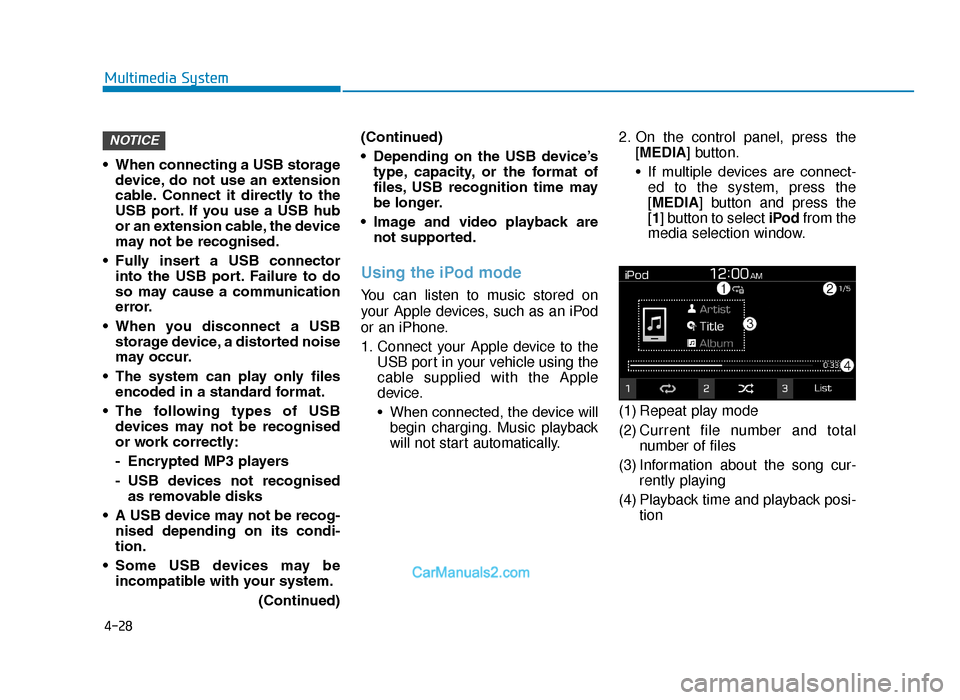
(1) Repeat play mode
(2) Current file number and total number of files
(3) Information about the song cur- rently playing
(4) Playback time and playback posi- tion
NOTICE
TLe UK 4.qxp 5/10/2018 12:05 PM Page 28
Page 305 of 685
4-30
Multimedia System
Notes on connecting Apple devices
• Ensure that the iOS and firmwareof your device is up-to-date before
connecting it to your system.
Outdated devices may cause a
system error.
• If your device’s battery is low, the device may not be recognised.
Check the battery level and, if nec-
essary, charge the battery before
connecting the device to your sys-
tem.
• Use an Apple-approved cable. Using an unapproved cable may
cause a distorted noise or an error
during playback.
• Use a cable shorter than 1 metre in length, such as the one originally
supplied with a new Apple device.
Longer cables may lead to the
audio system not recognising the
Apple device.
• Fully insert a USB connector into the USB port. Failure to do so may
cause a communication error. • When your device is connected to
the USB port and the AUX port
simultaneously, it is recognised in
the AUX mode. The device stays in
the AUX mode even if the AUX
cable is not connected to the sys-
tem. To play music in iPod mode,
disconnect the AUX cable from the
device or change audio output of
the device to “Dock”.
• If you connect your device to the system whilst playback is in
progress on the device, you may
hear a high pitch sound just after
the connection. Connect the device
after stopping or pausing playback.
• Connecting your device during a download or synchronizing with
iTunes may cause an error.
Connect the device after the down-
load or synchronization is com-
plete.
• If you connect an iPod nano (except for the 6th generation) or
an iPod classic, the brand logo will
be displayed on the device screen.
For an iPhone and an iPod touch,
the logo will not be displayed.
Notes on playing Apple devices
• Depending on the model, yourdevice may not be recognised due
to unsupported communication
protocols.
• The order of the songs displayed or played on the system may differ
from the order of the songs stored
in your device.
• Depending on the music player application you are using, informa-
tion displayed on the system may
differ.
• In an iPhone, the audio streaming function and iPod mode control
may conflict. If an error occurs, dis-
connect and reconnect the USB
cable.
• When using an iPhone or an iPod touch, do not control the device
whilst it is connected to your sys-
tem. An error may occur.
• If you make or receive a call during playback via an iPhone, the music
may remain paused after you end
the call. If you do not hear the
music after ending a call, check the
device to see if the music is
paused.
TLe UK 4.qxp 5/10/2018 12:05 PM Page 30
Page 306 of 685
4-31
Multimedia System
4
• Do not duplicate a song in multiplefolders. One song saved in multiple
folders may cause an error with
search and playback functions.
• If you perform a media control function, such as stop or repeat,
just before a song ends, the song
information displayed on the
screen may not match the song
currently playing. This is not a sys-
tem error. Restart the iPod mode
on the system or pause and
resume playback on your device.
• Skipping or improper operations may occur depending on the char-
acteristics of your Apple device.
• If the Apple device malfunctions due to an Apple device defect,
reset the Apple device and try
again. (To learn more, refer to your
Apple device manual.)Using the AUX mode
You can listen to audio from your
vehicle’s speakers by connecting
external devices, such as smart-
phones and MP3 players.
Connect an external device to the
AUX port in your vehicle using an
AUX cable.
• The AUX mode starts automatical-ly and the sound is heard via your
vehicle’s speakers.
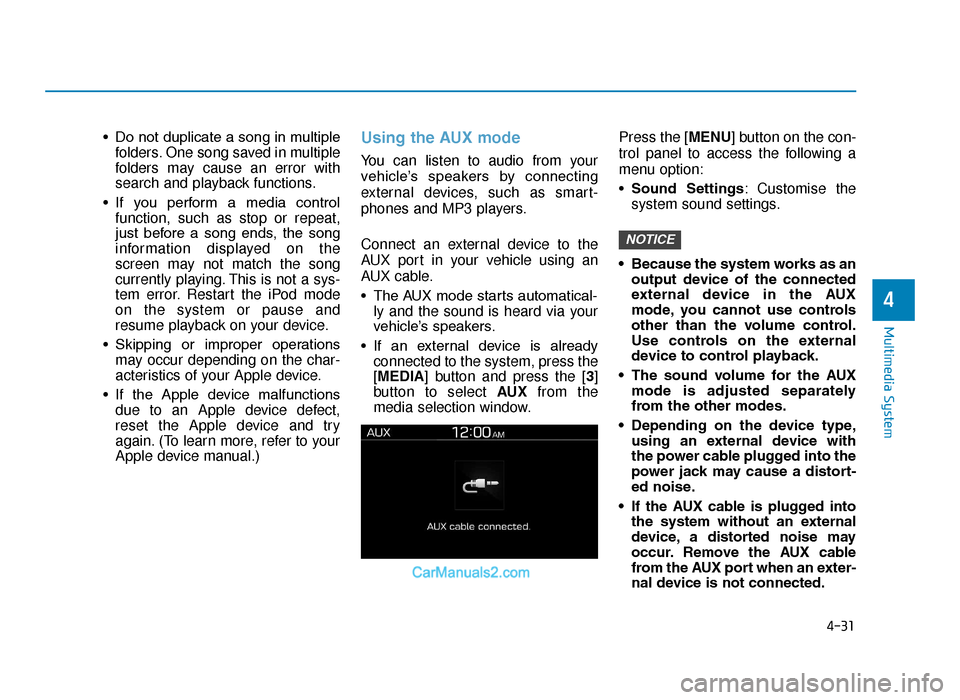
• If an external device is already connected to the system, press the
[MEDIA] button and press the [3]
button to select AUX from the
media selection window. Press the [MENU] button on the con-
trol panel to access the following a
menu option:
•
Sound Settings : Customise the
system sound settings.
• Because the system works as an output device of the connected
external device in the AUX
mode, you cannot use controls
other than the volume control.
Use controls on the external
device to control playback.
• The sound volume for the AUX mode is adjusted separately
from the other modes.
• Depending on the device type, using an external device with
the power cable plugged into the
power jack may cause a distort-
ed noise.
• If the AUX cable is plugged into the system without an external
device, a distorted noise may
occur. Remove the AUX cable
from the AUX port when an exter-
nal device is not connected.
NOTICE
TLe UK 4.qxp 5/10/2018 12:05 PM Page 31
Page 307 of 685
4-32
Multimedia System
Connecting Bluetooth devices
Bluetooth is a short-range wireless
networking technology. Via Bluetooth,
you can connect nearby mobile
devices wirelessly to send and
receive data between connected
devices. This enables you to use your
devices effectively.
To use Bluetooth, you must first con-
nect a Bluetooth-enabled device to
your system, such as a mobile phone
or an MP3 player. Ensure that the
device you want to connect supports
Bluetooth.• On your system, you can use
only Bluetooth Handsfree and
Audio features. Connect a
mobile device that supports
both features.
• Some Bluetooth devices may cause malfunctions to the audio
system or make interference
noises. In this case, storing the
device in a different location
may resolve the problem.
• Depending on the connected Bluetooth device or mobile
phone, some functions may not
be supported.
• If the system is not stable due to a vehicle-Bluetooth device com-
munication error, delete the
paired devices and connect the
Bluetooth devices again.
(Continued)(Continued)
• If Bluetooth connection is not
stable, follow these steps to try
again.
1. Deactivate Bluetooth and reactivate it on the device.
Then, reconnect the device.
2. Turn the device off and on. Then, reconnect it.
3. Remove the battery from the device and reinstall it. Then,
turn the device on and recon-
nect it.
4. Unregister the Bluetooth pair- ing on both the system and
the device and then re-regis-
ter and connect them.
NOTICE
BLUETOOTH
Park your vehicle in a safe
location before connecting
Bluetooth devices. Distracted
driving can cause a traffic acci-
dent and lead to personal injury
or death.
WARNING
TLe UK 4.qxp 5/10/2018 12:05 PM Page 32