Page 264 of 557
3-175
Convenient features of your vehicle
3
The wireless charging processmay temporarily stop, when tem-
perature abnormally increases
inside the wireless cellular phone
charging system. Stop the charg-
ing cellular phone and wait until
temperature falls to a certain level.
The wireless charging process may temporarily stop when there
is any metallic item, such as a
coin, between the wireless cellular
phone charging system and the
cellular phone.
When charging some cellular phones with a self-protection fea-
ture, the wireless charging speed
may decrease and the wireless
charging may stop.
If the cellular phone has a thick cover, the wireless charging may
not be possible.
If the cell phone is not completely contacting the charging pad, wire-
less charging may not operate
properly.
Some magnetic items like credit cards, phone cards or rail tickets
may be damaged if left with the
cellular phone during the charging
process. When any cellular phone without a
wireless charging function or a
metallic object is placed on the
charging pad, a small noise may
sound. This small sound is due to
the vehicle discerning compatibil-
ity of the object placed on the
charging pad. It does not affect
your vehicle or the cellular phone
in any way.
Information
If the ignition switch is in the OFF
position, the charging also stops.
Information
This device complies with part 15 of
the FCC Rules.
Operation is subject to the following
two conditions:
1. This device may not cause harmful interference, and
2. This device must accept any inter- ference received, including inter-
ference that may cause undesired
operation.
Clock
Vehicles with Audio system
Select the [SETUP] button on the
audio system ➟ Select [Date/Time].
Set time: Set the time displayed on the audio screen.
Time format: Choose between 12- hour and 24-hour time formats.
Vehicles with Navigation system
Select the Settings menu on the
Navigation system ➟Select
[Date/Time].
GPS time: Displays time accord- ing to the received GNSS time.
24-hour: Switches to 12 hour or 24 hour.
i
i
Do not attempt to adjust the
clock while driving. Doing so
may result in distracted driving
which may lead to an accident
involving personal injury or
death.
WARNING
Page 271 of 557
Multimedia System
Multimedia System.................................................4-2
AUX, USB and iPod®Port ...............................................4-2
Antenna ........................................................................\
.......4-2
Steering Wheel Audio Controls ......................................4-3
Bluetooth®Wireless Technology ..................................4-4
Audio (Display Audio) / Video /
Navigation System (AVN).................................................4-4
4
Page 272 of 557
4-2
Multimedia System
• If you install an aftermarket HID head lamp, your vehicle's audio
and electronic devices may not
function properly.
Prevent chemicals such as per- fume, cosmetic oil, sun cream,
hand cleaner, and air freshener
from contacting the interior
parts because they may cause
damage or discoloration.
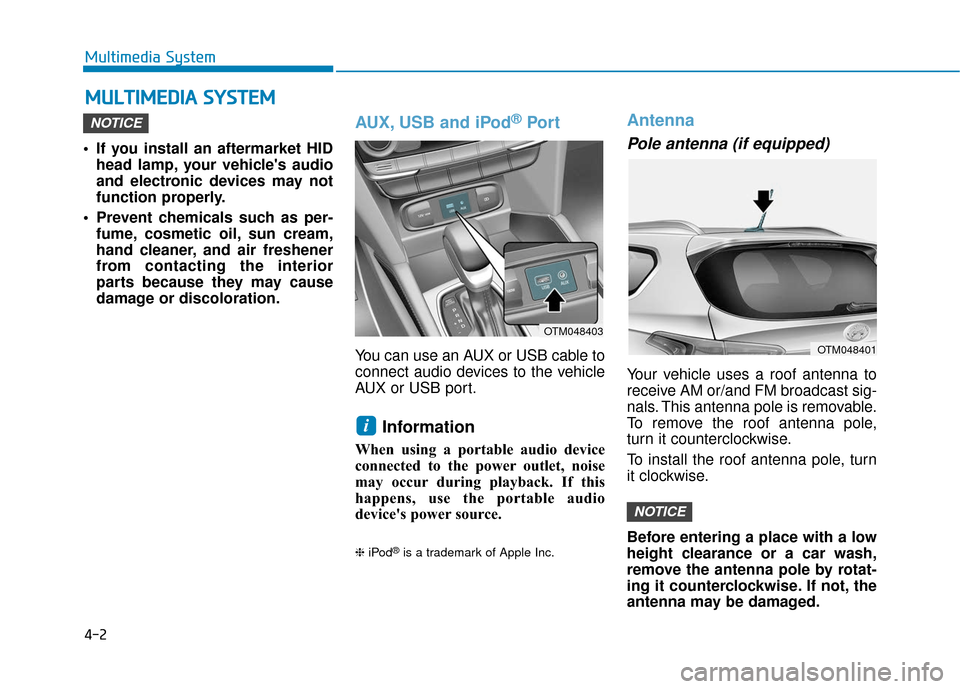
AUX, USB and iPod®Por t
You can use an AUX or USB cable to
connect audio devices to the vehicle
AUX or USB port.
Information
When using a portable audio device
connected to the power outlet, noise
may occur during playback. If this
happens, use the portable audio
device's power source.
❈ iPod®is a trademark of Apple Inc.
Antenna
Pole antenna (if equipped)
Your vehicle uses a roof antenna to
receive AM or/and FM broadcast sig-
nals. This antenna pole is removable.
To remove the roof antenna pole,
turn it counterclockwise.
To install the roof antenna pole, turn
it clockwise.
Before entering a place with a low
height clearance or a car wash,
remove the antenna pole by rotat-
ing it counterclockwise. If not, the
antenna may be damaged.
NOTICE
i
NOTICE
M MU
UL
LT
T I
IM
M E
ED
D I
IA
A
S
S Y
Y S
ST
T E
EM
M
OTM048401
OTM048403
Page 273 of 557
When reinstalling your roof anten-na, it is important that it is fully
tightened and adjusted to the
upright position to ensure proper
reception.
When cargo is loaded on the roof rack, do not place the cargo near
the antenna pole to ensure proper
reception.
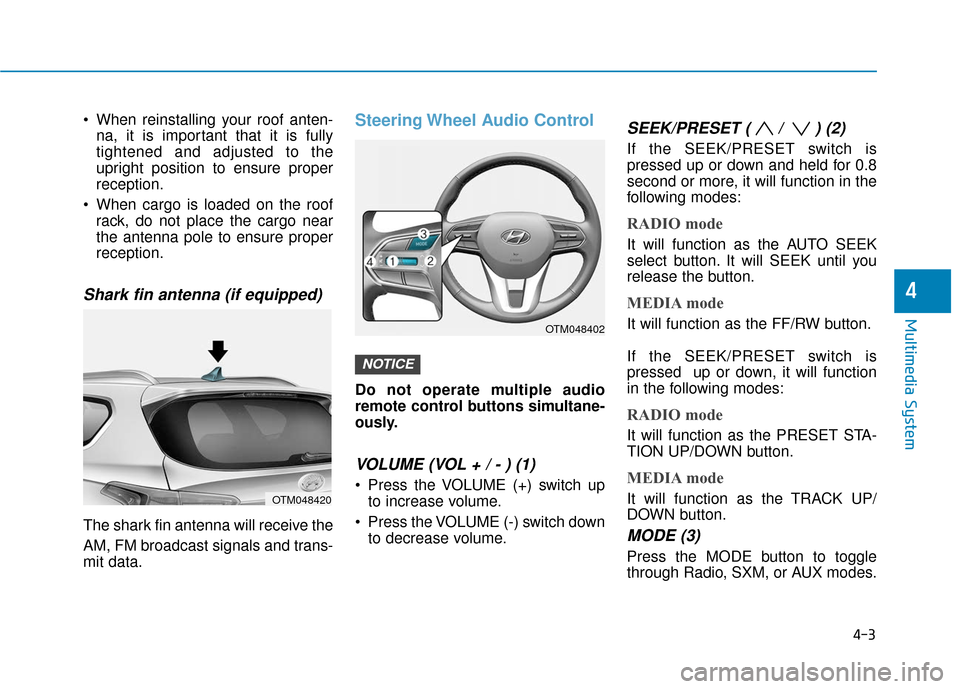
Shark fin antenna (if equipped)
The shark fin antenna will receive the
AM, FM broadcast signals and trans-
mit data.
Steering Wheel Audio Control
Do not operate multiple audio
remote control buttons simultane-
ously.
VOLUME (VOL + / - ) (1)
Press the VOLUME (+) switch upto increase volume.
Press the VOLUME (-) switch down to decrease volume.
SEEK/PRESET ( / ) (2)
If the SEEK/PRESET switch is
pressed up or down and held for 0.8
second or more, it will function in the
following modes:
RADIO mode
It will function as the AUTO SEEK
select button. It will SEEK until you
release the button.
MEDIA mode
It will function as the FF/RW button.
If the SEEK/PRESET switch is
pressed up or down, it will function
in the following modes:
RADIO mode
It will function as the PRESET STA-
TION UP/DOWN button.
MEDIA mode
It will function as the TRACK UP/
DOWN button.
MODE (3)
Press the MODE button to toggle
through Radio, SXM, or AUX modes.
NOTICE
4-3
Multimedia System
4
OTM048420
OTM048402
Page 274 of 557
4-4
Multimedia System
MUTE ( ) (4)
Press the MUTE button to mute thesound.
Press the MUTE button again to activate the sound.
Information
Detailed information for audio control
buttons are described in the separately
supplied manual with the vehicle.
Bluetooth®Wireless
Technology(1) Call / Answer button
(2) Call end button
(3) Microphone
Detailed information for the Bluetooth
hands-free is described in a separate-
ly supplied manual with the vehicle.
Audio (Display Audio) / Video /
Navigation System (AVN)
(if equipped)
Detailed information for the AVN sys-
tem is described in a separately sup-
plied manual with the vehicle.
i
OTM048404
OTM048405
Page 334 of 557

5-60
Driving your vehicle
NEVER install any accessories or stickers on the front wind-
shield, nor tint the front wind-
shield.
NEVER locate any reflective objects (i.e. white paper, mirror)
over the dashboard. Any light
reflection may cause a malfunc-
tion of the system.
Pay extreme caution to keep the camera out of water.
NEVER disassemble the camera assembly, nor apply any impact
on the camera assembly.
Playing the vehicle audio sys- tem at high volume may offset
the system warning sounds.
Information
Have the system checked by an
authorized HYUNDAI dealer when:
• The windshield glass is replaced.
• The radar sensor or cover gets damaged or replaced.
Warning message and warninglight
Forward Collision Avoidance Assist
(FCA) system disabled.
Radar blocked
When the sensor cover is blocked
with dirt, snow, or debris, the FCA
system operation may stop temporar-
ily. If this occurs, a warning message
will appear on the LCD display.
Remove any dirt, snow, or debris and
clean the radar sensor cover before
operating the FCA system. However, the FCA may not properly
operate in an area (e.g. open ter-
rain), where any substances are not
detected or the camera is blocked
with dirt, snow or debris after turning
ON the engine.
Also, even though a warning mes-
sage does not appear on the LCD
display, the FCA may not properly
operate.
i
NOTICE
OTMA058049
Page 347 of 557
5-73
Driving your vehicle
5
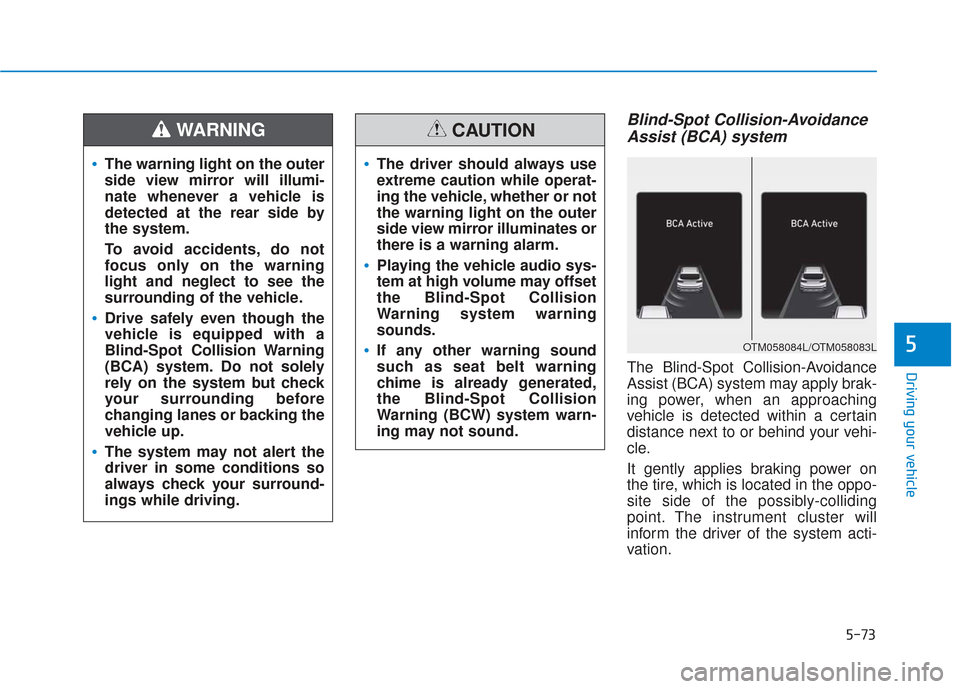
Blind-Spot Collision-AvoidanceAssist (BCA) system
The Blind-Spot Collision-Avoidance
Assist (BCA) system may apply brak-
ing power, when an approaching
vehicle is detected within a certain
distance next to or behind your vehi-
cle.
It gently applies braking power on
the tire, which is located in the oppo-
site side of the possibly-colliding
point. The instrument cluster will
inform the driver of the system acti-
vation.
The warning light on the outer
side view mirror will illumi-
nate whenever a vehicle is
detected at the rear side by
the system.
To avoid accidents, do not
focus only on the warning
light and neglect to see the
surrounding of the vehicle.
Drive safely even though the
vehicle is equipped with a
Blind-Spot Collision Warning
(BCA) system. Do not solely
rely on the system but check
your surrounding before
changing lanes or backing the
vehicle up.
The system may not alert the
driver in some conditions so
always check your surround-
ings while driving.
WARNING
The driver should always use
extreme caution while operat-
ing the vehicle, whether or not
the warning light on the outer
side view mirror illuminates or
there is a warning alarm.
Playing the vehicle audio sys-
tem at high volume may offset
the Blind-Spot Collision
Warning system warning
sounds.
If any other warning sound
such as seat belt warning
chime is already generated,
the Blind-Spot Collision
Warning (BCW) system warn-
ing may not sound.
CAUTION
OTM058084L/OTM058083L
Page 359 of 557
5-85
Driving your vehicle
5
If the vehicle detected by the sensors
approaches from the rear left/right
side of your vehicle, the warning
chime will sound, the warning light
on the outer side view mirror will
blink and a message will appear on
the LCD display. If the rear view mon-
itor system is in activation, a mes-
sage will also appear on the audio or
AVN screen.
The warning will stop when:
- the detected vehicle moves out ofthe sensing area or
- when the vehicle is right behind your vehicle or
- when the vehicle is not approach- ing your vehicle or
- when the other vehicle slows down.Warning and System Control
Rear Cross-Traffic Collision Warning (RCCW) system
OTM058096
■Left
OTM058098L
■Left
OTM058097
■Right
OTM058099L
■Right