2019 Hyundai Ioniq Electric change time
[x] Cancel search: change timePage 247 of 555
![Hyundai Ioniq Electric 2019 Owners Manual 4-24
Multimedia System
(4) Save: Save the selected file(s)
.
- Select the files you want to save, and select [Save]. This saves the
selected files to My Music.
- Saving is canceled if phone calls are](/manual-img/35/14897/w960_14897-246.png "Hyundai Ioniq Electric 2019 Owners Manual 4-24
Multimedia System
(4) Save: Save the selected file(s)
.
- Select the files you want to save, and select [Save]. This saves the
selected files to My Music.
- Saving is canceled if phone calls are")
4-24
Multimedia System
(4) Save: Save the selected file(s)
.
- Select the files you want to save, and select [Save]. This saves the
selected files to My Music.
- Saving is canceled if phone calls are received or made while saving.
- If Siri is activated, phone calls are received or made while sav-
ing, saving will be canceled.
- Up to 6,000 files can be saved.
- The currently playing file on the USB device cannot be changed
while saving.
- My Music cannot be used while saving.
- Up to 700 MB can be saved.
Information: Detailed information on the currently playing song is dis-
played.
Sound Settings: Audio sound set- tings can be changed.Information
-
Using the iPod®Devices
• To use the audio system’s iPod
®con-
trol function, use the dedicated
cable provided with your iPod
®.
• Connecting the iPod
®to the vehicle
during play may result in a loud
noise that lasts about one to two sec-
onds. Connect the iPod
®to the vehi-
cle after stopping or pausing play.
• Connect the iPod
®with the vehicle in
the ACC ON state to begin charging.
• When connecting the iPod
®cable,
be sure to fully push the cable into
the port.
• When EQ effects are enabled simul- taneously on external devices, such
as iPod
®s and the audio system, the
EQ effects may overlap, causing
sound quality deterioration or dis-
tortion. Deactivate the EQ function
for all external devices, if possible.
• Noise may occur when your iPod
®
or the AUX port is connected.
Disconnect and store separately
when not in use. (Continued)(Continued)
• There may be noise if the audio sys-
tem is used with an iPod
®or AUX
external device connected to the
power jack. In these cases, discon-
nect the iPod
®or external device
from the power jack.
• Play may be interrupted, or device malfunctions may occur depending
on the characteristics of your
iPod
®/iPhone®.
• Play may fail if your iPhone
®is con-
nected through both Bluetooth®
Wireless Technology and USB. In
this case, select Dock connector or
Bluetooth
®Wireless Technology on
your iPhone®to change the sound
output settings.
• If your software version does not support the communication proto-
col or your iPod
®is not recognized
due to device failure, anomalies or
defects, iPod
®mode cannot be used.
• iPod
®nano (5th generation) devices
may not be recognized if the battery
is low. Charge sufficiently before use.
(Continued)
i
Page 249 of 555
![Hyundai Ioniq Electric 2019 Owners Manual 4-26
Multimedia System
Repeat play
Select[Repeat] to enable or disable
‘Repeat category’, ‘Repeat current
song’.
Repeat category: Repeat all songs in the current category.
Repeat current son](/manual-img/35/14897/w960_14897-248.png "Hyundai Ioniq Electric 2019 Owners Manual 4-26
Multimedia System
Repeat play
Select[Repeat] to enable or disable
‘Repeat category’, ‘Repeat current
song’.
Repeat category: Repeat all songs in the current category.
Repeat current son")
4-26
Multimedia System
Repeat play
Select[Repeat] to enable or disable
‘Repeat category’, ‘Repeat current
song’.
Repeat category: Repeat all songs in the current category.
Repeat current song: The cur- rently playing song is repeated.
Shuffle play
Select [Shuffle] to enable/disable
‘Shuffle category’ play.
Shuffle category: Songs withinthe current category are played in
random order.
Menu
Select [Menu], and select the desired
function.
Information: Detailed info on thecurrently playing song is displayed.
Sound Settings: Audio sound set- tings can be changed.
When other music programs are
running
When songs saved on your iPod®
are playing through a separate music
app, the following screen is dis-
played.
(1) Play/Pause: Pause or play music
.
(2) Play iPod Files: Play m usic saved
on your iPod®.
(3) Album Image: View playback info
.
Information
Operation cannot be carried out cor-
rectly due to iPod®application mal-
function.
Play iPod Files
Select [Play iPod Files] to play songs saved on your iPod®.
If there are no songs saved on your
iPod
®, the [Play iPod Files] is dis-
abled.
i
Page 252 of 555
![Hyundai Ioniq Electric 2019 Owners Manual 4-29
Multimedia System
4
Information
The shuffle function is engaged, depend-
ing on the operation of the connected
Bluetooth
®Wireless Technology device.
Menu
Select [Menu], and select the desired](/manual-img/35/14897/w960_14897-251.png "Hyundai Ioniq Electric 2019 Owners Manual 4-29
Multimedia System
4
Information
The shuffle function is engaged, depend-
ing on the operation of the connected
Bluetooth
®Wireless Technology device.
Menu
Select [Menu], and select the desired")
4-29
Multimedia System
4
Information
The shuffle function is engaged, depend-
ing on the operation of the connected
Bluetooth
®Wireless Technology device.
Menu
Select [Menu], and select the desired
function.
Connections: The currently connected
Bluetooth®Wireless Technology
device can be changed.
Information: Detailed information on the currently playing song is displayed.
Sound Settings: Audio sound set- tings can be changed.
AUX
Running AUX
Press the [MEDIA] button, and
select [AUX].
Connect the external device con- nection jack to the AUX terminal to
run AUX.
(1) Sound Settings: Audio sound set- tings can be changed.
My Music
(1) Repeat
Enable/disable repeat.
(2) Shuffle
Enable/disable shuffle play.
(3) List
View a list of all songs.
(4) Menu
Navigate to the menu screen.
(5) Album Image
View song info.
i
Page 254 of 555
![Hyundai Ioniq Electric 2019 Owners Manual 4-31
Multimedia System
4
(4) Delete: Delete the selected file(s).
- Select the file to delete, thenselect [Delete] to delete it.
- If Siri is activated, phone calls are received or made during
delete,](/manual-img/35/14897/w960_14897-253.png "Hyundai Ioniq Electric 2019 Owners Manual 4-31
Multimedia System
4
(4) Delete: Delete the selected file(s).
- Select the file to delete, thenselect [Delete] to delete it.
- If Siri is activated, phone calls are received or made during
delete,")
4-31
Multimedia System
4
(4) Delete: Delete the selected file(s).
- Select the file to delete, thenselect [Delete] to delete it.
- If Siri is activated, phone calls are received or made during
delete, delete will be canceled.
Add to Playlist: Frequently played songs can be paired in a [Playlist].
- Songs can be played from the[Playlist].
Information: Detailed info on the currently playing song is displayed.
Sound Settings: Audio sound set- tings can be changed.
Delete from Playlist
When a song in the playlist is play-
ing, select [Menu] and select [Delete
from Playlist].
Select the song to delete, then select
[Delete].
Pandora
(1) Thumbs Down
If you don’t like the song that is cur-
rently playing, press this button to
skip to the next song and to minimize
the number of songs from similar
genres.
Information
Pandora®limits the number of times
that you can skip to the next song.
(2) Thumbs Up
If you like the song that is currently
playing, press this button. Pandora®
will play more songs from the same
genre.
Information
The settings of this function cannot be
reset.
(3) Skip
Skip to the next song.
Information
Pandora®limits the number of times
that you can skip to the next song.
(4) Stations
Display the station list.
(5) Menu
Navigate to the menu screen.
(6) Album Image
View song info.
i
i
i
Page 255 of 555
4-32
Multimedia System
(7) Pause
Pause or play music.
(8) Shared Station
Indicate that the station is already
shared.
Information
Thumbs Up/Down is not available for
shared stations.
Playback
Press the [MEDIA]button, and
select [Pandora].
Information
• Pandora®: Connect a smartphone to
listen to Pandora®Radio
• Apple devices must be connected via USB cable and Android devices
must be connected via Bluetooth
®
Wireless Technology in order to run
Pandora®.
Menu
Select [Menu] and select the desired
function.
Bookmark: Add the song that iscurrently playing to your book-
marks list.
Information
• You can view your bookmarkedsongs on your online Pandora®pro-
file. Go to pandora.com, then go to
[Your profile] above the player. That
will bring up a page with your sta-
tions and bookmarked songs.
• The settings of this function cannot be reset.
Quit: Exit Pandora
®mode and
return to previous audio mode.
Information: Detailed info on the currently playing song is displayed.
Sound Settings: Audio sound set- tings can be changed.
Phone
Information
-
Using the Bluetooth®
Wireless Technology
Cellular Phone
• Bluetooth
®Wireless Technology is a
near-field wireless networking tech-
nology that uses the 2.4 GHz fre-
quency to connect various devices
within a certain distance wirelessly.
• The technology is used in PCs, peripherals, Bluetooth
®Wireless
Technology phones, tablet PCs,
household appliances and automo-
biles. Devices supporting Bluetooth
®
Wireless Technology can exchange
data at high speeds without physical
cable connections.
• Bluetooth
®Wireless Technology
Handsfree devices enable convenient
access to phone functions through cell
phones equipped with Bluetooth
®
Wireless Technology.
• Some Bluetooth
®Wireless Technology
devices may not be supported by the
Bluetooth
®Wireless Technology
Handsfree function.
(Continued)
i
i
i
i
Page 261 of 555
4-38
Multimedia System
Information
• Some Bluetooth®Wireless Technology
devices may not support the Private
function.
• The outgoing voice volume may vary depending on the type of Bluetooth
®
device. If the outgoing voice volume is
too high or low, adjust the Outgoing
Volume.
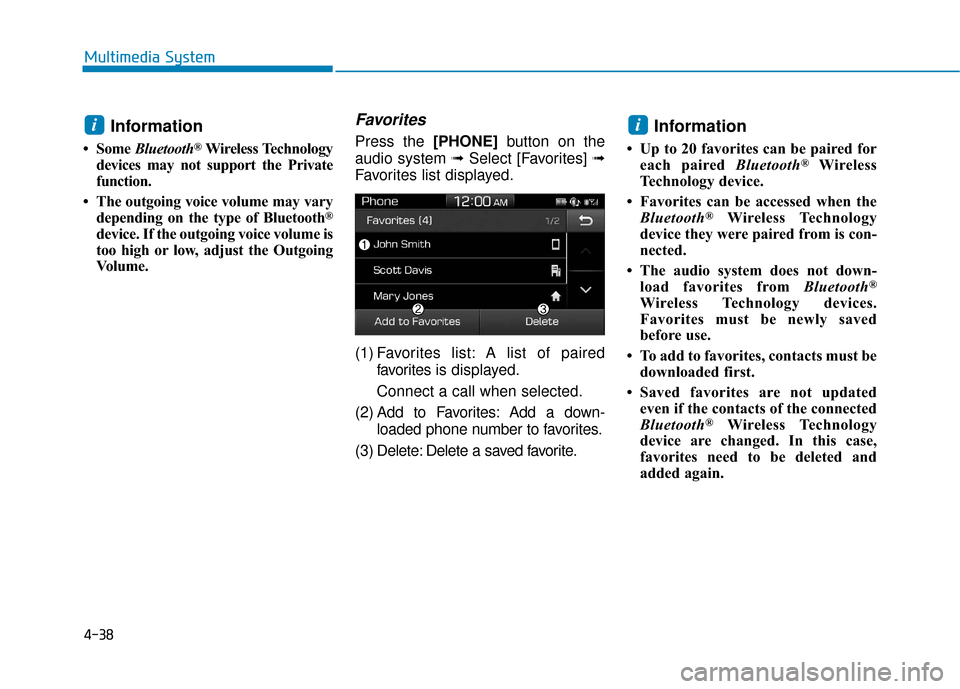
Favorites
Press the [PHONE]button on the
audio system ➟ Select [Favorites] ➟
Favorites list displayed.
(1) Favorites list: A list of paired favorites is displayed.
Connect a call when selected.
(2) Add to Favorites: Add a down- loaded phone number to favorites.
(3) Delete: Delete a saved favorite.Information
• Up to 20 favorites can be paired for each paired Bluetooth®Wireless
Technology device.
• Favorites can be accessed when the Bluetooth
®Wireless Technology
device they were paired from is con-
nected.
• The audio system does not down- load favorites from Bluetooth
®
Wireless Technology devices.
Favorites must be newly saved
before use.
• To add to favorites, contacts must be downloaded first.
• Saved favorites are not updated even if the contacts of the connected
Bluetooth
®Wireless Technology
device are changed. In this case,
favorites need to be deleted and
added again.
ii
Page 263 of 555
![Hyundai Ioniq Electric 2019 Owners Manual 4-40
Multimedia System
Dial
Press the [PHONE]button on the
audio ➟Select [Dial].
(1) Phone number entry window: The phone number entered using the
keypad is displayed.
(2) Clear - Press to delete i](/manual-img/35/14897/w960_14897-262.png "Hyundai Ioniq Electric 2019 Owners Manual 4-40
Multimedia System
Dial
Press the [PHONE]button on the
audio ➟Select [Dial].
(1) Phone number entry window: The phone number entered using the
keypad is displayed.
(2) Clear - Press to delete i")
4-40
Multimedia System
Dial
Press the [PHONE]button on the
audio ➟Select [Dial].
(1) Phone number entry window: The phone number entered using the
keypad is displayed.
(2) Clear - Press to delete individual digits.
- Press and hold to delete theentire phone number.
(3) Keypad: Enter phone number.
(4)
Bluetooth®Wireless Technology
Phone name
- The name of the connected
Bluetooth®Wireless Technology
device is displayed.
- Contacts matching the keypad number/letter input are displayed.(5) Call
- Enter and select a phone num-ber to call.
- Select without entering a phone number to see the most recent
dialed call.
Settings
Press the [PHONE]button on the
audio ➟Select [Settings].
- For phone Setup, refer to Setup page ➟Select [Bluetooth].
Siri
Information -
Using Siri
• If you want to use Siri, you have to connect your iOS device to multime-
dia system through Bluetooth
®
Wireless Technology. (Please check
whether your iOS device supports
Siri and turning Siri On)
• If the iOS version is changed, the functions and response may be dif-
ferent according to the iOS device
and the latest version.
• Siri automatically stops in the fol- lowing events.
1)Outgoing and incoming phonecalls.
2)Media (USB, etc.) is connected. (Siri mode is maintained when
iPod
®s are connected)
3)Rear view monitor is activated (option).
4)Vehicle is started or engine is turned off.
5)Screen transition buttons, such as RADIO or MEDIA, are selected.
(Continued)
i
Page 264 of 555
4-41
Multimedia System
4
(Continued)6)When a pop-up message is dis-played on the screen due to acci-
dental execution of Siri.
• The microphone is located above the driver’s seat. To ensure proper Siri,
state your voice while maintaining
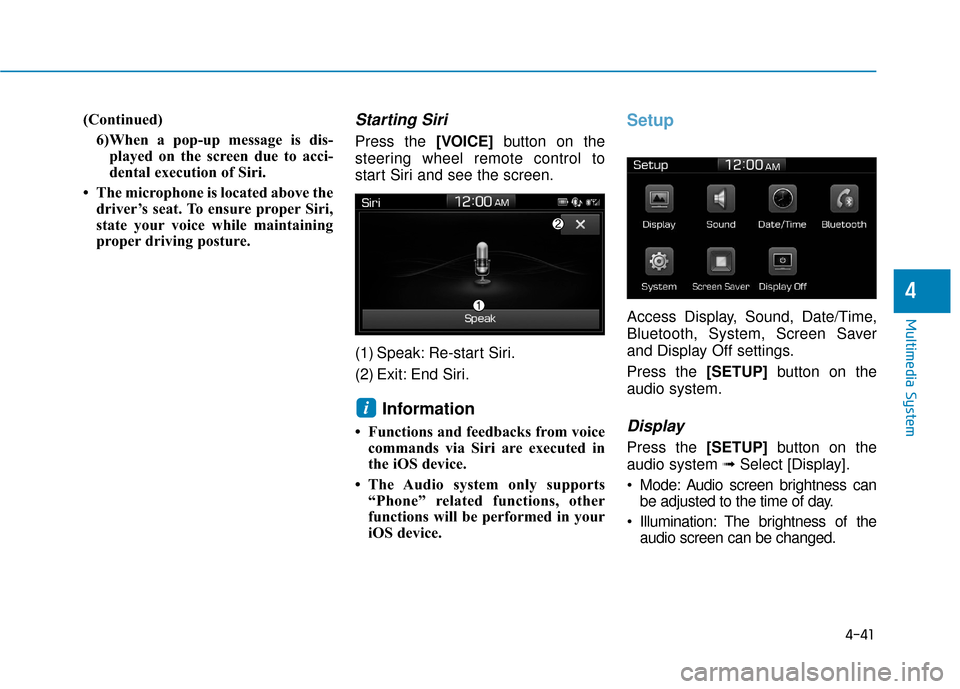
proper driving posture.Starting Siri
Press the [VOICE] button on the
steering wheel remote control to
start Siri and see the screen.
(1) Speak: Re-start Siri.
(2) Exit: End Siri.
Information
• Functions and feedbacks from voice commands via Siri are executed in
the iOS device.
• The Audio system only supports “Phone” related functions, other
functions will be performed in your
iOS device.
Setup
Access Display, Sound, Date/Time,
Bluetooth, System, Screen Saver
and Display Off settings.
Press the [SETUP]button on the
audio system.
Display
Press the [SETUP]button on the
audio system ➟ Select [Display].
Mode: Audio screen brightness can be adjusted to the time of day.
Illumination: The brightness of the audio screen can be changed.
i