Page 163 of 300
WARNING!(Continued)
should never exit a vehicle while the vehicle is in
“READY” mode. Before exiting a vehicle, always
apply the parking brake, shift the transmission into
PARK, and remove the ignition key. Once the key is
removed, the transmission is locked in PARK, secur-
ing the vehicle against unwanted movement.
• When leaving the vehicle, always remove the igni-
tion key and lock your vehicle.
• Never leave children alone in a vehicle, or with
access to an unlocked vehicle. Allowing children to
be in a vehicle unattended is dangerous for a number
of reasons. A child or others could be seriously or
fatally injured. Children should be warned not to
touch the parking brake, brake pedal or the trans-
mission range buttons.
• Do not leave the ignition key in or near the vehicle
(or in a location accessible to children). A child could
operate power windows, other controls, or move the
vehicle.
Key Ignition Park Interlock
This vehicle is equipped with a Key Ignition Park Interlock
which requires the transmission to be in PARK before the ignition can be turned to the OFF position. The key can
only be removed from the ignition when the ignition is in
the OFF position, and once removed, the transmission is
locked in PARK.
Gear Ranges
Push the desired push button to shift into gear.
NOTE:
•
The brake pedal must be depressed to select a transmis-
sion gear.
• After selecting any gear, wait a moment to allow the
selected gear to engage before accelerating.
PARK (P)
The PARK selection supplements the parking brake by
locking the transmission. The vehicle can be started in this
range. Never attempt to use PARK while the vehicle is in
motion. Apply the parking brake when exiting the vehicle
in PARK.
When parking on a level surface, you may place the
transmission into PARK first, and then apply the parking
brake.
6
STARTING AND OPERATING 161
Page 165 of 300

WARNING!(Continued)
•Never leave children alone in a vehicle, or with
access to an unlocked vehicle. Allowing children to
be in a vehicle unattended is dangerous for a number
of reasons. A child or others could be seriously or
fatally injured. Children should be warned not to
touch the parking brake, brake pedal or the trans-
mission range buttons.
• Do not leave the ignition key in or near the vehicle
(or in a location accessible to children). A child could
operate power windows, other controls, or move the
vehicle.
REVERSE (R)
This range is for moving the vehicle backward. Shift into
REVERSE only after the vehicle has come to a complete
stop.
NEUTRAL (N)
The vehicle may be started in this gear. Apply the parking
brake and place the transmission into PARK if you must
exit the vehicle.
WARNING!
Do not coast in NEUTRAL and never turn off the
ignition to coast down a hill. These are unsafe practices
that limit your response to changing traffic or road
conditions. You might lose control of the vehicle and
have a collision.
CAUTION!
Towing the vehicle, coasting, or driving for any other
reason with the transmission in NEUTRAL can cause
severe transmission damage. Refer to “Recreational
Towing” in “Starting And Operating” and “Towing A
Disabled Vehicle” in “In Case Of Emergency” for
further information.
DRIVE (D)
Use this gear for all city and highway driving.
Auto Park
The Auto Park feature automatically places the transmis-
sion into PARK if there is any indication that the driver
may exit the vehicle while the transmission is in D
(DRIVE), N (NEUTRAL) or R (REVERSE).
6
STARTING AND OPERATING 163
Page 167 of 300

few moments until the icon and message turn off. Refer to
“Instrument Cluster Display” in “Getting To Know Your
Instrument Panel” for further information.
If the Steering icon, and the�SERVICE POWER STEERING
- ASSIST OFF� messages are displayed on the instrument
cluster screen, the vehicle needs to be taken to an autho-
rized dealer for service. Refer to “Instrument Cluster
Display” in “Getting To Know Your Instrument Panel” for
further information.
NOTE:
• Even if the power steering assistance is no longer
operational, it is still possible to steer the vehicle. Under
these conditions there will be a substantial increase in
steering effort, especially at low speeds and during
parking maneuvers.
• If the condition persists, see an authorized dealer for
service.
SPEED CONTROL
When engaged, the Speed Control takes over accelerator
operations at speeds greater than 25 mph (40 km/h).
The Speed Control buttons are located on the right side of
the steering wheel. NOTE:
In order to ensure proper operation, the Speed
Control system has been designed to shut down if multiple
Speed Control functions are operated at the same time. If
this occurs, the Speed Control system can be reactivated by
pushing the Speed Control ON/OFF button and resetting
the desired vehicle set speed.
Speed Control Buttons
1 — ON/OFF 3 — SET (-)/Decel
2 — RES (+)/Resume/Accel 4 — CANC/Cancel
6
STARTING AND OPERATING 165
Page 263 of 300

NOTE:
•FCA US LLC or your dealer may contact you directly
regarding software updates.
• To help further improve vehicle security and minimize
the potential risk of a security breach, vehicle owners
should:
• Routinely check www.driveuconnect.com/support/
software-update.html (U.S. Residents) or
www.driveuconnect.ca (Canadian Residents) to learn
about available Uconnect software updates.
• Only connect and use trusted media devices (e.g.
personal mobile phones, USBs, CDs).
Privacy of any wireless and wired communications cannot
be assured. Third parties may unlawfully intercept infor-
mation and private communications without your consent.
For further information, refer to “Onboard Diagnostic
System (OBD II) Cybersecurity” in “Getting To Know Your
Instrument Panel”.UCONNECT SETTINGS
The Uconnect system uses a combination of buttons on the
touchscreen and buttons on the faceplate located on the
center of the instrument panel that allows you to access
and change the customer programmable features. Many
features can vary by vehicle.
Uconnect 3/3 NAV Display Buttons On The Touchscreen And Buttons On The Faceplate
1 — Uconnect Buttons On The Touchscreen
2 — Uconnect Buttons On The Faceplate
10
MULTIMEDIA 261
Page 264 of 300

Customer Programmable Features — Uconnect 3/3
NAV Display Settings
Push the Settingsbutton on the faceplate, to display
the settings menu screen. In this mode the Uconnect
system allows you to access programmable feature
settings.
NOTE: Only one touchscreen area may be selected at a
time.
When making a selection, press the button on the touch-
screen to enter the desired mode. Once in the desired mode, press and release the preferred setting and make
your selection. Once the setting is complete, either press
the back arrow button on the touchscreen or push the back
button on the faceplate to return to the previous menu. Or
press the “X” button on the touchscreen to close out of the
settings screen. Pressing the up or down arrow buttons on
the right side of the screen allows you to toggle up or down
through the available settings.
NOTE:
All settings should be changed with the ignition in
the “AVV/MAR” position.
Display
After pressing the “Display” button on the touchscreen, the
following settings will be available:
Setting Name Selectable Options
Display Mode Auto Manual
NOTE:
When the “Display Mode” feature is set to “Auto” the radio touchscreen’s brightness will be adjusted with all other
instrument panel displays and lights when they are adjusted using the instrument cluster display buttons on the
right-hand side of the instrument cluster display. When the “Display Mode” feature is set to “Manual” the radio
screen brightness can be adjusted independently using the “Brightness” feature below.
262 MULTIMEDIA
Page 278 of 300
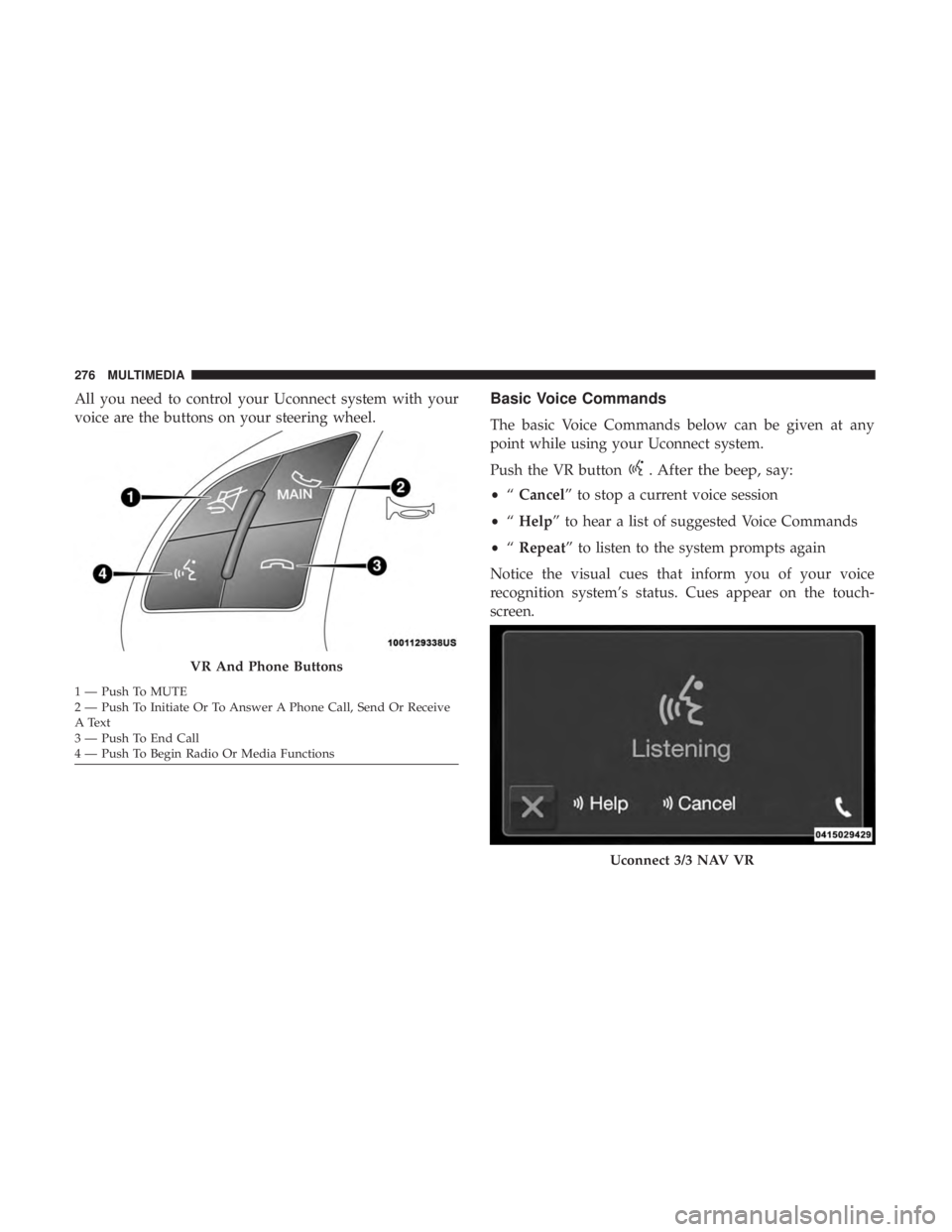
All you need to control your Uconnect system with your
voice are the buttons on your steering wheel.Basic Voice Commands
The basic Voice Commands below can be given at any
point while using your Uconnect system.
Push the VR button
. After the beep, say:
•“Cancel” to stop a current voice session
• “Help” to hear a list of suggested Voice Commands
• “Repeat” to listen to the system prompts again
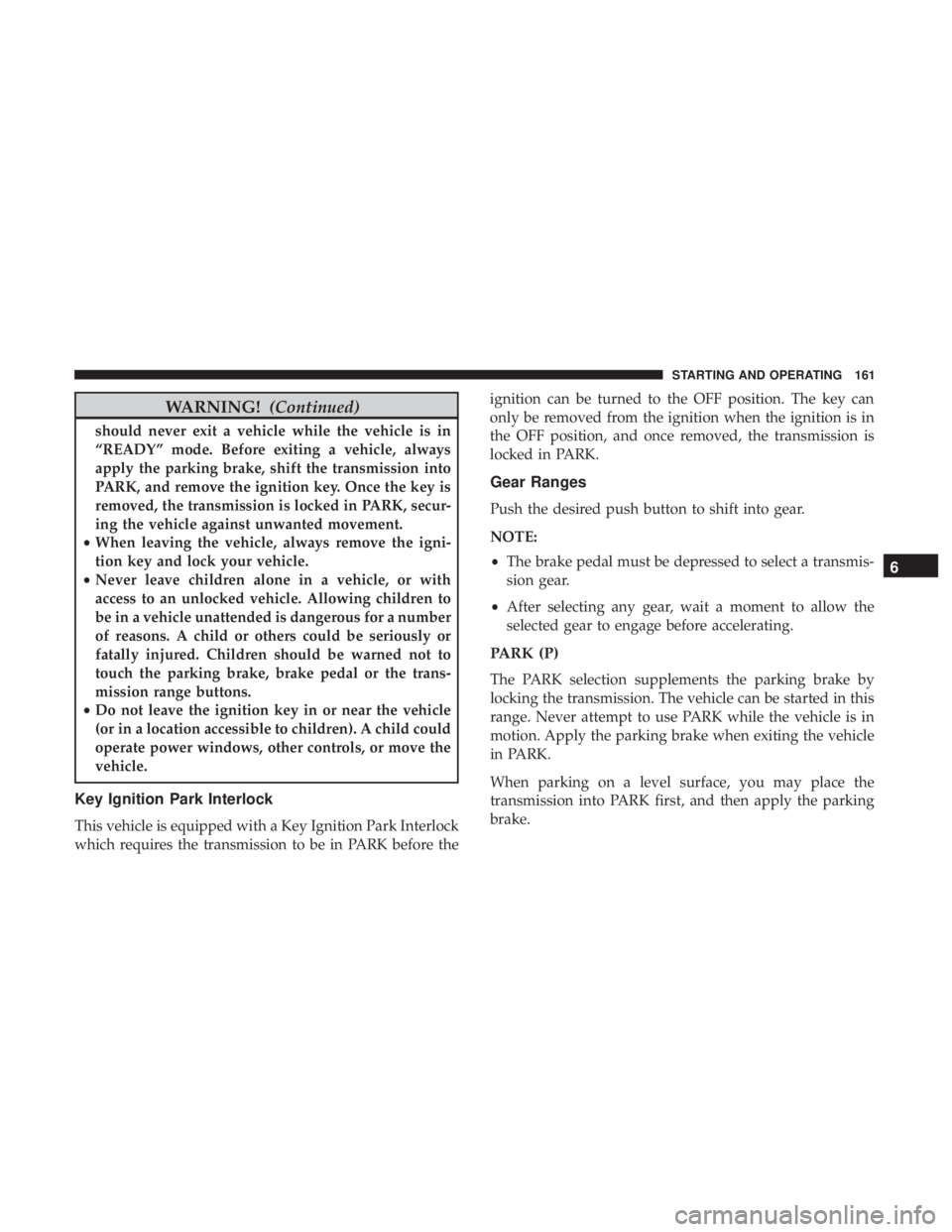
Notice the visual cues that inform you of your voice
recognition system’s status. Cues appear on the touch-
screen.
VR And Phone Buttons
1 — Push To MUTE
2 — Push To Initiate Or To Answer A Phone Call, Send Or Receive
A Text
3 — Push To End Call
4 — Push To Begin Radio Or Media Functions
Uconnect 3/3 NAV VR
276 MULTIMEDIA