Page 467 of 532
2. Press the gear icon and select the following option fromthe menu:
• Set Widget: Top Left
• Set Widget: Top Right
• Set Widget: Bottom Left
• Set Widget: Bottom Right
3. After selecting a Widget location: select the gauge to display:
• Gauge: Oil Temp
• Gauge: Oil Pressure
• Gauge: Coolant Temp
• Gauge: Battery Voltage
• Gauge: Trans Temp — If Equipped with an Automatic
Transmission
• Gauge: Boost Pressure — If Equipped
• Gauge: Air/Fuel Ratio — If Equipped •
Gauge: I/C Coolant Temp — If Equipped
• Gauge: Intake Air Temp
• Gauge: Engine Torque
• Gauge: Engine Power
• Gauge: G-Force
• Gauge: Steering Angle
• Gauge: Current Gear
• Gauge: Current Speed
• Timer: 0-60 MPH
• Timer: 0-100 MPH
• Timer: 1/8 Mile
• Timer: 1/4 Mile
• Timer: Brake Distance
• Timer: Reaction Time
10
MULTIMEDIA 465
Page 472 of 532
G-Force
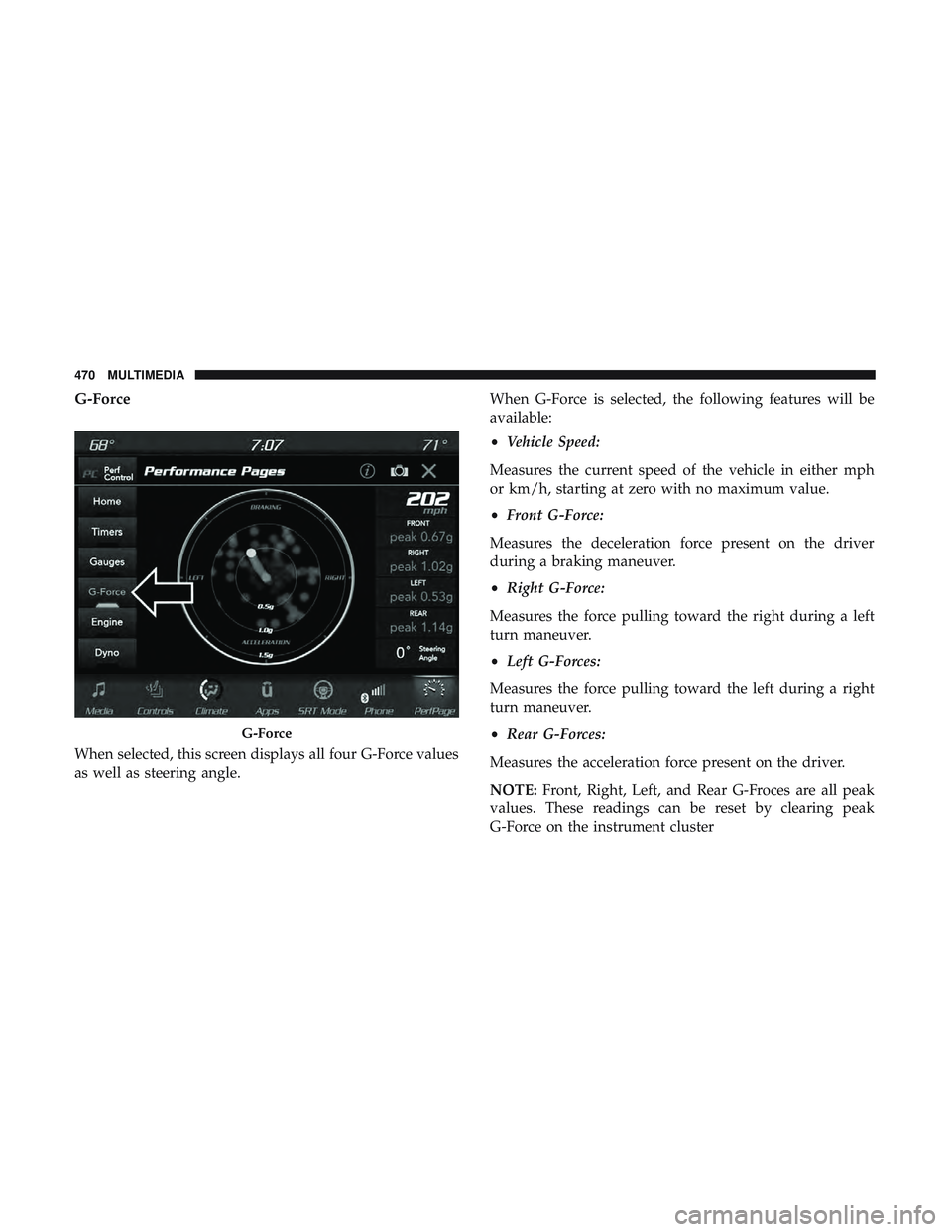
When selected, this screen displays all four G-Force values
as well as steering angle.When G-Force is selected, the following features will be
available:
•
Vehicle Speed:
Measures the current speed of the vehicle in either mph
or km/h, starting at zero with no maximum value.
• Front G-Force:
Measures the deceleration force present on the driver
during a braking maneuver.
• Right G-Force:
Measures the force pulling toward the right during a left
turn maneuver.
• Left G-Forces:
Measures the force pulling toward the left during a right
turn maneuver.
• Rear G-Forces:
Measures the acceleration force present on the driver.
NOTE: Front, Right, Left, and Rear G-Froces are all peak
values. These readings can be reset by clearing peak
G-Force on the instrument cluster
G-Force
470 MULTIMEDIA
Page 473 of 532
•Steering Wheel Angle:
Steering Wheel Angle utilizes the steering angle sensor to
measure the degree of the steering wheel relative to zero.
The zero degree measurement indicates a steering wheel
straight ahead position. When the steering angle value is
negative, this indicates a turn to the left, and when the
steering angle value is positive, a turn to the right.
The friction circle display shows instantaneous G-Force as
a highlight and previous G-Force as dots within the circle.
The system records previous G-Force for three minutes. If
there are multiple samples at a given point, the color of the
dot will darken from blue to red. Vectors more frequent
will show in red; infrequent vectors will show in blue.Engine
When selected, this screen displays the following values:
• Vehicle Speed
Shows the actual vehicle speed.
• Engine Power
Shows the instantaneous power.
Engine
10
MULTIMEDIA 471
Page 478 of 532
touchscreen allows the driver to configure their individual
performance control and see how those configurations
affect the performance of the vehicle.
NOTE:Not all of the options listed in this manual are
available on every vehicle, below is a chart with all
available Performance Control vehicle configurations.
Available Mode Configurations
Engine If Manual Transmission
Engine/Trans If Auto Transmission
Steering X
Paddle Shifters X
Traction Control X
Refer to the Sport and Default modes for their detailed
operation.
NOTE: These settings will remain in effect when using the
Launch Control feature.
Default Mode
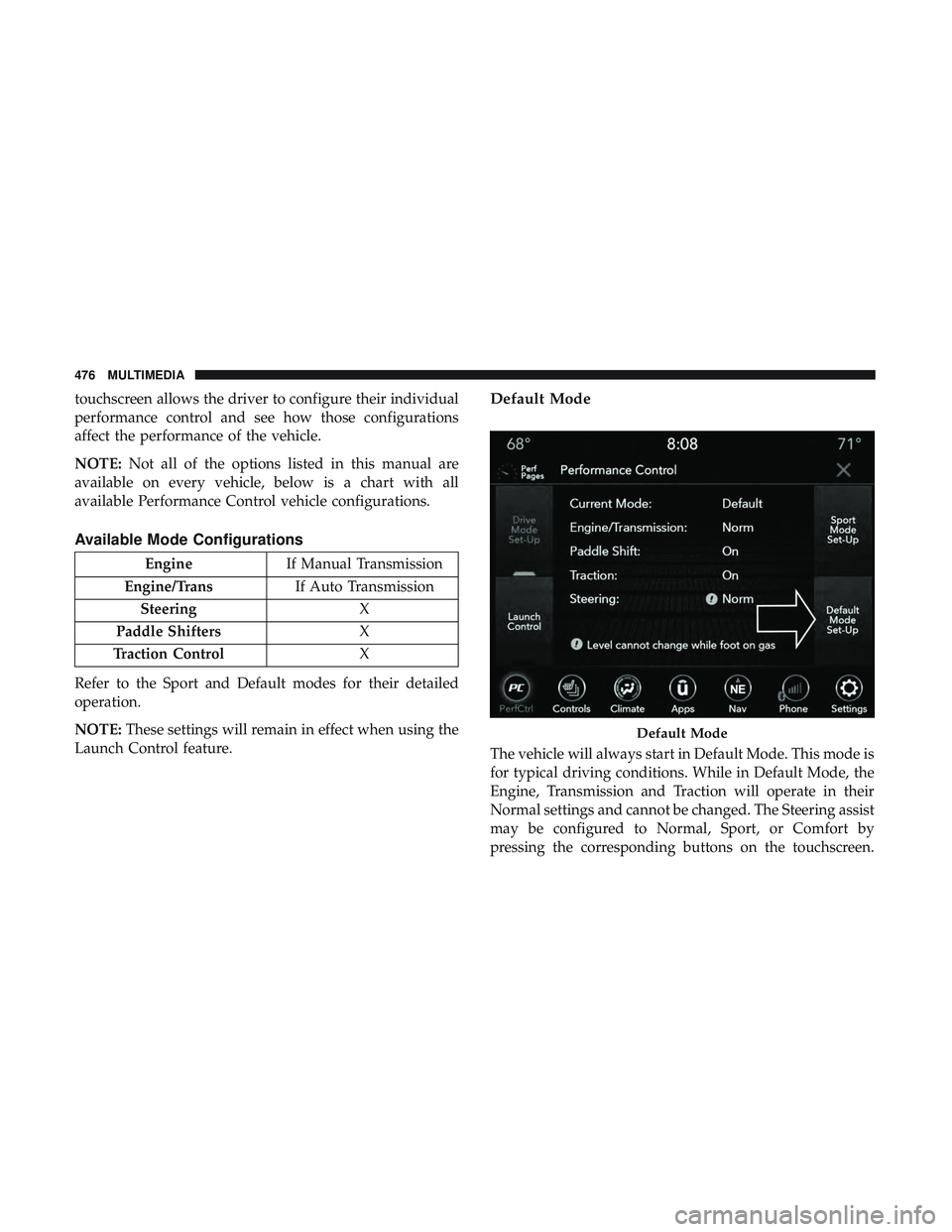
The vehicle will always start in Default Mode. This mode is
for typical driving conditions. While in Default Mode, the
Engine, Transmission and Traction will operate in their
Normal settings and cannot be changed. The Steering assist
may be configured to Normal, Sport, or Comfort by
pressing the corresponding buttons on the touchscreen.
Default Mode
476 MULTIMEDIA
Page 479 of 532
The Paddle Shifters may be enabled or disabled while in
this mode.Sport Mode
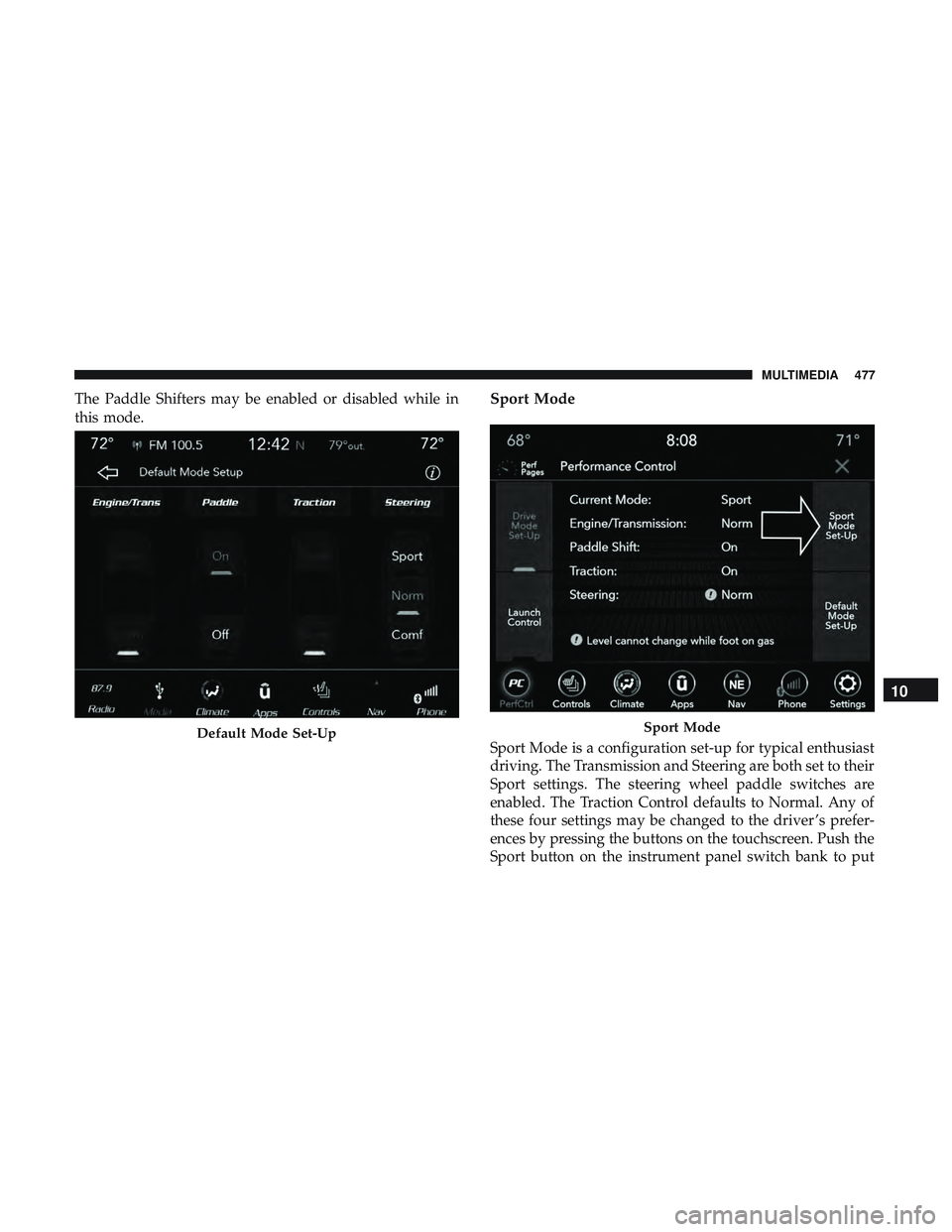
Sport Mode is a configuration set-up for typical enthusiast
driving. The Transmission and Steering are both set to their
Sport settings. The steering wheel paddle switches are
enabled. The Traction Control defaults to Normal. Any of
these four settings may be changed to the driver ’s prefer-
ences by pressing the buttons on the touchscreen. Push the
Sport button on the instrument panel switch bank to putDefault Mode Set-UpSport Mode
10
MULTIMEDIA 477
Page 482 of 532
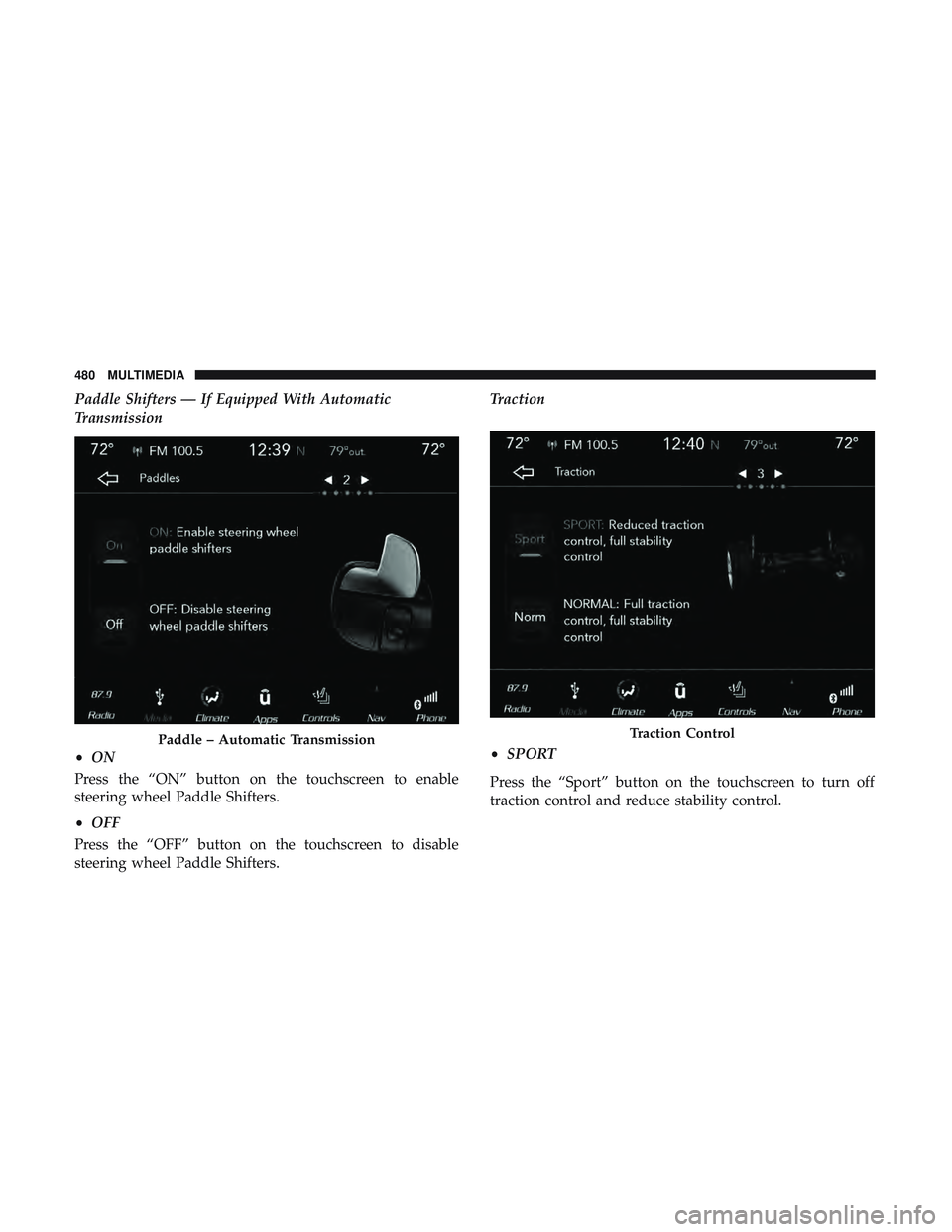
Paddle Shifters — If Equipped With Automatic
Transmission
•ON
Press the “ON” button on the touchscreen to enable
steering wheel Paddle Shifters.
• OFF
Press the “OFF” button on the touchscreen to disable
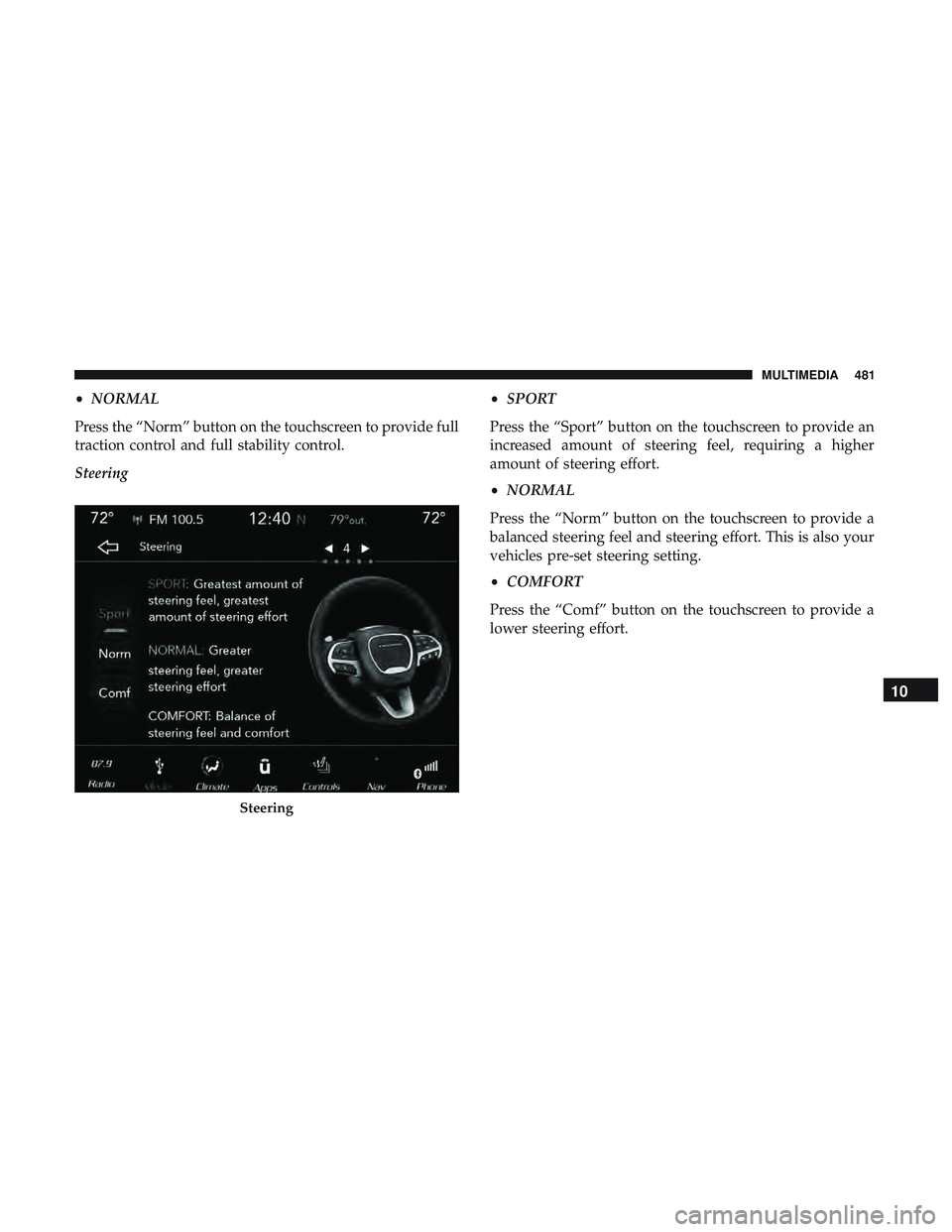
steering wheel Paddle Shifters. Traction
•
SPORT
Press the “Sport” button on the touchscreen to turn off
traction control and reduce stability control.
Paddle – Automatic TransmissionTraction Control
480 MULTIMEDIA
Page 483 of 532
•NORMAL
Press the “Norm” button on the touchscreen to provide full
traction control and full stability control.
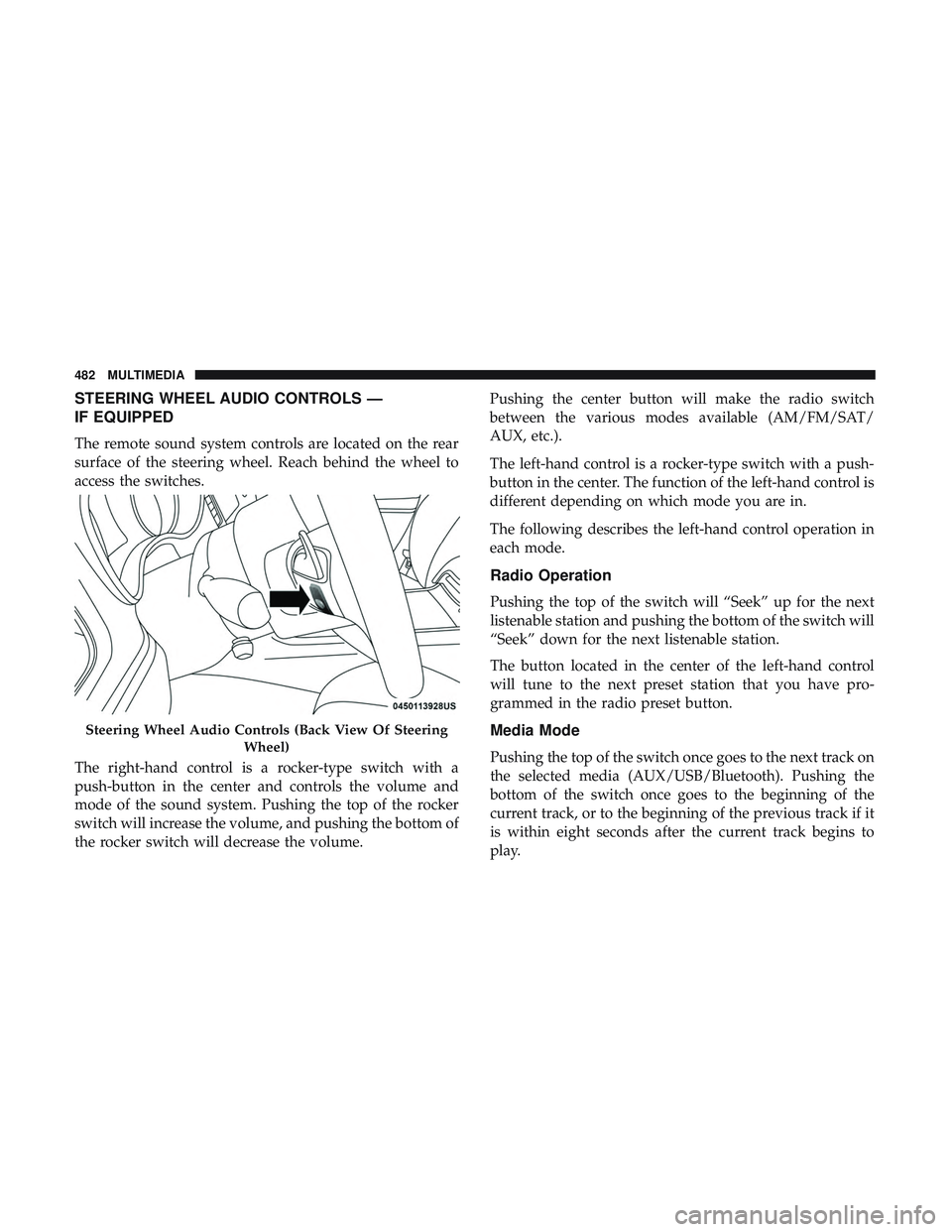
Steering •
SPORT
Press the “Sport” button on the touchscreen to provide an
increased amount of steering feel, requiring a higher
amount of steering effort.
• NORMAL
Press the “Norm” button on the touchscreen to provide a
balanced steering feel and steering effort. This is also your
vehicles pre-set steering setting.
• COMFORT
Press the “Comf” button on the touchscreen to provide a
lower steering effort.
Steering
10
MULTIMEDIA 481
Page 484 of 532
STEERING WHEEL AUDIO CONTROLS —
IF EQUIPPED
The remote sound system controls are located on the rear
surface of the steering wheel. Reach behind the wheel to
access the switches.
The right-hand control is a rocker-type switch with a
push-button in the center and controls the volume and
mode of the sound system. Pushing the top of the rocker
switch will increase the volume, and pushing the bottom of
the rocker switch will decrease the volume.Pushing the center button will make the radio switch
between the various modes available (AM/FM/SAT/
AUX, etc.).
The left-hand control is a rocker-type switch with a push-
button in the center. The function of the left-hand control is
different depending on which mode you are in.
The following describes the left-hand control operation in
each mode.
Radio Operation
Pushing the top of the switch will “Seek” up for the next
listenable station and pushing the bottom of the switch will
“Seek” down for the next listenable station.
The button located in the center of the left-hand control
will tune to the next preset station that you have pro-
grammed in the radio preset button.
Media Mode
Pushing the top of the switch once goes to the next track on
the selected media (AUX/USB/Bluetooth). Pushing the
bottom of the switch once goes to the beginning of the
current track, or to the beginning of the previous track if it
is within eight seconds after the current track begins to
play.
Steering Wheel Audio Controls (Back View Of Steering
Wheel)
482 MULTIMEDIA