Page 492 of 532
Phone
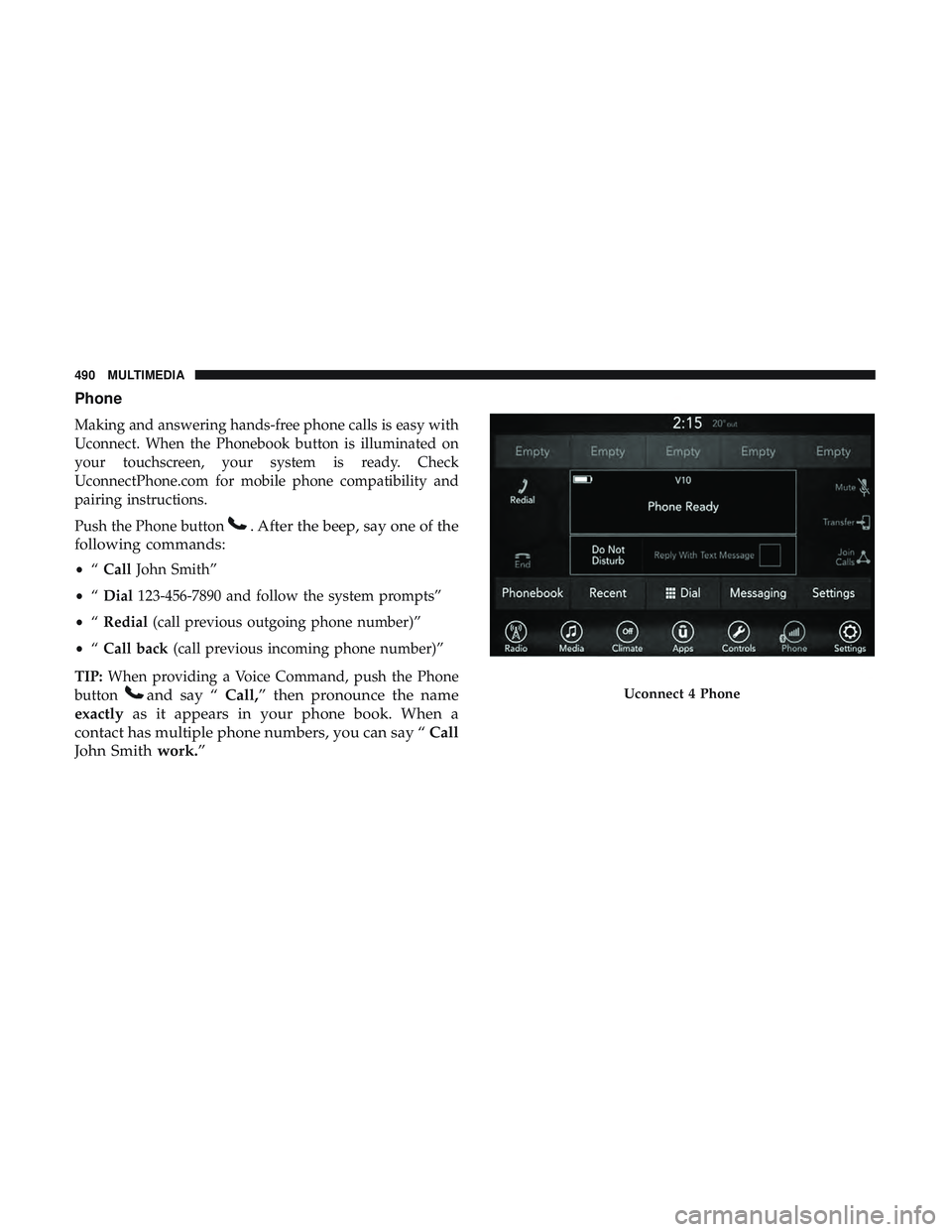
Making and answering hands-free phone calls is easy with
Uconnect. When the Phonebook button is illuminated on
your touchscreen, your system is ready. Check
UconnectPhone.com for mobile phone compatibility and
pairing instructions.
Push the Phone button
. After the beep, say one of the
following commands:
• “Call John Smith”
• “Dial 123-456-7890 and follow the system prompts”
• “Redial (call previous outgoing phone number)”
• “Call back (call previous incoming phone number)”
TIP: When providing a Voice Command, push the Phone
button
and say “ Call,” then pronounce the name
exactly as it appears in your phone book. When a
contact has multiple phone numbers, you can say “ Call
John Smith work.”Uconnect 4 Phone
490 MULTIMEDIA
Page 493 of 532
Voice Text Reply — If Equipped
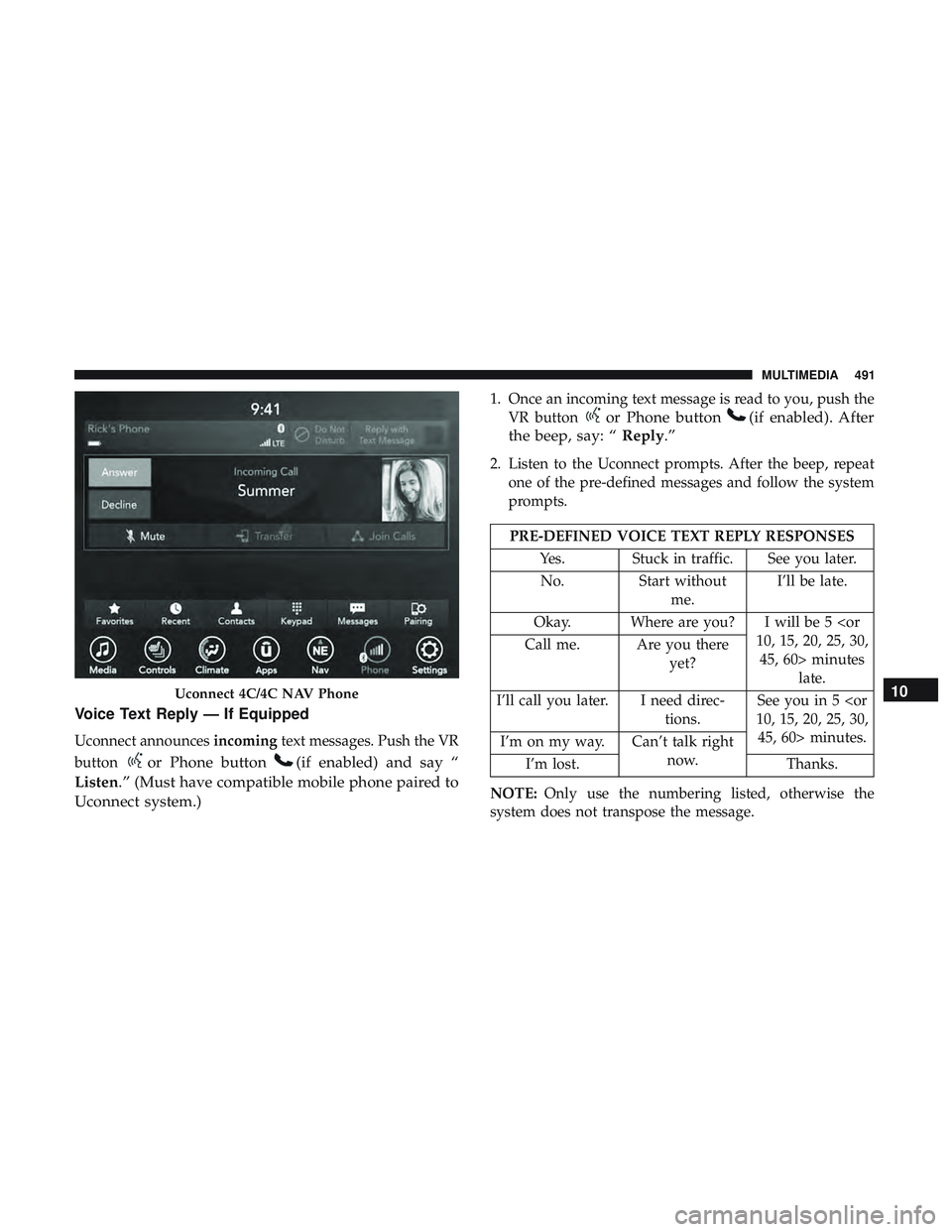
Uconnect announcesincomingtext messages. Push the VR
button
or Phone button(if enabled) and say “
Listen.” (Must have compatible mobile phone paired to
Uconnect system.)
1. Once an incoming text message is read to you, push the VR button
or Phone button(if enabled). After
the beep, say: “ Reply.”
2. Listen to the Uconnect prompts. After the beep, repeat
one of the pre-defined messages and follow the system
prompts.
PRE-DEFINED VOICE TEXT REPLY RESPONSES
Yes. Stuck in traffic. See you later.No. Start without
me. I’ll be late.
Okay. Where are you? I will be 5 minutes late.
Call me. Are you there
yet?
I’ll call you later. I need direc- tions.See you in 5
10, 15, 20, 25, 30, 45, 60> minutes.
I’m on my way. Can’t talk right
now.
I’m lost. Thanks.
NOTE: Only use the numbering listed, otherwise the
system does not transpose the message.
Uconnect 4C/4C NAV Phone10
MULTIMEDIA 491
Page 494 of 532
TIP:Your mobile phone must have the full implementation
of the Message Access Profile (MAP) to take advantage of
this feature. For details about MAP, visit
UconnectPhone.com.
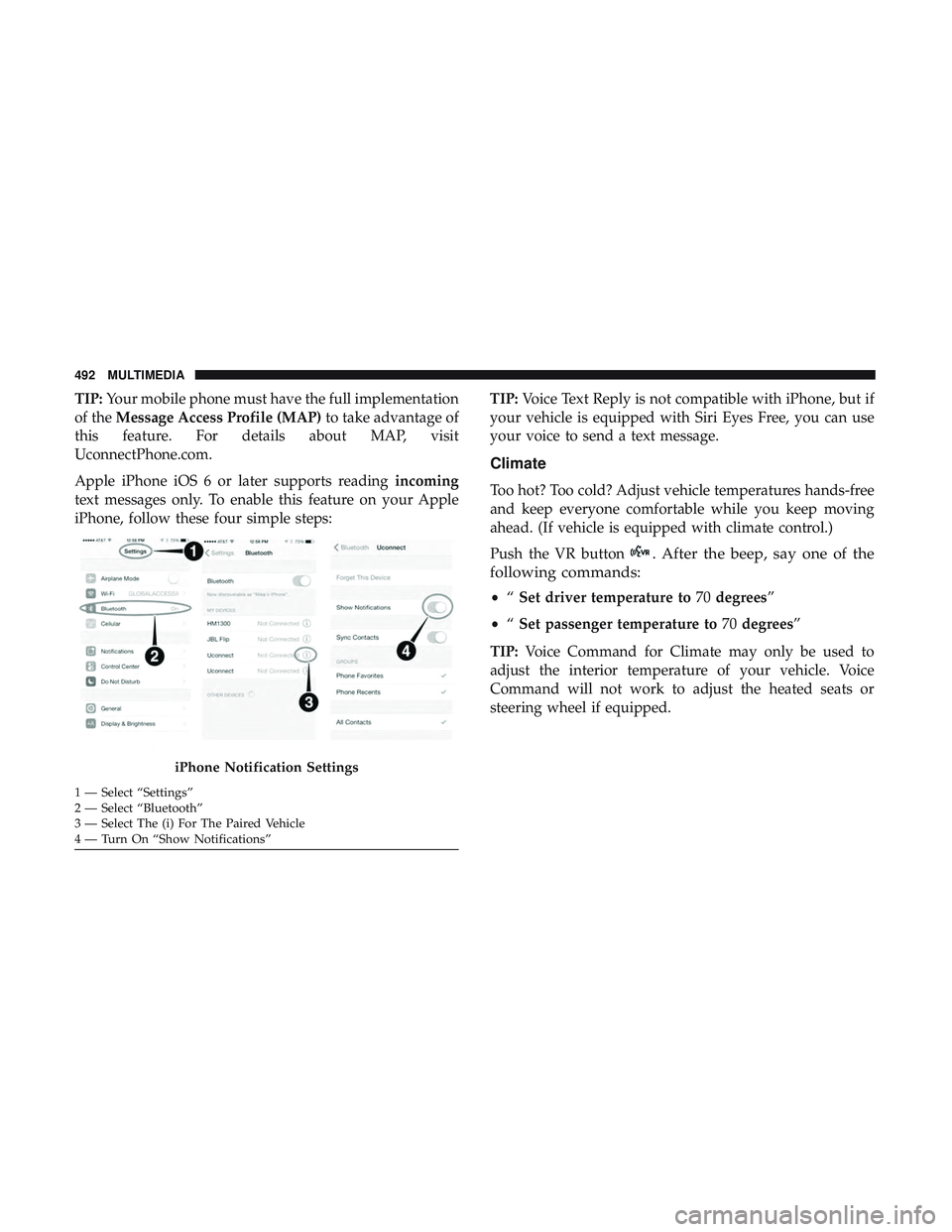
Apple iPhone iOS 6 or later supports reading incoming
text messages only. To enable this feature on your Apple
iPhone, follow these four simple steps: TIP:
Voice Text Reply is not compatible with iPhone, but if
your vehicle is equipped with Siri Eyes Free, you can use
your voice to send a text message.
Climate
Too hot? Too cold? Adjust vehicle temperatures hands-free
and keep everyone comfortable while you keep moving
ahead. (If vehicle is equipped with climate control.)
Push the VR button
. After the beep, say one of the
following commands:
• “Set driver temperature to 70degrees”
• “Set passenger temperature to 70degrees”
TIP: Voice Command for Climate may only be used to
adjust the interior temperature of your vehicle. Voice
Command will not work to adjust the heated seats or
steering wheel if equipped.
iPhone Notification Settings
1 — Select “Settings”
2 — Select “Bluetooth”
3 — Select The (i) For The Paired Vehicle
4 — Turn On “Show Notifications” 492 MULTIMEDIA
Page 498 of 532
3. Select “Customer Care” to speak with a SiriusXMGuardian Customer Care agent who will activate ser-
vices in your vehicle, or select “Enter Email” to activate
on the web.
• U.S. residents visit: www.siriusxm.com/guardian.
• Canadian residents visit: www.siriusxm.ca/guardian.
Vehicle Health Report/Alert (4C/4C NAV)
Your vehicle will send you a monthly email report, which
summarizes the performance of your vehicle’s key systems
so you can stay on top of your vehicle’s maintenance needs
if you are registered for SiriusXM Guardian. Your vehicle
will also send you Vehicle Health Alerts when it detects
issues with its key systems that need your attention. For
further information, refer to your Uconnect Owner ’s
Manual Supplement.
Mobile App (4C/4C NAV)
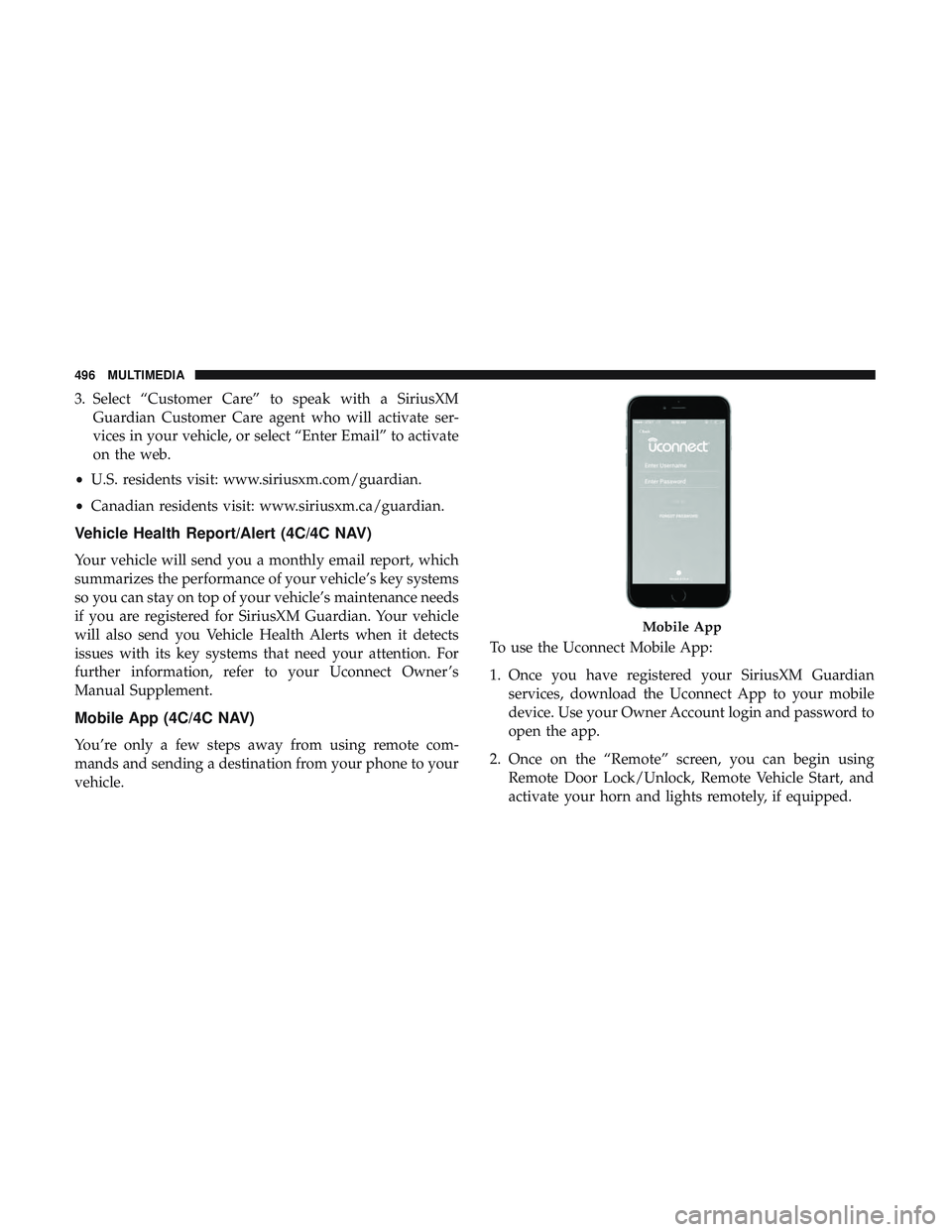
You’re only a few steps away from using remote com-
mands and sending a destination from your phone to your
vehicle. To use the Uconnect Mobile App:
1. Once you have registered your SiriusXM Guardian
services, download the Uconnect App to your mobile
device. Use your Owner Account login and password to
open the app.
2. Once on the “Remote” screen, you can begin using Remote Door Lock/Unlock, Remote Vehicle Start, and
activate your horn and lights remotely, if equipped.
Mobile App
496 MULTIMEDIA
Page 500 of 532
Siri Eyes Free — If Equipped
Siri lets you use your voice to send text messages, select
media, place phone calls and much more. Siri uses your
natural language to understand what you mean and re-
sponds back to confirm your requests. The system is
designed to keep your eyes on the road and your hands on
the wheel by letting Siri help you perform useful tasks.
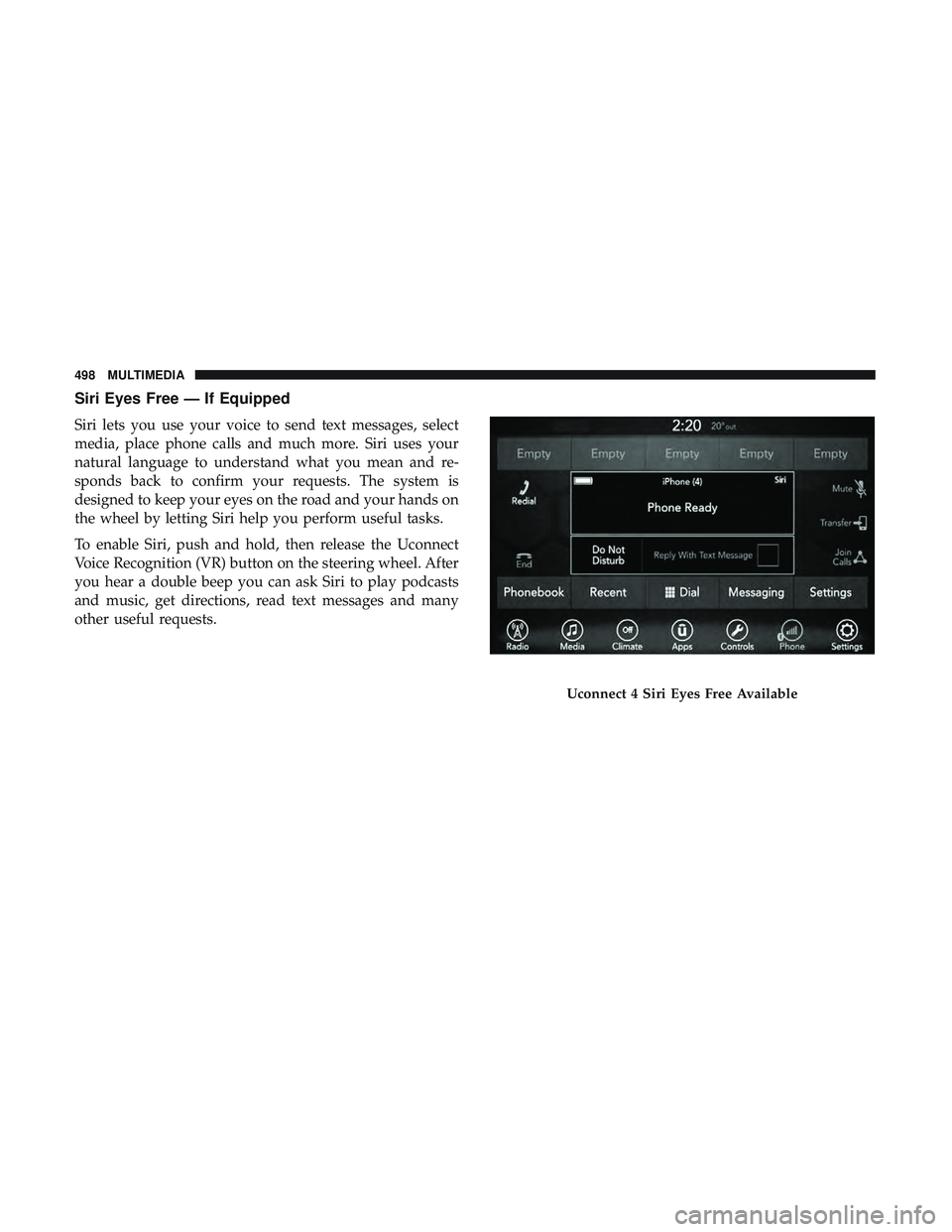
To enable Siri, push and hold, then release the Uconnect
Voice Recognition (VR) button on the steering wheel. After
you hear a double beep you can ask Siri to play podcasts
and music, get directions, read text messages and many
other useful requests.
Uconnect 4 Siri Eyes Free Available
498 MULTIMEDIA
Page 501 of 532
Do Not Disturb
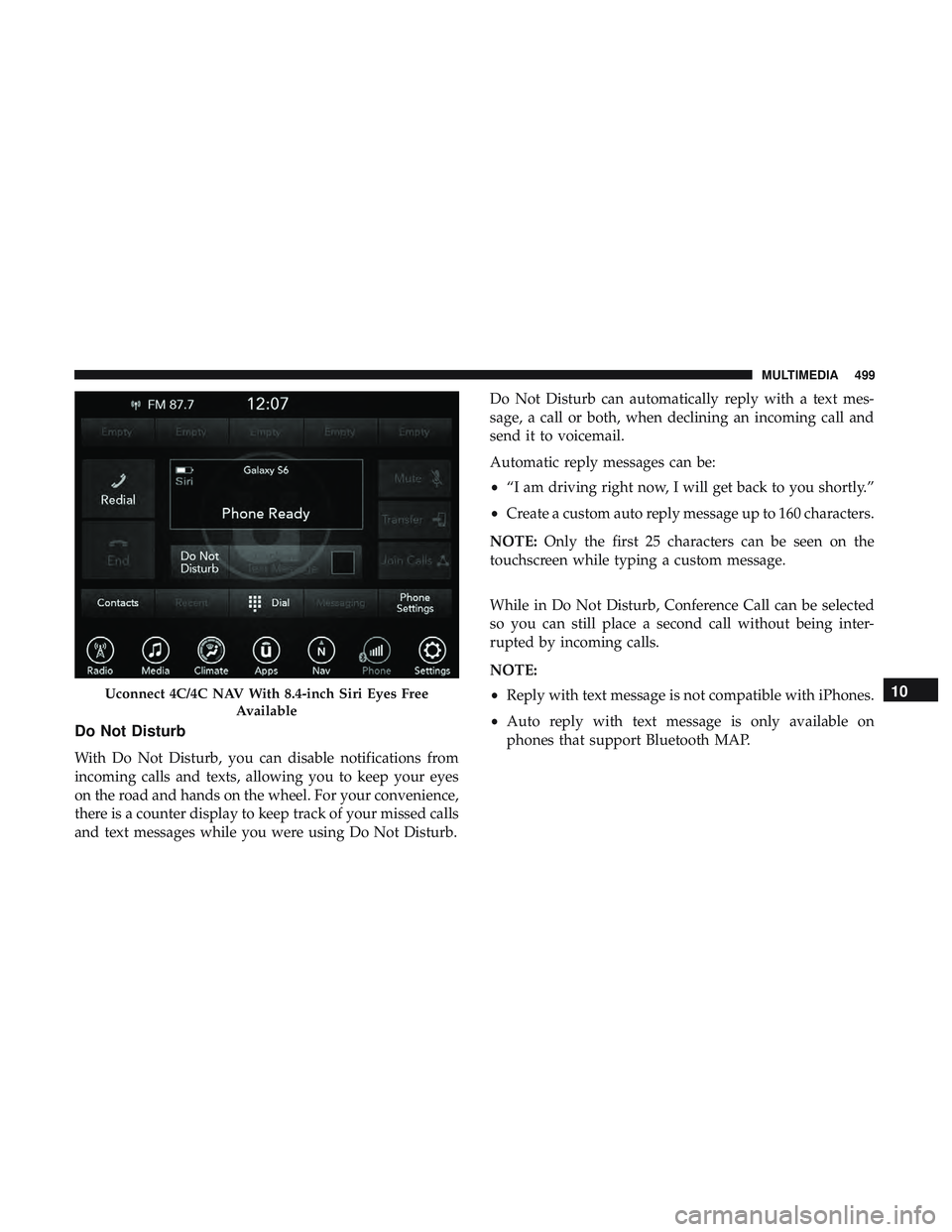
With Do Not Disturb, you can disable notifications from
incoming calls and texts, allowing you to keep your eyes
on the road and hands on the wheel. For your convenience,
there is a counter display to keep track of your missed calls
and text messages while you were using Do Not Disturb.Do Not Disturb can automatically reply with a text mes-
sage, a call or both, when declining an incoming call and
send it to voicemail.
Automatic reply messages can be:
•
“I am driving right now, I will get back to you shortly.”
• Create a custom auto reply message up to 160 characters.
NOTE: Only the first 25 characters can be seen on the
touchscreen while typing a custom message.
While in Do Not Disturb, Conference Call can be selected
so you can still place a second call without being inter-
rupted by incoming calls.
NOTE:
• Reply with text message is not compatible with iPhones.
• Auto reply with text message is only available on
phones that support Bluetooth MAP.
Uconnect 4C/4C NAV With 8.4-inch Siri Eyes Free
Available10
MULTIMEDIA 499
Page 502 of 532

Android Auto — If Equipped
NOTE:Feature availability depends on your carrier and
mobile phone manufacturer. Some Android Auto features
may or may not be available in every region and/or
language.
Android Auto allows you to use your voice to interact with
Android’s best-in-class speech technology through your
vehicle’s voice recognition system, and use your smart-
phone’s data plan to project your Android powered smart-
phone and a number of its apps onto your Uconnect
touchscreen. Connect your Android 5.0 (Lollipop), or
higher, to one of the media USB ports, using the factory-
provided USB cable, and press the new Android Auto icon
that replaces your “Phone” icon on the main menu bar to
begin Android Auto. Push and hold the VR button on the
steering wheel, or press and hold the “Microphone” icon
within Android Auto, to activate Android’s VR, which
recognizes natural voice commands, to use a list of your
smartphone’s features:
• Maps
• Music
• Phone •
Text Messages
• Additional Apps
Android Auto On 7-inch Display
500 MULTIMEDIA
Page 503 of 532

Refer to your Uconnect Owner ’s Manual Supplement for
further information.NOTE:
Requires compatible smartphone running Android
5.0 Lollipop or higher and download app on Google Play.
Android, Android Auto, and Google Play are trademarks
of Google Inc.
Apple CarPlay — If Equipped
NOTE: Feature availability depends on your carrier and
mobile phone manufacturer. Some Apple CarPlay features
may or may not be available in every region and/or
language.
Apple CarPlay allows you to use your voice to interact
with Siri through your vehicle’s voice recognition system,
and use your smartphone’s data plan to project your
iPhone and a number of its apps onto your Uconnect
touchscreen. Connect your iPhone 5, or higher, to one of
the media USB ports, using the factory-provided Lightning
cable, and press the new CarPlay icon that replaces your
“Phone” icon on the main menu bar to begin Apple
CarPlay. Push and hold the VR button on the steering
wheel, or press and hold the “Home” button within Apple
CarPlay, to activate Siri, which recognizes natural voice
commands to use a list of your iPhone’s features:
• Phone
• Music
Android Auto On 8.4-inch Display10
MULTIMEDIA 501