Page 446 of 718

WARNING!
ALWAYS obey traffic laws and pay attention to the
road. ALWAYS drive safely with your hands on the
steering wheel. You have full responsibility and as-
sume all risks related to the use of the features and
applications in this vehicle. Only use the features and
applications when it is safe to do so. Failure to do so
may result in an accident involving serious injury or
death.
NOTE:
• Your vehicle may be transmitting data as authorized by
the subscriber.
• The SOS and ASSIST buttons will only function if you
are connected to an operable LTE (voice/data) or 4G
(data) network. Other Uconnect services will only be
operable if your SiriusXM Guardian service is active and
you are connected to an operable LTE (voice/data) or 4G
(data) network. ASSIST Call
The ASSIST Button is used to automatically connect you to
any one of the following support centers:
•
Roadside Assistance – If you get a flat tire, or need a tow,
just push the ASSIST button and you will be connected
to a representative for assistance. Roadside Assistance
will know what vehicle you’re driving and its location.
Additional fees may apply for roadside assistance.
• SiriusXM Guardian Customer Care – In-vehicle support
for SiriusXM Guardian.
• Vehicle Customer Care – Total support for all other
vehicle issues.
SOS Call
1. Push the SOS Call button on the Rearview Mirror.
NOTE: In case the SOS Call button is pushed in error, there
will be a ten second delay before the SOS Call system
initiates a call to a SOS operator. To cancel the SOS Call
connection, push the SOS call button on the Rearview
Mirror or press the cancellation button on the Device
Screen. Termination of the SOS Call will turn off the green
LED light on the Rearview Mirror.
444 IN CASE OF EMERGENCY
Page 448 of 718

WARNING!
•If anyone in the vehicle could be in danger (e.g., fire
or smoke is visible, dangerous road conditions or
location), do not wait for voice contact from an
Emergency Services Agent. All occupants should exit
the vehicle immediately and move to a safe location.
• Never place anything on or near the vehicle’s oper-
able network and GPS antennas. You could prevent
operable network and GPS signal reception, which
can prevent your vehicle from placing an emergency
call. An operable network and GPS signal reception
is required for the SOS Call system to function
properly.
• The SOS Call system is embedded into the vehicle’s
electrical system. Do not add aftermarket electrical
equipment to the vehicle’s electrical system. This
may prevent your vehicle from sending a signal to
initiate an emergency call. To avoid interference that
can cause the SOS Call system to fail, never add
aftermarket equipment (e.g., two-way mobile radio,
CB radio, data recorder, etc.) to your vehicle’s electri-
cal system or modify the antennas on your vehicle. IF
YOUR VEHICLE LOSES BATTERY POWER FOR
(Continued)
WARNING! (Continued)
ANY REASON (INCLUDING DURING OR AFTER
AN ACCIDENT), THE UCONNECT FEATURES,
APPS AND SERVICES, AMONG OTHERS, WILL
NOT OPERATE.
• Modifications to any part of the SOS Call system
could cause the air bag system to fail when you need
it. You could be injured if the air bag system is not
there to help protect you.
SOS Call System Limitations
Vehicles sold in Mexico DO NOThave SOS Call system
capabilities.
SOS or other emergency line operators in Mexico may not
answer or respond to SOS system calls.
If the SOS Call system detects a malfunction, any of the
following may occur at the time the malfunction is de-
tected, and at the beginning of each ignition cycle:
• The Rearview Mirror light located between the ASSIST
and SOS buttons will continuously be illuminated red.
• The Device Screen will display the following message
“Vehicle device requires service. Please contact your
dealer.”
446 IN CASE OF EMERGENCY
Page 583 of 718
MULTIMEDIA
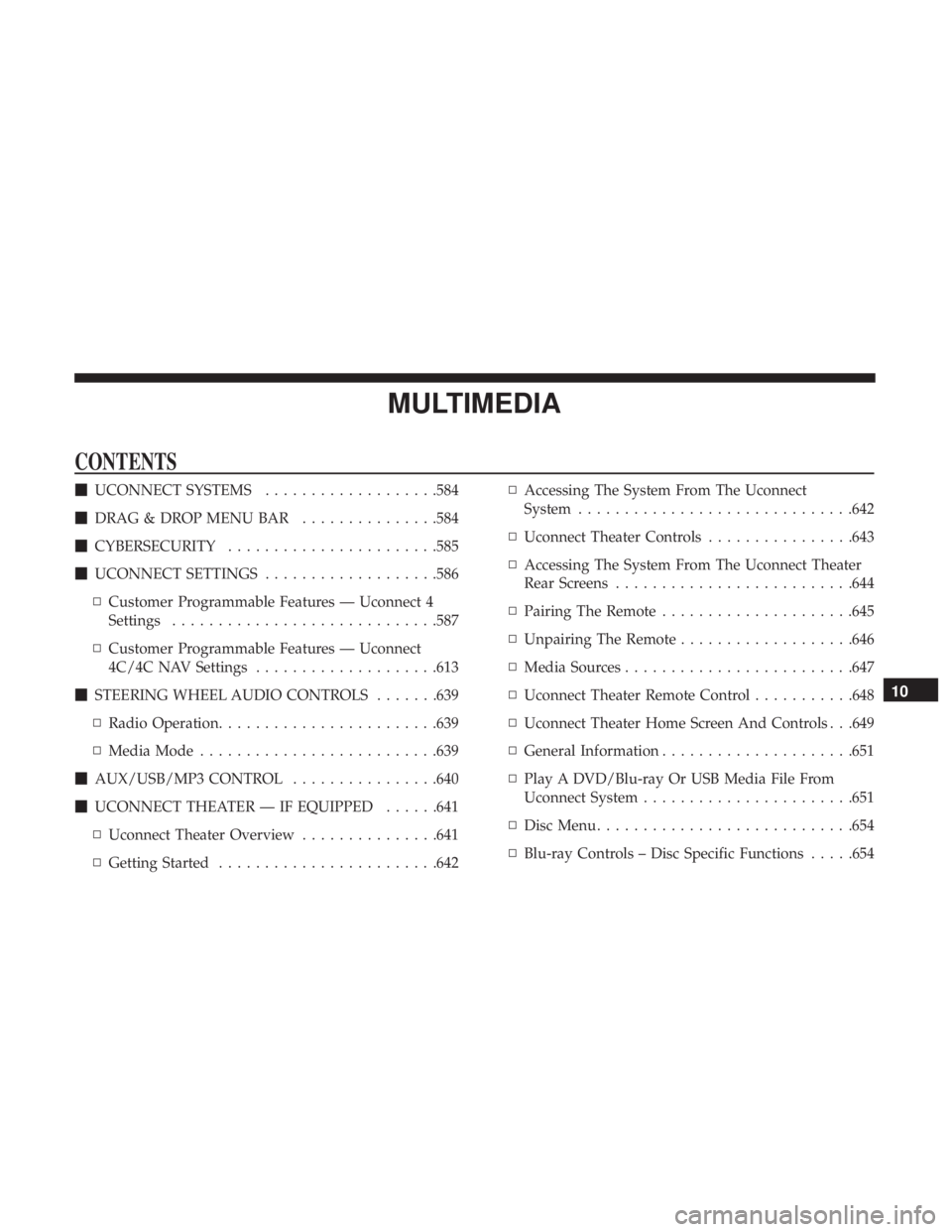
CONTENTS
�UCONNECT SYSTEMS ...................584
� DRAG & DROP MENU BAR ...............584
� CYBERSECURITY ...................... .585
� UCONNECT SETTINGS ...................586
▫ Customer Programmable Features — Uconnect 4
Settings ............................ .587
▫ Customer Programmable Features — Uconnect
4C/4C NAV Settings ....................613
� STEERING WHEEL AUDIO CONTROLS .......639
▫ Radio Operation ....................... .639
▫ Media Mode ......................... .639
� AUX/USB/MP3 CONTROL ................640
� UCONNECT THEATER — IF EQUIPPED ......641
▫ Uconnect Theater Overview ...............641
▫ Getting Started ....................... .642▫
Accessing The System From The Uconnect
System ............................. .642
▫ Uconnect Theater Controls ................643
▫ Accessing The System From The Uconnect Theater
Rear Screens ......................... .644
▫ Pairing The Remote .....................645
▫ Unpairing The Remote ...................646
▫ Media Sources ........................ .647
▫ Uconnect Theater Remote Control ...........648
▫ Uconnect Theater Home Screen And Controls . . .649
▫ General Information .....................651
▫ Play A DVD/Blu-ray Or USB Media File From
Uconnect System ...................... .651
▫ Disc Menu ........................... .654
▫ Blu-ray Controls – Disc Specific Functions .....654
10
Page 586 of 718
UCONNECT SYSTEMS
For detailed information about your Uconnect system,
refer to your Uconnect Owner ’s Manual Supplement.
NOTE:Uconnect screen images are for illustration pur-
poses only and may not reflect exact software for your
vehicle.
DRAG & DROP MENU BAR
The Uconnect features and services in the main menu bar
are easily changed for your convenience. Simply follow
these steps:
1. Press the “Apps
” button to open the App screen.
2. Press and hold, then drag the selected App to replace anexisting shortcut in the main menu bar.
The new shortcut will now be an active App/shortcut on
the main menu bar.
Uconnect 4 Drag & Drop Menu Bar
Uconnect 4C/4C NAV Drag & Drop Menu Bar
584 MULTIMEDIA
Page 587 of 718

CYBERSECURITY
Your vehicle may be a connected vehicle and may be
equipped with both wired and wireless networks. These
networks allow your vehicle to send and receive informa-
tion. This information allows systems and features in your
vehicle to function properly.
Your vehicle may be equipped with certain security fea-
tures to reduce the risk of unauthorized and unlawful
access to vehicle systems and wireless communications.
Vehicle software technology continues to evolve over time
and FCA US LLC, working with its suppliers, evaluates
and takes appropriate steps as needed. Similar to a com-
puter or other devices, your vehicle may require software
updates to improve the usability and performance of your
systems or to reduce the potential risk of unauthorized and
unlawful access to your vehicle systems.
The risk of unauthorized and unlawful access to your
vehicle systems may still exist, even if the most recent
version of vehicle software (such as Uconnect software) is
installed.
WARNING!
•It is not possible to know or to predict all of the
possible outcomes if your vehicle’s systems are
breached. It may be possible that vehicle systems,
including safety related systems, could be impaired
or a loss of vehicle control could occur that may
result in an accident involving serious injury or
death.
• ONLY insert media (e.g., USB, SD card, or CD) into
your vehicle if it came from a trusted source. Media
of unknown origin could possibly contain malicious
software, and if installed in your vehicle, it may
increase the possibility for vehicle systems to be
breached.
• As always, if you experience unusual vehicle behav-
ior, take your vehicle to your nearest authorized
dealer immediately.
10
MULTIMEDIA 585
Page 588 of 718

NOTE:
•FCA US LLC or your dealer may contact you directly
regarding software updates.
• To help further improve vehicle security and minimize
the potential risk of a security breach, vehicle owners
should:
• Routinely check www.driveuconnect.com (U.S. Resi-
dents) or www.driveuconnect.ca (Canadian Residents)
to learn about available Uconnect software updates.
• Only connect and use trusted media devices (e.g.
personal mobile phones, USBs, CDs).
Privacy of any wireless and wired communications cannot
be assured. Third parties may unlawfully intercept infor-
mation and private communications without your consent.
For further information, refer to “Data Collection & Pri-
vacy” in your Uconnect Owner ’s Manual Supplement or
“Onboard Diagnostic System (OBD II) Cybersecurity” in
“Getting To Know Your Instrument Panel”.UCONNECT SETTINGS
The Uconnect system uses a combination of buttons on the
touchscreen and/or buttons on the faceplate located on the
center of the instrument panel that allow you to access and
change the customer programmable features. Many fea-
tures can vary by vehicle.
Buttons on the touchscreen are accessible on the Uconnect
touchscreen.
Buttons on the faceplate are located below, and in the
center of the instrument panel. In addition, there is a
Scroll/Enter control knob located on the right side. Turn
the control knob to scroll through menus and change
settings (i.e., 30, 60, 90), push the center of the control knob
one or more times to select or change a setting (i.e., ON,
OFF).
Your Uconnect system may also have Screen Off and Mute
buttons on the faceplate.
Push the Screen Off button on the faceplate to turn off the
Uconnect screen. Push the Screen Off button on the face-
plate a second time to turn the screen on.
586 MULTIMEDIA
Page 607 of 718
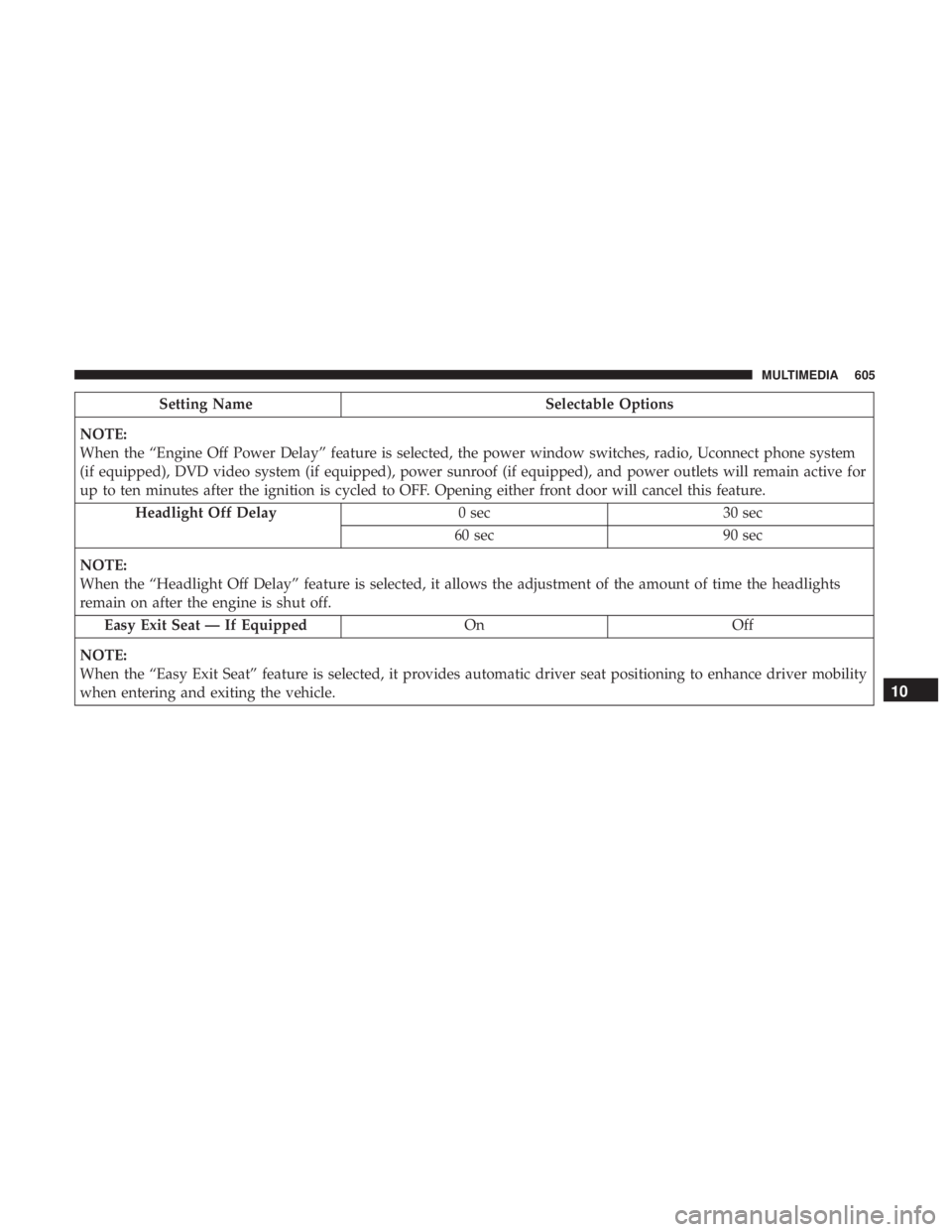
Setting NameSelectable Options
NOTE:
When the “Engine Off Power Delay” feature is selected, the power window switches, radio, Uconnect phone system
(if equipped), DVD video system (if equipped), power sunroof (if equipped), and power outlets will remain active for
up to ten minutes after the ignition is cycled to OFF. Opening either front door will cancel this feature. Headlight Off Delay 0 sec30 sec
60 sec 90 sec
NOTE:
When the “Headlight Off Delay” feature is selected, it allows the adjustment of the amount of time the headlights
remain on after the engine is shut off. Easy Exit Seat — If Equipped OnOff
NOTE:
When the “Easy Exit Seat” feature is selected, it provides automatic driver seat positioning to enhance driver mobility
when entering and exiting the vehicle.
10
MULTIMEDIA 605
Page 612 of 718
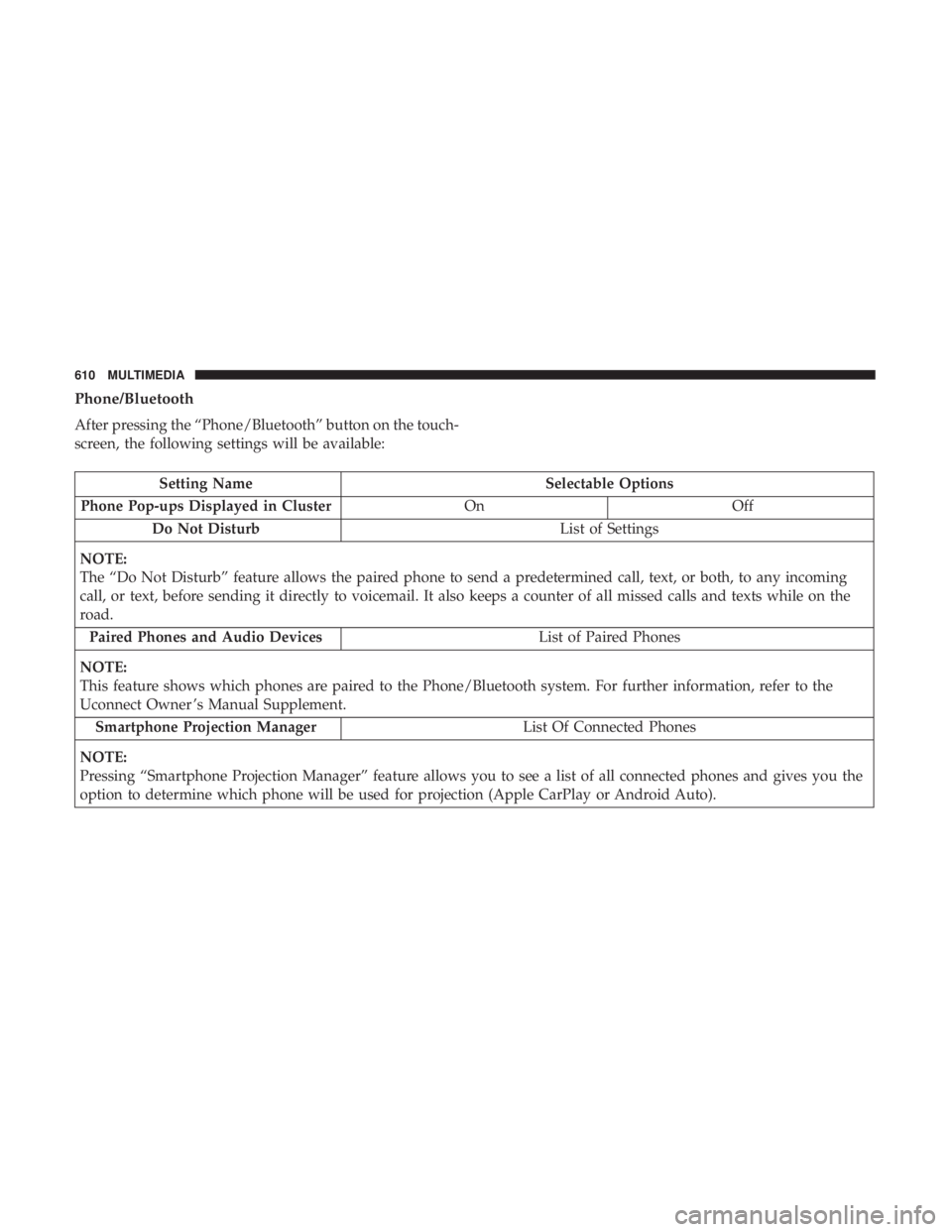
Phone/Bluetooth
After pressing the “Phone/Bluetooth” button on the touch-
screen, the following settings will be available:
Setting NameSelectable Options
Phone Pop-ups Displayed in Cluster OnOff
Do Not Disturb List of Settings
NOTE:
The “Do Not Disturb” feature allows the paired phone to send a predetermined call, text, or both, to any incoming
call, or text, before sending it directly to voicemail. It also keeps a counter of all missed calls and texts while on the
road. Paired Phones and Audio Devices List of Paired Phones
NOTE:
This feature shows which phones are paired to the Phone/Bluetooth system. For further information, refer to the
Uconnect Owner ’s Manual Supplement. Smartphone Projection Manager List Of Connected Phones
NOTE:
Pressing “Smartphone Projection Manager” feature allows you to see a list of all connected phones and gives you the
option to determine which phone will be used for projection (Apple CarPlay or Android Auto).
610 MULTIMEDIA