Page 615 of 718
Customer Programmable Features — Uconnect
4C/4C NAV Settings
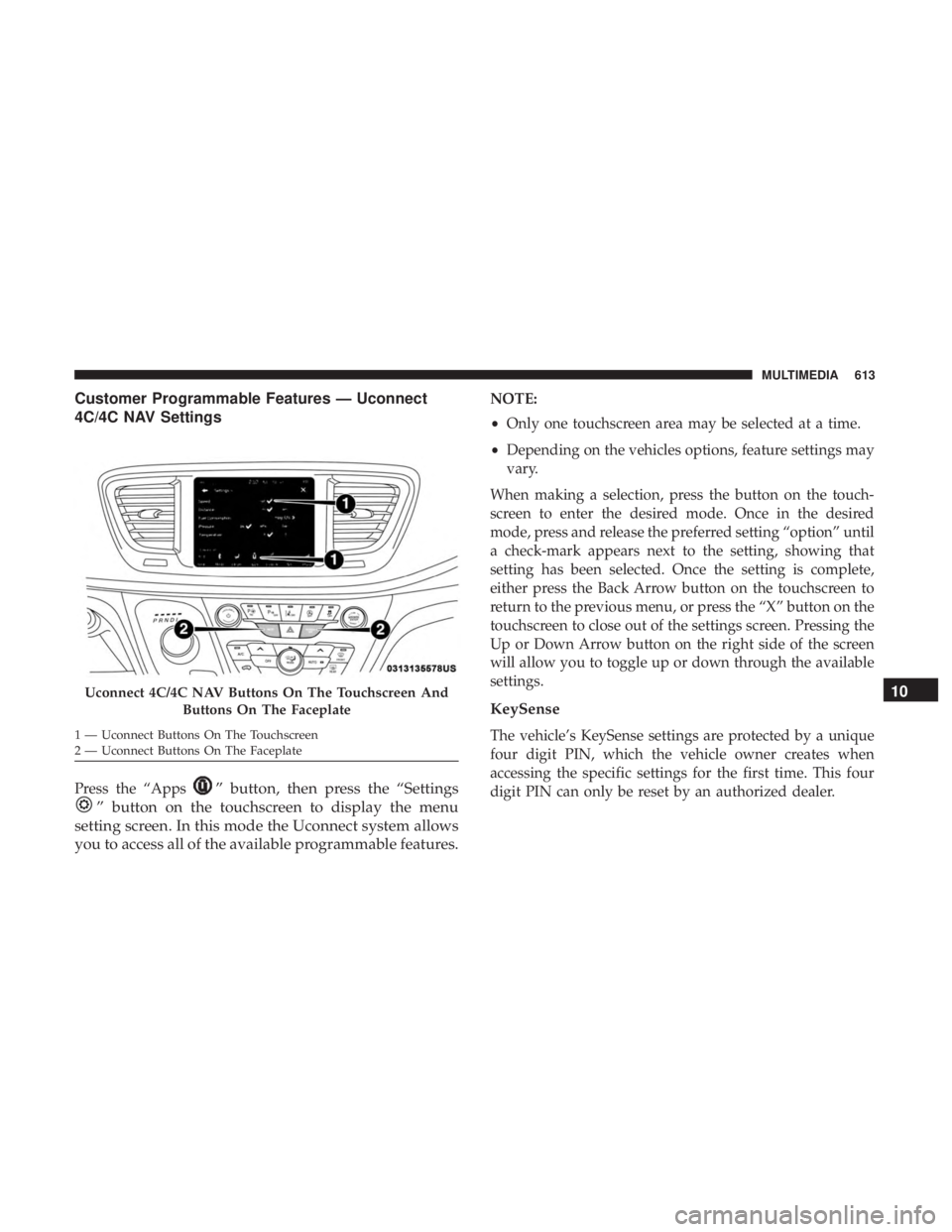
Press the “Apps” button, then press the “Settings
” button on the touchscreen to display the menu
setting screen. In this mode the Uconnect system allows
you to access all of the available programmable features.
NOTE:
• Only one touchscreen area may be selected at a time.
• Depending on the vehicles options, feature settings may
vary.
When making a selection, press the button on the touch-
screen to enter the desired mode. Once in the desired
mode, press and release the preferred setting “option” until
a check-mark appears next to the setting, showing that
setting has been selected. Once the setting is complete,
either press the Back Arrow button on the touchscreen to
return to the previous menu, or press the “X” button on the
touchscreen to close out of the settings screen. Pressing the
Up or Down Arrow button on the right side of the screen
will allow you to toggle up or down through the available
settings.
KeySense
The vehicle’s KeySense settings are protected by a unique
four digit PIN, which the vehicle owner creates when
accessing the specific settings for the first time. This four
digit PIN can only be reset by an authorized dealer.
Uconnect 4C/4C NAV Buttons On The Touchscreen And Buttons On The Faceplate
1 — Uconnect Buttons On The Touchscreen
2 — Uconnect Buttons On The Faceplate
10
MULTIMEDIA 613
Page 635 of 718
Setting NameSelectable Options
NOTE:
When the “Engine Off Power Delay” feature is selected, the power window switches, radio, Uconnect phone system
(if equipped), DVD video system (if equipped), power sunroof (if equipped), and power outlets will remain active for
up to ten minutes after the ignition is cycled to OFF. Opening either front door will cancel this feature. Headlight Off Delay 0 sec30 sec
60 sec 90 sec
NOTE:
When the “Headlight Off Delay” feature is selected, it allows the adjustment of the amount of time the headlights
remain on after the engine is shut off. Easy Exit Seat — If Equipped OnOff
NOTE:
When the “Easy Exit Seat” feature is selected, it provides automatic driver seat positioning to enhance driver mobility
when entering and exiting the vehicle.
10
MULTIMEDIA 633
Page 637 of 718
Phone/Bluetooth
After pressing the “Phone/Bluetooth” button on the touch-
screen, the following settings will be available:
Setting NameSelectable Options
Phone Pop-ups Displayed in Cluster OnOff
Do Not Disturb List Of Settings
NOTE:
Press “Do Not Disturb” to access the available settings. The following settings are: Auto Reply (both, text, call), Auto
Reply Message (custom, default) and Custom Auto Reply Message (create message). Paired Phones And Audio Devices List Of Paired Phones
NOTE:
This feature shows which phones and audio devices are paired to the Phone/Bluetooth system. For further informa-
tion, refer to the Uconnect Owner ’s Manual Supplement. Smartphone Projection Manager OnOff
10
MULTIMEDIA 635
Page 643 of 718

NOTE:The USB outlet in the bottom of the instrument
panel can be switched from “ignition” only to constant
“battery” powered all the time. See an authorized dealer
for details.
NOTE: The USB “Charge Only” ports will recharge battery
operated USB devices when connected.UCONNECT THEATER — IF EQUIPPED
Uconnect Theater Overview
Your Uconnect Theater is designed to give your family
years of enjoyment.
There are multiple ways to interact with your Uconnect
Theater system;
• Play your favorite CDs, DVDs or Blu-ray Discs
• Plug and play a variety of standard video games or
devices into the HDMI port
• Listen to audio over the wireless headphones
• Plug and play a variety of devices into the Video USB
port
• Plug in standard headphones to listen to audio
• Project your mobile phone, or tablet screen onto the rear
Uconnect Theater touchscreens — If Equipped
Please review this Owner’s Manual to become familiar
with its features and operation.
3rd Row USB Charging Port
10
MULTIMEDIA 641
Page 644 of 718
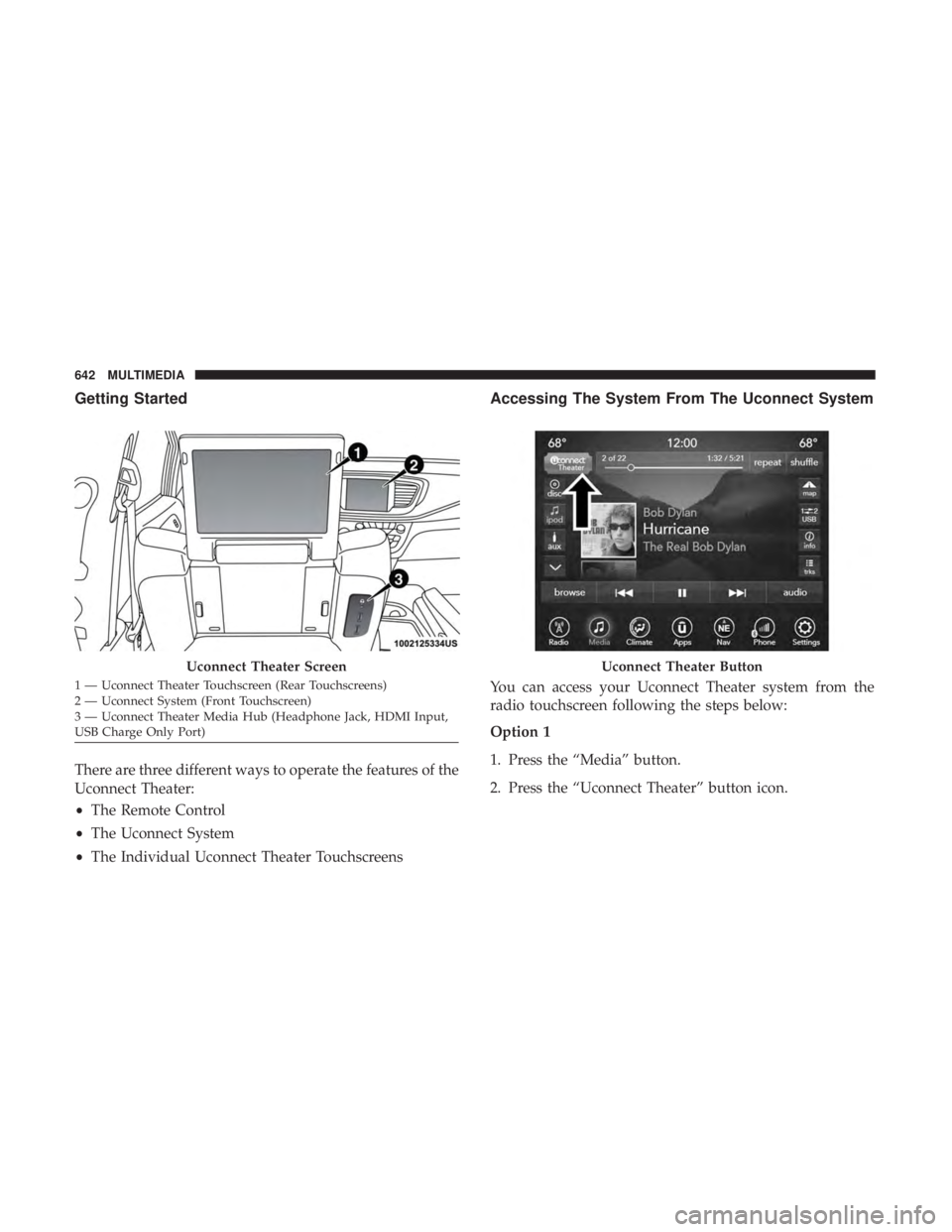
Getting Started
There are three different ways to operate the features of the
Uconnect Theater:
•The Remote Control
• The Uconnect System
• The Individual Uconnect Theater Touchscreens
Accessing The System From The Uconnect System
You can access your Uconnect Theater system from the
radio touchscreen following the steps below:
Option 1
1. Press the “Media” button.
2. Press the “Uconnect Theater” button icon.
Uconnect Theater Screen
1 — Uconnect Theater Touchscreen (Rear Touchscreens)
2 — Uconnect System (Front Touchscreen)
3 — Uconnect Theater Media Hub (Headphone Jack, HDMI Input,
USB Charge Only Port)
Uconnect Theater Button
642 MULTIMEDIA
Page 646 of 718
Parents can control certain features of the system with the
“Uconnect Theater Controls” screens, right from the
Uconnect touchscreen radio. Options include:
•Change media sources or select APPS by using the drop
down list
• Lock one or both screens
• Mute an individual screen or both screens
• Turn on/off one or both screens
• View media showing on a specific screen while gear
selector is in PARK
• Listen in to a particular Uconnect Theater screen
through the vehicle’s sound system by selecting the
“Listen In” feature after selecting the “Press to Enter”
option.
Accessing The System From The Uconnect
Theater Rear Screens
You can also access your Uconnect Theater system from the
rear screens from the steps below:
1. Lift screen upward, the system will automatically power on.
NOTE: A message asking if you would like to pair a
remote will pop up if one has not already been paired to
the system.
Individual Main Screen Listen In Feature
644 MULTIMEDIA
Page 647 of 718

2. If “YES” is selected to Pair a Remote, push any buttonon the remote and pairing will immediately start.
3. If “NO” is selected, the Uconnect Theater home screen will pop up.
NOTE:
• There will be a touchscreen notification message when
pairing is successful.
• Test to make sure the remote is successfully paired by
dragging your finger across the gesture pad. If you do
not see the on screen arrow, try using the “Screen”
button on the remote to switch between rear screen one
and rear screen two to make sure the remote is control-
ling the intended screen. It may take several seconds for
the remote to react when initially paired.
• If remote does not pair, refer to “Pairing The Remote”
section for an alternative pairing process.Pairing The Remote
If the remote needs to be paired to your Uconnect Theater
system, follow the procedure below:
1. Install batteries into both remotes.
2. Press the Settings icon found in the lower right portion of the Uconnect Theater touchscreen.
Remote Pairing
10
MULTIMEDIA 645
Page 648 of 718

3. Press the “Remote” button towards the bottom of theUconnect Theater touchscreen, within the settings
menu.
4. Press the “Pair Remote” option. Press the “OK” button. A touchscreen notification will appear indicating that
your remote has been paired successfully or unsuccess-
fully.
5. Test to make sure the remote is successfully paired by dragging your finger across the gesture pad. If you do
not see the on screen arrow, try using the “Screen”
button on the remote to switch between rear screen one
and rear screen two to make sure the remote is control-
ling the intended screen. It may take several seconds for
the remote to react when initially paired.
NOTE:
• If pairing fails, try resetting the remote by pushing and
holding the Play/Pause, Down arrow, and the Screen
button simultaneously for about five seconds until the
back light flashes.
• If the remote is ever non-operational, try re-pairing the
remote.
• The system can accommodate up to ten paired remote
controls.Unpairing The Remote
In events such as updating the Uconnect Theater software,
or taking a remote to another vehicle, the remote will need
to be unpaired from your Uconnect Theater system. To
unpair the remote:
1. Press the Settings icon found in the lower right portion of the Uconnect Theater touchscreen.
2. Press the “Remote” button towards the bottom of the Uconnect Theater touchscreen, within the settings
menu.
3. Select “Manage Remote Controls” from the Remote section of �Settings” and follow the on screen instruc-
tions to complete the unpairing process.
4. Once complete, the remote will be ready to pair again.
NOTE: There will be a touchscreen notification message
when unpairing is successful. Repeat the above steps to
unpair a second remote.
646 MULTIMEDIA