Page 586 of 718
UCONNECT SYSTEMS
For detailed information about your Uconnect system,
refer to your Uconnect Owner ’s Manual Supplement.
NOTE:Uconnect screen images are for illustration pur-
poses only and may not reflect exact software for your
vehicle.
DRAG & DROP MENU BAR
The Uconnect features and services in the main menu bar
are easily changed for your convenience. Simply follow
these steps:
1. Press the “Apps
” button to open the App screen.
2. Press and hold, then drag the selected App to replace anexisting shortcut in the main menu bar.
The new shortcut will now be an active App/shortcut on
the main menu bar.
Uconnect 4 Drag & Drop Menu Bar
Uconnect 4C/4C NAV Drag & Drop Menu Bar
584 MULTIMEDIA
Page 588 of 718

NOTE:
•FCA US LLC or your dealer may contact you directly
regarding software updates.
• To help further improve vehicle security and minimize
the potential risk of a security breach, vehicle owners
should:
• Routinely check www.driveuconnect.com (U.S. Resi-
dents) or www.driveuconnect.ca (Canadian Residents)
to learn about available Uconnect software updates.
• Only connect and use trusted media devices (e.g.
personal mobile phones, USBs, CDs).
Privacy of any wireless and wired communications cannot
be assured. Third parties may unlawfully intercept infor-
mation and private communications without your consent.
For further information, refer to “Data Collection & Pri-
vacy” in your Uconnect Owner ’s Manual Supplement or
“Onboard Diagnostic System (OBD II) Cybersecurity” in
“Getting To Know Your Instrument Panel”.UCONNECT SETTINGS
The Uconnect system uses a combination of buttons on the
touchscreen and/or buttons on the faceplate located on the
center of the instrument panel that allow you to access and
change the customer programmable features. Many fea-
tures can vary by vehicle.
Buttons on the touchscreen are accessible on the Uconnect
touchscreen.
Buttons on the faceplate are located below, and in the
center of the instrument panel. In addition, there is a
Scroll/Enter control knob located on the right side. Turn
the control knob to scroll through menus and change
settings (i.e., 30, 60, 90), push the center of the control knob
one or more times to select or change a setting (i.e., ON,
OFF).
Your Uconnect system may also have Screen Off and Mute
buttons on the faceplate.
Push the Screen Off button on the faceplate to turn off the
Uconnect screen. Push the Screen Off button on the face-
plate a second time to turn the screen on.
586 MULTIMEDIA
Page 589 of 718

Customer Programmable Features — Uconnect 4
Settings
Press the ”Apps” button then press the “Settings”
button on the touchscreen to display the settings menu
screen and press the Up or Down Arrow buttons on the right side of the screen to move up or down through the
available settings. Settings gives you to access all of the
available programmable features.
NOTE:
Only one touchscreen area may be selected at a
time.
Depending on the vehicle options, feature settings may
vary.
To change features, select the desired feature. This will
bring you to the available options for the feature. Change
feature settings as desired by pressing and releasing the
preferred setting option until a check-mark appears next to
the setting. Once the desired selection is made, either press
the back arrow or the “X” button on the touchscreen to
close the settings screen. Pressing the Up or Down arrow
buttons on the touchscreen allows you to toggle through
the available settings. The list of programmable features
include:
NOTE: All settings should be changed with the ignition in
the “ON/RUN” position.
KeySense
This feature allows you to control specific settings when
the KeySense key is in use. The vehicle’s KeySense settings
are protected by a unique 4-digit PIN, which the vehicle
Uconnect 4 Buttons On The Touchscreen And Buttons On
The Faceplate
1 — Uconnect Buttons On The Touchscreen
2 — Uconnect Buttons On The Faceplate
10
MULTIMEDIA 587
Page 594 of 718

Display
After pressing the “Display” button on the touchscreen, the
following settings will be available.
Setting NameSelectable Options
Display Mode AutoManual
Display Brightness With Headlights ON 1-10
1-10
NOTE:
To make changes to the �Display Brightness with Headlights ON� setting, the headlights must be on and the interior
dimmer switch must not be in the �party�or�parade� positions. The setting can be changed from 1-10.
Display Brightness With Headlights OFF 1-10
1-10
NOTE:
To make changes to the �Display Brightness with Headlights OFF� setting, the headlights must be off and the interior
dimmer switch must not be in the �party�or�parade� positions.
Set Theme List of Themes
NOTE:
When the “Set Theme” feature is selected, you may select the theme for the display screen. To make your selection,
press the �Set Theme� button on the touchscreen, then select the desired theme option button until a check-mark ap-
pears showing that the setting has been selected.
592 MULTIMEDIA
Page 608 of 718
Audio
After pressing the “Audio” button on the touchscreen, the
following settings will be available:
Setting NameSelectable Options
Equalizer BassMidTreble
NOTE:
When in this display you may adjust the “Bass”, “Mid” and “Treble” settings. Adjust the settings with the “+” and
“–” setting buttons on the touchscreen or by selecting any point on the scale between the “+” and “–” buttons on the
touchscreen. Bass/Mid/Treble also allow you to simply slide your finger up or down to change the setting, as well as
press directly on the desired setting. Balance/Fade Up Arrow
Button Down Ar-
row Button Left Arrow
Button Right Ar-
row Button Center “C”
Button
NOTE:
When in this display you may adjust the “Balance/Fade” of the audio by using the “Arrow” button on the touch-
screen to adjust the sound level from the front and rear or right and left side speakers. Press the “Center ‘C’ Button”
on the touchscreen to reset the balance and fade to the factory setting.
606 MULTIMEDIA
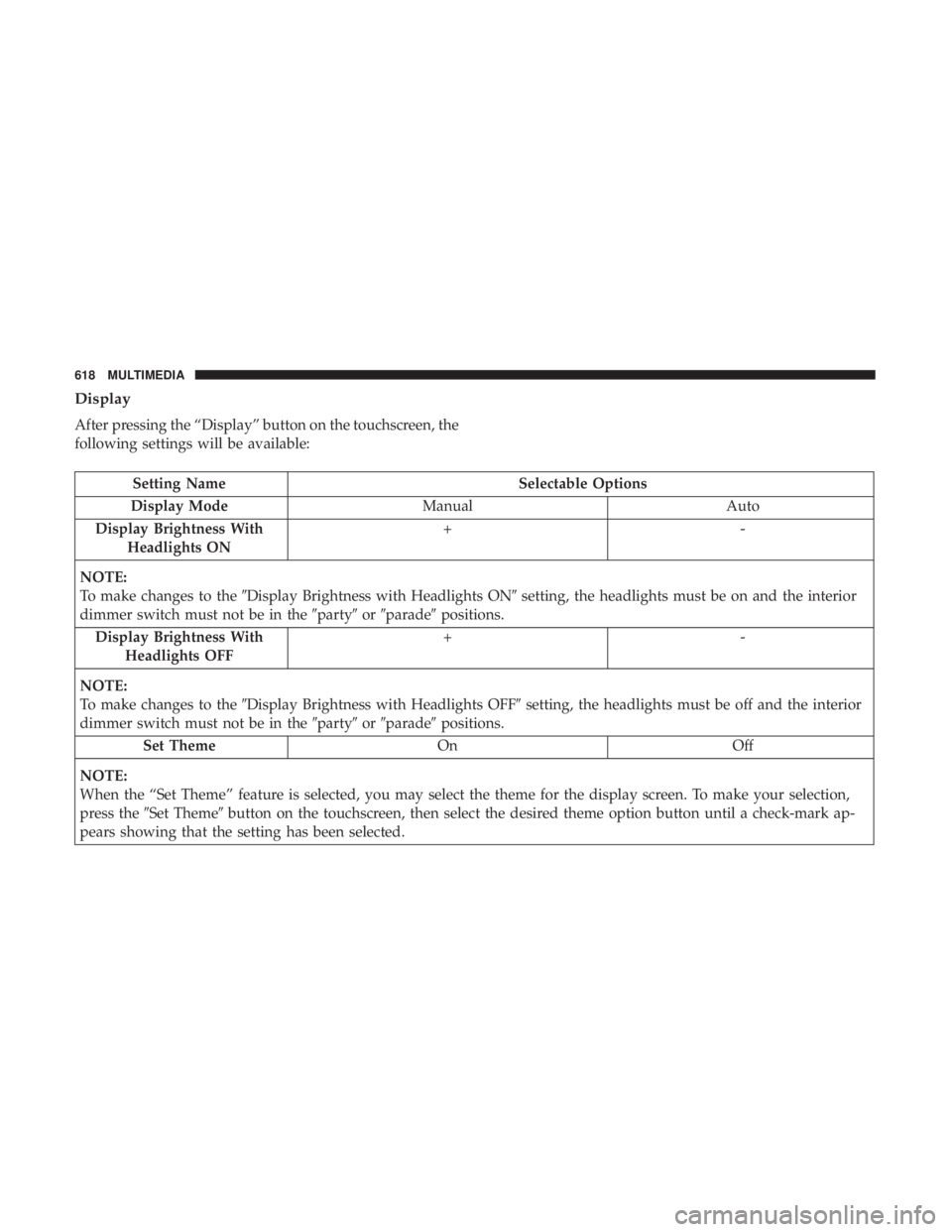
Page 620 of 718
Display
After pressing the “Display” button on the touchscreen, the
following settings will be available:
Setting NameSelectable Options
Display Mode Manual Auto
Display Brightness With Headlights ON +-
NOTE:
To make changes to the �Display Brightness with Headlights ON� setting, the headlights must be on and the interior
dimmer switch must not be in the �party�or�parade� positions.
Display Brightness With Headlights OFF +-
NOTE:
To make changes to the �Display Brightness with Headlights OFF� setting, the headlights must be off and the interior
dimmer switch must not be in the �party�or�parade� positions.
Set Theme OnOff
NOTE:
When the “Set Theme” feature is selected, you may select the theme for the display screen. To make your selection,
press the �Set Theme� button on the touchscreen, then select the desired theme option button until a check-mark ap-
pears showing that the setting has been selected.
618 MULTIMEDIA
Page 636 of 718
Audio
After pressing the “Audio” button on the touchscreen, the
following settings will be available:
Setting NameSelectable Options
Balance/Fade Speaker Icon
NOTE:
When in this display you may adjust the “Balance/Fade” of the audio by pressing and dragging the “Speaker Icon”
toward any location in the box. Equalizer BassMid Treble
NOTE:
When in this display you may adjust the “Bass”, “Mid” and “Treble” settings. Adjust the settings with the “+” and
“–” setting buttons on the touchscreen or by selecting any point on the scale between the “+” and “–” buttons on the
touchscreen. Bass/Mid/Treble also allow you to simply slide your finger up or down to change the setting, as well as
press directly on the desired setting. Speed Adjusted Volume Off12 3
Surround Sound — If Equipped OnOff
AUX Volume Offset — If Equipped +-
NOTE:
This feature provides the ability to tune the audio level for portable devices connected through the AUX input. Auto Play OnOff
634 MULTIMEDIA
Page 646 of 718
Parents can control certain features of the system with the
“Uconnect Theater Controls” screens, right from the
Uconnect touchscreen radio. Options include:
•Change media sources or select APPS by using the drop
down list
• Lock one or both screens
• Mute an individual screen or both screens
• Turn on/off one or both screens
• View media showing on a specific screen while gear
selector is in PARK
• Listen in to a particular Uconnect Theater screen
through the vehicle’s sound system by selecting the
“Listen In” feature after selecting the “Press to Enter”
option.
Accessing The System From The Uconnect
Theater Rear Screens
You can also access your Uconnect Theater system from the
rear screens from the steps below:
1. Lift screen upward, the system will automatically power on.
NOTE: A message asking if you would like to pair a
remote will pop up if one has not already been paired to
the system.
Individual Main Screen Listen In Feature
644 MULTIMEDIA