Page 603 of 718
Setting NameSelectable Options
Flash Lights With Lock OnOff
Flash Lights With Sliding Door OnOff
Doors & Locks
After pressing the “Doors & Locks” button on the touch-
screen, the following settings will be available:
NOTE:The auto door lock feature default condition is
enabled. When enabled, the door locks will lock automati-
cally when the vehicle’s speed exceeds 12 mph (20 km/h).
The auto door lock feature can be enabled or disabled by an
authorized dealer per written request of the customer.
Please see an authorized dealer for service.
Setting Name Selectable Options
Auto Unlock On Exit On Off
NOTE:
When the “Auto Unlock On Exit” feature is selected, all doors will unlock when the vehicle is stopped and the trans-
mission is in the PARK or NEUTRAL position and the driver’s door is opened. Flash Lights With Lock On Off
Sound Horn With Lock Off1st Press 2nd Press
Sound Horn With Remote On Off10
MULTIMEDIA 601
Page 613 of 718
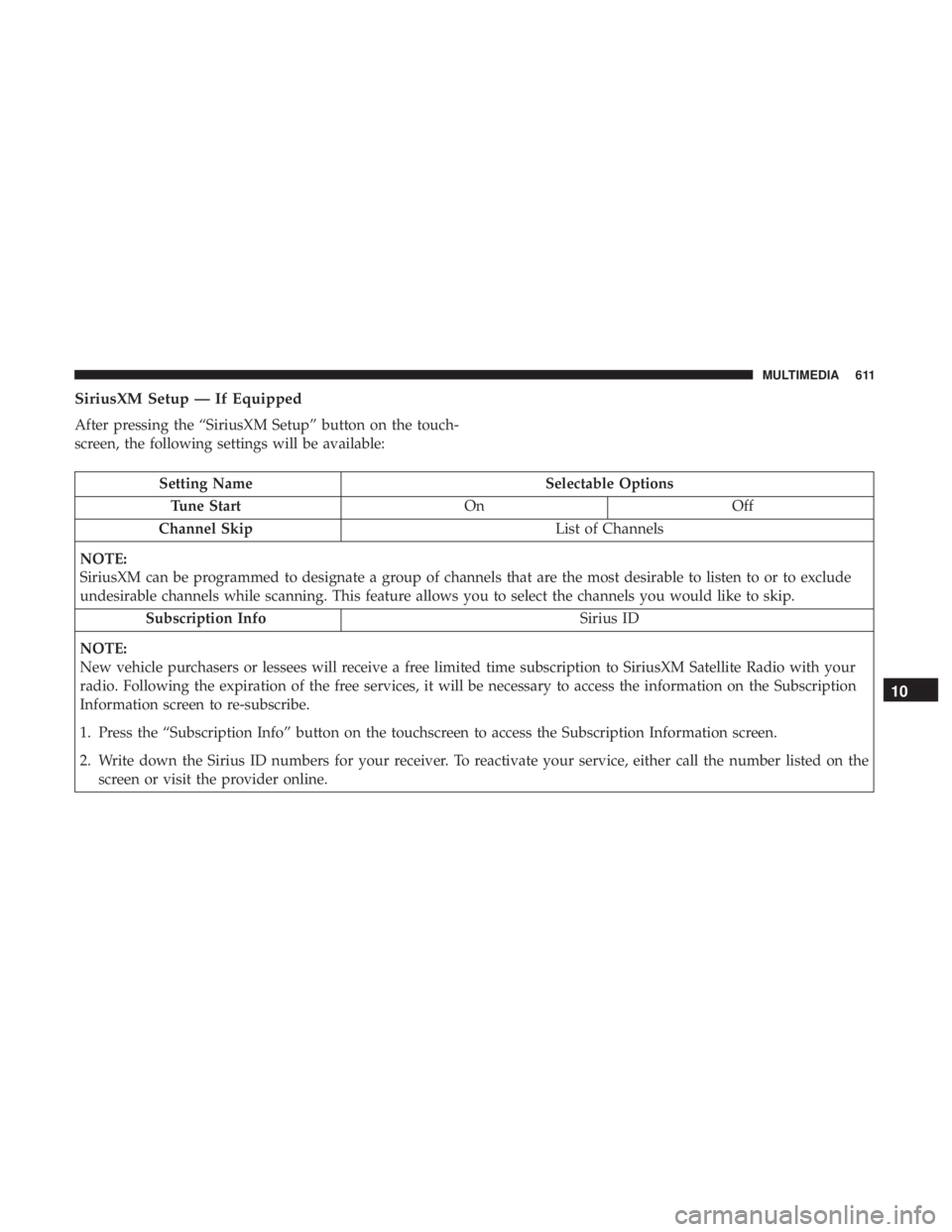
SiriusXM Setup — If Equipped
After pressing the “SiriusXM Setup” button on the touch-
screen, the following settings will be available:
Setting NameSelectable Options
Tune Start OnOff
Channel Skip List of Channels
NOTE:
SiriusXM can be programmed to designate a group of channels that are the most desirable to listen to or to exclude
undesirable channels while scanning. This feature allows you to select the channels you would like to skip. Subscription Info Sirius ID
NOTE:
New vehicle purchasers or lessees will receive a free limited time subscription to SiriusXM Satellite Radio with your
radio. Following the expiration of the free services, it will be necessary to access the information on the Subscription
Information screen to re-subscribe.
1. Press the “Subscription Info” button on the touchscreen to access the Subscription Information screen.
2. Write down the Sirius ID numbers for your receiver. To reactivate your service, either call the number listed on the screen or visit the provider online.
10
MULTIMEDIA 611
Page 618 of 718

Setting NameSelectable Options
Blind Spot Alert — If Equipped Lights
Lights & Chime
NOTE:
When the “Blind Spot Alert” feature is selected, it will alert, visibly and/or audibly, to indicate objects are in your
blind spot. The “Blind Spot Alert” feature can be activated in “Lights” mode. When this mode is selected, the Blind
Spot Monitor (BSM) system is activated and will only show a visual alert in the exterior mirrors. When “Lights &
Chime” mode is activated, the Blind Spot Monitor (BSM) will show a visual alert in the exterior mirrors as well as an
audible alert when the turn signal is on. If your vehicle has experienced any damage in the area where the sensor is
located, even if the fascia is not damaged, the sensor may have become misaligned. Take your vehicle to an autho-
rized dealer to verify sensor alignment. Having a sensor that is misaligned will result in the BSM not operating to
specification. Maximum Vehicle Speed +-
NOTE:
The “Maximum Vehicle Speed” feature can be set to 65, 70, 75, 80, or 85 mph (90, 95, 100, 105, 110 km/h). SiriusXM Setup Channel Skip Subscription Information
NOTE:
SiriusXM can be programmed to skip channels. To make your selection, press the “Channel Skip” button on the
touchscreen, select the channels you would like to skip.
New vehicle purchasers or lessees will receive a free limited time subscription to SiriusXM Satellite Radio with your
radio. Following the expiration of the free services, it will be necessary to access the information on the Subscription
Information screen to re-subscribe.
616 MULTIMEDIA
Page 619 of 718
Setting NameSelectable Options
1. Press the “Subscription Info” button on the touchscreen to access the Subscription Information screen.
2. Write down the Sirius ID numbers for your receiver. To reactivate your service, either call the number listed on the screen or visit the provider online.
SiriusXM Travel Link is a separate subscription.
Language
After pressing the “Language” button on the touchscreen,
the following settings will be available:
Setting Name Selectable Options
Language List of Languages
NOTE:
When the “Set Language” feature is selected, you may select one of multiple languages (English / Français / Espa-
ñol) for all display nomenclature, including the trip functions and the navigation system (if equipped). Press the “Set
Language” button on the touchscreen, then press the desired language button on the touchscreen until a check-mark
appears next to the language, showing that setting has been selected.
10
MULTIMEDIA 617
Page 629 of 718
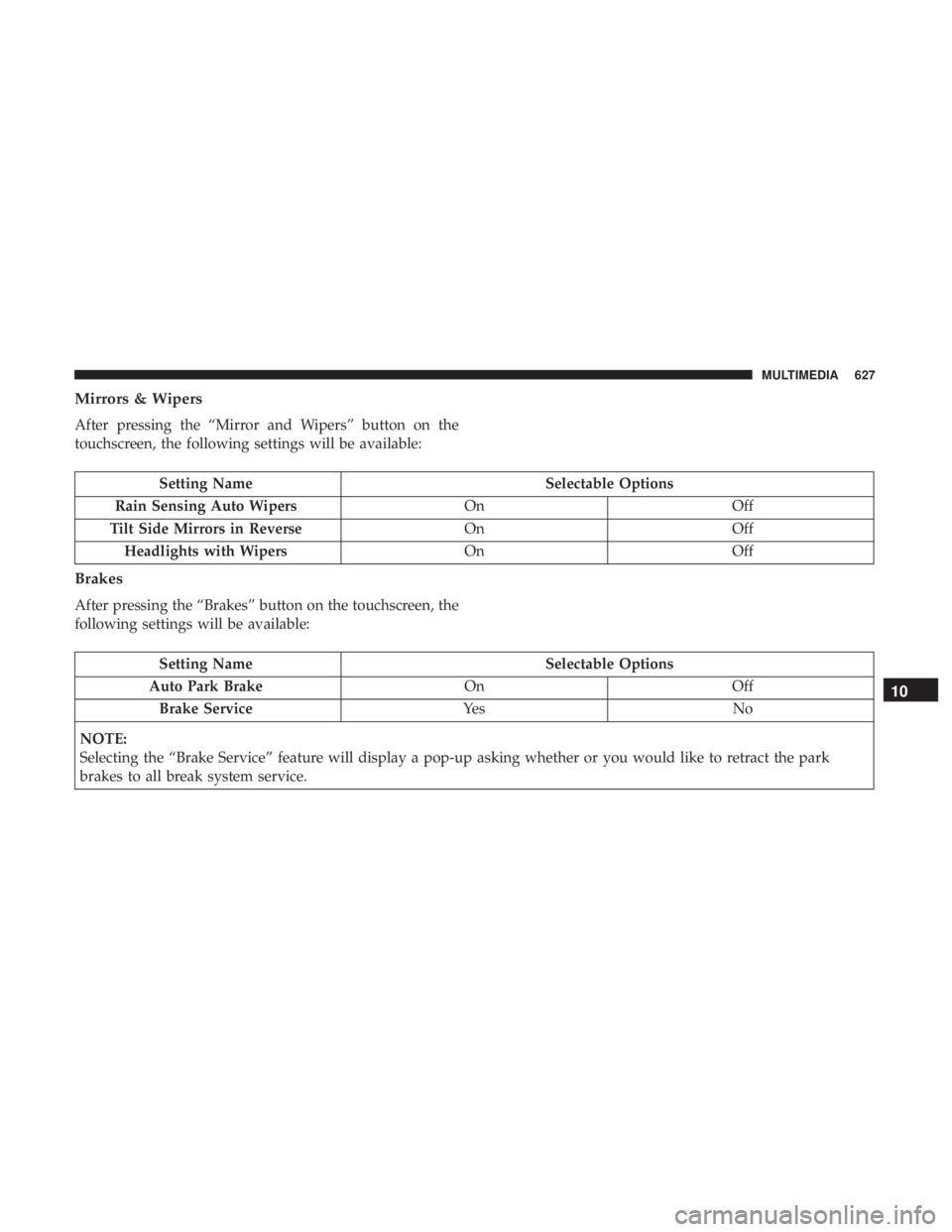
Mirrors & Wipers
After pressing the “Mirror and Wipers” button on the
touchscreen, the following settings will be available:
Setting NameSelectable Options
Rain Sensing Auto Wipers OnOff
Tilt Side Mirrors in Reverse OnOff
Headlights with Wipers OnOff
Brakes
After pressing the “Brakes” button on the touchscreen, the
following settings will be available:
Setting Name Selectable Options
Auto Park Brake OnOff
Brake Service Ye sN o
NOTE:
Selecting the “Brake Service” feature will display a pop-up asking whether or you would like to retract the park
brakes to all break system service.
10
MULTIMEDIA 627
Page 631 of 718

Setting NameSelectable Options
NOTE:
When the “Auto Dim High Beams” feature is selected, the high beam headlights will activate/deactivate automati-
cally under certain conditions. Daytime Running Lights OnOff
Flash Lights With Lock OnOff
Flash Lights With Sliding Door OnOff
Doors & Locks
After pressing the “Doors & Locks” button on the touch-
screen, the following settings will be available:
NOTE:The auto door lock feature default condition is
enabled. When enabled, the door locks will lock automati-
cally when the vehicle’s speed exceeds 12 mph (20 km/h). The auto door lock feature can be enabled or disabled by an
authorized dealer per written request of the customer.
Please see an authorized dealer for service.
Setting Name
Selectable Options
Auto Unlock On Exit On Off
NOTE:
When the “Auto Unlock On Exit” feature is selected, all doors will unlock when the vehicle is stopped and the trans-
mission is in the PARK or NEUTRAL position and the driver’s door is opened.
10
MULTIMEDIA 629
Page 638 of 718

SiriusXM Setup — If Equipped
After pressing the “SiriusXM Setup” button on the touch-
screen, the following settings will be available:
Setting NameSelectable Options
Tune Start OnOff
Channel Skip List of Channels
NOTE:
SiriusXM can be programmed to designate a group of channels that are the most desirable to listen to or to exclude
undesirable channels while scanning. This feature allows you to select the channels you would like to skip. Subscription Info Sirius ID
NOTE:
New vehicle purchasers or lessees receive a free limited time subscription to SiriusXM Satellite Radio with your radio.
Following the expiration of the free services, it will be necessary to access the information on the Subscription Infor-
mation screen to re-subscribe.
1. Press the “Subscription Info” button on the touchscreen to access the Subscription Information screen.
2. Write down the Sirius ID numbers for your receiver. To reactivate your service, either call the number listed on the screen or visit the provider online.
SiriusXM Travel Link is a separate subscription.
636 MULTIMEDIA
Page 663 of 718

model.
THIS WARRANTY IS THE SOLE WARRANTY
FOR THIS PRODUCT, SETS FORTH YOUR EXCLUSIVE
REMEDY REGARDING DEFECTIVE PRODUCTS, AND IS
IN LIEU OF ALL OTHER WARRANTIES (EXPRESS OR
IMPLIED), INCLUDING ANY WARRANTY FOR MER-
CHANTABILITY OR FITNESS FOR A PARTICULAR PUR-
POSE.
If you have any questions or comments regarding your
Aptiv wireless headphones, please email
[email protected] or phone:
888-293-3332
Display Settings
When watching a video source, pressing “Settings”
icon on the touchscreen activates the Settings menu.
These settings control the appearance of the video on
the screen. The factory default settings are already set
for optimum viewing, so there is no need to change
these settings under normal circumstances.
T o change the settings, use one of the touchscreens or
remote. To reset all values back to the original settings,
select “Reset to Defaults”, then select “YES.”
Listening To Audio With The Screen Closed
To listen to only audio portion of the channel with the
screen closed:
•Set the audio to the desired source and channel.
• Close the video screen.
• When the screen is reopened, the video screen will
automatically turn back on and show the appropriate
display menu or media.
If the screen is closed and there is no audio heard, verify
that the headphones are turned on (the ON indicator is
illuminated) and the headphone selector switch is on the
desired channel. If the headphones are turned on, push the
remote control’s power button to turn audio on. If audio is
still not heard, check that fully charged batteries are
installed in the headphones.
10
MULTIMEDIA 661