2019 AUDI TT ROADSTER USB
[x] Cancel search: USBPage 50 of 304

Stowing and using
Stowing and using
Ashtray
Applies to: vehicles with ashtray
2 3 ° >
c o
Fig. 50 Center armrest folded up: ashtray
The ashtray is placed in the center console under
the center armrest.
Opening and closing
> To open or close the ashtray, fold the cover up
or down.
Emptying
> To empty the ashtray, pull it upward and out.
ZA WARNING
Never use the ashtray to hold paper, because
this increases the risk of a fire.
Cigarette lighter
Fig. 51 Center armrest folded up: cigarette lighter
The
cigarette lighter only works when the igni-
tion is switched on.
> Fold the center armrest up to reach the ciga-
rette lighter, if necessary.
> Press the cigarette lighter in.
48
> Remove the cigarette lighter when it pops out.
The cigarette lighter may be used as a power
source for the tire mobility kit/compact spare
tire* compressor only when absolutely necessary.
Z\ WARNING
— The cigarette lighter only works when the ig-
nition is switched on. Incorrect usage can
lead to serious injuries or burns. To reduce
the risk of injuries, never leave children un-
attended in the vehicle with the vehicle key.
— Be careful when using the cigarette lighter.
Inattentive or unsupervised use of the ciga-
rette
lighter can cause burns.
Power sources
When the ignition is switched on, you may be
able to use the electric power sources for exter-
nal devices, depending on the vehicle equipment.
12 volt sockets
You can connect electrical accessories to the 12
volt sockets. The power usage must not exceed
120 watts.
The 12 volt sockets are labeled with the & or
12V symbol. They are located in the front center
console* and on the side trim panel in the lug-
gage compartment*.
USB ports
Applies to: Vehicles with USB port
You can charge mobile devices using the USB
ports. The USB ports are labeled with the «<> or
[4 symbol or CHARGE ONLY.
Z\ WARNING
—To reduce the risk of fatal injury, store all
connected devices securely when driving so
that they do not move around inside the ve-
hicle when braking or in the event of an acci-
dent.
— Incorrect usage can lead to serious injuries
or burns. To reduce the risk of injuries, never
leave children unattended in the vehicle
with the vehicle key. >
Page 105 of 304
8S58012721BA
Voice recognition system
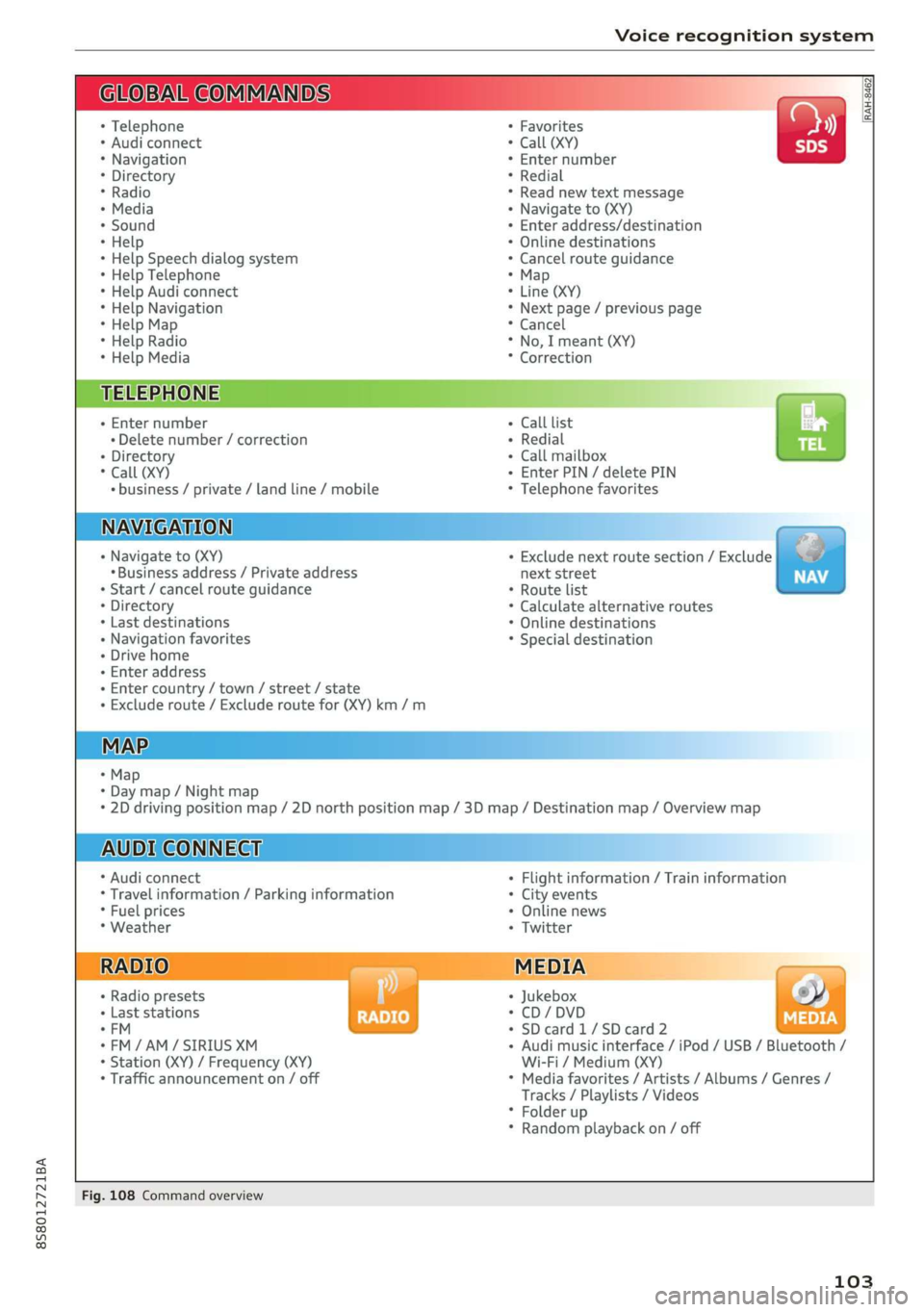
BAR COMMANDS
RAH-8462|
* Telephone + Favorites a)
+ Audi connect * Call (XY) SDS
* Navigation + Enter number
* Directory * Redial
* Radio * Read new text message
+ Media + Navigate to (XY)
* Sound + Enter address/destination
* Help + Online destinations
+ Help Speech dialog system * Cancel route guidance
* Help Telephone * Map
* Help Audi connect + Line (XY)
* Help Navigation * Next page / previous page
* Help Map * Cancel
* Help Radio * No, I meant (XY)
* Help Media * Correction
TELEPHONE: a
+ Enter number Call list a.
+ Delete number / correction Redial sie
+ Directory Call mailbox
* Call (XY) Enter PIN / delete PIN
* business / private / land line / mobile Telephone favorites
NAVIGATION i
+ Navigate to (XY) + Exclude next route section / Exclude
«Business address / Private address next street
+ Start / cancel route guidance * Route list
+ Directory * Calculate alternative routes
+ Last destinations * Online destinations
+ Navigation favorites * Special destination
+ Drive home
- Enter address
+ Enter country / town / street / state
+ Exclude route / Exclude route for (XY) km /m
MAP.
* Map
* Day map / Night map
* 2D driving position map / 2D north position map / 3D map / Destination map / Overview map
AUDI CONNECT
* Audi connect * Flight information / Train information
* Travel information / Parking information + City events
* Fuel prices * Online news
* Weather + Twitter
+ Radio presets « Jukebox rs}
+ Last stations * CD/DVD MEDIA
*FM + SDcard1/SDcard2
*FM/AM/ SIRIUS XM « Audi music interface / iPod / USB / Bluetooth /
+ Station (XY) / Frequency (XY) Wi-Fi / Medium (XY)
* Traffic announcement on / off * Media favorites / Artists / Albums / Genres /
Tracks / Playlists / Videos
* Folder up
* Random playback on / off
Fig. 108 Command overview
103
Page 111 of 304
8S8012721BA
Voice recognition system
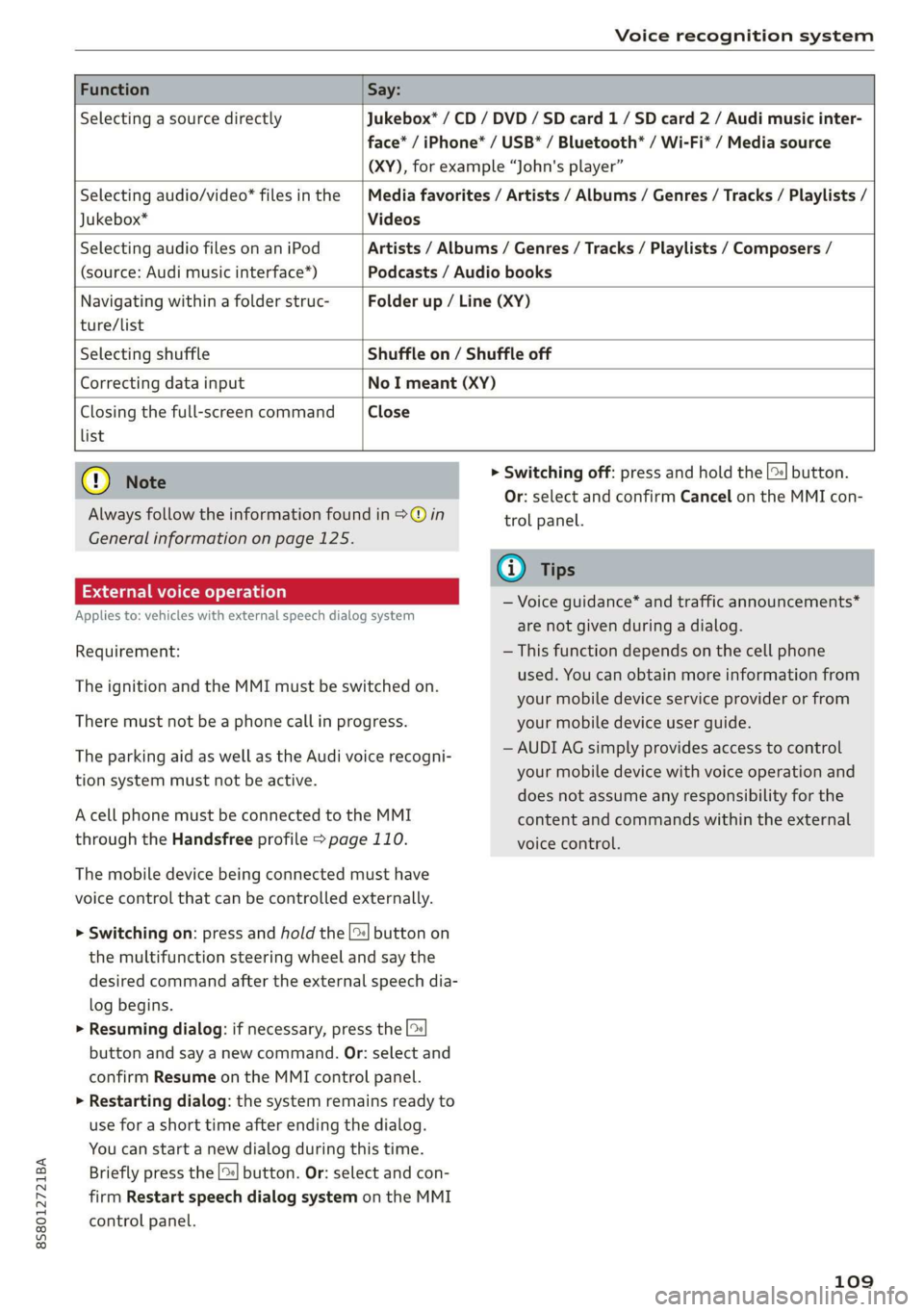
Function Say:
Selecting a source directly Jukebox* / CD / DVD / SD card 1/ SD card 2 / Audi music inter-
face* / iPhone* / USB* / Bluetooth* / Wi-Fi* / Media source
(XY), for example “John's player”
Selecting audio/video* files in the
Jukebox*
Media favorites / Artists / Albums / Genres / Tracks / Playlists /
Videos
Selecting audio files on an iPod
(source: Audi music interface*)
Artists / Albums / Genres / Tracks / Playlists / Composers /
Podcasts / Audio books
Navigating within a folder struc- Folder up / Line (XY)
ture/list
Selecting shuffle Shuffle on / Shuffle off
Correcting data input No I meant (XY)
Closing the full-screen command Close
list
@) Note
Always follow the information found in >@ in
General information on page 125.
External voice operation
Applies to: vehicles with external speech dialog system
Requirement:
The ignition and the MMI must be switched on.
There must not be a phone call in progress.
The parking aid as well as the Audi voice recogni-
tion system must not be active.
A cell phone must be connected to the MMI
through the Handsfree profile > page 110.
The mobile device being connected must have
voice control that can be controlled externally.
> Switching on: press and hold the [>| button on
the multifunction steering wheel and say the
desired command after the external speech dia-
log begins.
> Resuming dialog: if necessary, press the |%
button and say a new command. Or: select and
confirm Resume on the MMI control panel.
> Restarting dialog: the system remains ready to
use for a short time after ending the dialog.
You can start a new dialog during this time.
Briefly press the [2] button. Or: select and con-
firm
Restart speech dialog system on the MMI
control panel.
> Switching off: press and hold the |%] button.
Or: select and confirm Cancel on the MMI con-
trol panel.
G) Tips
— Voice guidance* and traffic announcements*
are not given during a dialog.
— This function depends on the cell phone
used. You can obtain more information from
your mobile device service provider or from
your mobile device user guide.
— AUDI AG simply provides access to control
your mobile device with voice operation and
does not assume any responsibility for the
content and commands within the external
voice control.
109
Page 115 of 304

8S58012721BA
Telephone
Using the Audi phone
box
Applies to: vehicles with Audi phone box
You can charge your mobile device battery using
the Audi phone box. You can make calls through
the exterior antenna* on the vehicle. Using the
external antenna* helps when there is a low sig-
nal and also provides better reception quality.
Fig. 110 Storage compartment in the center armrest: Audi
phone box with connections
Requirement: a cell phone must be connected
through Bluetooth > page 110.
— Connecting to the external vehicle antenna:
lay the cell phone on the center of the cell
phone symbol in the Audi phone box with the
display facing up. Make sure there are no ob-
jects between the Audi phone box and the mo-
bile device > fig. 110.
— Charging a cell phone wirelessly: place a Qi-ca-
pable ) cell phone centered on the symbol in
the Audi phone box with the display facing up
> fig. 110. The cell phone will charge.
— Charging a cell phone using the USB adapter:
connect your cell phone to the Audi music inter-
face using a USB adapter cable @) © fig. 110.
You can charge your mobile device using specific
USB adapters > page 158, fig. 135.
an accident. Store objects securely while
driving.
—The mobile device may become hot during
wireless charging. Pay attention to the tem-
perature of your mobile device and be care-
ful when removing it from the Audi phone
box.
— An alternating magnetic field is used for
wireless charging. Maintain a minimum dis-
tance of approximately 2.4 in (6 cm) to the
Audi phone box charging plate. The thresh-
olds for prolonged exposure at this distance
comply with ICNIRP1998. Therefore, inter-
actions such as irritation of sensory organs,
malfunctions of active implants (such as
pacemakers, infusion pumps, or neurosti-
mulators) or effects on passive implants
(such as prosthetic limbs) is highly unlikely.
If you have an implant, consult a medical
specialist if you have any questions.
ZA WARNING
— Loose objects can be thrown around the ve-
hicle interior during sudden driving or brak-
ing maneuvers, which increases the risk of
D_ The Qi standard makes it possible to charge your mobile
device wirelessly.
oO Note
Applicable to U.S.A.
Operation of the Audi phone box is subject to
the following requirements of the Federal
Communications Commission:
— This is a CONSUMER device.
— BEFORE USE, you MUST REGISTER THIS DE-
VICE with your wireless provider and have
your
provider’s consent. Most wireless pro-
viders consent to the use of signal boosters.
Some providers may not consent to the use
of this device on their network. If you are
unsure, contact your service provider.
— You MUST operate this device with approved
antennas
and cables as specified by the
manufacturer. Antennas MUST be installed
at least 20 cm (8 inches) from any person.
— You MUST cease operating this device im-
mediately if requested by the FCC or a li-
censed wireless service provider.
— WARNING: E911 location information may
not be provided or may be inaccurate for
calls served by using this device.
113
Page 116 of 304
Telephone
@) Note
Applicable to Canada
In Canada, operation of a Zone Enhancer,
such as an Audi Phone Box, is subject to the
following requirements of the Innovation,
Science and Economic Development Canada
(ISED):
— This is a CONSUMER device.
— BEFORE USE, you MUST meet all require-
ments set out in CPC-2-1-05.
— You MUST operate this device with approved
antennas
and cables as specified by the
manufacturer. Antennas MUST NOT be in-
stalled within 20 cm of any person.
— You MUST cease operating this device im-
mediately if requested by ISED or a licensed
wireless service provider.
— WARNING: £911 location information may
not be provided or may be inaccurate for
calls served by using this device.
G) Tips
— The Audi phone box is not available in all
countries. For additional information, con-
tact an authorized Audi dealership.
— Placing the mobile device in a bag or protec-
tive sleeve inside the Audi phone box can in-
terfere with the connection to the external
antenna.
— Metal objects cannot be located in the Audi
phone box when using the exterior antenna*
and the Audi phone box charging function.
— The charging time and temperature will vary
depending on the mobile device being used.
— When the ignition is switched on, you can
charge your mobile device in the Audi phone
box.
—To reduce the risk of malfunctions, make
sure the mobile device is positioned correct-
ly in the Audi phone box.
— The maximum charging output is 5 watts.
— Strong transmission quality cannot be guar-
anteed if more than one mobile device is in
the box.
— Audi recommends using Audi Genuine Ac-
cessories. Audi has verified their reliability,
safety, and suitability.
114
— You can purchase a USB adapter from an au-
thorized Audi dealer or authorized Audi
Service Facility, or at specialty stores.
— If you place your remote control key togeth-
er with your mobile device in the Audi phone
box, it may cause your mobile device to stop
charging if wireless charging is active.
Using the telephone
Opening the telephone
Applies to: vehicles with telephone
Call list
(2 Sa
©— Directory
(4)o 4) Es yor Llane
(=) Tekt message (mobile device)
Sy
Fig. 111 Example: telephone functions in selection menu
Hy ee al dg
5 Text message (myPhone)
|i] Text message (Additional phone)
@—= E-mail (myPhone)
Fig. 112 Example: additional telephone functions in selec-
tion menu
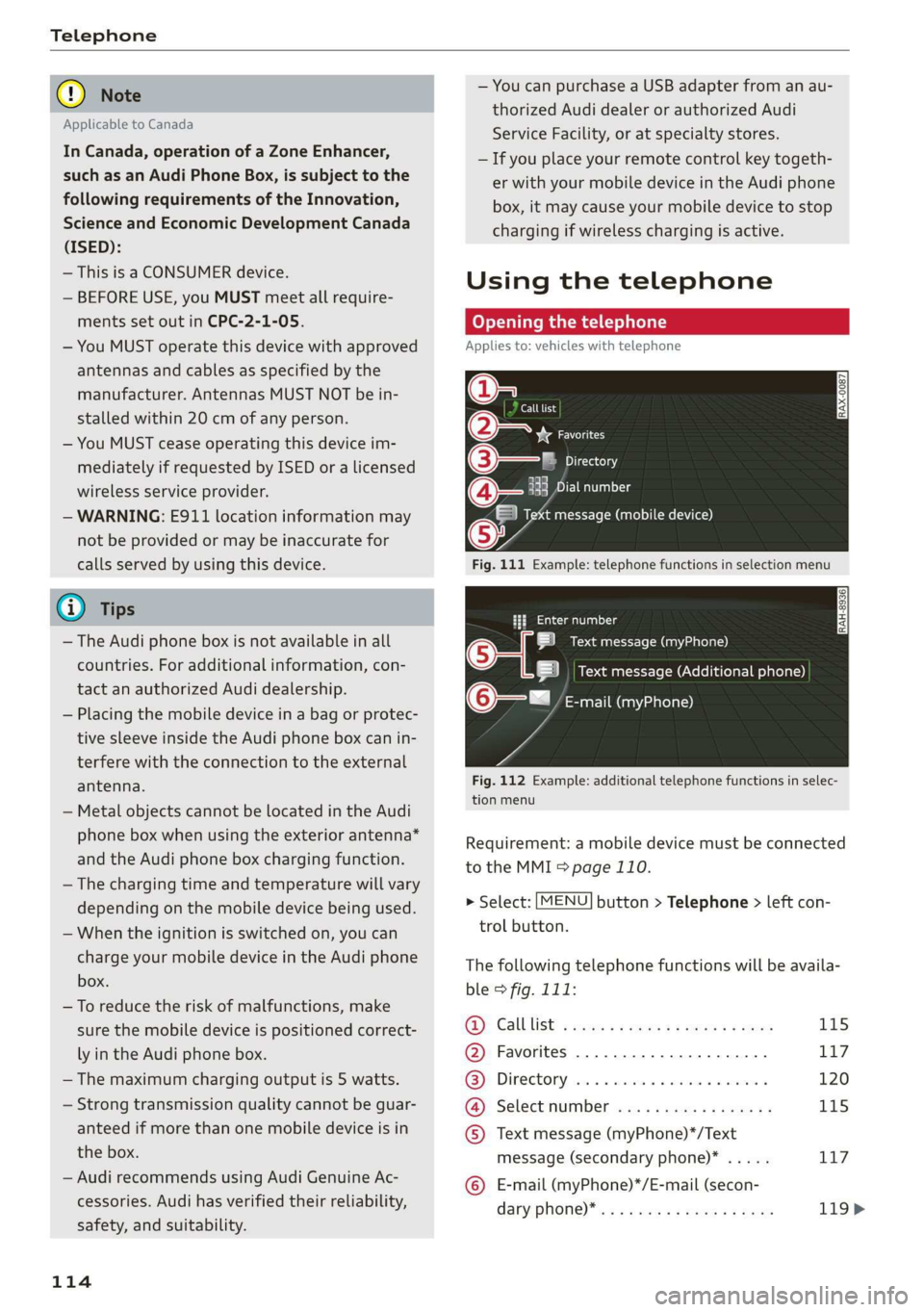
Requirement: a mobile device must be connected
to the MMI > page 110.
> Select: [MENU] button > Telephone > left con-
trol button.
The following telephone functions will be availa-
ble > fig. 111:
@): Calllist: : soy. sc cease 4: ews yo ewe 115
@ Favorites ................20.0, 117
@® Directory ....... 0. cece eee eee 120
@ Select number ...............0. 115
© Text message (myPhone)*/Text
message (secondary phone)* ..... 117
© E-mail (myPhone)*/E-mail (secon-
dary: phone) * ws « een ss wawn se eee 119>
Page 124 of 304
Telephone
Importing and exporting contacts
Applies to: vehicles with telephone
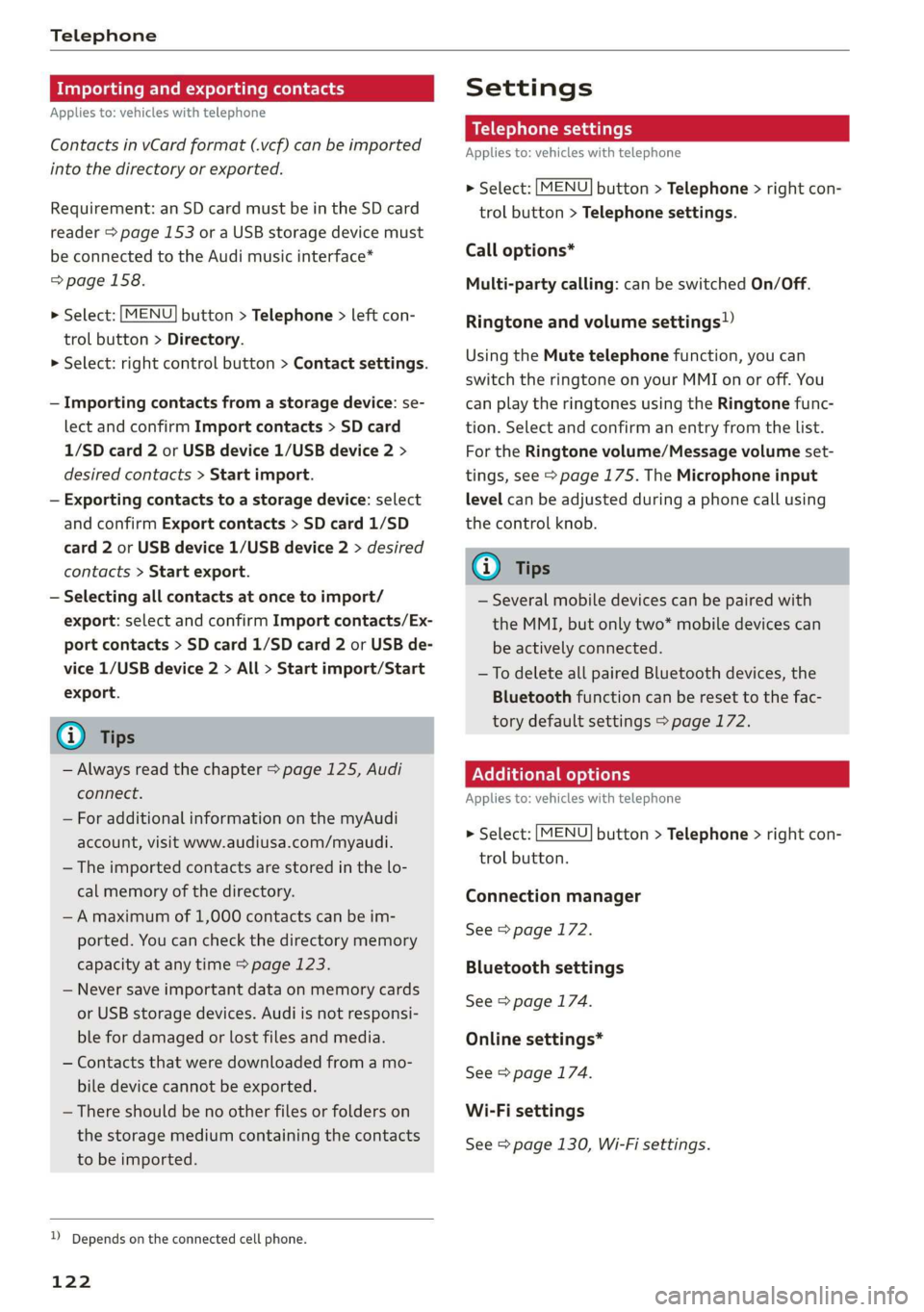
Contacts in vCard format (.vcf) can be imported
into the directory or exported.
Requirement: an SD card must be in the SD card
reader > page 153 or a USB storage device must
be connected to the Audi music interface*
=> page 158.
> Select: [MENU] button > Telephone > left con-
trol button > Directory.
> Select: right control button > Contact settings.
— Importing contacts from a storage device: se-
lect and confirm Import contacts > SD card
1/SD card 2 or USB device 1/USB device 2 >
desired contacts > Start import.
— Exporting contacts to a storage device: select
and confirm Export contacts > SD card 1/SD
card 2 or USB device 1/USB device 2 > desired
contacts > Start export.
— Selecting all contacts at once to import/
export: select and confirm Import contacts/Ex-
port contacts > SD card 1/SD card 2 or USB de-
vice 1/USB device 2 > All > Start import/Start
export.
G) Tips
— Always read the chapter > page 125, Audi
connect.
— For additional information on the myAudi
account, visit www.audiusa.com/myaudi.
— The imported contacts are stored in the lo-
cal memory of the directory.
—A maximum of 1,000 contacts can be im-
ported. You can check the directory memory
capacity at any time > page 123.
— Never save important data on memory cards
or USB storage devices. Audi is not responsi-
ble for damaged or lost files and media.
— Contacts that were downloaded from a mo-
bile device cannot be exported.
— There should be no other files or folders on
the storage medium containing the contacts
to be imported.
)) Depends on the connected cell phone.
122
Settings
Telephone settings
Applies
to: vehicles with telephone
> Select: [MENU] button > Telephone > right con-
trol button > Telephone settings.
Call options*
Multi-party calling: can be switched On/Off.
Ringtone and volume settings!)
Using the Mute telephone function, you can
switch the ringtone on your MMI on or off. You
can play the ringtones using the Ringtone func-
tion. Select and confirm an entry from the list.
For the Ringtone volume/Message volume set-
tings, see > page 175. The Microphone input
level can be adjusted during a phone call using
the control knob.
G) Tips
— Several mobile devices can be paired with
the MMI, but only two* mobile devices can
be actively connected.
—To delete all paired Bluetooth devices, the
Bluetooth function can be reset to the fac-
tory default settings > page 172.
Pelee Cola] Mey Lalor}
Applies to: vehicles with telephone
> Select: [MENU] button > Telephone > right con-
trol button.
Connection manager
See > page 172.
Bluetooth settings
See > page 174.
Online settings*
See > page 174.
Wi-Fi settings
See > page 130, Wi-Fi settings.
Page 154 of 304
Media
Media
Introduction
There are various media drives and connections
available in the MMI. You can play, for example,
audio/video files from the Jukebox* or connect
your mobile device to the Audi music interface*
and operate it through the MMI.
Notes
Media and format restrictions: the MMI (includ-
ing the SD card reader and the USB storage de-
vice connection*) was tested with a variety of
products and media available in the market.
However, there may be cases where individual de-
vices or media and audio/video” files may not be
recognized, may play only with restrictions or
may not play at all.
Digital Rights Management: please note that
the audio/video files are subject to copyright pro-
tection.
The media drives do not play files that are pro-
tected by DRM and that are identified with the
symbol fi.
Data security: never store important data on SD
cards, the Jukebox*, CDs/DVDs or mobile devices.
Audi AG is not responsible for damaged or lost
files and media.
Loading times: the more files/folders/playlists
that are on a storage medium, the longer it will
take to load the audio/video* files. Audi recom-
mends using storage media that only contain au-
dio/video files*. To decrease the time it takes to
load audio/video files*, create subfolders (for ex-
ample, for the artist or album). The loading time
will also increase when importing files.
Additional information: when playing, audio
files are automatically displayed with any addi-
tional information that is stored (such as the ar-
tist, track and album cover). If this information is
not available on the storage medium, the MMI
will check the Gracenote metadata database.
152
However, in some cases, the additional informa-
tion may not be displayed.
Restricted functionality: reset the Media set-
tings to the factory default settings if functional-
ity is restricted > page 172.
If functionality is restricted, reset the Jukebox* to
the factory default settings > page 172.
For information about the properties of support-
ed media and file formats, see > page 166.
@) Note
Always follow the information found in >@ in
General information on page 125.
CD/DVD operation
CD/DVD and format restrictions: the functionali-
ty of individual storage media may be limited due
to the variety of blank CDs/DVDs available and
the various capacities. Audio CDs or video DVDs
with copy protection, CDs/DVDs that do not con-
form to the standard, and multisession CDs may
have limited playback or may not play at all. Audi
recommends finalizing the recording process
when creating multisession CDs. Multisession
DVDs are not supported.
Using CDs/DVDs, the CD drive or the DVD drive:
to ensure correct, high-quality playback and to
prevent damage to the drive or disc reading er-
rors, always store CDs/DVDs in a protective
sleeve and do not expose them to direct sunlight.
Do not use:
— Damaged, dirty or scratched CDs/DVDs
— Single CDs/DVDs with 3 in (8 cm) diameter
— CD/DVDs that are not round
— CDs/DVDs with labels
— Protective rings
— Cleaning CDs
Thermal protection switch: CD/DVD playback
may be temporarily unavailable if outside tem-
peratures
are extremely hot or cold. A thermal
protection switch is installed to protect the
CD/DVD and the laser.
Laser devices: laser devices are divided into safe-
ty classes 1 to 4 in accordance with DIN IEC 76 >
Page 156 of 304
Media
Applies to: vehicles with a CD drive
re
RAH-8826|
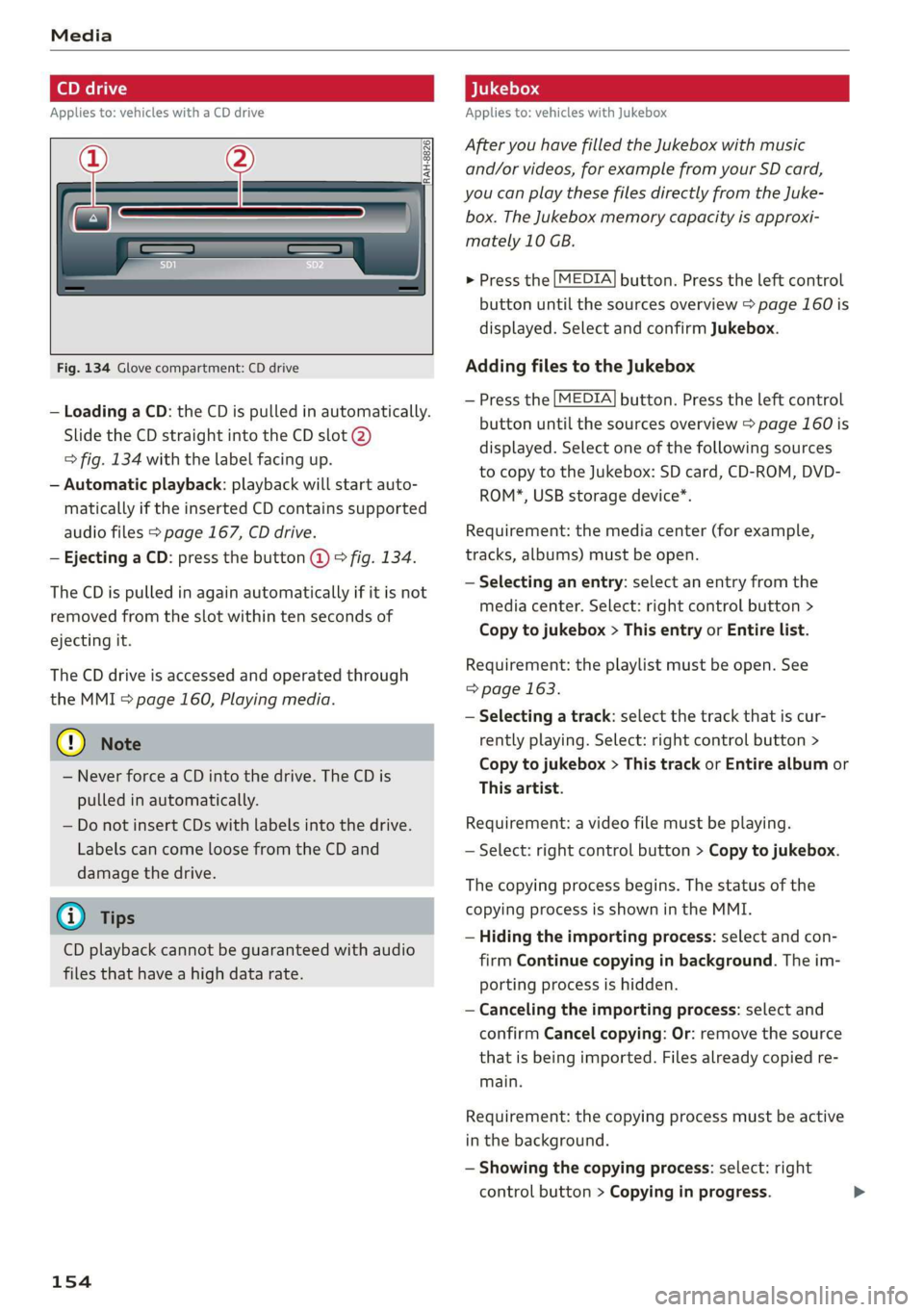
Fig. 134 Glove compartment: CD drive
— Loading a CD: the CD is pulled in automatically.
Slide the CD straight into the CD slot @)
=> fig. 134 with the label facing up.
— Automatic playback: playback will start auto-
matically if the inserted CD contains supported
audio files > page 167, CD drive.
— Ejecting a CD: press the button @ © fig. 134.
The CD is pulled in again automatically if it is not
removed from the slot within ten seconds of
ejecting it.
The CD drive is accessed and operated through
the MMI > page 160, Playing media.
@) Note
— Never force a CD into the drive. The CD is
pulled in automatically.
— Do not insert CDs with labels into the drive.
Labels can come loose from the CD and
damage the drive.
@) Tips
CD playback cannot be guaranteed with audio
files that have a high data rate.
154
Applies to: vehicles with Jukebox
After you have filled the Jukebox with music
and/or videos, for example from your SD card,
you can play these files directly from the Juke-
box. The Jukebox memory capacity is approxi-
mately 10 GB.
> Press the [MEDIA] button. Press the left control
button until the sources overview > page 160 is
displayed. Select and confirm Jukebox.
Adding files to the Jukebox
— Press the [MEDIA] button. Press the left control
button until the sources overview > page 160 is
displayed. Select one of the following sources
to copy to the Jukebox: SD card, CD-ROM, DVD-
ROM*, USB storage device*.
Requirement: the media center (for example,
tracks, albums) must be open.
— Selecting an entry: select an entry from the
media center. Select: right control button >
Copy to jukebox > This entry or Entire list.
Requirement: the playlist must be open. See
=> page 163.
— Selecting a track: select the track that is cur-
rently playing. Select: right control button >
Copy to jukebox > This track or Entire album or
This artist.
Requirement: a video file must be playing.
— Select: right control button > Copy to jukebox.
The copying process begins. The status of the
copying process is shown in the MMI.
— Hiding the importing process: select and con-
firm
Continue copying in background. The im-
porting process is hidden.
— Canceling the importing process: select and
confirm Cancel copying: Or: remove the source
that is being imported. Files already copied re-
main.
Requirement: the copying process must be active
in the background.
— Showing the copying process: select: right
control button > Copying in progress.