2019 AUDI TT ROADSTER ESP
[x] Cancel search: ESPPage 88 of 304
Intelligent Technology
Intelligent Technology
Electronic stabilization
control (ESC)
Electronic Stabilization Control (ESC) supports
driver safety. It reduces the risk of slipping and
improves driving stability. ESC detects critical sit-
uations such as the vehicle oversteering and un-
dersteering or the wheels are spinning. The
brakes are applied or the engine torque is re-
duced in order to stabilize the vehicle. When the
ESC engages, the B indicator light blinks in the
instrument cluster.
The following systems are integrated in the ESC:
Anti-lock braking system (ABS)
ABS prevents the wheels from locking when brak-
ing. The vehicle can still be steered even during
hard braking. Apply steady pressure to the brake
pedal. Do not pump the pedal. A pulsing in the
brake pedal indicates that the system is acting to
stabilize the vehicle.
Brake assist system
The brake assist system can decrease braking dis-
tance. It increases braking power when the driver
presses the brake pedal quickly in emergency sit-
uations. You must press and hold the brake pedal
until the dangerous situation is over.
Anti-Slip Regulation (ASR)
ASR reduces drive power when the drive wheels
begin spinning and adapts the power to the road
conditions. This makes it easier to start, acceler-
ate and drive up hills.
Electronic Differential Lock (EDL)
The EDL applies the brakes to wheels that are
slipping and transfers the drive power to the oth-
er wheels. This function is not available at higher
speeds.
In extreme cases, EDL automatically switches off
to keep the brake on the braked wheel from over-
heating. The vehicle is still functioning correctly.
86
EDL will switch on again automatically when con-
ditions have returned to normal.
Power steering
The ESC can also support vehicle stability
through steering.
Selective wheel torque control
Selective wheel torque control is used when driv-
ing on curves. Braking is targeted toward the
wheels on the inside of the curve as needed. This
allows more precise driving in curves.
Automatic post-collision braking system
The automatic post-collision braking system can
help to reduce the risk of sliding and of addition-
al collisions after an accident. If the airbag con-
trol module detects a collision above a certain ve-
hicle speed, the vehicle is braked by the ESC.
The vehicle does not brake automatically if one of
the following occurs:
— The driver presses the accelerator pedal
—The braking force generated by the pressed
brake pedal is greater than the braking force
that would be initiated by the system
— The ESC, the brake system, or the vehicle elec-
trical system is not functioning
ZA WARNING
— The ESC and its integrated systems cannot
overcome the limits imposed by natural
physical laws. This is especially important on
slippery or wet roads. If the systems begin
acting to stabilize your vehicle, you should
immediately alter your speed to match the
road and traffic conditions. Do not let the in-
creased safety provided tempt you into tak-
ing risks. This could increase your risk of a
collision.
— Please note the risk of a collision increases
when driving fast, especially through curves
and on slippery or wet roads, and when driv-
ing too close to objects ahead. The ESC and
its integrated systems cannot always pre-
vent collisions - there is still a risk of acci-
dents!
Page 89 of 304
8S58012721BA
Intelligent Technology
— Accelerate carefully when driving on condition. Different tire sizes can lead toa
smooth, slippery surfaces such as ice and reduction in engine power.
snow. The drive wheels can spin even when — You may hear noises when the systems de-
these control systems are installed and this scribed are working.
can affect driving stability and increase the
risk of a collision.
G@) Tips
— The ABS and ASR only function correctly
when all four wheels have a similar wear
Sic melal
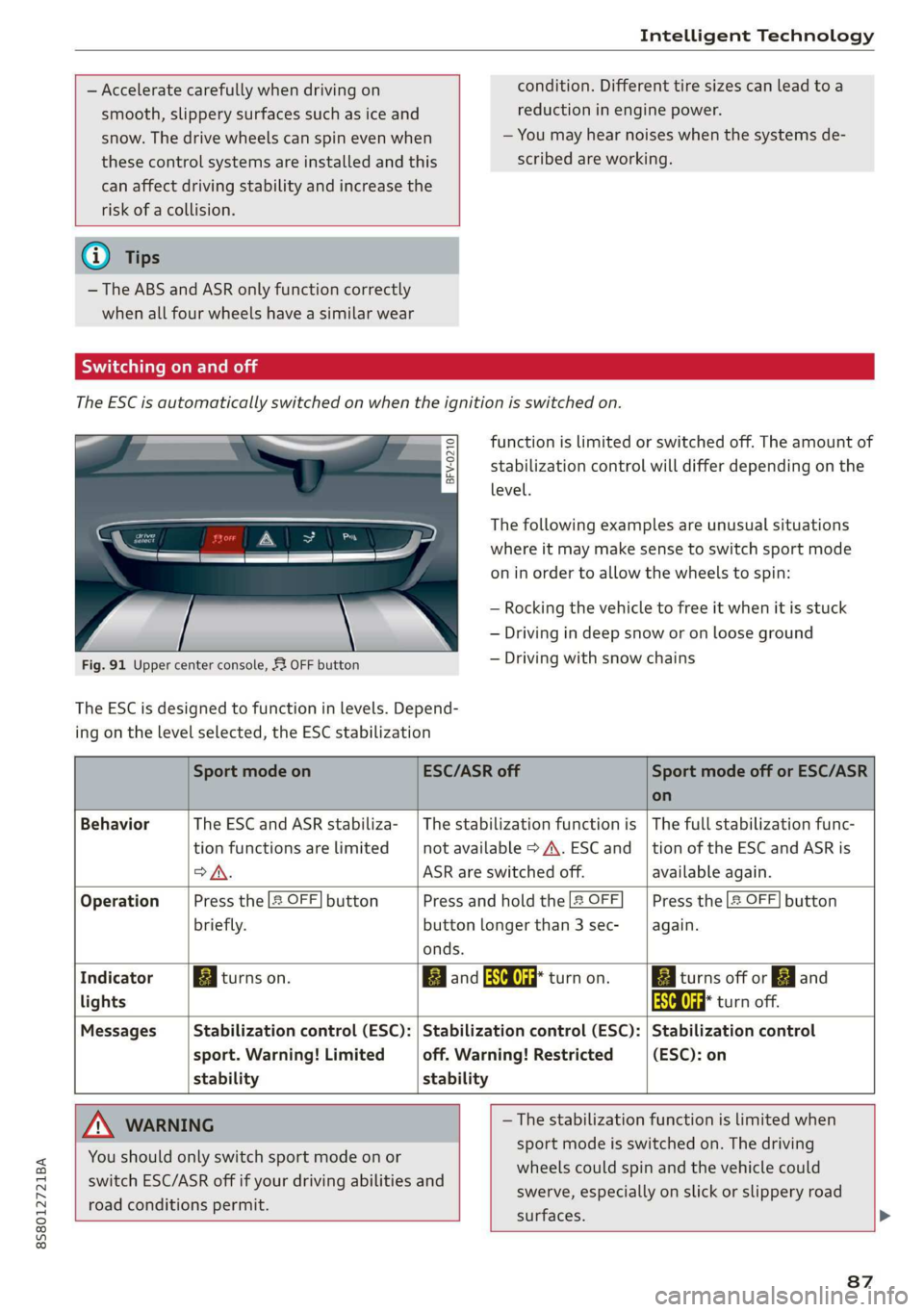
The ESC is automatically switched on when the ignition is switched on.
function is limited or switched off. The amount of
stabilization control will differ depending on the
level.
eS
gS s
= o
The following examples are unusual situations
where it may make sense to switch sport mode
on in order to allow the wheels to spin:
— Rocking the vehicle to free it when it is stuck
— Driving in deep snow or on loose ground
— Driving with snow chains
Fig. 91 Upper center console, 52 OFF button
The ESC is designed to function in levels. Depend-
ing on the level selected, the ESC stabilization
Sport mode on ESC/ASR off Sport mode off or ESC/ASR
on
Behavior The ESC and ASR stabiliza- | The stabilization function is | The full stabilization func-
tion functions are limited not available > A\. ESC and _|tion of the ESC and ASR is
>A. ASR are switched off. available again.
Operation Press the 2 OFF] button Press and hold the |2 OFF Press the [2 OFF] button
briefly. button longer than 3 sec- again.
onds.
Indicator Biturns on. Band aa turn on. Biturns off or EJ and
lights aa turn off.
Messages Stabilization control (ESC): | Stabilization control (ESC): | Stabilization control
sport. Warning! Limited off. Warning! Restricted (ESC): on
stability stability
A WARNING —The stabilization function is limited when
sport mode is switched on. The driving
wheels could spin and the vehicle could
swerve, especially on slick or slippery road
surfaces.
You
should only switch sport mode on or
switch ESC/ASR off if your driving abilities and
road conditions permit.
87
Page 90 of 304
Intelligent Technology
— There is no vehicle stabilization when
ESC/ASR are switched off.
@) Tips
— When the cruise control system* is switched
on, ESC/ASR cannot be switched off or sport
mode cannot be switched on.
— Malfunctions in the rear spoiler or the Audi
magnetic ride may make it impossible to
switch the ESC/ASR off or to switch sport
mode on.
Brakes
You can apply the vehicle's brakes using the brake
pedal.
Operating noise
Noises may occur when braking depending on the
speed, braking force, and outside conditions such
as temperature and humidity.
Braking effect
The response time from the brakes depends on
the weather and environmental conditions. To
ensure the optimum braking effect, the brake
system is cleaned at regular intervals. This is
done by applying the brake pads to the brake ro-
tors for a short period of time when driving at
high speeds when the windshield wipers are
switched on.
If the brake system becomes damp, for example
after driving in heavy rain, the braking effect may
be delayed. Other factors that could temporarily
increase the response time of the brakes include:
— Wet conditions
— Low temperatures, ice, and snow
— Roads covered in salt
— Dirty brake pads
Corrosion
Corrosion may form on the brake rotors if there is
no heavy braking, if the vehicle is not driven for
long periods of time, or if the vehicle is not driv-
en
frequently or for long distances. In this case,
braking heavily several times while driving at
high speeds can clean the brake rotors > A\.
838
Brake pads
New brake pads do not achieve their full braking
effect during the first 250 miles (400 km). They
must be “broken in” first. However, you can com-
pensate for the slightly reduced braking force by
pressing firmly on the brake pedal. Avoid heavy
braking during the break-in period.
Brake pad wear depends largely on the way the
vehicle is driven and on operating conditions.
Brake pad wear increases when driving frequently
in the city or short distances or when using a very
sporty driving style.
Ceramic brakes
Applies to: vehicles with ceramic brakes
Ceramic brakes provide excellent deceleration
rates.
The break-in period for new ceramic brakes may
be significantly longer than for standard brake
rotors. Due to the properties of the material,
they may cause noises at lower speeds. Ceramic
brakes also absorb more moisture in wet condi-
tions. Therefore, there will temporarily be less
braking force than when the brakes are dry. You
can compensate for this by pressing the brake
pedal harder.
A WARNING
— Only apply the brakes for the purpose of
cleaning the brake system when road and
traffic conditions permit. You must not en-
danger other road users and increase the
risk of an accident.
— Due to the risk of injury, only have an au-
thorized Audi dealer or authorized Audi
Service Facility work on the brake system.
Incorrect repairs could impair the function.
— Never let the vehicle roll while the engine is
stopped because this increases the risk of an
accident.
— Depending on vehicle equipment, the brake
pedal may move downward automatically
during autonomous braking maneuvers. To
reduce the risk of injury, do not place your
foot under the brake pedal.
Page 93 of 304
8S8012721BA
Intelligent Technology
ZA\ WARNING
Improper operation of the rear spoiler can
cause crushing injuries.
— Always make sure that nobody, especially
children, is in the way when the rear spoiler
is deployed or retracted.
() Note
— Never push on the vehicle on the rear spoil-
er. This could cause damage.
— To prevent damage to the rear spoiler do
not lean or place anything on it.
— Only operate the rear spoiler manually when
the luggage compartment lid is close and
the rear spoiler moving parts are not
blocked. Otherwise, damage could occur.
@ Tips
Clean the rear spoiler compartment every 2 to
3 months. To function correctly, the rear
spoiler must be free of ice, snow and leaves.
Energy management
Your vehicle is equipped with an intelligent ener-
gy management system for distributing electrici-
ty. This significantly improves the starting ability
and increases the vehicle battery life.
@ Tips
— If you drive short distances frequently, the
vehicle battery may not charge enough
while driving. As a result, convenience func-
tions for electrical equipment may be tem-
porarily unavailable.
— The vehicle battery will gradually drain if
the vehicle is not driven for long periods of
time, or if electrical equipment is used
when the engine is not running. To ensure
that the vehicle can still be started, the
electrical equipment will be limited or
switched off.
Information about data
recorded by vehicle
control modules
Your vehicle is not equipped with a crash data re-
corder. This device is installed by some vehicle
manufacturers to record data about crashes so
that it can be analyzed later. Crash data recorders
are also called “Event Data Recorders (EDR)”.
In some legal jurisdictions, it is not permitted to
access or download data recorded by pre-instal-
led crash data recorders in order to evaluate a
crash without clear consent of the vehicle owner.
Your vehicle is not equipped with a crash data re-
corder. However it does contain a variety of elec-
tronic control modules for various vehicle sys-
tems such as engine function, exhaust treatment
or airbags and safety belts.
These electronic control modules record vehicle
data during normal driving for diagnosis and re-
pair purposes. The recording capability of the
electronic control modules is limited to data only
- no sound is recorded. If the control module de-
tects a system malfunction or other change in
status, a very limited amount of data is recorded
for an extremely small period of time. Data that
is recorded in such a case may include vehicle
speed, driving direction, the load on the brakes
and head restraints and performance in the event
of an accident or other change in status. The stor-
ed data can only be read or downloaded with spe-
cial devices.
91
Page 106 of 304
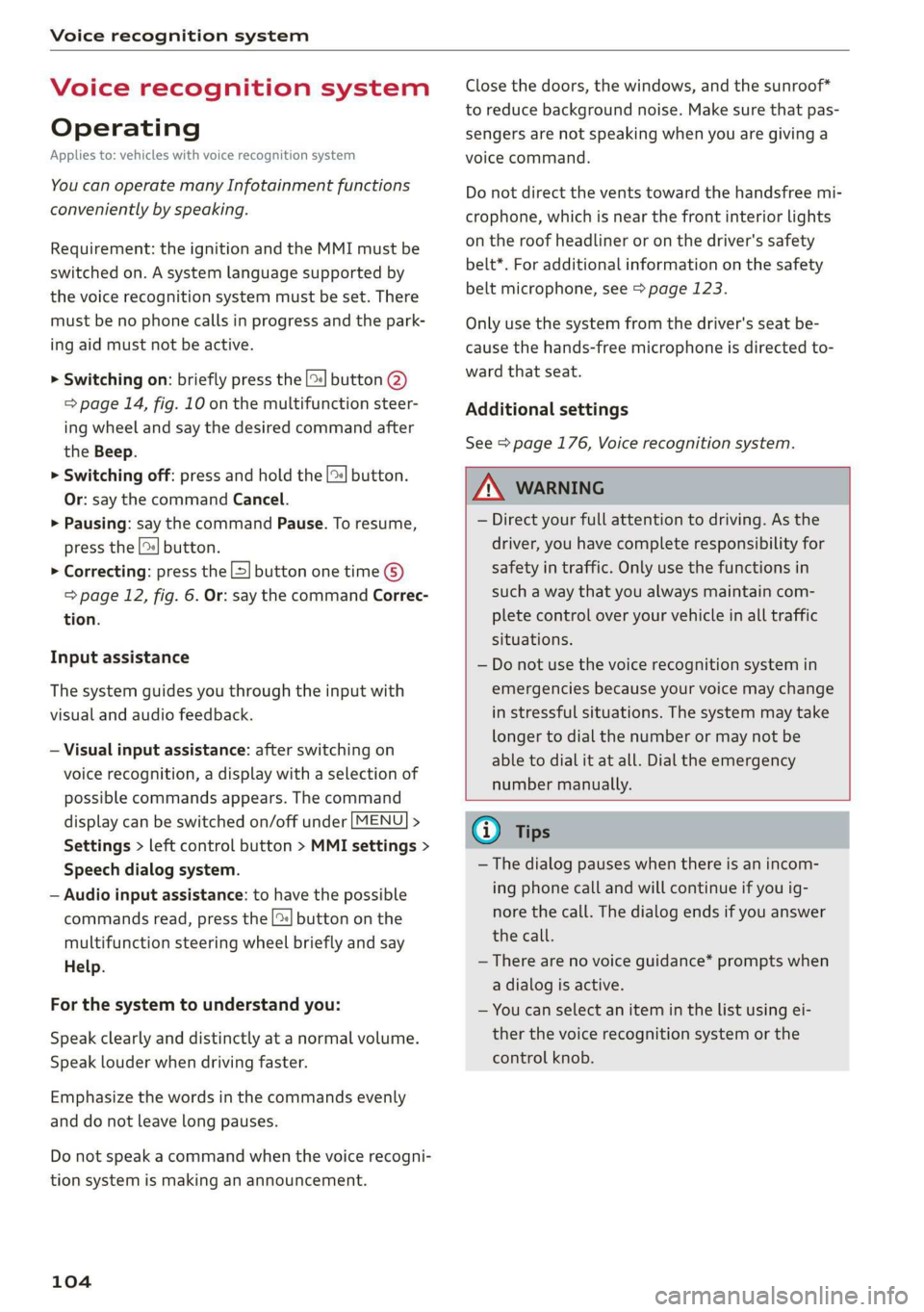
Voice recognition system
Voice recognition system
Operating
Applies to: vehicles with voice recognition system
You can operate many Infotainment functions
conveniently by speaking.
Requirement: the ignition and the MMI must be
switched on. A system language supported by
the voice recognition system must be set. There
must be no phone calls in progress and the park-
ing aid must not be active.
> Switching on: briefly press the [2] button @)
=> page 14, fig. 10 on the multifunction steer-
ing wheel and say the desired command after
the Beep.
> Switching off: press and hold the |™] button.
Or: say the command Cancel.
> Pausing: say the command Pause. To resume,
press the |] button.
> Correcting: press the [>] button one time ©
=> page 12, fig. 6. Or: say the command Correc-
tion.
Input assistance
The system guides you through the input with
visual and audio feedback.
— Visual input assistance: after switching on
voice recognition, a display with a selection of
possible commands appears. The command
display can be switched on/off under [MENU] >
Settings > left control button > MMI settings >
Speech dialog system.
— Audio input assistance: to have the possible
commands read, press the [2] button on the
multifunction steering wheel briefly and say
Help.
For the system to understand you:
Speak clearly and distinctly at a normal volume.
Speak louder when driving faster.
Emphasize the words in the commands evenly
and do not leave long pauses.
Do not speak a command when the voice recogni-
tion system is making an announcement.
104
Close the doors, the windows, and the sunroof*
to reduce background noise. Make sure that pas-
sengers are not speaking when you are giving a
voice command.
Do not direct the vents toward the handsfree mi-
crophone, which is near the front interior lights
on the roof headliner or on the driver's safety
belt*. For additional information on the safety
belt microphone, see > page 123.
Only
use the system from the driver's seat be-
cause the hands-free microphone is directed to-
ward that seat.
Additional settings
See > page 176, Voice recognition system.
ZA\ WARNING
— Direct your full attention to driving. As the
driver, you have complete responsibility for
safety in traffic. Only use the functions in
such a way that you always maintain com-
plete control over your vehicle in all traffic
situations.
— Do not use the voice recognition system in
emergencies because your voice may change
in stressful situations. The system may take
longer to dial the number or may not be
able to dial it at all. Dial the emergency
number manually.
G) Tips
—The dialog pauses when there is an incom-
ing phone call and will continue if you ig-
nore the call. The dialog ends if you answer
the call.
— There are no voice guidance* prompts when
a dialog is active.
— You can select an item in the list using ei-
ther the voice recognition system or the
control knob.
Page 111 of 304
8S8012721BA
Voice recognition system
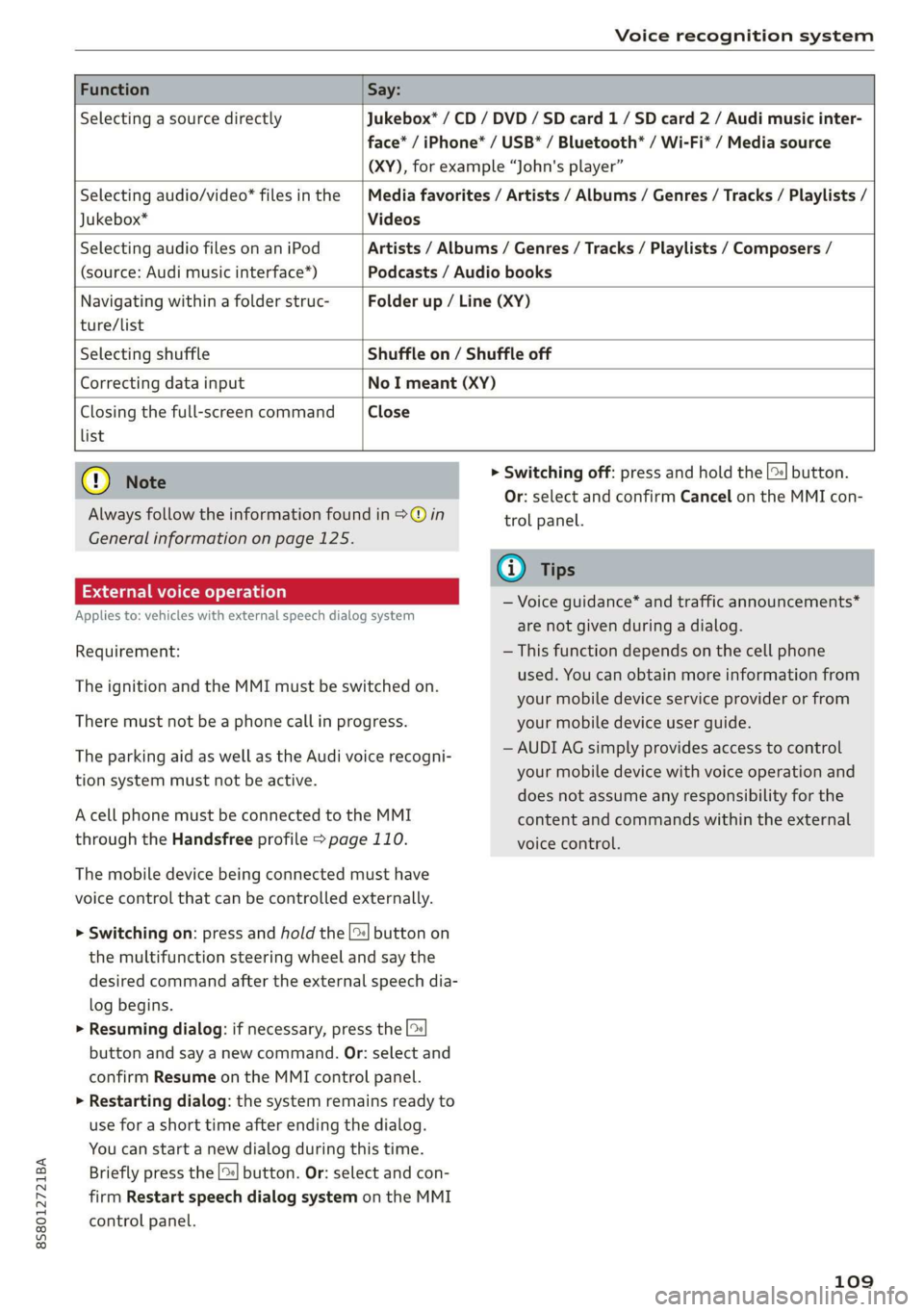
Function Say:
Selecting a source directly Jukebox* / CD / DVD / SD card 1/ SD card 2 / Audi music inter-
face* / iPhone* / USB* / Bluetooth* / Wi-Fi* / Media source
(XY), for example “John's player”
Selecting audio/video* files in the
Jukebox*
Media favorites / Artists / Albums / Genres / Tracks / Playlists /
Videos
Selecting audio files on an iPod
(source: Audi music interface*)
Artists / Albums / Genres / Tracks / Playlists / Composers /
Podcasts / Audio books
Navigating within a folder struc- Folder up / Line (XY)
ture/list
Selecting shuffle Shuffle on / Shuffle off
Correcting data input No I meant (XY)
Closing the full-screen command Close
list
@) Note
Always follow the information found in >@ in
General information on page 125.
External voice operation
Applies to: vehicles with external speech dialog system
Requirement:
The ignition and the MMI must be switched on.
There must not be a phone call in progress.
The parking aid as well as the Audi voice recogni-
tion system must not be active.
A cell phone must be connected to the MMI
through the Handsfree profile > page 110.
The mobile device being connected must have
voice control that can be controlled externally.
> Switching on: press and hold the [>| button on
the multifunction steering wheel and say the
desired command after the external speech dia-
log begins.
> Resuming dialog: if necessary, press the |%
button and say a new command. Or: select and
confirm Resume on the MMI control panel.
> Restarting dialog: the system remains ready to
use for a short time after ending the dialog.
You can start a new dialog during this time.
Briefly press the [2] button. Or: select and con-
firm
Restart speech dialog system on the MMI
control panel.
> Switching off: press and hold the |%] button.
Or: select and confirm Cancel on the MMI con-
trol panel.
G) Tips
— Voice guidance* and traffic announcements*
are not given during a dialog.
— This function depends on the cell phone
used. You can obtain more information from
your mobile device service provider or from
your mobile device user guide.
— AUDI AG simply provides access to control
your mobile device with voice operation and
does not assume any responsibility for the
content and commands within the external
voice control.
109
Page 124 of 304
Telephone
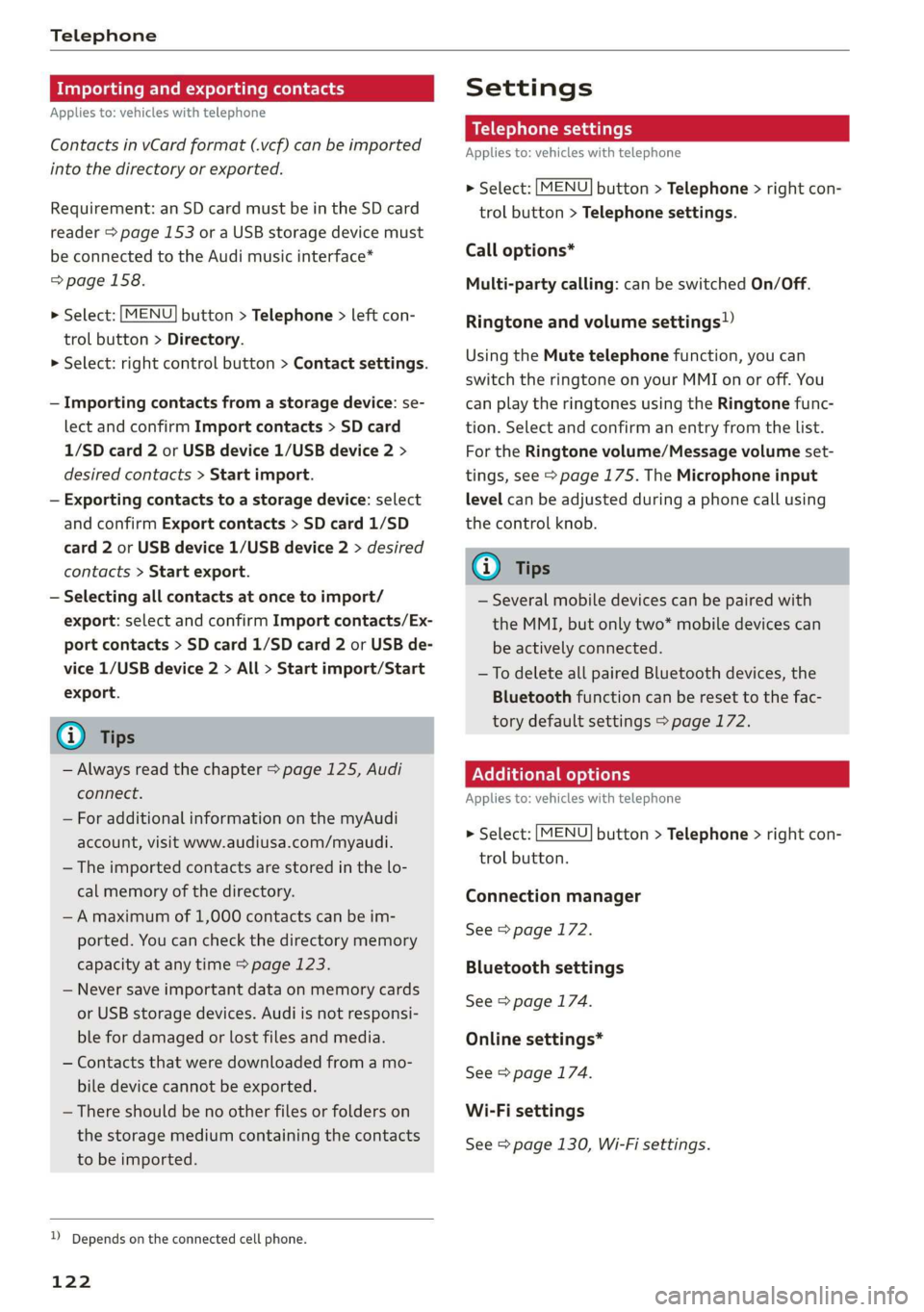
Importing and exporting contacts
Applies to: vehicles with telephone
Contacts in vCard format (.vcf) can be imported
into the directory or exported.
Requirement: an SD card must be in the SD card
reader > page 153 or a USB storage device must
be connected to the Audi music interface*
=> page 158.
> Select: [MENU] button > Telephone > left con-
trol button > Directory.
> Select: right control button > Contact settings.
— Importing contacts from a storage device: se-
lect and confirm Import contacts > SD card
1/SD card 2 or USB device 1/USB device 2 >
desired contacts > Start import.
— Exporting contacts to a storage device: select
and confirm Export contacts > SD card 1/SD
card 2 or USB device 1/USB device 2 > desired
contacts > Start export.
— Selecting all contacts at once to import/
export: select and confirm Import contacts/Ex-
port contacts > SD card 1/SD card 2 or USB de-
vice 1/USB device 2 > All > Start import/Start
export.
G) Tips
— Always read the chapter > page 125, Audi
connect.
— For additional information on the myAudi
account, visit www.audiusa.com/myaudi.
— The imported contacts are stored in the lo-
cal memory of the directory.
—A maximum of 1,000 contacts can be im-
ported. You can check the directory memory
capacity at any time > page 123.
— Never save important data on memory cards
or USB storage devices. Audi is not responsi-
ble for damaged or lost files and media.
— Contacts that were downloaded from a mo-
bile device cannot be exported.
— There should be no other files or folders on
the storage medium containing the contacts
to be imported.
)) Depends on the connected cell phone.
122
Settings
Telephone settings
Applies
to: vehicles with telephone
> Select: [MENU] button > Telephone > right con-
trol button > Telephone settings.
Call options*
Multi-party calling: can be switched On/Off.
Ringtone and volume settings!)
Using the Mute telephone function, you can
switch the ringtone on your MMI on or off. You
can play the ringtones using the Ringtone func-
tion. Select and confirm an entry from the list.
For the Ringtone volume/Message volume set-
tings, see > page 175. The Microphone input
level can be adjusted during a phone call using
the control knob.
G) Tips
— Several mobile devices can be paired with
the MMI, but only two* mobile devices can
be actively connected.
—To delete all paired Bluetooth devices, the
Bluetooth function can be reset to the fac-
tory default settings > page 172.
Pelee Cola] Mey Lalor}
Applies to: vehicles with telephone
> Select: [MENU] button > Telephone > right con-
trol button.
Connection manager
See > page 172.
Bluetooth settings
See > page 174.
Online settings*
See > page 174.
Wi-Fi settings
See > page 130, Wi-Fi settings.
Page 127 of 304
8S8012721BA
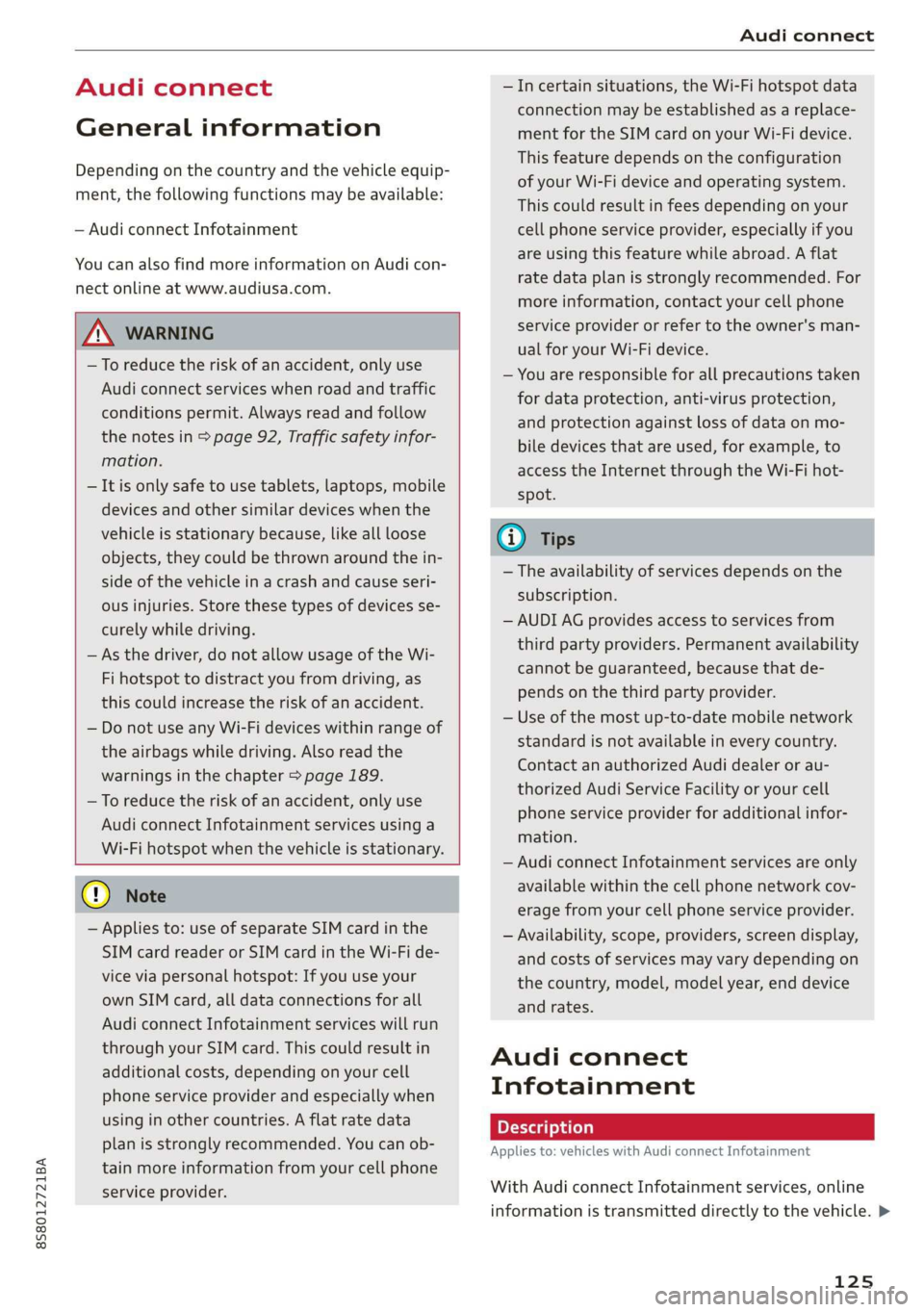
Audi connect
Audi connect
General information
Depending on the country and the vehicle equip-
ment, the following functions may be available:
— Audi connect Infotainment
You can also find more information on Audi con-
nect online at www.audiusa.com.
Z\ WARNING
—To reduce the risk of an accident, only use
Audi connect services when road and traffic
conditions permit. Always read and follow
the notes in > page 92, Traffic safety infor-
mation.
— It is only safe to use tablets, laptops, mobile
devices and other similar devices when the
vehicle is stationary because, like all loose
objects, they could be thrown around the in-
side of the vehicle in a crash and cause seri-
ous injuries. Store these types of devices se-
curely while driving.
— As the driver, do not allow usage of the Wi-
Fi hotspot to distract you from driving, as
this could increase the risk of an accident.
— Do not use any Wi-Fi devices within range of
the airbags while driving. Also read the
warnings in the chapter > page 189.
—To reduce the risk of an accident, only use
Audi connect Infotainment services using a
Wi-Fi hotspot when the vehicle is stationary.
@) Note
— Applies to: use of separate SIM card in the
SIM card reader or SIM card in the Wi-Fi de-
vice via personal hotspot: If you use your
own SIM card, all data connections for all
Audi connect Infotainment services will run
through your SIM card. This could result in
additional costs, depending on your cell
phone service provider and especially when
using in other countries. A flat rate data
plan is strongly recommended. You can ob-
tain more information from your cell phone
service provider.
—Incertain situations, the Wi-Fi hotspot data
connection may be established as a replace-
ment for the SIM card on your Wi-Fi device.
This feature depends on the configuration
of your Wi-Fi device and operating system.
This could result in fees depending on your
cell phone service provider, especially if you
are using this feature while abroad. A flat
rate data plan is strongly recommended. For
more information, contact your cell phone
service provider or refer to the owner's man-
ual for your Wi-Fi device.
— You are responsible for all precautions taken
for data protection, anti-virus protection,
and protection against loss of data on mo-
bile devices that are used, for example, to
access the Internet through the Wi-Fi hot-
spot.
@) Tips
— The availability of services depends on the
subscription.
— AUDI AG provides access to services from
third party providers. Permanent availability
cannot be guaranteed, because that de-
pends on the third party provider.
— Use of the most up-to-date mobile network
standard is not available in every country.
Contact an authorized Audi dealer or au-
thorized Audi Service Facility or your cell
phone service provider for additional infor-
mation.
— Audi connect Infotainment services are only
available within the cell phone network cov-
erage from your cell phone service provider.
— Availability, scope, providers, screen display,
and costs of services may vary depending on
the country, model, model year, end device
and rates.
Audi connect
Infotainment
Applies to: vehicles with Audi connect Infotainment
With Audi connect Infotainment services, online
information is transmitted directly to the vehicle. >
125