2019 AUDI TT ROADSTER audio
[x] Cancel search: audioPage 106 of 304
Voice recognition system
Voice recognition system
Operating
Applies to: vehicles with voice recognition system
You can operate many Infotainment functions
conveniently by speaking.
Requirement: the ignition and the MMI must be
switched on. A system language supported by
the voice recognition system must be set. There
must be no phone calls in progress and the park-
ing aid must not be active.
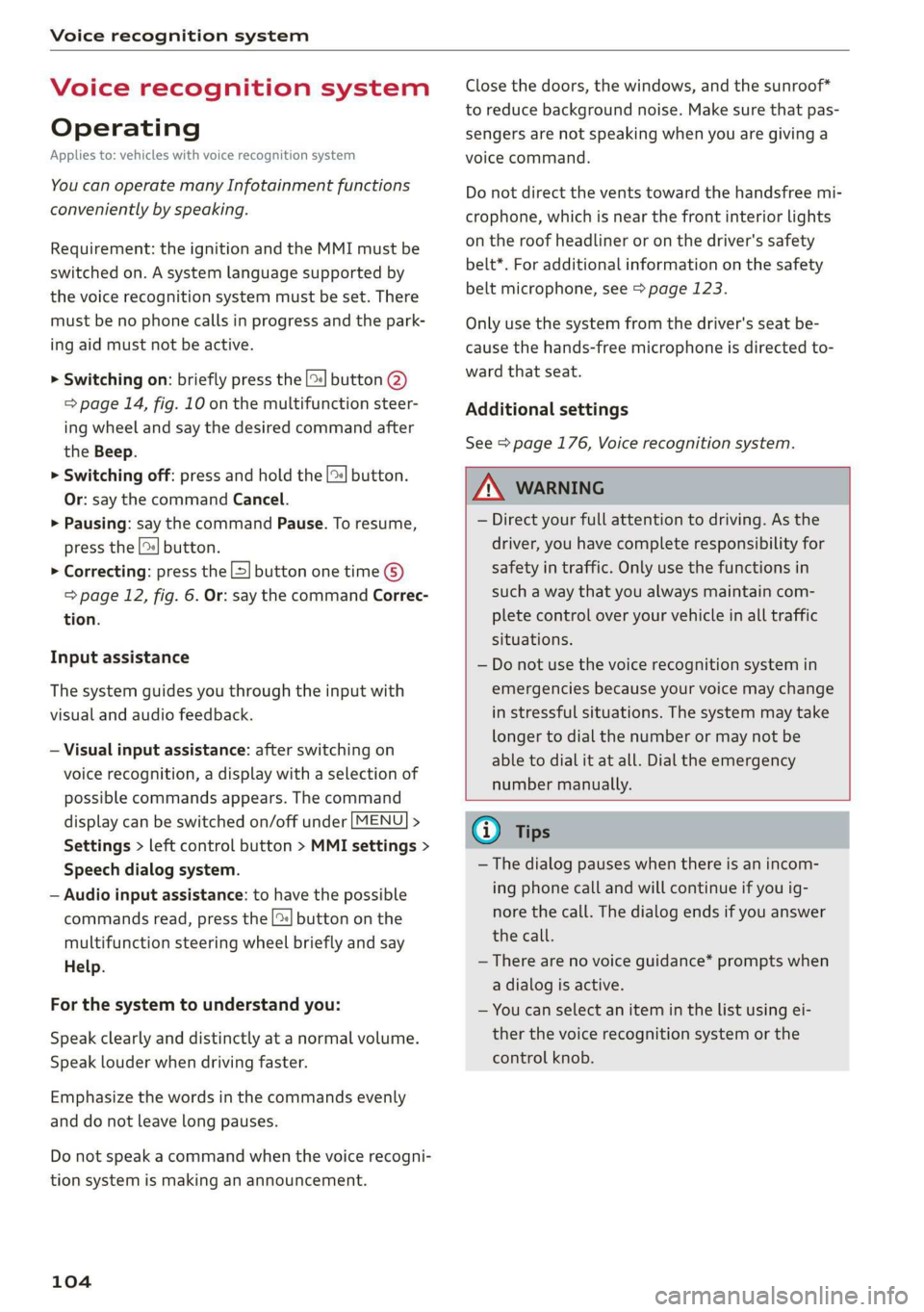
> Switching on: briefly press the [2] button @)
=> page 14, fig. 10 on the multifunction steer-
ing wheel and say the desired command after
the Beep.
> Switching off: press and hold the |™] button.
Or: say the command Cancel.
> Pausing: say the command Pause. To resume,
press the |] button.
> Correcting: press the [>] button one time ©
=> page 12, fig. 6. Or: say the command Correc-
tion.
Input assistance
The system guides you through the input with
visual and audio feedback.
— Visual input assistance: after switching on
voice recognition, a display with a selection of
possible commands appears. The command
display can be switched on/off under [MENU] >
Settings > left control button > MMI settings >
Speech dialog system.
— Audio input assistance: to have the possible
commands read, press the [2] button on the
multifunction steering wheel briefly and say
Help.
For the system to understand you:
Speak clearly and distinctly at a normal volume.
Speak louder when driving faster.
Emphasize the words in the commands evenly
and do not leave long pauses.
Do not speak a command when the voice recogni-
tion system is making an announcement.
104
Close the doors, the windows, and the sunroof*
to reduce background noise. Make sure that pas-
sengers are not speaking when you are giving a
voice command.
Do not direct the vents toward the handsfree mi-
crophone, which is near the front interior lights
on the roof headliner or on the driver's safety
belt*. For additional information on the safety
belt microphone, see > page 123.
Only
use the system from the driver's seat be-
cause the hands-free microphone is directed to-
ward that seat.
Additional settings
See > page 176, Voice recognition system.
ZA\ WARNING
— Direct your full attention to driving. As the
driver, you have complete responsibility for
safety in traffic. Only use the functions in
such a way that you always maintain com-
plete control over your vehicle in all traffic
situations.
— Do not use the voice recognition system in
emergencies because your voice may change
in stressful situations. The system may take
longer to dial the number or may not be
able to dial it at all. Dial the emergency
number manually.
G) Tips
—The dialog pauses when there is an incom-
ing phone call and will continue if you ig-
nore the call. The dialog ends if you answer
the call.
— There are no voice guidance* prompts when
a dialog is active.
— You can select an item in the list using ei-
ther the voice recognition system or the
control knob.
Page 111 of 304
8S8012721BA
Voice recognition system
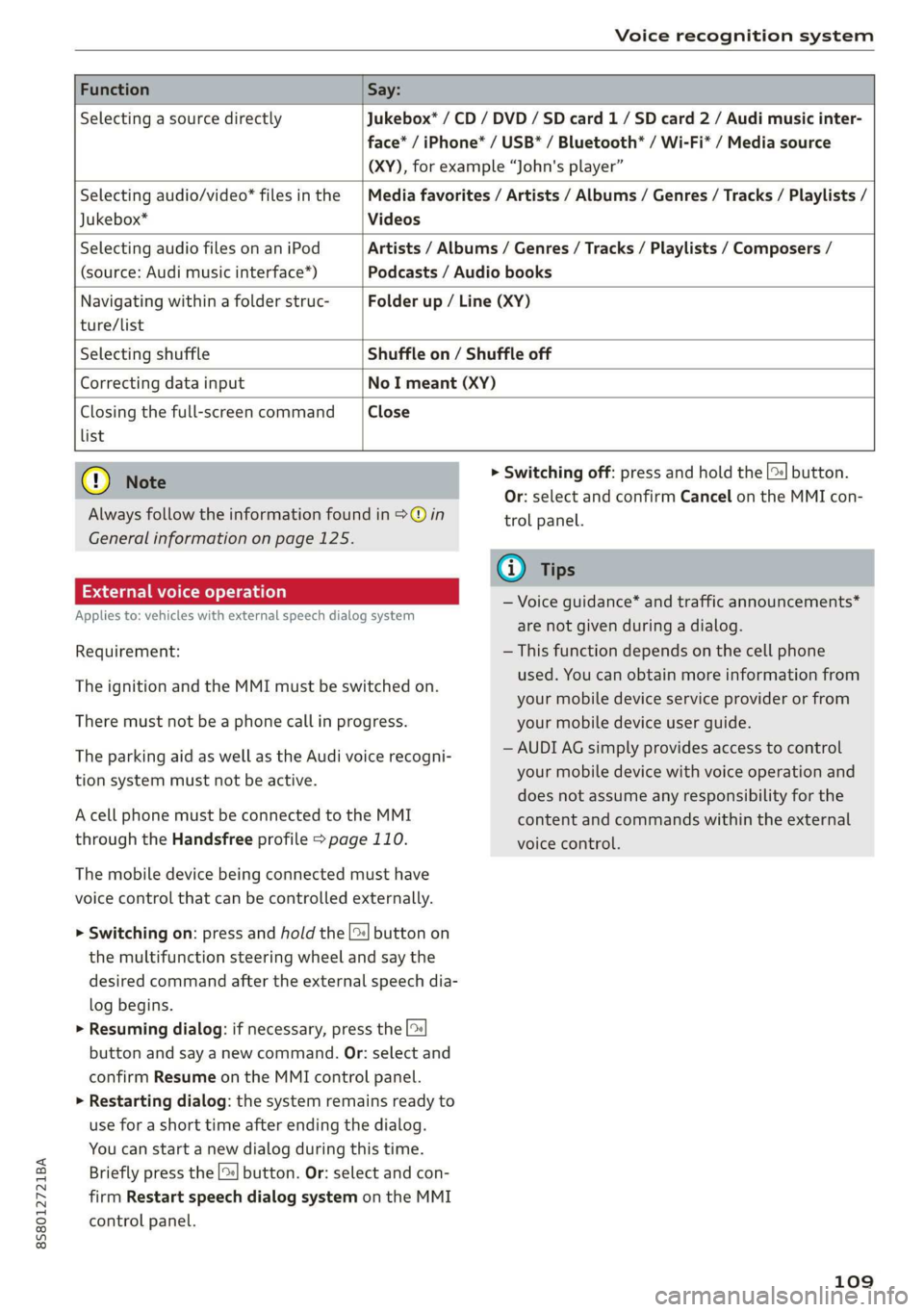
Function Say:
Selecting a source directly Jukebox* / CD / DVD / SD card 1/ SD card 2 / Audi music inter-
face* / iPhone* / USB* / Bluetooth* / Wi-Fi* / Media source
(XY), for example “John's player”
Selecting audio/video* files in the
Jukebox*
Media favorites / Artists / Albums / Genres / Tracks / Playlists /
Videos
Selecting audio files on an iPod
(source: Audi music interface*)
Artists / Albums / Genres / Tracks / Playlists / Composers /
Podcasts / Audio books
Navigating within a folder struc- Folder up / Line (XY)
ture/list
Selecting shuffle Shuffle on / Shuffle off
Correcting data input No I meant (XY)
Closing the full-screen command Close
list
@) Note
Always follow the information found in >@ in
General information on page 125.
External voice operation
Applies to: vehicles with external speech dialog system
Requirement:
The ignition and the MMI must be switched on.
There must not be a phone call in progress.
The parking aid as well as the Audi voice recogni-
tion system must not be active.
A cell phone must be connected to the MMI
through the Handsfree profile > page 110.
The mobile device being connected must have
voice control that can be controlled externally.
> Switching on: press and hold the [>| button on
the multifunction steering wheel and say the
desired command after the external speech dia-
log begins.
> Resuming dialog: if necessary, press the |%
button and say a new command. Or: select and
confirm Resume on the MMI control panel.
> Restarting dialog: the system remains ready to
use for a short time after ending the dialog.
You can start a new dialog during this time.
Briefly press the [2] button. Or: select and con-
firm
Restart speech dialog system on the MMI
control panel.
> Switching off: press and hold the |%] button.
Or: select and confirm Cancel on the MMI con-
trol panel.
G) Tips
— Voice guidance* and traffic announcements*
are not given during a dialog.
— This function depends on the cell phone
used. You can obtain more information from
your mobile device service provider or from
your mobile device user guide.
— AUDI AG simply provides access to control
your mobile device with voice operation and
does not assume any responsibility for the
content and commands within the external
voice control.
109
Page 132 of 304
Audi connect
Wi-Fi settings
Applies to: vehicles with Wi-Fi hotspot
You can use the MMI as a Wi-Fi hotspot to con-
nect
up to eight Wi-Fi devices to the Internet.
Requirement: the ignition must be switched on.
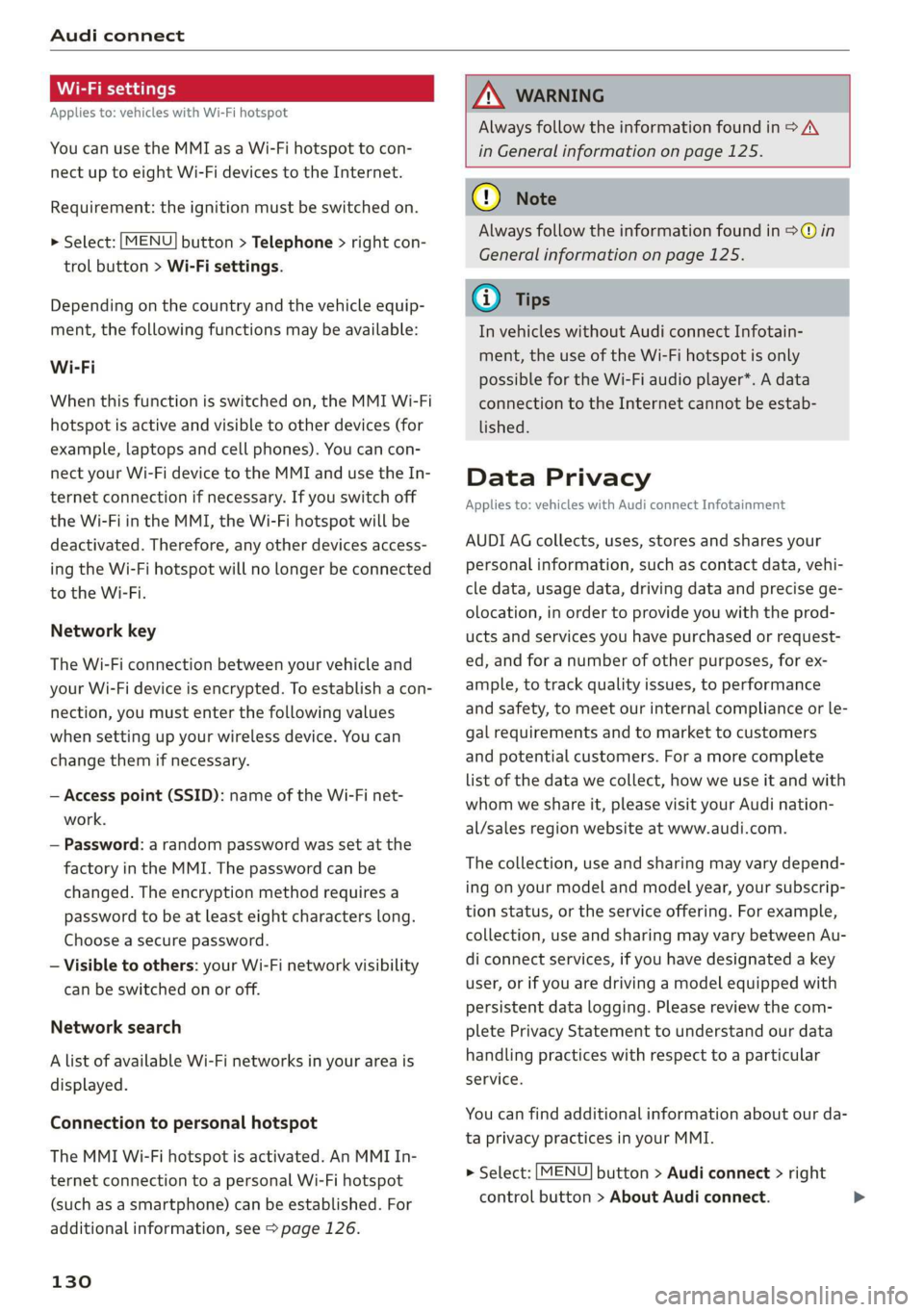
> Select: [MENU] button > Telephone > right con-
trol button > Wi-Fi settings.
Depending on the country and the vehicle equip-
ment, the following functions may be available:
Wi-Fi
When this function is switched on, the MMI Wi-Fi
hotspot is active and visible to other devices (for
example, laptops and cell phones). You can con-
nect your Wi-Fi device to the MMI and use the In-
ternet connection if necessary. If you switch off
the Wi-Fi in the MMI, the Wi-Fi hotspot will be
deactivated. Therefore, any other devices access-
ing the Wi-Fi hotspot will no longer be connected
to the Wi-Fi.
Network key
The Wi-Fi connection between your vehicle and
your Wi-Fi device is encrypted. To establish a con-
nection, you must enter the following values
when setting up your wireless device. You can
change them if necessary.
— Access point (SSID): name of the Wi-Fi net-
work.
— Password: a random password was set at the
factory in the MMI. The password can be
changed. The encryption method requires a
password to be at least eight characters long.
Choose a secure password.
— Visible to others: your Wi-Fi network visibility
can be switched on or off.
Network search
A list of available Wi-Fi networks in your area is
displayed.
Connection to personal hotspot
The MMI Wi-Fi hotspot is activated. An MMI In-
ternet connection to a personal Wi-Fi hotspot
(such as a smartphone) can be established. For
additional information, see > page 126.
130
ZA WARNING
Always follow the information found in > A\
in General information on page 125.
(1) Note
Always follow the information found in © in
General information on page 125.
@ Tips
In vehicles without Audi connect Infotain-
ment, the use of the Wi-Fi hotspot is only
possible for the Wi-Fi audio player*. A data
connection to the Internet cannot be estab-
lished.
Data Privacy
Applies to: vehicles with Audi connect Infotainment
AUDI AG collects, uses, stores and shares your
personal information, such as contact data, vehi-
cle data, usage data, driving data and precise ge-
olocation, in order to provide you with the prod-
ucts and services you have purchased or request-
ed, and for a number of other purposes, for ex-
ample, to track quality issues, to performance
and safety, to meet our internal compliance or le-
gal requirements and to market to customers
and potential customers. For a more complete
list of the data we collect, how we use it and with
whom we share it, please visit your Audi nation-
al/sales region website at www.audi.com.
The collection, use and sharing may vary depend-
ing on your model and model year, your subscrip-
tion status, or the service offering. For example,
collection, use and sharing may vary between Au-
di connect services, if you have designated a key
user, or if you are driving a model equipped with
persistent data logging. Please review the com-
plete Privacy Statement to understand our data
handling practices with respect to a particular
service.
You can find additional information about our da-
ta privacy practices in your MMI.
> Select: [MENU] button > Audi connect > right
control button > About Audi connect.
Page 134 of 304

Navigation
Navigation
Opening navigation
Applies to: vehicles with navigation system
The navigation system directs you to your destination, around traffic incidents, and on alternative
routes, if desired.
ae 2
Fig. 118 Diagram: Enter destination menu
> Press the [NAV/MAP] button.
The Enter destination menu is displayed after
opening navigation > fig. 118. The following in-
formation can be displayed in the Infotainment
system display:
@ Input field for free text search > page 133
@ Home address > page 134
Last destinations > page 133 pag
Stored favorites > page 134 pag
As soon as you select an entry from the list (de-
pending on the vehicle equipment), the corre-
sponding destination displays as a map preview*
© ° fig. 118.
If you have connected a mobile device to the
MMI, your directory contacts will also be listed if
they have navigation data assigned to them.
The Favorites (4) menu item as well as the direc-
tory/contacts are only shown in the Enter desti-
nation menu if you have entered one or more
characters using the input field.
Switching between the destination entry and
the map
132
— Press the [NAV/MAP] button repeatedly until
the map is displayed. Or: select the left control
button > Switch to map.
ZA\ WARNING
— The demands of traffic require your full at-
tention. Always read the chapter > page 92,
Traffic safety information.
— Obey all traffic laws when driving.
— The route calculated by the navigation sys-
tem is a recommendation for reaching your
destination. Obey traffic lights, stopping re-
strictions, one-way streets, lane change re-
strictions, etc.
— Adjust the volume of the audio system so
that signals from outside the vehicle, such
as police and fire sirens, can be heard easily
at all times.
) Note
If the driving directions conflict with traffic
laws, obey the traffic laws.
Page 154 of 304
Media
Media
Introduction
There are various media drives and connections
available in the MMI. You can play, for example,
audio/video files from the Jukebox* or connect
your mobile device to the Audi music interface*
and operate it through the MMI.
Notes
Media and format restrictions: the MMI (includ-
ing the SD card reader and the USB storage de-
vice connection*) was tested with a variety of
products and media available in the market.
However, there may be cases where individual de-
vices or media and audio/video” files may not be
recognized, may play only with restrictions or
may not play at all.
Digital Rights Management: please note that
the audio/video files are subject to copyright pro-
tection.
The media drives do not play files that are pro-
tected by DRM and that are identified with the
symbol fi.
Data security: never store important data on SD
cards, the Jukebox*, CDs/DVDs or mobile devices.
Audi AG is not responsible for damaged or lost
files and media.
Loading times: the more files/folders/playlists
that are on a storage medium, the longer it will
take to load the audio/video* files. Audi recom-
mends using storage media that only contain au-
dio/video files*. To decrease the time it takes to
load audio/video files*, create subfolders (for ex-
ample, for the artist or album). The loading time
will also increase when importing files.
Additional information: when playing, audio
files are automatically displayed with any addi-
tional information that is stored (such as the ar-
tist, track and album cover). If this information is
not available on the storage medium, the MMI
will check the Gracenote metadata database.
152
However, in some cases, the additional informa-
tion may not be displayed.
Restricted functionality: reset the Media set-
tings to the factory default settings if functional-
ity is restricted > page 172.
If functionality is restricted, reset the Jukebox* to
the factory default settings > page 172.
For information about the properties of support-
ed media and file formats, see > page 166.
@) Note
Always follow the information found in >@ in
General information on page 125.
CD/DVD operation
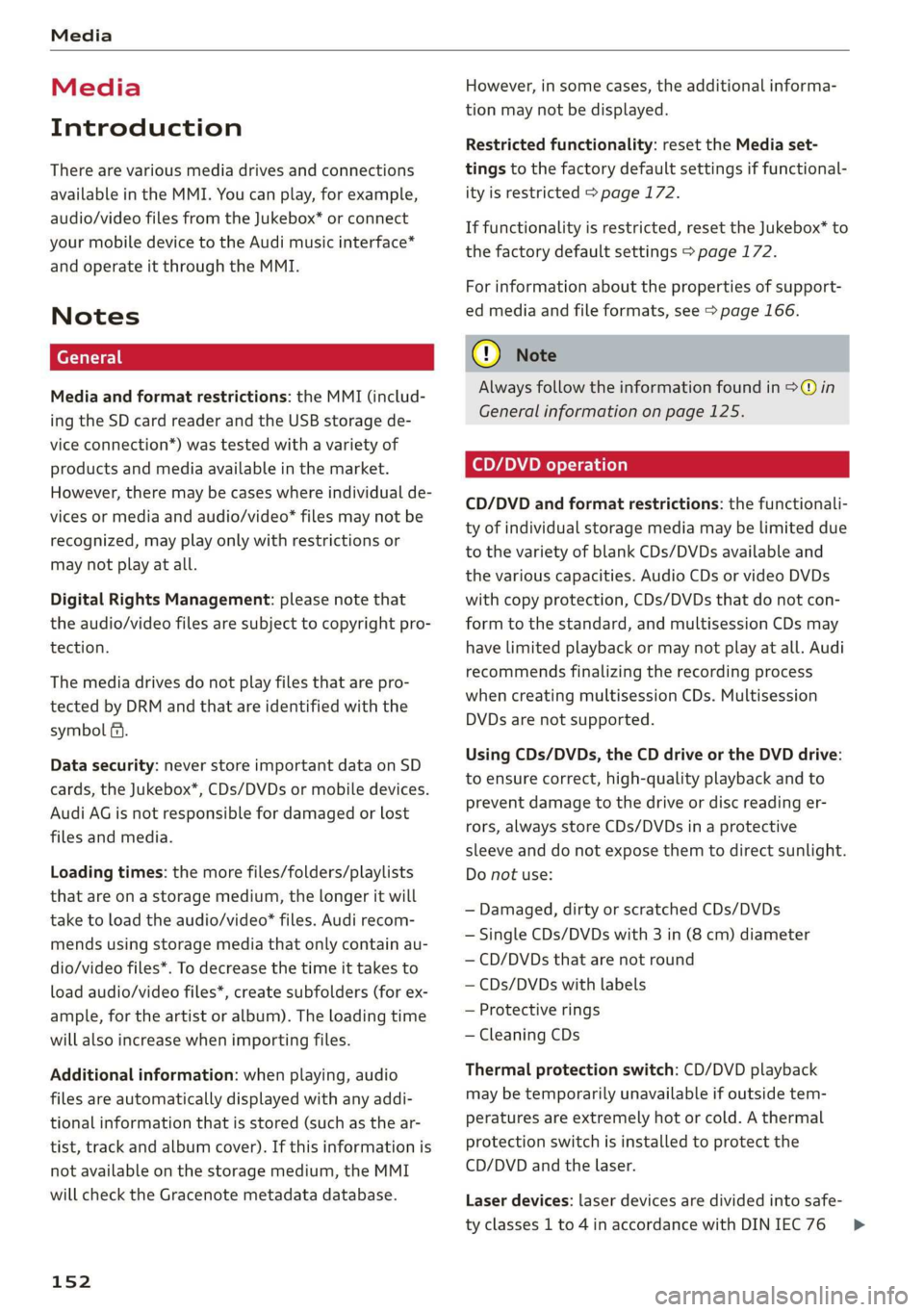
CD/DVD and format restrictions: the functionali-
ty of individual storage media may be limited due
to the variety of blank CDs/DVDs available and
the various capacities. Audio CDs or video DVDs
with copy protection, CDs/DVDs that do not con-
form to the standard, and multisession CDs may
have limited playback or may not play at all. Audi
recommends finalizing the recording process
when creating multisession CDs. Multisession
DVDs are not supported.
Using CDs/DVDs, the CD drive or the DVD drive:
to ensure correct, high-quality playback and to
prevent damage to the drive or disc reading er-
rors, always store CDs/DVDs in a protective
sleeve and do not expose them to direct sunlight.
Do not use:
— Damaged, dirty or scratched CDs/DVDs
— Single CDs/DVDs with 3 in (8 cm) diameter
— CD/DVDs that are not round
— CDs/DVDs with labels
— Protective rings
— Cleaning CDs
Thermal protection switch: CD/DVD playback
may be temporarily unavailable if outside tem-
peratures
are extremely hot or cold. A thermal
protection switch is installed to protect the
CD/DVD and the laser.
Laser devices: laser devices are divided into safe-
ty classes 1 to 4 in accordance with DIN IEC 76 >
Page 155 of 304
8S58012721BA
Media
(CO) 6/VDE 0837. The various types of audio
equipment installed conform to safety class 1.
The laser uses so little power or is shielded so
there is no danger when it is used correctly.
Media drives
SD card reader
RAH-7103
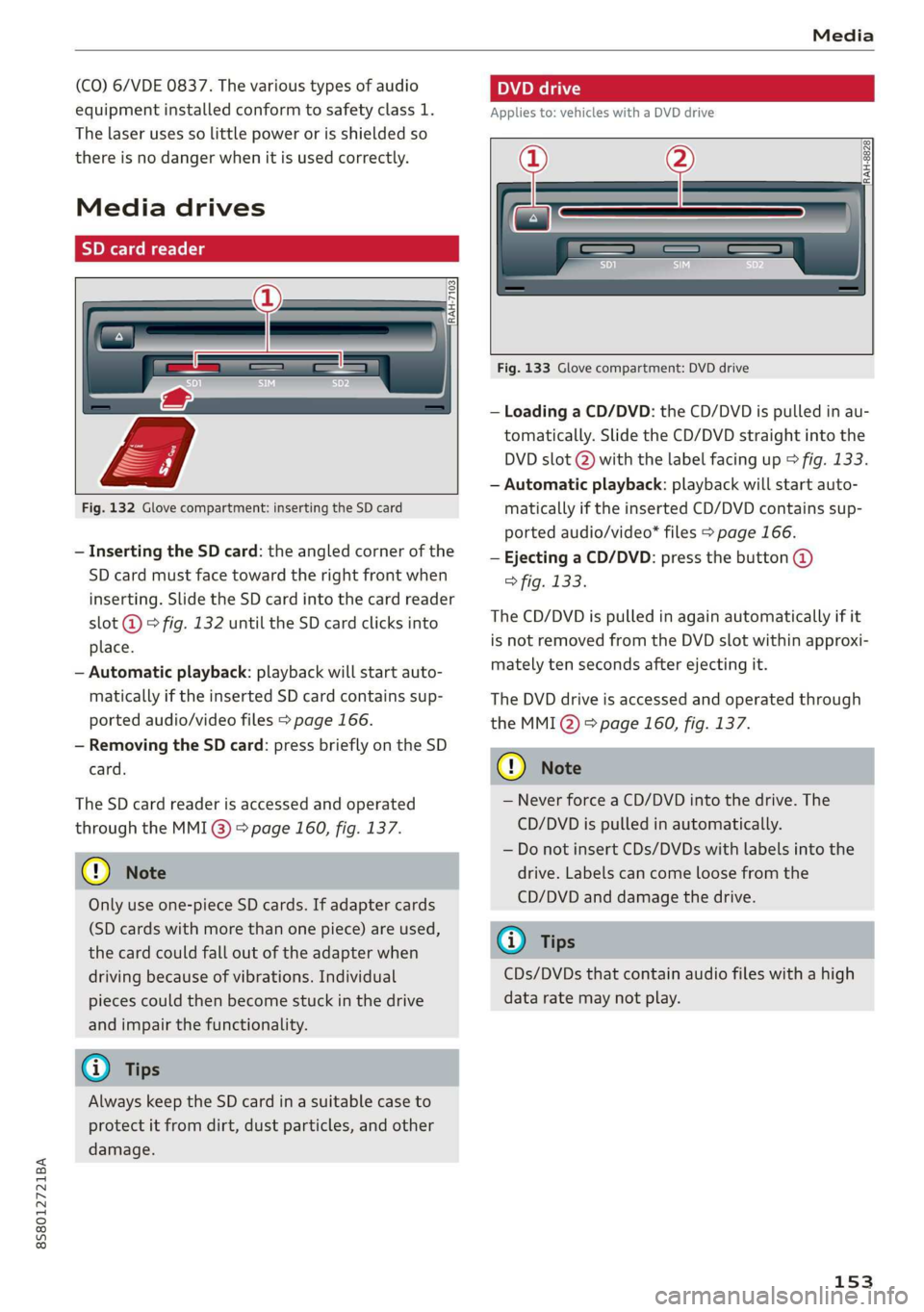
Fig. 132 Glove compartment: inserting the SD card
— Inserting the SD card: the angled corner of the
SD card must face toward the right front when
inserting. Slide the SD card into the card reader
slot @ ° fig. 132 until the SD card clicks into
place.
— Automatic playback: playback will start auto-
matically if the inserted SD card contains sup-
ported audio/video files > page 166.
— Removing the SD card: press briefly on the SD
card.
The SD card reader is accessed and operated
through the MMI @) & page 160, fig. 137.
@ Note
Only use one-piece SD cards. If adapter cards
(SD cards with more than one piece) are used,
the card could fall out of the adapter when
driving because of vibrations. Individual
pieces could then become stuck in the drive
and impair the functionality.
@ Tips
Always keep the SD card in a suitable case to
protect it from dirt, dust particles, and other
damage.
Poel
Applies to: vehicles with a DVD drive
_————
RAH-8828}
Fig. 133 Glove compartment: DVD drive
— Loading a CD/DVD: the CD/DVD is pulled in au-
tomatically. Slide the CD/DVD straight into the
DVD slot @) with the label facing up > fig. 133.
— Automatic playback: playback will start auto-
matically if the inserted CD/DVD contains sup-
ported audio/video* files > page 166.
— Ejecting a CD/DVD: press the button @
> fig. 133.
The CD/DVD is pulled in again automatically if it
is not removed from the DVD slot within approxi-
mately ten seconds after ejecting it.
The DVD drive is accessed and operated through
the MMI @) > page 160, fig. 137.
@) Note
— Never force a CD/DVD into the drive. The
CD/DVD is pulled in automatically.
— Do not insert CDs/DVDs with labels into the
drive. Labels can come loose from the
CD/DVD and damage the drive.
@o Tips
CDs/DVDs that contain audio files with a high
data rate may not play.
153
Page 156 of 304
Media
Applies to: vehicles with a CD drive
re
RAH-8826|
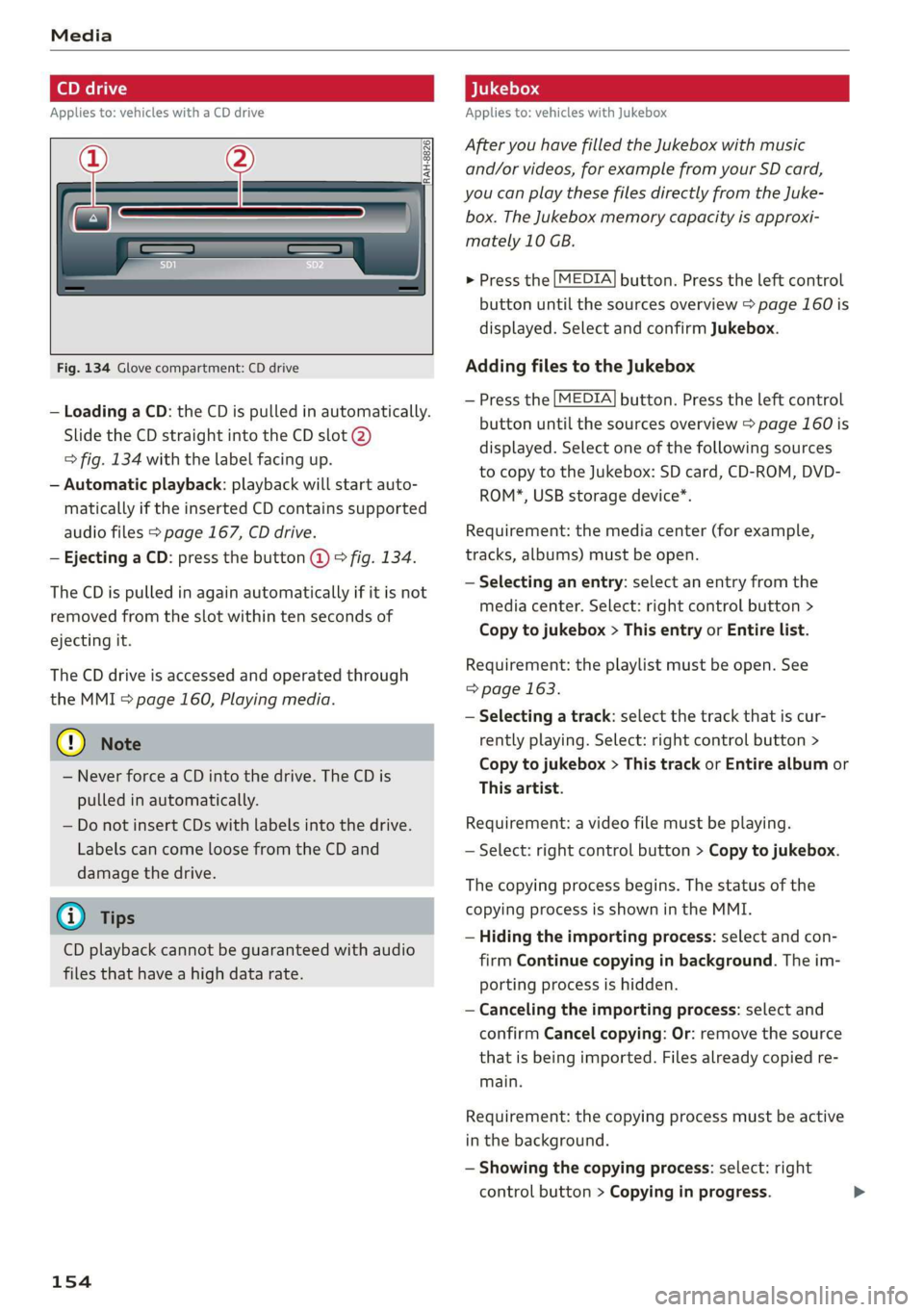
Fig. 134 Glove compartment: CD drive
— Loading a CD: the CD is pulled in automatically.
Slide the CD straight into the CD slot @)
=> fig. 134 with the label facing up.
— Automatic playback: playback will start auto-
matically if the inserted CD contains supported
audio files > page 167, CD drive.
— Ejecting a CD: press the button @ © fig. 134.
The CD is pulled in again automatically if it is not
removed from the slot within ten seconds of
ejecting it.
The CD drive is accessed and operated through
the MMI > page 160, Playing media.
@) Note
— Never force a CD into the drive. The CD is
pulled in automatically.
— Do not insert CDs with labels into the drive.
Labels can come loose from the CD and
damage the drive.
@) Tips
CD playback cannot be guaranteed with audio
files that have a high data rate.
154
Applies to: vehicles with Jukebox
After you have filled the Jukebox with music
and/or videos, for example from your SD card,
you can play these files directly from the Juke-
box. The Jukebox memory capacity is approxi-
mately 10 GB.
> Press the [MEDIA] button. Press the left control
button until the sources overview > page 160 is
displayed. Select and confirm Jukebox.
Adding files to the Jukebox
— Press the [MEDIA] button. Press the left control
button until the sources overview > page 160 is
displayed. Select one of the following sources
to copy to the Jukebox: SD card, CD-ROM, DVD-
ROM*, USB storage device*.
Requirement: the media center (for example,
tracks, albums) must be open.
— Selecting an entry: select an entry from the
media center. Select: right control button >
Copy to jukebox > This entry or Entire list.
Requirement: the playlist must be open. See
=> page 163.
— Selecting a track: select the track that is cur-
rently playing. Select: right control button >
Copy to jukebox > This track or Entire album or
This artist.
Requirement: a video file must be playing.
— Select: right control button > Copy to jukebox.
The copying process begins. The status of the
copying process is shown in the MMI.
— Hiding the importing process: select and con-
firm
Continue copying in background. The im-
porting process is hidden.
— Canceling the importing process: select and
confirm Cancel copying: Or: remove the source
that is being imported. Files already copied re-
main.
Requirement: the copying process must be active
in the background.
— Showing the copying process: select: right
control button > Copying in progress.
Page 157 of 304

8S8012721BA
Media
When importing, the audio files are automatical-
ly sorted into the media center categories based
on the stored additional information > page 161.
The copied video files are stored in the media
center under the Videos category.
Playing the Jukebox
Requirement: the Jukebox must contain audio/
video files > page 154, Adding files to the Juke-
box.
The Jukebox is accessed and operated through
the MMI @) & page 160, fig. 137.
Displaying Jukebox memory capacity
Select: right control button > Jukebox memory
capacity. Information about the Jukebox memory
capacity and the number of stored tracks is dis-
played.
Deleting tracks from the Jukebox!)
Requirement: the Jukebox must contain audio/
video files.
— Deleting an entry: select an entry from the
Jukebox media center. Select: right control but-
ton > Delete from jukebox > This entry or En-
tire list.
— The status of the deleting process is shown in
the MMI. Jukebox playback stops during the de-
leting process and starts again automatically
once the deletion is complete.
©) Note
Do not import audio/video files when the en-
gine is turned off because this will drain the
vehicle battery.
G) Tips
— Tracks from audio CDs cannot be imported
to the Jukebox for legal reasons.
— Files that have already been imported are
automatically recognized and cannot be
copied to the Jukebox again.
— It is not possible to play audio/video* files
in the CD/DVD* drive while importing them.
)) Not in the Playback view.
— The Jukebox does not provide an export
function due to legal reasons.
— Files or tracks without additional stored in-
formation are listed as Unknown. Audi rec-
ommends adding additional information
(such as ID3 tags) to audio files.
— Reset the Jukebox to the factory default set-
tings when selling your vehicle > page 172.
Bluetooth audio player
Applies to: vehicles with Bluetooth audio player
With the Bluetooth audio player, you can play
music wirelessly from your Bluetooth-capable
device (such as a cell phone) through the MMI.
Requirement: the vehicle must be stationary and
the ignition must be switched on. The Bluetooth
settings will open on your mobile device during
the connection setup. The Bluetooth function and
visibility of the MMI > page 174 and mobile de-
vice must be switched on. The Bluetooth audio
player > page 174 must be switched on in the
MMI.
— Connecting a Bluetooth device: press the
MEDIA] button. Press the left control button
until the sources overview is displayed. Select
and confirm Bluetooth audio player ©)
=> page 160, fig. 138.
—If necessary, select and confirm, Not connected
> Connect Bluetooth audio player. The Blue-
tooth device search starts. Follow the instruc-
tions in the MMI.
— Select and confirm the desired Bluetooth device
from the list. The MMI generates a PIN for the
connection.
— Select and confirm Yes.
— Enter the PIN for connecting on your Bluetooth
device. Or: if the PIN is already displayed on
your Bluetooth device, confirm it in the Blue-
tooth device and in the MMI. The time allowed
for entering the PIN is limited to approximately
30 seconds.
The media is started and operated through the
mobile device or the MMI, depending on the de-
vice being used.
155
>