2018 TOYOTA SIENNA engine
[x] Cancel search: enginePage 54 of 435

54
2. CONNECTIVITY SETTINGS
SIENNA_Navi+MM_OM08021U_(U)
17.08.16 10:05
1Display the Bluetooth® settings
screen. ( →P.48)
2Select “Detailed Settings” .
3Select the desired item to be set.
1Select “Bluetooth* Power” .
When “Bluetooth* Power” is on :
Vehicles without a smart key system
The Bluetooth
® device is automatically
connected when the engine switch is
turned to the “ACC” or “ON” position.
Vehicles with a smart key system
The Bluetooth
® device is automatically
connected when the engine switch is
turned to ACCESSORY or IGNITION ON
mode.
When “Bluetooth* Power” is off :
The Bluetooth
® device is disconnected,
and the system will not connect to it next
time.
*: Bluetooth is a registered trademark of Blue-
tooth SIG, Inc.
SETTING Bluetooth® SYSTEM
The Bluetooth® settings can be con-
firmed and changed.
No.InformationPage
Select to set Bluetooth®
connection on/off.54
Select to change the auto-
matic connection priority of
the registered Bluetooth
®
devices.
55
Select to edit the system in-
formation.56
Select to reset all setup
items.⎯
CHANGING “Bluetooth*
Power”
INFORMATION
● While driving, the auto connection state
can be changed from off to on, but can-
not be changed from on to off.
Page 67 of 435
67
3. OTHER SETTINGS
SIENNA_Navi+MM_OM08021U_(U)
17.08.16 10:05
BASIC FUNCTION
2
2. VOICE SETTINGS
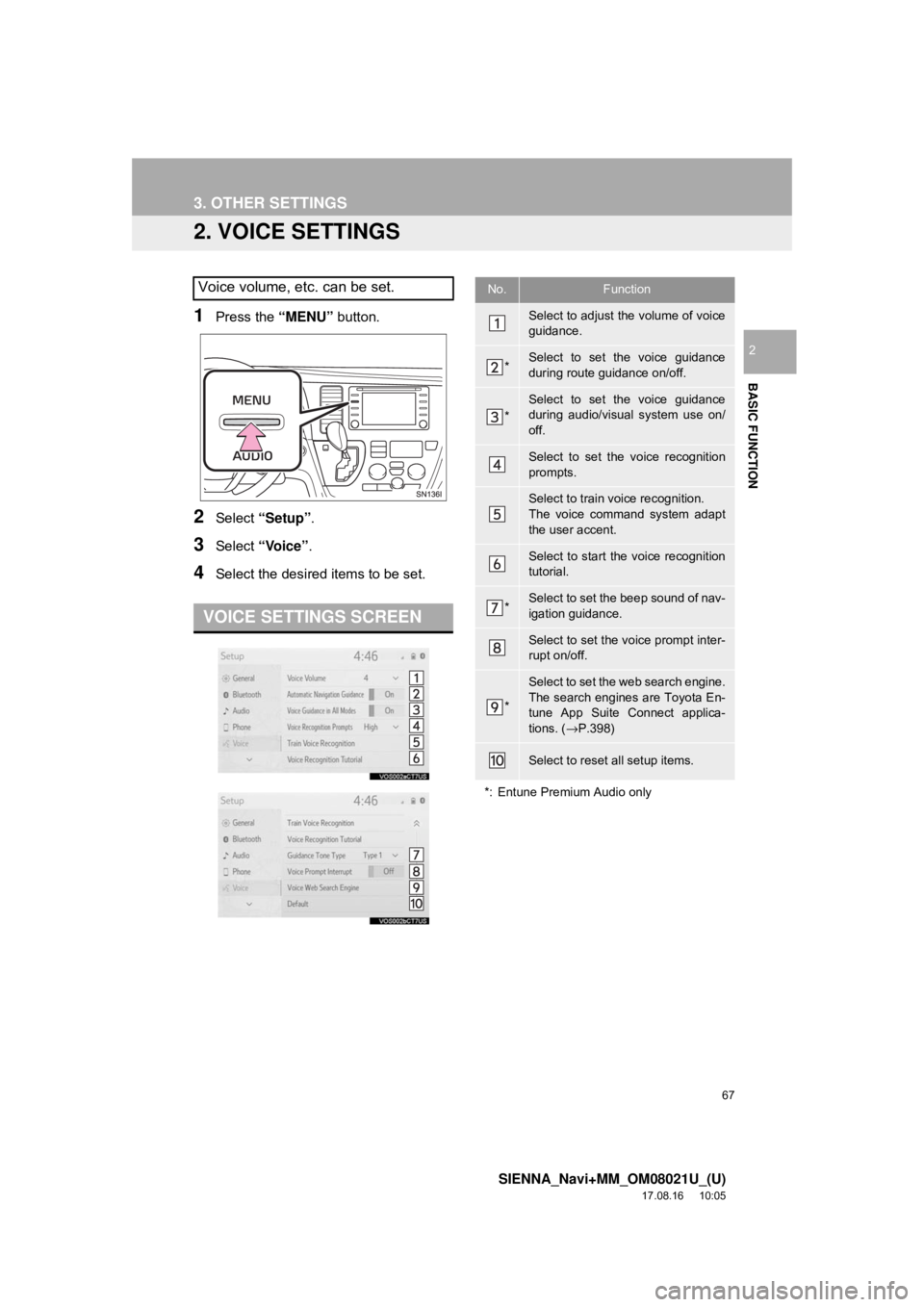
1Press the “MENU” button.
2Select “Setup” .
3Select “Voice”.
4Select the desired items to be set.
Voice volume, etc. can be set.
VOICE SETTINGS SCREEN
No.Function
Select to adjust the volume of voice
guidance.
*Select to set the voice guidance
during route guidance on/off.
*
Select to set the voice guidance
during audio/visual system use on/
off.
Select to set the voice recognition
prompts.
Select to train voice recognition.
The voice command system adapt
the user accent.
Select to start the voice recognition
tutorial.
*Select to set the beep sound of nav-
igation guidance.
Select to set the voice prompt inter-
rupt on/off.
*
Select to set the web search engine.
The search engines are Toyota En-
tune App Suite Connect applica-
tions. (→P.398)
Select to reset all setup items.
*: Entune Premium Audio only
Page 80 of 435

80
1. BASIC OPERATION
SIENNA_Navi+MM_OM08021U_(U)
17.08.16 10:05
2. SOME BASICS
“POWER/VOLUME” knob: Press to turn
the audio/visual system on and off. The
system turns on in the last mode used.
Turn this knob to adjust the volume.
1Press the “AUDIO” button.
2Select “Source” or press “AUDIO”
button again.
3Select the desired source.
This section describes some of the ba-
sic features of the audio/visual system.
Some information may not pertain to
your system.
Vehicles without a smart key system
Your audio/visual system works when
the engine switch is in the “ACC” or
“ON” position.
Vehicles with a smart key system
Your audio/visual system works when
the engine switch is in ACCESSORY
or IGNITION ON mode.
NOTICE
● To prevent the battery from being dis-
charged, do not leave the audio/visual
system on longer than necessary when
the engine is not running.
CERTIFICATION*
CAUTION:
THIS PRODUCT IS A CLASS Ι LASER
PRODUCT. USE OF CONTROLS OR
ADJUSTMENTS OR PERFORMANCE
OF PROCEDURES OTHER THAN
THOSE SPECIFIED HEREIN MAY RE-
SULT IN HAZARDOUS RADIATION
EXPOSURE. DO NOT OPEN COVERS
AND DO NOT REPAI R BY YOURSELF.
REFER SERVICING TO QUALIFIED
PERSONNEL.
*: Entune Audio Plus/Entune Premium Audio only
TURNING THE SYSTEM ON
AND OFF
SELECTING AN AUDIO
SOURCE
Page 96 of 435

96
2. RADIO OPERATION
SIENNA_Navi+MM_OM08021U_(U)
17.08.16 10:05
NOTICE
●It is prohibited to copy, decompile, disas-
semble, reverse engineer, hack, manip-
ulate, or otherwise make available any
technology or software incorporated in
receivers compatible with the SiriusXM
Satellite Radio System or that support
the SXM website, the Online Service or
any of its content. Furthermore, the
AMBE
® voice compression software
included in this product is protected by
intellectual property rights including pat-
ent rights, copyrights, and trade secrets
of Digital Voice Systems, Inc.
● Note: this applies to SiriusXM Satellite
Radio receivers only and not SXM
Ready devices.
INFORMATION
●SiriusXM Radio Services ⎯Descriptions
• Radio and Entertainment SiriusXM offers more than 170 satellite
radio channels of commercial-free
music and premier sports, news, talk,
and entertainment. SiriusXM is broad-
cast via satellites to millions of listen-
ers across the continental United
States. SiriusXM subscribers listen to
SiriusXM on satellite radio receivers for
the car, home, and portable use. More
information about SiriusXM is available
online at www.siriusxm.com
(U.S.A.) or
www.siriusxm.ca (Canada).
• Infotainment and Data services Siri- usXM offers a variety of advanced
Infotainment and data services.
INFORMATION
● SiriusXM Radio Services ⎯Subscription
Instructions
• For SiriusXM Services requiring a sub- scription (such as SiriusXM Radio, and
some Infotainment & data services),
the following paragraph shall be
included.
Required SiriusXM Radio and some
Infotainment & data services monthly
subscriptions sold separately after trial
period. Subscription fee is consumer
only. All fees and programming subject
to change. Subscriptions are subject to
the Customer Agreement available at
www.siriusxm.com
(U.S.A.) or www.sir-iusxm.ca (Canada). SXM service only
available in the 48 contiguous United
States (U.S.A.) or 10 Canadian prov-
inces (Canada). 2011 Sirius XM
Radio Inc. Sirius, XM and all related
marks and logos are trademarks of Sir-
ius XM Radio Inc. All other marks,
channel names and logos are the
property of their respective owners.
For more information, program sched-
ules, and to subscribe or extend sub-
scription after complimentary trial
period; more information is available
at:
USA Customers:
Visit www.siriusxm.com
or call
1-877-447-0011
Canadian Customers:
Visit www.siriusxm.ca
or call
1-877-438-9677
Page 112 of 435

112
3. MEDIA OPERATION
SIENNA_Navi+MM_OM08021U_(U)
17.08.16 10:05
INFORMATION
●Depending on the Bluetooth® device that is connected to the system, the music may start
playing when selecting while it is paused. Conversely, the music may pause when
selecting while it is playing.
● In the following conditions, the system may not function:
• The Bluetooth
® device is turned off.
• The Bluetooth
® device is not connected.
• The Bluetooth
® device has a low battery.
● When using the Bluetooth
® audio and Wi-Fi® Hotspot functions at the same time, the fol-
lowing problems may occur:
• It may take longer than normal to connect to the Bluetooth
® device.
• The sound may cut out.
● It may take time to connect the phone when Bluetooth
® audio is being played.
● For operating the portable player, see the instruction manual that comes with it.
● If the Bluetooth
® device is disconnected due to poor reception from the Bluetooth® net-
work when the engine switch is in the follow ing, the system will automatically reconnect
to the portable player.
Vehicles without a smart key system
The engine switch is in the “ACC” or “ON” position.
Vehicles with a smart key system
The engine switch is in ACC ESSORY or IGNITION ON mode.
●If the Bluetooth® device is disconnected on purpose, such as it was turned off, this does
not happen. Reconnect the portable player manually.
● Bluetooth
® device information is registered when the Bluetooth® device is connected to
the Bluetooth® audio/visual system. When selling or disposing of the vehicle, remove the
Bluetooth® audio information from the system. ( →P. 6 5 )
Page 134 of 435
134
SIENNA_Navi+MM_OM08021U_(U)
17.08.16 10:05
7. REAR SEAT ENTERTAINMENT SYSTEM OPERATION
1. REAR SEAT ENTERTAINMENT SYSTEM FEATURES*
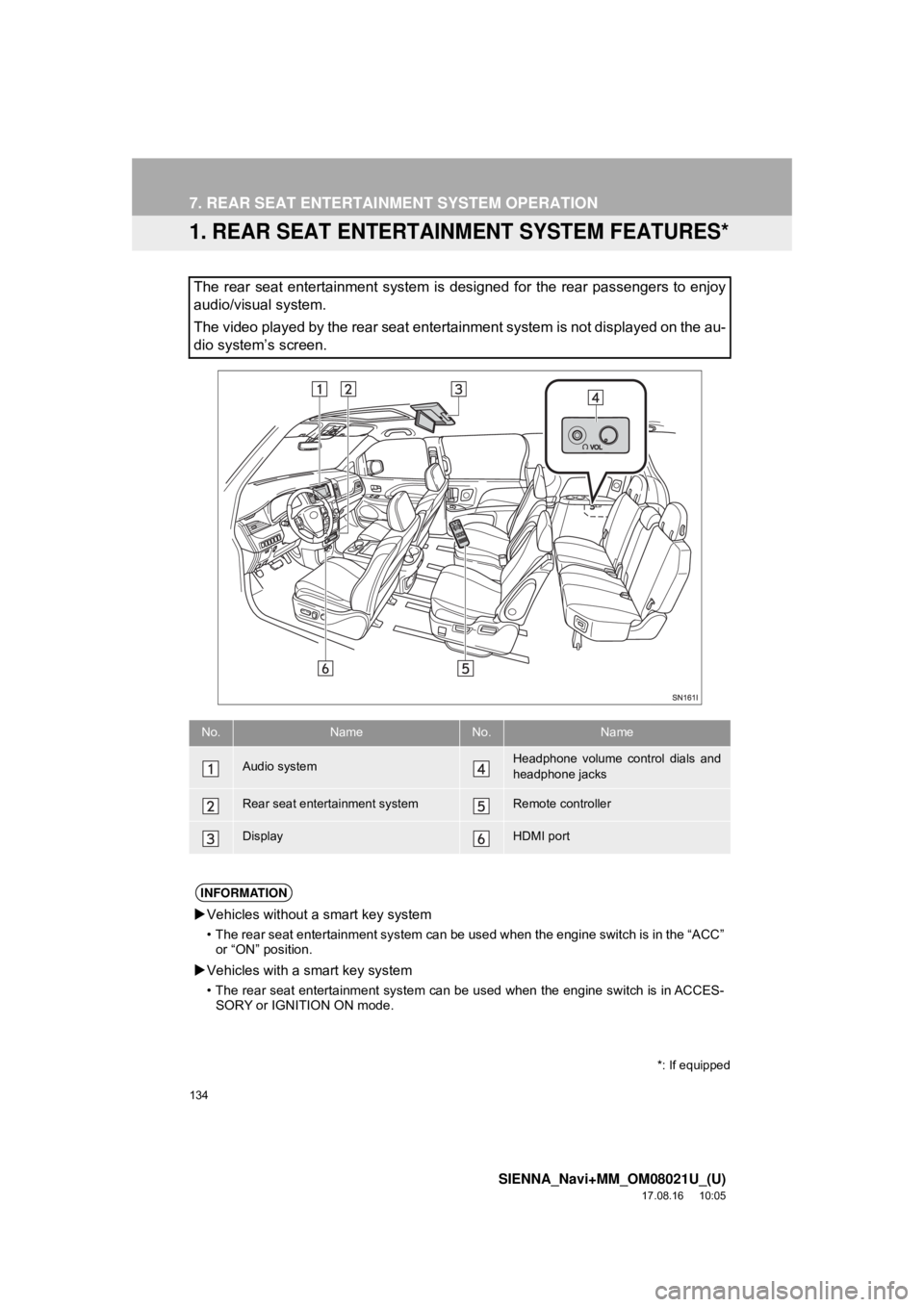
The rear seat entertainment system is designed for the rear passengers to enjoy
audio/visual system.
The video played by the rear seat entertainment system is not displayed on the au-
dio system’s screen.
*: If equipped
No.NameNo.Name
Audio systemHeadphone volume control dials and
headphone jacks
Rear seat entertainment systemRemote controller
DisplayHDMI port
INFORMATION
Vehicles without a smart key system
• The rear seat entertainment system can be us ed when the engine switch is in the “ACC”
or “ON” position.
Vehicles with a smart key system
• The rear seat entertainment system can be used when the engine switch is in ACCES-
SORY or IGNITION ON mode.
Page 181 of 435

181
7. REAR SEAT ENTERTAINMENT SYSTEM OPERATION
SIENNA_Navi+MM_OM08021U_(U)
17.08.16 10:05
AUDIO/VISUAL SYSTEM
3
1Connect your smartphone to a Wi-Fi®
network and send a picture from a
DLNA-compatible application.
2Picture is displayed on the screen.
Press the “SOURCE” button to return to
the DLNA menu screen.
To display the picture again, select
“DLNA” .
INFORMATION
●When the Wi-Fi® information is
refreshed, connected devices are dis-
connected, so make sure to do the wire-
less connection settings again.
● The access point name and password
are only changed when “Refresh” is
selected (they are not changed when
the engine switch is turned off and back
on).
DLNA OPERATION
No.Function
The Wi-Fi® function is turned on/off.
Select to display Wi-Fi® system in-
formation
PLAYING STILL PICTURES
Page 190 of 435

190
7. REAR SEAT ENTERTAINMENT SYSTEM OPERATION
SIENNA_Navi+MM_OM08021U_(U)
17.08.16 10:05
This product is licensed under the MPEG-
4 patent portfolio license, AVC patent port-
folio license and VC-1 patent portfolio
license for the personal use of a consumer
or other uses in which it does not receive
remuneration to (i) encode video in com-
pliance with the MPEG-4 Visual Standard,
AVC Standard and VC-1 Standard
(“MPEG-4/AVC/VC-1 Video”) and/or (ii)
decode MPEG-4/AVC/VC-1 Video that
was encoded by a consumer engaged in a
personal activity and/or was obtained from
a video provider licensed to provide
MPEG-4/AVC/VC-1 Video. No license is
granted or shall be implied for any other
use. Additional information may be
obtained from MPEG LA, L.L.C.
See http://www.mpegla.com.
Cinavia Notice
This product uses Cinavia technology to
limit the use of unauthorized copies of
some commercially-produced film and vid-
eos and their soundt racks. When a prohib-
ited use of an unauthorized copy is
detected, a message will be displayed and
playback or copying will be interrupted.
More information about Cinavia technol-
ogy is provided at the Cinavia Online
Consumer Information Center at http://
www.cinavia.com. To request additional
information about Cinavia by mail, send a
postcard with your mailing address to:
Cinavia Consumer Information Center,
P.O. Box 86851, San Diego, CA, 92138,
USA.
This product incorporates proprietary
technology under license from Verance
Corporation and is protected by U.S. Pat-
ent 7,369,677 and other U.S. and world-
wide patents issued and pending as well
as copyright and trade secret protection
for certain aspects of such technology.
Cinavia is a trademark of Verance
Corporation. Copyright 2004-2014
Verance Corporation. All rights reserved
by Verance. Reverse engineering or dis-
assembly is prohibited.
WMA (Windows Media Audio), Microsoft,
Windows, and Windows Media are the
registered trademarks of Microsoft
Corporation in the U.S. and other coun-
tries.
This product is protected by certain intel-
lectual property rights of Microsoft
Corporation and third parties. Use or dis-
tribution of such technology outside of this
product is prohibited without a license
from Microsoft or an authorized Microsoft
subsidiary and third parties.
This item incorporates copy protection
technology that is protected by U.S. pat-
ents and other intellectual property rights
of Rovi Corporation. Reverse engineering
and disassembly are prohibited.