2018 PEUGEOT EXPERT lock
[x] Cancel search: lockPage 295 of 416
293
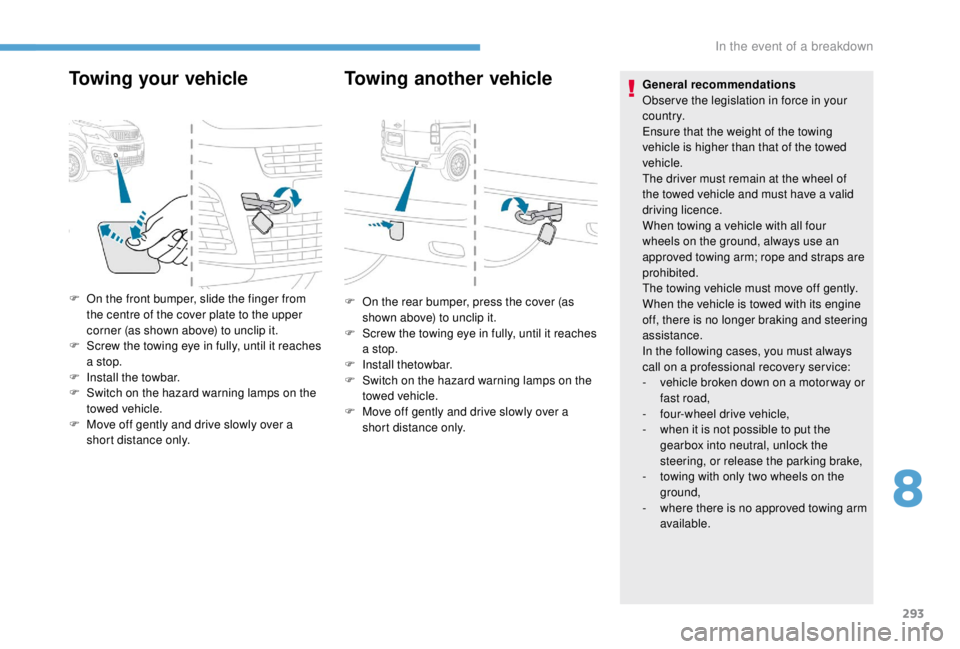
Towing your vehicleTowing another vehicle
F On the front bumper, slide the finger from
the centre of the cover plate to the upper
corner (as shown above) to unclip it.
F
S
crew the towing eye in fully, until it reaches
a stop.
F
I
nstall the towbar.
F
S
witch on the hazard warning lamps on the
towed vehicle.
F
M
ove off gently and drive slowly over a
short distance only. General recommendations
Obser ve the legislation in force in your
c o u nt r y.
Ensure that the weight of the towing
vehicle is higher than that of the towed
vehicle.
The driver must remain at the wheel of
the towed vehicle and must have a valid
driving licence.
When towing a vehicle with all four
wheels on the ground, always use an
approved towing arm; rope and straps are
prohibited.
The towing vehicle must move off gently.
When the vehicle is towed with its engine
off, there is no longer braking and steering
assistance.
In the following cases, you must always
call on a professional recovery ser vice:
-
v
ehicle broken down on a motor way or
fast road,
-
f
our-wheel drive vehicle,
-
w
hen it is not possible to put the
gearbox into neutral, unlock the
steering, or release the parking brake,
-
t
owing with only two wheels on the
ground,
-
w
here there is no approved towing arm
available.
F
O n the rear bumper, press the cover (as
shown above) to unclip it.
F
S
crew the towing eye in fully, until it reaches
a stop.
F
I
nstall thetowbar.
F
S
witch on the hazard warning lamps on the
towed vehicle.
F
M
ove off gently and drive slowly over a
short distance only.
8
In the event of a breakdown
Page 327 of 416

19
or Press on "
Telephone " to display the
CarPlay
® inter face.
Or Connect a USB cable. The
smartphone charges when
connected by a USB cable.
or From the system, press
"
Applications " to display the
primary page.
Press " Connectivity " to go to the CarPlay
®
function.
Press on " CarPlay" to display the
CarPlay
® inter face.
On connecting the USB cable, the
CarPlay
® function deactivates the
system's Bluetooth® mode.
MirrorLinkTM smartphone
connection
As a safety measure and because it
requires sustained attention by the driver,
using a smartphone when driving is
prohibited.
All operations must be done with the
vehicle stationary .
The synchronisation of a personal
smartphone allows users to display
applications adapted for the smartphone's
MirrorLink
TM technology on the vehicle
screen.
The principles and standards
are constantly changing, for the
communication process between the
smartphone and the system to operate,
it is essential that the smartphone is
unlocked; update the operating system
of the smar tphone as well as the date
and time of the smar tphone and the
system .
For the list of eligible smartphones, go
to the Brand's internet website in your
c o u nt r y. As a safety measure, applications can
only be viewed with the vehicle stationary;
display is interrupted once the vehicle is
moving.
The "
MirrorLink
TM" function requires
the use of a compatible smartphone and
applications.
When connecting a smartphone
to the system, it is recommended
that Bluetooth
® be started on the
smartphone.
Connect a USB cable. The
smartphone charges when
connected by a USB cable.
or From the system, press
"
Applications " to display the
primary page.
Press " Connectivity " to go to the MirrorLink
TM
function.
Press "MirrorLink
TM" to start the
application in the system.
.
PEUGEOT Connect Nav
Page 328 of 416

20
Depending on the smartphone, it may be
necessary to activate the "MirrorLinkTM"
function. During the procedure, several
screen pages relating to certain
functions are displayed.
Accept to start and complete the
connection.
Once connection is established, a page
is displayed with the applications already
downloaded to your smartphone and adapted
to MirrorLink
TM technology.
Access to the different audio sources remains
accessible in the margin of the MirrorLink
TM
display, using touch buttons in the upper bar.
Access to the menus for the system is possible
at any time using the dedicated buttons.
There may be a wait for the availability of
applications, depending on the quality of
your network.
Android Auto smartphone
connection
As a safety measure and because it
requires sustained attention by the driver,
using a smartphone when driving is
prohibited.
All operations must be done with the
vehicle stationary .
The synchronisation of a personal
smartphone allows users to display
applications adapted for the smartphone's
Android Auto technology on the vehicle
screen.
The principles and standards
are constantly changing, for the
communication process between the
smartphone and the system to operate,
it is essential that the smartphone is
unlocked; update the operating system
of the smar tphone as well as the date
and time of the smar tphone and the
system.
For the list of eligible smartphones, go
to the Brand's internet website in your
c o u nt r y. As a safety measure, applications can
only be viewed with the vehicle stationary;
display is interrupted once the vehicle is
moving.
The "
Android Auto " function requires
the use of a compatible smartphone and
applications.
Connect a USB cable. The
smartphone charges when
connected by a USB cable.
or From the system, press
"
Applications " to display the
primary page.
Press " Connectivity " to go to the Android Auto
function.
Press "Android Auto " to start the
application in the system.
During the procedure, several
screen pages relating to certain
functions are displayed.
Accept to start and complete the
connection.
PEUGEOT Connect Nav
Page 331 of 416
23
Press "OK" to confirm.
To protect against unauthorised access
and make your systems as secure as
possible, the use of a complex security
code or password is recommended.
Manage connections
or Press Connect-App
to display the
primary page.
Press the " OPTIONS" button to go to the
secondary page.
Select "Manage connection ".
With this function you can view the access
to connected ser vices, the availability of
connected services and modify the connection
mode.
Radio
Selecting a station
or Press "
Radio Media " to display the
primary page.
Press " Frequency ".
Press one of the buttons for an
automatic search for radio stations.
Or Move the cursor for a manual search
for frequencies up or down.
Or
or Press "
Radio Media " to display the
primary page. Press the "
OPTIONS" button to go to the
secondary page.
Select "Radio stations " in the
secondary page.
Press " Frequency ".
Enter the values using the virtual
keypad.
First enter the units then click on the
decimals zone to enter the figures
after the decimal point.
Press " OK" to confirm.
Radio reception may be affected by the
use of electrical equipment not approved
by the Brand, such as a USB charger
connected to the 12
V socket.
The external environment (hills, buildings,
tunnels, basement car parks, etc.) may
block reception, including in RDS mode.
This is a normal effect of the way in
which radio waves are transmitted and
does not indicate any failure of the audio
equipment.
.
PEUGEOT Connect Nav
Page 347 of 416
39
Radio
QUESTIONRESPONSESOLUTION
The reception quality of the tuned radio station
gradually deteriorates or the stored stations are
not working (no sound, 87.5
MHz is displayed,
e t c .) . The vehicle is too far from the transmitter of
the station or no transmitter is present in the
geographical area.
Activate the "RDS" function by means of the
short-cut menu to enable the system to check
whether there is a more power ful transmitter in
the geographical area.
The environment (hills, buildings, tunnels,
basement car parks, etc.) block reception,
including in RDS mode. This phenomenon is normal and does not
indicate a failure of the audio equipment.
The aerial is absent or has been damaged (for
example when going through a car wash or into
an underground car park). Have the aerial checked by a franchised dealer.
I cannot find some radio stations in the list of
stations received.
The name of the radio station changes. The station is not received or has changed its
name in the list.
Some radio stations send other information
in place of their name (the title of the song for
example).
The system interprets these details as the
station name.Press on the "Update list" button in the "Radio
stations" secondary menu.
.
PEUGEOT Connect Nav
Page 361 of 416
7
Radio
Selecting a station
Press "Radio Media " to display the
primary page.
Press one of the buttons for an
automatic search for radio stations.
Or Move the cursor for a manual search
for frequencies up or down.
Or Press the frequency.
Enter the FM and AM waveband
values using the virtual keypad.
Press "OK" to confirm. Radio reception may be affected by the
use of electrical equipment not approved
by the Brand, such as a USB charger
connected to the 12
V socket.
The external environment (hills, buildings,
tunnels, basement car parks, etc.) may
block reception, including in RDS mode.
This is a normal effect of the way in
which radio waves are transmitted and
does not indicate any failure of the audio
equipment.
Changing waveband
Press " Radio Media " to display the
primary page.
Press the " OPTIONS" button to go to the
secondary page.
Press "Band" to change waveband.
Press in the grey zone to confirm.
Presetting a station
Select a radio station or frequency. Make a short press on the star
outline. If the star is solid, the radio
station is already preset.
Or
Select a radio station or frequency.
Press " Preset".
Make a long press on one of the
buttons to preset the station.
Activating/Deactivating RDS
Press " Radio Media " to display the
primary page.
Press the " OPTIONS" button to go to the
secondary page.
Activate/Deactivate " RDS".
Press in the grey zone to confirm.
.
PEUGEOT Connect Radio
Page 366 of 416
12
It is advisable to restrict file names to
20 characters, without using special characters
(e.g. " " ? . ; ù) so as to avoid any reading or
display problems.
Use only USB keys in FAT32
format (File
Allocation Table).
It is recommended that the original USB
cable for the portable device is used.
In order to be able to play a burned CDR or
CDRW, select standards ISO 9660
level 1, 2 or
Joliet if possible when burning the CD.
If the disc is burned in another format, it may
not be played correctly.
It is recommended that the same burning
standard is always used on an individual disc,
with the lowest speed possible (4x maximum)
for the best acoustic quality.
In the particular case of a multi-session CD, the
Joliet standard is recommended.Telephone
MirrorLinkTM smartphone
connection
As a safety measure and because it
requires sustained attention by the driver,
using a smartphone when driving is
prohibited.
All operations must be done with the
vehicle stationary .
The synchronisation of a personal
smartphone allows users to display
applications adapted for the smartphone's
MirrorLink
TM technology on the vehicle
screen.
The principles and standards
are constantly changing, for the
communication process between the
smartphone and the system to operate,
it is essential that the smartphone is
unlocked; update the operating system
of the smar tphone as well as the date
and time of the smar tphone and the
system .
For the list of eligible smartphones, go
to the Brand's internet website in your
c o u nt r y. As a safety measure, applications can
only be viewed with the vehicle stationary;
display is interrupted once the vehicle is
moving.
The "MirrorLink
TM" function requires a
compatible smartphone and applications.
Telephone not connected by
Bluetooth®
Connect a USB cable. The
smartphone charges when
connected by a USB cable.
From the system, press
" Telephone " to display the primary
page.
Press " MirrorLink
TM" to start the
application in the system.
Depending on the smartphone, it may be
necessary to activate the " MirrorLink
TM"
function.
PEUGEOT Connect Radio
Page 368 of 416
14
Connect a USB cable. The
smartphone charges when
connected by a USB cable.
From the system, press
"Telephone " to display the primary
page.
Press the " PHONE" button to go to the
secondary page.
Press on " CarPlay" to display the
CarPlay
® inter face.
On connecting the USB cable, the
CarPlay
® function deactivates the
system's Bluetooth® mode.
You can go to the CarPlay
®
navigation at any time by pressing
the system's Navigation button.
Android Auto smartphone
connection
As a safety measure and because it
requires sustained attention by the driver,
using a smartphone when driving is
prohibited.
All operations must be done with the
vehicle stationary.
On your smartphone, download the
Android Auto application.
The synchronisation of a personal
smartphone allows users to display
applications adapted for the smartphone's
Android Auto technology on the vehicle
screen.
The principles and standards
are constantly changing, for the
communication process between the
smartphone and the system to operate,
it is essential that the smartphone is
unlocked; update the operating system
of the smar tphone as well as the date
and time of the smar tphone and the
system.
For the list of eligible smartphones, go
to the Brand's internet website in your
c o u nt r y. As a safety measure, applications can
only be viewed with the vehicle stationary;
display is interrupted once the vehicle is
moving.
The "Android Auto" function requires the
use of a compatible smartphone and
applications.
Telephone not connected by
Bluetooth®
Connect a USB cable. The
smartphone charges when
connected by a USB cable.
From the system, press
"
Telephone " to display the primary
page.
Press " Android Auto " to start the
application in the system.
Depending on the smartphone, it may be
necessary to activate the " Android Auto"
function.
PEUGEOT Connect Radio