Page 131 of 180
1
MODE
Radio
Contents
Audio system glossary
2
F
irst steps
5
S
teering mounted controls
6
R
adio
7
D
AB radio (Digital Audio Broadcasting)
8
M
edia
9
T
elephone
1
0
Bluetooth
® 13
S
ettings
1 4
Frequently asked questions
1
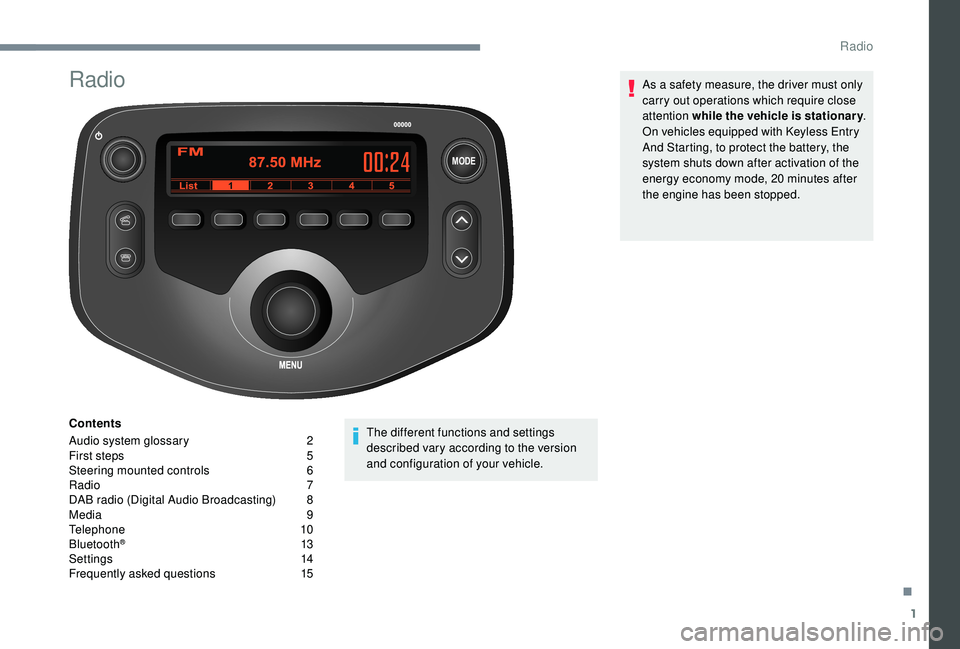
5The different functions and settings
described vary according to the version
and configuration of your vehicle. As a safety measure, the driver must only
carry out operations which require close
attention while the vehicle is stationary .
On vehicles equipped with Keyless Entry
And Starting, to protect the battery, the
system shuts down after activation of the
energy economy mode, 20 minutes after
the engine has been stopped.
.
Radio
Page 132 of 180
2
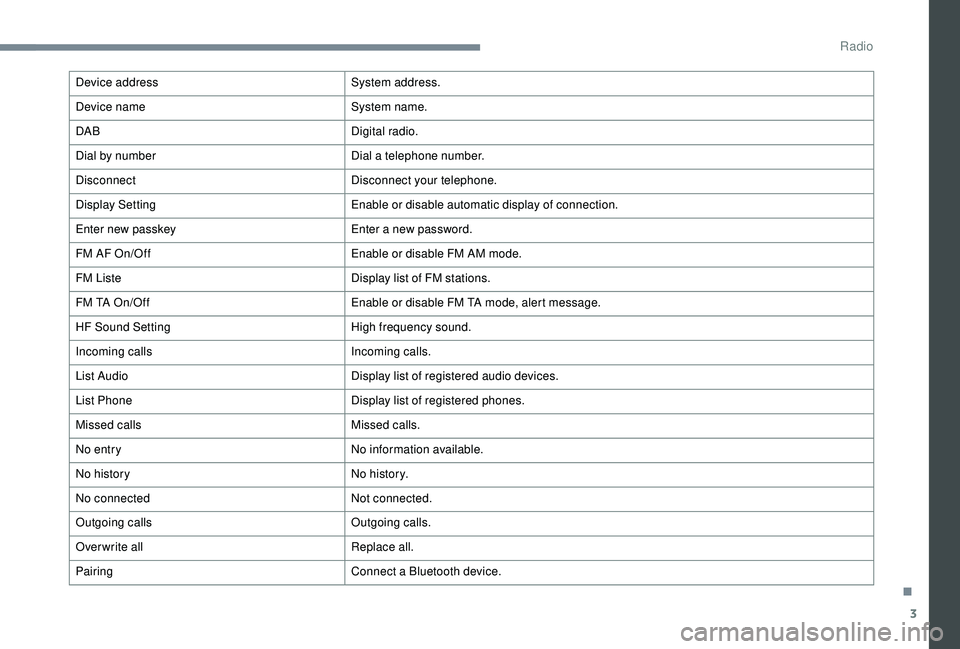
Audio system glossary
System detailsMeaning/corresponding actions
Add contacts Add contact.
Add SD Associate key with a
contact.
All calls All calls.
ASL Mid/Low/High/Off Adjust the sound atmosphere (medium/low/high).
AUX On/Off Enable or disable the AUX mode (Auxiliary).
Back Back.
Balance Adjust sound distribution.
Bass Adjust bass.
Bluetooth info Information related to Bluetooth system.
BT Power On/Off Enable or disable automatic Bluetooth connection.
B TA Audio Bluetooth.
BTA – BT audio player not found The system does not recognise audio player via Bluetooth.
Call volume Adjust volume of call.
Car device info Information about the system.
Clock Adjust time.
Delete Delete.
Delete call history Delete call history.
Delete contact Delete contact from directory.
Delete phonebook Delete directory.
Radio
Page 133 of 180
3
Device addressSystem address.
Device name System name.
DAB Digital radio.
Dial by number Dial a
telephone number.
Disconnect Disconnect your telephone.
Display Setting Enable or disable automatic display of connection.
Enter new passkey Enter a
new password.
FM AF On/Off Enable or disable FM AM mode.
FM Liste Display list of FM stations.
FM TA On/Off Enable or disable FM TA mode, alert message.
HF Sound Setting High frequency sound.
Incoming calls Incoming calls.
List Audio Display list of registered audio devices.
List Phone Display list of registered phones.
Missed calls Missed calls.
No entry No information available.
No history N o h i sto r y.
No connected Not connected.
Outgoing calls Outgoing calls.
Overwrite all Replace all.
Pairing Connect a
Bluetooth device.
.
Radio
Page 134 of 180
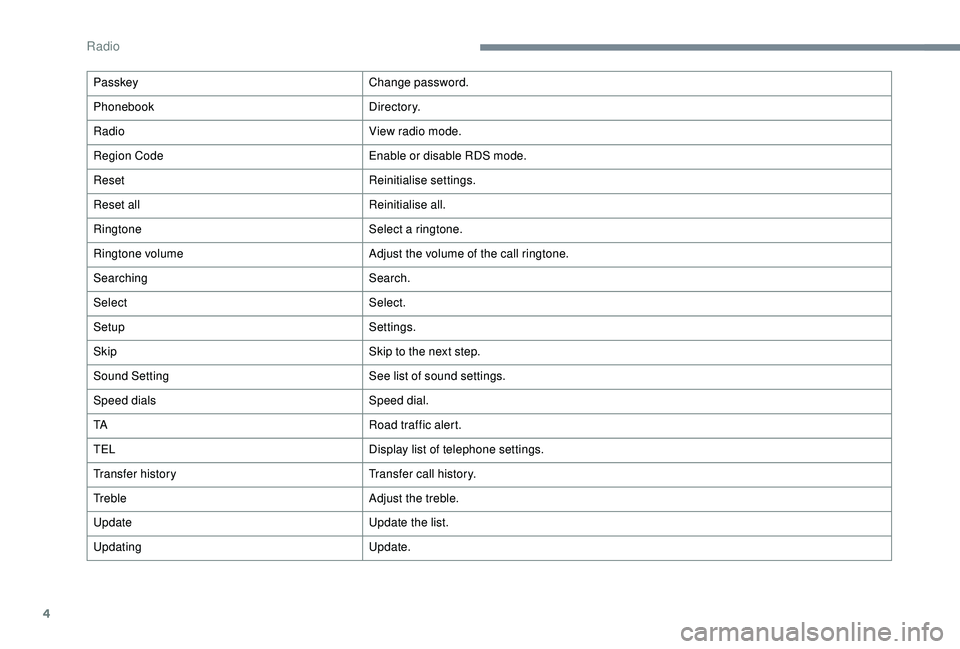
4
PasskeyChange password.
Phonebook D i r e c to r y.
Radio View radio mode.
Region Code Enable or disable RDS mode.
Reset Reinitialise settings.
Reset all Reinitialise all.
Ringtone Select a
ringtone.
Ringtone volume Adjust the volume of the call ringtone.
Searching Search.
Select Select.
Setup Settings.
Skip Skip to the next step.
Sound Setting See list of sound settings.
Speed dials Speed dial.
TA Road traffic alert.
TEL Display list of telephone settings.
Transfer history Transfer call history.
Treble Adjust the treble.
Update Update the list.
Updating Update.
Radio
Page 141 of 180
11
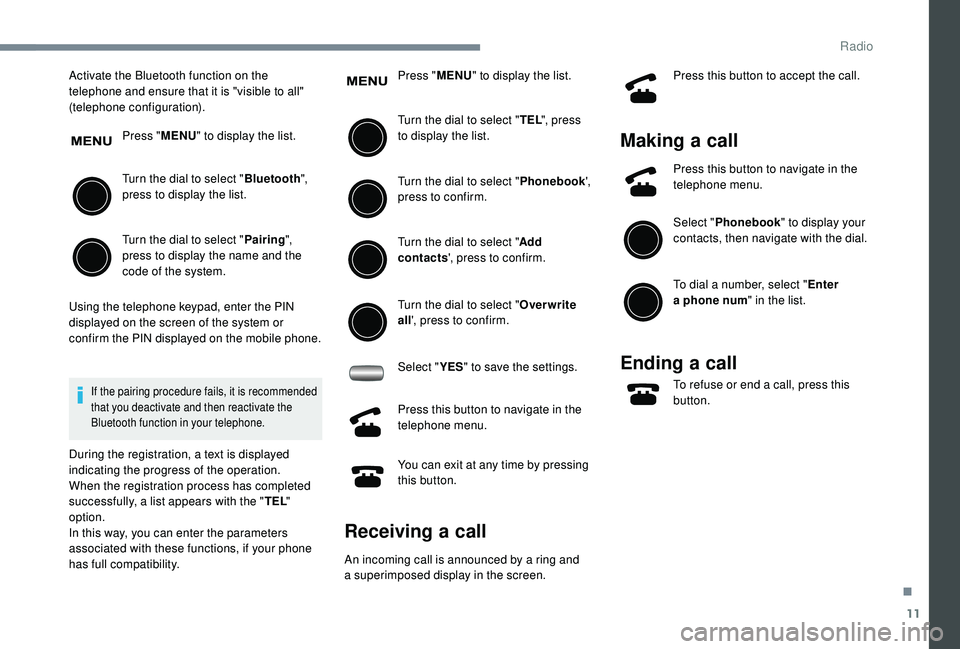
Activate the Bluetooth function on the
telephone and ensure that it is "visible to all"
(telephone configuration).Press "MENU" to display the list.
Turn the dial to select " Bluetooth",
press to display the list.
Turn the dial to select " Pairing",
press to display the name and the
code of the system.
Using the telephone keypad, enter the PIN
displayed on the screen of the system or
confirm the PIN displayed on the mobile phone.
If the pairing procedure fails, it is recommended
that you deactivate and then reactivate the
Bluetooth function in your telephone.
During the registration, a text is displayed
indicating the progress of the operation.
When the registration process has completed
successfully, a list appears with the " TEL"
option.
In this way, you can enter the parameters
associated with these functions, if your phone
has full compatibility. Press "
MENU" to display the list.
Turn the dial to select " TEL", press
to display the list.
Turn the dial to select " Phonebook',
press to confirm.
Turn the dial to select " Add
contacts ', press to confirm.
Turn the dial to select " Overwrite
all ', press to confirm.
Select " YES" to save the settings.
Press this button to navigate in the
telephone menu.
You can exit at any time by pressing
this button.
Receiving a call
An incoming call is announced by a ring and
a superimposed display in the screen. Press this button to accept the call.
Making a
call
Press this button to navigate in the
telephone menu.
Select "Phonebook " to display your
contacts, then navigate with the dial.
To dial a
number, select " Enter
a
phone num " in the list.
Ending a call
To refuse or end a call, press this
b utton.
.
Radio
Page 142 of 180
12
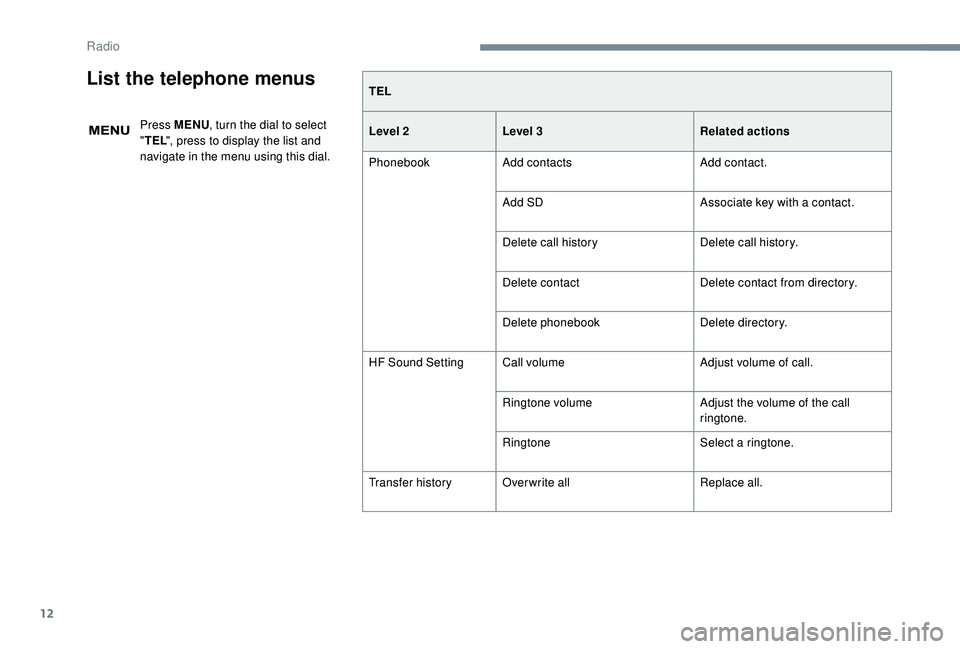
TEL
Level 2Level 3 Related actions
Phonebook Add contacts Add contact.
Add SD Associate key with a
contact.
Delete call history Delete call history.
Delete contact Delete contact from directory.
Delete phonebook Delete directory.
HF Sound Setting Call volume Adjust volume of call.
Ringtone volume Adjust the volume of the call
ringtone.
Ringtone Select a
ringtone.
Transfer history Overwrite all Replace all.List the telephone menus
Press MENU, turn the dial to select
" TEL ", press to display the list and
navigate in the menu using this dial.
Radio
Page 143 of 180
13
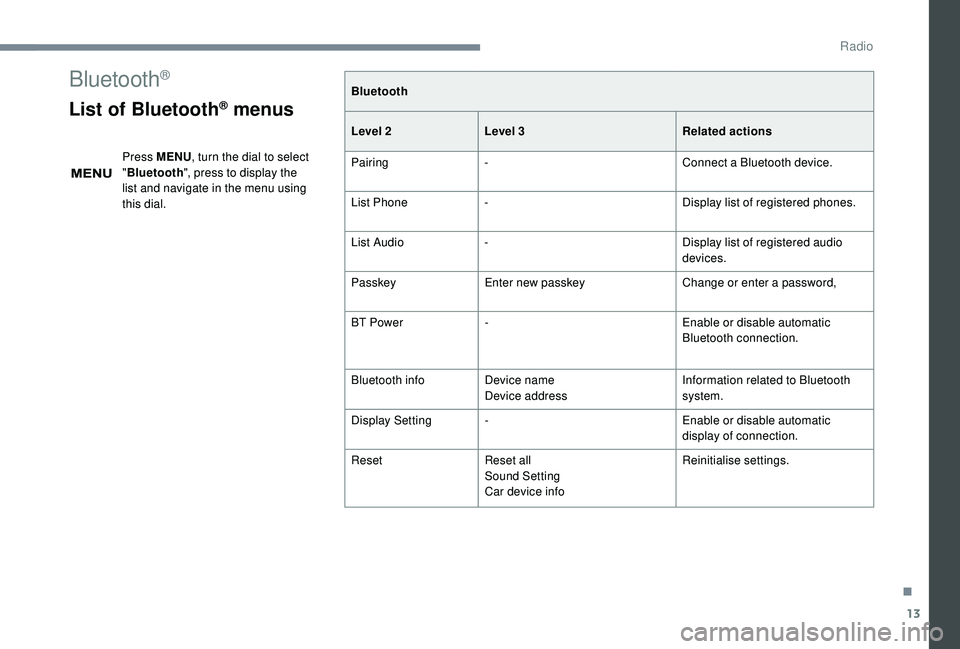
Bluetooth®
List of Bluetooth® menus
Press MENU, turn the dial to select
" Bluetooth ", press to display the
list and navigate in the menu using
this dial. Bluetooth
Level 2
Level 3 Related actions
Pairing - Connect a
Bluetooth device.
List Phone - Display list of registered phones.
List Audio - Display list of registered audio
devices.
Passkey Enter new passkey Change or enter a
password,
BT Power - Enable or disable automatic
Bluetooth connection.
Bluetooth info Device name
Device address Information related to Bluetooth
system.
Display Setting - Enable or disable automatic
display of connection.
Reset Reset all
Sound Setting
Car device info Reinitialise settings.
.
Radio
Page 146 of 180
16
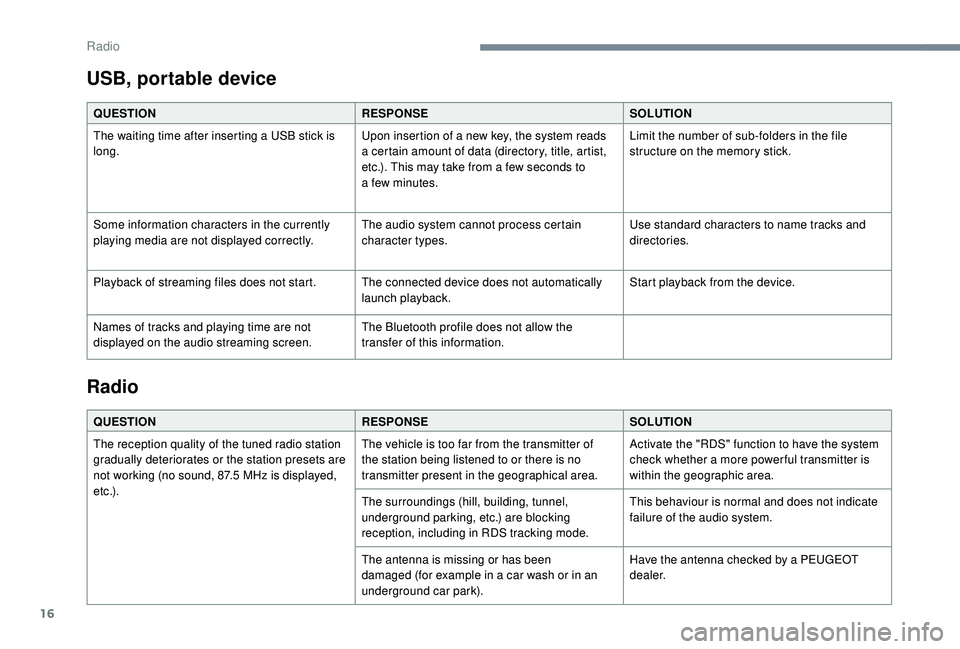
USB, portable device
QUESTIONRESPONSESOLUTION
The waiting time after inserting a USB stick is
long. Upon insertion of a
new key, the system reads
a
certain amount of data (directory, title, artist,
etc.). This may take from a
few seconds to
a
few minutes.Limit the number of sub-folders in the file
structure on the memory stick.
Some information characters in the currently
playing media are not displayed correctly. The audio system cannot process certain
character types.Use standard characters to name tracks and
directories.
Playback of streaming files does not start. The connected device does not automatically launch playback.Start playback from the device.
Names of tracks and playing time are not
displayed on the audio streaming screen. The Bluetooth profile does not allow the
transfer of this information.
Radio
QUESTION
RESPONSESOLUTION
The reception quality of the tuned radio station
gradually deteriorates or the station presets are
not working (no sound, 87.5
MHz is displayed,
e t c .) . The vehicle is too far from the transmitter of
the station being listened to or there is no
transmitter present in the geographical area.
Activate the "RDS" function to have the system
check whether a
more power ful transmitter is
within the geographic area.
The surroundings (hill, building, tunnel,
underground parking, etc.) are blocking
reception, including in RDS tracking mode. This behaviour is normal and does not indicate
failure of the audio system.
The antenna is missing or has been
damaged (for example in a
car wash or in an
underground car park). Have the antenna checked by a
PEUGEOT
dealer.
Radio