2018 PEUGEOT 108 mirror
[x] Cancel search: mirrorPage 86 of 180

84
- when towing,
- d riving with a space-saver type spare wheel
or snow chains fitted,
-
p
uncture repair using the temporary repair
kit,
-
y
oung drivers, etc.
The following situations may inter fere with the
operation of the system or prevent it working:
-
p
oor visibility (inadequate street lighting,
falling snow, rain, fog),
-
w
indscreen area located in front of the
camera: dirty, misted, frost-covered, snow-
covered, damaged or covered by a
sticker,
-
f
ault with the camera,
-
h
idden road signs (other vehicles,
vegetation, snow),
-
s
peed limit signs that do not conform to the
standard, are damaged or distorted.
If an app on your smart phone is used
via Mirror Screen, the sign displayed by
the system may be temporarily hidden. It
will be redisplayed as soon as you pass
another sign.Speed limiter
System which prevents the
vehicle from exceeding the speed
programmed by the driver.
The limiter is switched on manually: this
can be done regardless of the vehicle speed.
However, if you are travelling at less than
18
mph (30 km/h), the programmed speed will
be set at 18
mph (30 km/h).
The speed limiter is paused using the control.
The programmed speed can be exceeded
temporarily by pressing the accelerator firmly
beyond the point of resistance.
To return to the programmed speed, simply
release the accelerator pedal until the set limit
speed has been reached again.
The programmed speed is erased when
the ignition is switched off.
The limiter cannot, under any
circumstances, replace respect for speed
limits, nor the vigilance of the driver.
Steering mounted control
The controls for this system are grouped
together on this steering mounted control.
1.Activation/deactivation of the limiter: by
pressing on the end of the control.
2. Programming the speed/decreasing the
value: by pressing the control downwards.
3. Resuming speed limitation/increasing the
value: by pressing the control upwards.
4. Pause limitation: by pulling the control
towards you.
Driving
Page 119 of 180

117
Fuse N°Rating (A) Functions
1 5Reversing lamp – Fuel injection system – Audio system – VSC system
2 15Front and rear screenwash
3 5Main supply unit – Instrument panel – Display screen – Air conditioning – Heated rear window and door mirrors –
Heated seats – Electric fabric roof – Audio system
4 5Electrical power steering – Stop & Start
5 15Rear wiper
6 5Fan assembly – ABS system – VSC system
7 25Windscreen wipers
8 10Heated door mirrors
9 1512
V socket (max 120W)
10 7. 5Door mirrors – Audio system – Stop & Start – Instrument panel – Display screen
11 5Steering lock – Fuel injection system – ETG gearbox
12 7. 5Airbags
13 5Instrument panel – Display screen -Stop & Start
14 15Steering – Fuel injection system – Brake lamps
15 7. 5Fuel injection system – Stop & Start
16 7. 5Engine self-diagnosis
17 10Brake lamps – Third brake lamp – Fuel injection system – ABS system – VSC system – ETG gearbox – "Keyless
Entry and Starting" system
8
In the event of a breakdown
Page 123 of 180
121
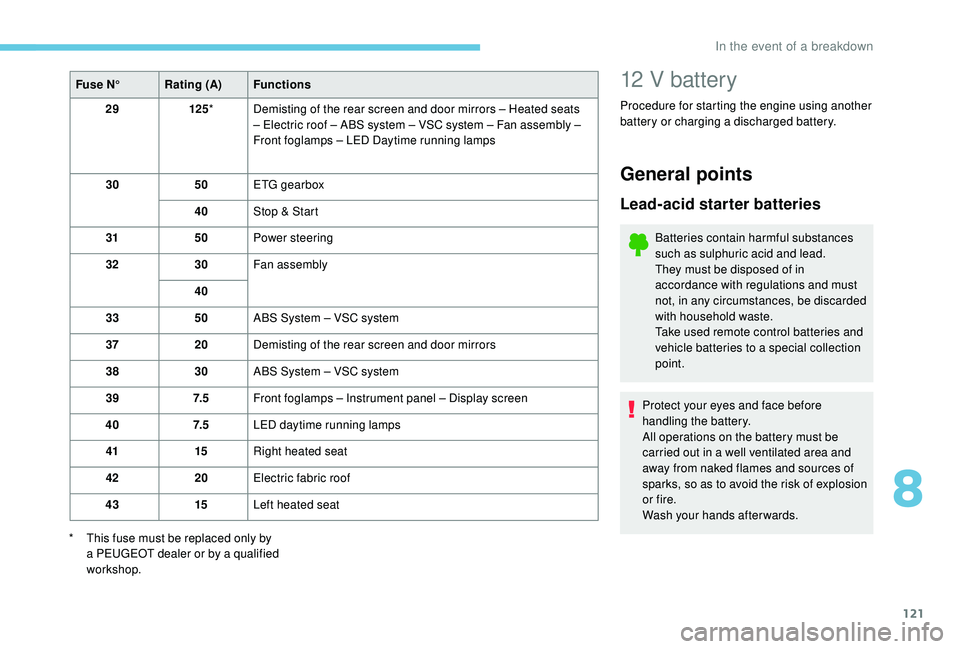
Fuse N°Rating (A) Functions
29 125* Demisting of the rear screen and door mirrors – Heated seats
– Electric roof – ABS system – VSC system – Fan assembly –
Front foglamps – LED Daytime running lamps
30 50ETG gearbox
40 Stop & Start
31 50Power steering
32 30Fan assembly
40
33 50ABS System – VSC system
37 20Demisting of the rear screen and door mirrors
38 30ABS System – VSC system
39 7. 5Front foglamps – Instrument panel – Display screen
40 7. 5LED daytime running lamps
41 15Right heated seat
42 20Electric fabric roof
43 15Left heated seat
*
T
his fuse must be replaced only by
a
PEUGEOT dealer or by a qualified
workshop.12 V battery
Procedure for starting the engine using another
battery or charging a
discharged battery.
General points
Lead-acid starter batteries
Batteries contain harmful substances
such as sulphuric acid and lead.
They must be disposed of in
accordance with regulations and must
not, in any circumstances, be discarded
with household waste.
Take used remote control batteries and
vehicle batteries to a
special collection
point.
Protect your eyes and face before
handling the battery.
All operations on the battery must be
carried out in a
well ventilated area and
away from naked flames and sources of
sparks, so as to avoid the risk of explosion
or fire.
Wash your hands afterwards.
8
In the event of a breakdown
Page 149 of 180
1
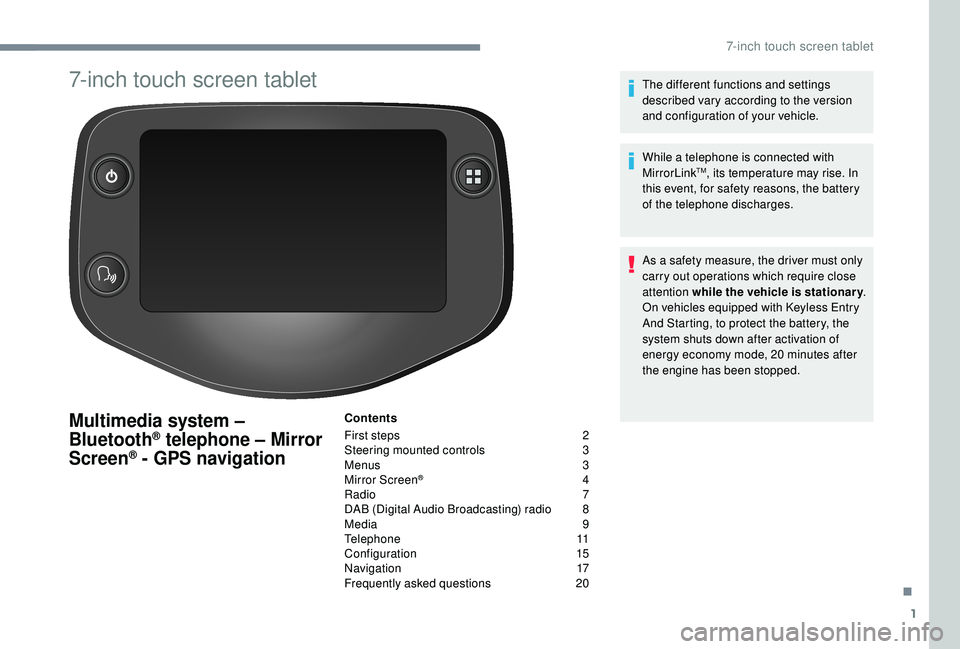
7-inch touch screen tablet
Multimedia system –
Bluetooth® telephone – Mirror
Screen® - GPS navigation
Contents
First steps
2
S
teering mounted controls
3
M
enus
3
M
irror Screen
® 4
R
adio
7
D
AB (Digital Audio Broadcasting) radio
8
M
edia
9
T
elephone
1
1
Configuration
1
5
Navigation
1
7
Frequently asked questions
20T
he different functions and settings
described vary according to the version
and configuration of your vehicle.
While a telephone is connected with
MirrorLink
TM, its temperature may rise. In
this event, for safety reasons, the battery
of the telephone discharges.
As a
safety measure, the driver must only
carry out operations which require close
attention while the vehicle is stationary .
On vehicles equipped with Keyless Entry
And Starting, to protect the battery, the
system shuts down after activation of
energy economy mode, 20
minutes after
the engine has been stopped.
.
7-inch touch screen tablet
Page 150 of 180

2
First steps
* Depending on equipment
In ACC mode or on starting the vehicle, the
system starts up.
A press will mute the sound and
activate the sleep mode (displaying
time and shortcuts).
A long press resets the system.
Volume adjustment by turning (each
source is independent).
Press to access the menu carousel,
then press the virtual buttons in the
touch screen.
A second press allows you to return
to the last source activated.
Turn the knob to access a
list or
higher or lower range. Smartphone voice commands via
the system.
Pressing this button activates the
voice commands function.
In prolonged sunshine and extremely
hot conditions, the system may go into
stand-by for protection (screen and sound
completely off) for a
period of at least
5
minutes.
The return to normal takes place when
the temperature in the passenger
compartment drops.
Pressing with more than one finger is not
recognised.
The touch screen is of the "capacitive"
type.
To clean the screen, we recommend
using a
soft non-abrasive cloth (e.g. a
spectacles cloth) without any additional
products, or a
damp cloth.
Do not use sharp objects on the screen.
Do not touch the screen with wet hands. Selecting the audio source (depending on
version):
-
"
FM "/ "AM "/ " DAB*" radio.
-
"
USB" players.
-
T
elephone connected via Bluetooth and
Bluetooth multimedia broadcast (streaming).
-
M
edia player connected via the auxiliary
socket (jack, cable not supplied).
Shortcuts: Certain information is displayed
in the left-hand bar of the touch screen. It is
possible to directly access the media, the
telephone functions, the "Mirror Screen
®" mode
or the choice of the sound source.
7-inch touch screen tablet
Page 152 of 180
4
Configuration
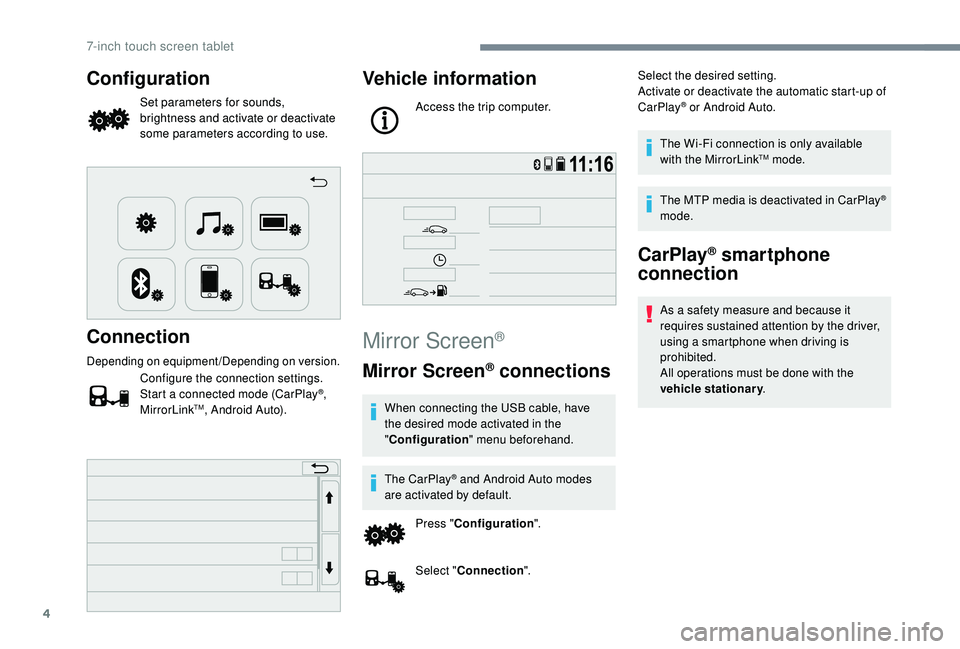
Set parameters for sounds,
brightness and activate or deactivate
some parameters according to use.
Connection
Depending on equipment/Depending on version.
Configure the connection settings.
Start a connected mode (CarPlay®,
MirrorLinkTM, Android Auto).
Vehicle information
Access the trip computer.
Mirror Screen®
Mirror Screen® connections
When connecting the USB cable, have
the desired mode activated in the
" Configuration " menu beforehand.
The CarPlay
® and Android Auto modes
are activated by default.
Press " Configuration ".
Select " Connection ". Select the desired setting.
Activate or deactivate the automatic start-up of
CarPlay
® or Android Auto.
The Wi-Fi connection is only available
with the MirrorLink
TM mode.
The MTP media is deactivated in CarPlay
®
mode.
CarPlay® smartphone
connection
As a safety measure and because it
r equires sustained attention by the driver,
using a
smartphone when driving is
prohibited.
All operations must be done with the
vehicle stationary .
7-inch touch screen tablet
Page 153 of 180
5
The synchronisation of the smartphone
allows users to display smartphone
applications, which are compatible with
the CarPlay
® technology, on the vehicle's
screen when the smartphone's CarPlay®
function has been previously activated.
As the processes and standards are
constantly changing, it is recommended
that you keep your smar tphone's
operating system updated .
For the list of eligible smartphones, go
to the Brand's internet website in your
c o u nt r y.
Connect the USB cable. The
smartphone charges when
connected by the USB cable.
Press " CarPlay " to display the
CarPlay
® inter face.
When the CarPlay
® inter face is displayed on
the system screen, the menu bar is displayed
by default on the left-hand side of the screen.
Depending on the driver's side, you can change
the position of the menu bar, to the left-hand or
right-hand side.
Press "Configuration ".
Select " Connection ". Select "
Steering wheel position ", then select
the desired position.
For this modification to be taken into account,
disconnect and then reconnect the smartphone.
On connecting the USB cable, the
CarPlay® function deactivates the
system's Bluetooth® mode.
MirrorLinkTM smartphone
connection
Available depending on country of sale.
As a safety measure and because it
requires sustained attention by the driver,
using a
smartphone when driving is
prohibited.
All operations must be done with the
vehicle stationary . The synchronisation of the smartphone
allows users to display smartphone
applications, which are compatible with
the MirrorLink
TM technology, on the
vehicle's screen.
As the processes and standards
are constantly changing, for the
communication process between the
smartphone and the system to operate,
it is essential that the smartphone be
unlocked; update the operating system
of the smar tphone as well as the date
and time of the smar tphone and the
system .
For the list of eligible smartphones, go
to the Brand's internet website in your
c o u nt r y.
As a
safety measure, applications can
only be viewed with the vehicle stationary;
display is interrupted once the vehicle is
moving.
The " MirrorLink
TM" function requires
the use of a
compatible smartphone and
compatible applications.
You have two connection options in
MirrorLink
TM mode.
.
7-inch touch screen tablet
Page 154 of 180
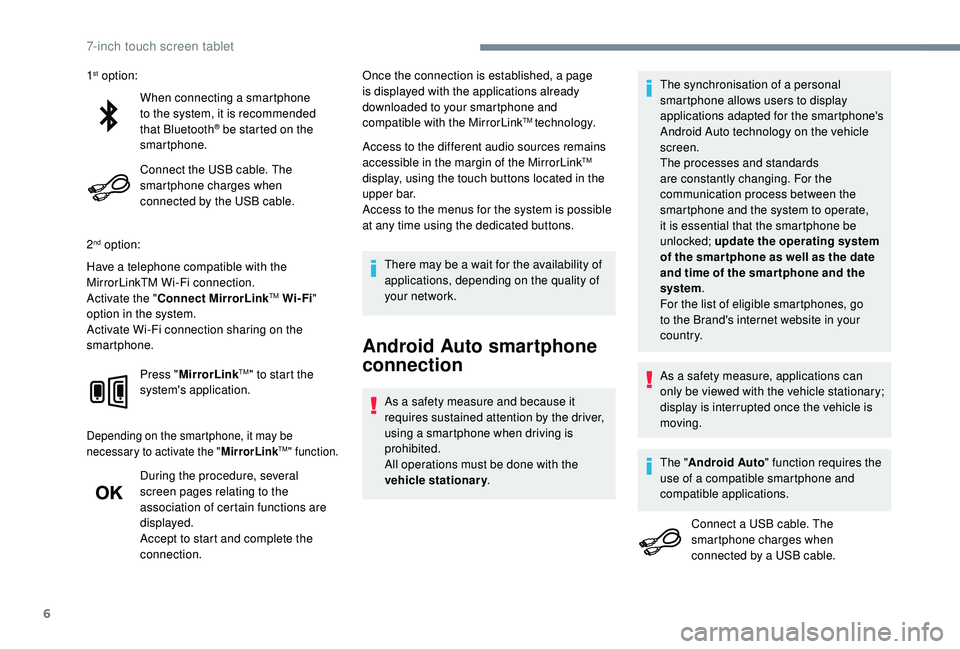
6
When connecting a smartphone
t o the system, it is recommended
that Bluetooth
® be started on the
smartphone.
Connect the USB cable. The
smartphone charges when
connected by the USB cable.
2
nd option:
Have a telephone compatible with the
MirrorLinkTM Wi-Fi connection.
Activate the " Connect MirrorLink
TM Wi-Fi"
option in the system.
Activate Wi-Fi connection sharing on the
smartphone.
Press "MirrorLink
TM" to start the
system's application.
Depending on the smartphone, it may be
necessary to activate the " MirrorLinkTM" function.
During the procedure, several
screen pages relating to the
association of certain functions are
displayed.
Accept to start and complete the
connection. Once the connection is established, a page
is displayed with the applications already
downloaded to your smartphone and
compatible with the MirrorLink
TM technology.
Access to the different audio sources remains
accessible in the margin of the MirrorLink
TM
display, using the touch buttons located in the
u p p e r b a r.
Access to the menus for the system is possible
at any time using the dedicated buttons.
There may be a
wait for the availability of
applications, depending on the quality of
your network.
Android Auto smartphone
connection
As a safety measure and because it
r equires sustained attention by the driver,
using a
smartphone when driving is
prohibited.
All operations must be done with the
vehicle stationary . The synchronisation of a
personal
smartphone allows users to display
applications adapted for the smartphone's
Android Auto technology on the vehicle
screen.
The processes and standards
are constantly changing. For the
communication process between the
smartphone and the system to operate,
it is essential that the smartphone be
unlocked; update the operating system
of the smar tphone as well as the date
and time of the smar tphone and the
system .
For the list of eligible smartphones, go
to the Brand's internet website in your
c o u nt r y.
1
st option:
As a safety measure, applications can
only be viewed with the vehicle stationary;
display is interrupted once the vehicle is
moving.
The " Android Auto " function requires the
use of a
compatible smartphone and
compatible applications.
Connect a
USB cable. The
smartphone charges when
connected by a
USB cable.
7-inch touch screen tablet