2018 LINCOLN CONTINENTAL ECO mode
[x] Cancel search: ECO modePage 469 of 615
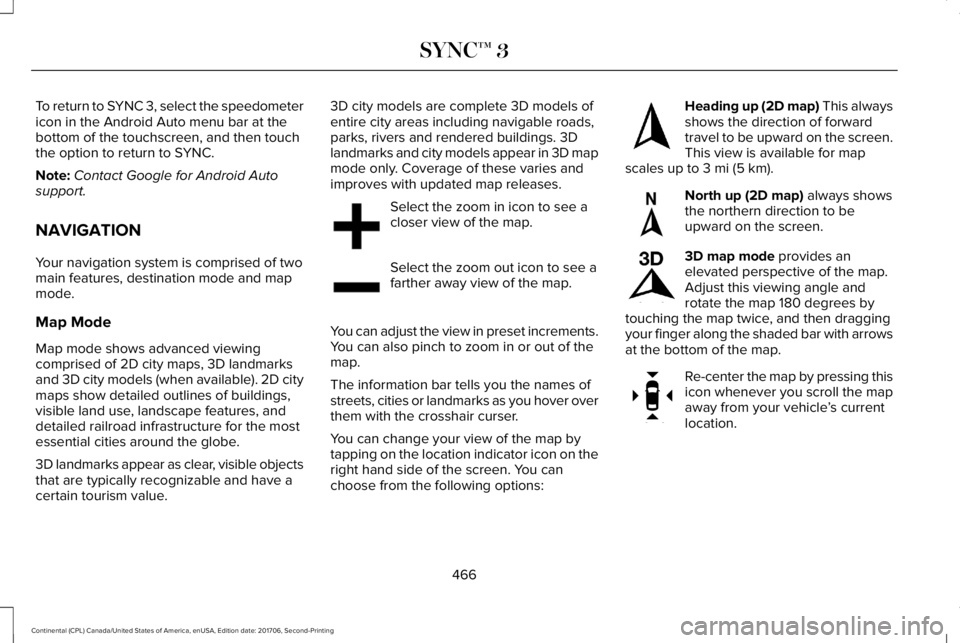
To return to SYNC 3, select the speedometericon in the Android Auto menu bar at thebottom of the touchscreen, and then touchthe option to return to SYNC.
Note:Contact Google for Android Autosupport.
NAVIGATION
Your navigation system is comprised of twomain features, destination mode and mapmode.
Map Mode
Map mode shows advanced viewingcomprised of 2D city maps, 3D landmarksand 3D city models (when available). 2D citymaps show detailed outlines of buildings,visible land use, landscape features, anddetailed railroad infrastructure for the mostessential cities around the globe.
3D landmarks appear as clear, visible objectsthat are typically recognizable and have acertain tourism value.
3D city models are complete 3D models ofentire city areas including navigable roads,parks, rivers and rendered buildings. 3Dlandmarks and city models appear in 3D mapmode only. Coverage of these varies andimproves with updated map releases.
Select the zoom in icon to see acloser view of the map.
Select the zoom out icon to see afarther away view of the map.
You can adjust the view in preset increments.You can also pinch to zoom in or out of themap.
The information bar tells you the names ofstreets, cities or landmarks as you hover overthem with the crosshair curser.
You can change your view of the map bytapping on the location indicator icon on theright hand side of the screen. You canchoose from the following options:
Heading up (2D map) This alwaysshows the direction of forwardtravel to be upward on the screen.This view is available for mapscales up to 3 mi (5 km).
North up (2D map) always showsthe northern direction to beupward on the screen.
3D map mode provides anelevated perspective of the map.Adjust this viewing angle androtate the map 180 degrees bytouching the map twice, and then draggingyour finger along the shaded bar with arrowsat the bottom of the map.
Re-center the map by pressing thisicon whenever you scroll the mapaway from your vehicle’s currentlocation.
466
Continental (CPL) Canada/United States of America, enUSA, Edition date: 201706, Second-Printing
SYNC™ 3E207752 E207753 E207750 E207749 E207748 E207751
Page 470 of 615

Mute: Press to mute the audionavigation guidance. Press thebutton again to un-mute theguidance.
Points of Interest (POI) groupingicon: You can choose up to threePOI icons to display on the map. Ifthe chosen POIs are located closetogether or are at the same location a box isused to display a single category icon
instead of repeating the same icon, in orderto reduce clutter. When you select the boxon the map, a pop-up appears indicating howmany POIs are in this location. Select the popup to see a list of the available POIs. You canscroll through and select POIs from this list.
If your vehicle is low on charge or fuel,station icons automatically display on themap.
If you have subscribed to SiriusXM Trafficand Travel Link (where available), traffic flowwill be indicated on the map by green (clear),yellow (slowing), and red (stopped) roadhighlights. Traffic flow is indicated where theinformation is available and varies across theUS.
You can choose to display traffic icons onthe map representing twelve different typesof incidents. See Settings (page 480).
You can set a destination by hovering abovea location and selecting:
Button
Start
Destination Mode
To set a destination, press:
DescriptionMenu Item
Destination
Enter a navigation destination in any of the following formats:
Street AddressSearch
467
Continental (CPL) Canada/United States of America, enUSA, Edition date: 201706, Second-Printing
SYNC™ 3E251780 E251779 E207754
Page 474 of 615
DescriptionMenu Item
Along Route
Near Destination
In a City
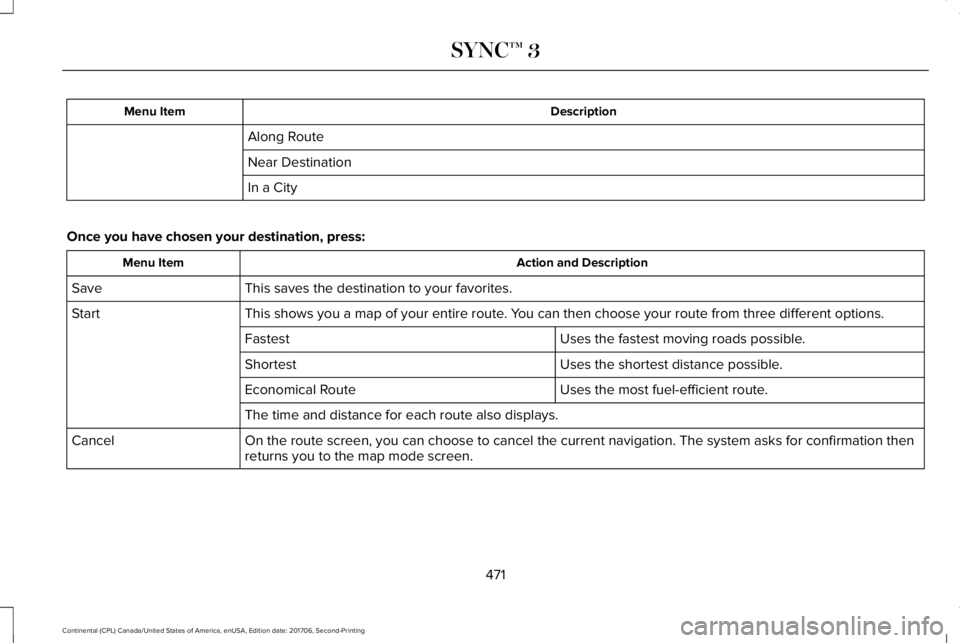
Once you have chosen your destination, press:
Action and DescriptionMenu Item
This saves the destination to your favorites.Save
This shows you a map of your entire route. You can then choose your route from three different options.Start
Uses the fastest moving roads possible.Fastest
Uses the shortest distance possible.Shortest
Uses the most fuel-efficient route.Economical Route
The time and distance for each route also displays.
On the route screen, you can choose to cancel the current navigation. The system asks for confirmation thenreturns you to the map mode screen.Cancel
471
Continental (CPL) Canada/United States of America, enUSA, Edition date: 201706, Second-Printing
SYNC™ 3
Page 475 of 615
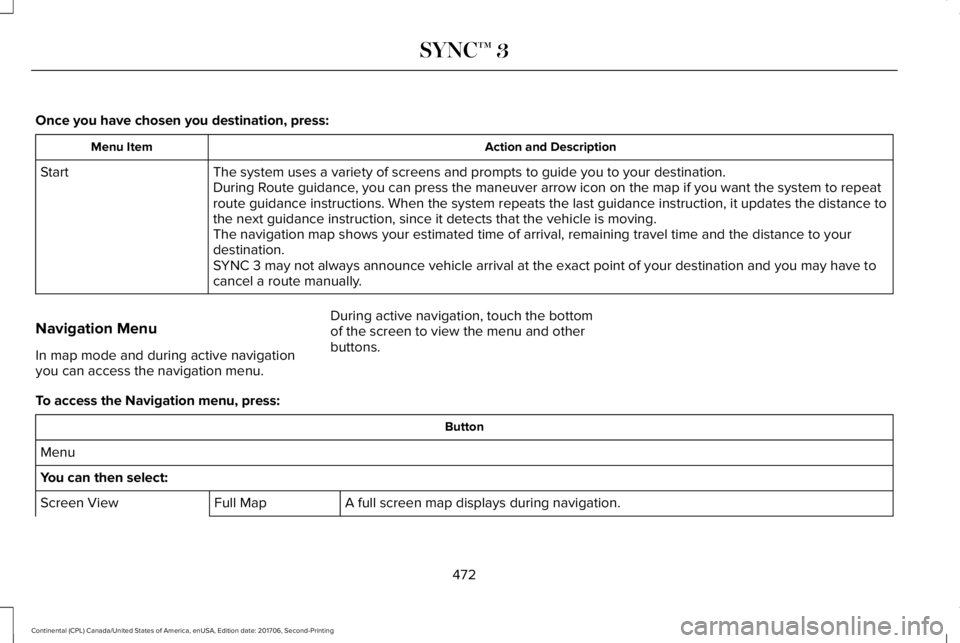
Once you have chosen you destination, press:
Action and DescriptionMenu Item
The system uses a variety of screens and prompts to guide you to your destination.StartDuring Route guidance, you can press the maneuver arrow icon on the map if you want the system to repeatroute guidance instructions. When the system repeats the last guidance instruction, it updates the distance tothe next guidance instruction, since it detects that the vehicle is moving.The navigation map shows your estimated time of arrival, remaining travel time and the distance to yourdestination.SYNC 3 may not always announce vehicle arrival at the exact point of your destination and you may have tocancel a route manually.
Navigation Menu
In map mode and during active navigationyou can access the navigation menu.
During active navigation, touch the bottomof the screen to view the menu and otherbuttons.
To access the Navigation menu, press:
Button
Menu
You can then select:
A full screen map displays during navigation.Full MapScreen View
472
Continental (CPL) Canada/United States of America, enUSA, Edition date: 201706, Second-Printing
SYNC™ 3
Page 476 of 615
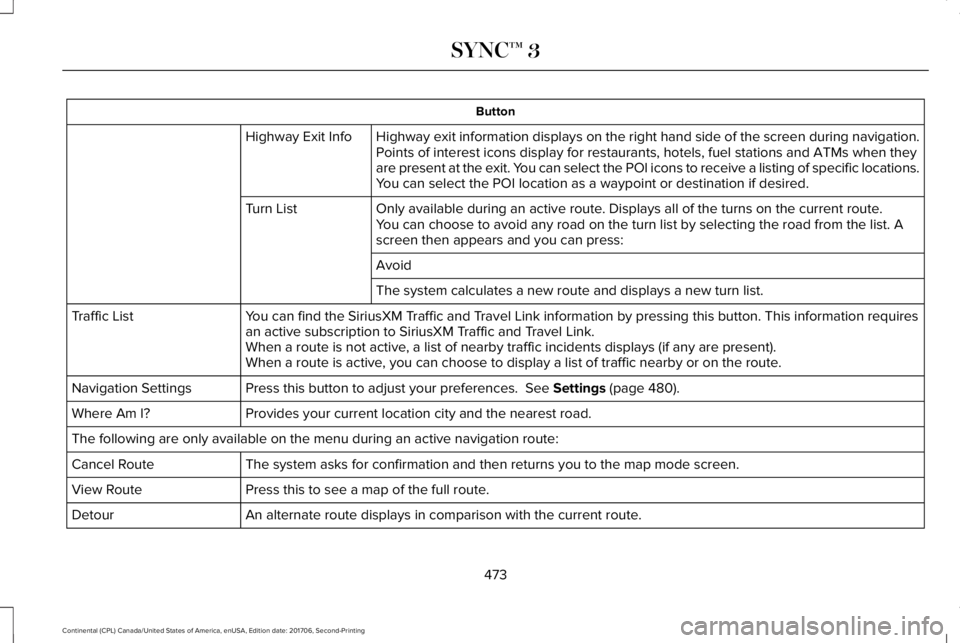
Button
Highway exit information displays on the right hand side of the screen during navigation.Highway Exit InfoPoints of interest icons display for restaurants, hotels, fuel stations and ATMs when theyare present at the exit. You can select the POI icons to receive a listing of specific locations.You can select the POI location as a waypoint or destination if desired.
Only available during an active route. Displays all of the turns on the current route.Turn ListYou can choose to avoid any road on the turn list by selecting the road from the list. Ascreen then appears and you can press:
Avoid
The system calculates a new route and displays a new turn list.
You can find the SiriusXM Traffic and Travel Link information by pressing this button. This information requiresan active subscription to SiriusXM Traffic and Travel Link.Traffic List
When a route is not active, a list of nearby traffic incidents displays (if any are present).When a route is active, you can choose to display a list of traffic nearby or on the route.
Press this button to adjust your preferences. See Settings (page 480).Navigation Settings
Provides your current location city and the nearest road.Where Am I?
The following are only available on the menu during an active navigation route:
The system asks for confirmation and then returns you to the map mode screen.Cancel Route
Press this to see a map of the full route.View Route
An alternate route displays in comparison with the current route.Detour
473
Continental (CPL) Canada/United States of America, enUSA, Edition date: 201706, Second-Printing
SYNC™ 3
Page 479 of 615
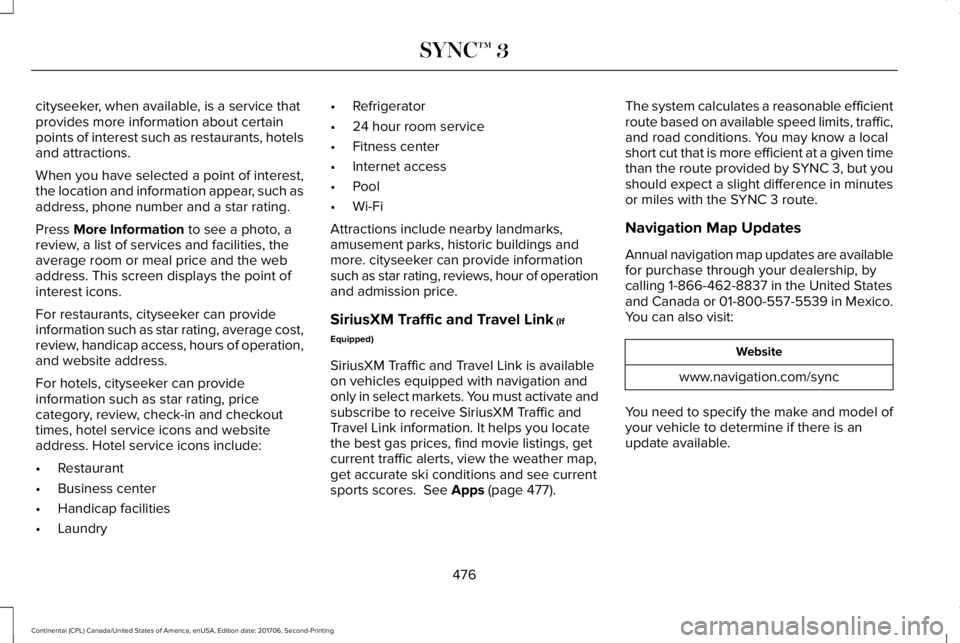
cityseeker, when available, is a service thatprovides more information about certainpoints of interest such as restaurants, hotelsand attractions.
When you have selected a point of interest,the location and information appear, such asaddress, phone number and a star rating.
Press More Information to see a photo, areview, a list of services and facilities, theaverage room or meal price and the webaddress. This screen displays the point ofinterest icons.
For restaurants, cityseeker can provideinformation such as star rating, average cost,review, handicap access, hours of operation,and website address.
For hotels, cityseeker can provideinformation such as star rating, pricecategory, review, check-in and checkouttimes, hotel service icons and websiteaddress. Hotel service icons include:
•Restaurant
•Business center
•Handicap facilities
•Laundry
•Refrigerator
•24 hour room service
•Fitness center
•Internet access
•Pool
•Wi-Fi
Attractions include nearby landmarks,amusement parks, historic buildings andmore. cityseeker can provide informationsuch as star rating, reviews, hour of operationand admission price.
SiriusXM Traffic and Travel Link (If
Equipped)
SiriusXM Traffic and Travel Link is availableon vehicles equipped with navigation andonly in select markets. You must activate andsubscribe to receive SiriusXM Traffic andTravel Link information. It helps you locatethe best gas prices, find movie listings, getcurrent traffic alerts, view the weather map,get accurate ski conditions and see currentsports scores. See Apps (page 477).
The system calculates a reasonable efficientroute based on available speed limits, traffic,and road conditions. You may know a localshort cut that is more efficient at a given timethan the route provided by SYNC 3, but youshould expect a slight difference in minutesor miles with the SYNC 3 route.
Navigation Map Updates
Annual navigation map updates are availablefor purchase through your dealership, bycalling 1-866-462-8837 in the United Statesand Canada or 01-800-557-5539 in Mexico.You can also visit:
Website
www.navigation.com/sync
You need to specify the make and model ofyour vehicle to determine if there is anupdate available.
476
Continental (CPL) Canada/United States of America, enUSA, Edition date: 201706, Second-Printing
SYNC™ 3
Page 484 of 615
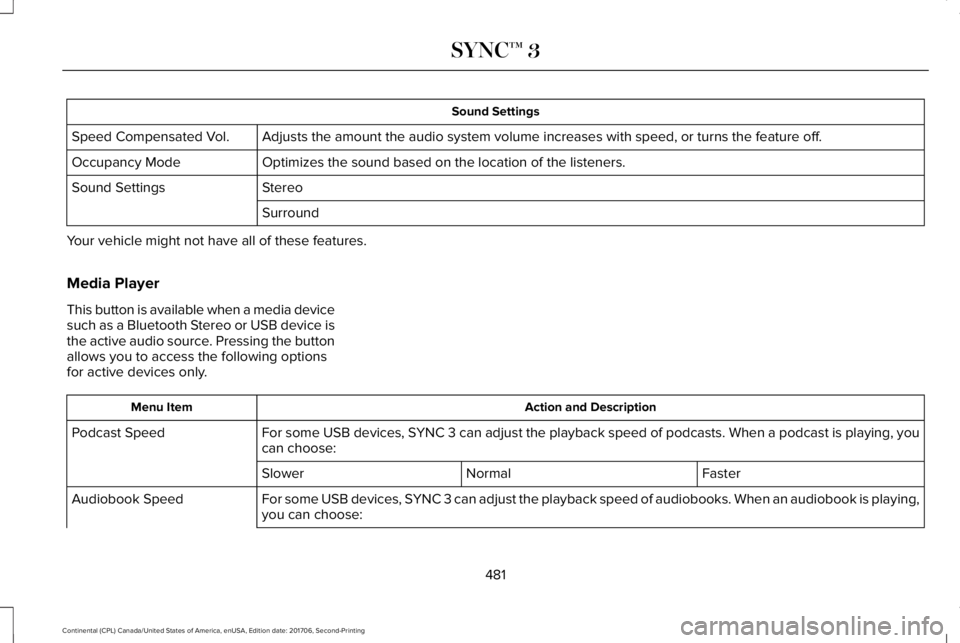
Sound Settings
Adjusts the amount the audio system volume increases with speed, or turns the feature off.Speed Compensated Vol.
Optimizes the sound based on the location of the listeners.Occupancy Mode
StereoSound Settings
Surround
Your vehicle might not have all of these features.
Media Player
This button is available when a media devicesuch as a Bluetooth Stereo or USB device isthe active audio source. Pressing the buttonallows you to access the following optionsfor active devices only.
Action and DescriptionMenu Item
For some USB devices, SYNC 3 can adjust the playback speed of podcasts. When a podcast is playing, youcan choose:Podcast Speed
FasterNormalSlower
For some USB devices, SYNC 3 can adjust the playback speed of audiobooks. When an audiobook is playing,you can choose:Audiobook Speed
481
Continental (CPL) Canada/United States of America, enUSA, Edition date: 201706, Second-Printing
SYNC™ 3
Page 485 of 615
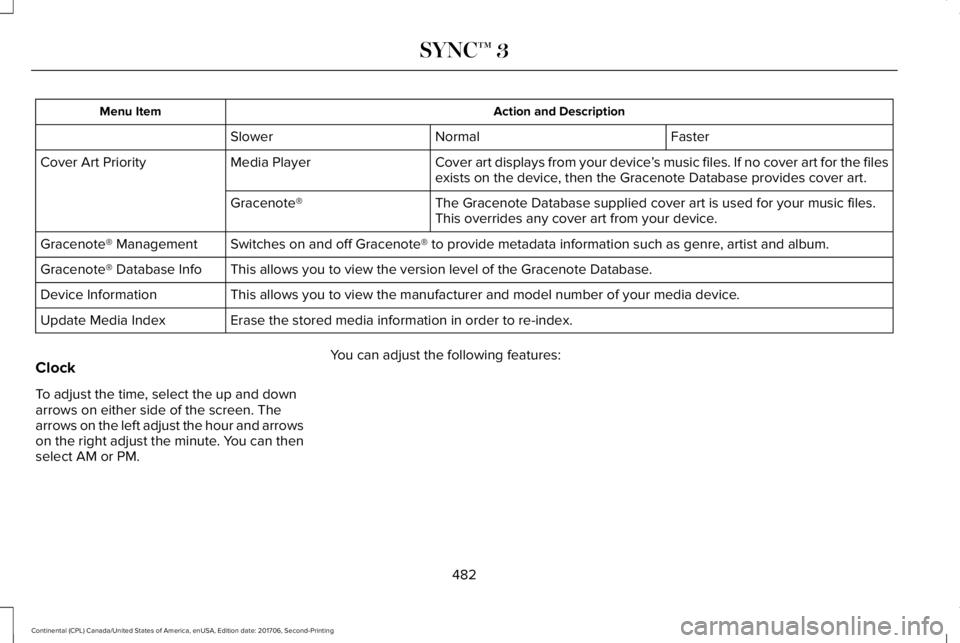
Action and DescriptionMenu Item
FasterNormalSlower
Cover art displays from your device’s music files. If no cover art for the filesexists on the device, then the Gracenote Database provides cover art.Media PlayerCover Art Priority
The Gracenote Database supplied cover art is used for your music files.This overrides any cover art from your device.Gracenote®
Switches on and off Gracenote® to provide metadata information such as genre, artist and album.Gracenote® Management
This allows you to view the version level of the Gracenote Database.Gracenote® Database Info
This allows you to view the manufacturer and model number of your media device.Device Information
Erase the stored media information in order to re-index.Update Media Index
Clock
To adjust the time, select the up and downarrows on either side of the screen. Thearrows on the left adjust the hour and arrowson the right adjust the minute. You can thenselect AM or PM.
You can adjust the following features:
482
Continental (CPL) Canada/United States of America, enUSA, Edition date: 201706, Second-Printing
SYNC™ 3