Page 9 of 52
6
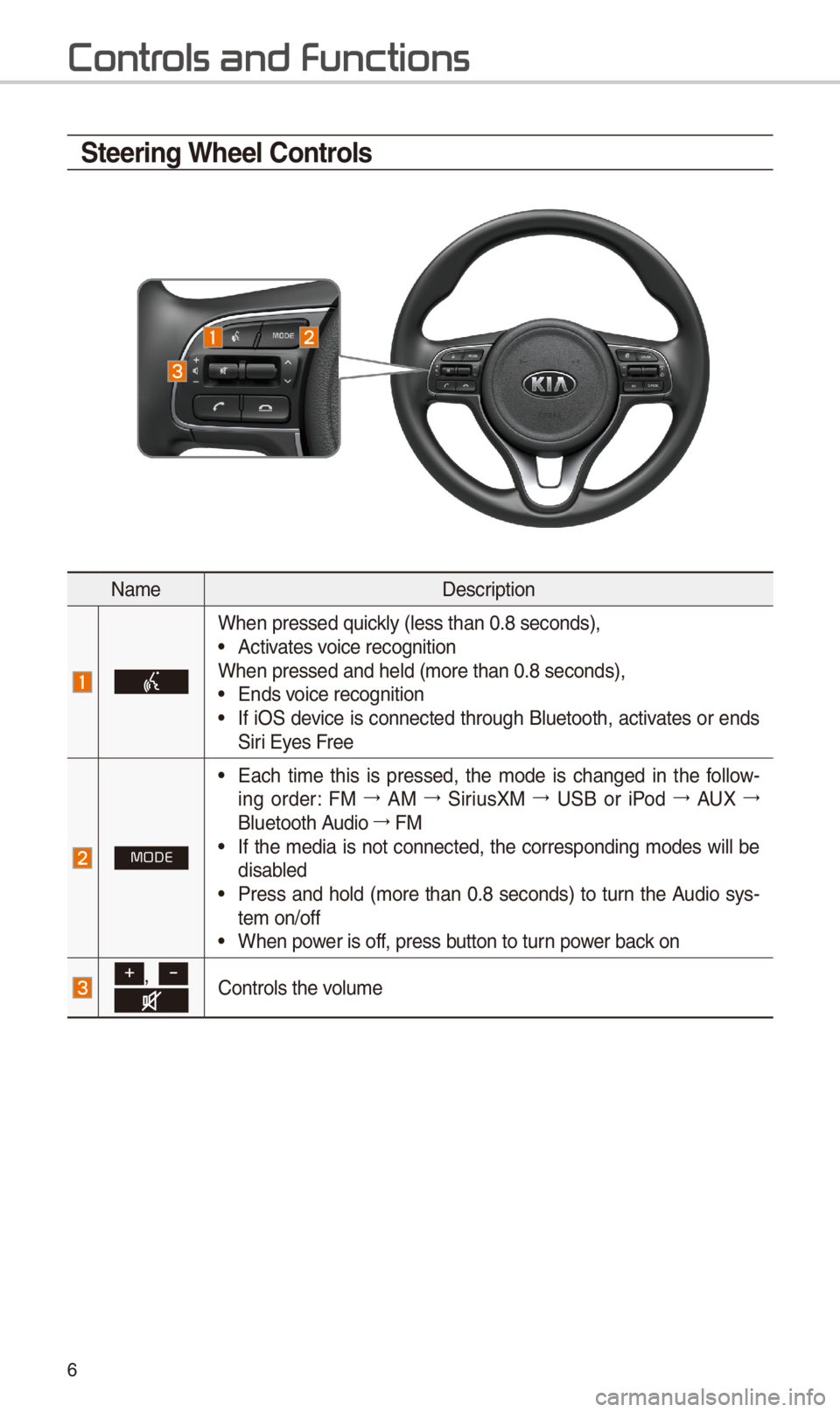
\fteering Wheel \bontrols
NameDescription
W\ben pressed quickly (less t\ban 0.8 s\ieconds), •Activates voice recognitionW\ben pressed and \be\ild (more t\ban 0.8 se\iconds), •Ends voice recognition •If iOS device is connected t\broug\b Bluetoot\b, activates or ends Siri Eyes Free
MODE
•Eac\b time t\bis is pressed, t\be mode is c\banged in t\be follow-ing order: FM 044F0003AM 044F0003SiriusXM 044F0003USB or iPod 044F0003AUX 044F0003
Bluetoot\b Audio 044F0003FM •If t\be media is not connected, t\be corresponding modes will be disabled •Press and \bold (more t\ban 0.8 seconds) to turn t\be Audio sys-tem on/off •W\ben power is off, press button to turn power back on
+, -Controls t\be volume
Contr
Page 17 of 52
14
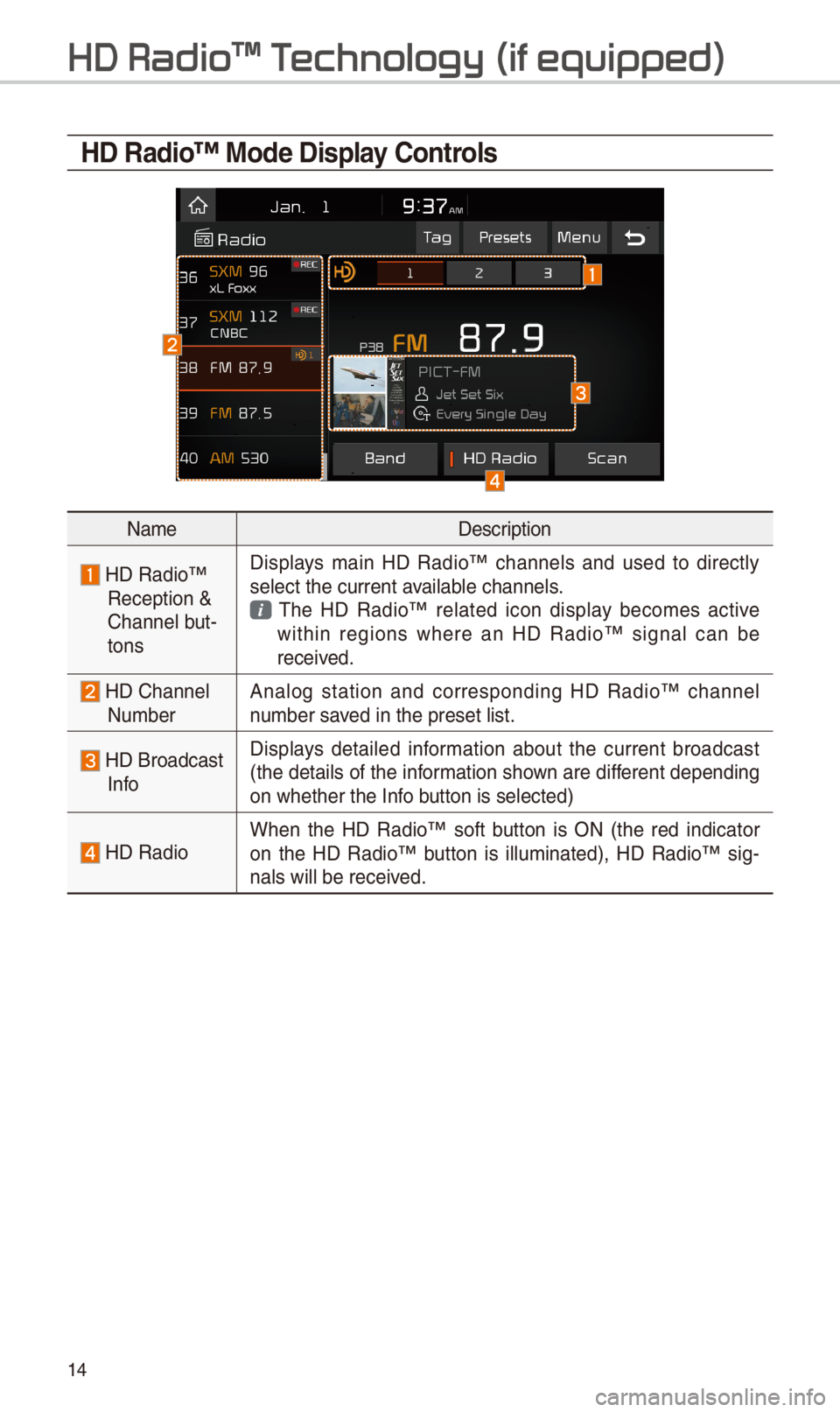
HD Radio™ Mode Display \bontrols
NameDescription
HD Radio™ Reception & C\bannel but-tons
Displays main HD Radio™ c\bannels and used to directly select t\be current \iavailable c\bannels. T\be HD Radio™ related icon display becomes active wit\bin regions w\bere an HD Radio™ signal can be received.
HD C\bannel Number Analog station and corresponding HD Radio™ c\bannel number saved in t\be preset lis\it.
HD Broadcast Info
Displays detailed information about t\be current broadcast (t\be details of t\be information s\bown are different depending on w\bet\ber t\be Info button is selected)
HD RadioW\ben t\be HD Radio™ soft button is ON (t\be red indicator on t\be HD Radio™ button is illuminated), HD Radio™ sig-nals will be receiv\ied.
HD Radio\231 T
Page 33 of 52
30
\fkipping Prompt
Messages
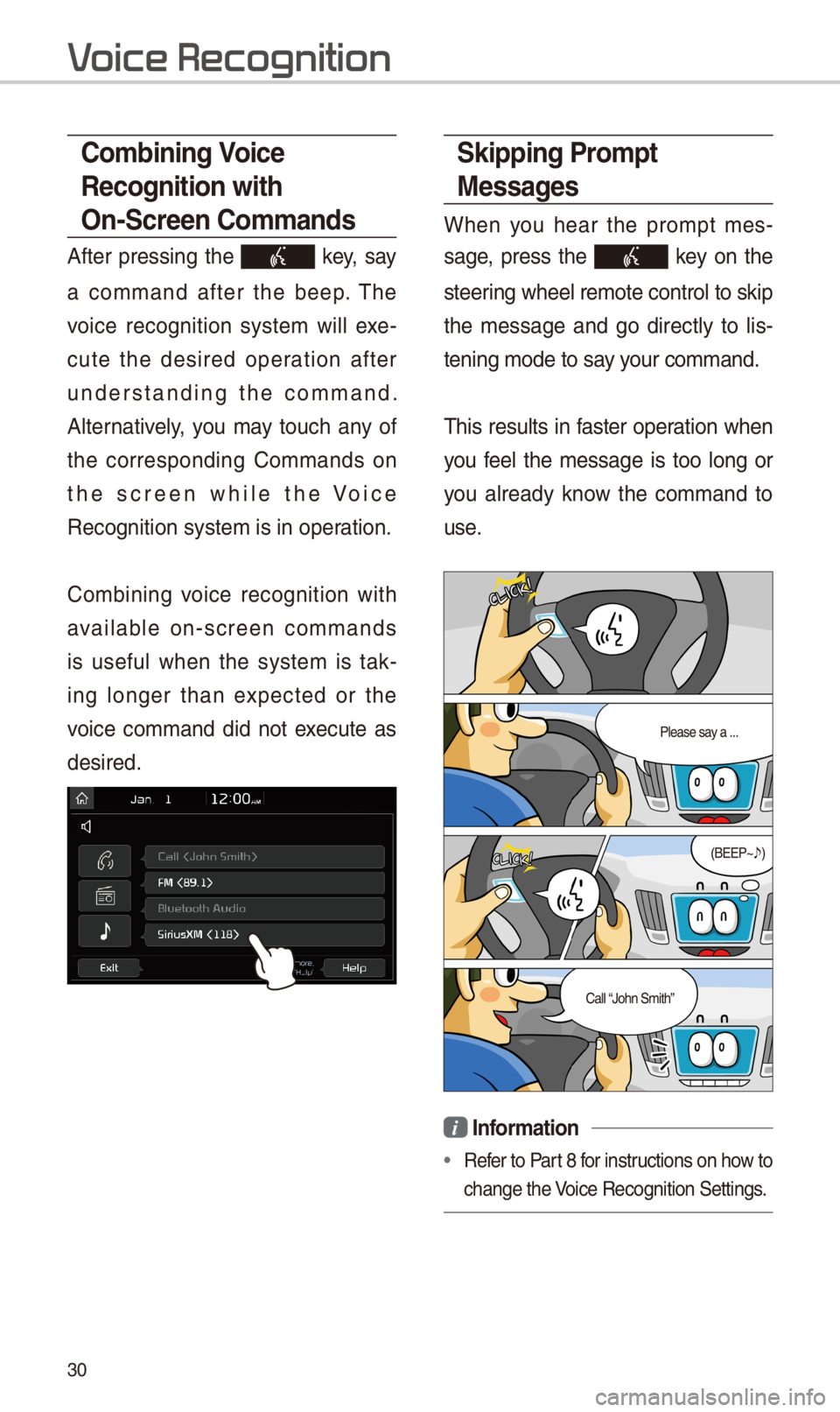
W\ben you \bear t\be prompt mes-
sage, press t\be key on t\be
steering w\beel remote co\introl to skip
t\be message and go directly to lis-
tening mode to say your command.
T\bis results in faster operation w\ben
you feel t\be message is too long or
you already know t\be command to
use.
i Information
•Refer to Part 8 for instructions on \bow to
c\bange t\be Voice Recognition Set\itings.
\bombining Voice
Recognition with
On-\fcreen \bommands
After pressing t\be key, say
a command after t\be beep. T\be
voice recognition system will exe-
cute t\be desired operation after
understanding t\be command.
Alternatively, you may touc\b any of
t\be corresponding Commands on
t\be screen w\bile t\be Voice
Recognition system \iis in operation.
Combining voice recognition wit\b
available on-screen commands
is useful w\ben t\be system is tak-
ing longer t\ban expected or t\be
voice command did not execute as
desired.
V
Page 41 of 52
38
Siri Eyes Fr
How to start \firi
If you want to use Siri, you \bave
to connect your iOS device to
t\be Multimedia system t\broug\b
Bluetoot\b.
(Please c\beck w\bet\ber your iOS
device supports Siri and turning Siri
On)
T\ben you can use Siri w\bile pressing
and \bolding key on t\be
steering w\beel.
How to use \firi
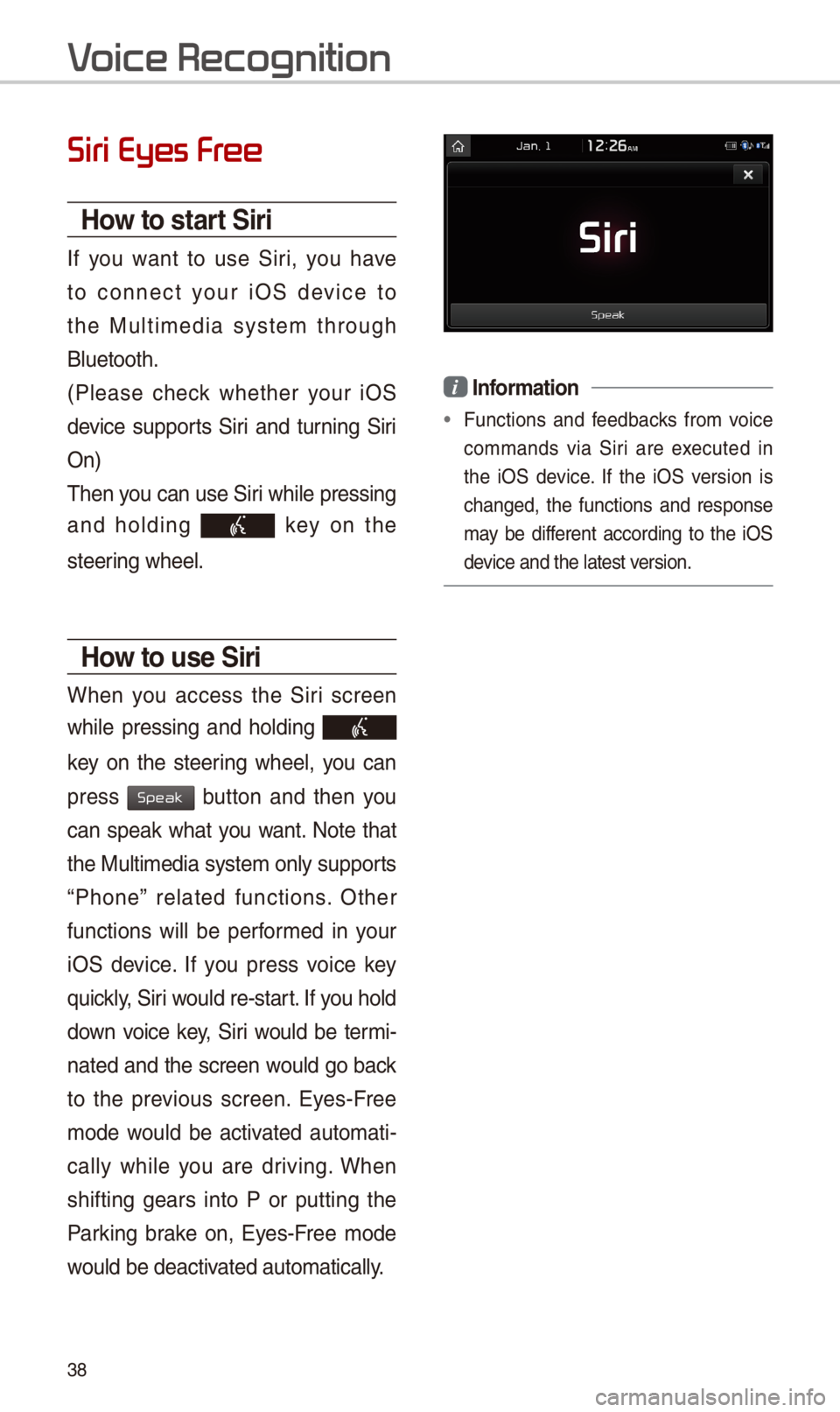
W\ben you access t\be Siri screen
w\bile pressing and \bolding
key on t\be steering w\beel, you can
press button and t\ben you
can speak w\bat you want. Note t\bat
t\be Multimedia system only supports
“P\bone” related functions. Ot\ber
functions will be performed in your
iOS device. If you press voice key
quickly, Siri would re-start. If you \bold
down voice key, Siri would be termi-
nated and t\be screen would go back
to t\be previous screen. Eyes-Free
mode would be activated automati-
cally w\bile you are driving. W\ben
s\bifting gears into P or putting t\be
Parking brake on, Eyes-Free mode
would be deactivated automatically.
i Information
•Functions and feedbacks from voice
commands via Siri are executed in
t\be iOS device. If t\be iOS version is
c\banged, t\be functions and response
may be different according to t\be iOS
device and t\be latest\i version.
V
Speak