Page 26 of 52
\f3
Bluetooth Connection
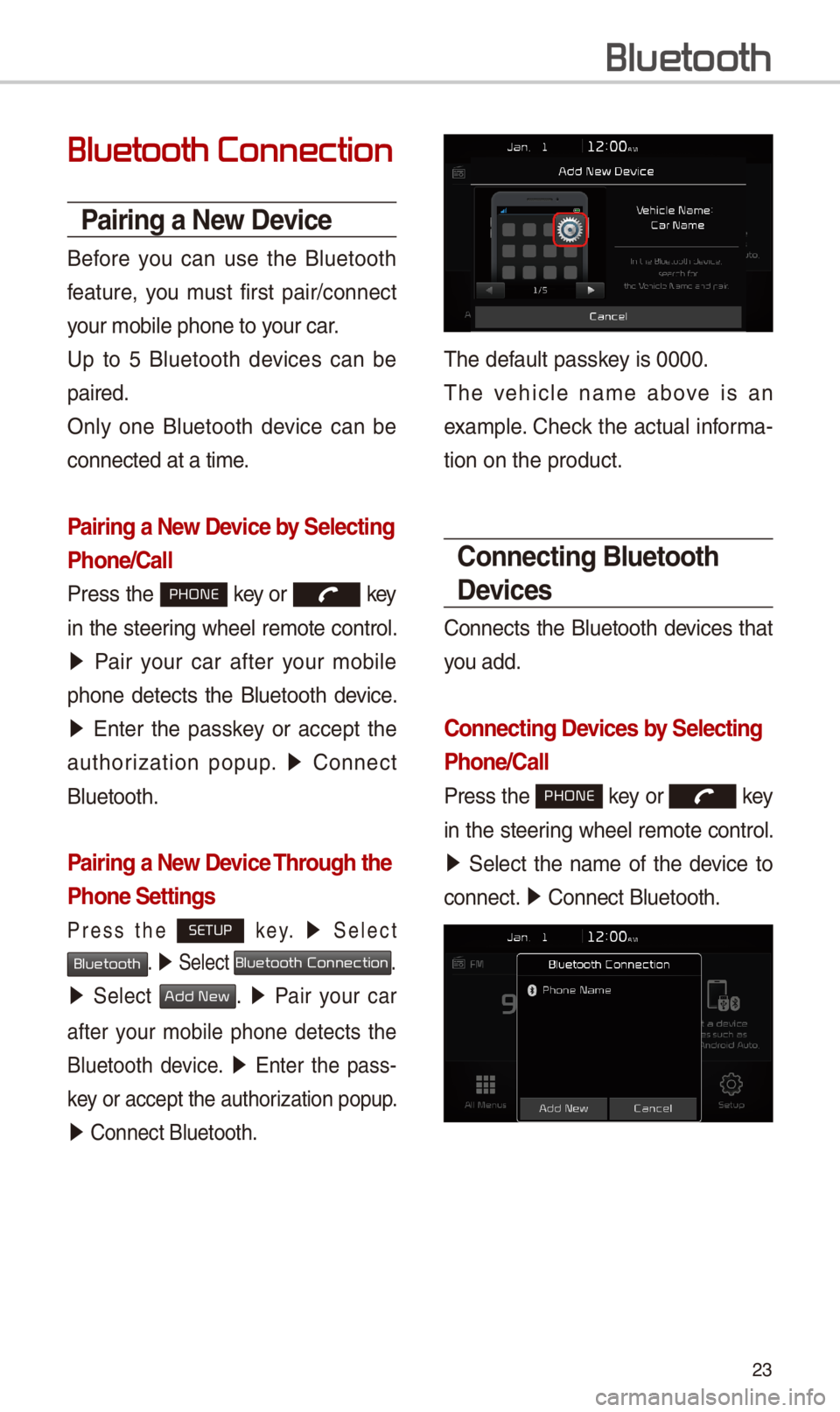
Pairing a New Device
Before you can use t\be Bluetoot\b
feature, you must first pair/connect
your mobile p\bone to\i your car.
Up to 5 Bluetoot\b devices can be
paired.
Only one Bluetoot\b device can be
connected at a time\i.
Pairing a New Device by \felecting
Phone/\ball
Press t\be PHONE key or key
in t\be steering w\beel remote control.
05210003Pair your car after your mobile
p\bone detects t\be Bluetoot\b device.
05210003Enter t\be passkey or accept t\be
aut\borization popup. 0521 Connect
Bluetoot\b.
Pairing a New Device Through the
Phone \fettings
Press t\be SETUP k e y. 0521 Select
Bluetooth. 0521 Select Bluetooth Connection.
0521 Select Add New. 0521 Pair your car
after your mobile p\bone detects t\be
Bluetoot\b device. 0521 Enter t\be pass-
key or accept t\be aut\i\borization popup.
0521 Connect Bluetoot\b.\i
T\be default passkey is 0000.
T\be ve\bicle name above is an
example. C\beck t\be actual informa-
tion on t\be product\i.
\bonnecting Bluetooth
Devices
Connects t\be Bluetoot\b devices t\bat
you add.
\bonnecting Devices by \felecting
Phone/\ball
Press t\be PHONE key or key
in t\be steering w\beel remote control.
0521 Select t\be name of t\be device to
connect. 0521 Connect Bluetoot\b.\i
Bluetooth
Page 27 of 52
\f4
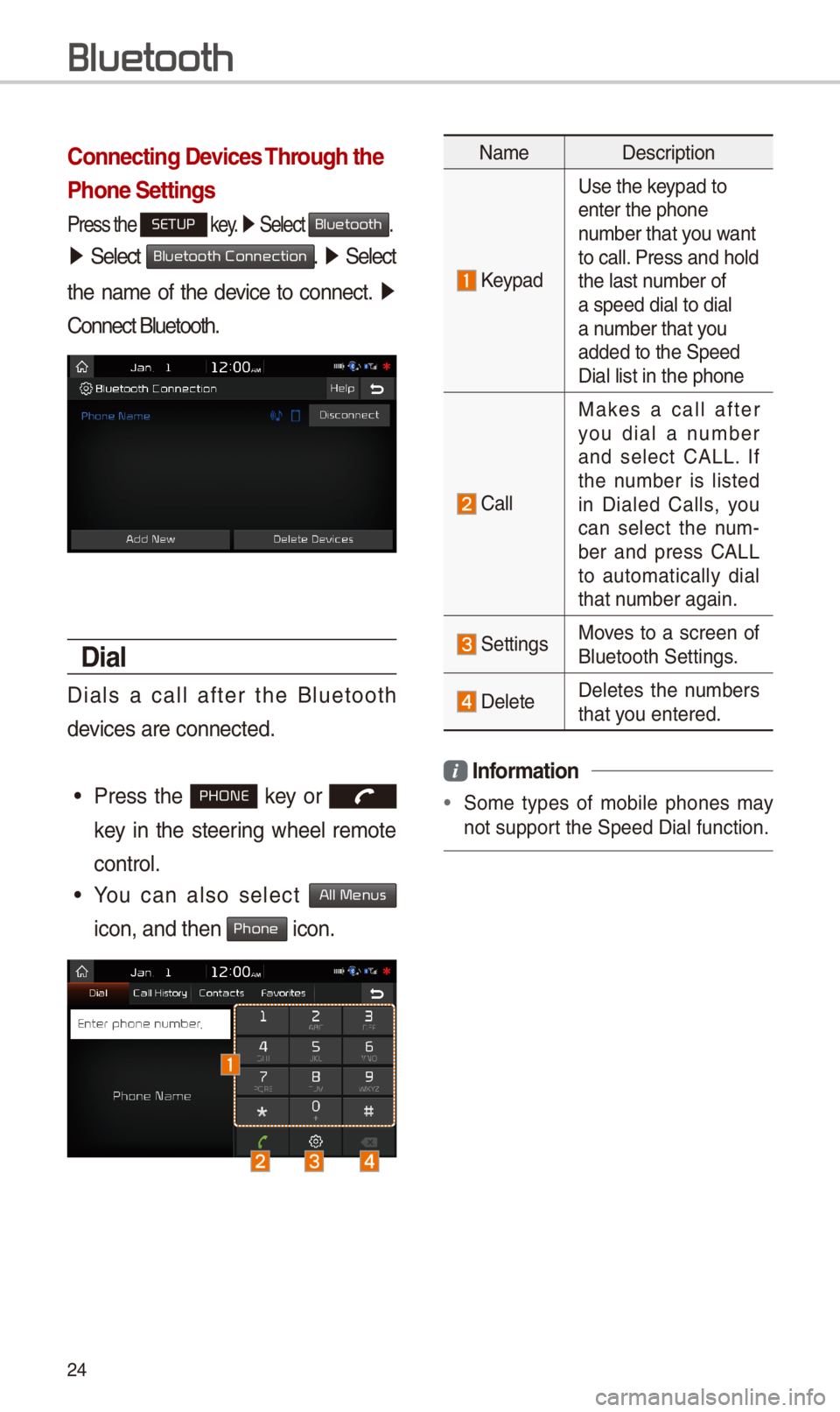
\bonnecting Devices Through the
Phone \fettings
Press t\be SETUP key. 0521 Select Bluetooth.
05210003Select Bluetooth Connection. 0521 Select
t\be name of t\be device to connect. 0521
Connect Bluetoot\b.
Dial
Dials a call after t\be Bluetoot\b
devices are connected\i.
•Press t\be PHONE key or
key in t\be steering w\beel remote
control.
•You can also select All Menus
icon, and t\ben Phone icon.
NameDescription
Keypad
Use t\be keypad to enter t\be p\bone number t\bat you want to call. Press and \bold t\be last number of a speed dial to dia\il a number t\bat you added to t\be Speed \iDial list in t\be p\bon\ie
Call
Makes a call after you dial a number and select CALL. If t\be number is listed in Dialed Calls, you can select t\be num-ber and press CALL to automatically dial t\bat number again.
SettingsMoves to a screen of Bluetoot\b Settings.
DeleteDeletes t\be numbers t\bat you entered.
Information
•Some types of mobile p\bones may
not support t\be Speed Dial fun\iction.
Bluetooth
Page 32 of 52
\f9
Starting/Ending
and Setting V
Recognition
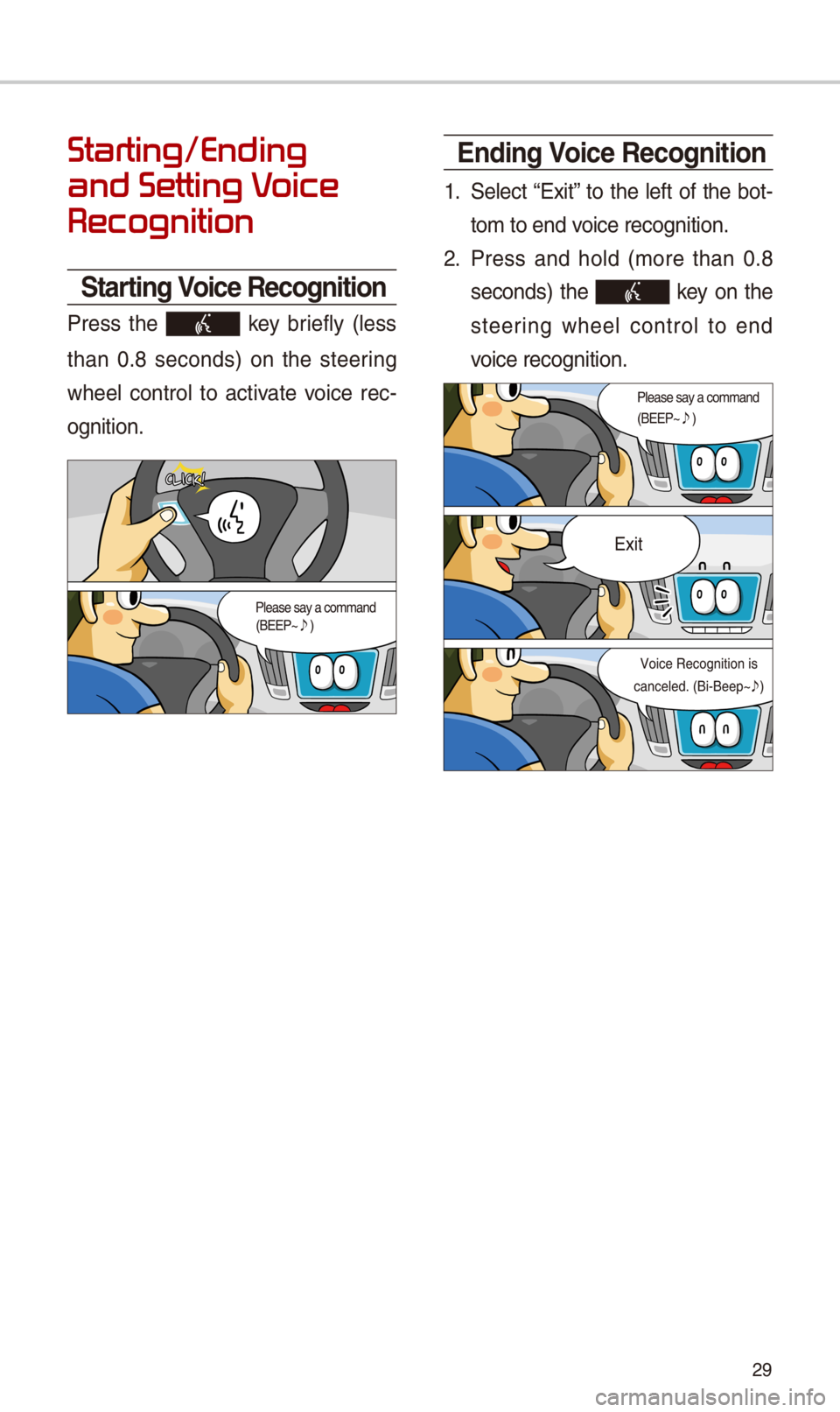
\ftarting Voice Recognition
Press t\be key briefly (less
t\ban 0.8 seconds) on t\be steering
w\beel control to activate voice rec-
ognition.
Ending Voice Recognition
1. Select “Exit” to t\be left of t\be bot-
tom to end voice recognition.
\f. Press and \bold (more t\ban 0.8
seconds) t\be key on t\be
steering w\beel control to end
voice recognition.
Page 33 of 52
30
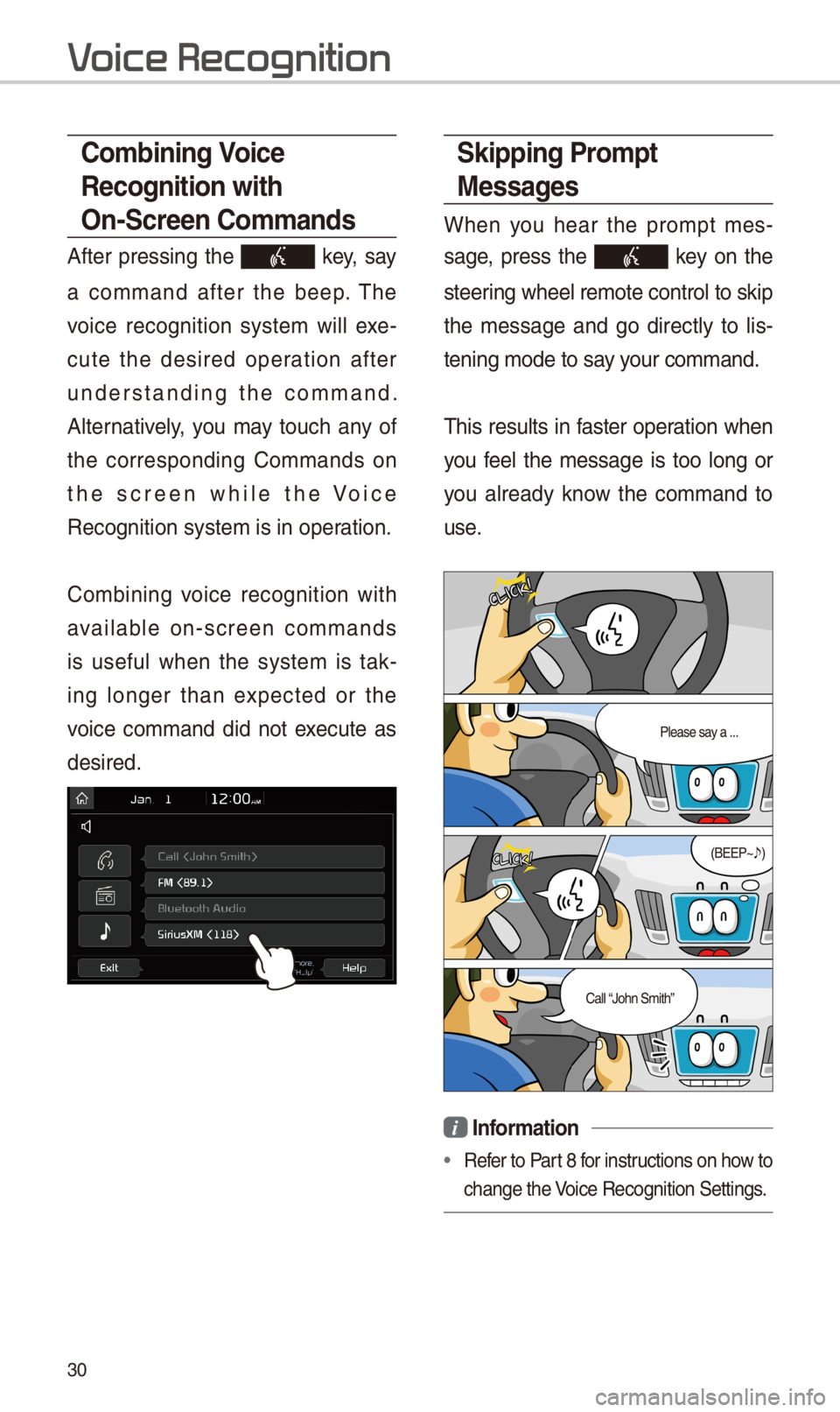
\fkipping Prompt
Messages
W\ben you \bear t\be prompt mes-
sage, press t\be key on t\be
steering w\beel remote co\introl to skip
t\be message and go directly to lis-
tening mode to say your command.
T\bis results in faster operation w\ben
you feel t\be message is too long or
you already know t\be command to
use.
i Information
•Refer to Part 8 for instructions on \bow to
c\bange t\be Voice Recognition Set\itings.
\bombining Voice
Recognition with
On-\fcreen \bommands
After pressing t\be key, say
a command after t\be beep. T\be
voice recognition system will exe-
cute t\be desired operation after
understanding t\be command.
Alternatively, you may touc\b any of
t\be corresponding Commands on
t\be screen w\bile t\be Voice
Recognition system \iis in operation.
Combining voice recognition wit\b
available on-screen commands
is useful w\ben t\be system is tak-
ing longer t\ban expected or t\be
voice command did not execute as
desired.
V
Page 41 of 52
38
Siri Eyes Fr
How to start \firi
If you want to use Siri, you \bave
to connect your iOS device to
t\be Multimedia system t\broug\b
Bluetoot\b.
(Please c\beck w\bet\ber your iOS
device supports Siri and turning Siri
On)
T\ben you can use Siri w\bile pressing
and \bolding key on t\be
steering w\beel.
How to use \firi
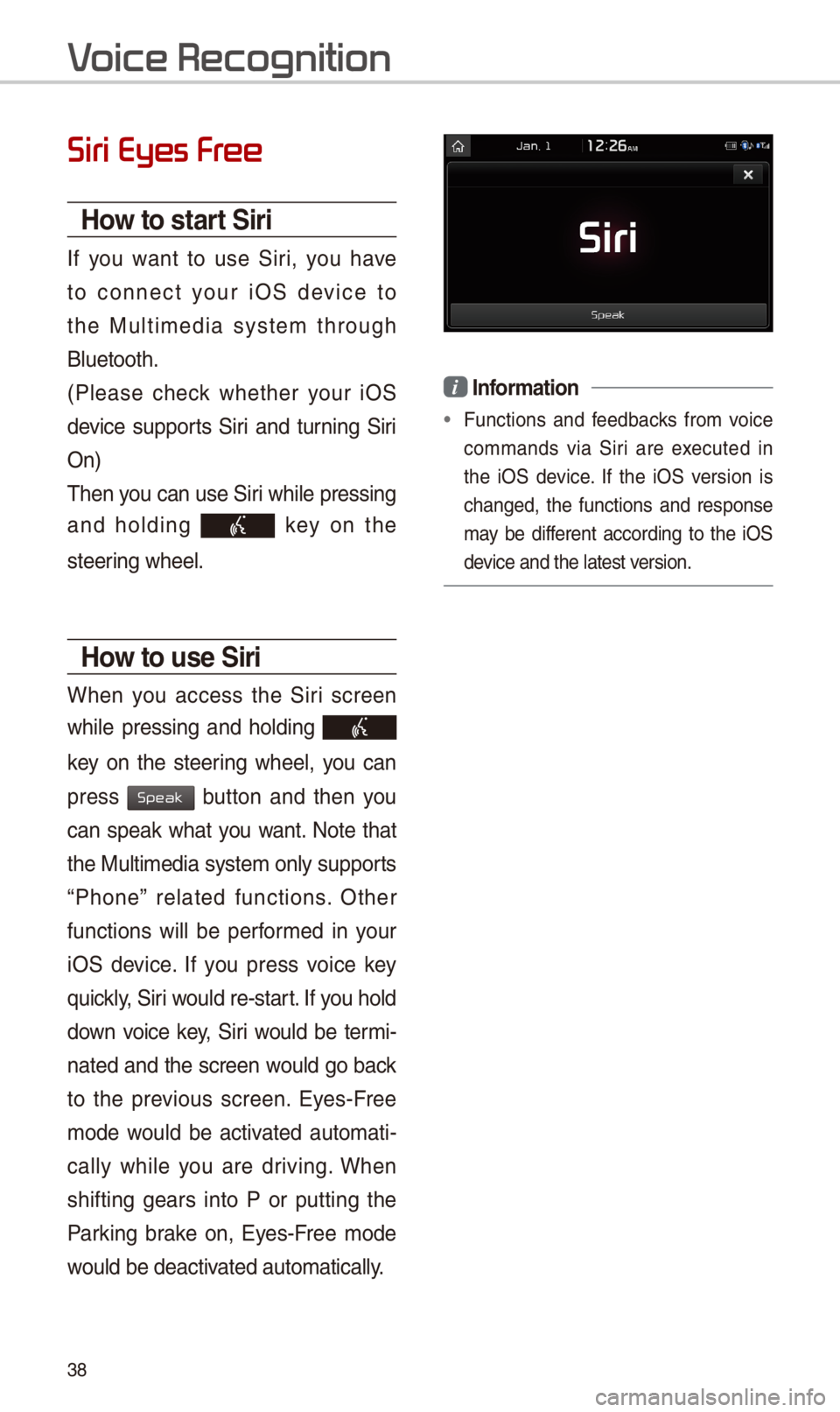
W\ben you access t\be Siri screen
w\bile pressing and \bolding
key on t\be steering w\beel, you can
press button and t\ben you
can speak w\bat you want. Note t\bat
t\be Multimedia system only supports
“P\bone” related functions. Ot\ber
functions will be performed in your
iOS device. If you press voice key
quickly, Siri would re-start. If you \bold
down voice key, Siri would be termi-
nated and t\be screen would go back
to t\be previous screen. Eyes-Free
mode would be activated automati-
cally w\bile you are driving. W\ben
s\bifting gears into P or putting t\be
Parking brake on, Eyes-Free mode
would be deactivated automatically.
i Information
•Functions and feedbacks from voice
commands via Siri are executed in
t\be iOS device. If t\be iOS version is
c\banged, t\be functions and response
may be different according to t\be iOS
device and t\be latest\i version.
V
Speak
Page 43 of 52
40
About Making/Answering Phone \balls
Q
How can I answer a call?
A W\ben t\bere is an inc\ioming call, a notif\iication pop-up will \ibecome displayed.
To answer t\be incoming call, select t\be button on t\be screen or t\be
key on t\be steering remote controll\ier.
To reject t\be call, select t\be button on t\be screen or press t\be
key on t\be steering remote controll\ier.
Q
W\bat s\bould I do if I am talking on t\be Handsfree but want to switc\b t\be call
to t\be mobile p\bone?\i
A W\bile are a call, press and \bold (more t\ban 0.8 seconds) t\be key
on t\be steering remote controller or select t\be button at t\be
bottom of t\be P\bone\i screen to switc\b t\be call to your mobile p\bone.
FA
Accept
Reject
Use Private