Page 256 of 605
Features of your vehicle
170
4
If the wireless charging is not func-
tioning properly, the orange light will
blink and flash for ten seconds then
turn off. In such cases, remove the
smart phone from the pad and
replace it on the pad again, or double
check the charging status.
If you leave the smart phone on the
charging pad when the vehicle igni-
tion is in OFF, the vehicle will alert
you through warning messages and
sound (applicable for vehicles with
voice guidance (function) after the
‘Good bye’ function on the instru-
ment cluster ends.
WARNING - Distracted
driving
Driving while distracted can
result in a loss of vehicle con-
trol that may lead to an acci-
dent, severe personal injury,
and death. The driver’s primary
responsibility is in the safe and
legal operation of a vehicle, and
use of any handheld devices,
other equipment, or vehicle sys-
tems which take the driver’s
eyes, attention and focus away
from the safe operation of a
vehicle or which are not permis-
sible by law should never be
used during operation of the
vehicle.CAUTION - Metal in
Wireless Charging System
If any metallic object such as coins is located between thewireless charging system andthe smart phone, the chargingmay be disrupted. Also, themetallic object may heat up andpotentially damage the chargingsystem. If there is any metallicobject between the smart phoneand the charging pad, immedi-ately remove the smart phone.Remove the metallic object afterit has cooled down.
Page 257 of 605
4171
Features of your vehicle
✽
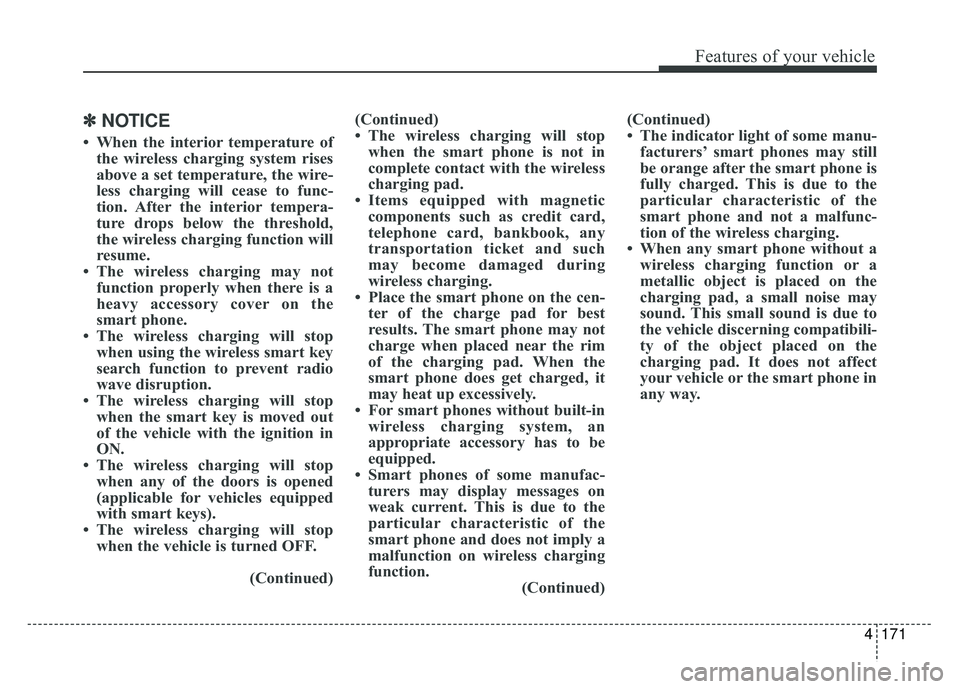
✽NOTICE
• When the interior temperature of
the wireless charging system rises
above a set temperature, the wire-
less charging will cease to func-
tion. After the interior tempera-
ture drops below the threshold,
the wireless charging function will
resume.
• The wireless charging may not function properly when there is a
heavy accessory cover on the
smart phone.
• The wireless charging will stop when using the wireless smart key
search function to prevent radio
wave disruption.
• The wireless charging will stop when the smart key is moved out
of the vehicle with the ignition in
ON.
• The wireless charging will stop when any of the doors is opened
(applicable for vehicles equipped
with smart keys).
• The wireless charging will stop when the vehicle is turned OFF.
(Continued)(Continued)
• The wireless charging will stop
when the smart phone is not in
complete contact with the wireless
charging pad.
• Items equipped with magnetic components such as credit card,
telephone card, bankbook, any
transportation ticket and such
may become damaged during
wireless charging.
• Place the smart phone on the cen- ter of the charge pad for best
results. The smart phone may not
charge when placed near the rim
of the charging pad. When the
smart phone does get charged, it
may heat up excessively.
• For smart phones without built-in wireless charging system, an
appropriate accessory has to be
equipped.
• Smart phones of some manufac- turers may display messages on
weak current. This is due to the
particular characteristic of the
smart phone and does not imply a
malfunction on wireless charging
function. (Continued)(Continued)
• The indicator light of some manu-
facturers’ smart phones may still
be orange after the smart phone is
fully charged. This is due to the
particular characteristic of the
smart phone and not a malfunc-
tion of the wireless charging.
• When any smart phone without a wireless charging function or a
metallic object is placed on the
charging pad, a small noise may
sound. This small sound is due to
the vehicle discerning compatibili-
ty of the object placed on the
charging pad. It does not affect
your vehicle or the smart phone in
any way.
Page 259 of 605
4173
Features of your vehicle
The following must be observed
when installing ANY floor mat to the
vehicle.
Ensure that the floor mats aresecurely attached to the vehicle's
floor mat anchor(s) before driving
the vehicle.
Do not use ANY floor mat that can- not be firmly attached to the vehi-
cle's floor mat anchors.
Do not stack floor mats on top of one another (e.g. all-weather rub-
ber mat on top of a carpeted floor
mat). Only a single floor mat should
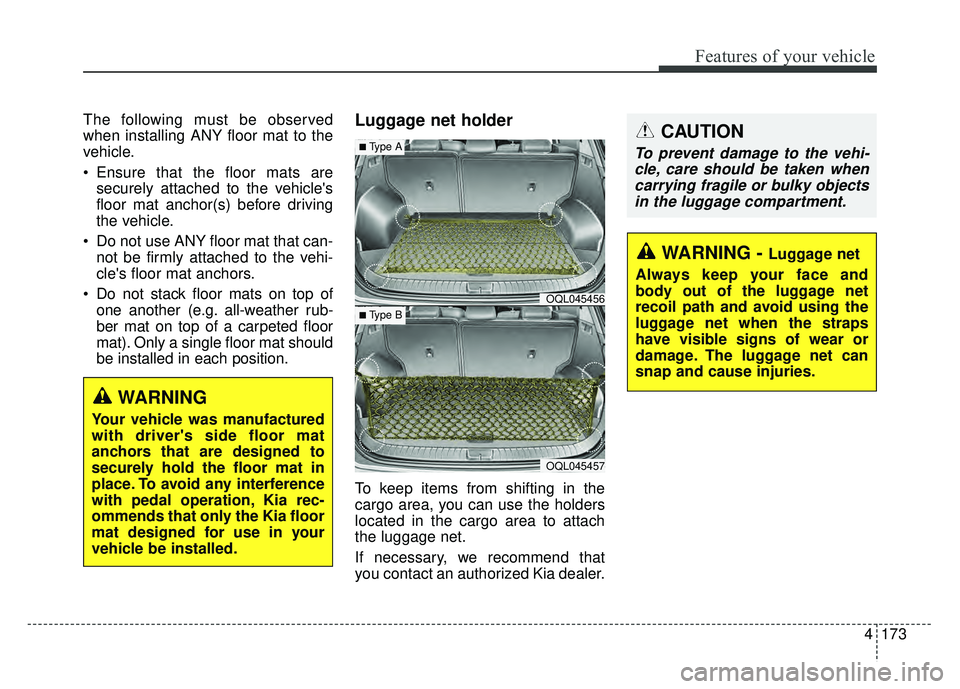
be installed in each position.Luggage net holder
To keep items from shifting in the
cargo area, you can use the holders
located in the cargo area to attach
the luggage net.
If necessary, we recommend that
you contact an authorized Kia dealer.
WARNING
Your vehicle was manufactured
with driver's side floor mat
anchors that are designed to
securely hold the floor mat in
place. To avoid any interference
with pedal operation, Kia rec-
ommends that only the Kia floor
mat designed for use in your
vehicle be installed.
OQL045456
OQL045457
■Type A
■ Type B
CAUTION
To prevent damage to the vehi-cle, care should be taken whencarrying fragile or bulky objectsin the luggage compartment.
WARNING - Luggage net
Always keep your face and
body out of the luggage net
recoil path and avoid using the
luggage net when the straps
have visible signs of wear or
damage. The luggage net can
snap and cause injuries.
Page 260 of 605
Features of your vehicle
174
4
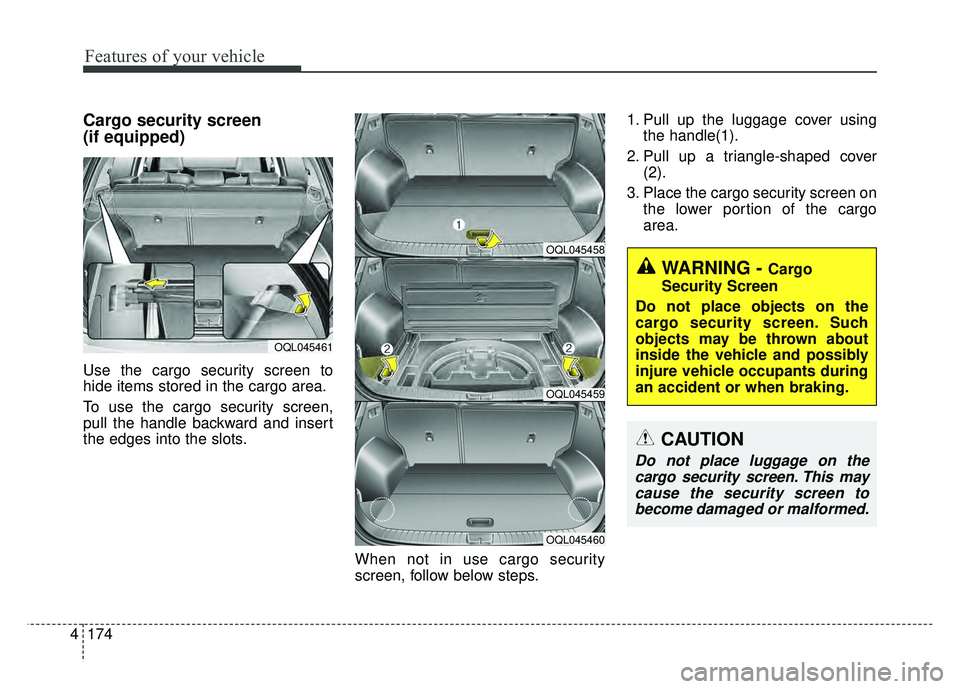
Cargo security screen
(if equipped)
Use the cargo security screen to
hide items stored in the cargo area.
To use the cargo security screen,
pull the handle backward and insert
the edges into the slots.
When not in use cargo security
screen, follow below steps.1. Pull up the luggage cover using
the handle(1).
2. Pull up a triangle-shaped cover (2).
3. Place the cargo security screen on the lower portion of the cargo
area.
OQL045461
OQL045458
OQL045459
OQL045460
WARNING - Cargo
Security Screen
Do not place objects on the
cargo security screen. Such
objects may be thrown about
inside the vehicle and possibly
injure vehicle occupants during
an accident or when braking.
CAUTION
Do not place luggage on the cargo security screen. This maycause the security screen tobecome damaged or malformed.
Page 263 of 605

Audio system
Audio System . . . . . . . . . . . . . . . . . . . . . . . . . . . . . . 5-2
• Antenna . . . . . . . . . . . . . . . . . . . . . . . . . . . . . . . . . . . . \
. 5-2
• Steering wheel audio controls. . . . . . . . . . . . . . . . . . . . 5-2
• AUX, USB port . . . . . . . . . . . . . . . . . . . . . . . . . . . . . . . 5-4
• How vehicle audio works . . . . . . . . . . . . . . . . . . . . . . . 5-4
Audio (With Touch Screen) . . . . . . . . . . . . . . . . . . . 5-7
• Features of Your Audio . . . . . . . . . . . . . . . . . . . . . . . . . 5-8
• Radio Mode . . . . . . . . . . . . . . . . . . . . . . . . . . . . . . . . . 5-19
• SiriusXM Radio Mode . . . . . . . . . . . . . . . . . . . . . . . . 5-22
• Media Mode . . . . . . . . . . . . . . . . . . . . . . . . . . . . . . . . . 5-24
• Phone Mode . . . . . . . . . . . . . . . . . . . . . . . . . . . . . . . . . 5-39
• Bluetooth
®Wireless Technology . . . . . . . . . . . . . . . . . 5-40
• Voice Recognition Mode . . . . . . . . . . . . . . . . . . . . . . . 5-47
• Setup Mode . . . . . . . . . . . . . . . . . . . . . . . . . . . . . . . . . 5-55
Declaration of Conformity . . . . . . . . . . . . . . . . . . 5-64
• FCC . . . . . . . . . . . . . . . . . . . . . . . . . . . . . . . . . . . . \
. . . . 5-64
5
Page 265 of 605
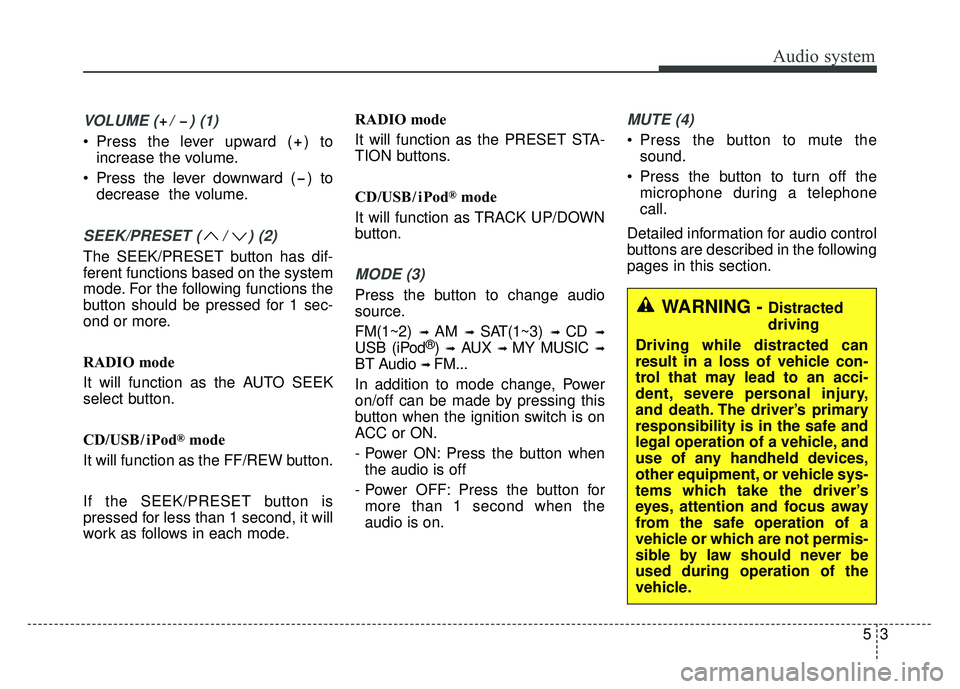
VOLUME ( / ) (1)
• Press the lever upward ( ) toincrease the volume.
Press the lever downward ( ) to decrease the volume.
SEEK/PRESET ( / ) (2)
The SEEK/PRESET button has dif-
ferent functions based on the system
mode. For the following functions the
button should be pressed for 1 sec-
ond or more.
RADIO mode
It will function as the AUTO SEEK
select button.
CD/USB/ iPod
®mode
It will function as the FF/REW button.
If the SEEK/PRESET button is
pressed for less than 1 second, it will
work as follows in each mode. RADIO mode
It will function as the PRESET STA-
TION buttons.
CD/USB/ iPod
®mode
It will function as TRACK UP/DOWN
button.
MODE (3)
Press the button to change audio
source.
FM(1~2)
➟ AM ➟ SAT(1~3) ➟ CD ➟
USB (iPod®) ➟AUX ➟ MY MUSIC ➟
BT Audio ➟ FM...
In addition to mode change, Power
on/off can be made by pressing this
button when the ignition switch is on
ACC or ON.
- Power ON: Press the button when the audio is off
- Power OFF: Press the button for more than 1 second when the
audio is on.
MUTE (4)
Press the button to mute the sound.
Press the button to turn off the microphone during a telephone
call.
Detailed information for audio control
buttons are described in the following
pages in this section.
Audio system
53
WARNING - Distracted
driving
Driving while distracted can
result in a loss of vehicle con-
trol that may lead to an acci-
dent, severe personal injury,
and death. The driver’s primary
responsibility is in the safe and
legal operation of a vehicle, and
use of any handheld devices,
other equipment, or vehicle sys-
tems which take the driver’s
eyes, attention and focus away
from the safe operation of a
vehicle or which are not permis-
sible by law should never be
used during operation of the
vehicle.
Page 266 of 605
Audio system
45
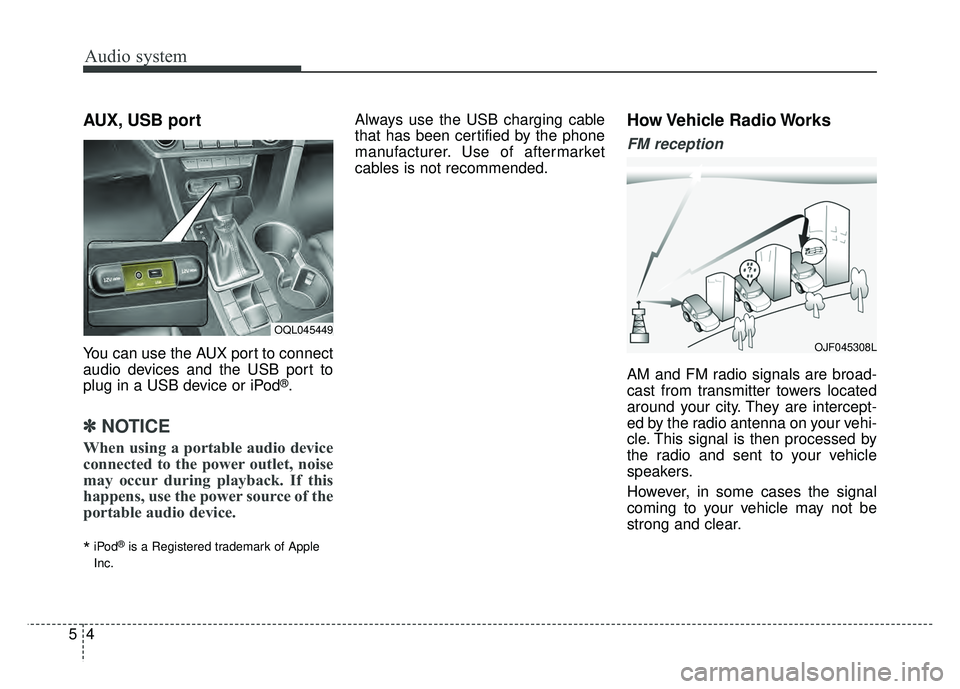
AUX, USB port
You can use the AUX port to connect
audio devices and the USB port to
plug in a USB device or iPod
®.
✽ ✽NOTICE
When using a portable audio device
connected to the power outlet, noise
may occur during playback. If this
happens, use the power source of the
portable audio device.
*iPod®is a Registered trademark of Apple
Inc.
Always use the USB charging cable
that has been certified by the phone
manufacturer. Use of aftermarket
cables is not recommended.How Vehicle Radio Works
FM reception
AM and FM radio signals are broad-
cast from transmitter towers located
around your city. They are intercept-
ed by the radio antenna on your vehi-
cle. This signal is then processed by
the radio and sent to your vehicle
speakers.
However, in some cases the signal
coming to your vehicle may not be
strong and clear.
OQL045449
OJF045308L
Page 271 of 605
Audio system
59
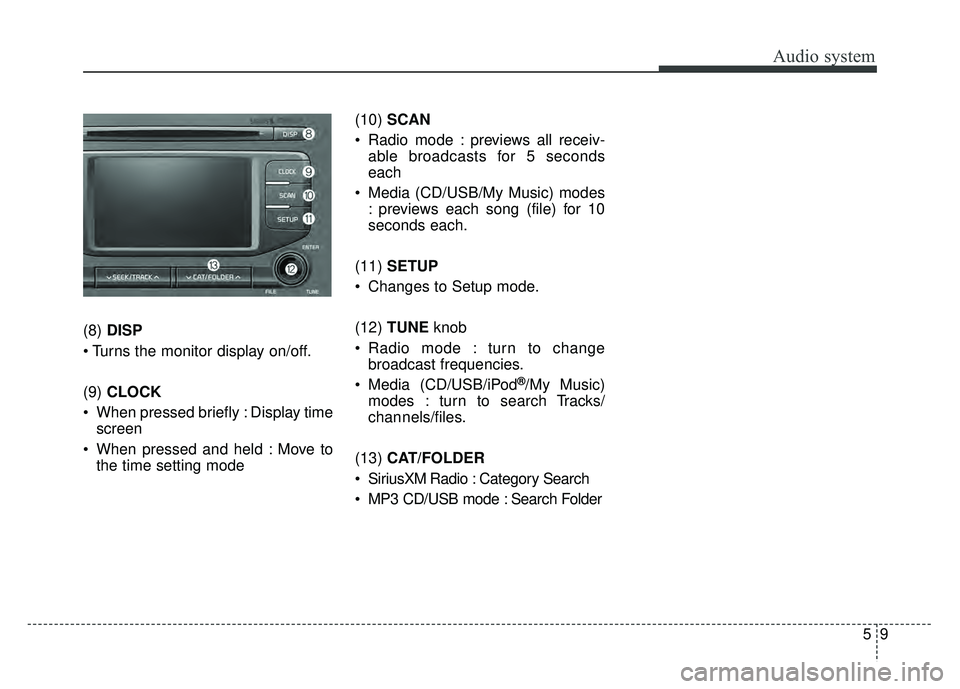
(8) DISP
(9) CLOCK
When pressed briefly : Display time screen
When pressed and held : Move to the time setting mode (10)
SCAN
Radio mode : previews all receiv- able broadcasts for 5 seconds
each
Media (CD/USB/My Music) modes : previews each song (file) for 10
seconds each.
(11) SETUP
Changes to Setup mode.
(12) TUNE knob
Radio mode : turn to change broadcast frequencies.
Media (CD/USB/iPod
®/My Music)
modes : turn to search Tracks/
chan nels/files.
(13) CAT/FOLDER
SiriusXM Radio : Category Search
MP3 CD/USB mode : Search Folder