2018 KIA SOUL EV USB
[x] Cancel search: USBPage 286 of 496
4155
Features of your vehicle
(Continued)
• DRM (Digital Rights Management)files cannot be played.
• SD-type USB memory, CF-type USB memory, and other USB
memory devices that require
adapters for connection are not
supported.
• Proper operation of USB HDDs or USB drives with connectors that
loosen due to vehicle vibrations is
not guaranteed. (iStick, etc.)
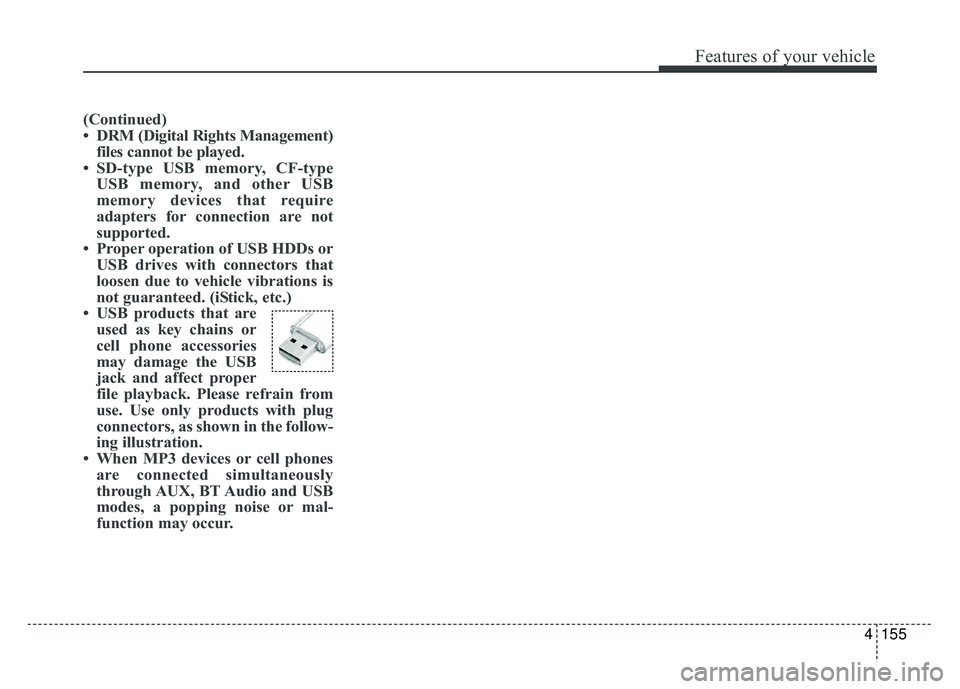
• USB products that are used as key chains or
cell phone accessories
may damage the USB
jack and affect proper
file playback. Please refrain from
use. Use only products with plug
connectors, as shown in the follow-
ing illustration.
• When MP3 devices or cell phones are connected simultaneously
through AUX, BT Audio and USB
modes, a popping noise or mal-
function may occur.
Page 287 of 496
156
4
Features of your vehicle
USB
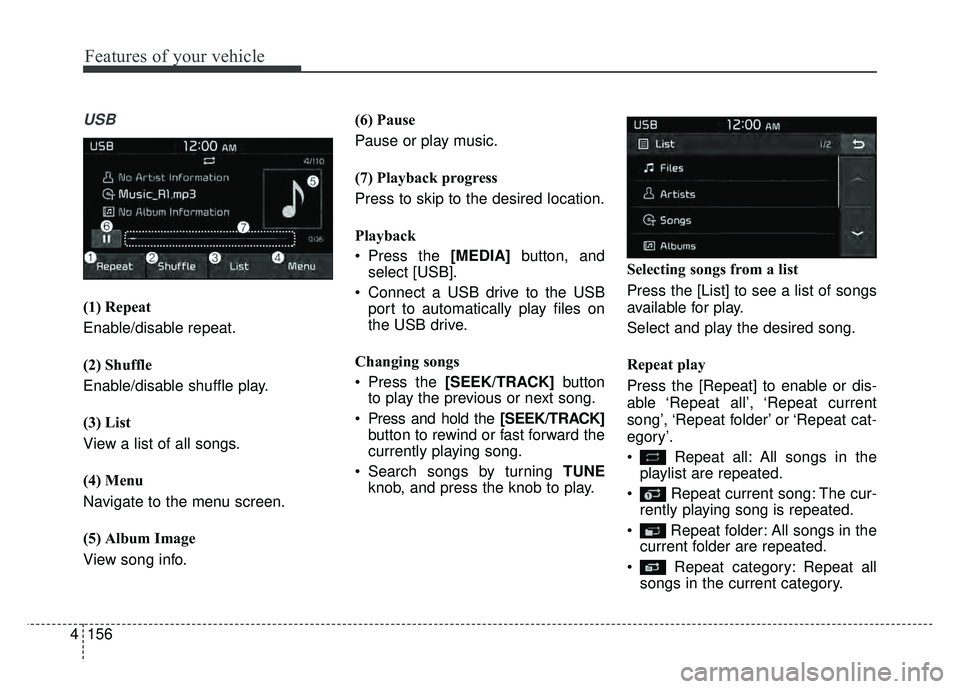
(1) Repeat
Enable/disable repeat.
(2) Shuffle
Enable/disable shuffle play.
(3) List
View a list of all songs.
(4) Menu
Navigate to the menu screen.
(5) Album Image
View song info. (6) Pause
Pause or play music.
(7) Playback progress
Press to skip to the desired location.
Playback
Press the [MEDIA]
button, and
select [USB].
Connect a USB drive to the USB port to automatically play files on
the USB drive.
Changing songs
Press the [SEEK/TRACK] button
to play the previous or next song.
Press and hold the [SEEK/TRACK] button to rewind or fast forward the
currently playing song.
Search songs by turning TUNE knob, and press the knob to play. Selecting songs from a list
Press the [List] to see a list of songs
available for play.
Select and play the desired song.
Repeat play
Press the [Repeat] to enable or dis-
able ‘Repeat all’, ‘Repeat current
song’, ‘Repeat folder’ or ‘Repeat cat-
egory’.
Repeat all: All songs in the
playlist are repeated.
Repeat current song: The cur- rently playing song is repeated.
Repeat folder: All songs in the current folder are repeated.
Repeat category: Repeat all songs in the current category.
Page 288 of 496
![KIA SOUL EV 2018 Owners Manual 4157
Features of your vehicle
✽
✽NOTICE
The repeat folder function is avail-
able only when songs are playing
from the [File] category under
[List].
Shuffle play
Press the [Shuffle] to enable/disa](/manual-img/2/55107/w960_55107-287.png "KIA SOUL EV 2018 Owners Manual 4157
Features of your vehicle
✽
✽NOTICE
The repeat folder function is avail-
able only when songs are playing
from the [File] category under
[List].
Shuffle play
Press the [Shuffle] to enable/disa")
4157
Features of your vehicle
✽
✽NOTICE
The repeat folder function is avail-
able only when songs are playing
from the [File] category under
[List].
Shuffle play
Press the [Shuffle] to enable/disable
‘Shuffle’, ‘Shuffle folder’ or ‘Shuffle
category’ play.
Shuffle: Songs are played in
random order.
Shuffle folder: Songs within the current folder are played in ran-
dom order.
Shuffle category: Songs within the current category are played in
random order. Menu
Press the [Menu], and select the
desired function.
Save to My Music: Songs on your
USB device can be saved to My
Music.
(1) File: Select a file to save
.
(2) Mark All: Select all files.
(3) Unmark All: Deselect all files.
(4) Save: Save the selected files.
- Select the files you want to save, and press the [Save]. This saves
the selected files to My Music.
- If Siri is activated, phone calls are received or made while sav-
ing, saving will be canceled.
- Up to 6,000 files can be saved. - The currently playing file on the
USB device cannot be changed
while saving.
- My Music cannot be used while saving.
- Up to 700 MB can be saved.
Information: Detailed information on the currently playing song is dis-
played.
Sound Settings: Audio sound set- tings can be changed.
Page 289 of 496
158
4
Features of your vehicle
✽
✽
NOTICE - Using the iPod®
Devices
• To use the audio system’s iPod®
control function, use the dedicated
cable provided with your iPod®.
• Connecting the iPod®to the vehi-
cle during play may result in a
loud noise that lasts about one to
two seconds. Connect the iPod
®to
the vehicle after stopping or paus-
ing play.
• Connect the iPod
®with the vehicle
in the ACC ON state to begin
charging.
• When connecting the iPod
®cable,
be sure to fully push the cable into
the port.
• When EQ effects are enabled simultaneously on external
devices, such as iPod
®s and the
audio system, the EQ effects may
overlap, causing sound quality
deterioration or distortion.
Deactivate the EQ function for all
external devices, if possible.
• Noise may occur when your iPod
®
or the AUX port is connected.
Disconnect and store separately
when not in use. (Continued)(Continued)
• There may be noise if the audio
system is used with an iPod
®or
AUX external device connected to
the power jack. In these cases, dis-
connect the iPod
®or external
device from the power jack.
• Play may be interrupted, or device malfunctions may occur depend-
ing on the characteristics of your
iPod
®/iPhone®.
• Play may fail if your iPhone®is
connected through both
Bluetooth
®Wireless Technology
and USB. In this case, select Dock
connector or Bluetooth
®Wireless
Technology on your iPhone®to
change the sound output settings.
• If your software version does not support the communication proto-
col or your iPod
®is not recognized
due to device failure, anomalies or
defects, iPod
®mode cannot be
used.
• iPod
®nano (5th generation)
devices may not be recognized if
the battery is low. Charge suffi-
ciently before use. (Continued)(Continued)
• The search and song play order in
the iPod
®device may be different
from the search order in the audio
system.
• If the iPod
®has failed due to an
internal defect, please reset the
iPod
®(consult your iPod®manu-
al).
• Depending on the software ver- sion, the iPod
®may fail to sync
with the system. If the media is
removed or disconnected before
recognition, the previous mode
may not be restored (iPad
®cannot
be charged).
• Cables other than the 1-meter cable provided with iPod
®/iPhone®
products may not be recognized.
• When other music apps are used on your iPod
®, the system sync
function may fail due to malfunc-
tion of the iPod
®application.
Page 290 of 496
4159
Features of your vehicle
iPod®
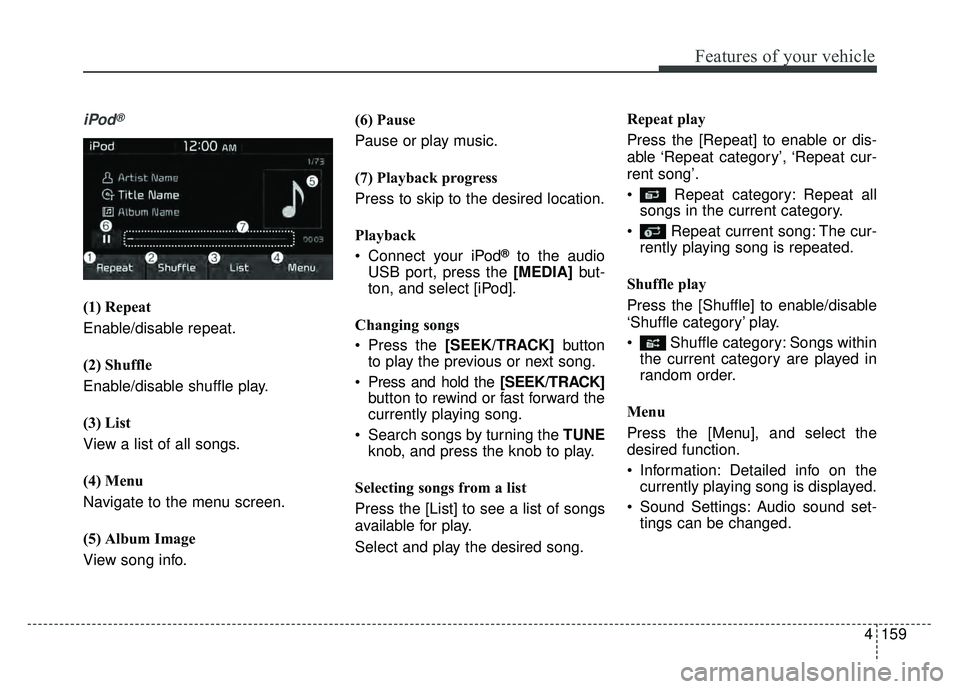
(1) Repeat
Enable/disable repeat.
(2) Shuffle
Enable/disable shuffle play.
(3) List
View a list of all songs.
(4) Menu
Navigate to the menu screen.
(5) Album Image
View song info.(6) Pause
Pause or play music.
(7) Playback progress
Press to skip to the desired location.
Playback
Connect your iPod
®to the audio
USB port, press the [MEDIA] but-
ton, and select [iPod].
Changing songs
Press the [SEEK/TRACK] button
to play the previous or next song.
Press and hold the [SEEK/TRACK] button to rewind or fast forward the
currently playing song.
Search songs by turning the TUNE knob, and press the knob to play.
Selecting songs from a list
Press the [List] to see a list of songs
available for play.
Select and play the desired song. Repeat play
Press the [Repeat] to enable or dis-
able ‘Repeat category’, ‘Repeat cur-
rent song’.
Repeat category: Repeat all
songs in the current category.
Repeat current song: The cur- rently playing song is repeated.
Shuffle play
Press the [Shuffle] to enable/disable
‘Shuffle category’ play.
Shuffle category: Songs within the current category are played in
random order.
Menu
Press the [Menu], and select the
desired function.
Information: Detailed info on the currently playing song is displayed.
Sound Settings: Audio sound set- tings can be changed.
Page 295 of 496
![KIA SOUL EV 2018 Owners Manual 164
4
Features of your vehicle
(6) Pause
Pause or play music.
(7) Playback progress
Press to skip to the desired location.
Playback
Press the [MEDIA] button, and
select [My Music].
My Music cannot be](/manual-img/2/55107/w960_55107-294.png "KIA SOUL EV 2018 Owners Manual 164
4
Features of your vehicle
(6) Pause
Pause or play music.
(7) Playback progress
Press to skip to the desired location.
Playback
Press the [MEDIA] button, and
select [My Music].
My Music cannot be")
164
4
Features of your vehicle
(6) Pause
Pause or play music.
(7) Playback progress
Press to skip to the desired location.
Playback
Press the [MEDIA] button, and
select [My Music].
My Music cannot be selected if it does not contain music.
Check the content of your USB drive before saving music to My
Music.
Changing songs
Press the [SEEK/TRACK] button to
play the previous or next song.
Press and hold the [SEEK/TRACK] button to rewind or fast forward the
currently playing song.
Search songs by turning the TUNE knob and press the knob to play. Selecting songs from a list
Press the [List] to see a list of songs
available for play.
Select and play the desired song.
Repeat play
Press the [Repeat] to enable or dis-
able ‘Repeat all’, ‘Repeat current
song’ or ‘Repeat category’.
Repeat all: All songs in the
playlist are repeated.
Repeat current song: The cur- rently playing song is repeated.
Repeat category: Repeat all songs in the current category. Shuffle play
Press the [Shuffle] to enable/disable
‘Shuffle’, ‘Shuffle category’ play.
Shuffle: Songs are played in
random order.
Shuffle category: Songs within the current category are played in
random order.
Menu
Press the [Menu], and select the
desired function.
Delete Files: You can delete files from My Music.
(1) File: Select saved file
.
(2) Mark All: Select all Files.
(3) Unmark All: Deselect all files.
(4) Delete: Delete the selected file(s).
Page 297 of 496
166
4
Features of your vehicle
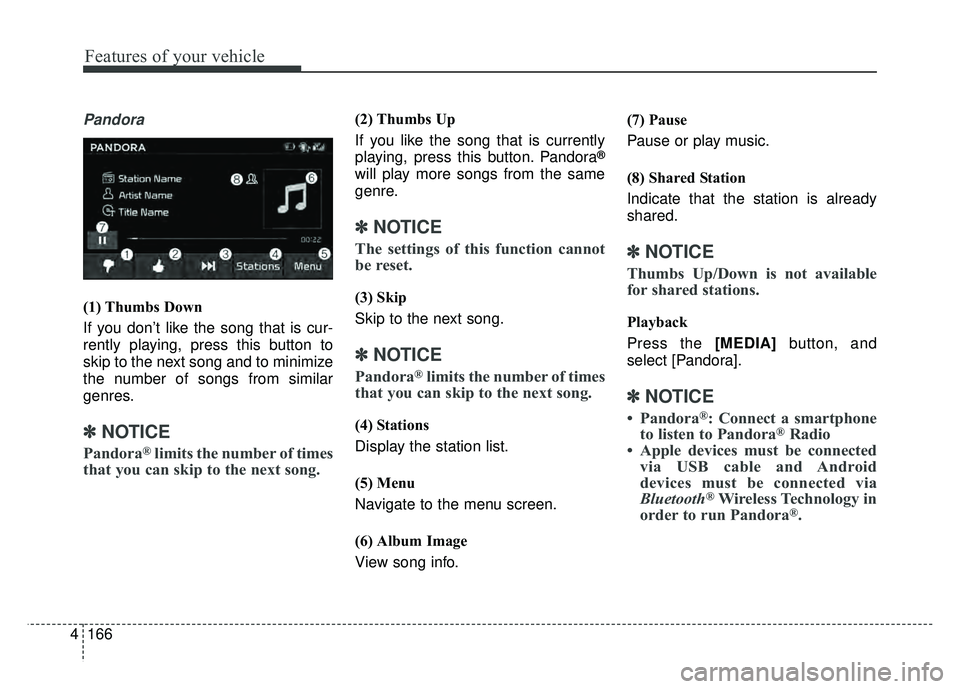
Pandora
(1) Thumbs Down
If you don’t like the song that is cur-
rently playing, press this button to
skip to the next song and to minimize
the number of songs from similar
genres.
✽ ✽
NOTICE
Pandora®limits the number of times
that you can skip to the next song.
(2) Thumbs Up
If you like the song that is currently
playing, press this button. Pandora
®
will play more songs from the same
genre.
✽ ✽ NOTICE
The settings of this function cannot
be reset.
(3) Skip
Skip to the next song.
✽ ✽NOTICE
Pandora®limits the number of times
that you can skip to the next song.
(4) Stations
Display the station list.
(5) Menu
Navigate to the menu screen.
(6) Album Image
View song info. (7) Pause
Pause or play music.
(8) Shared Station
Indicate that the station is already
shared.
✽ ✽
NOTICE
Thumbs Up/Down is not available
for shared stations.
Playback
Press the [MEDIA] button, and
select [Pandora].
✽ ✽ NOTICE
• Pandora®: Connect a smartphone
to listen to Pandora®Radio
• Apple devices must be connected via USB cable and Android
devices must be connected via
Bluetooth
®Wireless Technology in
order to run Pandora®.
Page 307 of 496
176
4
Features of your vehicle
Siri
✽
✽
NOTICE - Using Siri
• Android device is not supported to
use Siri.
• If you want to use Siri, you have to connect your iOS device to multi-
media system through Bluetooth
®
Wireless Technology. (Please
check whether your iOS device
supports Siri and turning Siri On)
• If the iOS version is changed, the functions and response may be dif-
ferent according to the iOS device
and the latest version.
• Siri automatically stops in the fol- lowing events.
1) Outgoing and incoming phone calls.
2) Media (USB, etc.) is connected. (Siri mode is maintained when
iPod
®s are connected)
3) Rear camera is activated (option).
4) Vehicle is started or engine is turned off. (Continued)(Continued)
5) Screen transition buttons, such as RADIO or MEDIA, are
selected.
6) When a pop-up message is dis- played on the screen due to
accidental execution of Siri.
• The microphone is located above the driver’s seat. To ensure proper
Siri, state your voice while main-
taining proper driving posture.
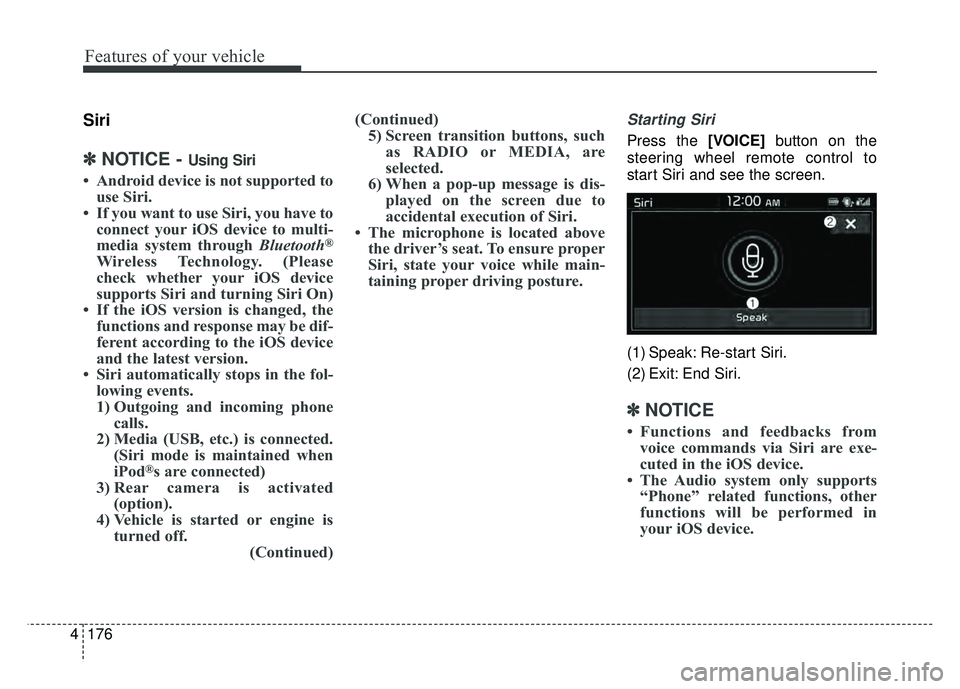
Starting Siri
Press the [VOICE] button on the
steering wheel remote control to
start Siri and see the screen.
(1) Speak: Re-start Siri.
(2) Exit: End Siri.
✽ ✽ NOTICE
• Functions and feedbacks from
voice commands via Siri are exe-
cuted in the iOS device.
• The Audio system only supports “Phone” related functions, other
functions will be performed in
your iOS device.