2018 JEEP GRAND CHEROKEE steering wheel
[x] Cancel search: steering wheelPage 328 of 368
NOTE:
Some mobile phones require the PIN to
be entered manually, enter the PIN num-
ber shown on the Uconnect screen.
Select The Android Mobile Phone's Priority
Level
When the pairing process has successfully
completed, the system will prompt you to
choose whether or not this is your favorite
mobile phone. Selecting “Yes” will make this
mobile phone the highest priority. This mo-
bile phone will take precedence over other
paired mobile phones within range and will
connect to the Uconnect system automati-
cally when entering the vehicle. Only one
mobile phone and/or one Bluetooth audio
device can be connected to the Uconnect
system at a time. If “No” is selected, simply
select “Uconnect” from the mobile phone/
audio device Bluetooth screen, and the
Uconnect system will reconnect to the
Bluetooth device.NOTE:
Software updates, either on your phone or
Uconnect system, may interfere with the
Bluetooth connection. If this happens, sim-
ply repeat the pairing process. However, first,
make sure to delete the device from the list of
phones on your Uconnect system. Next, be
sure to remove Uconnect from the list of
devices in your phone’s Bluetooth settings.
You are now ready to make hands-free calls.
Press the Uconnect “Phone” button
on
your steering wheel to begin.
NOTE:
Refer to UconnectPhone.com website for ad-
ditional information on mobile phone pairing
and for a list of compatible phones.
Common Phone Commands (Examples)
• “Call John Smith”
• “Call John Smith mobile”
• “Dial 1 248 555 1212”
• “Redial”
Mute (Or Unmute) Microphone During
Call
• During a call, press the “Mute” button on
the Phone main screen to mute and un-
mute the call.
Transfer Ongoing Call Between Handset
And Vehicle
• During an on-going call, press the “Trans-
fer” button on the Phone main screen to
transfer an on-going call between handset
and vehicle.
Phonebook
The Uconnect system will automatically sync
your phonebook from your paired phone, if
this feature is supported by your phone.
Phonebook contacts are updated each time
that the phone is connected. If your phone
book entries do not appear, check the set-
tings on your phone. Some phones require
you to enable this feature manually.
MULTIMEDIA
326
Page 329 of 368
• Your phonebook can be browsed on the
Uconnect system touchscreen, but editing
can only be done on your phone. To browse,
press the “Phone” button on the touch-
screen, then the “Phonebook” button on
the touchscreen.
Favorite phonebook entries can be saved as
Favorites for quicker access. Favorites are
shown at the top of the main phone screen.
Voice Command Tips
• Speaking complete names (i.e; Call John
Doe vs. Call John) will result in greater
system accuracy.
• You can “link” commands together for
faster results. Say “Call John Doe, mobile,”
for example.
• If you are listening to available voice com-
mand options, you do not have to listen to
the entire list. When you hear the command
that you need, push the
button on the
steering wheel, wait for the beep and say
your command.
Changing The Volume
• Start a dialogue by pushing the VR button
, then say a command. For example,
"Help".
• Use the radio VOLUME rotary knob to ad-
just the volume to a comfortable level while
the Uconnect system is speaking.
NOTE:
The volume setting for Uconnect is different
than the audio system.
NOTE:
To access help, push the Uconnect VR button
(if active) on the steering wheel and say
"help." Push the Uconnect VR Pickup button
(if active) or the VR button(if
active) and say "cancel" to cancel the help
session.
Using Do Not Disturb
With Do Not Disturb, you can disable notifi-
cations from incoming calls and texts, allow-
ing you to keep your eyes on the road and
hands on the wheel. For your convenience,there is a counter display to keep track of your
missed calls and text messages while you
were using Do Not Disturb.
Do Not Disturb can automatically reply with a
text message, a call or both, when declining
an incoming call and send it to voicemail.
Automatic reply messages can be:
• “I am driving right now, I will get back to
you shortly.”
• Create a custom auto reply message up to
160 characters.
While in Do Not Disturb, Conference Call can
be selected so you can still place a second
call without being interrupted by incoming
calls.
NOTE:
• Only the beginning of your custom message
will be seen on the touchscreen.
• Reply with text message is not compatible
with iPhones.
• Auto reply with text message is only avail-
able on phones that supporting Bluetooth
MAP.
327
Page 336 of 368
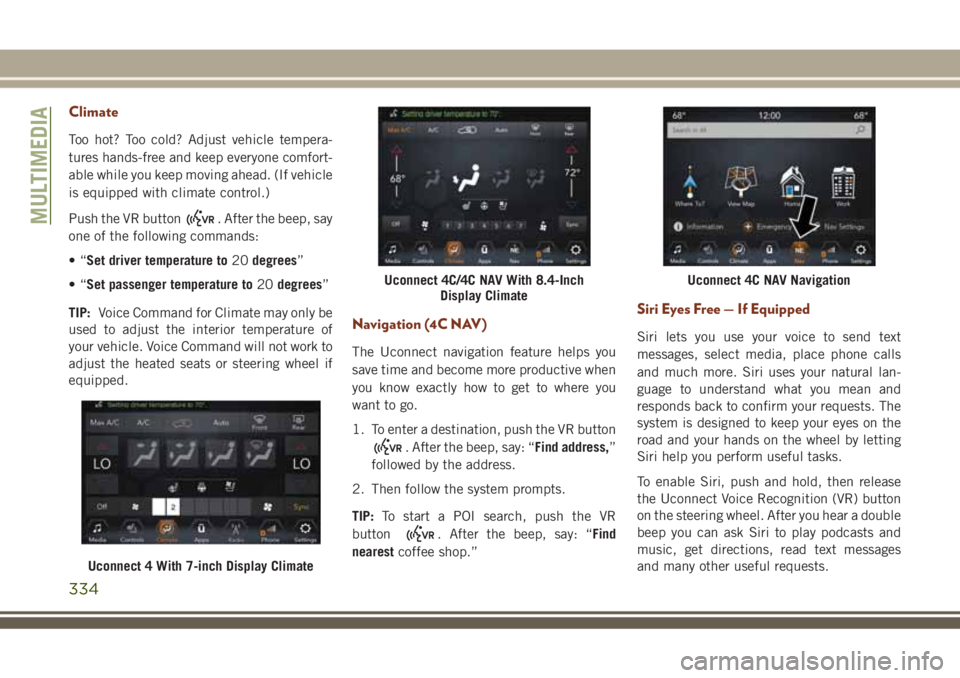
Climate
Too hot? Too cold? Adjust vehicle tempera-
tures hands-free and keep everyone comfort-
able while you keep moving ahead. (If vehicle
is equipped with climate control.)
Push the VR button
. After the beep, say
one of the following commands:
•“Set driver temperature to20degrees”
•“Set passenger temperature to20degrees”
TIP:Voice Command for Climate may only be
used to adjust the interior temperature of
your vehicle. Voice Command will not work to
adjust the heated seats or steering wheel if
equipped.
Navigation (4C NAV)
The Uconnect navigation feature helps you
save time and become more productive when
you know exactly how to get to where you
want to go.
1. To enter a destination, push the VR button
. After the beep, say: “Find address,”
followed by the address.
2. Then follow the system prompts.
TIP:To start a POI search, push the VR
button
. After the beep, say: “Find
nearestcoffee shop.”
Siri Eyes Free — If Equipped
Siri lets you use your voice to send text
messages, select media, place phone calls
and much more. Siri uses your natural lan-
guage to understand what you mean and
responds back to confirm your requests. The
system is designed to keep your eyes on the
road and your hands on the wheel by letting
Siri help you perform useful tasks.
To enable Siri, push and hold, then release
the Uconnect Voice Recognition (VR) button
on the steering wheel. After you hear a double
beep you can ask Siri to play podcasts and
music, get directions, read text messages
and many other useful requests.
Uconnect 4 With 7-inch Display Climate
Uconnect 4C/4C NAV With 8.4-Inch
Display ClimateUconnect 4C NAV Navigation
MULTIMEDIA
334
Page 337 of 368
Do Not Disturb
With Do Not Disturb, you can disable notifi-
cations from incoming calls and texts, allow-
ing you to keep your eyes on the road and
hands on the wheel. For your convenience,there is a counter display to keep track of your
missed calls and text messages while you
were using Do Not Disturb.
Do Not Disturb can automatically reply with a
text message, a call or both, when declining
an incoming call and send it to voicemail.
Automatic reply messages can be:
• “I am driving right now, I will get back to
you shortly.”
• Create a custom auto reply message up to
160 characters.
NOTE:
Only the first 25 characters can be seen on
the touchscreen while typing a custom
message.
While in Do Not Disturb, Conference Call can be
selected so you can still place a second call
without being interrupted by incoming calls.
NOTE:
• Reply with text message is not compatible
with iPhones.
•
Auto reply with text message is only available
on phones that support Bluetooth MAP.
Android Auto — If Equipped
Android Auto allows you to use your voice to
interact with Android’s best-in-class speech
technology through your vehicle’s voice rec-
ognition system, and use your smartphone’s
data plan to project your Android powered
smartphone and a number of its apps onto
your Uconnect touchscreen. Connect your
Android 5.0 (Lollipop), or higher, to one of
the media USB ports, using the factory-
provided USB cable, and press the new
Android Auto icon that replaces your “Phone”
icon on the main menu bar to begin Android
Auto. Push and hold the VR button on the
steering wheel, or press and hold the “Micro-
phone” icon within Android Auto, to activate
Android’s VR, which recognizes natural voice
commands, to use a list of your smartphone’s
features:
• Maps
• Music
• Phone
• Text Messages
• Additional Apps
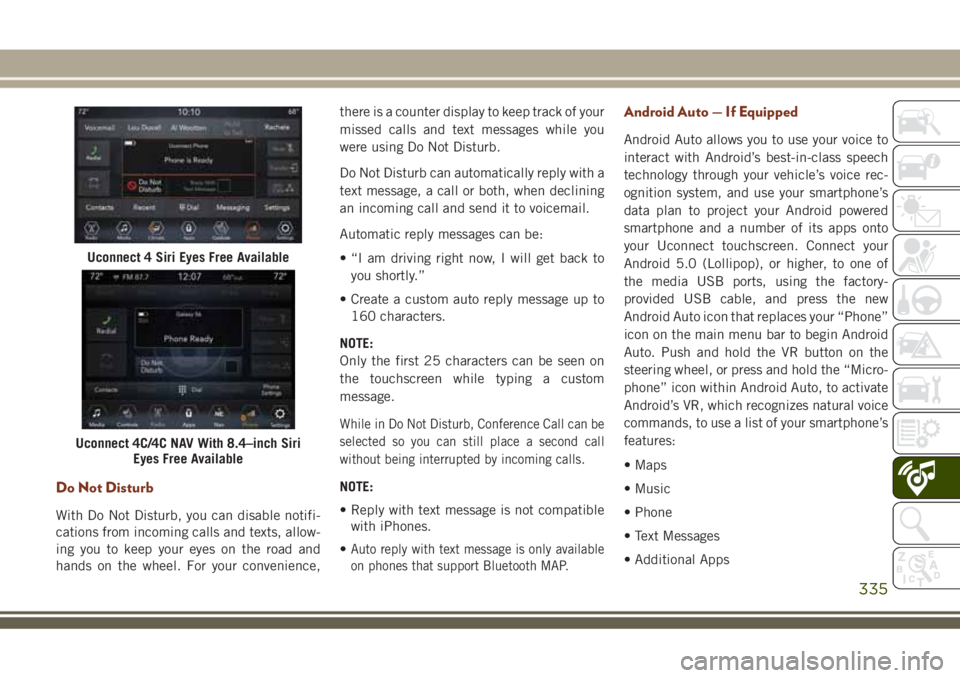
Uconnect 4 Siri Eyes Free Available
Uconnect 4C/4C NAV With 8.4–inch Siri
Eyes Free Available
335
Page 338 of 368
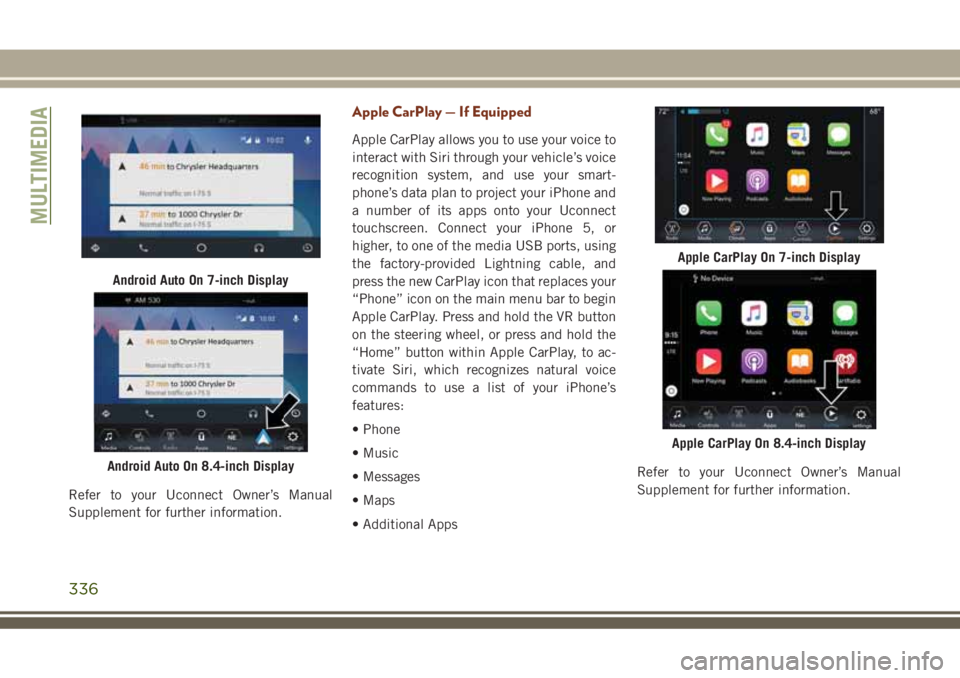
Refer to your Uconnect Owner’s Manual
Supplement for further information.
Apple CarPlay — If Equipped
Apple CarPlay allows you to use your voice to
interact with Siri through your vehicle’s voice
recognition system, and use your smart-
phone’s data plan to project your iPhone and
a number of its apps onto your Uconnect
touchscreen. Connect your iPhone 5, or
higher, to one of the media USB ports, using
the factory-provided Lightning cable, and
press the new CarPlay icon that replaces your
“Phone” icon on the main menu bar to begin
Apple CarPlay. Press and hold the VR button
on the steering wheel, or press and hold the
“Home” button within Apple CarPlay, to ac-
tivate Siri, which recognizes natural voice
commands to use a list of your iPhone’s
features:
• Phone
• Music
• Messages
• Maps
• Additional AppsRefer to your Uconnect Owner’s Manual
Supplement for further information.
Android Auto On 7-inch Display
Android Auto On 8.4-inch Display
Apple CarPlay On 7-inch Display
Apple CarPlay On 8.4-inch Display
MULTIMEDIA
336
Page 364 of 368

Rear Seat................102
Reminder.................69
Untwisting Procedure.........104
Seats.................24, 25, 26
Heated................25, 26
Memory..................24
Vented...................26
Ventilated.................26
Security Alarm..............17, 69
Arm The System.............18
Disarm The System............18
Selec-Terrain.................158
Sentry Key
Key Programming............17
Sentry Key Replacement........14, 17
Service Assistance.............340
Shifting....................145
Automatic Transmission. . . .145, 147
Shoulder Belts................102
Signals, Turn...........75, 133, 201
Siri.......................334
Snow Chains (Tire Chains).....263, 264
Snow Tires..................260
Spare Tire...................260
Spare Tires...........260, 261, 262
Speed Control
Accel/Decel............164, 165Accel/Decel (ACC Only)........166
Cancel..................165
Distance Setting (ACC Only).....168
Mode Setting (ACC Only).......169
Resume.................165
Set ....................164
Speed Control (Cruise Control) . . .163, 164
Starting..............16, 137, 139
Automatic Transmission. . . .137, 140
Remote..................16
Starting And Operating...........137
Starting Procedures.........137, 139
Starting Procedures (Diesel Engines) . .139
Steering
Tilt Column
................31
Wheel, Heated..............32
Wheel, Tilt.................31
Steering Wheel Mounted Sound System
Controls..................291
Storage, Vehicle................48
Sunroof
Closing...................51
Opening..................51
Venting...................51
Sun Roof....................51
Supplemental Restraint System - Air
Bag.....................110Sway Control, Trailer.............87
System, Remote Starting..........16
Telescoping Steering Column........31
Temperature Control, Automatic (ATC) . .47
Text Messaging...............328
Tilt Steering Column.............31
Tires...............133, 255, 260
Aging (Life Of Tires)..........258
Air Pressure...............255
Chains...............263, 264
Changing.............214, 255
Compact Spare.............261
Flat Changing..............214
General Information..........255
General Information..........260
General Information..........260
High Speed................257
Inflation Pressure............256
Jacking..................255
Life Of Tires...............258
Pressure Monitoring System (TPMS) .72
Pressure Monitor System (TPMS) . . .95
Radial...................257
Replacement...........214, 259
Rotation.................264
Safety...................255
INDEX
362