Page 308 of 642
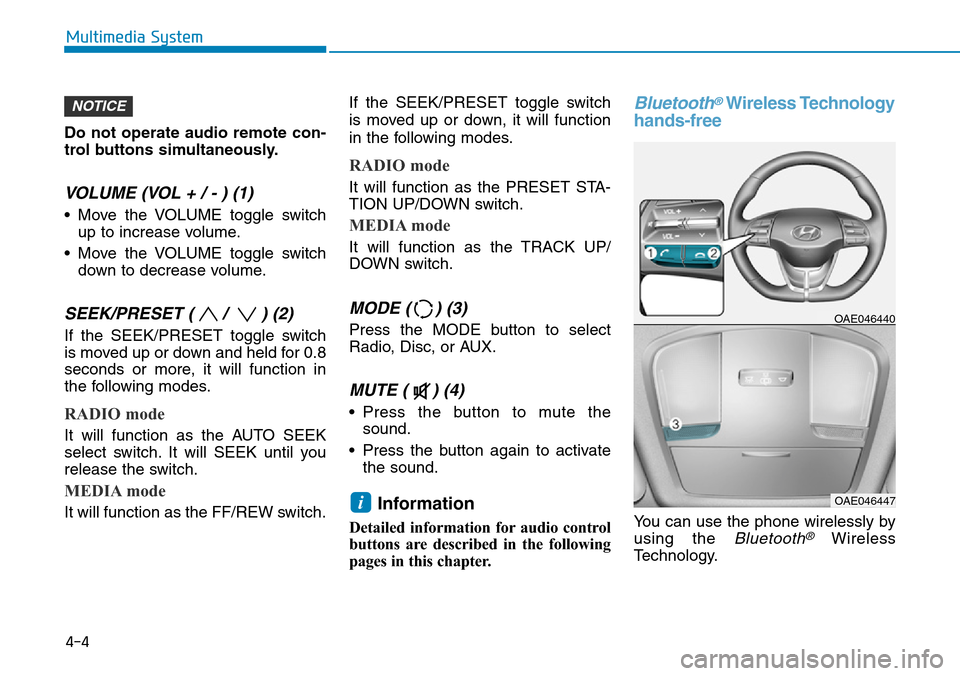
Do not operate audio remote con-
trol buttons simultaneously.
VOLUME (VOL + / - ) (1)
• Move the VOLUME toggle switch
up to increase volume.
• Move the VOLUME toggle switch
down to decrease volume.
SEEK/PRESET ( / ) (2)
If the SEEK/PRESET toggle switch
is moved up or down and held for 0.8
seconds or more, it will function in
the following modes.
RADIO mode
It will function as the AUTO SEEK
select switch. It will SEEK until you
release the switch.
MEDIA mode
It will function as the FF/REW switch.If the SEEK/PRESET toggle switch
is moved up or down, it will function
in the following modes.
RADIO mode
It will function as the PRESET STA-
TION UP/DOWN switch.
MEDIA mode
It will function as the TRACK UP/
DOWN switch.
MODE ( ) (3)
Press the MODE button to select
Radio, Disc, or AUX.
MUTE ( ) (4)
• Press the button to mute the
sound.
• Press the button again to activate
the sound.
Information
Detailed information for audio control
buttons are described in the following
pages in this chapter.
Bluetooth®Wireless Technology
hands-free
You can use the phone wirelessly by
using the
Bluetooth®Wireless
Technology.
OAE046440
OAE046447i
NOTICE
4-4
Multimedia System
Page 309 of 642
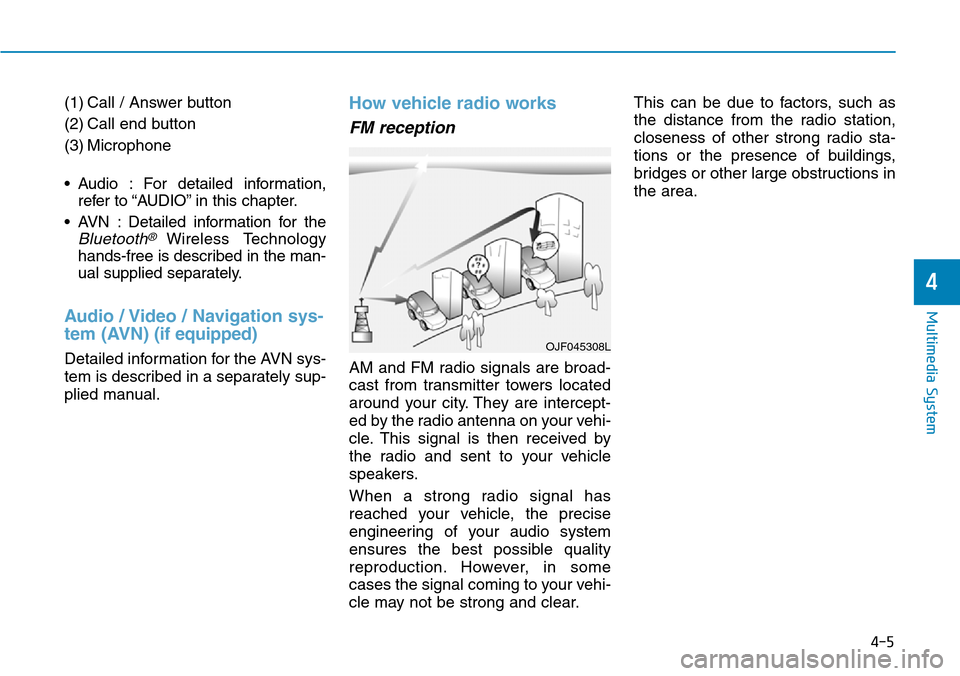
(1) Call / Answer button
(2) Call end button
(3) Microphone
• Audio : For detailed information,
refer to “AUDIO” in this chapter.
• AVN : Detailed information for the
Bluetooth® Wireless Technology
hands-free is described in the man-
ual supplied separately.
Audio / Video / Navigation sys-
tem (AVN)(if equipped)
Detailed information for the AVN sys-
tem is described in a separately sup-
plied manual.
How vehicle radio works
FM reception
AM and FM radio signals are broad-
cast from transmitter towers located
around your city. They are intercept-
ed by the radio antenna on your vehi-
cle. This signal is then received by
the radio and sent to your vehicle
speakers.
When a strong radio signal has
reached your vehicle, the precise
engineering of your audio system
ensures the best possible quality
reproduction. However, in some
cases the signal coming to your vehi-
cle may not be strong and clear.This can be due to factors, such as
the distance from the radio station,
closeness of other strong radio sta-
tions or the presence of buildings,
bridges or other large obstructions in
the area.
OJF045308L
4-5
Multimedia System
4
Page 311 of 642
4-7
Multimedia System
4
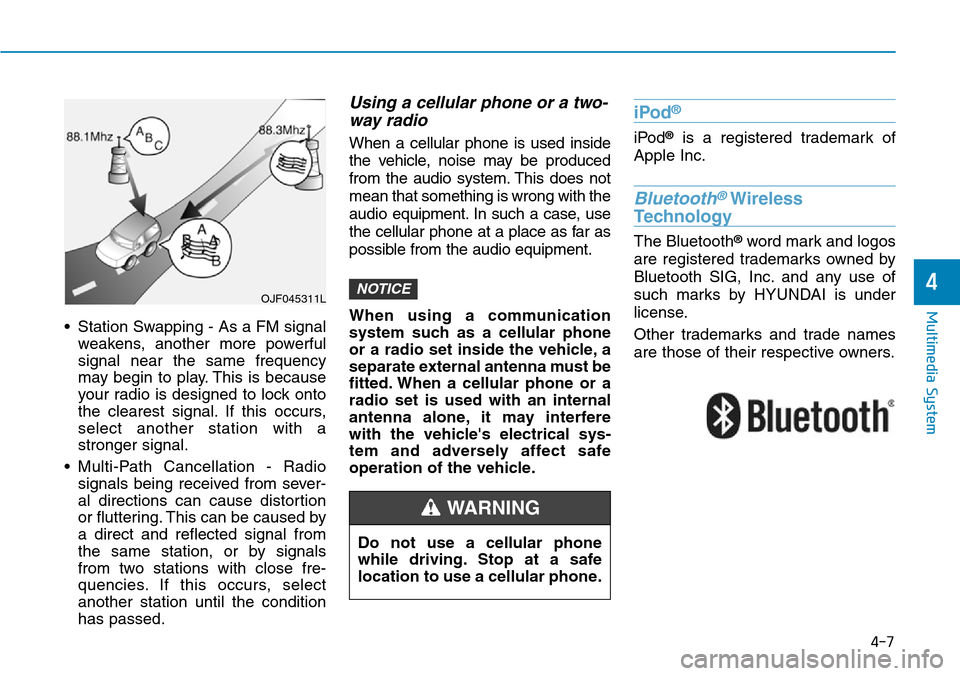
• Station Swapping - As a FM signal
weakens, another more powerful
signal near the same frequency
may begin to play. This is because
your radio is designed to lock onto
the clearest signal. If this occurs,
select another station with a
stronger signal.
• Multi-Path Cancellation - Radio
signals being received from sever-
al directions can cause distortion
or fluttering. This can be caused by
a direct and reflected signal from
the same station, or by signals
from two stations with close fre-
quencies. If this occurs, select
another station until the condition
has passed.
Using a cellular phone or a two-
way radio
When a cellular phone is used inside
the vehicle, noise may be produced
from the audio system. This does not
mean that something is wrong with the
audio equipment. In such a case, use
the cellular phone at a place as far as
possible from the audio equipment.
When using a communication
system such as a cellular phone
or a radio set inside the vehicle, a
separate external antenna must be
fitted. When a cellular phone or a
radio set is used with an internal
antenna alone, it may interfere
with the vehicle's electrical sys-
tem and adversely affect safe
operation of the vehicle.
iPod®
iPod®is a registered trademark of
Apple Inc.
Bluetooth®Wireless
Technology
The Bluetooth®word mark and logos
are registered trademarks owned by
Bluetooth SIG, Inc. and any use of
such marks by HYUNDAI is under
license.
Other trademarks and trade names
are those of their respective owners.
NOTICEOJF045311L
Do not use a cellular phone
while driving. Stop at a safe
location to use a cellular phone.
WARNING
Page 312 of 642
4-8
Multimedia System
G2H4G0002EE
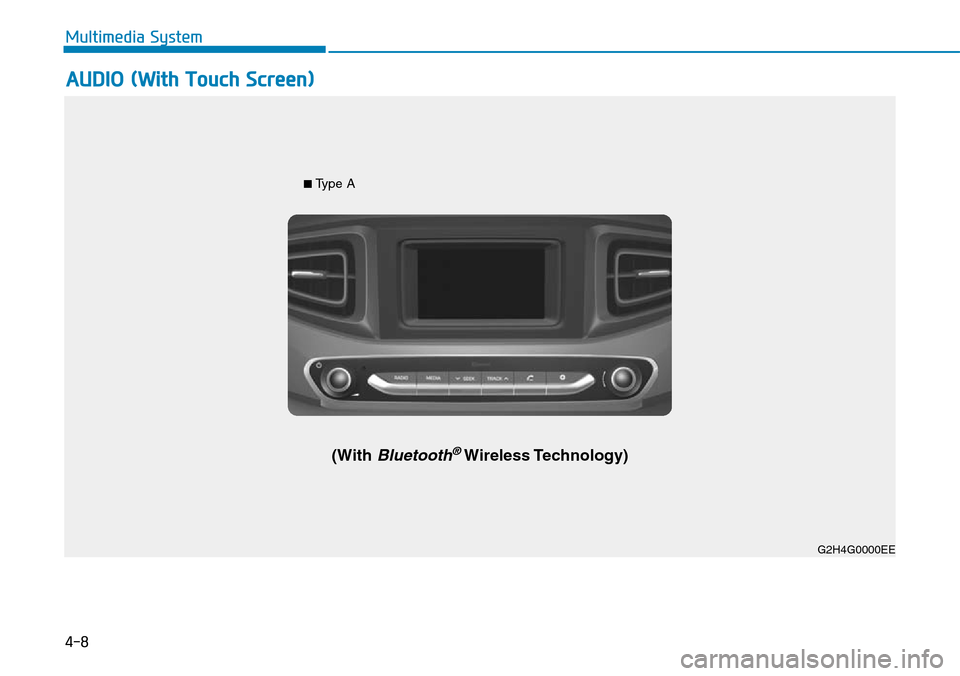
■ Type A
(With Bluetooth®Wireless Technology)
G2H4G0000EE
AUDIO (With Touch Screen)
Multimedia System
Page 313 of 642
4-9
Multimedia System
4
Feature of Your Audio
Head unit
❈The actual features in the vehicle
may differ from the illustration.
(1) LCD screen
• Tap the screen to select a button.
(2) POWER/VOL knob
• Turn to adjust the volume.
• Press to turn the device on or off.(3) RADIO
• Start FM, AM or DAB* radio.
* if equipped
(4)MEDIA
• Select USB(iPod
®), Bluetooth®
Audio, AUX and My Music.
• Display the media menu when two
or more media are connected or
when the [MEDIA]button is
pressed in media mode.
(5) SEEK/TRACK
• Search for next station in FM or AM
radio mode.
• Search for next station in DAB*
radio mode.
• Change the current song in media
mode.
* if equipped
(6) RESET
• Shutdown and restart the system.(7) PHONE
• Start Bluetooth
®Phone mode.
(8) SETUP
• Access Display, Sound, Date/Time,
Bluetooth, System, Screensaver
and Display Off settings.
(9) TUNE knob
• Turn to navigate through the sta-
tions/songs list.
• Press to select an item.
Page 314 of 642
4-10
Multimedia System
G2H4G0001EE/G2H4G0002EE ■
Type B
(With Bluetooth®Wireless Technology)
■ Type C
Page 315 of 642
4-11
Multimedia System
4
Feature of Your Audio
Head unit
❈The actual features in the vehicle
may differ from the illustration.
(1) LCD screen
• Tap the screen to select a button.
(2) POWER/VOL knob
• Turn to adjust the volume.
• Press to turn the device on or off.(3) RADIO
• Start FM, AM.
(4)MEDIA
• Select Disc, USB(iPod
®), Bluetooth®
Audio, AUX and My Music.
• Display the media menu when two
or more media are connected or
when the [MEDIA]button is
pressed in media mode.
(5) SEEK/TRACK
• Search for next station in FM or AM
radio mode.
• Change the current song in media
mode.
(6) RESET
• Shutdown and restart the system.(7) EJECT
• Eject the inserted disc.
(8) Disc slot
• Insert a disc.
(9) DISP
• Turn the display on or off.
Page 316 of 642
4-12
Multimedia System
(10) PHONE
• Start Bluetooth
®Phone mode.
(11) SETUP
• Access Display, Sound, Date/Time,
Bluetooth, System, Screensaver
and Display Off settings.
(12) TUNE knob
• Turn to navigate through the sta-
tions/songs list.
• Press to select an item.
■ Type C
■ Type B