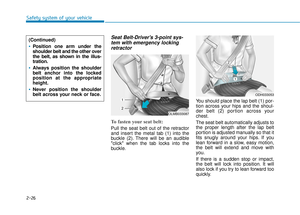
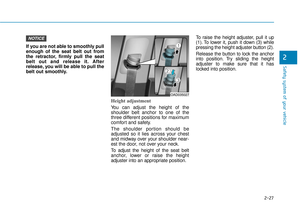
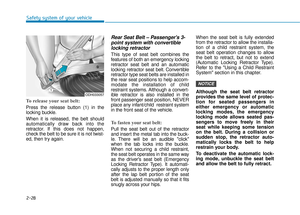
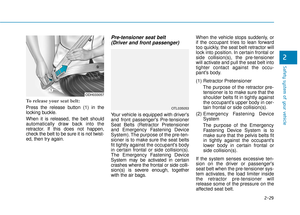
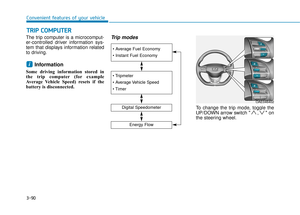
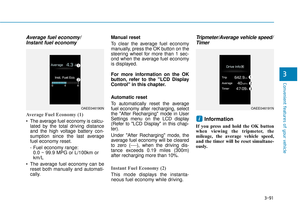
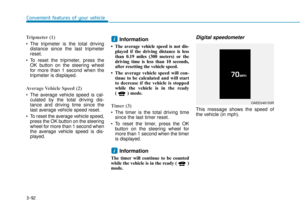
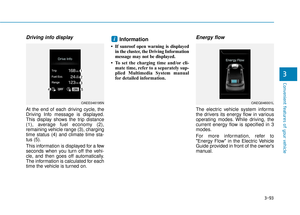
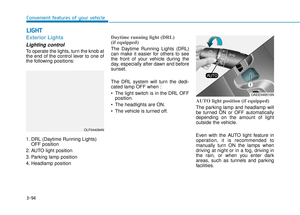
Page 257 of 541
![Hyundai Ioniq Electric 2018 Owners Manual 4-40
Multimedia System
Dial
Press the [PHONE]button on the
audio ➟Select [Dial].
(1) Phone number entry window: The phone number entered using the
keypad is displayed.
(2) Clear - Press to delete i Hyundai Ioniq Electric 2018 Owners Manual 4-40
Multimedia System
Dial
Press the [PHONE]button on the
audio ➟Select [Dial].
(1) Phone number entry window: The phone number entered using the
keypad is displayed.
(2) Clear - Press to delete i](/manual-img/35/14904/w960_14904-256.png)
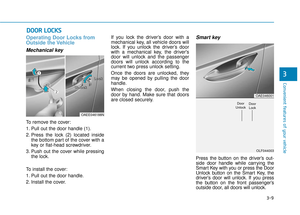
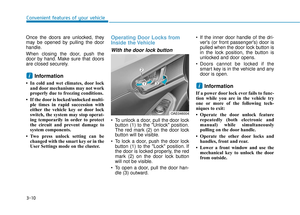
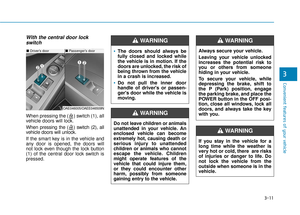
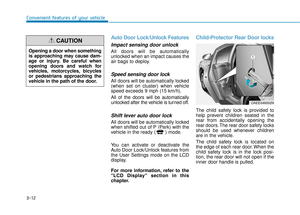
4-40
Multimedia System
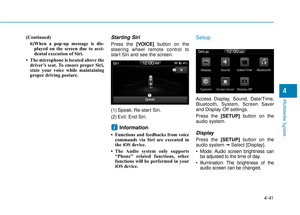
Dial
Press the [PHONE]button on the
audio ➟Select [Dial].
(1) Phone number entry window: The phone number entered using the
keypad is displayed.
(2) Clear - Press to delete individual digits.
- Press and hold to delete theentire phone number.
(3) Keypad: Enter phone number.
(4)
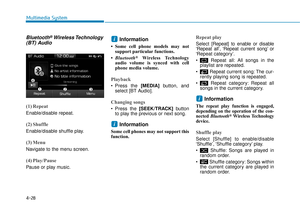
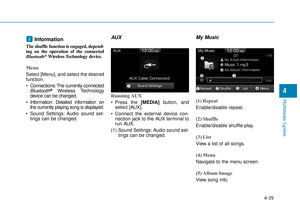
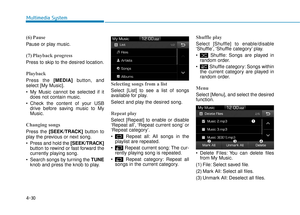
Bluetooth®Wireless Technology
Phone name
- The name of the connected
Bluetooth®Wireless Technology
device is displayed.
- Contacts matching the keypad number/letter input are displayed.(5) Call
- Enter and select a phone num-ber to call.
- Select without entering a phone number to see the most recent
dialed call.
Settings
Press the [PHONE]button on the
audio ➟Select [Settings].
- For phone Setup, refer to Setup page ➟Select [Bluetooth].
Siri
Information -
Using Siri
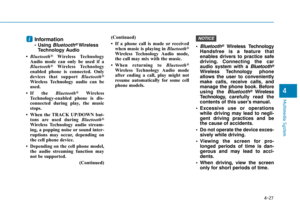
• If you want to use Siri, you have to connect your iOS device to multime-
dia system through Bluetooth
®
Wireless Technology. (Please check
whether your iOS device supports
Siri and turning Siri On)
• If the iOS version is changed, the functions and response may be dif-
ferent according to the iOS device
and the latest version.
• Siri automatically stops in the fol- lowing events.
1)Outgoing and incoming phonecalls.
2)Media (USB, etc.) is connected. (Siri mode is maintained when
iPod
®s are connected)
3)Rear camera is activated (option).
4)Vehicle is started or engine is turned off.
5)Screen transition buttons, such as RADIO or MEDIA, are selected.
(Continued)
i
Page 258 of 541
4-41
Multimedia System
4
(Continued)6)When a pop-up message is dis-played on the screen due to acci-
dental execution of Siri.
• The microphone is located above the driver’s seat. To ensure proper Siri,
state your voice while maintaining
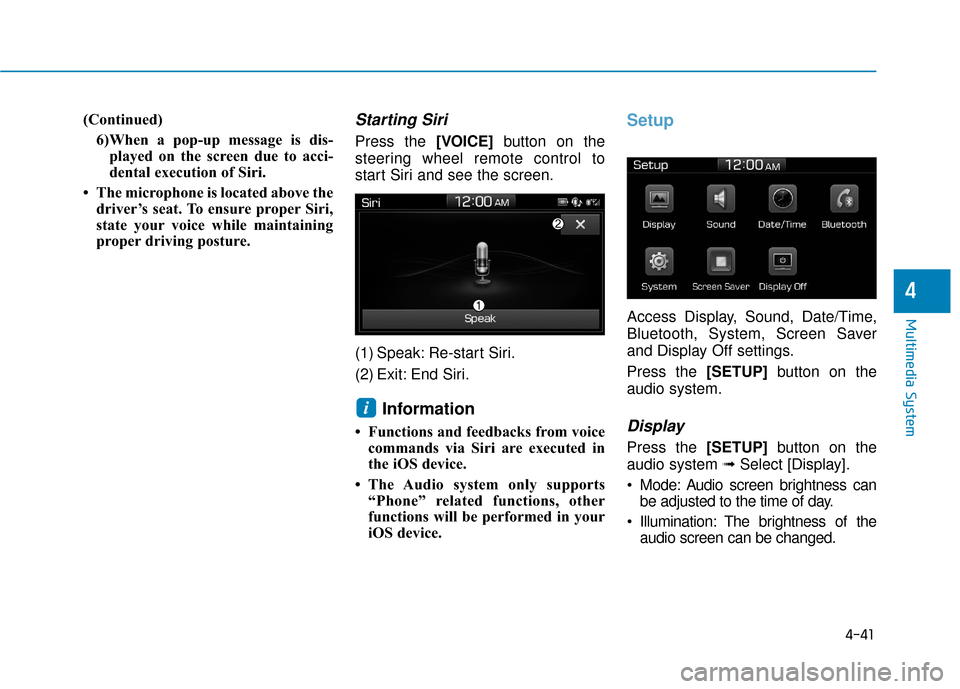
proper driving posture.Starting Siri
Press the [VOICE] button on the
steering wheel remote control to
start Siri and see the screen.
(1) Speak: Re-start Siri.
(2) Exit: End Siri.
Information
• Functions and feedbacks from voice commands via Siri are executed in
the iOS device.
• The Audio system only supports “Phone” related functions, other
functions will be performed in your
iOS device.
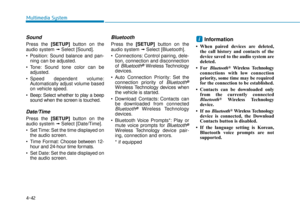
Setup
Access Display, Sound, Date/Time,
Bluetooth, System, Screen Saver
and Display Off settings.
Press the [SETUP]button on the
audio system.
Display
Press the [SETUP]button on the
audio system ➟ Select [Display].
Mode: Audio screen brightness can be adjusted to the time of day.
Illumination: The brightness of the audio screen can be changed.
i
Page 259 of 541
![Hyundai Ioniq Electric 2018 Owners Manual 4-42
Multimedia System
Sound
Press the [SETUP]button on the
audio system ➟ Select [Sound].
Position: Sound balance and pan- ning can be adjusted.
Tone: Sound tone color can be adjusted.
Speed de Hyundai Ioniq Electric 2018 Owners Manual 4-42
Multimedia System
Sound
Press the [SETUP]button on the
audio system ➟ Select [Sound].
Position: Sound balance and pan- ning can be adjusted.
Tone: Sound tone color can be adjusted.
Speed de](/manual-img/35/14904/w960_14904-258.png)
4-42
Multimedia System
Sound
Press the [SETUP]button on the
audio system ➟ Select [Sound].
Position: Sound balance and pan- ning can be adjusted.
Tone: Sound tone color can be adjusted.
Speed dependent volume: Automatically adjust volume based
on vehicle speed.
Beep: Select whether to play a beep sound when the screen is touched.
Date/Time
Press the [SETUP]button on the
audio system ➟ Select [Date/Time].
Set Time: Set the time displayed on the audio screen.
Time Format: Choose between 12-
hour and 24-hour time formats.
Set Date: Set the date displayed on the audio screen.
Bluetooth
Press the [SETUP]button on the
audio system ➟ Select [Bluetooth].
Connections: Control pairing, dele- tion, connection and disconnection
of
Blluetooth®Wireless Technology
devices.
Auto Connection Priority: Set the
connection priority of
Bluetooth®
Wireless Technology devices when
the vehicle is started.
Download Contacts: Contacts can be downloaded from connected
Bluetooth®Wireless Technology
devices.
Bluetooth Voice Prompts*: Play or mute voice prompts for
Bluetooth®
Wireless Technology de vice pair-
ing, connection and errors.
* if equipped
Information
• When paired devices are deleted, the call history and contacts of the
device saved to the audio system are
deleted.
•ForBluetooth
®Wireless Technology
connections with low connection
priority, some time may be required
for the connection to be established.
• Contacts can be downloaded only from the currently connected
Bluetooth
®Wireless Technology
device.
• If no Bluetooth
®Wireless Technology
device is connected, the Download
Contacts button is disabled.
• If the language setting is Korean, Bluetooth voice prompts are not
supported.
i
Page 260 of 541
![Hyundai Ioniq Electric 2018 Owners Manual 4-43
Multimedia System
4
System
Press the [SETUP]button on the
audio system ➟ Select [System].
Memory Information: View My Music memory usage.
Language: Change the user lan- guage.
Default: Reset Hyundai Ioniq Electric 2018 Owners Manual 4-43
Multimedia System
4
System
Press the [SETUP]button on the
audio system ➟ Select [System].
Memory Information: View My Music memory usage.
Language: Change the user lan- guage.
Default: Reset](/manual-img/35/14904/w960_14904-259.png)
4-43
Multimedia System
4
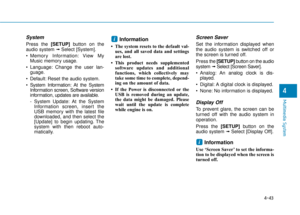
System
Press the [SETUP]button on the
audio system ➟ Select [System].
Memory Information: View My Music memory usage.
Language: Change the user lan- guage.
Default: Reset the audio system.
System Information: At the System Information screen, Software version
information, updates are available.
- System Update: At the SystemInformation screen, insert the
USB memory with the latest file
downloaded, and then select the
[Update] to begin updating. The
system with then reboot auto-
matically.Information
• The system resets to the default val-ues, and all saved data and settings
are lost.
• This product needs supplemented software updates and additional
functions, which collectively may
take some time to complete, depend-
ing on the amount of data.
• If the Power is disconnected or the USB is removed during an update,
the data might be damaged. Please
wait until the update is complete
while engine is on.
Screen Saver
Set the information displayed when
the audio system is switched off or
the screen is turned off.
Press the [SETUP] button on the audio
system ➟Select [Screen Saver].
Analog: An analog clock is dis- played.
Digital: A digital clock is displayed.
None: No information is displayed.
Display Off
To prevent glare, the screen can be
turned off with the audio system in
operation.
Press the [SETUP]button on the
audio system ➟ Select [Display Off].
Information
Use ‘Screen Saver’ to set the informa-
tion to be displayed when the screen is
turned off.
i
i
Page 261 of 541

4-44
Multimedia System
FCC
This equipment has been tested and found to comply with the limits for a Class B digital device, pursuant to part 15
of the FCC Rules. These limits are designed to provide reasonable protection against harmful interference in a resi-
dential installation.
This equipment generates, uses and can radiate radio frequency energy and, if not installed and used in accordance
with the instructions, may cause harmful interference to radio communications. However, there is no guarantee that
interference will not occur in a particular installation. If this equipment does cause harmful interference to radio or tel-
evision reception, which can be determined by turning the equipment off and on, the user is encouraged to try to cor-
rect the interference by one or more of the following measures: Reorient or relocate the receiving antenna.
Increase the separation between the equipment and receiver.
Connect the equipment into an outlet on a circuit different from that to which the receiver is connected.
Consult the dealer or an experienced radio/TV technician for help.
Caution: Any changes or modifications to this device not explicitly approved by manufacturer could void
your authority to operate this equipment.
This device complies with part 15 of the FCC Rules. Operation is subject to the following two conditions:
(1) This device may not cause harmful interference, and (2) this device must accept any interference received, includ-
ing interference that may cause undesired operation.
This equipment complies with FCC radiation exposure limits set forth for an uncontrolled environment.
This equipment should be installed and operated with minimum 20cm between the radiator and your body. This trans-
mitter must not be collocated or operating in conjunction with any other antenna or transmitter unless authorized to
do so by the FCC.
D D e
ec
cl
la
a r
ra
a t
ti
io
o n
n
o
o f
f
C
C o
on
nf
fo
o r
rm
m i
it
t y
y
Page 262 of 541

Driving your vehicle
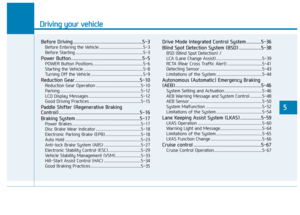
Before Driving ........................................................5-3
Before Entering the Vehicle ...........................................5-3
Before Starting ..................................................................5-3
Power Button..........................................................5-5
POWER Button Positions.................................................5-6
Starting the Vehicle ..........................................................5-8
Turning Off the Vehicle ...................................................5-9
Reduction Gear.....................................................5-10
Reduction Gear Operation ............................................5-10
Parking ........................................................................\
.......5-12
LCD Display Messages ...................................................5-12
Good Driving Practices ..................................................5-15
Paddle Shifter (Regenerative Braking
Control)..................................................................5-16
Braking System ....................................................5-17
Power Brakes ...................................................................5-17
Disc Brake Wear Indicator ............................................5-18
Electronic Parking Brake (EPB)...................................5-18
Auto Hold ........................................................................\
..5-23
Anti-lock Brake System (ABS) ....................................5-27
Electronic Stability Control (ESC)................................5-29
Vehicle Stability Management (VSM).........................5-33
Hill-Start Assist Control (HAC) ....................................5-34
Good Braking Practices .................................................5-35
Drive Mode Integrated Control System ............5-36
Blind Spot Detection System (BSD) ..................5-38
BSD (Blind Spot Detection) /
LCA (Lane Change Assist) .............................................5-39
RCTA (Rear Cross Traffic Alert) ..................................5-41
Detecting Sensor .............................................................5-43
Limitations of the System .............................................5-44
Autonomous (Automatic) Emergency Braking
(AEB)......................................................................5-\
46
System Setting and Activation.....................................5-46
AEB Warning Message and System Control ............5-48
AEB Sensor .......................................................................5\
-50
System Malfunction .......................................................5-52
Limitations of the System .............................................5-54
Lane Keeping Assist System (LKAS) .................5-59
LKAS Operation ...............................................................5-60
Warning Light and Message.........................................5-64
Limitations of the System .............................................5-65
LKAS Function Change ..................................................5-66
Cruise control .......................................................5-67
Cruise Control Operation...............................................5-67
5
Page 263 of 541

5
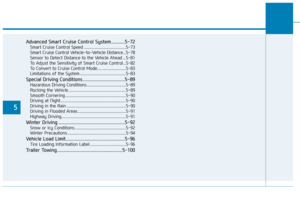
Advanced Smart Cruise Control System ...........5-72
Smart Cruise Control Speed .........................................5-73
Smart Cruise Control Vehicle-to-Vehicle Distance...5-78
Sensor to Detect Distance to the Vehicle Ahead ...5-81
To Adjust the Sensitivity of Smart Cruise Control...5-82
To Convert to Cruise Control Mode............................5-83
Limitations of the System .............................................5-83
Special Driving Conditions ..................................5-89
Hazardous Driving Conditions ......................................5-89
Rocking the Vehicle ........................................................5-89
Smooth Cornering ...........................................................5-90
Driving at Night................................................................5-90
Driving in the Rain ..........................................................5-90
Driving in Flooded Areas ...............................................5-91
Highway Driving...............................................................5-91
Winter Driving ......................................................5-92
Snow or Icy Conditions ..................................................5-92
Winter Precautions .........................................................5-94
Vehicle Load Limit................................................5-96
Tire Loading Information Label ...................................5-96
Trailer Towing .....................................................5-100
Page 264 of 541

5-3
Driving your vehicle
5
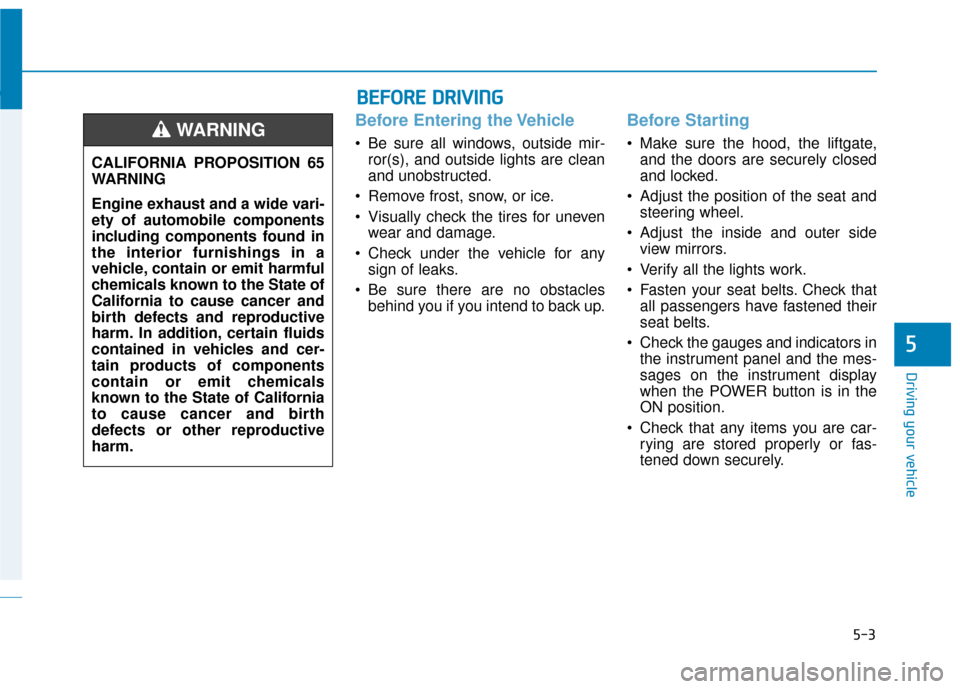
Before Entering the Vehicle
• Be sure all windows, outside mir-ror(s), and outside lights are clean
and unobstructed.
Remove frost, snow, or ice.
Visually check the tires for uneven wear and damage.
Check under the vehicle for any sign of leaks.
Be sure there are no obstacles behind you if you intend to back up.
Before Starting
Make sure the hood, the liftgate,and the doors are securely closed
and locked.
Adjust the position of the seat and steering wheel.
Adjust the inside and outer side view mirrors.
Verify all the lights work.
Fasten your seat belts. Check that all passengers have fastened their
seat belts.
Check the gauges and indicators in the instrument panel and the mes-
sages on the instrument display
when the POWER button is in the
ON position.
Check that any items you are car- rying are stored properly or fas-
tened down securely.
CALIFORNIA PROPOSITION 65
WARNING
Engine exhaust and a wide vari-
ety of automobile components
including components found in
the interior furnishings in a
vehicle, contain or emit harmful
chemicals known to the State of
California to cause cancer and
birth defects and reproductive
harm. In addition, certain fluids
contained in vehicles and cer-
tain products of components
contain or emit chemicals
known to the State of California
to cause cancer and birth
defects or other reproductive
harm.WARNING
B B
E
EF
FO
O R
RE
E
D
D R
RI
IV
V I
IN
N G
G