2018 FORD FOCUS ELECTRIC ignition
[x] Cancel search: ignitionPage 189 of 375
•
Never wash or rinse any ignition coil,
spark plug wire or spark plug well, or
the area in and around these locations.
• Cover the battery, power distribution
box, and air filter assembly to prevent
water damage when cleaning the
engine.
CLEANING THE WINDOWS AND
WIPER BLADES
Car wash chemicals and environmental
fallout can result in windshield and wiper
blade contamination. Dirty windshield and
wipers will result in poor windshield wiper
operation. Keep the windshield and wiper
blades clean to maintain windshield wiper
performance.
To clean the windshield and wiper blades:
• Clean the windshield with a
non-abrasive glass cleaner. When
cleaning the interior of the windshield,
avoid getting any glass cleaner on the
instrument panel or door panels. Wipe
any glass cleaner off these surfaces
immediately.
• For windshields contaminated with
tree sap, chemicals, wax or bugs, clean
the entire windshield using steel wool
(no greater than 0000 grade) in a
circular motion and rinse with water.
• Clean the wiper blades with isopropyl
rubbing alcohol or windshield washer
concentrate.
Note: Do not use razor blades or other
sharp objects to clean or remove decals
from the inside of the heated rear window.
The vehicle warranty does not cover
damage caused to the heated rear window
grid lines. CLEANING THE INTERIOR WARNINGS
Do not use cleaning solvents, bleach
or dye on the vehicle's seatbelts, as
these actions may weaken the belt
webbing. On vehicles equipped with
seat-mounted airbags, do not use
chemical solvents or strong
detergents. Such products could
contaminate the side airbag system and
affect performance of the side airbag in a
crash. For fabric, carpets, cloth seats and seats
equipped with side airbags:
•
Remove dust and loose dirt with a
vacuum cleaner.
• Remove light stains and soil with
Motorcraft Professional Strength
Carpet & Upholstery Cleaner.
• If grease or tar is present on the
material, spot-clean the area first with
Motorcraft Spot and Stain Remover. In
Canada, use Motorcraft Multi-Purpose
Cleaner.
• If a ring forms on the fabric after spot
cleaning, clean the entire area
immediately (but do not oversaturate)
or the ring will set.
• Do not use household cleaning
products or glass cleaners, which can
stain and discolor the fabric and affect
the flame retardant abilities of the seat
materials.
186
2018 Focus (CDH) Battery Electric Vehicle (BEV), Canada/United States of America, JM5J 19A321 RA enUSA, Edition date: 201706, First Printing Vehicle Care
Page 231 of 375
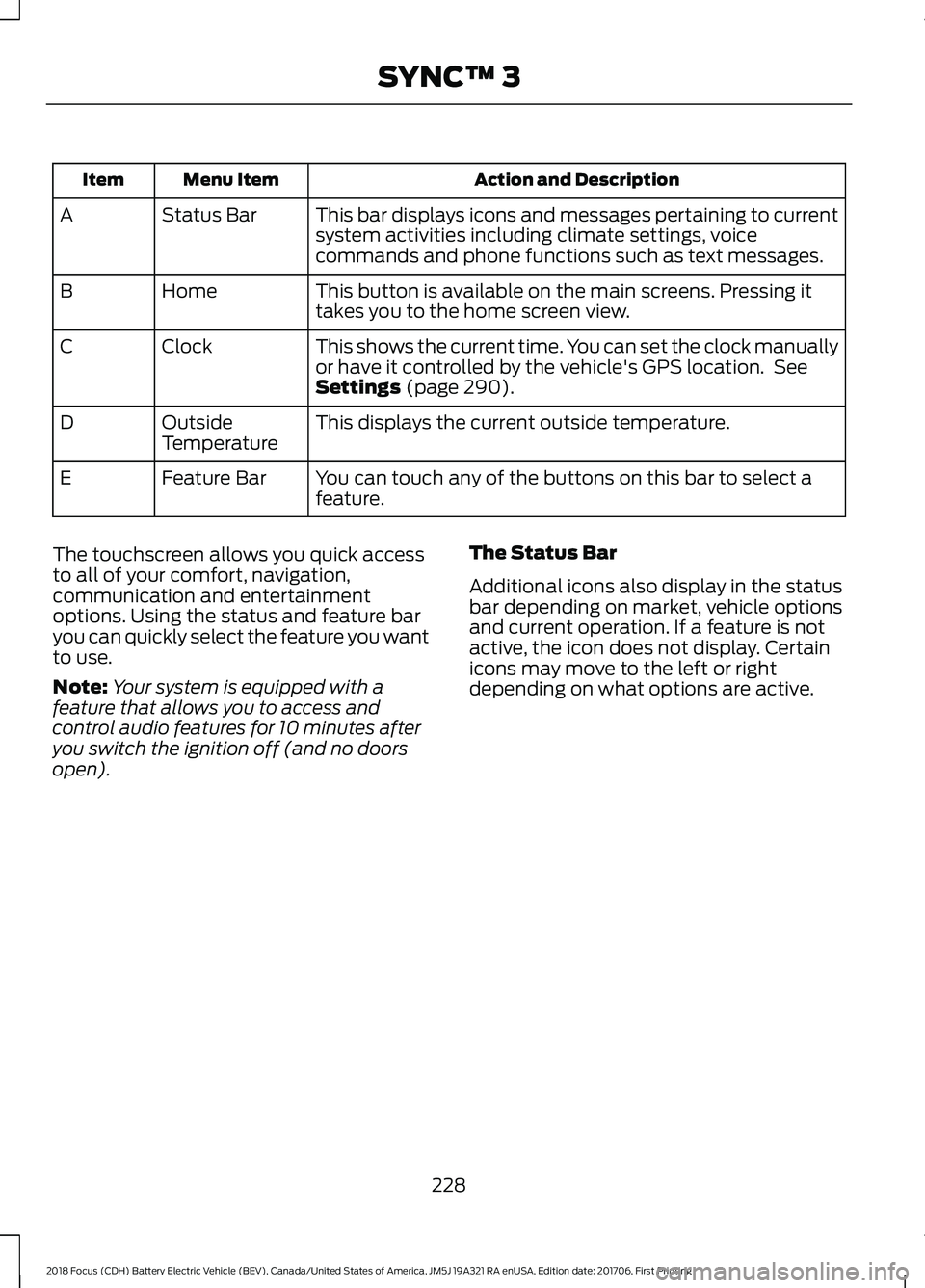
Action and Description
Menu Item
Item
This bar displays icons and messages pertaining to current
system activities including climate settings, voice
commands and phone functions such as text messages.
Status Bar
A
This button is available on the main screens. Pressing it
takes you to the home screen view.
Home
B
This shows the current time. You can set the clock manually
or have it controlled by the vehicle's GPS location. See
Settings (page 290).
Clock
C
This displays the current outside temperature.
Outside
Temperature
D
You can touch any of the buttons on this bar to select a
feature.
Feature Bar
E
The touchscreen allows you quick access
to all of your comfort, navigation,
communication and entertainment
options. Using the status and feature bar
you can quickly select the feature you want
to use.
Note: Your system is equipped with a
feature that allows you to access and
control audio features for 10 minutes after
you switch the ignition off (and no doors
open). The Status Bar
Additional icons also display in the status
bar depending on market, vehicle options
and current operation. If a feature is not
active, the icon does not display. Certain
icons may move to the left or right
depending on what options are active.
228
2018 Focus (CDH) Battery Electric Vehicle (BEV), Canada/United States of America, JM5J 19A321 RA enUSA, Edition date: 201706, First Printing SYNC™ 3
Page 239 of 375
To enable automatic updates using
Wi-Fi, select:
Menu Item
Settings
Wi-Fi You can then select your
Wi-Fi network. You may
have to enter the security
code if the network is
secured. The system
confirms when it has
connected to the network.
Available
Wi-Fi
Networks
You must also give the system permission
to update automatically. Upon vehicle
delivery, the System asks you if you would
like to use the automatic update feature.
If you agree to automatic updates, you can
press OK to confirm. If this selection does
not appear upon vehicle delivery you can
access it through the General Settings. See
Settings (page 290). You can also perform
a master reset. See SYNC™ 3
Troubleshooting (page 304).
If you would like to switch this feature
on later, select: Menu Item
Settings
General From this menu, you can
enable automatic updates.
If you have not done so
already, the system
prompts you to set up a
Wi-Fi connection when you
enable this feature.
Automatic
System
Updates When Wi-Fi and automatic updates are
enabled, your system checks for software
updates periodically. If a new version is
available, it downloads at that time.
Software downloads can take place for up
to 30 minutes after you have switched your
vehicle off. The updates do not interrupt
the normal use of your SYNC 3 system. If
a download does not complete for any
reason, the download continues where it
left off at the next Wi-Fi connected
opportunity. Upon activation of an update,
a banner displays on the touchscreen
indicating the system update. Select the
icon to see more detail. This icon displays
for two ignition cycles.
To switch this feature off:
Menu Item
Settings
General In this menu selection, you
can change the selection
for automatic updates to
OFF.
Automatic
System
Updates
Support
The SYNC support team is available to
help you with any questions you are not
able to answer on your own.
Monday-Saturday, 8:30am-8:00pm EST.
Sunday, 10:30am-7:30pm EST.
United States: 1-800-392-3673.
Canada: 1-800-565-3673.
Times are subject to change due to
holidays.
236
2018 Focus (CDH) Battery Electric Vehicle (BEV), Canada/United States of America, JM5J 19A321 RA enUSA, Edition date: 201706, First Printing SYNC™ 3
Page 252 of 375
Troubleshooting tips
Action
Cause
Message
No action required. This
message should disappear
shortly.
Radio requires more than two
seconds to produce audio for
the selected channel.
Acquiring Signal
If this message does not clear
shortly, or with an ignition key
cycle, your receiver may have
a fault. See an authorized
dealer for service.
There is an internal module or
system failure present.
Satellite antenna fault
SIRIUS system failure
Tune to another channel or
choose another preset.
The channel is no longer avail-
able.
Invalid Channel
Contact SiriusXM at 1-888-
539-7474 to subscribe to the
channel, or tune to another
channel.
Your subscription does not
include this channel.
Unsubscribed Channel
The signal is blocked. When
you move into an open area,
the signal should return.
The signal is lost from the Siri-
usXM satellite or SiriusXM
tower to your vehicle antenna.
Satellite acquiring
signal…
No action required. The
process may take up to three
minutes.
Update of channel program-
ming in progress.
Updating…
Contact SiriusXM at 1-888-
539-7474 to resolve subscrip-
tion issues.
Your satellite service is no
longer available.
Questions? Call 1-
888-539-7474
Use the channel guide to turn
off the Lock or Skip function on
that station.
All the channels in the selected
category are either skipped or
locked.
None found. Check
channel guide.
No action required.
SiriusXM has updated the
channels available for your
vehicle.
SIRIUS Subscription
updated
HD Radio ™ Information (If
Available)
Note: This feature may not be available in
all markets. To activate HD radio, please see the Radio
Settings in the Settings Chapter. See
Settings (page 290).
Note: HD Radio broadcasts are not
available in all markets.
249
2018 Focus (CDH) Battery Electric Vehicle (BEV), Canada/United States of America, JM5J 19A321 RA enUSA, Edition date: 201706, First Printing SYNC™ 3
Page 304 of 375
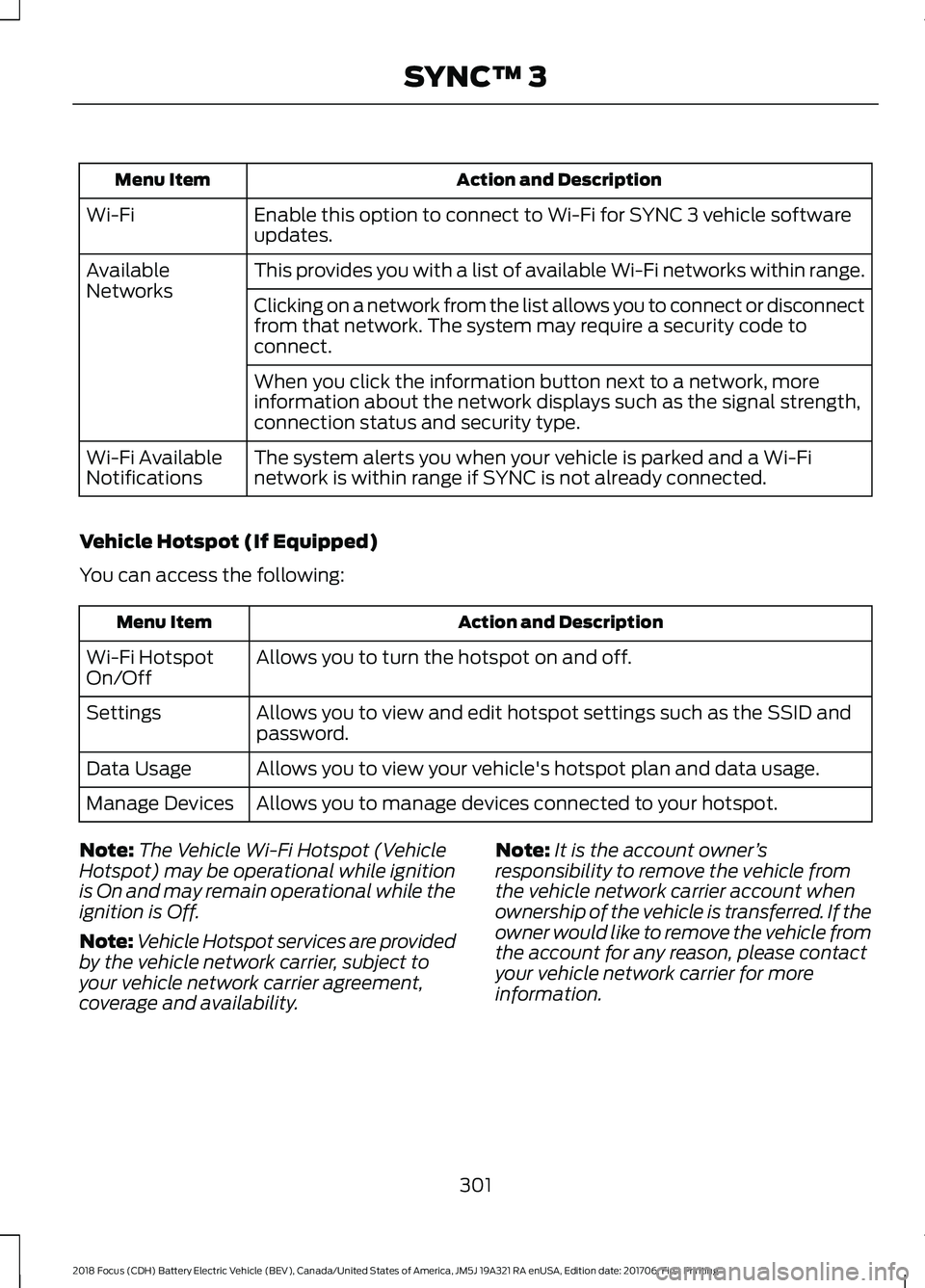
Action and Description
Menu Item
Enable this option to connect to Wi-Fi for SYNC 3 vehicle software
updates.
Wi-Fi
This provides you with a list of available Wi-Fi networks within range.
Available
Networks
Clicking on a network from the list allows you to connect or disconnect
from that network. The system may require a security code to
connect.
When you click the information button next to a network, more
information about the network displays such as the signal strength,
connection status and security type.
The system alerts you when your vehicle is parked and a Wi-Fi
network is within range if SYNC is not already connected.
Wi-Fi Available
Notifications
Vehicle Hotspot (If Equipped)
You can access the following: Action and Description
Menu Item
Allows you to turn the hotspot on and off.
Wi-Fi Hotspot
On/Off
Allows you to view and edit hotspot settings such as the SSID and
password.
Settings
Allows you to view your vehicle's hotspot plan and data usage.
Data Usage
Allows you to manage devices connected to your hotspot.
Manage Devices
Note: The Vehicle Wi-Fi Hotspot (Vehicle
Hotspot) may be operational while ignition
is On and may remain operational while the
ignition is Off.
Note: Vehicle Hotspot services are provided
by the vehicle network carrier, subject to
your vehicle network carrier agreement,
coverage and availability. Note:
It is the account owner ’s
responsibility to remove the vehicle from
the vehicle network carrier account when
ownership of the vehicle is transferred. If the
owner would like to remove the vehicle from
the account for any reason, please contact
your vehicle network carrier for more
information.
301
2018 Focus (CDH) Battery Electric Vehicle (BEV), Canada/United States of America, JM5J 19A321 RA enUSA, Edition date: 201706, First Printing SYNC™ 3
Page 313 of 375
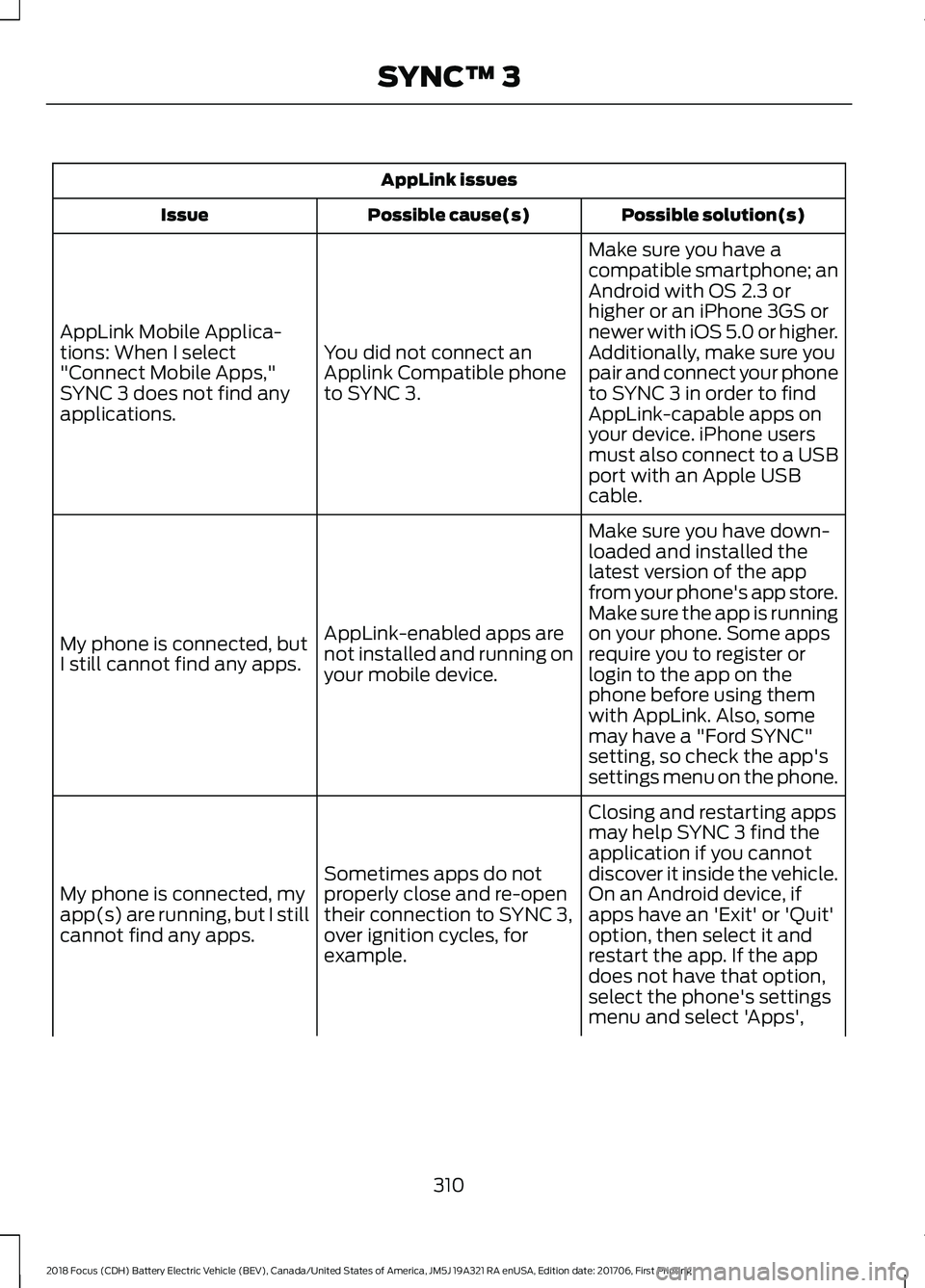
AppLink issues
Possible solution(s)
Possible cause(s)
Issue
Make sure you have a
compatible smartphone; an
Android with OS 2.3 or
higher or an iPhone 3GS or
newer with iOS 5.0 or higher.
Additionally, make sure you
You did not connect an
Applink Compatible phone
to SYNC 3.
AppLink Mobile Applica-
tions: When I select
"Connect Mobile Apps,"
SYNC 3 does not find any
applications.
pair and connect your phone
to SYNC 3 in order to find
AppLink-capable apps on
your device. iPhone users
must also connect to a USB
port with an Apple USB
cable.
Make sure you have down-
loaded and installed the
latest version of the app
from your phone's app store.
Make sure the app is running
on your phone. Some apps
AppLink-enabled apps are
not installed and running on
your mobile device.
My phone is connected, but
I still cannot find any apps.
require you to register or
login to the app on the
phone before using them
with AppLink. Also, some
may have a "Ford SYNC"
setting, so check the app's
settings menu on the phone.
Closing and restarting apps
may help SYNC 3 find the
application if you cannot
discover it inside the vehicle.
On an Android device, if
apps have an 'Exit' or 'Quit'
Sometimes apps do not
properly close and re-open
their connection to SYNC 3,
over ignition cycles, for
example.
My phone is connected, my
app(s) are running, but I still
cannot find any apps.
option, then select it and
restart the app. If the app
does not have that option,
select the phone's settings
menu and select 'Apps',
310
2018 Focus (CDH) Battery Electric Vehicle (BEV), Canada/United States of America, JM5J 19A321 RA enUSA, Edition date: 201706, First Printing SYNC™ 3
Page 338 of 375
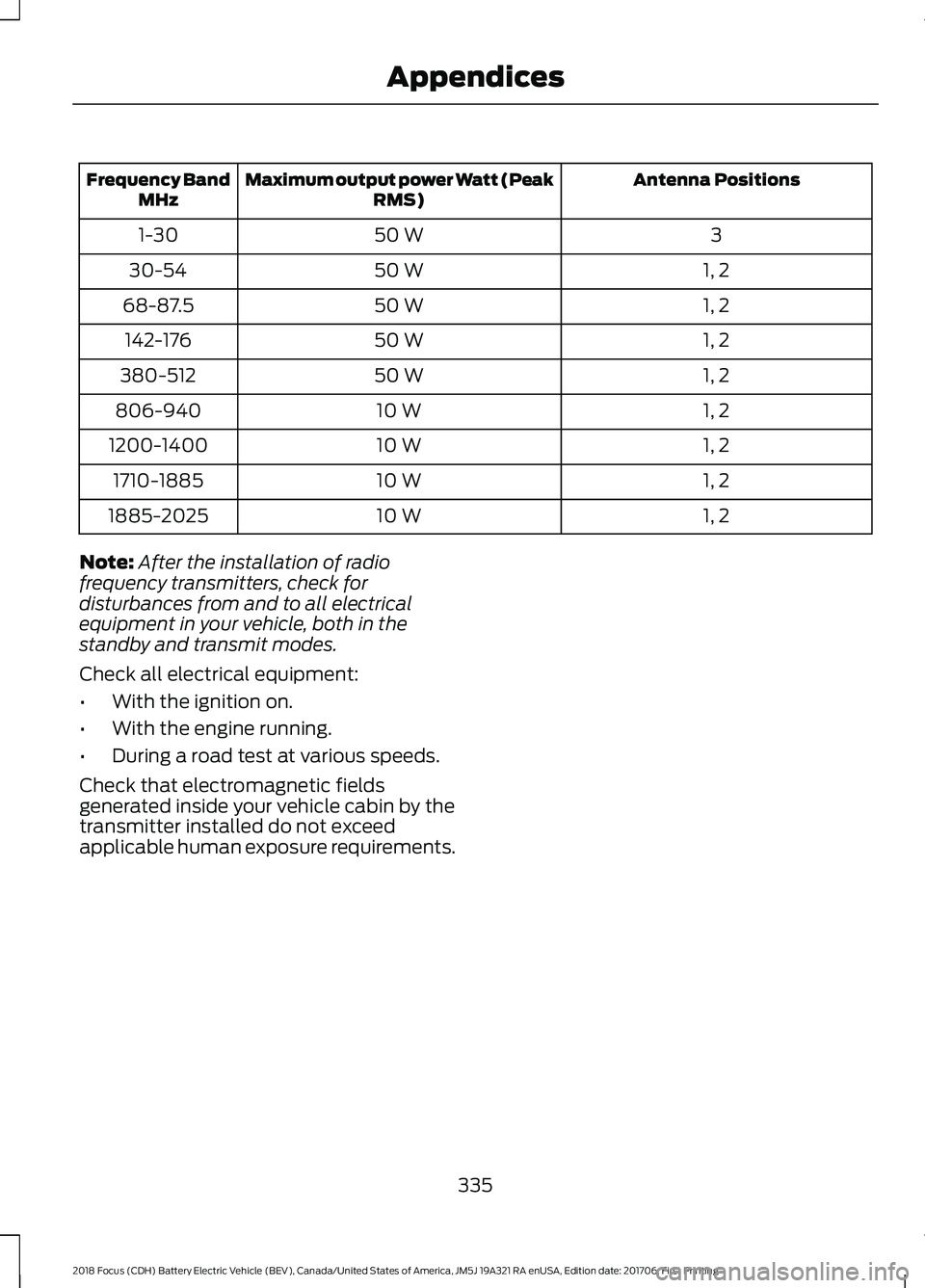
Antenna Positions
Maximum output power Watt (Peak
RMS)
Frequency Band
MHz
3
50 W
1-30
1, 2
50 W
30-54
1, 2
50 W
68-87.5
1, 2
50 W
142-176
1, 2
50 W
380-512
1, 2
10 W
806-940
1, 2
10 W
1200-1400
1, 2
10 W
1710-1885
1, 2
10 W
1885-2025
Note: After the installation of radio
frequency transmitters, check for
disturbances from and to all electrical
equipment in your vehicle, both in the
standby and transmit modes.
Check all electrical equipment:
• With the ignition on.
• With the engine running.
• During a road test at various speeds.
Check that electromagnetic fields
generated inside your vehicle cabin by the
transmitter installed do not exceed
applicable human exposure requirements.
335
2018 Focus (CDH) Battery Electric Vehicle (BEV), Canada/United States of America, JM5J 19A321 RA enUSA, Edition date: 201706, First Printing Appendices