2018 FORD FIESTA ac system
[x] Cancel search: ac systemPage 363 of 449
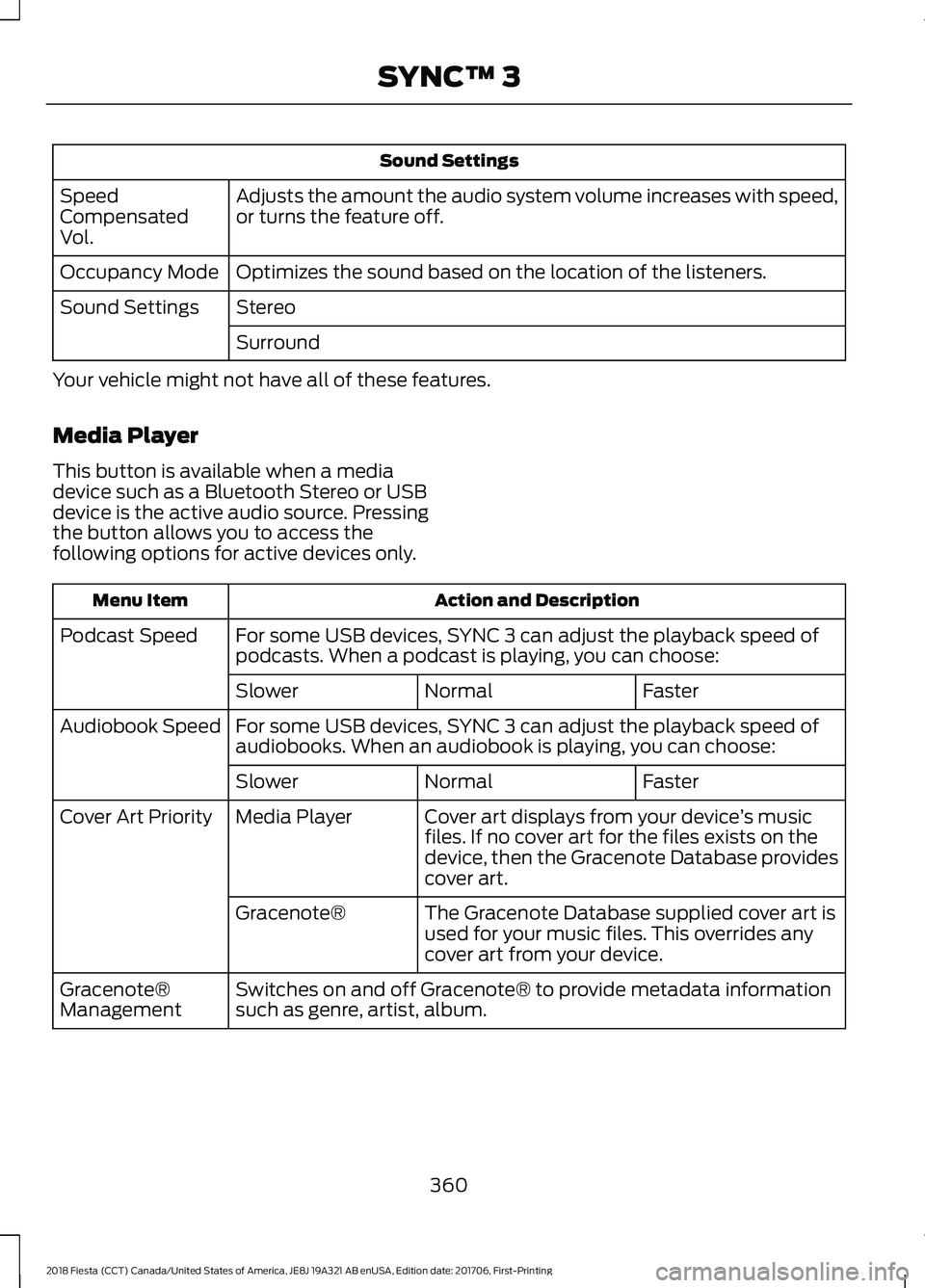
Sound Settings
Adjusts the amount the audio system volume increases with speed,
or turns the feature off.
Speed
Compensated
Vol.
Optimizes the sound based on the location of the listeners.
Occupancy Mode
Stereo
Sound Settings
Surround
Your vehicle might not have all of these features.
Media Player
This button is available when a media
device such as a Bluetooth Stereo or USB
device is the active audio source. Pressing
the button allows you to access the
following options for active devices only. Action and Description
Menu Item
For some USB devices, SYNC 3 can adjust the playback speed of
podcasts. When a podcast is playing, you can choose:
Podcast Speed
Faster
Normal
Slower
For some USB devices, SYNC 3 can adjust the playback speed of
audiobooks. When an audiobook is playing, you can choose:
Audiobook Speed
Faster
Normal
Slower
Cover art displays from your device ’s music
files. If no cover art for the files exists on the
device, then the Gracenote Database provides
cover art.
Media Player
Cover Art Priority
The Gracenote Database supplied cover art is
used for your music files. This overrides any
cover art from your device.
Gracenote®
Switches on and off Gracenote® to provide metadata information
such as genre, artist, album.
Gracenote®
Management
360
2018 Fiesta (CCT) Canada/United States of America, JE8J 19A321 AB enUSA, Edition date: 201706, First-Printing SYNC™ 3
Page 364 of 449
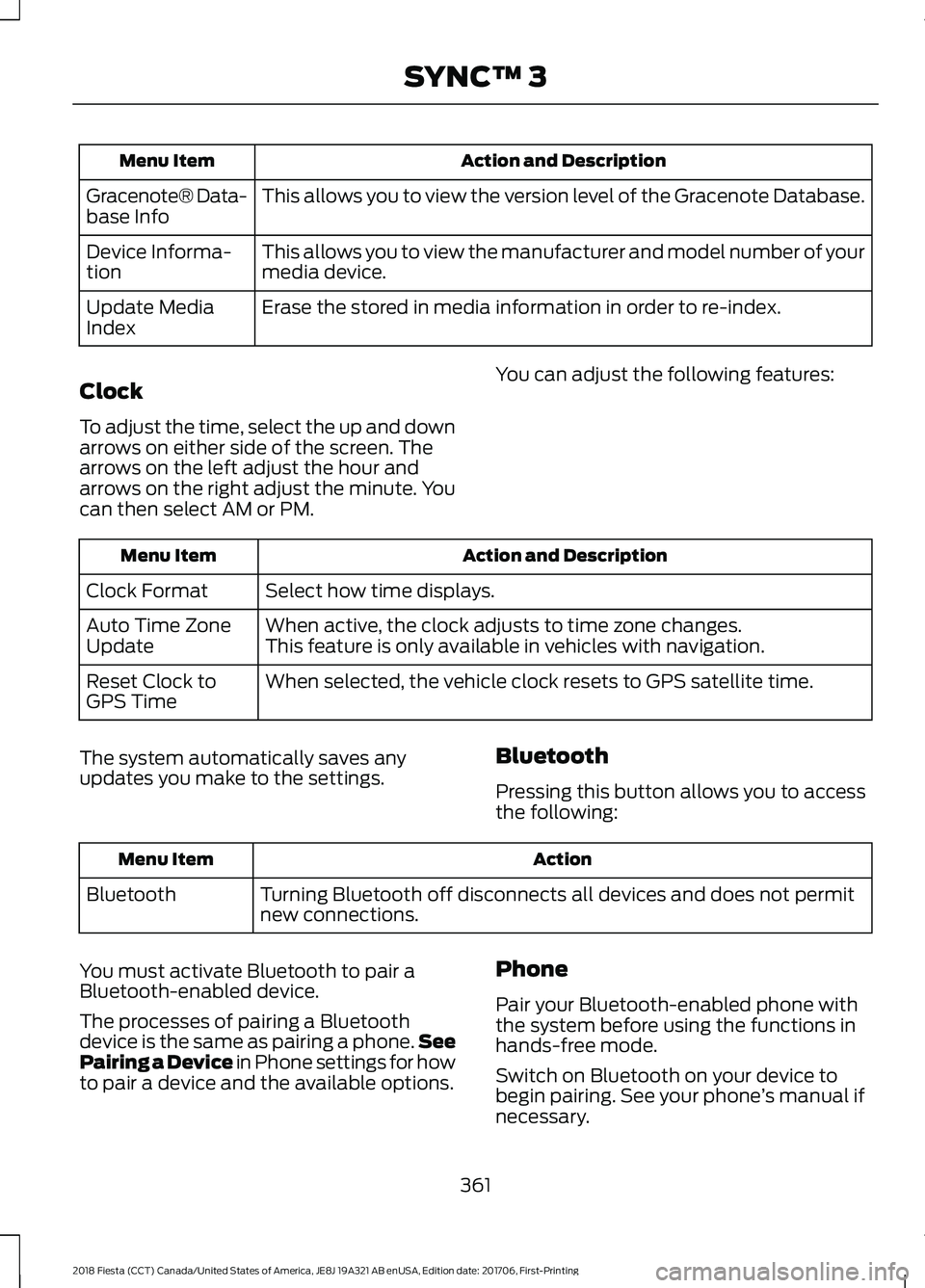
Action and Description
Menu Item
This allows you to view the version level of the Gracenote Database.
Gracenote® Data-
base Info
This allows you to view the manufacturer and model number of your
media device.
Device Informa-
tion
Erase the stored in media information in order to re-index.
Update Media
Index
Clock
To adjust the time, select the up and down
arrows on either side of the screen. The
arrows on the left adjust the hour and
arrows on the right adjust the minute. You
can then select AM or PM. You can adjust the following features: Action and Description
Menu Item
Select how time displays.
Clock Format
When active, the clock adjusts to time zone changes.
Auto Time Zone
Update This feature is only available in vehicles with navigation.
When selected, the vehicle clock resets to GPS satellite time.
Reset Clock to
GPS Time
The system automatically saves any
updates you make to the settings. Bluetooth
Pressing this button allows you to access
the following: Action
Menu Item
Turning Bluetooth off disconnects all devices and does not permit
new connections.
Bluetooth
You must activate Bluetooth to pair a
Bluetooth-enabled device.
The processes of pairing a Bluetooth
device is the same as pairing a phone. See
Pairing a Device in Phone settings for how
to pair a device and the available options. Phone
Pair your Bluetooth-enabled phone with
the system before using the functions in
hands-free mode.
Switch on Bluetooth on your device to
begin pairing. See your phone
’s manual if
necessary.
361
2018 Fiesta (CCT) Canada/United States of America, JE8J 19A321 AB enUSA, Edition date: 201706, First-Printing SYNC™ 3
Page 365 of 449
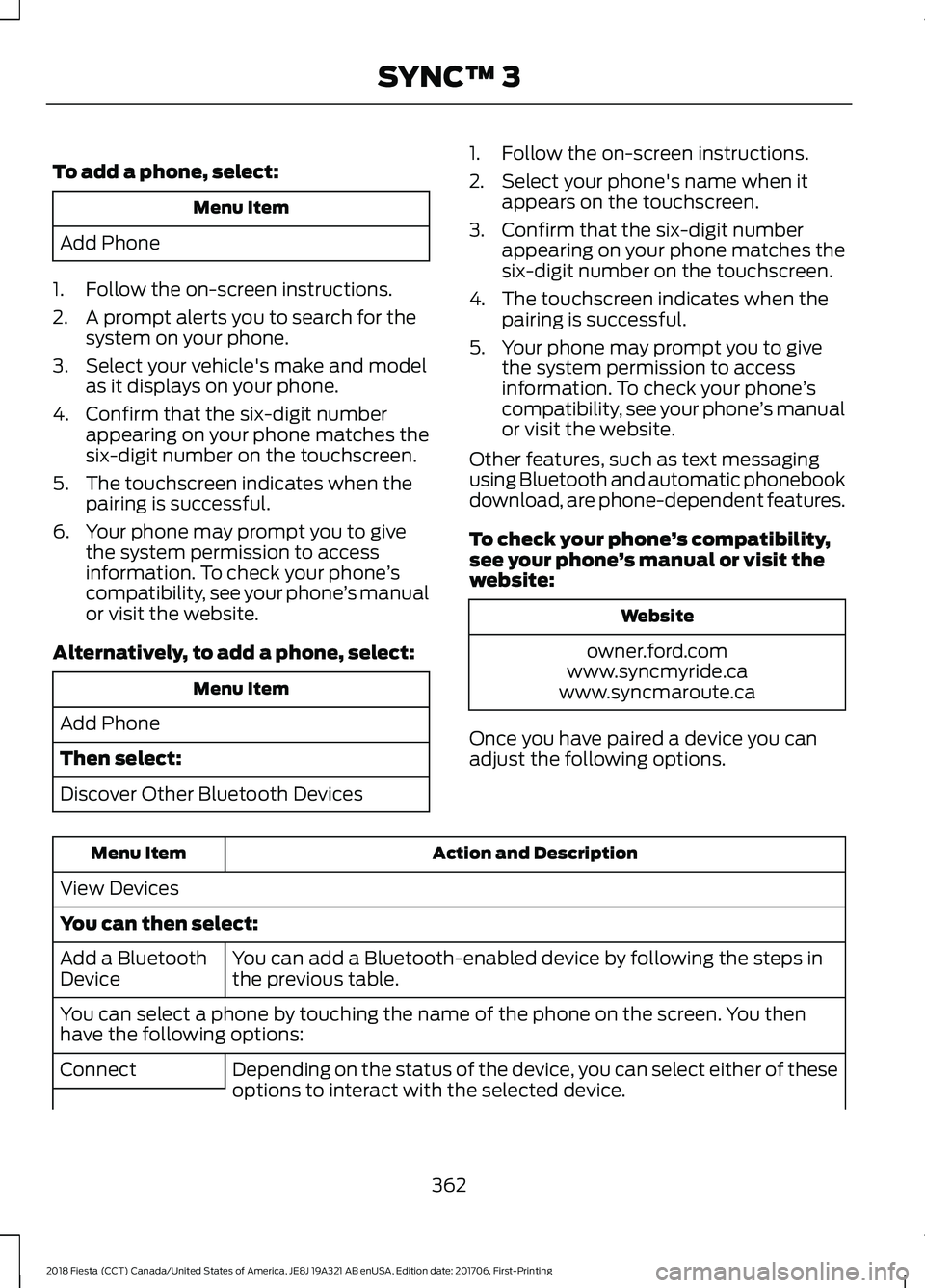
To add a phone, select:
Menu Item
Add Phone
1. Follow the on-screen instructions.
2. A prompt alerts you to search for the system on your phone.
3. Select your vehicle's make and model as it displays on your phone.
4. Confirm that the six-digit number appearing on your phone matches the
six-digit number on the touchscreen.
5. The touchscreen indicates when the pairing is successful.
6. Your phone may prompt you to give the system permission to access
information. To check your phone ’s
compatibility, see your phone ’s manual
or visit the website.
Alternatively, to add a phone, select: Menu Item
Add Phone
Then select:
Discover Other Bluetooth Devices 1. Follow the on-screen instructions.
2. Select your phone's name when it
appears on the touchscreen.
3. Confirm that the six-digit number appearing on your phone matches the
six-digit number on the touchscreen.
4. The touchscreen indicates when the pairing is successful.
5. Your phone may prompt you to give the system permission to access
information. To check your phone ’s
compatibility, see your phone ’s manual
or visit the website.
Other features, such as text messaging
using Bluetooth and automatic phonebook
download, are phone-dependent features.
To check your phone ’s compatibility,
see your phone ’s manual or visit the
website: Website
owner.ford.com
www.syncmyride.ca
www.syncmaroute.ca
Once you have paired a device you can
adjust the following options. Action and Description
Menu Item
View Devices
You can then select: You can add a Bluetooth-enabled device by following the steps in
the previous table.
Add a Bluetooth
Device
You can select a phone by touching the name of the phone on the screen. You then
have the following options:
Depending on the status of the device, you can select either of these
options to interact with the selected device.
Connect
362
2018 Fiesta (CCT) Canada/United States of America, JE8J 19A321 AB enUSA, Edition date: 201706, First-Printing SYNC™ 3
Page 366 of 449
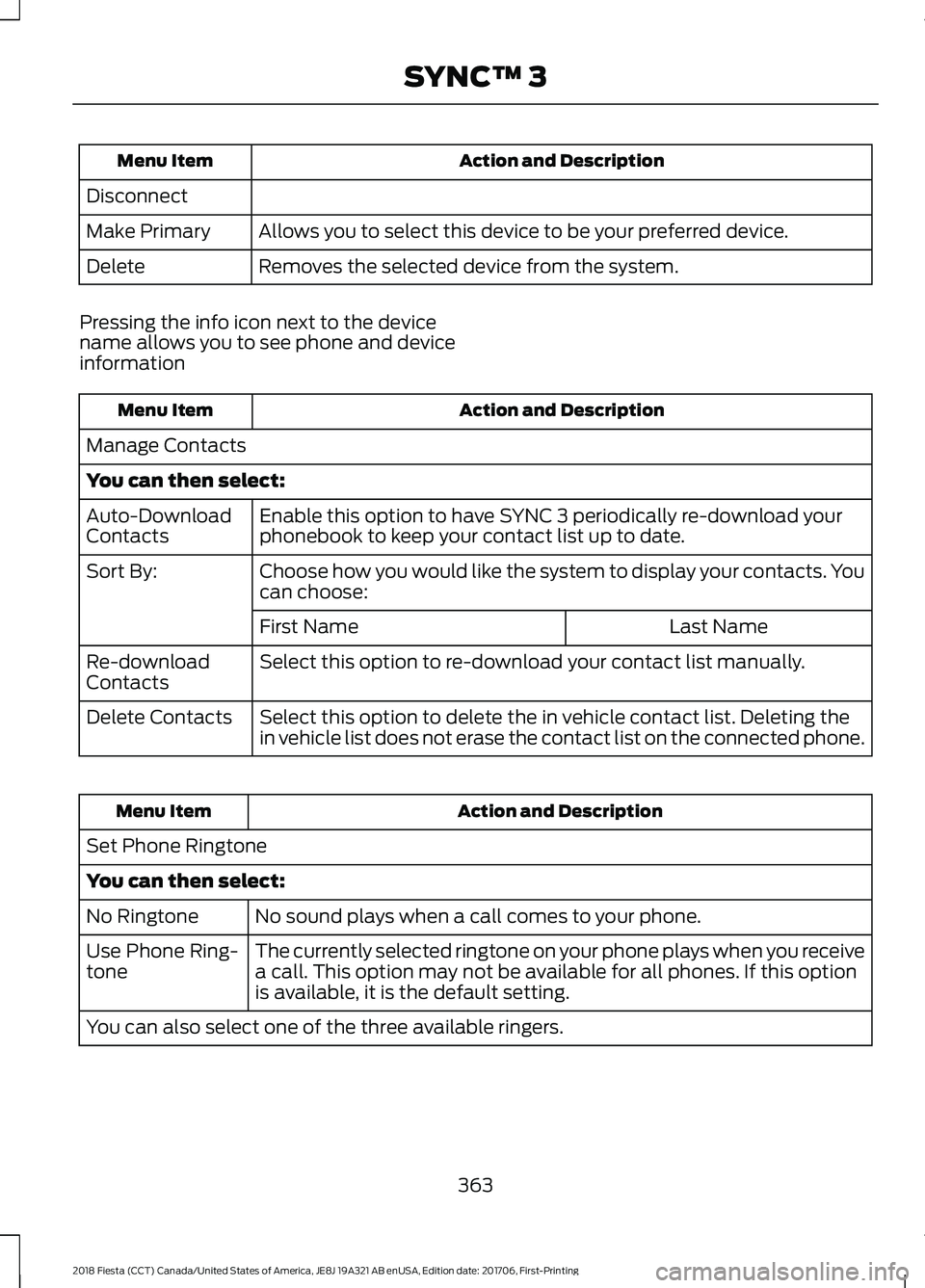
Action and Description
Menu Item
Disconnect Allows you to select this device to be your preferred device.
Make Primary
Removes the selected device from the system.
Delete
Pressing the info icon next to the device
name allows you to see phone and device
information Action and Description
Menu Item
Manage Contacts
You can then select: Enable this option to have SYNC 3 periodically re-download your
phonebook to keep your contact list up to date.
Auto-Download
Contacts
Choose how you would like the system to display your contacts. You
can choose:
Sort By:
Last Name
First Name
Select this option to re-download your contact list manually.
Re-download
Contacts
Select this option to delete the in vehicle contact list. Deleting the
in vehicle list does not erase the contact list on the connected phone.
Delete Contacts Action and Description
Menu Item
Set Phone Ringtone
You can then select: No sound plays when a call comes to your phone.
No Ringtone
The currently selected ringtone on your phone plays when you receive
a call. This option may not be available for all phones. If this option
is available, it is the default setting.
Use Phone Ring-
tone
You can also select one of the three available ringers.
363
2018 Fiesta (CCT) Canada/United States of America, JE8J 19A321 AB enUSA, Edition date: 201706, First-Printing SYNC™ 3
Page 368 of 449
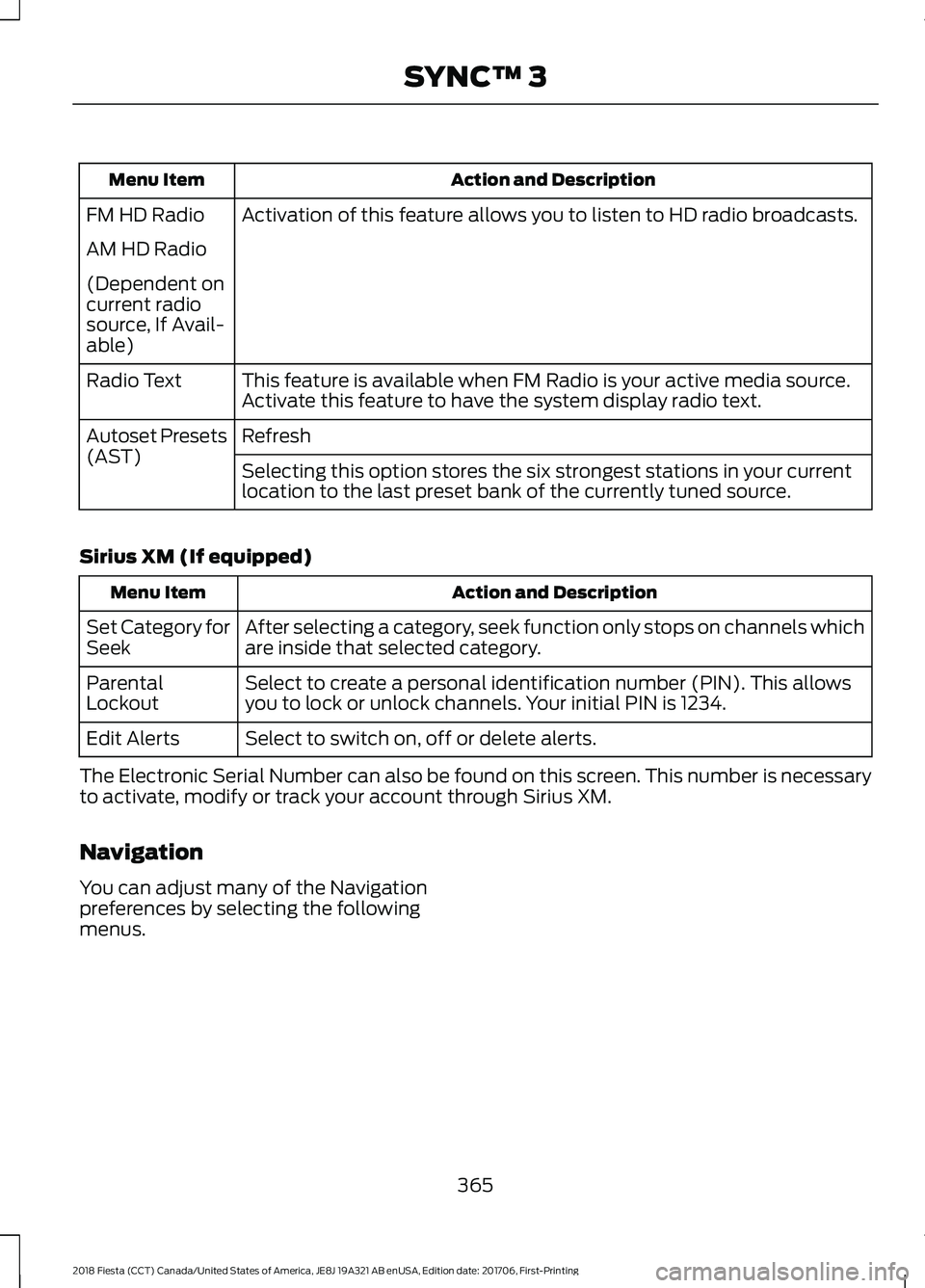
Action and Description
Menu Item
Activation of this feature allows you to listen to HD radio broadcasts.
FM HD Radio
AM HD Radio
(Dependent on
current radio
source, If Avail-
able)
This feature is available when FM Radio is your active media source.
Activate this feature to have the system display radio text.
Radio Text
Refresh
Autoset Presets
(AST)
Selecting this option stores the six strongest stations in your current
location to the last preset bank of the currently tuned source.
Sirius XM (If equipped) Action and Description
Menu Item
After selecting a category, seek function only stops on channels which
are inside that selected category.
Set Category for
Seek
Select to create a personal identification number (PIN). This allows
you to lock or unlock channels. Your initial PIN is 1234.
Parental
Lockout
Select to switch on, off or delete alerts.
Edit Alerts
The Electronic Serial Number can also be found on this screen. This number is necessary
to activate, modify or track your account through Sirius XM.
Navigation
You can adjust many of the Navigation
preferences by selecting the following
menus.
365
2018 Fiesta (CCT) Canada/United States of America, JE8J 19A321 AB enUSA, Edition date: 201706, First-Printing SYNC™ 3
Page 369 of 449
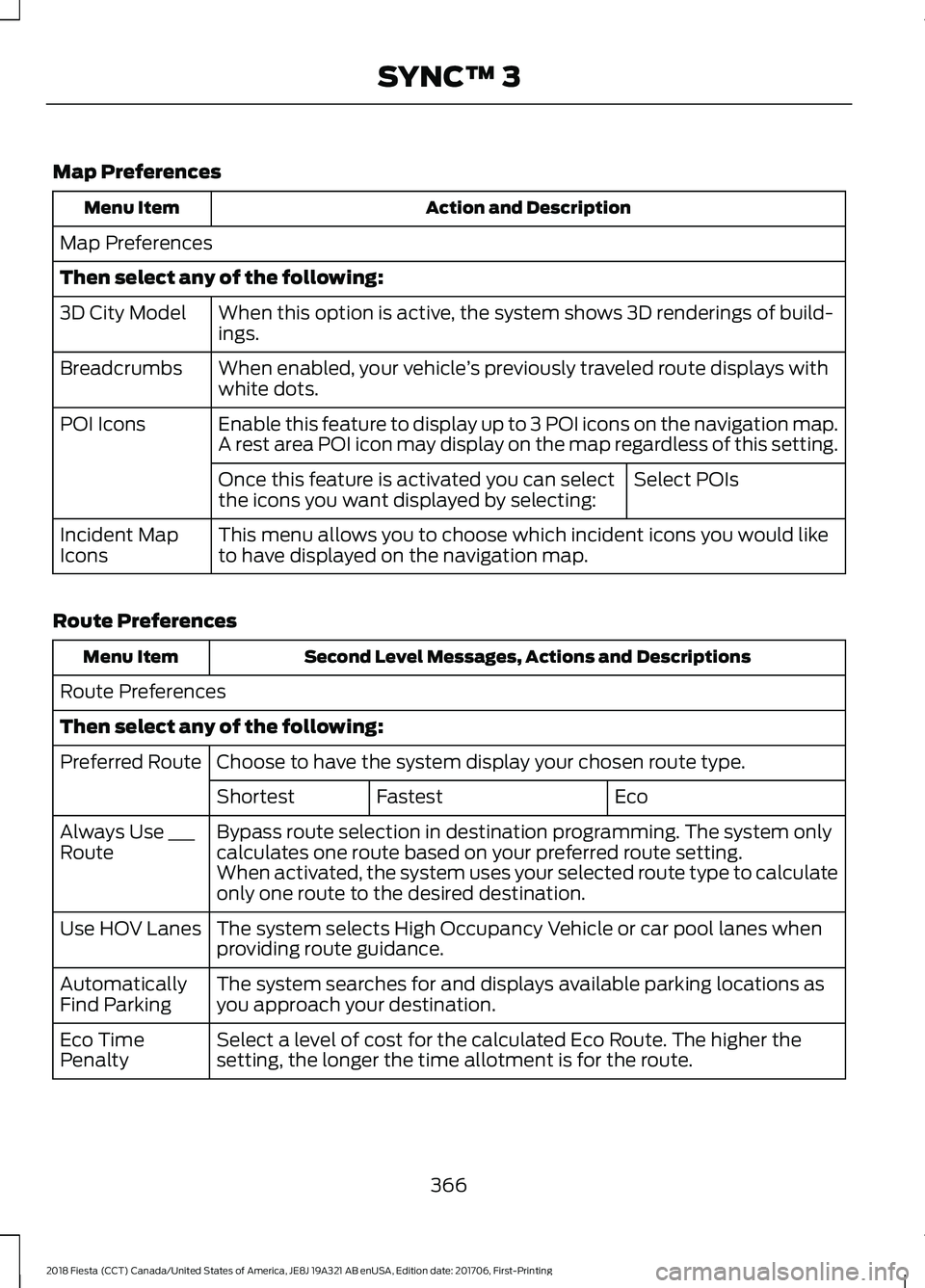
Map Preferences
Action and Description
Menu Item
Map Preferences
Then select any of the following: When this option is active, the system shows 3D renderings of build-
ings.
3D City Model
When enabled, your vehicle ’s previously traveled route displays with
white dots.
Breadcrumbs
Enable this feature to display up to 3 POI icons on the navigation map.
POI Icons
A rest area POI icon may display on the map regardless of this setting.
Select POIs
Once this feature is activated you can select
the icons you want displayed by selecting:
This menu allows you to choose which incident icons you would like
to have displayed on the navigation map.
Incident Map
Icons
Route Preferences Second Level Messages, Actions and Descriptions
Menu Item
Route Preferences
Then select any of the following: Choose to have the system display your chosen route type.
Preferred Route
Eco
Fastest
Shortest
Bypass route selection in destination programming. The system only
calculates one route based on your preferred route setting.
Always Use ___
Route
When activated, the system uses your selected route type to calculate
only one route to the desired destination.
The system selects High Occupancy Vehicle or car pool lanes when
providing route guidance.
Use HOV Lanes
The system searches for and displays available parking locations as
you approach your destination.
Automatically
Find Parking
Select a level of cost for the calculated Eco Route. The higher the
setting, the longer the time allotment is for the route.
Eco Time
Penalty
366
2018 Fiesta (CCT) Canada/United States of America, JE8J 19A321 AB enUSA, Edition date: 201706, First-Printing SYNC™ 3
Page 370 of 449
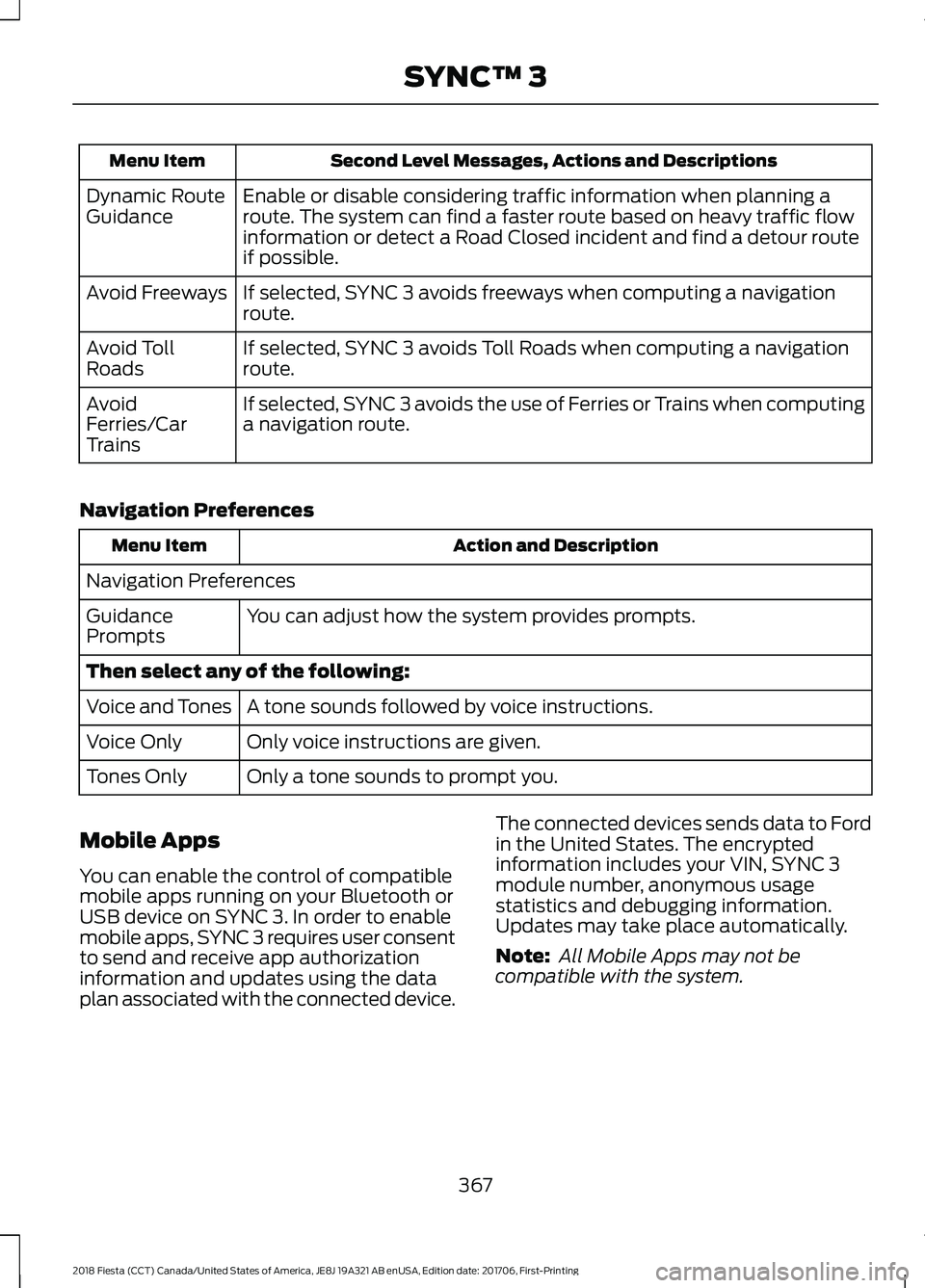
Second Level Messages, Actions and Descriptions
Menu Item
Enable or disable considering traffic information when planning a
route. The system can find a faster route based on heavy traffic flow
information or detect a Road Closed incident and find a detour route
if possible.
Dynamic Route
Guidance
If selected, SYNC 3 avoids freeways when computing a navigation
route.
Avoid Freeways
If selected, SYNC 3 avoids Toll Roads when computing a navigation
route.
Avoid Toll
Roads
If selected, SYNC 3 avoids the use of Ferries or Trains when computing
a navigation route.
Avoid
Ferries/Car
Trains
Navigation Preferences Action and Description
Menu Item
Navigation Preferences You can adjust how the system provides prompts.
Guidance
Prompts
Then select any of the following:
A tone sounds followed by voice instructions.
Voice and Tones
Only voice instructions are given.
Voice Only
Only a tone sounds to prompt you.
Tones Only
Mobile Apps
You can enable the control of compatible
mobile apps running on your Bluetooth or
USB device on SYNC 3. In order to enable
mobile apps, SYNC 3 requires user consent
to send and receive app authorization
information and updates using the data
plan associated with the connected device. The connected devices sends data to Ford
in the United States. The encrypted
information includes your VIN, SYNC 3
module number, anonymous usage
statistics and debugging information.
Updates may take place automatically.
Note:
All Mobile Apps may not be
compatible with the system.
367
2018 Fiesta (CCT) Canada/United States of America, JE8J 19A321 AB enUSA, Edition date: 201706, First-Printing SYNC™ 3
Page 371 of 449
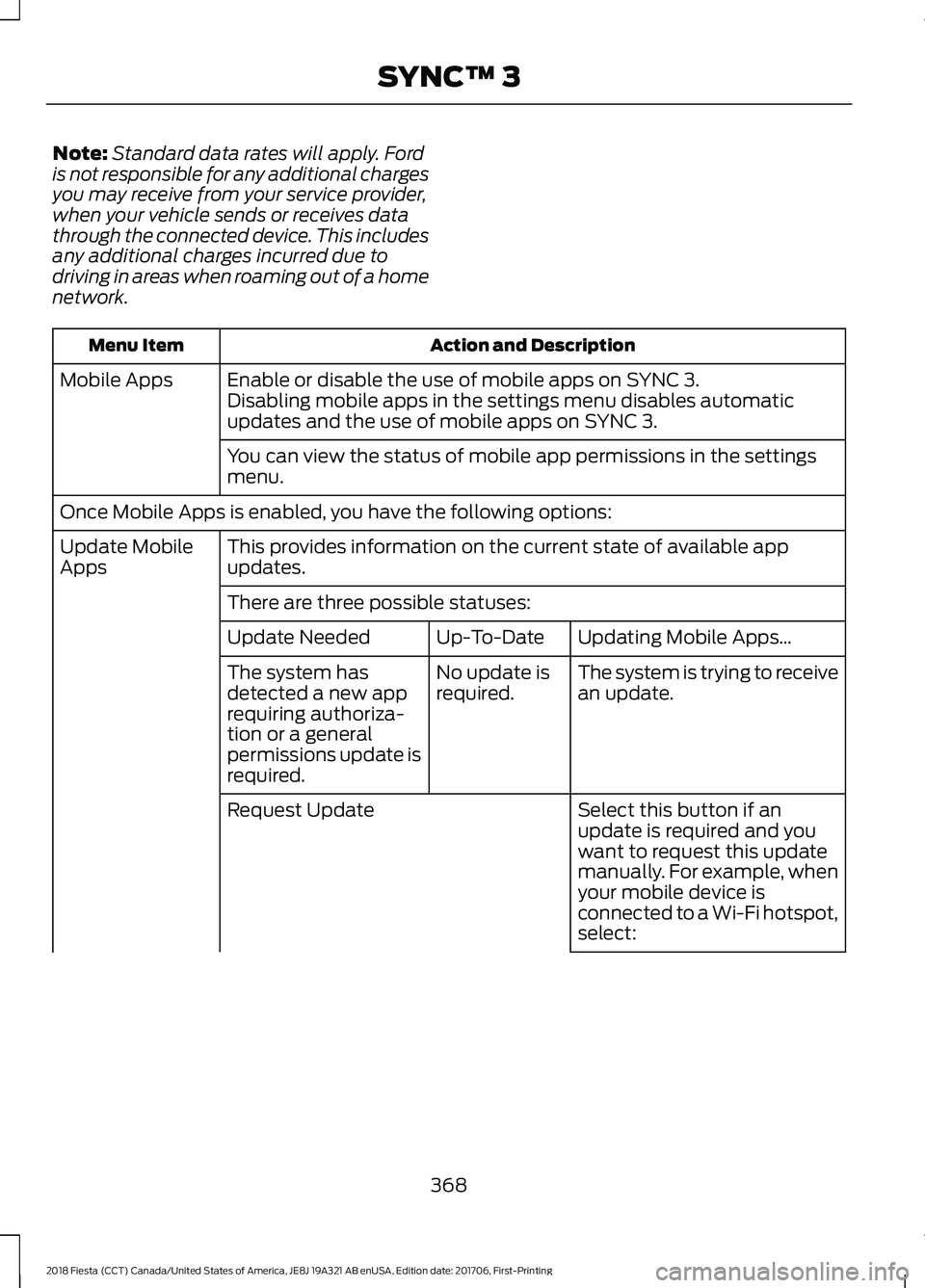
Note:
Standard data rates will apply. Ford
is not responsible for any additional charges
you may receive from your service provider,
when your vehicle sends or receives data
through the connected device. This includes
any additional charges incurred due to
driving in areas when roaming out of a home
network. Action and Description
Menu Item
Enable or disable the use of mobile apps on SYNC 3.
Mobile Apps
Disabling mobile apps in the settings menu disables automatic
updates and the use of mobile apps on SYNC 3.
You can view the status of mobile app permissions in the settings
menu.
Once Mobile Apps is enabled, you have the following options: This provides information on the current state of available app
updates.
Update Mobile
Apps
There are three possible statuses: Updating Mobile Apps…
Up-To-Date
Update Needed
The system is trying to receive
an update.
No update is
required.
The system has
detected a new app
requiring authoriza-
tion or a general
permissions update is
required.
Select this button if an
update is required and you
want to request this update
manually. For example, when
your mobile device is
connected to a Wi-Fi hotspot,
select:
Request Update
368
2018 Fiesta (CCT) Canada/United States of America, JE8J 19A321 AB enUSA, Edition date: 201706, First-Printing SYNC™ 3