2018 FORD FIESTA ac system
[x] Cancel search: ac systemPage 342 of 449
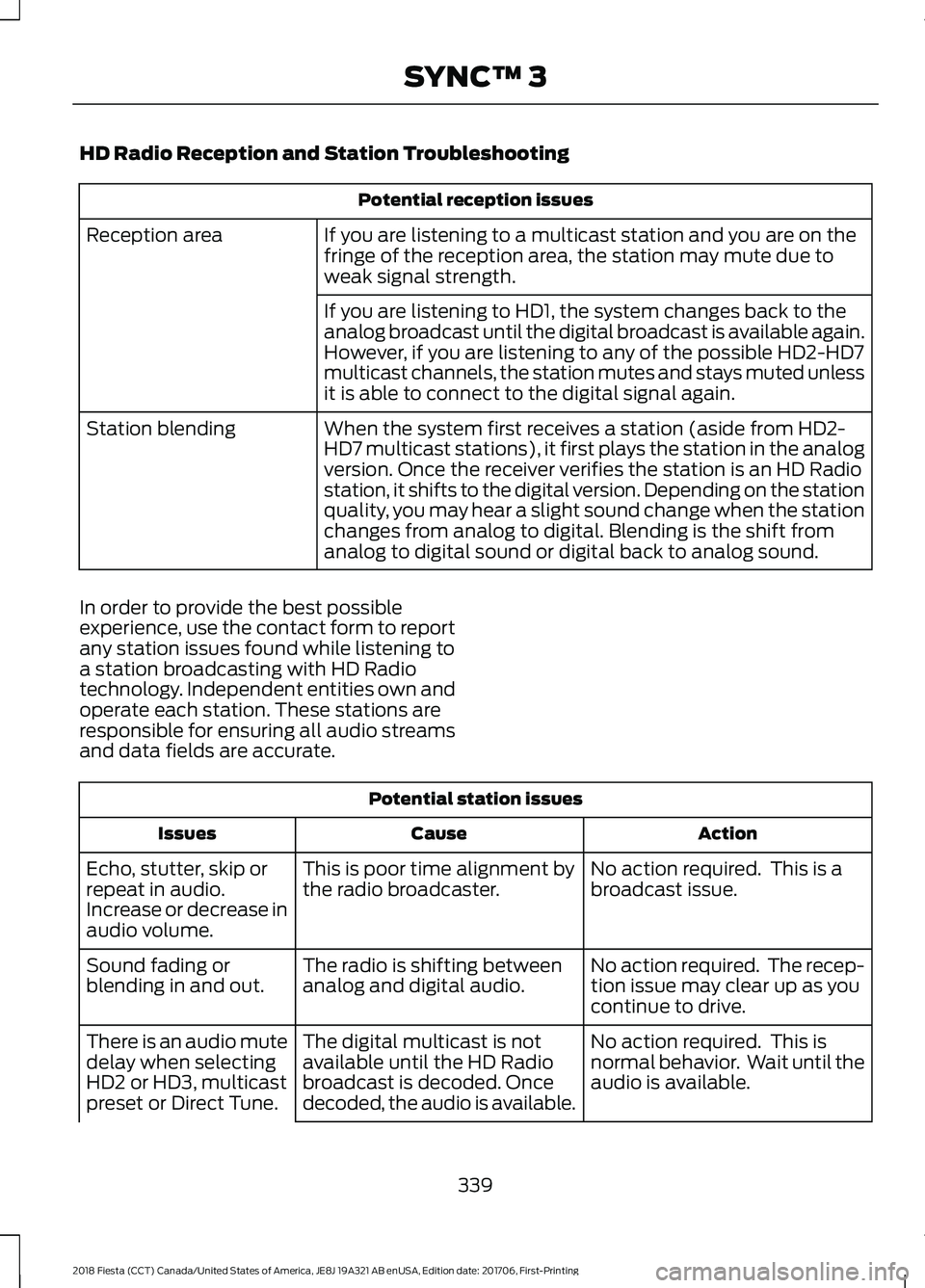
HD Radio Reception and Station Troubleshooting
Potential reception issues
If you are listening to a multicast station and you are on the
fringe of the reception area, the station may mute due to
weak signal strength.
Reception area
If you are listening to HD1, the system changes back to the
analog broadcast until the digital broadcast is available again.
However, if you are listening to any of the possible HD2-HD7
multicast channels, the station mutes and stays muted unless
it is able to connect to the digital signal again.
When the system first receives a station (aside from HD2-
HD7 multicast stations), it first plays the station in the analog
version. Once the receiver verifies the station is an HD Radio
station, it shifts to the digital version. Depending on the station
quality, you may hear a slight sound change when the station
changes from analog to digital. Blending is the shift from
analog to digital sound or digital back to analog sound.
Station blending
In order to provide the best possible
experience, use the contact form to report
any station issues found while listening to
a station broadcasting with HD Radio
technology. Independent entities own and
operate each station. These stations are
responsible for ensuring all audio streams
and data fields are accurate. Potential station issues
Action
Cause
Issues
No action required. This is a
broadcast issue.
This is poor time alignment by
the radio broadcaster.
Echo, stutter, skip or
repeat in audio.
Increase or decrease in
audio volume.
No action required. The recep-
tion issue may clear up as you
continue to drive.
The radio is shifting between
analog and digital audio.
Sound fading or
blending in and out.
No action required. This is
normal behavior. Wait until the
audio is available.
The digital multicast is not
available until the HD Radio
broadcast is decoded. Once
decoded, the audio is available.
There is an audio mute
delay when selecting
HD2 or HD3, multicast
preset or Direct Tune.
339
2018 Fiesta (CCT) Canada/United States of America, JE8J 19A321 AB enUSA, Edition date: 201706, First-Printing SYNC™ 3
Page 343 of 449
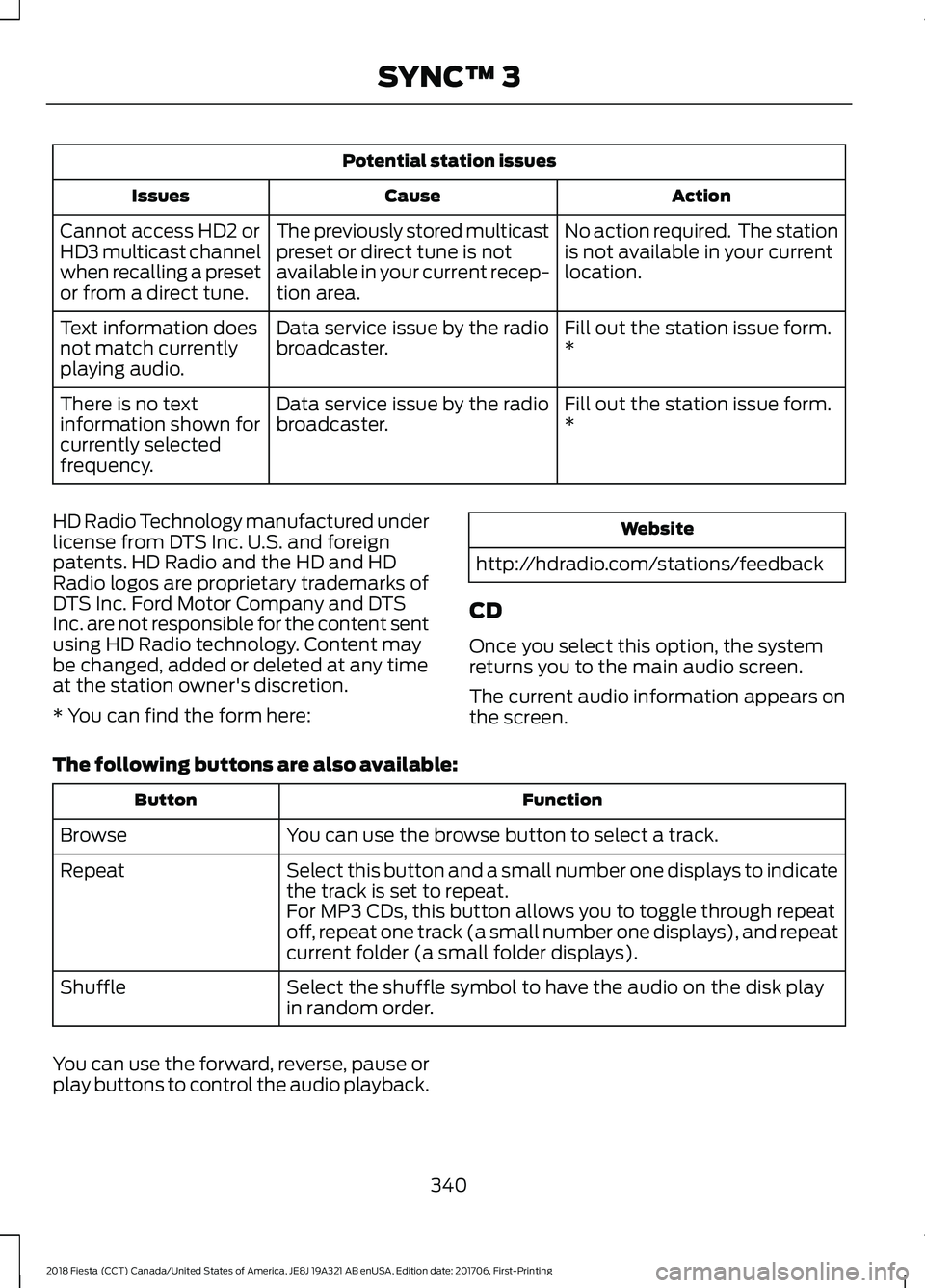
Potential station issues
Action
Cause
Issues
No action required. The station
is not available in your current
location.
The previously stored multicast
preset or direct tune is not
available in your current recep-
tion area.
Cannot access HD2 or
HD3 multicast channel
when recalling a preset
or from a direct tune.
Fill out the station issue form.
*
Data service issue by the radio
broadcaster.
Text information does
not match currently
playing audio.
Fill out the station issue form.
*
Data service issue by the radio
broadcaster.
There is no text
information shown for
currently selected
frequency.
HD Radio Technology manufactured under
license from DTS Inc. U.S. and foreign
patents. HD Radio and the HD and HD
Radio logos are proprietary trademarks of
DTS Inc. Ford Motor Company and DTS
Inc. are not responsible for the content sent
using HD Radio technology. Content may
be changed, added or deleted at any time
at the station owner's discretion.
* You can find the form here: Website
http://hdradio.com/stations/feedback
CD
Once you select this option, the system
returns you to the main audio screen.
The current audio information appears on
the screen.
The following buttons are also available: Function
Button
You can use the browse button to select a track.
Browse
Select this button and a small number one displays to indicate
the track is set to repeat.
Repeat
For MP3 CDs, this button allows you to toggle through repeat
off, repeat one track (a small number one displays), and repeat
current folder (a small folder displays).
Select the shuffle symbol to have the audio on the disk play
in random order.
Shuffle
You can use the forward, reverse, pause or
play buttons to control the audio playback.
340
2018 Fiesta (CCT) Canada/United States of America, JE8J 19A321 AB enUSA, Edition date: 201706, First-Printing SYNC™ 3
Page 345 of 449
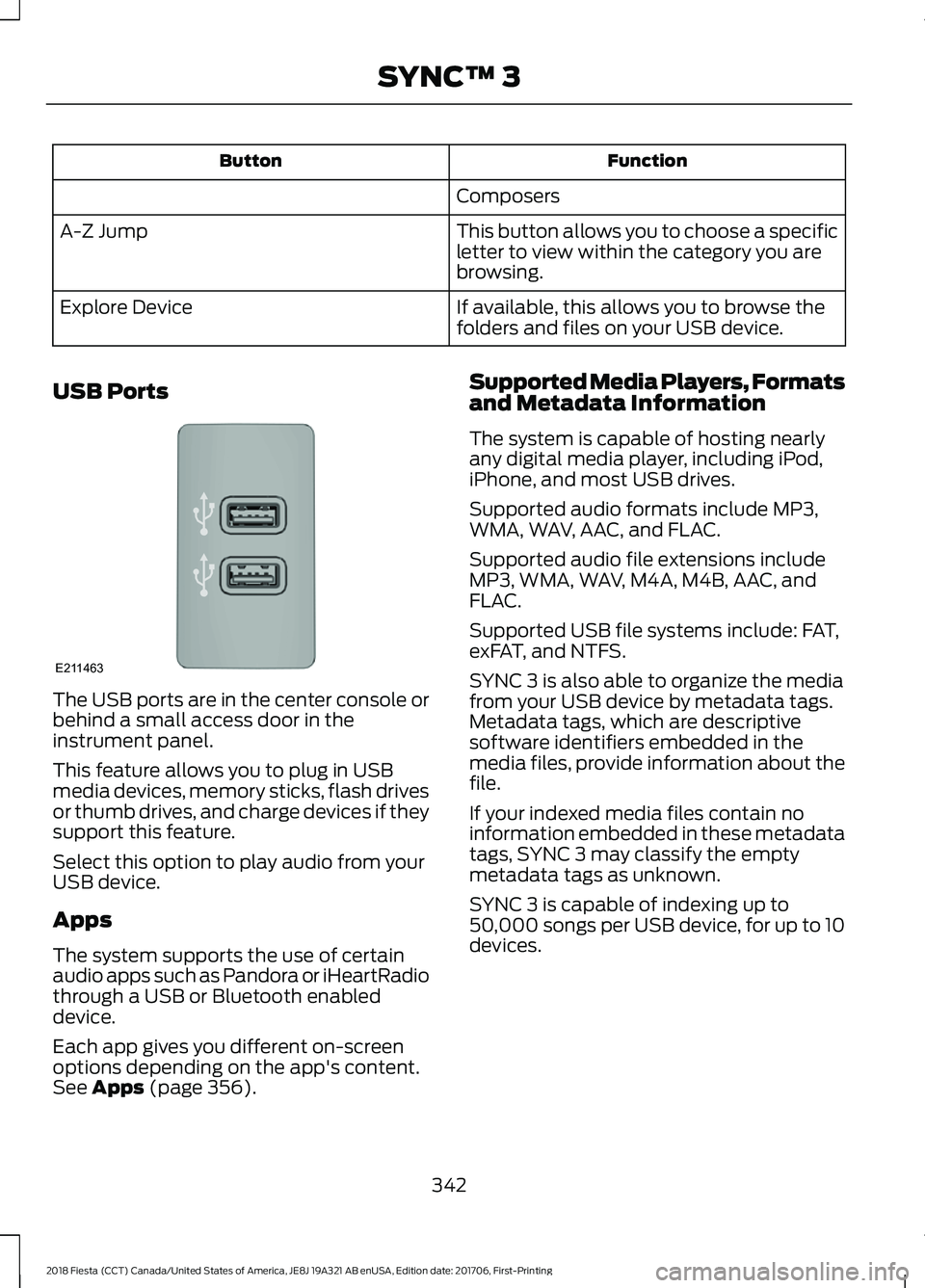
Function
Button
Composers
This button allows you to choose a specific
letter to view within the category you are
browsing.
A-Z Jump
If available, this allows you to browse the
folders and files on your USB device.
Explore Device
USB Ports The USB ports are in the center console or
behind a small access door in the
instrument panel.
This feature allows you to plug in USB
media devices, memory sticks, flash drives
or thumb drives, and charge devices if they
support this feature.
Select this option to play audio from your
USB device.
Apps
The system supports the use of certain
audio apps such as Pandora or iHeartRadio
through a USB or Bluetooth enabled
device.
Each app gives you different on-screen
options depending on the app's content.
See Apps (page 356). Supported Media Players, Formats
and Metadata Information
The system is capable of hosting nearly
any digital media player, including iPod,
iPhone, and most USB drives.
Supported audio formats include MP3,
WMA, WAV, AAC, and FLAC.
Supported audio file extensions include
MP3, WMA, WAV, M4A, M4B, AAC, and
FLAC.
Supported USB file systems include: FAT,
exFAT, and NTFS.
SYNC 3 is also able to organize the media
from your USB device by metadata tags.
Metadata tags, which are descriptive
software identifiers embedded in the
media files, provide information about the
file.
If your indexed media files contain no
information embedded in these metadata
tags, SYNC 3 may classify the empty
metadata tags as unknown.
SYNC 3 is capable of indexing up to
50,000 songs per USB device, for up to 10
devices.
342
2018 Fiesta (CCT) Canada/United States of America, JE8J 19A321 AB enUSA, Edition date: 201706, First-Printing SYNC™ 3E211463
Page 346 of 449
PHONE
WARNING: Driving while distracted
can result in loss of vehicle control, crash
and injury. We strongly recommend that
you use extreme caution when using any
device that may take your focus off the
road. Your primary responsibility is the safe
operation of your vehicle. We recommend
against the use of any hand-held device
while driving and encourage the use of
voice-operated systems when possible.
Make sure you are aware of all applicable
local laws that may affect the use of
electronic devices while driving.
Hands-free calling is one of the main
features of the system. Once you pair your
cell phone, you can access many options
using the touchscreen or voice commands.
While the system supports a variety of
features, many are dependent on your cell
phone ’s functionality.
Pairing Your Cell Phone for the
First Time
Pair your Bluetooth enabled phone with
the system before using the functions in
hands-free mode.
Switch on Bluetooth on your device to
begin pairing. See your phone ’s manual if
necessary.
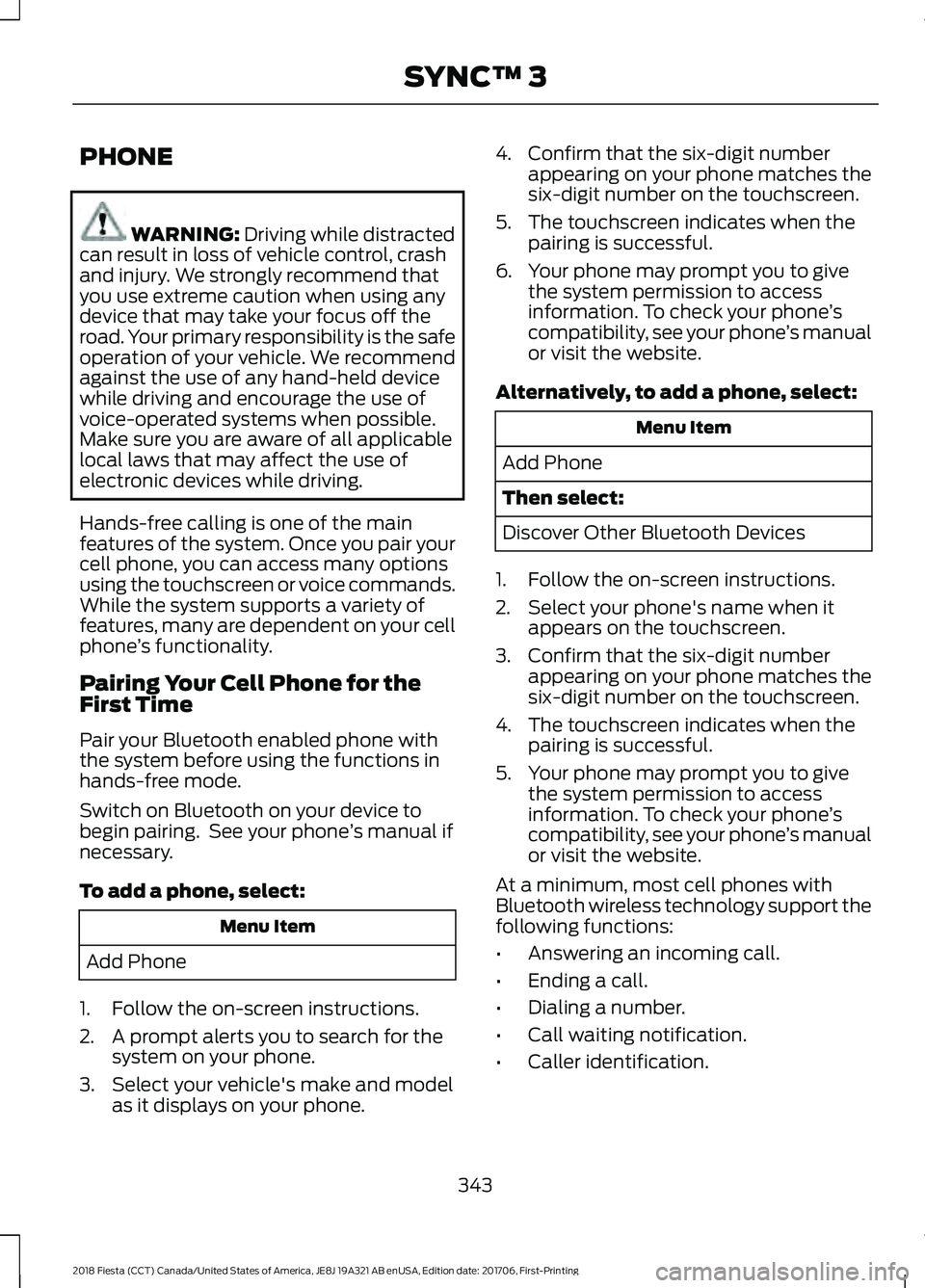
To add a phone, select: Menu Item
Add Phone
1. Follow the on-screen instructions.
2. A prompt alerts you to search for the system on your phone.
3. Select your vehicle's make and model as it displays on your phone. 4. Confirm that the six-digit number
appearing on your phone matches the
six-digit number on the touchscreen.
5. The touchscreen indicates when the pairing is successful.
6. Your phone may prompt you to give the system permission to access
information. To check your phone ’s
compatibility, see your phone ’s manual
or visit the website.
Alternatively, to add a phone, select: Menu Item
Add Phone
Then select:
Discover Other Bluetooth Devices
1. Follow the on-screen instructions.
2. Select your phone's name when it appears on the touchscreen.
3. Confirm that the six-digit number appearing on your phone matches the
six-digit number on the touchscreen.
4. The touchscreen indicates when the pairing is successful.
5. Your phone may prompt you to give the system permission to access
information. To check your phone ’s
compatibility, see your phone ’s manual
or visit the website.
At a minimum, most cell phones with
Bluetooth wireless technology support the
following functions:
• Answering an incoming call.
• Ending a call.
• Dialing a number.
• Call waiting notification.
• Caller identification.
343
2018 Fiesta (CCT) Canada/United States of America, JE8J 19A321 AB enUSA, Edition date: 201706, First-Printing SYNC™ 3
Page 348 of 449
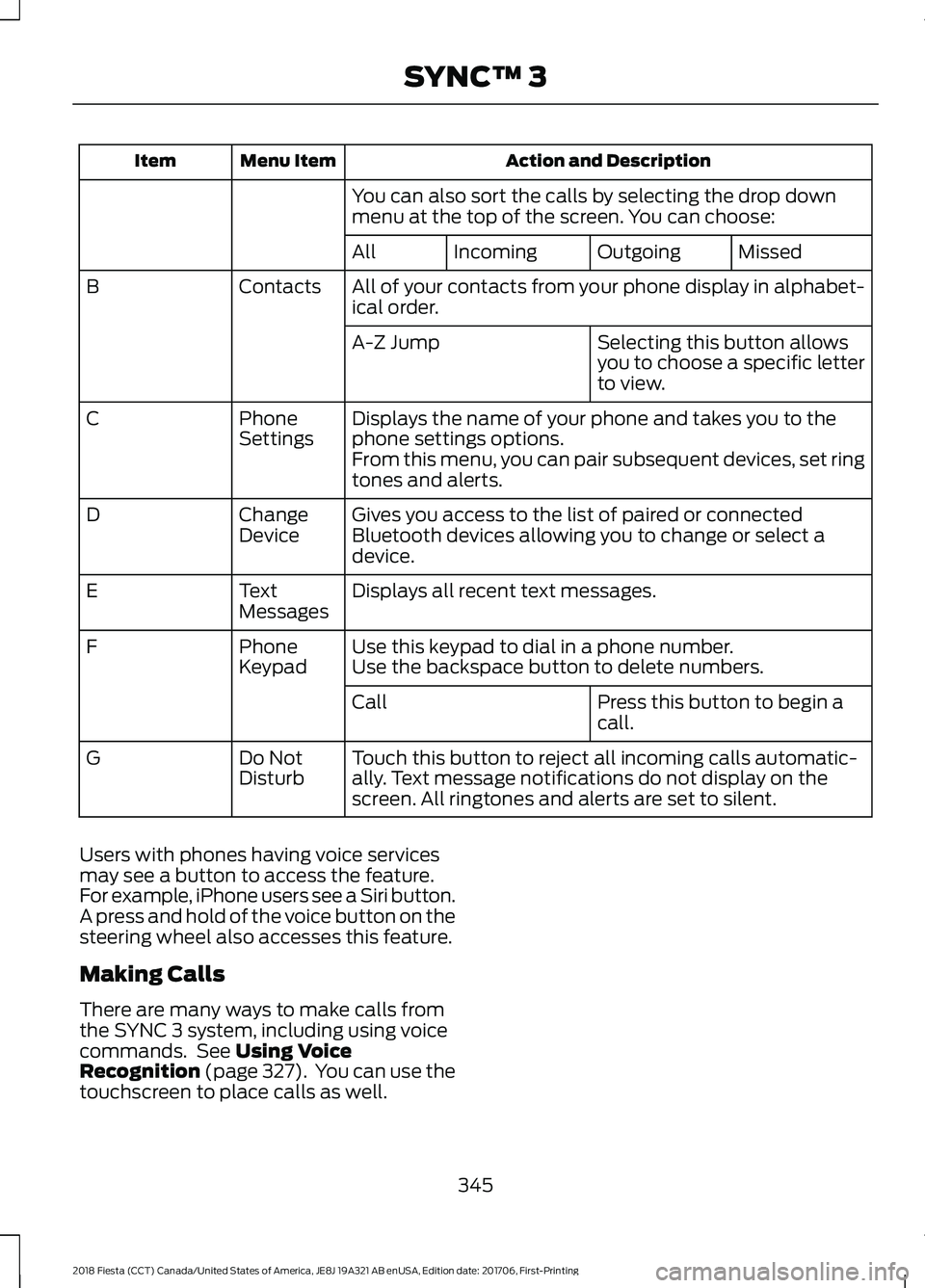
Action and Description
Menu Item
Item
You can also sort the calls by selecting the drop down
menu at the top of the screen. You can choose: Missed
Outgoing
Incoming
All
All of your contacts from your phone display in alphabet-
ical order.
Contacts
B
Selecting this button allows
you to choose a specific letter
to view.
A-Z Jump
Displays the name of your phone and takes you to the
phone settings options.
Phone
Settings
C
From this menu, you can pair subsequent devices, set ring
tones and alerts.
Gives you access to the list of paired or connected
Bluetooth devices allowing you to change or select a
device.
Change
Device
D
Displays all recent text messages.
Text
Messages
E
Use this keypad to dial in a phone number.
Phone
Keypad
F
Use the backspace button to delete numbers.
Press this button to begin a
call.
Call
Touch this button to reject all incoming calls automatic-
ally. Text message notifications do not display on the
screen. All ringtones and alerts are set to silent.
Do Not
Disturb
G
Users with phones having voice services
may see a button to access the feature.
For example, iPhone users see a Siri button.
A press and hold of the voice button on the
steering wheel also accesses this feature.
Making Calls
There are many ways to make calls from
the SYNC 3 system, including using voice
commands. See Using Voice
Recognition (page 327). You can use the
touchscreen to place calls as well.
345
2018 Fiesta (CCT) Canada/United States of America, JE8J 19A321 AB enUSA, Edition date: 201706, First-Printing SYNC™ 3
Page 349 of 449
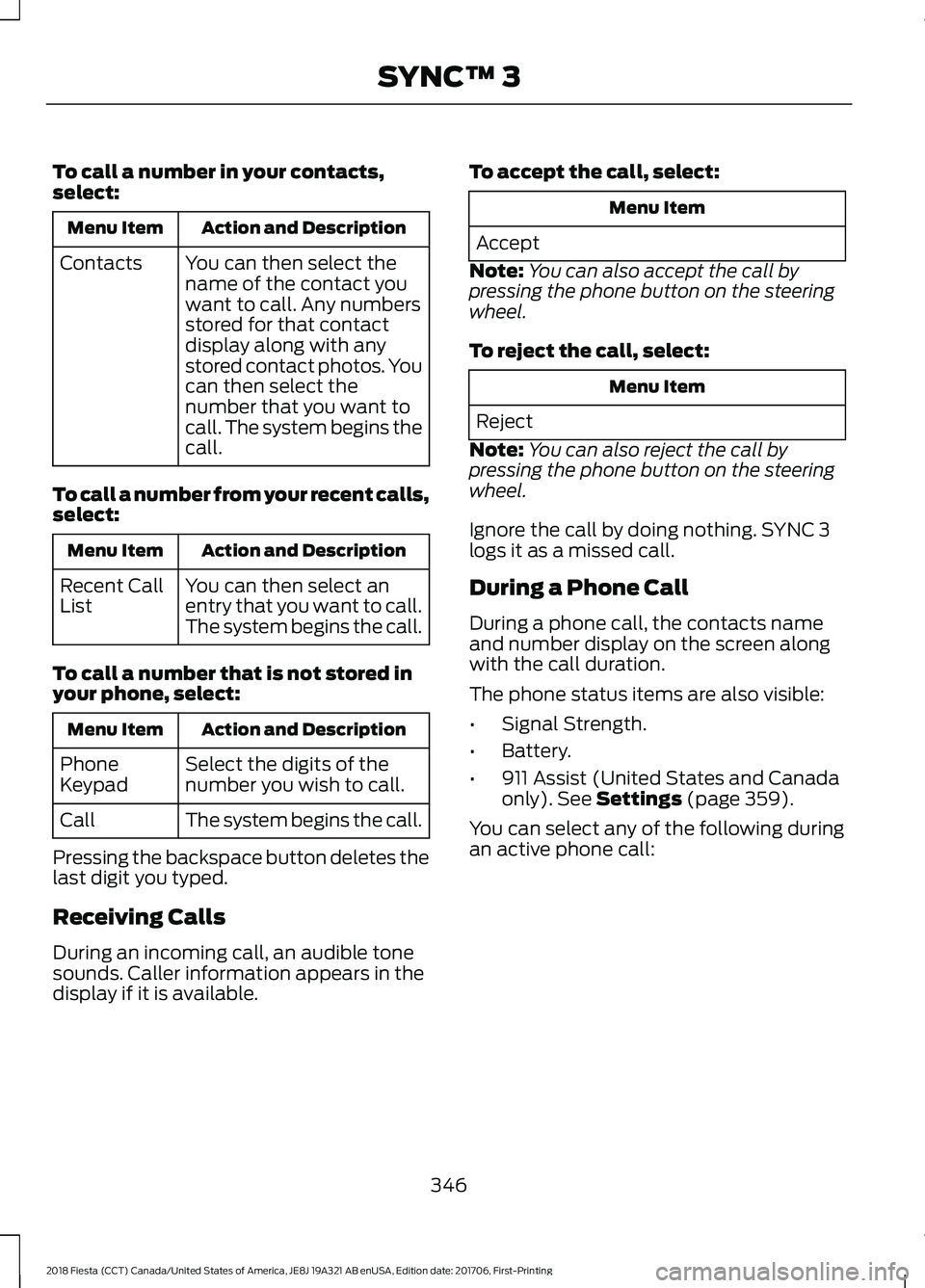
To call a number in your contacts,
select:
Action and Description
Menu Item
You can then select the
name of the contact you
want to call. Any numbers
stored for that contact
display along with any
stored contact photos. You
can then select the
number that you want to
call. The system begins the
call.
Contacts
To call a number from your recent calls,
select: Action and Description
Menu Item
You can then select an
entry that you want to call.
The system begins the call.
Recent Call
List
To call a number that is not stored in
your phone, select: Action and Description
Menu Item
Select the digits of the
number you wish to call.
Phone
Keypad
The system begins the call.
Call
Pressing the backspace button deletes the
last digit you typed.
Receiving Calls
During an incoming call, an audible tone
sounds. Caller information appears in the
display if it is available. To accept the call, select: Menu Item
Accept
Note: You can also accept the call by
pressing the phone button on the steering
wheel.
To reject the call, select: Menu Item
Reject
Note: You can also reject the call by
pressing the phone button on the steering
wheel.
Ignore the call by doing nothing. SYNC 3
logs it as a missed call.
During a Phone Call
During a phone call, the contacts name
and number display on the screen along
with the call duration.
The phone status items are also visible:
• Signal Strength.
• Battery.
• 911 Assist (United States and Canada
only). See Settings (page 359).
You can select any of the following during
an active phone call:
346
2018 Fiesta (CCT) Canada/United States of America, JE8J 19A321 AB enUSA, Edition date: 201706, First-Printing SYNC™ 3
Page 351 of 449

2. Follow the prompts on the
touchscreen.
3. Follow the prompts that appear on your phone to allow access to Apple
CarPlay.
After completing the setup, your phone
connects to CarPlay automatically when
plugged into a USB port.
To disable this feature from the
Settings screen, select: Menu Item
Apple CarPlay Preferences
Your device is listed if SYNC detects
Apple CarPlay. Select the name of your
device and select:
Disable
To return to SYNC 3, go to the Apple
CarPlay home screen and select the SYNC
app.
Note: Contact Apple for Apple CarPlay
support.
Android Auto
Android Auto is compatible with most
devices with Android 5.0 or newer.
1. Download the Android Auto app to your device from Google Play to
prepare your device (this may require
mobile data usage).
Note: The Android Auto App may not be
available within your current market.
2. Plug your device into a USB port. See USB Port (page 275).
3. To switch this feature on from the Settings screen, scroll left on the
screen and select: Menu Item
Android Auto Preferences
Enable Android Auto
Note: Android Auto must be switched on
after plugging in your device.
To disable this feature from the
Settings screen, select: Menu Item
Android Auto Preferences
Your device is listed if SYNC detects
Android Auto. Select the name of your
device and select:
Disable
Note: You may need to slide your Settings
screen to the left to select
Apple CarPlay
Preferences or Android Auto Preferences.
To return to SYNC 3, select the
speedometer icon in the Android Auto
menu bar at the bottom of the
touchscreen, and then touch the option to
return to SYNC.
Note: Contact Google for Android Auto
support.
NAVIGATION
Your navigation system is comprised of
two main features, destination mode and
map mode.
348
2018 Fiesta (CCT) Canada/United States of America, JE8J 19A321 AB enUSA, Edition date: 201706, First-Printing SYNC™ 3
Page 354 of 449
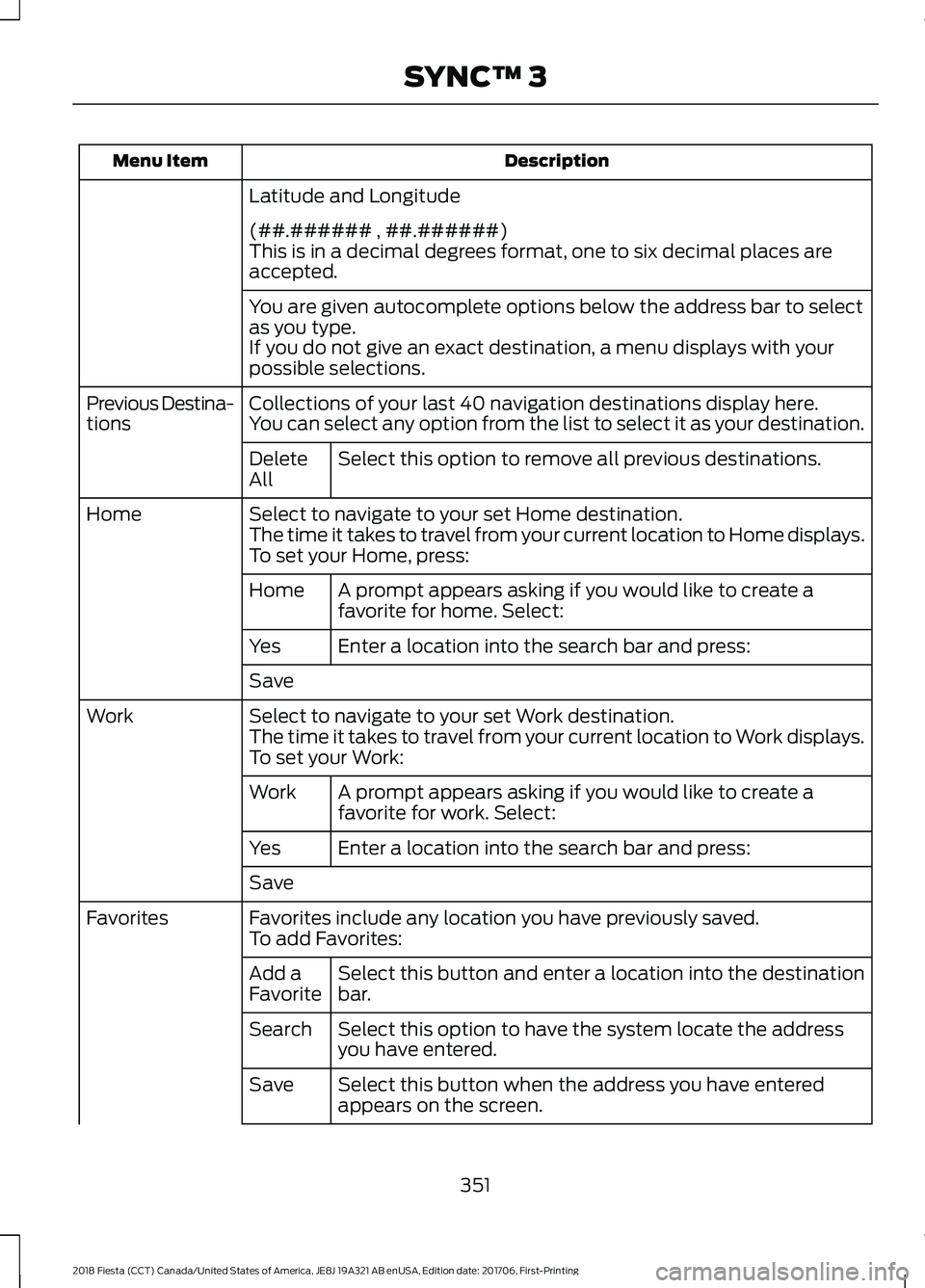
Description
Menu Item
Latitude and Longitude
(##.###### , ##.######)
This is in a decimal degrees format, one to six decimal places are
accepted.
You are given autocomplete options below the address bar to select
as you type.
If you do not give an exact destination, a menu displays with your
possible selections.
Collections of your last 40 navigation destinations display here.
Previous Destina-
tions You can select any option from the list to select it as your destination.
Select this option to remove all previous destinations.
Delete
All
Select to navigate to your set Home destination.
Home
The time it takes to travel from your current location to Home displays.
To set your Home, press:
A prompt appears asking if you would like to create a
favorite for home. Select:
Home
Enter a location into the search bar and press:
Yes
Save
Select to navigate to your set Work destination.
Work
The time it takes to travel from your current location to Work displays.
To set your Work:
A prompt appears asking if you would like to create a
favorite for work. Select:
Work
Enter a location into the search bar and press:
Yes
Save
Favorites include any location you have previously saved.
Favorites
To add Favorites:
Select this button and enter a location into the destination
bar.
Add a
Favorite
Select this option to have the system locate the address
you have entered.
Search
Select this button when the address you have entered
appears on the screen.
Save
351
2018 Fiesta (CCT) Canada/United States of America, JE8J 19A321 AB enUSA, Edition date: 201706, First-Printing SYNC™ 3