2018 FORD F-450 pairing phone
[x] Cancel search: pairing phonePage 533 of 660
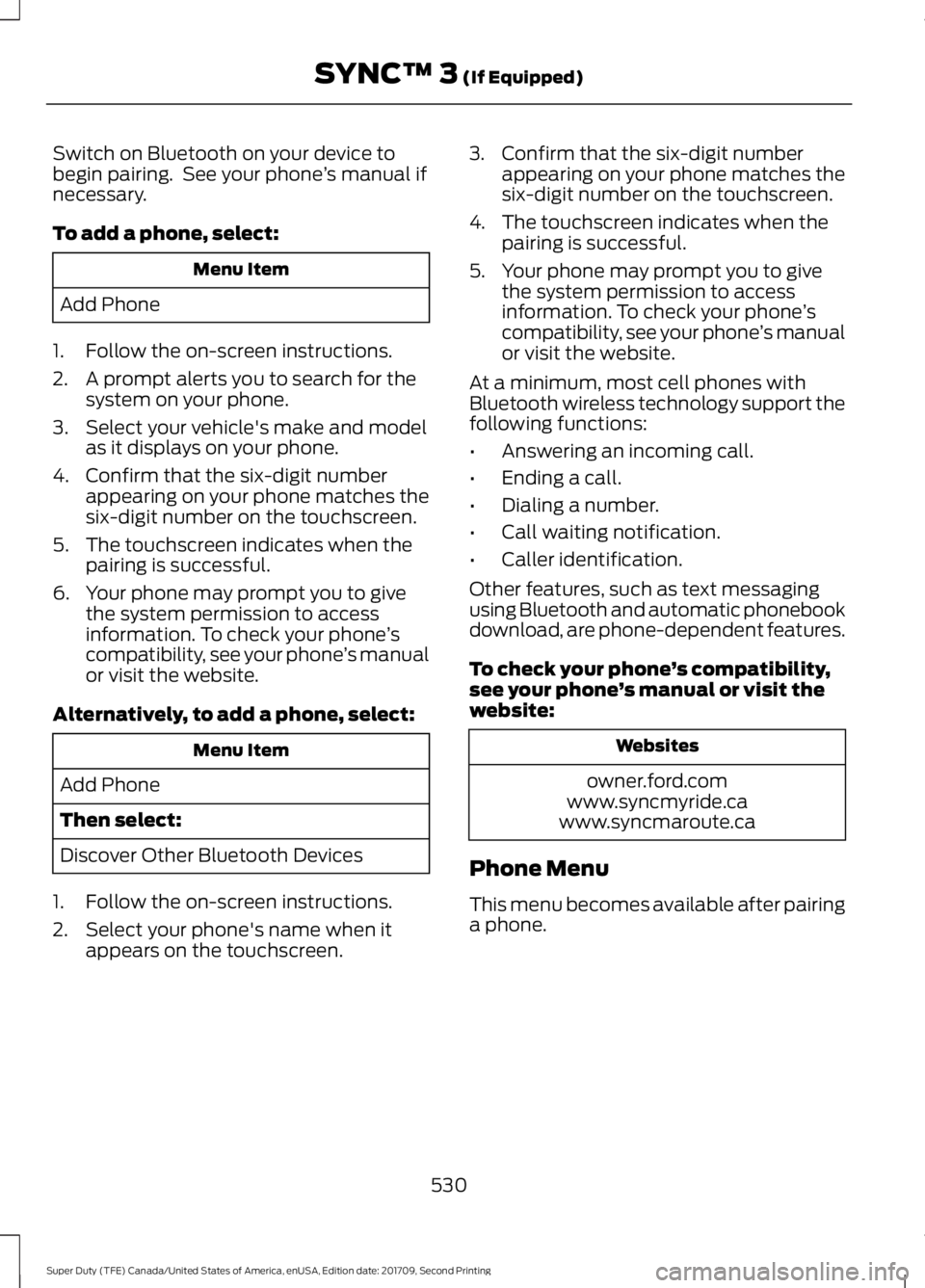
Switch on Bluetooth on your device to
begin pairing. See your phone
’s manual if
necessary.
To add a phone, select: Menu Item
Add Phone
1. Follow the on-screen instructions.
2. A prompt alerts you to search for the system on your phone.
3. Select your vehicle's make and model as it displays on your phone.
4. Confirm that the six-digit number appearing on your phone matches the
six-digit number on the touchscreen.
5. The touchscreen indicates when the pairing is successful.
6. Your phone may prompt you to give the system permission to access
information. To check your phone ’s
compatibility, see your phone ’s manual
or visit the website.
Alternatively, to add a phone, select: Menu Item
Add Phone
Then select:
Discover Other Bluetooth Devices
1. Follow the on-screen instructions.
2. Select your phone's name when it appears on the touchscreen. 3. Confirm that the six-digit number
appearing on your phone matches the
six-digit number on the touchscreen.
4. The touchscreen indicates when the pairing is successful.
5. Your phone may prompt you to give the system permission to access
information. To check your phone ’s
compatibility, see your phone ’s manual
or visit the website.
At a minimum, most cell phones with
Bluetooth wireless technology support the
following functions:
• Answering an incoming call.
• Ending a call.
• Dialing a number.
• Call waiting notification.
• Caller identification.
Other features, such as text messaging
using Bluetooth and automatic phonebook
download, are phone-dependent features.
To check your phone ’s compatibility,
see your phone ’s manual or visit the
website: Websites
owner.ford.com
www.syncmyride.ca
www.syncmaroute.ca
Phone Menu
This menu becomes available after pairing
a phone.
530
Super Duty (TFE) Canada/United States of America, enUSA, Edition date: 201709, Second Printing SYNC™ 3 (If Equipped)
Page 551 of 660

Action and Description
Menu Item
This allows you to view the version level of the Gracenote Database.
Gracenote® Data-
base Info
This allows you to view the manufacturer and model number of your
media device.
Device Informa-
tion
Erase the stored in media information in order to re-index.
Update Media
Index
Clock
To adjust the time, select the up and down
arrows on either side of the screen. The
arrows on the left adjust the hour and
arrows on the right adjust the minute. You
can then select AM or PM. You can adjust the following features:Action and Description
Menu Item
Select how time displays.
Clock Format
When active, the clock adjusts to time zone changes.
Auto Time Zone
Update This feature is only available in vehicles with navigation.
When selected, the vehicle clock resets to GPS satellite time.
Reset Clock to
GPS Time
The system automatically saves any
updates you make to the settings. Bluetooth
Pressing this button allows you to access
the following: Action
Menu Item
Turning Bluetooth off disconnects all devices and does not permit
new connections.
Bluetooth
You must activate Bluetooth to pair a
Bluetooth-enabled device.
The processes of pairing a Bluetooth
device is the same as pairing a phone. See
Pairing a Device in Phone settings for how
to pair a device and the available options. Phone
Pair your Bluetooth-enabled phone with
the system before using the functions in
hands-free mode.
Switch on Bluetooth on your device to
begin pairing. See your phone
’s manual if
necessary.
548
Super Duty (TFE) Canada/United States of America, enUSA, Edition date: 201709, Second Printing SYNC™ 3 (If Equipped)
Page 552 of 660
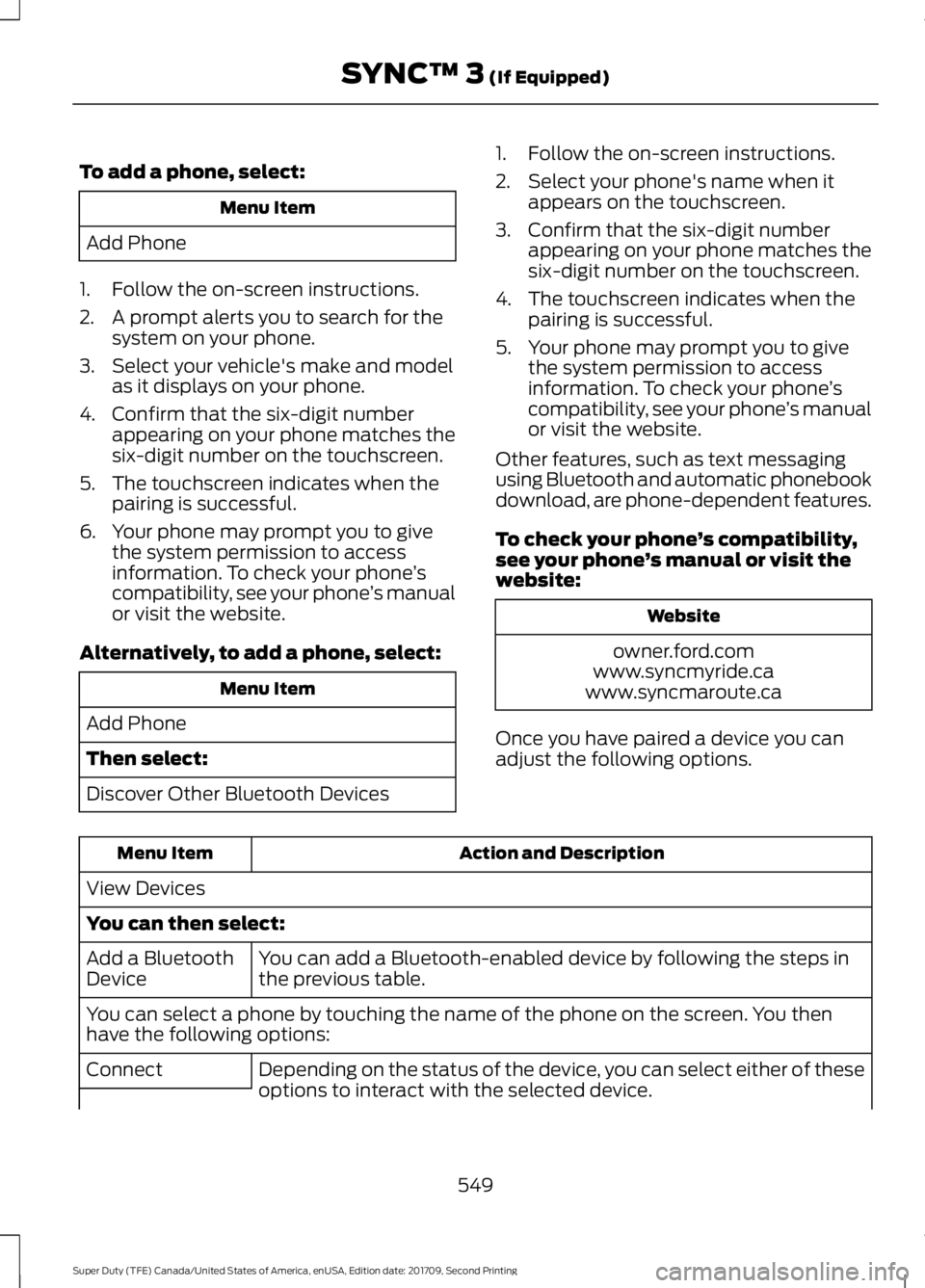
To add a phone, select:
Menu Item
Add Phone
1. Follow the on-screen instructions.
2. A prompt alerts you to search for the system on your phone.
3. Select your vehicle's make and model as it displays on your phone.
4. Confirm that the six-digit number appearing on your phone matches the
six-digit number on the touchscreen.
5. The touchscreen indicates when the pairing is successful.
6. Your phone may prompt you to give the system permission to access
information. To check your phone ’s
compatibility, see your phone ’s manual
or visit the website.
Alternatively, to add a phone, select: Menu Item
Add Phone
Then select:
Discover Other Bluetooth Devices 1. Follow the on-screen instructions.
2. Select your phone's name when it
appears on the touchscreen.
3. Confirm that the six-digit number appearing on your phone matches the
six-digit number on the touchscreen.
4. The touchscreen indicates when the pairing is successful.
5. Your phone may prompt you to give the system permission to access
information. To check your phone ’s
compatibility, see your phone ’s manual
or visit the website.
Other features, such as text messaging
using Bluetooth and automatic phonebook
download, are phone-dependent features.
To check your phone ’s compatibility,
see your phone ’s manual or visit the
website: Website
owner.ford.com
www.syncmyride.ca
www.syncmaroute.ca
Once you have paired a device you can
adjust the following options. Action and Description
Menu Item
View Devices
You can then select: You can add a Bluetooth-enabled device by following the steps in
the previous table.
Add a Bluetooth
Device
You can select a phone by touching the name of the phone on the screen. You then
have the following options:
Depending on the status of the device, you can select either of these
options to interact with the selected device.
Connect
549
Super Duty (TFE) Canada/United States of America, enUSA, Edition date: 201709, Second Printing SYNC™ 3 (If Equipped)
Page 565 of 660
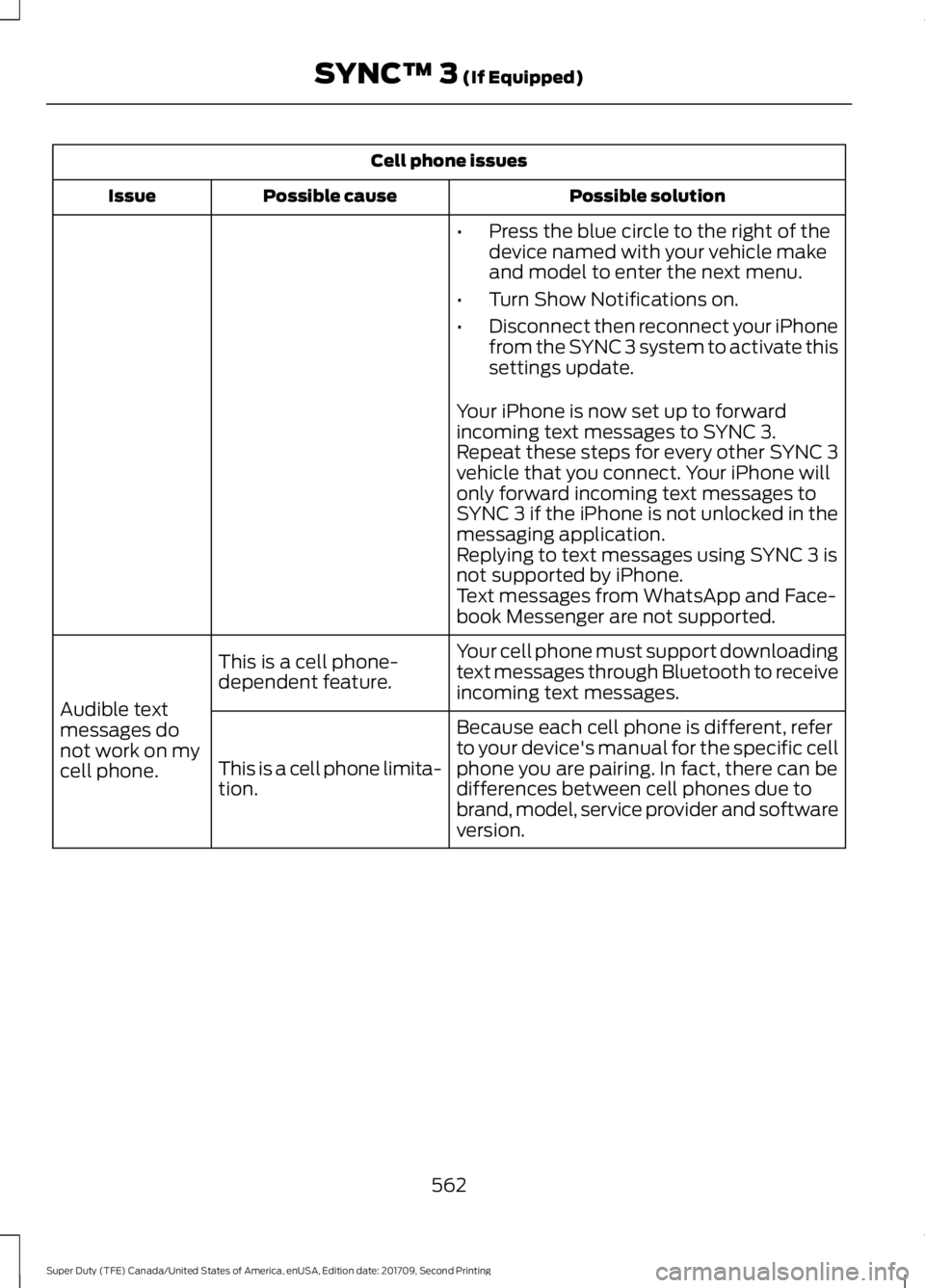
Cell phone issues
Possible solution
Possible cause
Issue
•Press the blue circle to the right of the
device named with your vehicle make
and model to enter the next menu.
• Turn Show Notifications on.
• Disconnect then reconnect your iPhone
from the SYNC 3 system to activate this
settings update.
Your iPhone is now set up to forward
incoming text messages to SYNC 3.
Repeat these steps for every other SYNC 3
vehicle that you connect. Your iPhone will
only forward incoming text messages to
SYNC 3 if the iPhone is not unlocked in the
messaging application.
Replying to text messages using SYNC 3 is
not supported by iPhone.
Text messages from WhatsApp and Face-
book Messenger are not supported.
Your cell phone must support downloading
text messages through Bluetooth to receive
incoming text messages.
This is a cell phone-
dependent feature.
Audible text
messages do
not work on my
cell phone. Because each cell phone is different, refer
to your device's manual for the specific cell
phone you are pairing. In fact, there can be
differences between cell phones due to
brand, model, service provider and software
version.
This is a cell phone limita-
tion.
562
Super Duty (TFE) Canada/United States of America, enUSA, Edition date: 201709, Second Printing SYNC™ 3 (If Equipped)
Page 655 of 660

Manual Climate Control............................146
Manual Seats.................................................156
Manual Lumbar .................................................. 157
Moving the Seat Backward and Forward.............................................................. 157
Recline Adjustment............................................ 157
Memory Function.........................................159 Easy Entry and Exit Feature........................... 160
Linking a PreSet Position to your Remote Control or Intelligent Access Key Fob
........................................................................\
...... 160
Recalling a Preset Position............................. 160
Saving a Preset Position.................................. 160
Message Center See: Information Displays................................. 113
Mirrors See: Windows and Mirrors............................... 98
Mobile Communications Equipment......14
Moonroof.........................................................103 Bounce-Back....................................................... 104
Opening and Closing the Moonroof............103
Motorcraft Parts - 6.2L..............................422
Motorcraft Parts - 6.7L Diesel.................423
Motorcraft Parts - 6.8L..............................424
MyKey Troubleshooting
...............................65
MyKey ™.............................................................63
Principle of Operation........................................ 63
N
Navigation......................................................535 cityseeker.............................................................. 542
Destination Mode............................................... 537
Map Mode............................................................ 536
Navigation Map Updates................................ 543
Navigation Menu............................................... 540
SiriusXM Traffic and Travel Link................... 543
SYNC AppLink.................................................... 542
Waypoints............................................................. 541
Normal Scheduled Maintenance
..........584
Diesel Engine...................................................... 586
Gasoline Engine................................................. 585
O
Oil Change Indicator Reset.......................337 Oil Check
See: Engine Oil Check - 6.2L/6.8L...............333
See: Engine Oil Check - 6.7L Diesel............334
Opening and Closing the Hood..............328
Ordering Additional Owner's Literature.......................................................314
Obtaining a French Owner ’s Manual..........315
Overhead Console
........................................172
P
Parking Aids
...................................................235
Principle of Operation...................................... 235
Parking Brake.................................................227
Passive Anti-Theft System
.........................76
SecuriLock®........................................................... 76
PATS See: Passive Anti-Theft System..................... 76
Pedals................................................................86
Perchlorate.........................................................12
Phone...............................................................529 During a Phone Call.......................................... 533
Making Calls.........................................................532
Pairing Your Cell Phone for the First Time................................................................... 529
Phone Menu........................................................ 530
Receiving Calls.................................................... 533
Smartphone Connectivity.............................. 534
Text Messaging................................................... 534
Post-Crash Alert System..........................307
Power Door Locks See: Locking and Unlocking............................. 67
Power Running Boards................................80
Power Seats....................................................157 Multi-Contour Front Seats With Active
Motion ............................................................... 158
Power Lumbar..................................................... 158
Power Steering Fluid Check....................350
Power Take-Off.............................................213
Power Windows
.............................................98
Accessory Delay................................................... 99
Bounce-Back......................................................... 98
One-Touch Up or Down.................................... 98
Window Lock......................................................... 99
Protecting the Environment........................16
Puncture See: Changing a Road Wheel....................... 408
652
Super Duty (TFE) Canada/United States of America, enUSA, Edition date: 201709, Second Printing Index
Page 659 of 660

Using Adaptive Cruise Control...............244
Automatic Cancellation................................... 247
Blocked Sensor.................................................. 248
Canceling the Set Speed................................. 247
Changing the Set Speed................................. 247
Detection Issues................................................. 247
Following a Vehicle........................................... 245
Hilly Condition and Trailer Tow Usage................................................................. 247
Overriding the Set Speed............................... 246
Resuming the Set Speed................................. 247
Setting the Adaptive Cruise Speed.............245
Setting the Gap Distance............................... 246
Switching Adaptive Cruise Control Off....................................................................... 247
Switching Adaptive Cruise Control On....................................................................... 244
Switching to Normal Cruise Control...........249
System Not Available...................................... 248
Using Cruise Control...................................243 Switching Cruise Control Off......................... 243
Switching Cruise Control On......................... 243
Using Four-Wheel Drive.............................214 4WD Indicator Lights......................................... 215
Driving Off-Road With Truck and Utility Vehicles............................................................. 218
Electronic Shift-On-the-Fly (ESOF) 4WD system................................................................ 214
How Your Vehicle Differs From Other Vehicles............................................................. 218
Manual Shift On Stop (MSOS) 4WD system................................................................ 214
Using a Manual Shift On Stop (MSOS) 4WD system.................................................... 215
Using the Electronic Shift on the Fly 4WD system................................................................ 217
Using Hill Descent Control.......................233
Hill descent modes........................................... 233
Using MyKey With Remote Start Systems..........................................................65
Using Power Running Boards
...................80
Automatic Power Deploy.................................. 80
Automatic Power Stow..................................... 80
Bounce-back.......................................................... 81
Enabling and Disabling....................................... 81
Manual Power Deploy........................................ 80
Using Snow Chains....................................400 Using Stability Control................................231
AdvanceTrac® with Roll Stability Control ™
(RSC®).............................................................. 231
Using SYNC™ With Your Media Player.............................................................481
Accessing Your USB Song Library...............485
Bluetooth Devices and System Settings............................................................ 487
Connecting Your Digital Media Player to the USB Port........................................................... 481
Media Menu Features...................................... 484
Media Voice Commands................................ 482
USB 2...................................................................... 487
Voice Commands for Audio Sources.........488
Using SYNC™ With Your Phone...........464 Accessing Features through the Phone
Menu................................................................. 469
Accessing Your Phone Settings.................... 472
Bluetooth Devices.............................................. 473
Making Calls........................................................ 468
Pairing a Phone for the First Time..............465
Pairing Subsequent Phones......................... 466
Phone Options during an Active Call........468
Phone Voice Commands............................... 466
Receiving Calls................................................... 468
System Settings................................................. 474
Text Messaging................................................... 470
Using Traction Control
...............................229
Switching the System Off.............................. 229
System Indicator Lights and Messages......................................................... 229
Using Voice Recognition...........................462 Audio Voice Commands................................... 511
Climate Voice Commands.............................. 512
Initiating a Voice Session................................ 462
Mobile App Voice Commands....................... 515
Navigation Voice Commands........................ 514
Phone Voice Commands................................. 512
SiriusXM Traffic and Travel Link Voice Commands...................................................... 515
System Interaction and Feedback..............463
Voice Settings Commands............................. 516
Utilizing the Mediation/Arbitration Program (Canada Only)
..........................313
656
Super Duty (TFE) Canada/United States of America, enUSA, Edition date: 201709, Second Printing Index