Page 493 of 696

Mileage or time passed (whichever comes first)
20,000
30,000
40,000
50,000
60,000
70,000
80,000
90,000
100,000
110,000
120,000
130,000
140,000
150,000
Or Years: 2 3 4 5 6 7 8 9 10 11 12 13 14 15
Or Kilometers:
32,000
48,000
64,000
80,000
96,000
112,000
128,000
144,000
160,000
176,000
192,000
208,000
224,000
240,000
Additional Inspections
Inspect the CV joints. X X X X X X X
Inspect front suspension, boot seals, tie rod ends,
and replace if necessary. XXX X X X X
Inspect the brake linings, parking brake function. X X X X X X X
Inspect front accessory drive belt, tensioner, idler pul-
ley, and replace if necessary X
Additional Maintenance
Replace engine air cleaner filter. XX X XX
Replace air conditioning/cabin air filter. X X X X X X X
Replace spark plugs** X
Flush and replace the engine coolant at 10 years or
150,000 miles (240,000 km) whichever comes first. XX
Inspect and replace PCV valve if necessary. X
** The spark plug change interval is mileage based only,
yearly intervals do not apply.
8
SERVICING AND MAINTENANCE 491
Page 494 of 696
WARNING!
•You can be badly injured working on or around a
motor vehicle. Do only service work for which you
have the knowledge and the right equipment. If you
have any doubt about your ability to perform a
service job, take your vehicle to a competent me-
chanic.
• Failure to properly inspect and maintain your vehicle
could result in a component malfunction and effect
vehicle handling and performance. This could cause
an accident.
Heavy Duty Use Of The Vehicle
Change engine oil at 4,000 miles (6,500 km) or 350 hours of
engine run time if the vehicle is operated in a dusty and off
road environment or is operated predominately at idle or
only very low engine RPM’s. This type of vehicle use is
considered Severe Duty.
492 SERVICING AND MAINTENANCE
Page 498 of 696
CAUTION!(Continued)
case. Cable clamps should be tight on the terminal
posts and free of corrosion.
• If a “fast charger” is used while the battery is in the
vehicle, disconnect both vehicle battery cables before
connecting the charger to the battery. Do not use a
“fast charger” to provide starting voltage.
DEALER SERVICE
An authorized dealer has the qualified service personnel,
special tools, and equipment to perform all service opera-
tions in an expert manner. Service Manuals are available
which include detailed service information for your ve-
hicle. Refer to these Service Manuals before attempting any
procedure yourself.
NOTE: Intentional tampering with emissions control sys-
tems may void your warranty and could result in civil
penalties being assessed against you.
WARNING!
You can be badly injured working on or around a
motor vehicle. Only do service work for which you
have the knowledge and the proper equipment. If you
have any doubt about your ability to perform a service
job, take your vehicle to a competent mechanic.
Engine Oil
Change Engine Oil
Refer to “Scheduled Servicing” in this section for the
proper maintenance intervals.
NOTE: Under no circumstances should oil change inter-
vals exceed 10,000 miles (16,000 km), 12 months or 350
hours of engine run time, whichever comes first. The 350
hours of engine run or idle time is generally only a concern
for fleet customers.
Gasoline Engine Oil Selection
For best performance and maximum protection under all
types of operating conditions, the manufacturer only rec-
ommends engine oils that are API Certified and meet the
requirements of FCA Material Standard MS-6395.
496 SERVICING AND MAINTENANCE
Page 511 of 696
have an authorized technician inspect the complete ex-
haust system and adjacent body areas for broken, dam-
aged, deteriorated, or mispositioned parts. Open seams or
loose connections could permit exhaust fumes to seep into
the passenger compartment. In addition, have the exhaust
system inspected each time the vehicle is raised for lubri-
cation or oil change. Replace as required.
WARNING!
•Exhaust gases can injure or kill. They contain carbon
monoxide (CO), which is colorless and odorless.
Breathing it can make you unconscious and can
eventually poison you. To avoid breathing CO, refer
to “Safety Tips” in “Safety” for further information.
• A hot exhaust system can start a fire if you park over
materials that can burn. Such materials might be
grass or leaves coming into contact with your exhaust
system. Do not park or operate your vehicle in areas
where your exhaust system can contact anything that
can burn.
CAUTION!
•The catalytic converter requires the use of unleaded
fuel only. Leaded gasoline will destroy the effective-
ness of the catalyst as an emissions control device
and may seriously reduce engine performance and
cause serious damage to the engine.
• Damage to the catalytic converter can result if your
vehicle is not kept in proper operating condition. In
the event of engine malfunction, particularly involv-
ing engine misfire or other apparent loss of perfor-
mance, have your vehicle serviced promptly. Contin-
ued operation of your vehicle with a severe
malfunction could cause the converter to overheat,
resulting in possible damage to the converter and
vehicle.
Under normal operating conditions, the catalytic converter
will not require maintenance. However, it is important to
keep the engine properly tuned to assure proper catalyst
operation and prevent possible catalyst damage.
NOTE: Intentional tampering with emissions control sys-
tems can result in civil penalties being assessed against
you.
8
SERVICING AND MAINTENANCE 509
Page 564 of 696
UCONNECT SYSTEMS
For detailed information about your Uconnect system,
refer to your Uconnect Owner ’s Manual Supplement.
NOTE:Uconnect screen images are for illustration pur-
poses only and may not reflect exact software for your
vehicle.
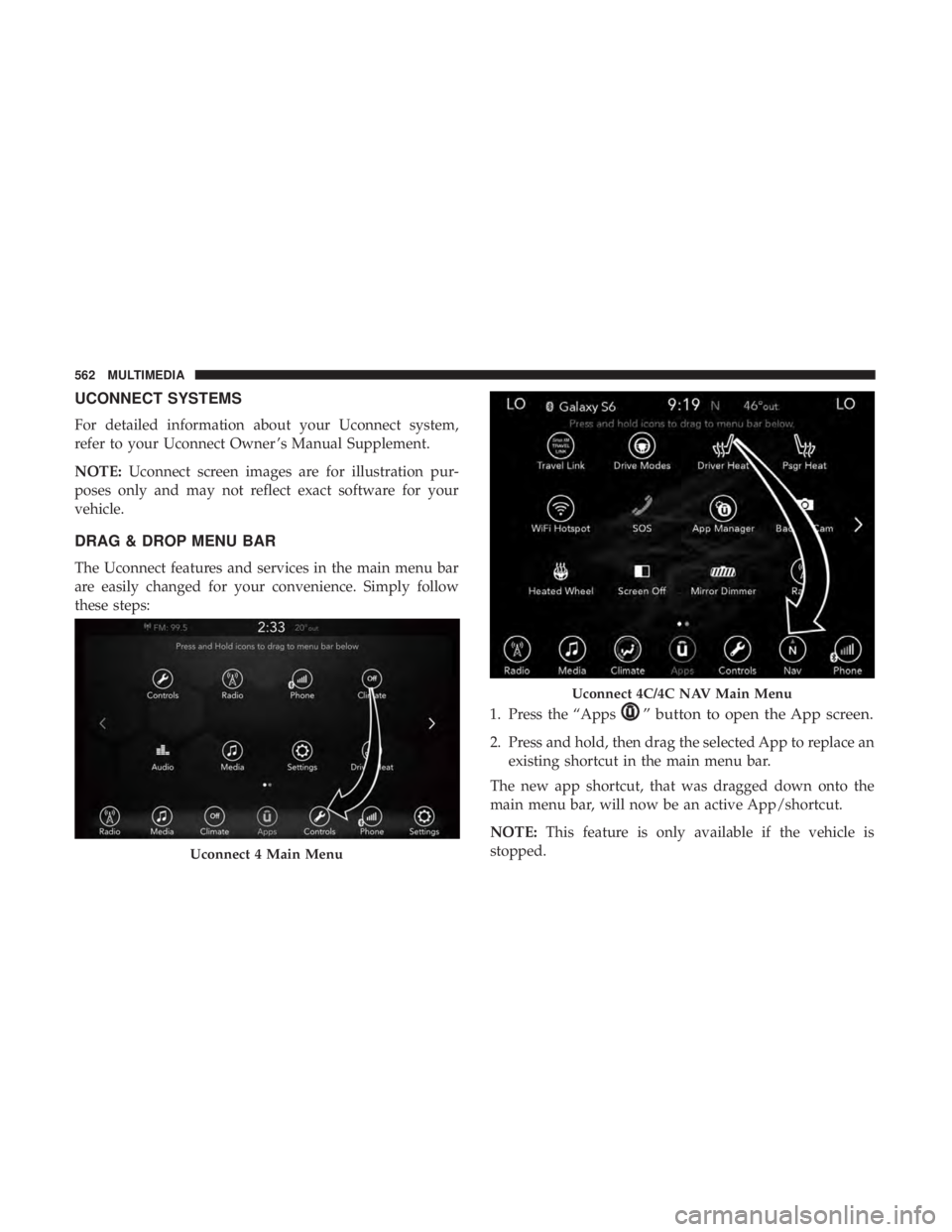
DRAG & DROP MENU BAR
The Uconnect features and services in the main menu bar
are easily changed for your convenience. Simply follow
these steps:
1. Press the “Apps
” button to open the App screen.
2. Press and hold, then drag the selected App to replace anexisting shortcut in the main menu bar.
The new app shortcut, that was dragged down onto the
main menu bar, will now be an active App/shortcut.
NOTE: This feature is only available if the vehicle is
stopped.
Uconnect 4 Main Menu
Uconnect 4C/4C NAV Main Menu
562 MULTIMEDIA
Page 566 of 696
NOTE:
•FCA US LLC or your dealer may contact you directly
regarding software updates.
• To help further improve vehicle security and minimize
the potential risk of a security breach, vehicle owners
should:
• Routinely check www.driveuconnect.com/support/
software-update.html (U.S. Residents) or www.driveu-
connect.ca (Canadian Residents) to learn about avail-
able Uconnect software updates.
• Only connect and use trusted media devices (e.g.
personal mobile phones, USBs, CDs).
Privacy of any wireless and wired communications cannot
be assured. Third parties may unlawfully intercept infor-
mation and private communications without your consent.
For further information, refer to “Data Collection & Pri-
vacy” in your Uconnect Owner ’s Manual Supplement or
“Onboard Diagnostic System (OBD II) Cybersecurity” in
“Getting To Know Your Instrument Panel”.UCONNECT SETTINGS
The Uconnect system uses a combination of buttons on the
touchscreen and/or buttons on the faceplate located on the
center of the instrument panel that allow you to access and
change the customer programmable features. Many fea-
tures can vary by vehicle.
Buttons on the touchscreen are accessible on the Uconnect
touchscreen.
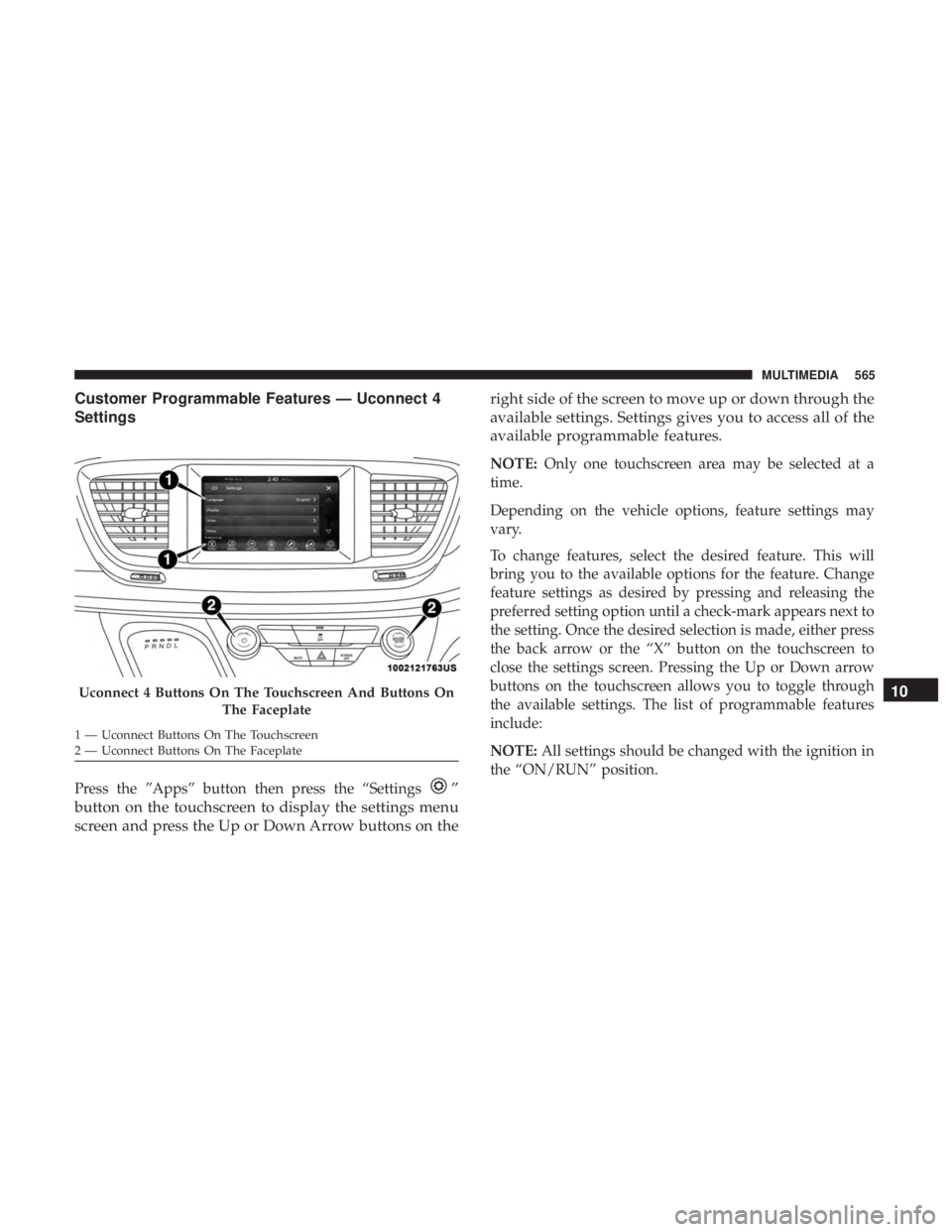
Buttons on the faceplate are located below, and in the
center of the instrument panel. In addition, there is a
Scroll/Enter control knob located on the right side. Turn
the control knob to scroll through menus and change
settings (i.e., 30, 60, 90), push the center of the control knob
one or more times to select or change a setting (i.e., ON,
OFF).
Your Uconnect system may also have Screen Off and back
arrow buttons on the faceplate.
Push the Screen Off button on the faceplate to turn off the
Uconnect screen. Push the Screen Off button on the face-
plate a second time to turn the screen on.
Push the Back Arrow button on the faceplate to exit out of
a Menu or certain option on the Uconnect system.
564 MULTIMEDIA
Page 567 of 696
Customer Programmable Features — Uconnect 4
Settings
Press the ”Apps” button then press the “Settings”
button on the touchscreen to display the settings menu
screen and press the Up or Down Arrow buttons on the right side of the screen to move up or down through the
available settings. Settings gives you to access all of the
available programmable features.
NOTE:
Only one touchscreen area may be selected at a
time.
Depending on the vehicle options, feature settings may
vary.
To change features, select the desired feature. This will
bring you to the available options for the feature. Change
feature settings as desired by pressing and releasing the
preferred setting option until a check-mark appears next to
the setting. Once the desired selection is made, either press
the back arrow or the “X” button on the touchscreen to
close the settings screen. Pressing the Up or Down arrow
buttons on the touchscreen allows you to toggle through
the available settings. The list of programmable features
include:
NOTE: All settings should be changed with the ignition in
the “ON/RUN” position.
Uconnect 4 Buttons On The Touchscreen And Buttons On
The Faceplate
1 — Uconnect Buttons On The Touchscreen
2 — Uconnect Buttons On The Faceplate
10
MULTIMEDIA 565
Page 571 of 696
Display
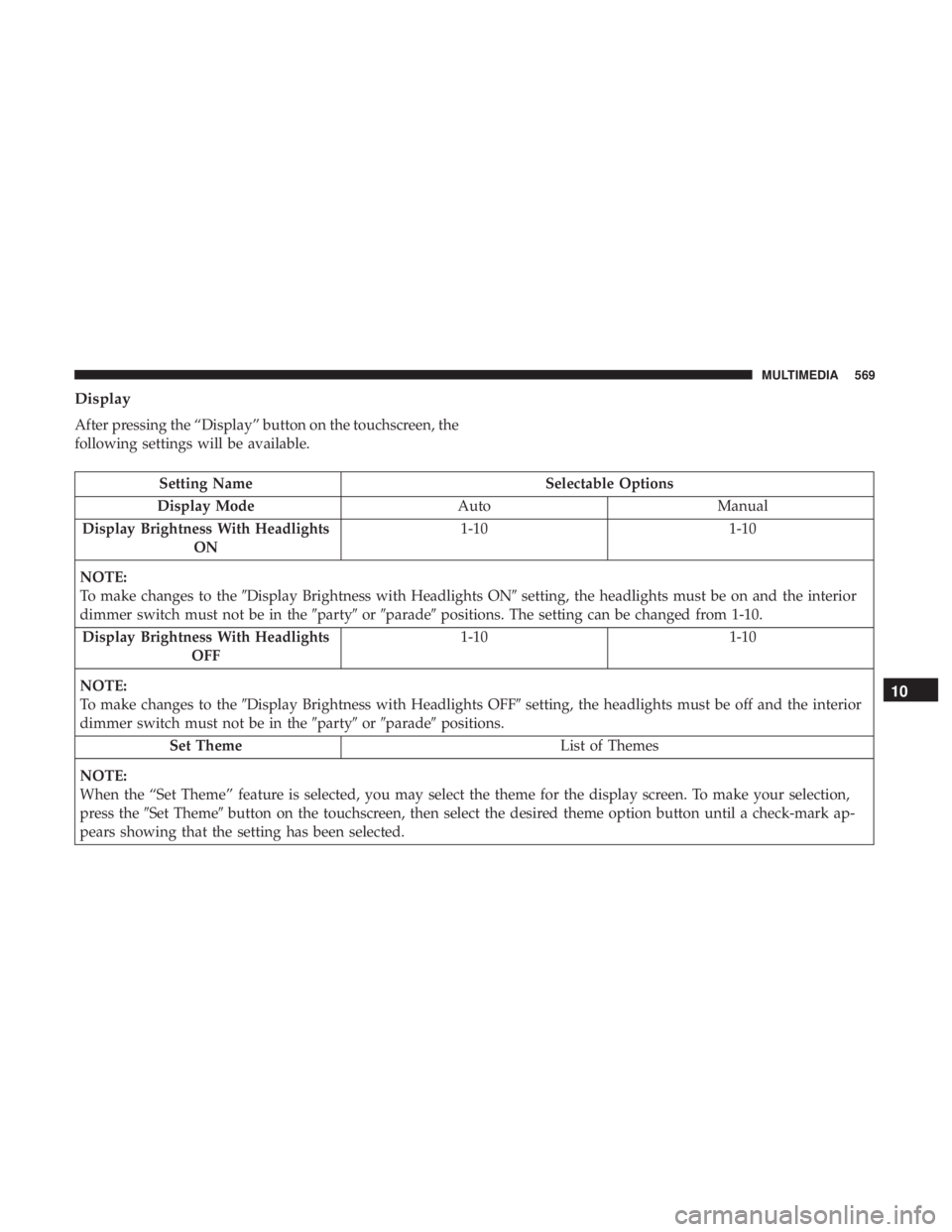
After pressing the “Display” button on the touchscreen, the
following settings will be available.
Setting NameSelectable Options
Display Mode AutoManual
Display Brightness With Headlights ON 1-10
1-10
NOTE:
To make changes to the �Display Brightness with Headlights ON� setting, the headlights must be on and the interior
dimmer switch must not be in the �party�or�parade� positions. The setting can be changed from 1-10.
Display Brightness With Headlights OFF 1-10
1-10
NOTE:
To make changes to the �Display Brightness with Headlights OFF� setting, the headlights must be off and the interior
dimmer switch must not be in the �party�or�parade� positions.
Set Theme List of Themes
NOTE:
When the “Set Theme” feature is selected, you may select the theme for the display screen. To make your selection,
press the �Set Theme� button on the touchscreen, then select the desired theme option button until a check-mark ap-
pears showing that the setting has been selected.
10
MULTIMEDIA 569