2018 CHRYSLER PACIFICA change time
[x] Cancel search: change timePage 132 of 696

Automatic Temperature Control (ATC) — If
Equipped
Automatic Operation
1. Push the AUTO button on the faceplate, or the AUTObutton on the touchscreen on the Automatic Tempera-
ture Control (ATC) Panel.
2. Next, adjust the temperature you would like the system to maintain by adjusting the driver and passenger
temperature control buttons. Once the desired tempera-
ture is displayed, the system will achieve and automati-
cally maintain that comfort level.
3. When the system is set up for your comfort level, it is not necessary to change the settings. You will experience
the greatest efficiency by simply allowing the system to
function automatically.
NOTE:
• It is not necessary to move the temperature settings for
cold or hot vehicles. The system automatically adjusts
the temperature, mode, and blower speed to provide
comfort as quickly as possible.
• The temperature can be displayed in U.S. or Metric units
by selecting the US/Metric customer-programmable fea- ture. Refer to the “Uconnect Settings” in “Multimedia”
for further information.
To provide you with maximum comfort in the Automatic
mode during cold start-ups, the blower fan will remain on
low until the engine warms up. The blower will increase in
speed and transition into Auto mode.
Manual Operation Override
This system offers a full complement of manual override
features. The AUTO symbol in the front ATC display will
be turned off when the system is being used in the manual
mode.
Operating Tips
NOTE: Refer to the chart at the end of this section for
suggested control settings for various weather conditions.
Summer Operation
The engine cooling system must be protected with a
high-quality antifreeze coolant to provide proper corrosion
protection and to protect against engine overheating. OAT
coolant (conforming to MS.90032) is recommended. Refer
to “Fluids And Lubricants” in “Technical Specifications”
for proper coolant selection.
130 GETTING TO KNOW YOUR VEHICLE
Page 158 of 696
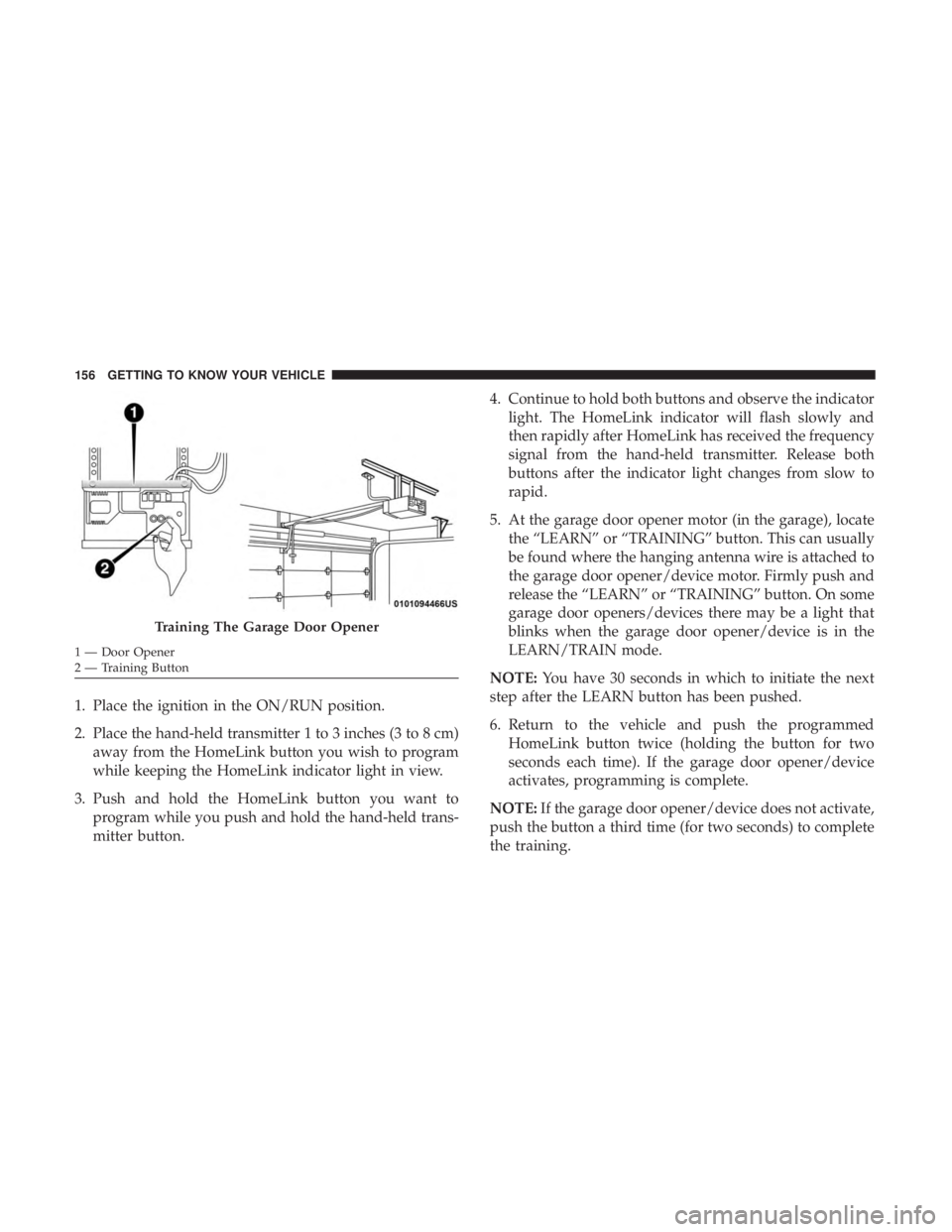
1. Place the ignition in the ON/RUN position.
2. Place the hand-held transmitter 1 to 3 inches (3 to 8 cm)away from the HomeLink button you wish to program
while keeping the HomeLink indicator light in view.
3. Push and hold the HomeLink button you want to program while you push and hold the hand-held trans-
mitter button. 4. Continue to hold both buttons and observe the indicator
light. The HomeLink indicator will flash slowly and
then rapidly after HomeLink has received the frequency
signal from the hand-held transmitter. Release both
buttons after the indicator light changes from slow to
rapid.
5. At the garage door opener motor (in the garage), locate the “LEARN” or “TRAINING” button. This can usually
be found where the hanging antenna wire is attached to
the garage door opener/device motor. Firmly push and
release the “LEARN” or “TRAINING” button. On some
garage door openers/devices there may be a light that
blinks when the garage door opener/device is in the
LEARN/TRAIN mode.
NOTE: You have 30 seconds in which to initiate the next
step after the LEARN button has been pushed.
6. Return to the vehicle and push the programmed HomeLink button twice (holding the button for two
seconds each time). If the garage door opener/device
activates, programming is complete.
NOTE: If the garage door opener/device does not activate,
push the button a third time (for two seconds) to complete
the training.
Training The Garage Door Opener
1 — Door Opener
2 — Training Button 156 GETTING TO KNOW YOUR VEHICLE
Page 160 of 696
2. Press and hold the desired HomeLink button until theindicator light begins to flash after 20 seconds. Do not
release the button.
3. Without releasing the button, proceed with “Program- ming A Non-Rolling Code” step 2 and follow all remain-
ing steps.
Canadian/Gate Operator Programming
For programming transmitters in Canada/United States
that require the transmitter signals to “time-out” after
several seconds of transmission.
Canadian radio frequency laws require transmitter signals
to time-out (or quit) after several seconds of transmission –
which may not be long enough for HomeLink to pick up
the signal during programming. Similar to this Canadian
law, some U.S. gate operators are designed to time-out in
the same manner.
It may be helpful to unplug the device during the cycling
process to prevent possible overheating of the garage door
or gate motor.
1. Cycle the ignition to the ON/RUN position. 2. Place the hand-held transmitter 1 to 3 inches (3 to 8 cm)
away from the HomeLink button you wish to program
while keeping the HomeLink indicator light in view.
3. Continue to press and hold the HomeLink button, while you press and release (“cycle”) your hand-held trans-
mitter every two seconds until HomeLink has success-
fully accepted the frequency signal. The indicator light
will flash slowly and then rapidly when fully trained.
4. Watch for the HomeLink indicator to change flash rates. When it changes, it is programmed. It may take up to 30
seconds or longer in rare cases. The garage door may
open and close while you are programming.
5. Press and hold the programmed HomeLink button and observe the indicator light.
NOTE: •If the indicator light stays on constantly, programming
is complete and the garage door/device should acti-
vate when the HomeLink button is pressed.
• To program the two remaining HomeLink buttons,
repeat each step for each remaining button. DO NOT
erase the channels.
158 GETTING TO KNOW YOUR VEHICLE
Page 189 of 696
Driver Assist — If Equipped
•ACC/LaneSense
Fuel Economy
• Average Fuel Economy Value (Hold Ok To Reset)
• Range
• Current Fuel Economy Gauge
Trip (Trip A/Trip B)
• Distance
• Average MPG
• Elapsed Time
• (Hold OK to Reset All)
Audio
• Current Media Source
• Song title
• Artist (If Available)
• Phone Call Status
Messages
Screen Setup
Stop/Start — If EquippedOil Life Reset
• Your vehicle is equipped with an engine oil change
indicator system. The “Oil Change Required” message
will display for approximately five seconds after a single
chime has sounded, to indicate the next scheduled oil
change interval. The engine oil change indicator system
is duty cycle based, which means the engine oil change
interval may fluctuate, dependent upon your personal
driving style.
• Unless reset, this message will continue to display each
time the ignition is cycled to the ON/RUN position.
• To reset the oil change indicator after performing the
scheduled maintenance, refer to the following proce-
dure.
Oil Life Reset
Without pressing the brake pedal, push the ENGINE
START/STOP button and place the ignition in the ON/
RUN position (do not start the vehicle.)
1. Push the OKbutton to enter the instrument cluster
display menu screen.
2. Push and release the downarrow button to access the
”Oil Life” menu screen.
4
GETTING TO KNOW YOUR INSTRUMENT PANEL 187
Page 190 of 696
3. Push theleftarrow button or right arrow button to
access the “Vehicle Info” submenu.
4. Hold the OKbutton to reset the “Oil Life” to 100%.
5. Push the uparrow button to exit the instrument cluster
display menu screen.
Secondary Method For Oil Life Reset Procedure
1. Without pushing the brake pedal, place the ignition in the ON/RUN position (do not start the engine).
2. Fully press the accelerator pedal, slowly, three times within ten seconds. 3. Without pushing the brake pedal, place the ignition in
the OFF/LOCK position.
NOTE: If the indicator message illuminates when you
start the vehicle, the oil change indicator system did not
reset. If necessary, repeat this procedure.
KeySense Cluster Messages — If Equipped
When the KeySense key is in use there will be:
•Continuous, dedicated telltale
• Unique Display Splash Screen
With KeySense in use there will be multiple associated messages shown in the following table:
Setting Instrument Cluster Display Message
None – With vehicle ignition ON “KeySense in use. Max vehicle speed set to xx MPH/or km/h”
Max Vehicle Speed
• “Max speed reached. KeySense in use” supported by a chime
• “Approaching max speed xx MPH/km” supported by a chime
Start Up Fuel Alert message “Range to empty xxx miles or km”
Early Low Fuel Alert Message “Fuel Low”
ParkSense “Feature cannot be disabled. KeySense in use”
Blind Spot “Feature cannot be disabled. KeySense in use”
Forward Collision Warning “Feature cannot be disabled. KeySense in use”
188 GETTING TO KNOW YOUR INSTRUMENT PANEL
Page 193 of 696
Trip Info
Push and release theupordown arrow button until the
Trip Menu item is highlighted in the instrument cluster
display. Push the leftorright arrow button to scroll
through the Trip A and Trip B submenus. The Trip infor-
mation will display the following:
• Distance
• Average Fuel Economy
• Elapsed Time
Hold the OKbutton to reset feature information.
Audio
Push and release the upordown arrow button until the
Audio Menu displays in the instrument cluster display.
Messages
Push and release the upordown arrow button until
Messages is highlighted in the instrument cluster display.
This feature shows the number of stored warning mes-
sages. Pushing the rightarrow button will allow you to see
what the stored messages are.
NOTE: The popup messages indicate the status of the
system and/or the conditions that need to be met. Mes-
sages remain in the stored stack until condition is cleared.
Screen Setup
Push and release the upordown arrow button until the
Screen Setup Menu displays in the instrument cluster
display. Push and release the OKbutton to enter the
submenus. The Screen Setup feature allows you to change
what information is displayed in the instrument cluster as
well as the location that information is displayed.
4
GETTING TO KNOW YOUR INSTRUMENT PANEL 191
Page 224 of 696

WARNING!
•If you use a trailer brake controller with your trailer,
the trailer brakes may be activated and deactivated
with the brake switch. If so, there may not be enough
brake pressure to hold both the vehicle and the
trailer on a hill when the brake pedal is released. In
order to avoid rolling down an incline while resum-
ing acceleration, manually activate the trailer brake
or apply more vehicle brake pressure prior to releas-
ing the brake pedal.
• HSA is not a parking brake. Always apply the
parking brake fully when exiting your vehicle. Also,
be certain to place the transmission in PARK.
• Failure to follow these warnings can result in a
collision or serious personal injury.
Disabling And Enabling HSA
This feature can be turned on or turned off. To change the
current setting, proceed as follows:
• If disabling HSA using Uconnect Settings, refer to
“Uconnect Settings” in “Multimedia” for further infor-
mation.
Rain Brake Support (RBS)
Rain Brake Support may improve braking performance in
wet conditions. It will periodically apply a small amount of
brake pressure to remove any water buildup on the front
brake rotors. It functions when the windshield wipers are
in LO or HI speed. When Rain Brake Support is active,
there is no notification to the driver and no driver interac-
tion is required.
Ready Alert Braking (RAB)
Ready Alert Braking may reduce the time required to reach
full braking during emergency braking situations. It antici-
pates when an emergency braking situation may occur by
monitoring how fast the throttle is released by the driver.
The EBC will prepare the brake system for a panic stop.
Trailer Sway Control (TSC)
TSC uses sensors in the vehicle to recognize an excessively
swaying trailer and will take the appropriate actions to
attempt to stop the sway. TSC will become active automati-
cally once an excessively swaying trailer is recognized.
Note that TSC cannot stop all trailers from swaying.
Always use caution when towing a trailer and follow the
trailer tongue weight recommendations. Refer to “Trailer
222 SAFETY
Page 226 of 696

both sides of the vehicle when the vehicle speed reaches
approximately 6 mph (10 km/h) or higher and will alert
the driver of vehicles in these areas.
NOTE:
•The BSM system DOES NOT alert the driver about
rapidly approaching vehicles that are outside the detec-
tion zones.
• The BSM system detection zone DOES NOT change if
your vehicle is towing a trailer. Therefore, visually verify
the adjacent lane is clear for both your vehicle and trailer
before making a lane change. If the trailer or other object
(i.e., bicycle, sports equipment) extends beyond the side
of your vehicle, this may result in false detections. The
BSM warning light may even remain illuminated the
entire time the vehicle is in a forward gear.
•
The Blind Spot Monitoring (BSM) system may experience
drop outs (blinking on and off) of the side mirror Warning
Indicator lamps when a motorcycle or any small object
remains at the side of the vehicle for extended periods of
time (more than a couple of seconds).
The area on the rear fascia where the radar sensors are
located must remain free of snow, ice, and dirt/road
contamination so that the BSM system can function prop-
erly. Do not block the area of the rear fascia where the radar sensors are located with foreign objects (bumper stickers,
bicycle racks, etc.).
If the system detects degraded performance due to con-
tamination or foreign objects, a message will warn you of a
blocked sensor and the warning indicators in side view
mirrors will be on. The warning indicators will remain
illuminated until blockage clearing conditions are met.
First clear the fascia area around the sensors of the block-
age. After removing the blockage, the following procedure
can be used to reset the system:
•
Cycle the ignition from on to off and then back on.
Sensor Location
224 SAFETY