2018 AUDI TT ROADSTER lock
[x] Cancel search: lockPage 72 of 310

Drivin g
Selector le ver em ergency r ele ase
.,. Press and hold the yellow release bu tton with
the screwdriver
c:::> fig. 76 .
.,. Press the lock button on the se lector lever (D
and move the lever into the N position .
.,. Clip the shift cover back into the shift gate after
us ing the emergency release .
If the ve hicle must be pushed or towed due to a
power failure (for example, the battery is dead),
the selector lever must first be moved to the N position us ing the emergency release mecha
n ism .
A WARNING
-Only activate the emergency release while
on a level su rface or a slight slope.
- Only move the selector lever out of the "P" pos it ion when the parking brake is set. If it
is not funct ioning, secu re the vehicle from
rolling using the b rake pedal o r othe r su ita
ble means, such as bloc king a front and a
rear whee l. An unsecured veh icle may roll
away, which increases the risk of an acci
dent.
Trailer towing
General information
Your Audi TT Roadster is not designed to tow a
trailer .
-
Towing a trailer w ith your Aud i TI Roadster is not
recommended and can cause damage to the car .
Damaged caused by tow ing a trailer is not cov
ered by your Audi Warranty .
70
Page 74 of 310

Ass is tanc e system s
the cruise control from braking. This is be
cause pressing the accelerator pedal over
rides the cruise contro l system .
- If a brake system ma lfunction such as over
heating occurs when the cruise control sys
tem is sw itched on, the braking function in
the system may be switched off . The rest of
the cruise control system functions remain act ive as long as
the @jll)~i~ (USA models) /
i'I (Canada models) indicator light is on.
(j) Tips
The brake lights turn on when the brakes are appl ied automatically .
Changing speed
Applies to: vehicles with cruise control system
.,. To inc rease/decrease the speed in increments,
br iefly
tap the leve r towa rd 0 10 ~ page 71,
fig.
77 up/down to the first level.
.. T o increase o r decrease the speed in incre
ments,
tap the lever toward 0 10 i::> page 71,
fig .
77 up/down to the second leve l.
.. To increase or decrease the speed quickly, hold
the lever in the
0 10 direct ion until the de
s ired speed is reached .
Overriding the speed
Applies to: vehicles with cruise control system
You can press the accelerator pedal to increase
your speed, for example if you want to pass someo ne. The speed yo u set ea rlier w ill res ume
as soon as yo u release the acceler ator pedal.
H owever , if you are driving cons iderably faster
than the stored speed fo r a long period of time,
the cruise co ntrol system w ill tempora rily swi tch
off.
Th e@jll )~i~ (USA mode ls) tl'II ( C anada mod
e ls) indicator light in the inst rument cluste r
turns off and the stored speed is maintained .
Preselecting the speed
Applies to: vehicles with cruise control system
You can pre -select your desired speed when the
vehicle is stationary.
.,. Switc h the ign ition on.
72
.. Pull the lever into position (D ¢ page 71,
fig.
77 .
.. To increase or decrease the speed, tap the lever
toward
0 10 .
This function makes it possible, for example, to
save the speed you want before driving on the
highway. Once you are on the expressway, acti
vate the cruise control system by pulling the lev er into position
(D .
Switching off
Applies to: vehicles with cruise control system
Deactivating temporarily
.. Press the brake pedal, or
.. Press the lever toward @ (not locked into
place)
~ page 71, fig . 77.
Switching off completely
.. Press the lever into position @(clicked into
place), or
.. Switch the ignit ion off .
T he speed you stored will be maintained if the
cruise contro l has been switched off temporarily .
To resume the stored speed, release the brake or
clutch pedal and pull the lever to position
(D .
Switch ing the ignit ion off w ill erase the stored
speed .
A WARNING
You should only resume the stored speed if it
is not too high for existing traff ic conditions.
Othe rw ise you can inc rease the risk of an acc i
dent.
Audi active lane assist
Description
Applies to: vehicles with Audi active lane assist
Active lane assist detects lane marker lines w ith -
i n the lim its of the system using a camera in the
windshield. If you are approach ing a detected
lane marker line and it appears likely that you
will leave the lane, the system w ill warn you with
cor rective stee ring . You can over ride this stee ring
at any t ime. If you pass ove r a line, the stee ring
1111>
Page 85 of 310
Cl co .... N ,....
N ...... 0 ,....
Vl co
General information
Applies to: ve hicles with rearview camera
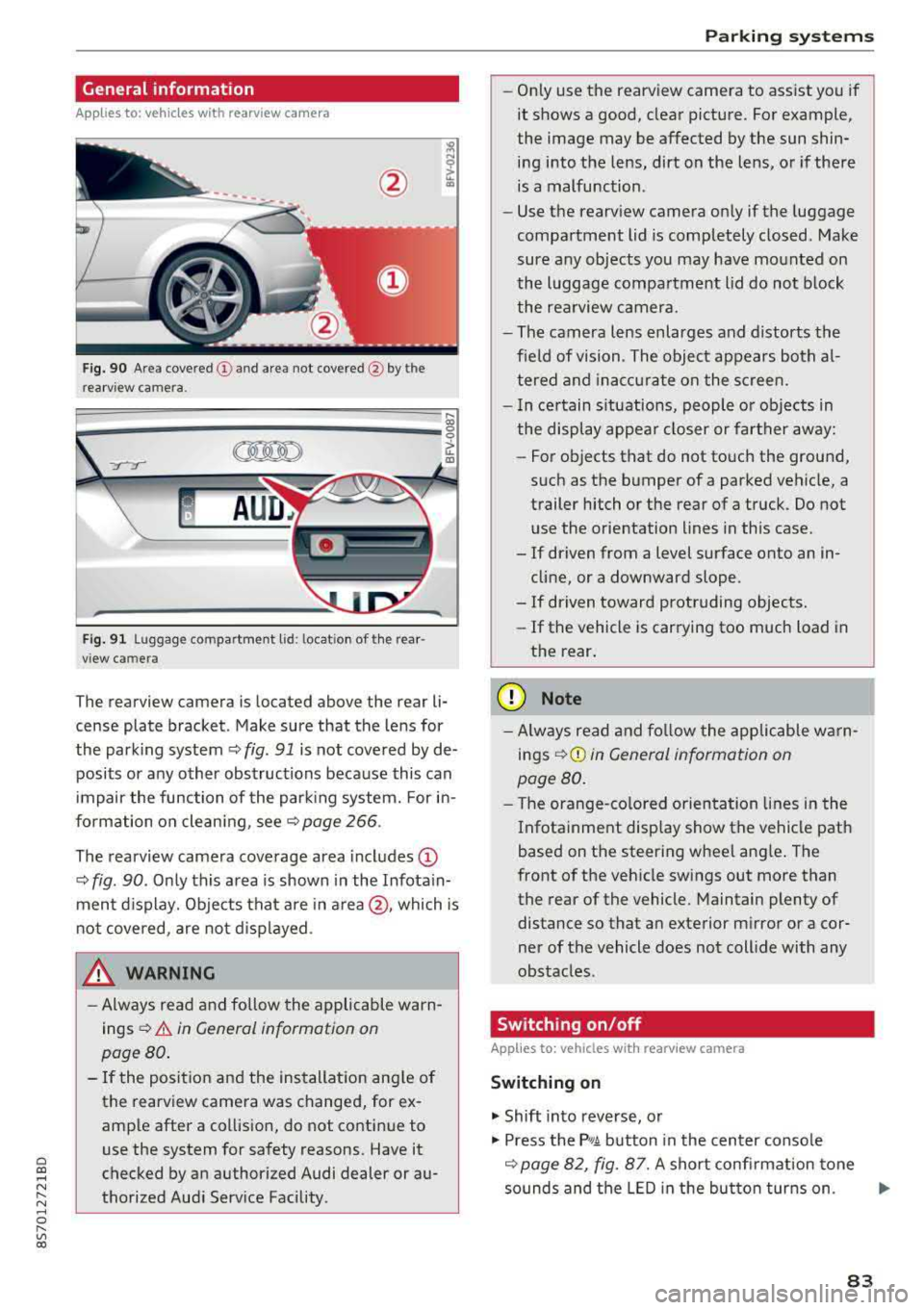
Fig . 90 Area covered (!) and area not covered @ by the
rea rview camera.
:;,
~;..------: :.·~- ---~ _.,- ,.,,.--------g
(Jo00oD ~
Fig. 91 Luggag e compartment lid: locat ion of the rear
view camera
The rearview camera is located above the rear li
cense plate bracket. Make sure that the lens for
the parking system¢
fig. 91 is not covered by de
posits or any other obstructions because this can
impair the function of the parking system. For in
formation on cleaning, see¢
page 266 .
The rearview camera coverage area includes
(D
¢ fig. 90. Only this area is shown in the Infotain
ment display. Objects that are in
area @, which is
not covered, are not displayed.
A WARNING
-Always read and follow the applicable warn
ings ¢
A in General information on
page 80.
- If the position and the installation angle of
the rearv iew camera was changed, for ex
ample after a collision, do not continue to
use the system for safety reasons. Have it
checked by an authorized Audi dealer or au
thorized Audi Service Facility .
Parking systems
-Only use the rearview camera to assist you if
it shows a good, clear picture. For example,
the image may be affected by the sun shin
ing into the lens, dirt on the lens, or if there
is a malfunction.
- Use the rearview camera only if the luggage
compartment lid is completely closed. Make
sure any objects you may have mounted on
the luggage compartment lid do not block
the rearview camera.
- The camera lens enlarges and distorts the
field of vision. The object appears both al
tered and inaccurate on the screen.
- In certain situations, people or objects in
the display appear closer or farther away:
- For objects that do not touch the ground,
such as the bumper of a parked vehicle, a
trailer hitch or the rear of a truck. Do not use the orientation lines in this case.
- If driven from a level surface onto an in cline, or a downward slope .
- If driven toward protruding objects.
- If the vehicle is carrying too much load in
the rear.
(D Note
-Always read and follow the applicable warn
ings
¢ (D in General information on
page 80.
- The orange-colored orientation lines in the
Infotainment display show the vehicle path
based on the steering wheel angle. The
front of the vehicle swings out more than
the rear of the vehicle. Maintain plenty of
distance so that an exterior mirror or a cor
ner of the vehicle does not collide with any
obstacles.
Switching on/off
App lies to : vehicles wi th rearv iew camera
Switching on
.,. Shift into reverse, or
.,. Press the P,q.A button in the center console
¢ page 82, fig. 87. A short confirmation tone
sounds and the LED in the button turns on.
..,.
83
Page 88 of 310

Intelligent Technology
Intelligent Technology Electronic stabilization
control (ESC)
Description
Elect ronic stabili zation control ( ESC) suppo rts
driver safety. It red uces the risk of slipping and
improves dr iving stabi lity. ESC detects crit ica l sit
uations such as the vehicle overstee ring and un
dersteeri ng or the w heels are sp inning. The vehi
cle is stabilized by app lying the brakes or reduc
i n g e ngine torque . When the ESC engages, the
liJ indicato r light bli nks in t he instr ument clus
t er.
The fo llow ing systems are in tegrated in the ESC:
Anti-lock braking system (ABS)
ABS p reve nts the whee ls from lock ing whe n brak
ing. The vehicle can st ill be steered even d uring
hard brak ing. Apply steady press ure to the bra ke
pedal. Do not pump the pedal. A puls ing in t he
b rake pedal indicates that the system is act ing to
s tabili ze the vehicle .
Brake assist system
The brake assist system can decrease brak ing dis
tance . It inc reases brak ing power when the d river
presses the brake pedal q uick ly in eme rgency sit
uations . You must press and hold t he b rake pedal
until the dangerous si tuatio n is ove r.
Anti-slip regulation (ASR)
ASR red uces eng ine power when the d rive wheels
begin sp inning a nd adapts the force to the road
conditions . This makes it easie r to start, acceler
ate and dr ive u p hill s.
Electronic differential lock (EDL)
E DL applies the brakes to a wheel that sta rts
spi nning and t ransfe rs the d rive power to the
other driving wheels. This f unction is not availa
b le at higher speeds.
In extreme cases, EDL automatically sw itches off
to keep the brake on the b raked wheel from over
heati ng. The vehicle is st ill work ing correctly. EDL
86
will swi tc h on again automatically when condi
tions have retu rned to normal.
Power steering
The ESC can also support veh icle stab ility
t hr ough stee rin g.
Selective wheel torque control
Se lective wheel to rque con trol is used when d riv
i ng on curves . The front whee l on the ins ide of
t h e curve or bo th whee ls on the i nside of th e
cu rve are braked se lective ly as needed. This al
l ows mo re pre cise dr iving in curves .
_&. WARNING
-The E SC and i ts in teg ra ted systems cannot
overcome the lim its imposed by natura l
phys ica l laws. This is es pec ially important
on s lippery or wet roa ds.
If the systems be
gin acting to stabilize yo ur vehicle, you
should immediately a lter your speed to
match the road and traffic conditions. Do
no t le t the inc reased safety p rovi ded tempt
you into taking risks. This could increase
y o ur r is k of a c oll is ion.
- Please note the r is k of a coll is ion increases
w hen dr iv in g fast, especially t hrough curves
a nd on sl ippery or wet r oads, and w hen dr iv
ing to o cl ose to obje cts ahead. T he ES C and
it s i ntegrated systems cannot a lways pre
vent co llisions
-there is st ill a risk of acci
dents!
- Press the accelerator peda l caref ully when
accelerating on even, slippery sur faces such
as ice and snow. The drive wheels can spin
even when these control systems a re instal
led and this can affect driving stability and
increase the risk of a collision.
(0 Tips
- The ABS and ASR only funct ion correctly
when a ll four wheels have a sim ila r wear
co nditio n. D iffere nt tire sizes can lead to a
red uction in engin e power.
- You may hear noises when the systems de
sc ribed are working .
Page 93 of 310

Cl 00 .-< N r-N .-< 0 r-Vl 00
Facility immediately to have the malfunction cor
rected. The color of the indicator light depends
on the vehicle speed.
A WARNING
-
Driving at higher speeds without the rear
spoiler deployed can impair handling charac
teristics, making the vehicle harder to con
trol.
- Always make sure that the spoiler is de
ployed when driving at speeds over 85 mph
(140 km/h) . If the rear spoiler warning/ind i
cator lig ht in the instrument cluste r comes
on, the rear spoiler may not have deployed.
- Never drive at speeds higher than 85 mph
(140 km/h) if the spoile r is not deployed.
Have the spo iler inspected as soon as possi
ble by an author ized Audi dealer or qua lified
works hop .
- Always obey speed l imits and othe r traffic
laws .
A WARNING
Improper operation of t he rear spoiler can
cause crushing injuries.
- Always make sure that nobody, especia lly
children, is in the way when the rear spoi ler
is deployed or retracted .
(Llj) Note
-Never push on the vehicle on the rear spo il
er. This cou ld cause damage.
- To p reve nt damage to the rear spoiler do
not lean o r place anyt hing on it.
-
- Only ope rate the rear spoiler manually when
the luggage compartment lid is close and
the rear spoiler mov ing parts are not
blocked. Otherwise, damage could occur .
(j) Tips
Clean the rear spoiler compartment eve ry 2 to
3 months . To function co rrectly, the rear
spoiler must be free of ice, snow and leaves .
Intellig ent T echn olo gy
Energy management
Your vehicle is equipped with an intelligent ener
gy management system for distributing electrici
ty. This significantly improves the starting ability
and increases the vehicle battery life.
(D Tips
- If you drive short distances frequent ly, the
vehicle battery may not charge enough
wh ile driving. As a result, convenience func
tions for electr ical equipment may be tem
pera rily unavailable .
- The vehicle battery w ill gradually drain if
the vehicle is not driven for long per iods of
t ime, or if electr ical equ ipment is used
when the engine is not runn ing. To ensure
that the veh icle can still be started, the
elect rical eq uipment w ill be red uced or
sw itched
off.
Information about data
recorded by vehicle
control modules
Your vehicle is not equipped with a crash data re
corder . This dev ice is installed by some veh icle
manufacturers to record data about crashes so
t h at it can be ana lyzed later. Crash data reco rd
ers are also called " Event Data Recorders (EDR)".
In some legal jurisdictions, it is not permitted to
access or down load data recorded by pre-instal
led crash data recorders in orde r to evaluate a
crash without clear consent of the vehicle owner.
Your vehicle is not equ ipped w ith a crash data re
corder . However it does contain a variety of e lec
tronic control modules for various vehicle sys
tems such as engine function, exha ust treatment
or airbags and safety belts.
T hese electronic contro l modu les record veh icle
data du ring normal driv ing fo r diagnosis and re
pair purposes. The record ing capability of the
electronic control modules is limited to data only
-no sound is recorded . If the contro l module de
tects a system ma lfunction or other change in
status, a very limited amount of data is recorded
for an extremely small period of time. Data that
..,.
9 1
Page 111 of 310

Cl 00 .-< N r--N .-< 0 r--Vl 00
Voice recognition system
Function Say:
General map options Map / Day map / Night map / Automatically change map color
Map type 2D heading up map / 2D north up map / 3D map / Destination
map / Overview map / Standard map / Traffic map / Google
Earth
map* a)b )
Showing the route list Route list
Showing the remaining distance/ Destination information
time when route guidance is active
Speed limit prompt
How fast can I drive here
Setting voice guidance for active Voice guidance on I Voice guidance off I Voice guidance short-
route guidance ened I Voice guidance complete I Voice guidance traffic
Blocking a certain section on the Block route for (XV) meters/kilometers/yards/miles / Block
route next route I Avoid next section of route
a) Pro vid er a t tim e of printing .
bl A U DI AG provides access to ser vices fro m th ird par ty prov iders. Perm anent a vailabi lity canno t be guaranteed , beca use t hat
depends on the th ird party p rov ider.
(D Tips
- Destinations may have to be spelled when
entered, depending on the country where
Radio
Applies to: vehicles with voice recognitio n system
Requirement: the Radio must already be open .
Function Say:
you are located and which menu language
you have selected.
- Always read the chapter
q page 131, About
Audi connect .
You can say the following commands depending
on the selected frequency band:
Selecting the frequency band
FM / SiriusXM* / AM
Selecti ng a stat ion from the station Channel (XY) / Frequency (XV) / Last stations
list
Selecting a stat ion from favorites/
Radio presets > Line (XV)
presets
Setting the frequency
Frequency (XV)
Setting the frequency Frequency (XV) / Frequency (XV) HD 1
Correcting data input No I meant (XV)
Closing the full-sc reen command Close
list
Media
Applies to : vehicles with voice recognition system
Requirement: you must be in the Media menu. You can say the following commands depending
on the active media:
109
Page 162 of 310

Media
CD Note
Always follow the information found in ~CD in
Wi-Fi hotspot on page 130.
@ Tips
- Depending on the Internet connection and
network traffic, a connection loss can occur
d uring p layback of on line media services.
- Onli ne med ia and Inte rn et r adi o usage de
pends on the service availability of the third
party provider .
- Audi AG simply makes the access to online
media services possible through the MMI
and does not take any respons ibility for the
contents of the online media services.
- Always read the chapter ¢
page 131, About
Audi connect .
-Depending on the mobile device used, there
may be interruptions during media playback
and when using the
Au di MM I connect app.
To avoid interruptions when using a mobile
device, do not lock the screen on your mo
bile device and keep the
A udi MMI c onn ect
app in the foreground.
- Contact an authorized Audi dea ler or au
thorized Audi Service Facility for additional
i nformat io n about on line media.
160
Multimedia connections
USB adapter for Audi music interface or
USB charging port
Depending on the vehicle equipment, you can
connect your mobile devices (such as a smart
phone or MP3 player) to the Audi music interface
or a USB charging port using a special USB
adapter.
"'
I
Fig. 139 A ud i Ge nuin e Acce sso ries : USB a dapter
@ USB adapter for devices with a micro USB con
nect ion
@ USB adapter for devices with an Apple Light
ning connection
@ USB adapter for dev ices with USB type C con
nection
@ USB adapter for devices with an Apple Dock
connector
You can purchase the USB adapter from an au
thorized Audi dea ler or at specialty sto res.
CD Note
Hand le the USB adapter carefully . Do not al
l ow it to be pinched.
Page 169 of 310

Cl 00 .-< N r-N .-< 0 r-Vl 00
Audio track1)
You can manually set the audio track (language
and audio format). The language and audio
format options depend on the video DVD.
Subtitles1
)
You can set subtitles for playback manually. The
langu ages available depend on the DVD.
Picture format
Audi recommends the Automatic setting for the
p icture format . You can set the picture format
depending on the active fi le or source (for exam
ple video file*, DVD*).
Picture for-
Information
mat
Automatic
The MMI detects the picture for-
mat of the source and displays the
image in the optimum ratio. Black
bars may appear on the sides of
the display, depending on the
source format and the Infotain -
ment system d isp lay that is instal-
led.
Zoom The image is enlarged to fill the
entire Infotainment system dis-
p lay . Switch the function
off if the
image is distorted.
Cinema-Use th is setting for films in cinema
scope format 21:9. Black bars will appear
on the up per/lower edge in the In-
fotainment system display.
l) Depe ndi ng o n th e DVD, this may not be possib le during
playback.
Media
Picture for- Information
mat
Original
The image is d isp layed in the ratio
of the source format. Select this
opt ion if the image is distorted or a
section of the image is cut
off
when Auto is selected .
4:3 The image is f ixed in the 4:3 pie -
ture format. Black bars are shown on the sides of the Infotainment
system display .
16:9 The image is fixed in the 16:9 pie-
ture format . Black bars are shown
in the upper and lower edges of the
Infotainment system display.
(D Tips
- Not all video DVDs have parental control.
- Th e protection levels for the
Parental con-
trol
are based on the US standards from the
Motion Picture Association of America
(MPAA). Note that the age levels for v ideo
DVDs in European countr ies may differ.
- Password entry for
Parental control will be
locked for approx imately one minute if you
enter the incorrect password three times in
a row. The password can only be reset by an
authorized Audi dealer.
167