2018 AUDI A8 service
[x] Cancel search: servicePage 150 of 356
Telephone
Connecting a cell phone
• Select the ITEL I button > Search for new cell
phone
r=> fig. 160 . The availab le Bluetooth devi
ces are shown in the Infotainment system dis
play.
Or : search for the MMI using the Blue
tooth device search on your cell phone.
• Select and confirm the desired cell phone from
the list of displayed Bluetooth devices .
• Select and confirm Handsfree. The MMI gener
ates a PIN for the connection setup
r=> fig . 160 .
• Select and confirm Yes.
• Enter the PIN for connecting on you r cell
phone .
Or: if the PIN is already disp layed on
your ce ll phone, confirm it in the cell phone and
in the MMI. The time a llowed for entering the
PIN is limited to approximately 30 seconds .
Pay attention to any additional system prompts
dis played on your cell phone, for example if the
system should connect automatica lly in the fu
ture . Depending on the cell phone, you may have
to confirm download ing the d irectory separately .
After connecting successfully
After connecting successfully, the signal strength
symbo l®
r=> page 139, fig. 158 and the Blue
tooth symbo l@ appear in the status line of the
Infotainment disp lay. In addition, the cell phone
contacts are automatically loaded in the MMI di
rectory. This process can take several minutes,
depending on the number of contacts.
If a ll of the memory capacity is fi lled, you will be
asked to replace the contacts from one cell phone when connecting another cell phone. With
the opt ion
Restricted use of telephone , only con
tacts in the cell phone and the local
MMI memory
are available
r=> page 152.
(D Note
Always follow the information found in r=> (D in
Wi-Fi hotspot on page 161 .
(D Tips
-You only have to pair your device one t ime .
Bluetooth devices that are already pa ired
automat ica lly connect to the
MMI when
they are within range and the ignition is
switched on.
148
- Authorizing the MMI connection in your cell
phone will speed up the automatic connec
t ion .
- Several cell phones can be paired to the
MMI, but only one cell phone can be actively
connected.
- A Bluetooth device that is already paired
with the MMI will be disconnected if anoth
er device is paired.
- When leaving the vehicle, the Bluetooth
connect ion to the cell phone will automati
cally disconnect.
- You can obtain more information from your
cell phone service provider or from yo ur cell
phone user guide. For information on using
the te lephone, visit
www.audiusa .com/
bluetooth
or contact an authorized Audi
dea ler or author ized Audi Service Facility.
Opening the telephone
App lies to: vehicles wit h telepho ne
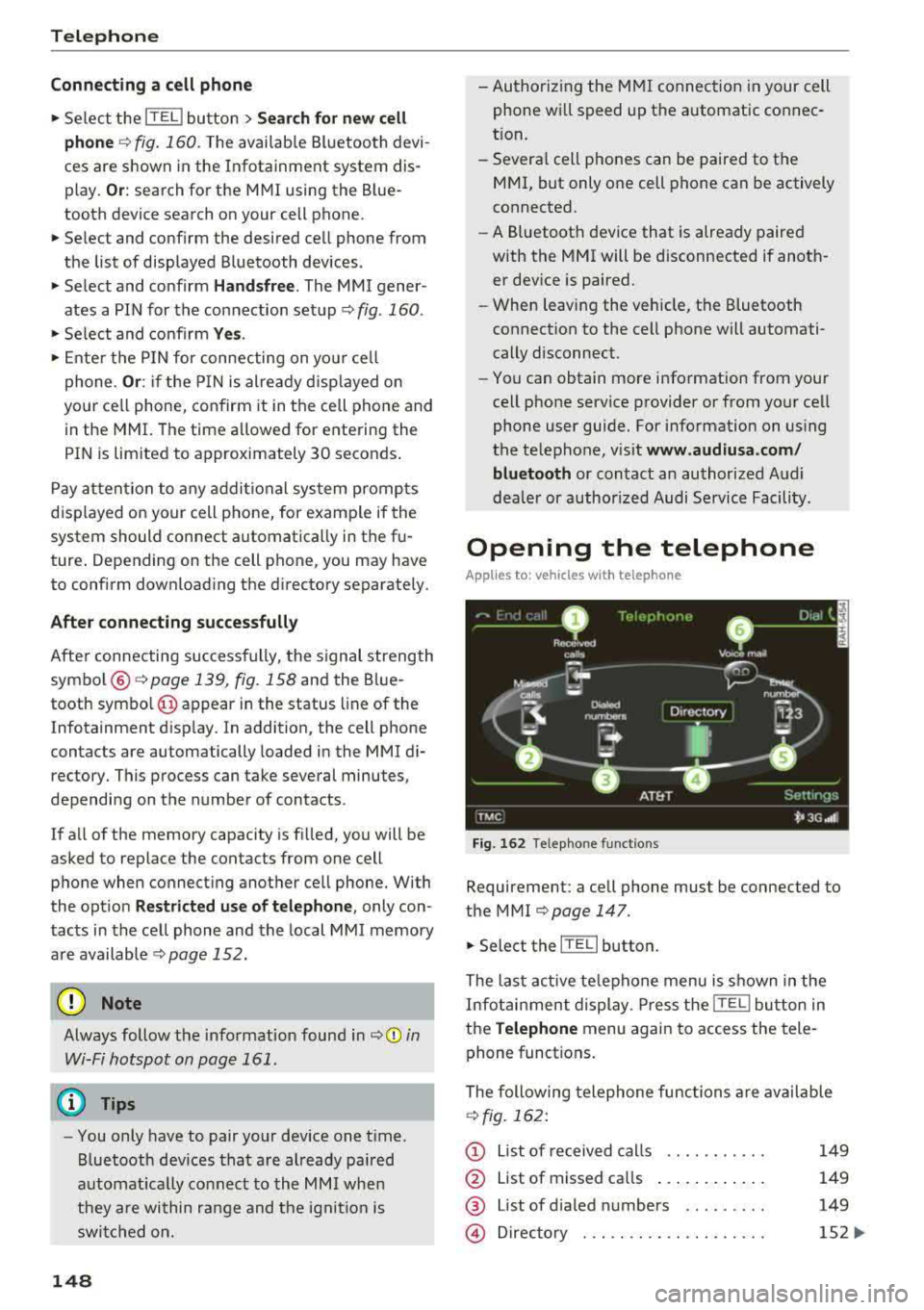
Fig. 162 Telephone functions
Requirement: a cell phone must be connected to
the MMI
r=>page 147 .
• Select the IT ELI button.
The last active telephone menu is shown in the
Infotainment display. Press the
[fEI) button in
the
Telephone menu again to access the tele
phone functions .
The following telephone func tions are available
r=>fig. 162:
(D List of received calls .... .. .... .
@ List of missed ca lls ...... .... . .
@ List of d ialed numbers ... ..... .
@ Directory ... ... . .. ...... .... .
149
149
149
152 ...
Page 151 of 356

lL t:0 ....
"" ......
"" .... 0 0 :c '
® Assigning a voicemail number or
calling voicema il .. ...... ... .. .
Dialing a telephone
number
From the directory
Applies to: vehicles with telephone
14 9
156
You can se lect a pho ne number d irectly from t he
d irec to ry
¢ page 152.
From a list
Applies to: vehicles with telephone
Fig . 163 D iali ng a phone number from a list
Req uirement: a pho ne number must be stored in
the call lists .
... Select the ITEL ! button .
Accepted calls / Missed calls / Dialed
numbers
- Dialing a phone number :
select and confirm
the des ired phone number from the call list.
Se lect and confirm
Call .
Dial control button
- Dialing a phone number :
select an d co nfirm
t h e des ired phone number from t he
Dialed
numbers
li st. Se lect and confirm Call.
Telephone
Using the speller
Applies to: vehicles with telephone
Fig. 164 Ente rin g pho ne numbers using th e number spell
e r
Fig. 16 S Ente ring pho ne numbers using th e letter s peller
... Select: the ITE L! button> Enter number.
- Entering a phone number as a sequence of
numbers :
enter the num ber using the n umbe r
spe ller¢
fig . 164.
-Entering a phone number using a sequence of
letters :
press the A·Z co ntro l bu tton. E nter a
sequence of letters usin g the lette r spe ller, fo r
e xamp le
AUDISERVICE ¢ fig. 165.
- Dialing a phone number : select and confirm
OK. Or: press the Dial control button . The ac
tive a udio source is muted when making a ca ll.
-Deleting individual characters : select and con
firm +.
-Deleting all characters entered at once : turn
the s peller
to + and press and hold the control
knob .
T one sequences
(DTMF ) can be e nte red direc tly
into the s peller dur ing a pho ne call.
149
Page 154 of 356
Telephone
Opening the directory
Applies to: vehicles with telephone
After connecting the cell phone, the contacts in
it are automatically imported into the
/\1/\11.
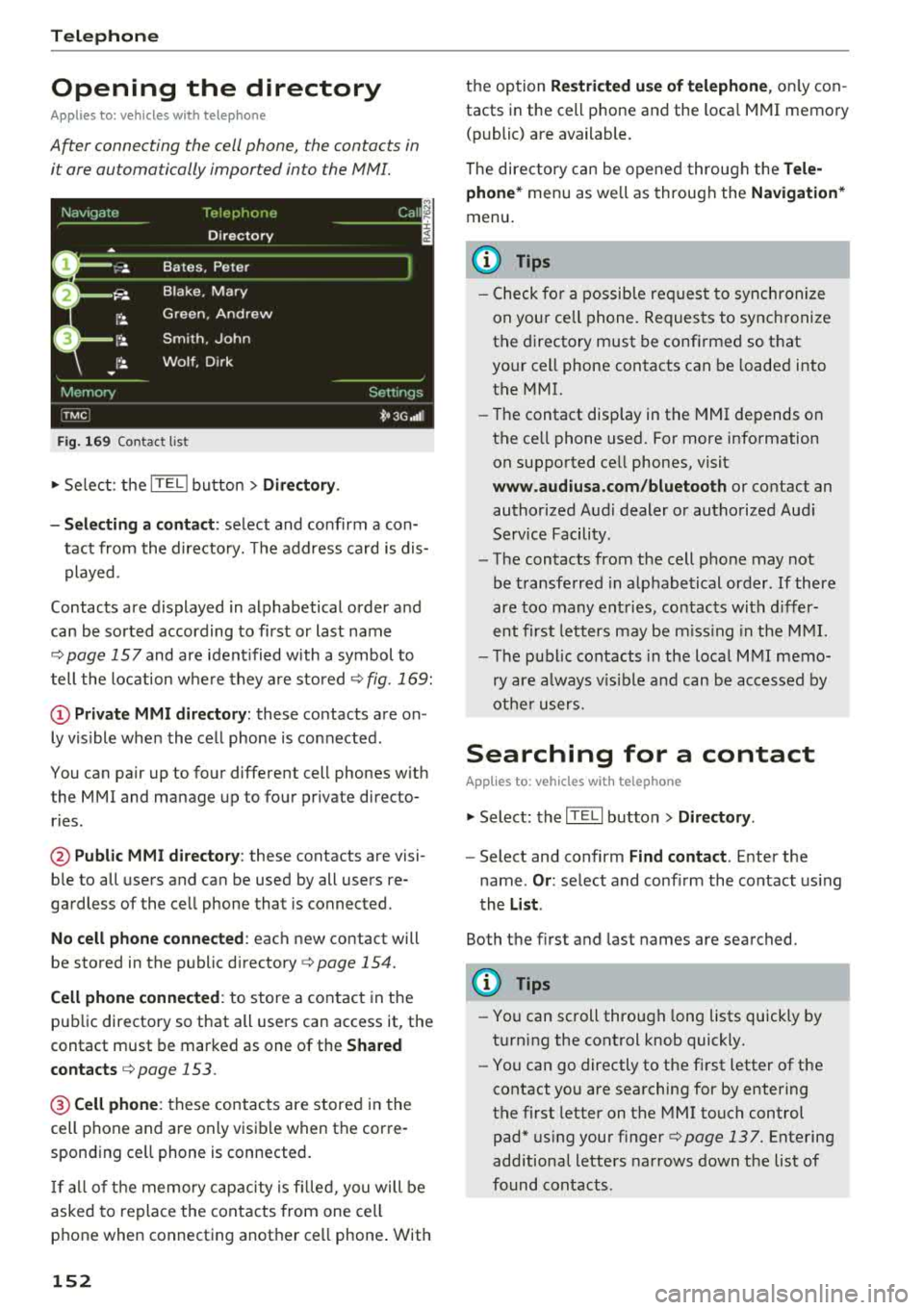
Fig. 169 Contact list
.,. Select: the ITEL! button> Directory .
- Selecting a contact :
select and confirm a con
tact from the directory. The address card is dis
played.
Contacts are displayed in alphabetical order and
can be sorted according to first or last name
¢page 157 and are ident ified with a symbol to
tell the location where they are stored
¢ fig . 169:
(D Private MMI directory: these contacts are on
ly vis ible when the cell phone is connected .
You can pair up to four different cell phones with
the MMI and manage up to four private directo
ries .
@Public MMI directory: these contacts are visi
ble to all users and can be used by all users re
gardless of the cell phone that is connected.
No cell phone connected : each new contact will
be stored in the public
directory ¢ page 154.
Cell phone connected : to store a contact in the
public directory so that all users can access it, the
contact must be marked as one of the
Shared
contacts
¢ page 153 .
@Cellphone : these contacts are stored in the
cell phone and are only visible when the corre
sponding ce ll phone is connected.
If all of the memory capacity is filled, you will be
asked to replace the contacts from one cell
phone when connecting another ce ll phone . With
152
the option Restricted use of telephone , only con
tacts in the cell phone and the loca l MMI memory
(public) are available.
The directory can be opened through the
Tele
phone*
menu as we ll as through the Navigation*
menu.
(D Tips
- Check for a possib le req uest to synch ronize
on your ce ll phone. Requests to synchronize
the directory must be confirmed so that
your cell phone contacts can be loaded into
the MMI.
- Th e contact disp lay in the MMI depends on
the ce ll phone used. For more information
on supported ce ll phones, visit
www.audiusa.com/bluetooth or contact an
authorized Audi dealer or authorized Audi
Service Facility.
- The contacts from the cell phone may not
be transferred in alphabetical order . If there
are too many entries, contacts with differ
ent first letters may be missing in the MMI.
- The publ ic contacts in the local
MMI memo
ry are always vis ible and can be accessed by
other users.
Searching for a contact
Applies to: vehicles with telephone
.,. Select: the ITELI button > Directory .
-Select and confirm Find contact. Enter the
name .
Or: select and conf irm the contact using
the
List .
Both the first and last names are searched.
(D Tips
- You can scroll through long lists quickly by
turning the control knob quickly.
- You can go directly to the first letter of the
contact you are searching for by entering
the first letter on the MMI touch control
pad* using your
finger¢ page 137. Entering
additional letters narrows down the list of
found contacts .
Page 159 of 356

u. co .... N
" N .... 0 0 :c '
See ¢page 162.
(QJ) Note
Tele ph on e
Sort order
Yo u can so rt the contacts in your directo ry alpha
be tica lly according to
La st n am e/ Fir st name.
Always follow the info rmat io n found in ¢(@ in
Wi-Fi hotspot on page 161.
Show shared contacts
You can show or hide the public contacts . With
Y es, all the contacts in the local M MI memory
(public) are shown, and with
No , th ey are hidde n. @ Tips
- Several cell phones can be pa ired to the
MM I, but only one cell phone can be act ively
con nected.
Delete priv ate contacts /Delete shared
contacts
You can delete al l pr ivate contacts in the local
memo ry using t he
Del ete private conta ct s fu nc
t ion. Yo u can de lete the p ublic contacts in the lo
ca l memory using the
Dele te shared contacts
function .
-
To de lete all connected Bluetooth devices,
t h e
Bluetooth funct ion can be reset to t he
factory settings¢
page 207.
Directory settings
Applies to: vehicles with telephone
~ Select: th e [fill bu tton > Dir ectory > Settings
contro l button .
Troubleshooting
Applies to: vehicles with telephone
Problem Solution
Pairing
the cell phone to the MMI Check if the Bluetooth visibility on the cell phone and MMI is
failed. switched on. For some cell phones, the visibility turns off auto-
mat ically after a short period.
Or: restart your cell phone.
For more information on this, refer to the user gu ide for your cell
phone.
After pairing,
not all contact s/no Avoid using special characters in names .
contacts are loaded in the MMI. Avoid using contact groups.
Certa in
t e lephon e function s are The te lephone fu nct ions depend o n the cell phone service p rovider
grayed out o r not avai lab le. and the cell p hone you are using. You can ob tain more info rma -
tion from your cell phone se rvice provide r, in your cell phone user
guide or in the database for mobi le devices at
ww w.audiusa.com /
bluetooth .
157
Page 160 of 356

Audi connect
Audi connect Introduction
A pp lies to: ve hicles w ith Audi co nnect
With Audi connect services, online information is
transmitted and integrated directly in the vehi
cle.
A mobi le end dev ice can be used to access the In
ternet through a Wi-Fi hotspot, either when the
vehicle is stationary or from the rear seat when
the vehicle is in motion.
A separate Aud i connect SIM card provided by
Audi connect is used to access Audi connect se rv
ices .
A WARNING
- To reduce the risk of an accident, on ly use
Audi connect serv ices when road and traff ic
condit ions permit. Read and follow the
guidelines prov ided
in c:> page 135 .
-Use the Audi connect serv ices w ith a Wi-Fi
hotspot o nly in the rear seat when the veh i
cle is in mot ion or only when the vehicle is
stationary to reduce the risk of an accident .
@ Note
Audi connect is designed for use only with the
prov ided Audi SIM card. Audi AG is not liable
for the consequences of using other SIM
cards.
(D Tips
Read and follow the notes about Audi con
nect before starting it
c:>page 163 .
Setup
Requirements for Audi connect
An Internet connection is required to use Audi
connect. The following requirements must be
met to establish a connection:
- You must be in an area that is covered by your
provider.
- Your Audi S IM card must be inserted in the
MM I SIM card reader
c:>page 158.
158
-
-A data connection must be configured for Audi
connect services
c:> page 162.
Using the SIM card reader
App lies to: vehicles wit h Audi connect
Audi multimedia
Fig. 174 Insert ing the Aud i SIM ca rd, actua l size of t he
Aud i SIM card
Requirements
The vehicle must be stationary and the ignition
must be switched on.
Inserting the Audi SIM card
~ .... :c .. a:
.,. Slide the Aud i SIM card into the card reader
slot with the label facing up (contact surface
facing down)
c:> fig . 174 . The angled corner of
the Audi SIM card must be at the left front cor
ner. Then push the Audi SIM card into the slot
until it clicks into place .
.,. To connect to the Internet automatically in the
future, select and then confirm Yes.
.,. To establish a data connection for Audi con
nect, confirm the message that appears wit h
Yes .
After connecting successfully
After co nn ectin g successfully, the signa l strength
is indicated in the Infotainment display status
..,.
Page 161 of 356

lL t:0 ....
'"" ......
'"" .... 0 0 :c '
connection
type @HJ) ¢ page 139, fig . 158.
You can now use Audi connect.
• Select: the I MENU I button > Audi connect .
• Confirm the prompt ask ing to connect to the
Inte rnet with
Y es.
Remo ving th e Audi SIM c ard
•Presson the Audi SIM card briefly. The card is
released from the slot. Remove the Audi SIM
card .
A WARNING
The card reader must a lways be closed while
driving for safety reasons.
(D Note
-Audi connect is des igned for use only w ith
the provided Audi SIM card. Aud i AG is not
liable for the consequences of using other
S IM cards.
-If a SIM card of a d ifferent size is inserted i n
the SIM card reader instead of an Audi SIM
ca rd, do not under any circumstances re
move th is card yourse lf due to the risk of
damaging the SIM card reader. Contact an
authorized Audi dealer or authorized Audi
Service Facility.
(D Tips
To use your cell phone, you can connect your it through the
Hand sfree Bluetooth profile
¢ page 147 .
-Audi does not provide support for other SIM
cards.
-A udi recommends using only the provided
Audi SIM card.
-You can spec ify when the MMI connects to
the Internet
¢ page 162. The Internet con
nection disconnects automatically once the
requested Audi connect service no longer re
quires any data packets.
-T he data connection for Audi connect serv
ices is preconfigured at the factory . You can
change the data connection at any time if
Audi connec t
you need to adjust the configuration
¢page 162.
Operating the browser
Applies to: veh icles w ith Aud i connect
F ig . 175 D isp la y of Audi conn ect servi ces
Fig . 1 76 Disp lay o f add it ional infor matio n abou t att rac ·
tion s or po ints of intere st
The browser can be used in various ways .
-Display of Audi connect services <=>page 160
-Display of additional informat ion about attrac-
tions or points of interest
T he following functions are available within the
browser <=> fig. 175:
© Open ing the home page
@ Open ing or closing the side menu
® Zooming in on browser content (50-200%)
© Stopping the page from loading
® Refreshing the current browser content
® Open ing the main menu
(J) Closing the browser
@ Opening the Destination details menu
® Prev ious point of interest or attract ion
@ Next point of interest or attraction
159
Page 162 of 356

Audi connect
You can return to the previous page using the
I BACK ! button.
A WARNING
To red uce the risk of an accident, only use
Audi connect services when road and traffic
conditions perm it.
(D Tips
Some functions are only avai lab le when the
vehicle is stationary.
Overview of Audi
connect services
Basic functions
Applies to: vehicles with Audi connect
-
~ Se lect: the IMENU ! button> Audi connect > the
desired Audi connect service.
Depending on the selected Audi connect service,
you may need to set a search area first:
Setting the search area
- Immediate vicinity :
the desired information for
the area around your current locat ion is dis
played .
-Vicinity of destination/stopover : if you have
entered a nav igat ion destination, you can dis
play the desired information for the area
around the destination .
-In new city: you can ente r any city for which
you wou ld like to receive the desired informa
tion using the
M MI touch or the speller
¢page 138 .
Travel information
Applies to: vehicles with Audi connect
Information on attractions and travel tips in the
selected search area.
~ Se lect and confirm an attraction to display the
details.
160 Parking information
Applies
to: vehicles with Audi connect
Information on parking locations and fees in the
selected searc h area .
Fuel prices
Applies to: vehicles with Audi connect
Information on gas stations with the lowest fuel
prices for your vehicle in the selected search area .
Weather
Applies to: vehicles with Audi connect
Information on current weather conditions as
well as weather forecasts for the selected search
area (for examp le, at the
Destination ).
City events
Applies to: vehicles with Audi connect
Information on events in various categor ies in
the desired search area .
~ Select and confirm a category, such as Sports.
~ Select and confirm an event to display the de-
tails.
Messages
Applies to: vehicles with Audi connect
V iew the most current headlines in the MMI.
~ Select and confirm a headline.
Audi connect services in navigation
Applies to: vehicles with Audi connect
The following Audi connect serv ices are currently
available:
- Navigation with the
online map service and on
line Street
View ¢ page 172
-Point of interest search (POI) with voice oper
ation
(for examp le restaurants): p lan route
guidance using the
MMI control panel and the
voice recognition system
ca:> page 144 and desti
nation setup in your
MMI using your myAudi
account
¢ page 168. .,..
Page 163 of 356

u. co .... N
" N .... 0 0 :c '
my Audi Account <=> page 168 or on line map
view
<=> page 17 2.
- Traffic information (Sirius): receive informa
tion about accidents, road construction and other incidents
c;,page 176
Audi connect services on the phone
Applies to: vehicles with Audi connect
The follow ing Audi connect serv ices are currently
ava ilable:
- Storing contacts on yo ur computer using your
myAudi Account and loading the contacts into
the MMI directory
c:;, page 154
Wi-Fi hotspot
Applies to: vehicles with Audi connect
You can use the MMI as a Wi-Fi hotspot to con
nect up to eight wireless devices to the Internet. While driving , restricted use of non-secured,
light, small wireless devices is only possible from the rear of the vehicle.
.,. Select : the IT EL! button > Settings control but-
ton
> Wi-Fi settings .
The following settings can be modified in the Wi
Fi settings
menu:
Wi-Fi active
The MMI Wi-Fi hotspot is deactivated at the fac
tory. Your Wi-Fi hotspot must be activated and
visible to establish a connection between your ve hicle and your w ireless device .
-Off : the MMI Wi-Fi hotspot is deactivated. An
Internet connection is not poss ible.
- Visible : th e MMI Wi-Fi hotspot is active and can
be used to connect to the Internet.
-Invisible : the MMI Wi-Fi hotspot is active but
not visib le to other devices. A connection can
not be established with a new w ireless device.
The Wi-Fi connection between your vehicle and
your wire less device (laptop, cell phone) is en
crypted. To establish a connection, yo u must en
ter the following settings when setting up your
wire less device. You can change them if necessa
ry.
Audi connect
- Network ID (SSID) :
name of the Wi-Fi net
work .
-Encryption type : WEP , WPA or WPA2
-Password : depending on the encrypt ion type, a
passwo rd may be generated in the MMI that is
used to encrypt the wireless connection. The
password can be changed. Be sure to se lect a
secure password. For t he WEP encryption type,
the password must be exactly 13 characters.
For the WPA or the WPA2 encrypt ion types, the
password must be at least
8 (maximum of 63)
characters.
- Apply settings : the modified settings are ap
plied to the MMI. You must then update the
changes in your mobile wirel ess device .
A WARNING
-
-As the driver, do not allow usage of the Wi
Fi hotspot to distract you from driv in g, as
this could increase the risk of an accident.
-It is only safe to use laptops and similar mo
b ile devices when the vehicl e is stationary
beca use, like all loose objects, they could be
thrown around the inside of the vehicle in a
cras h and cause serious injuries . Store these
types of devices securely while driving.
- Do not use any wireless devices on the front
seats within range of the airbags whi le driv
ing. Also read the warnings in the chapter
c:;, page 208.
@ Note
-Under some conditions, certain mobile devi
ces and operating systems may automati
cally sw itch from your vehicle's Wi-Fi hot
spot to the device's mobile data connection.
In that event, standard text and data usage
rates would apply wh ile the device's mobile
data connect ion is in use. Please refer to
documentation provided by your mobile de
vice's manufacture and your data carrier for
details, rela ted terms and privacy state
ment .
- You are respons ible for all precautions tak
en for data protection, anti-virus protection
and protection against loss of data on mo
bile devices th at are used to access the In
ternet through the Wi-Fi hotspot.
161