2018 AUDI A5 COUPE reset
[x] Cancel search: resetPage 167 of 409

Opening/closing the options menu : push the
control knob to the right
c::> fig. 174 to open the
options menu. Then you can se lect and confirm a
function using the control knob.
Press the
I BACK I button (z) c::> page 158, fig. 160
or c::> page 158, fig . 161 to return to the function
one level up.
Shortcut keys
Frequently used radio stations can be stored on
the shortcut keys.
Applies to: veh icles with auto mat ic tra nsmi ssio ns
The sho rtcut keys are located on the MMI control
panel @c::>page 158, fig .160.
Applies to: veh icles with manual transmiss ion
The shortcut keys are located on the center con
sole ®
c::> page 158, fig . 161 .
Letter/number speller
Fig. 175 Diagram: letter/ num be r spe ller
You can enter letters, numbers and symbo ls in
the MMI using the letter/number speller. Th is
option is ava ilable when the input field
@ is ac
tive
c::> fig . 175.
- Opening/closing the letter/number speller :
move the control knob up/down when the input
field is active .
Or: select the right control but
ton >
Open speller/Close speller .
- Entering characters:
turn the control knob with
the character
selection @<=:> fig . 175 to the de-
Multi Media Interface
Storing radio stations: turn the control knob to
the desired radio station in a list (for examp le, a
radio station in the FM station list). Press and
hold the desired shortcut key for several seconds.
The active radio station wi ll be stored on the
shortcut key.
Accessing a radio station: press the shortcut key.
Displaying a radio station: swipe your finger over
the shortcut keys.
Deleting a stored radio station: reset the Short
cut keys
to the factory default setting
<=:>page 252.
a) Tips
It is not possib le to enter numbers using the
shortcut keys. Use the number speller
<=:> page 165 or MMI touch* <=:>page 161 to en
ter numbers.
sired symbol. Press the control knob to confirm
the character. Your input is displayed in the in put
field @. When you have entered all of the
characters, select and confirm the
I LISTI button
(D c::> fig . 175. Or : push the control knob down .
-Entering accented characters (such as a, ~. n,
o)*: turn the control knob with the character
selection @c::>fig . 175 to a character. To open
the selected accented characters, press and
hold the control knob. T urn the control knob
.,.
165
Page 172 of 409

Voice recognition system
• Telephone
• Audi connect •
Favorites
• Call (XV)
• Navigation
• Directory
• Radio
• Media
• Sound •
Enter number
• Redial
• Read new text message
• Navigate to
(XY)
• Enter address/destination
• Help • Online destinations
• Help Speech dialog system
• Help Telephone •
Cancel route guidance
• Map
• Help Audi connect •
Line
(XV)
• Help Navigation
• Help
Map
• Help Radio •
Next page/ previous page
• Cancel
• No. I meant (XV)
• He lp Media • Correction
TE ,EPflON ~
• Enter number • Call list
• Delete number/ correction • Redial
•
Directory
• Call (XV)
• Call mailbox
• Telephone favorites
· business/ private/ land tine
I mobile
• Nav igate to
(XV)
• Start I cancel route guidance
• Directory
• Last destinations •
Block route for (XV) miles
I Block
the next section
• Route list
• Calculate alternative routes
• Nav igation favorites
• Drive home
• Enter address •
Online destinations
• Special destination
• Enter country
I town I street/ state
• Exclude route/ Exclude route for
(XV) km/ m
• Map
• Day map/ Night map
• 2D
driving position map/ 20 north position map/ 3D map/ Destination map/ Overview map
~UJDI CONNECT
• Audi connect
• Travel Information/ Parking Information
• Fuel prices
• Weather
RADIO
• Radio presets
• FM
• FM /AM/ SIRIUS XM
• Station (XY) / Frequency (XV)
• Traffic announcement on
I off
Fig. 178 Comm and overv iew
170
•
• Flight Information
•
City events
• Online news
• Twitter
MEDIA
• Jukebox
• CD
I DVD
• SD card l / SD card 2
• Audi music Interface/ I Pod/ USB / Bluetooth /
WI -Fl/ Med ium (XV)
• Media favorites / Artists / Albums / Genres /
Tracks/ Playllsts / Videos
• Folder up
• Random playback on/ off
Page 178 of 409

Voice recognition system Radio
Applies to: vehicles with voice recognition system
Requirement: the Radio mus t already be open. Depend ing o n the vehicle equipment and these
l e cted frequency band, you ca n say the fo llow ing
commands :
Function
Say:
Selecting the frequency band FM*/ Siriu sXM * / FM / AM
Selecting a station from the station Channel (XV) / !Frequency (XV)
list
Selecting a station from favorites/
Radi o pre sets > Line (XV)
presets
Setting the frequency
Frequency (XV) / Frequency (XV ) HD 1
Correcting data inp ut No I meant (XV)
Closing the full-sc reen command Clo se
list
Media
Applies to: vehicles with voice recognition system
Requirement: you must be in the Med ia menu. Depending on the vehicle equipment and the ac
tive media, you can say the following commands :
Function
Say:
Selecting a source directly Jukebo x*/ CO/ DVD / SO ca rd 1 / SO card 2 / Aud i music inte r-
face *
I iPhone* / USB * / Bluetooth* / Wi-Fi * / Medium (XV), for
example "John 's player"
Selecting aud io/video files* from
M edia favor ites/ Arti sts / Album s/ Genres / Tr ack s/ Playli st s /
the Jukebox* Video s
Selecting aud io files on an iPod Art ists / Albu mis / Genre s I Tracks / Pla ylists / Composer s I
(source: Audi music interface*) Podcast s / Audio books
Naviga ting within a folder struc -Folder up / Line (XV )
tu re/list
Selecting shuffle
Shuffl e on I Shuffle off
Correcting data inp ut No I meant (XV)
Closing the full-sc reen command Close
list
CJ) Note External voice operation
Always follow the info rmation found in ~CD in
Wi-Fi hotspot on page 197.
Applies to: vehicles with voice recognition system and exter
nal vo ice operation
Requirement:
176
The ignition and the MM I must be switched on.
No phone call is in p rogress.
Page 191 of 409

using the Ringtone function. Select and confirm
an entry from the list . For the
Ringt one volume /
Mess age volume
sett ings, see c::> page 256 . The
Microphone input le vel can be adjusted during a
phone call using the control knob.
@ Tips
- Several cell phones can be paired to the
MMI, b ut only two* cell phones can be ac
tively connected.
- To delete all paired Bluetooth devices, the
Blu etooth function can be reset to the fac
tory default sett ings
c::> page 252.
Additional options
~ Se lect: I MENU I button> Tel ephone > right co n-
t rol button .
Connection man ager
See c::> page 252.
Blu etooth setting s*
See q pag e 2 54.
Online settings*
See <=:> page 254 .
Wi-Fi setting s*
See c::, page 19 7, Wi-Fi hotspot .
Directory settings
Applies to: ve hicles with telephone
~ Select : I MENU I button> Telepho ne > left con
trol button >
D irector y> right control button>
Directory setting s.
Memor y cap acity
Shows the Memo ry cap acity for the directory.
You can manage up to 17 ,000 contacts with the
d irectory. You can load up to 4,000 contacts
from your cell phone into each directory. You can
also import up to 1,000 contacts from a storage
device.
Teleph one
Sort order
You can sor t the contacts in your d irectory alpha
be tica lly according to
la st name or First name .
Import contacts /Export contacts
See c::> page 188 .
Download direct ory
To update the contacts in the MMI, you can man
ually download your cell phone contacts. De
pending on the cell phone, the Bluetooth connec
t ion may need to be disconnected and reconnect
ed to update the contacts .
Hide cont act s without phone number
When this funct ion is switched on~. contacts
that do not have any numbers assigned to them
will be grayed out i n the directory .
Safety belt microphone
Applies to: vehicles wit h safety belt microp hone
The safety belt microphone is positioned in the
ideal location to provide the best hands-free call
quality regardless of body size and seat position .
Fig . 1 86 Safet y belt m icrop ho n e
T he safety belt mic rophone act ivates when you
buck le the safety belt. Make sure that the m icro
phone is on the side of the safety belt that is fac
ing outward
c::> fig. 186.
If you unbuck le the dr iver's safety belt, the sys
tem switches from the safety be lt microphone to
the roof microphone.
..,.
1 8 9
Page 203 of 409

<( a, .... N ,....
N .... 0 \0
3 a,
Audi connect vehicle control
Introduction
Applies to vehicles with Aud i connect vehicle control
With the Audi connect vehicle control services l) ,
you can access various information or use individ
ual functions in the
Audi MMI connect app or in
myAudi .
Audi connect vehicle control includes the follow
ing services:
- Remote locking and unlocking ¢
page 202.
-Vehicle status report ¢ page 202.
-Parking location ¢ page 202.
-Geofencing Alert ¢ page 203.
-Speed Alert ¢ page 203.
-Valet Alert¢ page 203 .
- Stolen Vehicle Locator ¢ page 203.
-Online Audi service request ¢ page 203.
(D Tips
-Accessing specific data or controlling func
tions remote ly depends on the charge level
of the vehicle battery. Therefore, these
functions only have limited availability after
switching off the ignition.
- The services are provided through a SIM
card installed in the vehicle . The cost of the
call and data connections is included in the
price for the services. Services are provided
assuming that the cell phone network re
quired for the installed S IM card is funct ion
i ng and ready to operate. The available serv
ic es set by Audi AG are only available within
the cell phone network coverage area for
the cell phone service provider selected by
Audi AG .
- You can also find more information on Audi
connect on line at www.audiusa.com.
l) In pre parat io n at the time of pri nting. T he ava ilab ilit y of
the services offe red depends on th e co untry an d ma y
c hang e over tim e.
Audi connect vehicle control
Setup
Applies to vehicles with Audi connect vehicle control
To use Audi connect vehicle control services 1l,
please note the following:
Creating and verifying a user account
"'Create an account at www.audiusa.com/myaudi
and verify it.
Setting a key user in the vehicle
Requirements: the ignition must be switched on .
Another key user must not be set in the vehicle .
If necessary, reset the key user¢
page 202.
"'Select in the Infotainment system: I MENU ! but-
ton >
Audi connect > if necessary, Display
available functions >
right control button>
Audi connect user management > Key user >
Set key u ser.
"' Enter the user name for your ve rified account
and enter the 10-digit vehicle code. You can rub
the key tag for your remote control key to re
veal the vehicle code ¢
page 38.
"'Select and confirm Log in.
You can now use the vehicle control services
through the
Audi MMI connect app or thro ugh
www.audiusa.com/myaudi.
Using vehicle control services in the Audi
MMI connect app
Requirement: your mobile devices must be com
patible.
"' Install and start the Audi MMI connect app on
your mobi le device .
"'Log in to the Audi MMI connect app using your
user name and Audi online password and select
your vehicle.
(D Tips
- Store the vehicle code in a secure place. It
may be necessary to re-enter the vehicle
code.
201
Page 204 of 409

Audi connect vehicle control
-Pay attention to upper- and lower-case let
ters when entering the vehicle code.
-If you do not have the 10-digit vehicle code,
contact an authorized Audi dealer or author
ized Audi Service Facility.
Additional options
Applies to vehicles with Audi connect vehicle control
License subscription
The validity and expirat ion date of you r subscrip
tions are displayed. When
Warning before sub
scription expires
is activated, a message wi ll be
d isp layed warning you that your license is about
to expire.
Select:
! MENU ! button> Audi connect > Display
available functions >
right control button> Li
cense subscription.
Resetting the primary user
F or examp le, you ca n reset the key user when
selling your vehicle in order to deactivate these
services .
Requirement: the ignition must be switched on.
Select :
!MENU ! button> Audi connect > right
control button
> Audi connect user management
> Key user> Reset key user .
Warning levels
Requirement: the primary user must have set one
or more warning levels. Secondary users can only
see if a warning level is act ive or not .
Select:
! MENU ! button> Audi connect > right
control button
> Alerts.
Remote locking and
unlocking
Applies to vehicles with Audi connect vehicle control
You can lock and unlock your veh icle using this
service.
Requirement
-This requires the 4-dig it PIN that you specified
during the verification on www.audiusa.com/
myaudi.
-The vehicle must be stationary.
202
-T he ignition must be switched off.
Vehicle status report
Applies to vehicles w ith Audi connect vehicle control
The Driver Information System collects data un
der certain conditions and sends it to a server.
When data is stored, yo u can access va lues such
as these using the service:
-Remaining range
-Fue l tank level
-Oil level
-Vehicle doors are open/closed or locked/un-
locked
-Mi leage
-Next oil change
-Next inspection
-Warning messages
-Side marker lights/parking lights on/off
For additional information on the Driver Informa
tion System, refer to
c:> page 17, Driver informa
tion system.
A WARNING
Do not ignore messages and warning or ind i
cator lights that turn on in the vehicle be
cause of the information in the status report .
This could lead to break downs in on the road,
accidents and serious injuries.
Parking location
Applies to vehicles with Audi connect vehicle control
The vehicle collects data under certain cond it ions
and sends it to a serve r.
When data is stored, you can access values such
as these using the service :
-Vehicle location display,
-Display of one's own location,
-Route to you r vehicle .
If your mobile device also has a navigation func
tion, you ca n navigate to your last kno wn parking
lo ca tion .
Page 227 of 409

Radio
Opening the radio
The radio supports the F M , AM and SiriusXM *
(satellite radio) bands. Using the HO Radio re
ceiver also allows you to receive radio stations
on the FM and AM bands in digital format.
Fig . 20 7 FM stat ion list ( HO Ra dio tec hn ology FM)
R.td10: SiriusXM
~ 000 ---=0---Radio ID , NoS19nal
... 001 Prev iew N oS19nal
J 002 H its 1
~
f) 003 20 on 20 N
oS19na l
004 40s on 4 NoS19nal
F ig. 208 S iri usXM station list
.. P ress the I RAD IO I bu tton.
Afte r opening the rad io, t he last opened station
lis t is disp laye d.
.
I
Selecting a station : select and confirm a stat io n
from the station list . FM/ AM stations t hat can be
received by digital rad io are ma rked w ith the HD
R adio technology symbol
tQ) ® ¢fig. 207. If re
ception quality decl ines, the r adio automatically
switches to the analog FM/AM station depe nding
on availability . D igi tal HD Radio s ta tions * may
contain multiple additional stations* . The ava ila
b le add itiona l stations* are listed under the radio
station. I f you lose reception, the add it iona l sta
tions* are muted since they can no longer be re
ceived.
Setting the frequency band : press the I RADIO I
button repeated ly until the desired frequency
band is set.
The follow ing information is displayed in the sta
tion
li st ¢ fig. 207 /¢ fig . 208:
Radio
(D Presets
The s tat ion is stored as a preset. The symbo l
shows the s to red lo cation in the prese ts list (fo r
example, 21).
@ Radio text (shortened display )
If avai lab le, program information about the set
station is d isplayed in a ll of the statio n lists.
@ Frequency
@Station name
® Stat io n w ith HD Radio t echnolog y available
tQ)
® Channel number
If there is a loss of radio signal (Sir iusXM*), the
fo llowing system in format ion is displayed in the
station list:
NoSignal : the tu ner is cu rrent ly not receiving a
sate llite s ignal
(j) .
The system informa tion turns off when the radio
st ations are rece ived again.
(D Tips
- Con tact the SiriusXM" provide r if you would
like to receive sa tel lit e programming .
- B uilding s, tu nnels, b ridges, open area s, oth
er veh icles or objects o n the veh icle roof can
affect reception.
- Satel lite ra dio is not availab le in Alaska and
Hawaii.
225
Page 228 of 409
Radio
Radio functions
Free text search
App lies to: ve hicles w ith free text search
Using the free text search, you can select the or
der that the search terms are entered in the in
put field. Search in all frequency bands for a sta
tion name or program type (such as
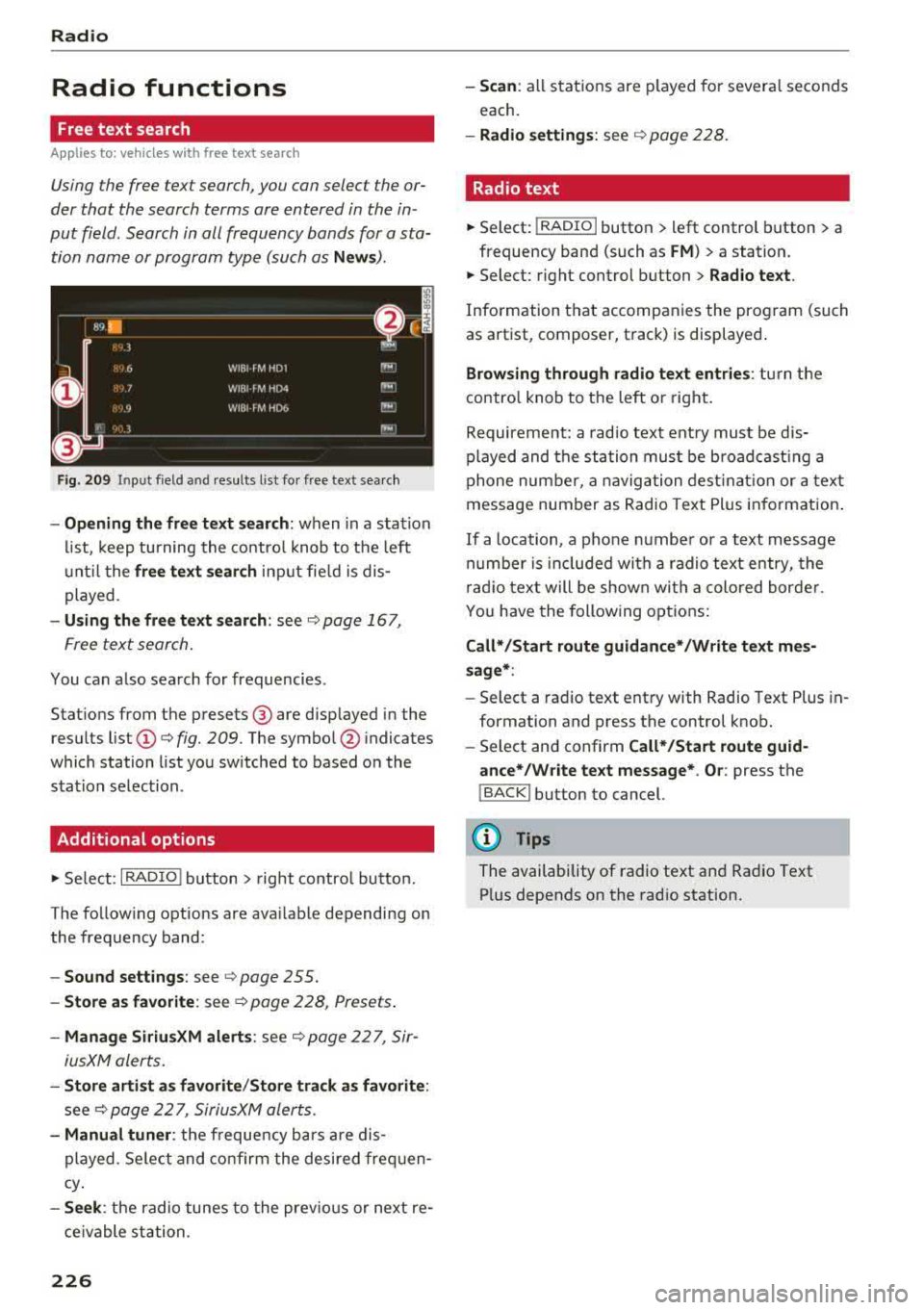
News ).
Fig . 209 In put field a nd results l ist fo r free tex t sea rch
- Opening the free text search : when in a s ta tion
l ist, keep turning the contro l knob to t he left
u nt il the
free tex t search inp ut fie ld is dis
played .
-Using the free text sear ch : see c::> page 167,
Free text search.
You can a lso search for frequencies .
Stat ions from the presets @ are disp layed in the
results list
(D c::> fig. 209. The symbo l@ indicates
which station list you sw itched to based on the
station selection.
Additional options
.,. Se lect : I RADIO I button > right contro l button.
The follow ing options are ava ilable depending on
the frequency band:
- Sou nd settings : see c::>page 255.
- Store a s fa vorite : see c::> page 228 , Presets .
-Manage Siriu sXM al ert s: see c::> page 22 7, Sir-
iusXM alerts.
- Stor e arti st a s favori te /S to re track as fa vorite :
see c::> page 22 7, SiriusXM alerts.
-Manu al tuner : the frequency ba rs a re dis
played . Se lect and confirm the desired frequen
cy .
-See k: the radio tunes to the prev ious or next re
ce ivable station .
226
-Scan : all s tations are p layed for severa l seconds
each.
- Radio settin gs: see c::> page 228.
Radio text
.,. Select: I RADIO I button > left control button > a
frequency band (such as
FM ) > a station.
.,. Select: r ight control button> Rad io te xt.
Information that accompanies the program (such
as artist, composer, t rack) is displayed .
Browsing through radio text entrie s: turn the
contro l knob to t he left or right.
Requirement: a rad io text entry must be dis
played and the station must be broadcast ing a
phone number, a navigation dest inat ion or a text
message number as Radio Text Plus in formation .
If a location, a phone number or a text message
numbe r is included with a radio text entry, the
r ad io text will be shown wi th a colored borde r.
You have the following opt ions:
Call* /Start route gu idance */Write t ext mes
s age *:
-Sel ect a radio text entry with Radio Text Plus in
formation and press the control knob.
- Select and confirm
Call */Start route guid
a nce* /W rite te xt me ssage* . O r:
press the
I BACK I button to cancel.
(!') Tips
The availability of radio text and Radio Text
P lus depends on the radio station.