Page 219 of 453

218
uuAudio Error Messages*uiPod/USB Flash Drive
Features
iPod/USB Flash Drive
If an error occurs while playing an iPod or USB flash drive, you may see the following
error messages. If you cannot clear the error message, contact a dealer.
Error MessageSolution
USB ErrorAppears when there is a problem with the USB adapter unit. Check if the device is compatible with the
USB adapter unit.
Bad USB Device Please Check
Owners Manual.Appears when an incompatible device is connected. Disconnect the device. Then turn the audio system
off, and turn it on again. Do not reco nnect the device that caused the error.
No SongAppears when the iPod is empty. Check that compatible files are stored on the device.
Unsupported VerAppears when an unsupported iPod is connected. If it appears when a supported iPod is connected,
update the iPod software to the newer version.
Retry ConnectionAppears when the system does not acknowledge the iPod. Reconnect the iPod.
Unplayable FileAppears when the files in the USB flash drive are DRM or an unsupported format. This error message
appears for about 3 seconds, then plays the next song.
No DataAppears when the USB flash drive is empty or ther e are no MP3, WMA, or AAC files in the USB flash
drive. Check that compatible fi les are stored on the device.
UnsupportedAppears when an unsupported device is connect ed. If it appears when a supported device is
connected, reconnect the device.
Page 224 of 453
223
uuGeneral Information on the Audio System*uCompatible iPod, iPhone, and USB Flash Drives
Features
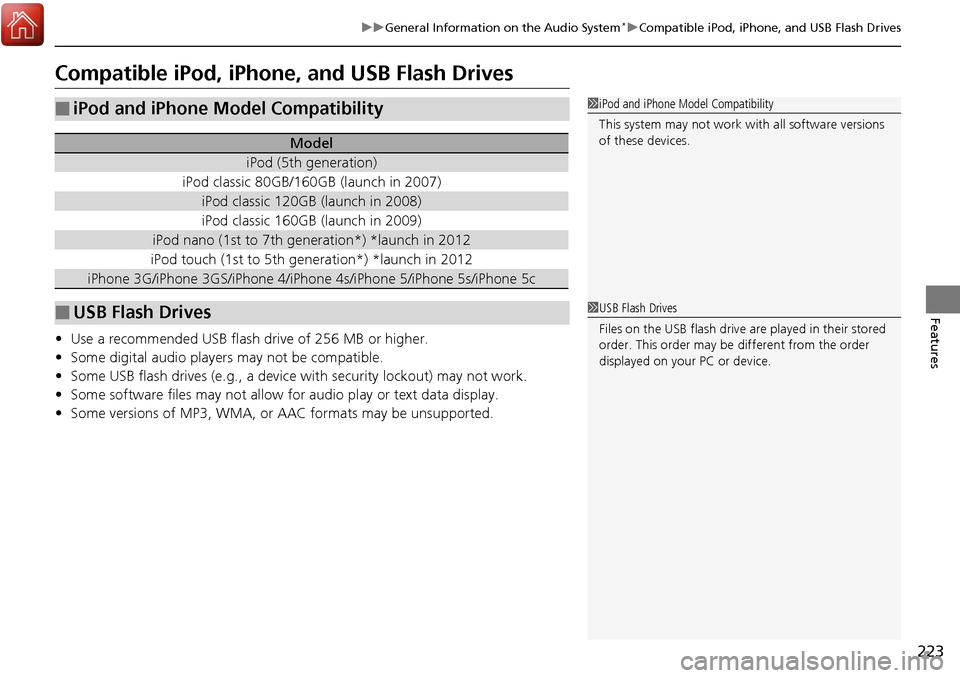
Compatible iPod, iPhone , and USB Flash Drives
•Use a recommended USB flash drive of 256 MB or higher.
• Some digital audio players may not be compatible.
• Some USB flash drives (e.g., a device with security lockout) may not work.
• Some software files may not allow for audio play or text data display.
• Some versions of MP3, WMA, or AAC formats may be unsupported.
■iPod and iPhone Model Compatibility
Model
iPod (5th generation)
iPod classic 80GB/160GB (launch in 2007)
iPod classic 120GB (launch in 2008)
iPod classic 160GB (launch in 2009)
iPod nano (1st to 7th generation*) *launch in 2012
iPod touch (1st to 5th generation*) *launch in 2012
iPhone 3G/iPhone 3GS/iPhone 4/iPho ne 4s/iPhone 5/iPhone 5s/iPhone 5c
■USB Flash Drives
1iPod and iPhone Model Compatibility
This system may not work with all software versions
of these devices.
1USB Flash Drives
Files on the USB flash drive are played in their stored
order. This order may be different from the order
displayed on your PC or device.
Page 250 of 453
Continued249
uuBluetooth ® HandsFreeLink ®u HFL Menus
Features
The following options are available during a call.
Mute: Mute your voice.
Transfer Call : Transfer a call from HFL to your phone.
Touch Tones : Send numbers during a call. This is useful when you call a menu-
driven phone system.
1.To view the availabl e options, press the
PHONE button.
2. Rotate to select the option, then press
.
u The check box is checked when Mute is
selected. Select Mute again to turn it off.
■Options During a Call1Options During a Call
Touch Tones: Available on some phones.
Page 256 of 453

255
Features
Compass*
When you set the power mode to ON, the compass self-calibrates, and the compass
display appears.
Compass Calibration
If the compass indicates the wrong direction, or the CAL. indicator blinks, you need
to manually calibrate the system.
1.Set the power mode to ON.
2. Press and hold the SETUP button until the
display shows the compass setting menu.
3. Rotate to select Calibration, then press
.
4. When the display changes to Calibration
Start, press .
5. Drive the vehicle slow ly in two circles.
u The compass starts to show a direction
after the calibration. The CAL. indicator
goes off.
1 Compass*
Compass operation can be affected under the
following conditions:
•Driving near power lines or stations•Crossing a bridge
•Passing a large vehicle, or driving near a large
object that can cause a magnetic disturbance
•When accessories such as antennas and roof racks
are mounted by magnets
Compass Setting Menu Items
1 Compass Calibration
Calibrate the compass in an open area.
While setting the compass:
•The BACK button returns to the previous screen.•The SETUP button cancels the setting mode.
* Not available on all models
Page 258 of 453

257
Driving
This chapter discusses driving, refueling, and information on items such as accessories.
Before Driving................................... 258
Towing a Trailer ................................ 263
Off-Highway Driving Guidelines ..... 268
When Driving Starting the Engine .......................... 270
Precautions While Driving................. 275
Automatic Transmission ................... 276
Shifting ............................................ 277
Cruise Control
*................................ 281
Front Sensor Camera*...................... 284
Adaptive Cruise Control (ACC)*....... 286
Lane Departure Warning (LDW)*...... 299Lane Keeping Assist System (LKAS)*..... 303 Vehicle Stability Assist (VSA
®), aka Electronic
Stability Control (ESC), System ........... 311
Blind spot information (BSI) System
*.... 313All-Wheel Drive (AWD) with Intelligent Control System*..................................................... 316Tire Pressure Monitoring System (TPMS) ... 316Tire Pressure Monitoring System (TPMS) - Required Federal Explanation ......... 318
Braking Brake System ................................... 320
Anti-lock Brake System (ABS) ........... 322
Brake Assist System.......................... 323 Collision Mitigation Braking System
TM
(CMBSTM)*..................................... 324
Parking Your Vehicle When Stopped ................................ 332
Parking Sensor System
*................... 333
Cross Traffic Monitor*..................... 337
Multi-View Rear Camera .................. 340
Refueling Fuel Information .............................. 341
How to Refuel ................................. 342
Fuel Economy and CO
2 Emissions .... 343
* Not available on all models
Page 261 of 453
260
uuBefore Driving uDriving Preparation
Driving
• Be sure items placed on the floor behind the front seats cannot roll under the
seats.
u They can interfere with the driver’s ability to operate the pedals, the operation
of the seats, or the operation of the sensors under the seats.
• Everyone in the vehicle must fasten their seat belt.
2Fastening a Seat Belt P. 34
•Make sure that the indicators in the ins trument panel come on when you start the
vehicle, and go off soon after.
u Always have a dealer check the vehicle if a problem is indicated.
2 Indicators P. 68
Page 262 of 453

261
uuBefore Driving uMaximum Load Limit
Continued
Driving
Maximum Load Limit
The maximum load for your ve hicle is 870 lbs (395 kg).
See the Tire and Loading Informatio n label attached to the driver’s
doorjamb.
This figure includes the total weig ht of all occupants, cargo, and
accessories, and the tongue load if you are towing a trailer.
Steps for Determining Correct Load Limit -
(1) Locate the statement “The comb ined weight of occupants and
cargo should never exceed XXX kg or XXX lbs.” on your
vehicle’s placard.
(2) Determine the combined weight of the driver and passengers
that will be riding in your vehicle.
(3) Subtract the combined weight of the driver and passengers
from XXX kg or XXX lbs.
(4) The resulting figure equals the available amount of cargo and
luggage load capacity. For example, if the “XXX” amount
equals 1,400 lbs. and there will be five 150 lb. passengers in
your vehicle, the am ount of available cargo and luggage load
capacity is 650 lbs. (1,400 - 750 (5 x 150) = 650 lbs.)1 Maximum Load Limit
Gross Vehicle Weight Rating (GVWR):
The maximum allowable weight of the vehicle, all
occupants, all a ccessories, all cargo, and the tongue
load. 2 Specifications P. 432
Gross Axle Weight Rating (GAWR):
The maximum allowable weight of the vehicle axle. 2 Specifications P. 432
3WARNING
Overloading or improper loading
can affect handling and stability
and cause a crash in which you
can be hurt or killed.
Follow all load limits and other
loading guidelines in this manual.
Label Example
Page 263 of 453
262
uuBefore Driving uMaximum Load Limit
Driving
(5) Determine the combined weight of luggage and cargo being
loaded on the vehicle. That we ight may not safely exceed the
available cargo and luggage load capacity calculated in step 4.
(6) If your vehicle will be towing a tra iler, load from your trailer will
be transferred to your vehicl e. Consult this manual to
determine how this reduces th e available cargo and luggage
load capacity of your vehicle.
In addition, the total weight of the vehicle, all occupants,
accessories, cargo, and trailer tongue load must not exceed the
Gross Vehicle Weight Rating (GVW R) or the Gross Axle Weight
Rating (GAWR). Both are on a label on the driver’s doorjamb.
Load Limits Example
Example1
Max Load 870 lbs
(395 kg) Passenger Weight
150 lbs x 2 = 300 lbs (68 kg x 2 = 136 kg) Cargo Weight
570 lbs (259 kg)
Example2 Max Load 870 lbs
(395 kg) Passenger Weight
150 lbs x 5 = 750 lbs (68 kg x 5 = 340 kg) Cargo Weight
120 lbs (55 kg)


