2017 VOLVO XC90 TWIN ENGINE HYBRID instrument panel
[x] Cancel search: instrument panelPage 120 of 584
INSTRUMENTS AND CONTROLS
* Option/accessory, for more information, see Introduction.118
Changing system settings inSettings view
Settings view's main category System containsgeneral settings and information, such as lan-guage, units of measure, etc.
The system settings under Driver Profile, Date& Time, Keyboard Layouts, Voice Control,Software Updates, Factory reset andServices are described in their respective arti-cles in the owner's manual.
Changing system languages
1. Pull down the center display's Top view andtap Settings.
2.Tap SystemLanguage.
3. Select a new system language. Languagesthat can be used for voice commands areindicated by a voice control symbol.
> This change affects the language used inthe instrument panel, center display andthe head-up display*.
Changing units of measure
Changing length and volume units
1. Pull down the center display's Top view andtap Settings.
2.Tap SystemUnitsUnits.
3. Select one of the following measurementstandards:
•Metric: kilometers, liters and degrees Cel-sius.
•Imperial: miles, gallons and degrees Cel-sius.
•US: miles, gallons and degrees Fahren-heit.
>This change affects the units of measureused in the instrument panel, center dis-play and the head-up display*
Changing tire inflation pressure units
1. Pull down the center display's Top view andtap Settings.
2.Tap SystemUnitsTire Pressure.
3.Select a unit of measure for tire pressure.
> This changes the tire inflation pressureunits used in the Car status app in thecenter display.
Viewing storage information
1. Pull down the center display's Top view andtap Settings.
2.Tap SystemStorage.
>Storage information for the vehicle's harddrive will be displayed, including totalcapacity, available capacity and theamount of storage space used by theapps that have been installed.
Viewing the VIN (Vehicle Identification
Number)
1. Pull down the center display's Top view andtap Settings.
2.Tap SystemVehicle IdentificationNumber.
>The vehicle's VIN will be displayed.
Page 122 of 584

||
INSTRUMENTS AND CONTROLS
120
3.Tap OK to confirm your choice.
For Reset Personal Settings, tap Resetfor the active profile or Reset for allprofiles for confirmation.
>The selected settings will be reset.
Related information
•Settings view (p. 115)
•Resetting user data when the vehiclechanges owners (p. 120)
•Changing system settings in Settings view(p. 118)
Resetting user data when thevehicle changes owners
When the vehicle changes owners, all user set-tings should be reset to the factory defaults.
When the vehicle changes owners, it is essentialto reset all user data and system settings to theirfactory defaults, including Volvo On Call.
Related information
•Resetting the settings view (p. 119)
•Volvo ID (p. 32)
Ambient temperature sensor
The ambient temperature sensor displays thetemperature outside the vehicle in the instrumentpanel.
Location of the ambient temperature sensor in 12"(upper) and 8" (lower) instrument panels (temperatureshown here in degrees Celsius)
NOTE
When the ambient temperature is between23° and 36 °F (–5° and +2 °C), a snowflakesymbol will be displayed next to the tempera-ture. This symbol serves as a warning for pos-sible slippery road surfaces. Please note thatthis symbol does not indicate a fault with yourvehicle.
At low speeds or when the vehicle is not mov-ing, the temperature readings may be slightlyhigher than the actual ambient temperature.
Page 123 of 584

INSTRUMENTS AND CONTROLS
121
Settings
Changing measurement standard in the centerdisplay:
1. Pull down the center display's Top view andtap Settings.
2.Tap SystemUnits.
3.Select measurement standard, Metric,Imperial or US.
Related information
•Instrument panel (p. 132)
•Climate system sensors (p. 189)
Clock
The clock is displayed in the instrument paneland in the center display.
Location of the clock in the instrument panel in 12"(upper) and 8" (lower) instrument panels
Certain messages and other information in theinstrument panel may temporarily obscure theclock.
In the center display, the clock is located at theupper right of the status bar.
Settings for date and time
Select SettingsSystemDate & Time inthe center display's Top view to change the for-mat for displaying date or time.
Set the date and time by tapping the up or downarrows on the center display.
Automatic time
The function Automatic Time is also available,which adjusts the time zone automatically,depending on the vehicle's location. If AutomaticTime has not been selected, set the date andtime manually by tapping the up or down arrowson the center display.
Daylight savings time
In certain countries, an automatic change to day-light savings time can be selected by activatingAuto. If the automatic change is not available,change to daylight savings time by selecting Onor Off.
Related information
•Instrument panel (p. 132)
•Center display overview (p. 33)
•Using the center display (p. 50)
Page 124 of 584

INSTRUMENTS AND CONTROLS
* Option/accessory, for more information, see Introduction.122
Head-up display (HUD)*
The head-up display provides information suchas speed, cruise control functions, navigation,traffic sign information, incoming phone calls,etc. at the base of the windshield in the driver'sfield of vision.
Incoming phone call
The HUD supplements the instrument panel andprojects information on the lower section of thewindshield. The projected information can only beseen from the driver's seat.
CAUTION
The HUD's projection unit is located in thedashboard. Avoid scratching or placingobjects on the unit's glass surface.
Example of information in the head-up display. The infor-mation shown is generic and may vary slightly from mar-ket to market or in terms of units of measure
Speed
Cruise control
Navigation
Road signs
Symbols such as the following ones may appeartemporarily in the HUD.
If the warning symbol appears, read thewarning text in the instrument panel.
If the information symbol appears, readthe warning text in the instrumentpanel.
NOTE
If the City Safety is activated, the informationin the HUD will be replaced by a City Safety-related graphic. This graphic will illuminateeven if the HUD is turned off.
A graphic for the City Safety flashes to attract the driv-er's attention
Page 127 of 584
INSTRUMENTS AND CONTROLS
}}
* Option/accessory, for more information, see Introduction.125
Voice control
Voice commands make it possible for the driverto voice-control certain functions in the mediaplayer, a Bluetooth-connected cell phone, cli-mate system and the Volvo navigation system*.
Voice control offers convenience and enables thedriver to keep his/her hands on the steeringwheel and concentrate on driving and the trafficsituation around the vehicle.
WARNING
As the driver, you have full responsibility foroperating the vehicle safely and adhering toall applicable traffic regulations.
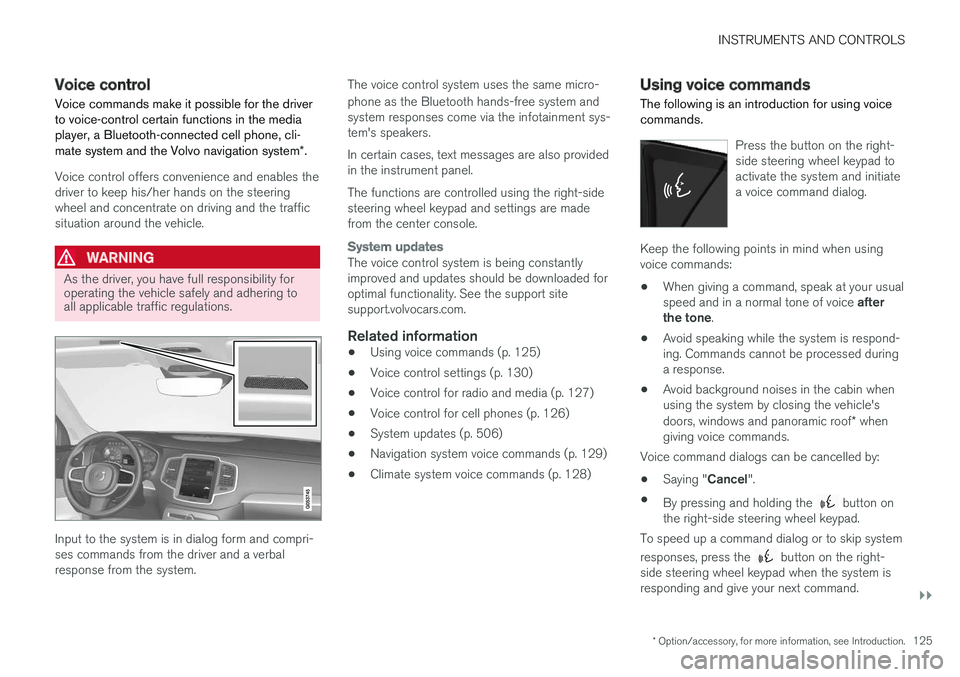
Input to the system is in dialog form and compri-ses commands from the driver and a verbalresponse from the system.
The voice control system uses the same micro-
phone as the Bluetooth hands-free system andsystem responses come via the infotainment sys-tem's speakers.
In certain cases, text messages are also providedin the instrument panel.
The functions are controlled using the right-sidesteering wheel keypad and settings are madefrom the center console.
System updates
The voice control system is being constantlyimproved and updates should be downloaded foroptimal functionality. See the support sitesupport.volvocars.com.
Related information
•Using voice commands (p. 125)
•Voice control settings (p. 130)
•Voice control for radio and media (p. 127)
•Voice control for cell phones (p. 126)
•System updates (p. 506)
•Navigation system voice commands (p. 129)
•Climate system voice commands (p. 128)
Using voice commands
The following is an introduction for using voicecommands.
Press the button on the right-side steering wheel keypad toactivate the system and initiatea voice command dialog.
Keep the following points in mind when usingvoice commands:
•When giving a command, speak at your usualspeed and in a normal tone of voice afterthe tone.
•Avoid speaking while the system is respond-ing. Commands cannot be processed duringa response.
•Avoid background noises in the cabin whenusing the system by closing the vehicle'sdoors, windows and panoramic roof* whengiving voice commands.
Voice command dialogs can be cancelled by:
•Saying "Cancel".
•By pressing and holding the button onthe right-side steering wheel keypad.
To speed up a command dialog or to skip system
responses, press the button on the right-side steering wheel keypad when the system isresponding and give your next command.
Page 132 of 584

INSTRUMENTS AND CONTROLS
130
Voice control settings
There are a number of settings that can be madefor the voice control system.
Open the center display's Top view and tap
SettingsSystemVoice Control andselect settings.
•Repeat Mode
•Gender
•Speech Rate
Sound settings
Open Top view and tap SettingsSound
System VolumesVoice Control.
Changing languages
The voice control system only understands the
languages marked by the symbol in the listof possible system languages.
Changing the language for this system alsoaffects menus, messages and help texts.
Open Top view and tap SettingsSystemLanguage.
Related information
•Voice control (p. 125)
•Using voice commands (p. 125)
•Navigation system voice commands (p. 129)
Indicator symbols in the instrumentpanel
The indicator symbols alert the driver when cer-tain functions are activated, that a system isactively working or that a fault may have occur-red in a system or function.
SymbolExplanation
Information, see the text mes-sage in the instrument panel
The information symbol illuminatesin combination with a text mes-sage if one of the vehicle's sys-tems requires the driver's atten-tion. The information symbol canalso illuminate in combination withother symbols.
A
B
Brake system
SymbolExplanation
A
B
ABS brake system
This symbol indicates a possiblefault in the ABS braking function.The vehicle's normal brakes willstill function but without ABSbrake modulation.
A
B
Parking brake/Auto-brake
This function keeps the vehicle ata standstill after it has stopped.The symbol is on when the func-tion is activated and the brakes orparking brake are being used.
Tire pressure system
The symbol illuminates to indicatelow tire pressure or a fault in thetire pressure system.
Malfunction indicator light(check engine light)
This symbol will illuminate if thereis a fault in the emissions controlsystem. If this happens, pleasehave your vehicle checked by atrained and qualified Volvo servicetechnician as soon as possible.
Page 134 of 584

||
INSTRUMENTS AND CONTROLS
132
SymbolExplanation
Lane keeping aid
White symbol: lane keeping aid onand marker lines detected.
Gray symbol: lane keeping aid onand no marker lines detected.
Yellow symbol: lane keeping aidactive
Lane keeping aid and rain sen-sor
White symbol: lane keeping aid onand marker lines detected. Rainsensor on.
Gray symbol: lane keeping aid onand no marker lines detected.Rain sensor on.
AUS modelsBCanadian modelsCXC90 T8 Twin Engine Plug-in Hybrid only.
Door/hood/tailgate/fuel filler door
reminder
If a door or the hood/tailgate/fuel filler door arenot closed properly, the information or warningsymbol will illuminate and a graphic will be dis-played in instrument panel. Stop the vehicle in asafe place as soon as possible and close thedoor, etc.
Related information
•Instrument panel (p. 132)
•Warning symbols in the instrument panel(p. 141)
•Door and seat belt reminders (p. 70)
Instrument panel
The instrument panel displays vehicle- and driv-ing-related information.
The gauges, indicators, symbols and functionsdisplayed in the instrument panel depend on theequipment/systems installed in the vehicle andwhich functions are currently activated.
Some of the functions listed below are optional.
WARNING
•If the instrument panel is not functioningproperly, information about e.g., brakes,airbags or other safety-related messagescannot be displayed and the driver cannotbe alerted to possible problems.
•If the instrument panel turns off, does notactivate when the ignition is switched onor is completely/partially not possible toread, do not drive the vehicle. Contact atrained and qualified Volvo service techni-cian.
Page 135 of 584

INSTRUMENTS AND CONTROLS
}}
133
Instrument panel
Left side
•Speedometer
•Trip odometer
•Odometer
•Cruise control/speed limiter information
•Road sign information
Center
•Indicator and warning symbols
•Ambient temperature sensor
•Clock
•Messages (and in certain cases also graph-ics)
•Distance to empty tank
•Distance to discharged hybrid battery (eDTE:electrical Distance to Empty)
•Door and seat belt status
•Hybrid battery charge information
•Compass
•Media player
•Navigation system map
•Cell phone
•Voice control
Right side
•Tachometer (depending on current drivingmode)
•Fuel gauge
•Battery gauge
•Gear indicator
•Current driving mode (Hybrid, Off Road, Pure,Power and AWD)
•Hybrid gauge (depending on current drivingmode)
•ECO gauge (depending on current drivingmode)
•Current fuel consumption
•Hybrid battery's charge level
•App menu (activated using the right-sidesteering wheel keypad)
Activating the instrument panel
The instrument panel is activated as soon as adoor is opened (i.e., ignition mode 0). After ashort period, the panel will go out if it is not used.
To reactivate it, do one of the following:
•Press the brake pedal
•Turn the start knob to START and release it(without pressing the brake pedal). This acti-vates ignition mode I
•Open one of the doors
Instrument panel settings
Some of the settings for the instrument panelcan be made in the App menu (see also the arti-cle "Instrument panel app menu").
The following settings can be made in the center
display's Top view under: SettingsMy CarDisplays:
•Driver Display Center Area: Select what isdisplayed in the background (center) of theinstrument panel. The options are: (Show noinformation in the background, Showinformation for current playing media orShow navigation even if no route is set).
•Themes. Select a theme (appearance). Theoptions are: (Glass, Minimalistic,Performance or Chrome Rings).
The system language can be changed under
SettingsSystemChoose systemlanguage. This change affects the languageused in all displays.