2017 VOLVO V90 buttons
[x] Cancel search: buttonsPage 109 of 594

INSTRUMENTS AND CONTROLS
}}
107
Message in the driver display3
.
The driver display shows messages that are of high priority for the driver. The messages can be shown in different parts of the driver display depending on what other infor-mation is currently being displayed. After a while,or when the message has been acknowledged/action taken if required, the message disappearsfrom the driver display. If a message needs to be saved, it is placed in the
Car status app, which is
opened from the app view in the centre display. Message composition may vary and they can be shown together with graphics, symbols or buttonsfor acknowledging the message or accepting arequest, for example.
Service messages
Shown below is a selection of important service messages and their meanings.
Message Specification
Stop safelyA
Stop and switch off the engine. Serious risk ofdamage - consult a work- shopB
.
Turn off engineA Stop and switch off the engine. Serious risk ofdamage - consult a work- shop
B
.
Service urgent Drive to work- shop
A Contact a workshop
B
to
check the car immediately.
Service requiredA Contact a workshop
B
to
check the car as soon as possible.
Regular main- tenance Book time for maintenanceTime for regular service - contact a workshop B
.
Shown before the next service date.
Message Specification
Regular main- tenance Time for main- tenanceTime for regular service - contact a workshopB
.
Shown at the next service date.
Regular main- tenance Maintenance overdueTime for regular service - contact a workshop B
.
Shown when the service date has passed.
Temporarily offA A function has been tem- porarily switched off and isreset automatically whiledriving or after startingagain.
A
Part of message, shown together with information on where the problem has arisen.
B An authorised Volvo workshop is recommended.
3With 12-inch driver display.
Page 111 of 594

INSTRUMENTS AND CONTROLS
}}
109
Driver display
Message in the driver display4
and the steering wheel's
right-hand keypad.
Message in the driver display 5
and the steering wheel's
right-hand keypad.
Left/right
Confirm
Some messages in the driver display contain one or more buttons for acknowledging the messageor accepting a request, for example.
Managing a new message
For messages with buttons:
1. Navigate between the different buttons that are available by tapping on left or right (1).
2. Confirm the selection by pressing on confirm (2).
> The message disappears from the driverdisplay. For messages without buttons:
–Close the message by pressing on confirm (2), or allow the message to close automati-cally after a while.
> The message disappears from the driver
display.
If a message needs to be saved, it is placed in the
Car status app, which is opened from the
app view in the centre display. The message Car
message stored in Car Status application is
shown in the centre display in conjunction with this.
Centre display
Message in the centre display.
Some messages in the centre display have a but- ton (or several buttons in pop-up messages) for
4 With 8-inch driver display.
5 With 12-inch driver display.
Page 112 of 594

||
INSTRUMENTS AND CONTROLS
110e.g. activating/deactivating a function linked to the message.
Managing a new message
For messages with buttons:
–Press the button to perform the action or allow the message to close automaticallyafter a while.
> The message disappears from the status
bar.
For messages without buttons:
–Close the message by tapping on it, or allow the message to close automatically after awhile.
> The message disappears from the status bar.
If a message needs to be saved, it is positioned in the top view in the centre display.
Related information
• Messages in the driver display and the centredisplay (p. 106)
• Managing messages saved from the driverdisplay and centre display (p. 110)
Managing messages saved from the driver display and centre display
Whether saved from the driver display or the centre display, messages are managed in thecentre display.
Messages saved from the driver display
Saved messages and possible options in the Car status
app.
Messages that are shown in the driver display and that needto be saved are added in the
Car status app in the centre
display. The message Car
message stored in Car Status application
is shown
in the centre display in conjunction with this.
Reading a saved message
To read a saved message immediately:
–Press the button to the right of the Car
message stored in Car Status application
message in the centre display.
> The saved message is shown in the
Car
status app.
To read a saved message later: 1. Open the
Car status app from the app view
in the centre display.
> The app is opened in the bottom subview of the home view.
2. Select the
Messages tab in the app.
> A list of saved messages is shown.
3. Press on the arrow to the right to maximise/ minimise a message.
> More information on the message isshown in the list and the image to the left in the app shows information about themessage graphically.
Page 113 of 594

INSTRUMENTS AND CONTROLS
111
Managing a saved message
In maximised mode, some messages have two buttons available to book service or read theowner's manual. To book service for a saved message:
–In maximised mode for the message, pressRequest appoint.Call to make Appointment6 for help in booking service.
> With
Request appoint.: TheAppointments tab opens in the app and
creates a request to book service and repair work. With
Call to make Appointment: The
phone app is initiated and calls a service centre to book service and repair work.
To read the owner's manual for a saved mes-sage:
–In maximised mode for the message, pressOwner's manual to read about the mes-
sage in the owner's manual.
> The owner's manual opens in the centre display and shows information linked to the message.
Saved messages in the app are deleted automat-ically each time the engine is started.
Messages saved from the centre display
Saved messages and possible options in the top view.
Messages that are shown in the centre display that need to be saved are added in the top viewof the centre display.
Reading a saved message
1. Open the top view in the centre display. > A list of saved messages is shown. Mes-sages with an arrow to the right can be maximised.
2. Press on the arrow to maximise/minimise the message.
Managing a saved message
Some messages have a button for e.g. activating/ deactivating a function linked to the message.
–Press the button to perform the action.
Saved messages in the top view are deleted automatically when the car is switched off.
Related information
• Messages in the driver display and the centredisplay (p. 106)
• Managing messages in the driver display andthe centre display (p. 108)
6
Depending on market.
Page 117 of 594

INSTRUMENTS AND CONTROLS
}}
* Option/accessory.115
When replacing the windscreen - contact an authorised workshop
7
. The correct version of the
windscreen must be fitted in order that the head- up display's graphics shall be displayed correctly.
Related information
• Function view with buttons for car functions(p. 47)
• Settings view (p. 169)
• Steering wheel (p. 131)
• Using the memory function in the power front seat
* (p. 122)
• Driver display (p. 90)
Voice recognition 8
The voice recognition system allows the driver to use voice recognition to control certain functionsof the media player, Bluetooth-connected phone,the climate system and Volvo's navigation sys- tem *.
Voice commands offer convenience and help the driver to avoid being distracted, and instead con-centrate on driving and focus attention on theroad and the traffic conditions.
WARNING
The driver always holds overall responsibility for driving the vehicle in a safe manner andcomplying with all applicable rules of the road.
Voice control system microphone
Voice recognition control takes place in dialogue form with spoken commands from the user andverbal response from the system. The voice rec-ognition system uses the same microphone asthe Bluetooth handsfree system and the voicerecognition system's replies come via the car'sspeakers. In some cases, a text message is alsoshown in the driver display. Functions are con-trolled from the right-hand steering wheel key-pad. Settings are made via the centre display.
System updating
The voice recognition system is continuously improved. Download updates for optimal perform-ance, see support.volvocars.com.
7
An authorised Volvo workshop is recommended.
8 Applies to certain markets.
Page 125 of 594

INSTRUMENTS AND CONTROLS
}}
* Option/accessory.123
3.
Within three seconds, depress the 1 or 2
button.
> When the position has been stored in the selected memory button an acoustic sig- nal sounds and the light indicator in the M
button extinguishes.
If none of the memory buttons is depressedwithin three seconds then the M button extin-
guishes and no storing takes place. The seat must be adjusted again before a new memory can be set.
Using a stored settingA stored setting can be used with the front dooreither open or closed:
Open front door
–Depress one of the memory buttons 1 or 2
with a short press. Seat, door mirrors and head-up display move and then stop at thepositions stored in the selected memory but-ton.
Closed front door
–Hold one of the memory buttons 1 or 2
depressed until seat, door mirrors and head- up display stop in the positions that arestored in the selected memory button.
If the memory button is released, the movementof the seat, door mirrors and head-up display willbe stopped.
WARNING
Risk of crushing! Make sure that children do not play with the keypad. Check that there areno objects in front of, behind or under theseat during adjustment. Make sure that noneof the passengers in the rear seat is in dangerof becoming trapped.
Related information
• Power front seat
* (p. 121)
• Adjusting the power front seat
* (p. 122)
Multi-functional front seat *
Enhance the seating comfort using the multi- function control.
Multi-function control, located on the side of the seat's seating section.
The multi-function control can, in some variants, be used to adjust the lumbar support *, side sup-
port *, cushion length and massage settings *. Set-
tings made with the multi-function control areshown in the centre display *. Certain function
selections can also be made directly in the centre display.
Centre displayThe driver and the passenger seat settings thatare made with the multi-function control areshown in the centre display. If the settings foronly one of the front seats are shown in the cen-tre display, the settings are positioned centred in
Page 132 of 594

INSTRUMENTS AND CONTROLS
* Option/accessory.
130
Lowering the backrests in the rear seat
The rear seat's backrest is divided into two parts. The two parts can be lowered forwardindividually.
WARNING
Adjust the seat and fix it before driving away. Take care when adjusting the seat. Uncontrol-led or careless adjustment can lead to trap-ping injuries.
IMPORTANT
There must be no objects on the rear seat when the backrest is to be folded down. Theseat belts must not be connected either. Oth-erwise there is a risk of damaging the rearseat upholstery.
IMPORTANT
The integrated booster cushions * on the
outer seats must be lowered before lowering the seat. The armrest * for the centre seat must be
raised before lowering the seat. If the car has private locking, the tailgate must be closed before lowering the seat.
NOTE
The front seats may need to be pushed for- wards, and/or the backrests adjustedupwards, in order that the rear backrests canbe fully folded forward.
Lowering the backrest
Car with electronic folding
If the car is equipped with electronic folding of the rear seat * there are buttons located in the
cargo area. The backrests can also be lowered manually.
WARNING
Pay attention that people are not at risk of being trapped during the automatic folding ofthe rear seat. Since this takes place automati-cally on the press of a button, no one must beon or too close to the rear seat.
For electronically controlled folding of backrests:
1. Ensure that there are no occupants or objects in the rear seat.
2. Lower the centre seat's head restraint man- ually.
3. Hold the button for folding depressed. The buttons are marked L and R for left and right backrest section respectively.
4. The backrests are lowered automatically to horizontal position. The head restraints arealso lowered automatically.
To facilitate folding of the rear seat, the car mustbe stationary and the tailgate open. To lower the backrest manually:
Page 147 of 594
INSTRUMENTS AND CONTROLS
}}
145
Passenger compartment lighting
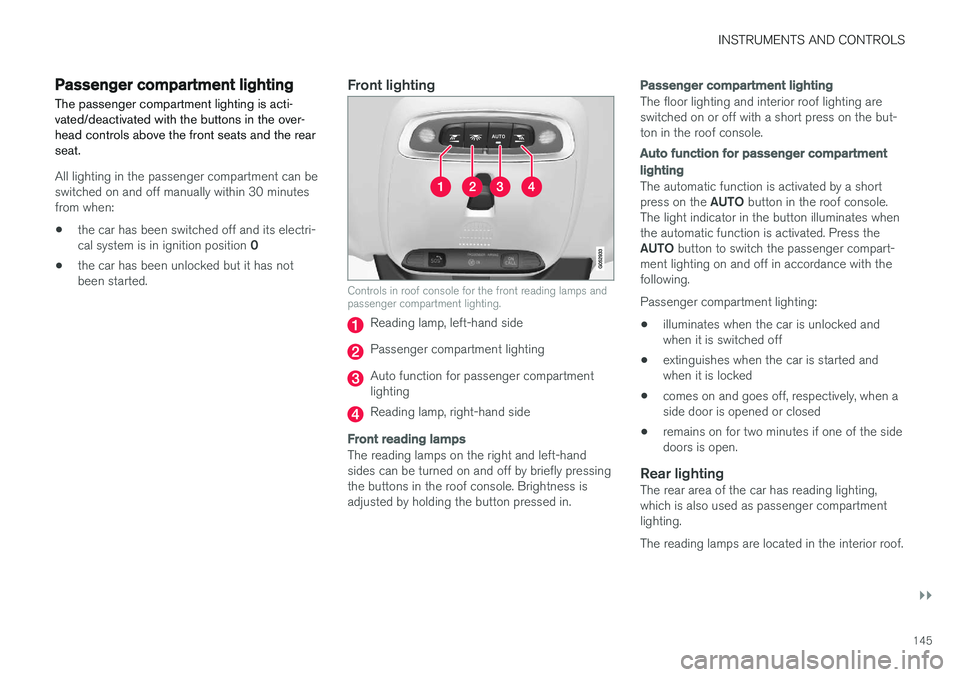
The passenger compartment lighting is acti- vated/deactivated with the buttons in the over-head controls above the front seats and the rearseat.
All lighting in the passenger compartment can be switched on and off manually within 30 minutesfrom when:
• the car has been switched off and its electri- cal system is in ignition position
0
• the car has been unlocked but it has not been started.
Front lighting
Controls in roof console for the front reading lamps and passenger compartment lighting.
Reading lamp, left-hand side
Passenger compartment lighting
Auto function for passenger compartment lighting
Reading lamp, right-hand side
Front reading lamps
The reading lamps on the right and left-hand sides can be turned on and off by briefly pressingthe buttons in the roof console. Brightness isadjusted by holding the button pressed in.
Passenger compartment lighting
The floor lighting and interior roof lighting are switched on or off with a short press on the but-ton in the roof console.
Auto function for passenger compartment lighting
The automatic function is activated by a short press on the
AUTO button in the roof console.
The light indicator in the button illuminates when the automatic function is activated. Press the AUTO button to switch the passenger compart-
ment lighting on and off in accordance with the following. Passenger compartment lighting: • illuminates when the car is unlocked and when it is switched off
• extinguishes when the car is started andwhen it is locked
• comes on and goes off, respectively, when aside door is opened or closed
• remains on for two minutes if one of the sidedoors is open.
Rear lightingThe rear area of the car has reading lighting,which is also used as passenger compartmentlighting. The reading lamps are located in the interior roof.