2017 NISSAN SENTRA turn signal
[x] Cancel search: turn signalPage 223 of 491
TUNE/MENU knob/Enter button
Turn the TUNE/MENU knob to the left or right to
scroll and then press ENTER to select desired
item.
A–Z button
When listening to music via USB or iPod®,
pressing the A-Z button will launch a quick
search function in music browser that will allow
user to search for music alphabetically using the
TUNE/MENU knob.
RDM (random) and RPT (repeat) button
When listening to music via USB or iPod®,
pressing the RDM button will shuffle the songs
being played. Pressing the RPT button will repeat
the song being played.
(back) button
Pressing the
(back) button will return the
user to the previous menu.
FM/AM radio operation
FM-AM button
Press the FM·AM button to change the band as
follows:
AM →FM1 →FM2 →AM
If another audio source is playing when the
FM·AM button is pressed, the audio source play- ing will automatically be turned off and the last
radio station played will begin playing.
If the FM-AM button is pressed for more than
1.5 seconds, the AUTOSTORE function will be
initiated. The “AST” icon will appear and “AU-
TOSTORE” may appear on the display screen, a
beep is heard and the radio mutes. The system
will then automatically detect the 6 stations with
the strongest frequency and save them as pre-
sets. Once AUTOSTORE is complete, the “AST”
icon will disappear and “AUTOSTORE COM-
PLETE” may appear on the display screen.
TUNE/MENU knob (Tuning)
Turn the TUNE/MENU knob to the left or right for
manual tuning.
SEEK tuning
Press the SEEK/TRACK button
orto tune from low to high or high to low frequen-
cies and to stop at the next broadcasting station.
Hold either button to tune continuously. Then
release button once desired frequency is
reached.
Station select (1 to 6) memory operations
Twelve stations can be set for the FM band (6 for
FM1, 6 for FM2) and six stations can be set for
the AM band. 1. Choose the radio band AM, FM1 or FM2
using the AM or FM button.
2. Tune to the desired station using manual or SEEK tuning. Press and hold any of the
desired station memory buttons (1 – 6) until
a beep sound is heard.
3. The station memory position (P1–P6) will now be displayed next to the band. Pro-
gramming is now complete.
4. Other buttons can be set in the same man- ner.
If the battery cable is disconnected or if the fuse
opens, the radio memory will be canceled. In that
case, reset the desired stations.
SCAN (tuning) button
Press the SCAN button. SCAN illuminates in the
display window. Scan tuning begins from low to
high frequencies. Scan tuning stops for 5 sec-
onds at each broadcasting station that has suffi-
cient signal strength. When scanning, SCAN
blinks in the display. Pressing the SCAN button
again during this 5 second period stops scan
tuning and the radio remains tuned to that station.
Compact disc (CD) player operation
If the radio is already operating, it automatically
turns off and the compact disc begins to play.
4-46Monitor, climate, audio, phone and voice recognition systems
Page 232 of 491
![NISSAN SENTRA 2017 B17 / 7.G Owners Manual BACK button
Pressing the BACK button will return the user to
the previous menu.
SXM settings
To view the SXM settings:1. Press the [
] button.
2. Touch the “Settings” key.
3. Touch the “SXM” k](/manual-img/5/555/w960_555-231.png "NISSAN SENTRA 2017 B17 / 7.G Owners Manual BACK button
Pressing the BACK button will return the user to
the previous menu.
SXM settings
To view the SXM settings:1. Press the [
] button.
2. Touch the “Settings” key.
3. Touch the “SXM” k")
BACK button
Pressing the BACK button will return the user to
the previous menu.
SXM settings
To view the SXM settings:1. Press the [
] button.
2. Touch the “Settings” key.
3. Touch the “SXM” key.
The signal strength, activation status and other
information are displayed on the screen.
FM/AM/SAT radio operation
FM·AM button
Press the FM·AM button to change the band as
follows:
AM →FM1 →FM2 →AM
If another audio source is playing when the
FM·AM button is pressed, the audio source play-
ing will automatically be turned off and the last
radio station played will begin playing.
The FM stereo indicator (ST) is shown on the
screen during FM stereo reception. When the
stereo broadcast signal is weak, the radio auto-
matically changes from stereo to monaural re-
ception. SXM band select
Pressing the SXM button will change the band as
follows:
SXM1*
→SXM2* →SXM3* →SXM1* (satellite,
if so equipped)
When the SXM button is pressed while the igni-
tion switch is in the ACC or ON position, the
radio will come on at the last station played.
The last station played will also come on when
the ON-OFF button is pressed to turn the radio
on.
*When the SXM button is pressed, the satellite
radio mode will be skipped unless an optional
satellite receiver and antenna are installed and a
SiriusXM® Satellite Radio service subscription is
active. Satellite radio is not available in Alaska,
Hawaii and Guam.
If a compact disc is playing when the SXM button
is pressed, the compact disc will automatically be
turned off and the last radio station played will
come on.
While the radio is in SXM mode, the operation
can be controlled through the touch-screen.
Touch the “Channels” key to display a list of
channels. Touch a channel displayed on the list to
change to that channel. Touch the “Categories” key to display a list of categories. Touch a cat-
egory displayed on the list to display options
within that category.
Tuning with the touch-screen
When in AM or FM mode, the radio can be tuned
using the touch-screen. To bring up the visual
tuner, touch the “Tune” key on the lower right
corner of the screen. A screen appears with a bar
running from low frequencies on the left to high
frequencies on the right. Touch the screen at the
location of the frequency you wish to tune and the
station will change to that frequency. To return to
the regular radio display screen, touch the “OK”
key.
Tuning with the TUNE knob
The radio can also be manually tuned using the
TUNE knob. When in FM or AM mode, turn the
TUNE knob to the left for lower frequencies or to
the right for higher frequencies. When in SXM
mode, turn the TUNE knob to change the chan-
nel.
Monitor, climate, audio, phone and voice recognition systems4-55
Page 272 of 491
phone module when the ignition switch is placed
in the ON position with the previously connected
cellular phone turned on and carried in the ve-
hicle.
NOTE:
Some devices require the user to accept
connections to other Bluetooth® devices. If
your phone does not connect automatic
ally to the system, consult the phone’s
Owner’s Manual for details on device op-
eration.
You can connect up to five different Bluetooth®
cellular phones to the in-vehicle phone module.
However, you can talk on only one cellular phone
at a time.
Before using the Bluetooth® Hands-Free Phone
System, refer to the following notes.● Set up the wireless connection between a
compatible cellular phone and the in-vehicle
phone module before using the hands-free
phone system.
● Some Bluetooth® enabled cellular phones
may not be recognized or work properly.
Please visit www.nissanusa.com/bluetooth
or www.nissan.ca/bluetooth for a recom-
mended phone list and connecting instruc-
tions. ●
You will not be able to use a hands-free
phone under the following conditions:
– Your vehicle is outside of the cellular ser- vice area.
– Your vehicle is in an area where it is difficult to receive a cellular signal; such
as in a tunnel, in an underground parking
garage, near a tall building or in a moun-
tainous area.
– Your cellular phone is locked to prevent it from being dialed.
● When the radio wave condition is not ideal
or ambient sound is too loud, it may be
difficult to hear the other person’s voice dur-
ing a call.
● Do not place the cellular phone in an area
surrounded by metal or far away from the
in-vehicle phone module to prevent tone
quality degradation and wireless connection
disruption.
● While a cellular phone is connected through
the Bluetooth® wireless connection, the
battery power of the cellular phone may dis-
charge quicker than usual. The Bluetooth®
Hands-Free Phone System cannot charge
cellular phones. ●
For additional information, you can visit
www.nissanusa.com/bluetooth or
www.nissan.ca/bluetooth for troubleshoot-
ing help.
● Some cellular phones or other devices may
cause interference or a buzzing noise to
come from the audio system speakers. Stor-
ing the device in a different location may
reduce or eliminate the noise.
● Refer to the cellular phone Owner’s Manual
regarding the telephone charges, cellular
phone antenna and body, etc.
REGULATORY INFORMATION
FCC Regulatory information
– CAUTION: To maintain compliance with FCC’s RF exposure guidelines, use only the
supplied antenna. Unauthorized antenna,
modification, or attachments could damage
the transmitter and may violate FCC regula-
tions.
– Operation is subject to the following two con- ditions:
1. This device may not cause interference and
2. this device must accept any interference, including interference that may cause unde-
sired operation of the device.
Monitor, climate, audio, phone and voice recognition systems4-95
Page 304 of 491
WARNING
●Radio waves could adversely affect
electric medical equipment. Those who
use a pacemaker should contact the
electric medical equipment manufac-
turer for the possible influences before
use.
● If the low tire pressure warning light
illuminates while driving, avoid sudden
steering maneuvers or abrupt braking,
reduce vehicle speed, pull off the road
to a safe location and stop the vehicle
as soon as possible. Driving with under-
inflated tires may permanently damage
the tires and increase the likelihood of
tire failure. Serious vehicle damage
could occur and may lead to an accident
and could result in serious personal in-
jury. Check the tire pressure for all four
tires. Adjust the tire pressure to the
recommended COLD tire pressure
shown on the Tire and Loading Informa-
tion label to turn the low tire pressure
warning light OFF. If you have a flat tire,
replace it with a spare tire as soon as
possible. (For additional information,
refer to “Flat tire” in the “In case of
emergency” section for changing a flat
tire.) ●
Since the spare tire is not equipped with
the TPMS, when a spare tire is mounted
or a wheel is replaced, the TPMS will
not function and the low tire pressure
warning light will flash for approxi-
mately 1 minute. The light will remain
on after 1 minute. Have your tires re-
placed and/or TPMS reset as soon as
possible. It is recommended that you
visit a NISSAN dealer for this service.
● Replacing tires with those not originally
specified by NISSAN could affect the
proper operation of the TPMS.
● Do not inject any tire liquid or aerosol
tire sealant into the tires, as this may
cause a malfunction of the tire pressure
sensors.
CAUTION
Do not place metalized film or any metal
parts (antenna, etc.) on the windows. This
may cause poor reception of the signals
from the tire pressure sensors, and the
TPMS will not function properly.
Some devices and transmitters may temporarily
interfere with the operation of the TPMS and
cause the low tire pressure warning light to illu-
minate. Some examples are:
● Facilities or electric devices using similar
radio frequencies are near the vehicle.
● If a transmitter set to similar frequencies is
being used in or near the vehicle.
● If a computer (or similar equipment) or a
DC/AC converter is being used in or near
the vehicle.
The low tire pressure warning light may illuminate
in the following cases. ● If the vehicle is equipped with a wheel and
tire without TPMS.
● If the TPMS has been replaced and the ID
has not been registered.
● If the wheel is not originally specified by
NISSAN.
FCC Notice:
For USA:
This device complies with Part 15 of the
FCC Rules. Operation is subject to the fol-
lowing two conditions: (1) This device may
not cause harmful interference, and (2) this
device must accept any interference re-
ceived, including interference that may
cause undesired operation.
Starting and driving5-5
Page 326 of 491
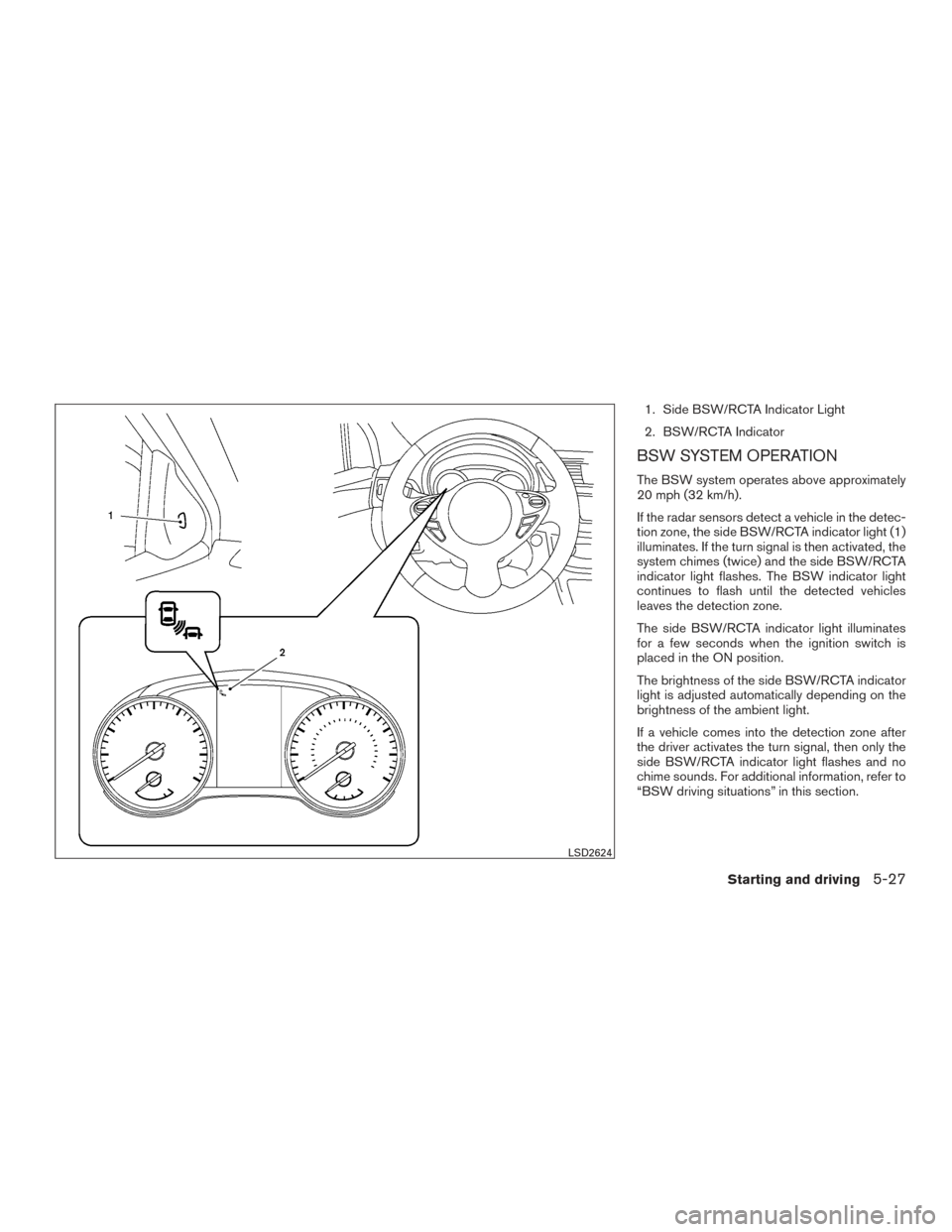
1. Side BSW/RCTA Indicator Light
2. BSW/RCTA Indicator
BSW SYSTEM OPERATION
The BSW system operates above approximately
20 mph (32 km/h).
If the radar sensors detect a vehicle in the detec-
tion zone, the side BSW/RCTA indicator light (1)
illuminates. If the turn signal is then activated, the
system chimes (twice) and the side BSW/RCTA
indicator light flashes. The BSW indicator light
continues to flash until the detected vehicles
leaves the detection zone.
The side BSW/RCTA indicator light illuminates
for a few seconds when the ignition switch is
placed in the ON position.
The brightness of the side BSW/RCTA indicator
light is adjusted automatically depending on the
brightness of the ambient light.
If a vehicle comes into the detection zone after
the driver activates the turn signal, then only the
side BSW/RCTA indicator light flashes and no
chime sounds. For additional information, refer to
“BSW driving situations” in this section.
LSD2624
Starting and driving5-27
Page 330 of 491
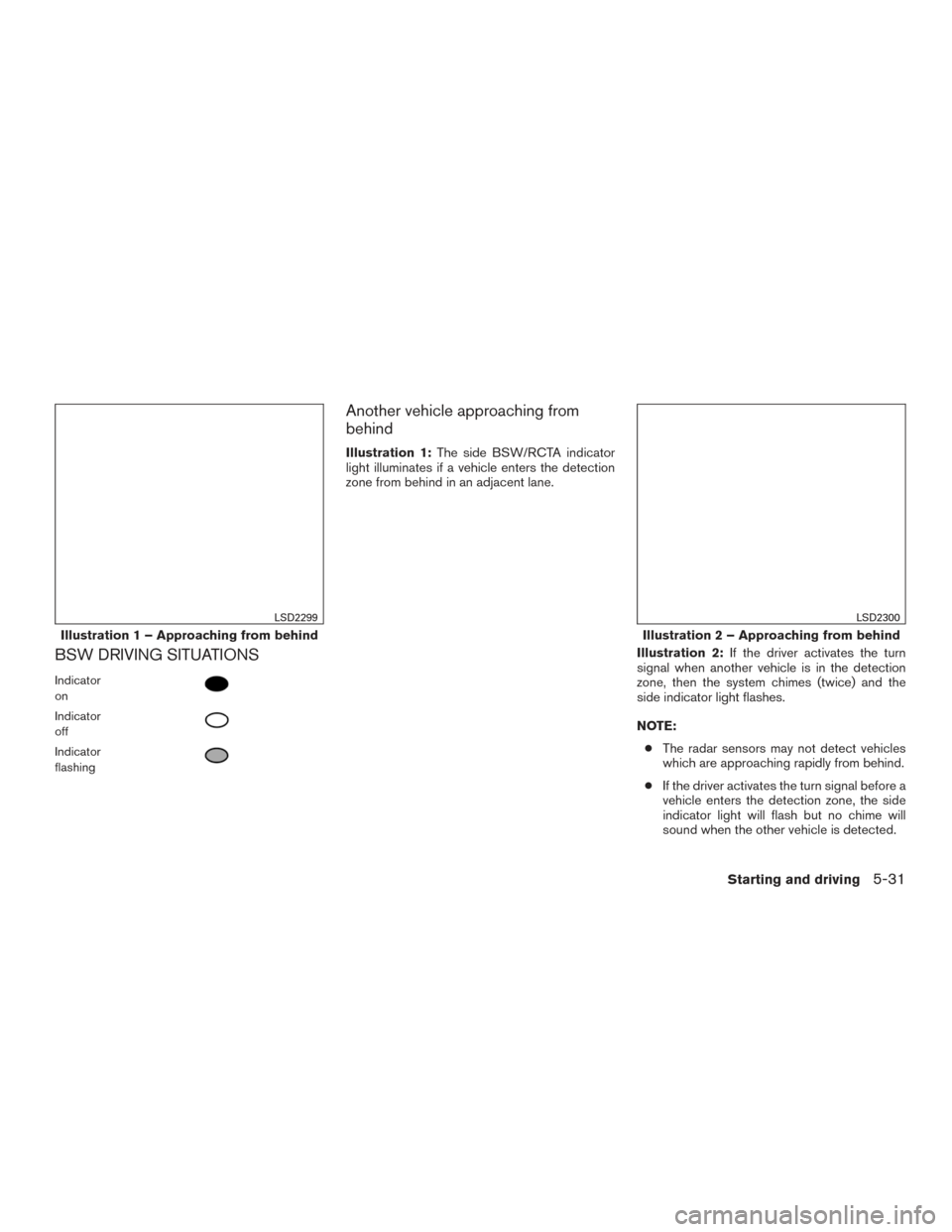
BSW DRIVING SITUATIONS
Indicator
on
Indicator
off
Indicator
flashing
Another vehicle approaching from
behind
Illustration 1:The side BSW/RCTA indicator
light illuminates if a vehicle enters the detection
zone from behind in an adjacent lane.
Illustration 2:If the driver activates the turn
signal when another vehicle is in the detection
zone, then the system chimes (twice) and the
side indicator light flashes.
NOTE:
● The radar sensors may not detect vehicles
which are approaching rapidly from behind.
● If the driver activates the turn signal before a
vehicle enters the detection zone, the side
indicator light will flash but no chime will
sound when the other vehicle is detected.
Illustration 1 – Approaching from behind
LSD2299
Illustration 2 – Approaching from behind
LSD2300
Starting and driving5-31
Page 331 of 491
Overtaking another vehicle
Illustration 3:The side indicator light illumi-
nates if you overtake a vehicle and that vehicle
stays in the detection zone for approximately
2 seconds. Illustration 4:
If the driver activates the turn
signal while another vehicle is in the detection
zone, then the system chimes (twice) and the
side indicator light flashes.
NOTE:
● When overtaking several vehicles in a row,
the vehicles after the first vehicle may not be
detected if they are traveling close together.
● The radar sensors may not detect slower
moving vehicles if they are passed quickly. ●
If the driver activates the turn signal before a
vehicle enters the detection zone, the side
indicator light will flash but no chime will
sound when the other vehicle is detected.
Illustration 3 – Overtaking another vehicle
LSD2302
Illustration 4 – Overtaking another vehicle
LSD2303
5-32Starting and driving
Page 332 of 491
Entering from the side
Illustration 5:The side indicator light illumi-
nates if a vehicle enters the detection zone from
either side. Illustration 6:
If the driver activates the turn
signal while another vehicle is in the detection
zone, then the system chimes (twice) and the
side indicator light flashes.
NOTE:
● If the driver activates the turn signal before a
vehicle enters the detection zone, the side
indicator light will flash but no chime will
sound when the other vehicle is detected. ●
The radar sensors may not detect a vehicle
which is traveling at about the same speed
as your vehicle when it enters the detection
zone.
Illustration 5 – Entering from the side
LSD2305
Illustration 6 – Entering from the side
LSD2308
Starting and driving5-33