Page 5 of 491
NISSAN CARES...
Both NISSAN and your NISSAN dealer are dedicated to serving all your automotive needs. Your satisfaction with your vehicle and your NISSAN dealer are
our primary concerns. Your NISSAN dealer is always available to assist you with all your automobile sales and service needs.
However, if there is something that your NISSAN
dealer cannot assist you with or you would like to
provide NISSAN directly with comments or
questions, please contact the NISSAN Con-
sumer Affairs Department using our toll-free
number:
For U.S. customers1-800-NISSAN-1
(1-800-647-7261)
For Canadian customers 1-800-387-0122 The Consumer Affairs Department will ask for the
following information:
– Your name, address, and telephone number
– Vehicle identification number (attached to the
top of the instrument panel on the driver’s
side)
– Date of purchase
– Current odometer reading
– Your NISSAN dealer’s name
– Your comments or questions
OR You can write to NISSAN with the information at:
For U.S. customers
Nissan North America, Inc.
Consumer Affairs Department
P.O. Box 685003
Franklin, TN 37068-5003
or via e-mail at:
[email protected]
For Canadian customers Nissan Canada Inc.
5290 Orbitor Drive
Mississauga, Ontario L4W 4Z5
or via e-mail at:
[email protected]
If you prefer, visit us at:
www.nissanusa.com (for U.S. customers) or
www.nissan.ca (for Canadian customers)
We appreciate your interest in NISSAN and thank you for buying a quality NISSAN vehicle.
NISSAN CUSTOMER CARE PROGRAM
Page 6 of 491
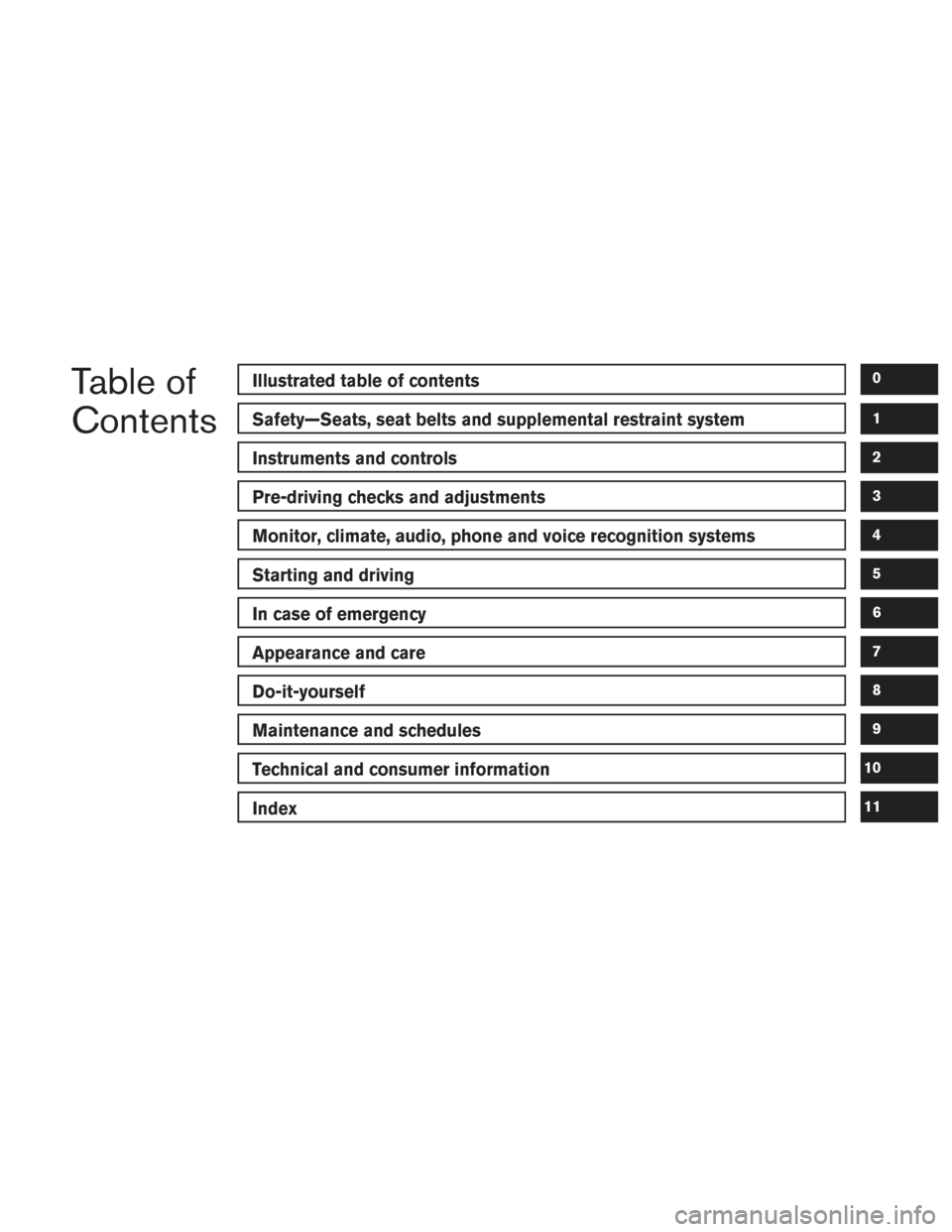
Table of
ContentsIllustrated table of contents
Safety—Seats, seat belts and supplemental restraint system
Instruments and controls
Pre-driving checks and adjustments
Monitor, climate, audio, phone and voice recognition systems
Starting and driving
In case of emergency
Appearance and care
Do-it-yourself
Maintenance and schedules
Technical and consumer information
Index
0
1
2
3
4
5
6
7
8
9
10
11
Page 13 of 491
1. Headlight/fog light (if so equipped)/turnsignal switch (P. 2-41)
2. Steering wheel switch for trip computer
(if so equipped)/vehicle information
display (if so equipped) (P. 2-9)
Audio control (P. 4-34)
3. Driver’s supplemental air bag (P. 1-48) Horn (P. 2-46)
4. Meters and gauges (P. 2-3) Warning and indicators lights (P. 2-15)
5. Cruise control main/set switches (if so
equipped) (P. 5-45)
Bluetooth® Hands-Free Phone System
(P. 4-78, 4-106)
6. Wiper and washer switch (P. 2-39)
7. Vents (P. 4-16)
8. Hazard warning flasher switch (P. 6-2)
9. Front passenger air bag status light
(P. 1-41)
10. Audio system (P. 4-34)
11. Front passenger supplemental air bag
(P. 1-48)
12. Glove box (P. 2-52)
13. Shift lever (P. 5-16)
14. Climate controls (P. 4-23, 4-31)
LII2498
INSTRUMENT PANEL
0-6Illustrated table of contents
Page 81 of 491
1. Headlight/fog light (if so equipped)/turnsignal switch (P. 2-41)
2. Steering wheel switch for trip computer
(if so equipped)/vehicle information
display (if so equipped) (P. 2-9)
Audio control (P. 4-34)
3. Driver’s supplemental air bag (P. 1-48) Horn (P. 2-46)
4. Meters and gauges (P. 2-3) Warning and indicators lights (P. 2-15)
5. Cruise control main/set switches (if so
equipped) (P. 5-45)
Bluetooth® Hands-Free Phone System
(P. 4-78, 4-106)
6. Wiper and washer switch (P. 2-39)
7. Vents (P. 4-16)
8. Hazard warning flasher switch (P. 6-2)
9. Front passenger air bag status light
(P. 1-41)
10. Audio system (P. 4-34)
11. Front passenger supplemental air bag
(P. 1-48)
12. Glove box (P. 2-52)
13. Shift lever (P. 5-16)
14. Climate controls (P. 4-23, 4-31)
LII2498
INSTRUMENT PANEL
2-2Instruments and controls
Page 104 of 491
HOW TO USE THE VEHICLE
INFORMATION DISPLAY
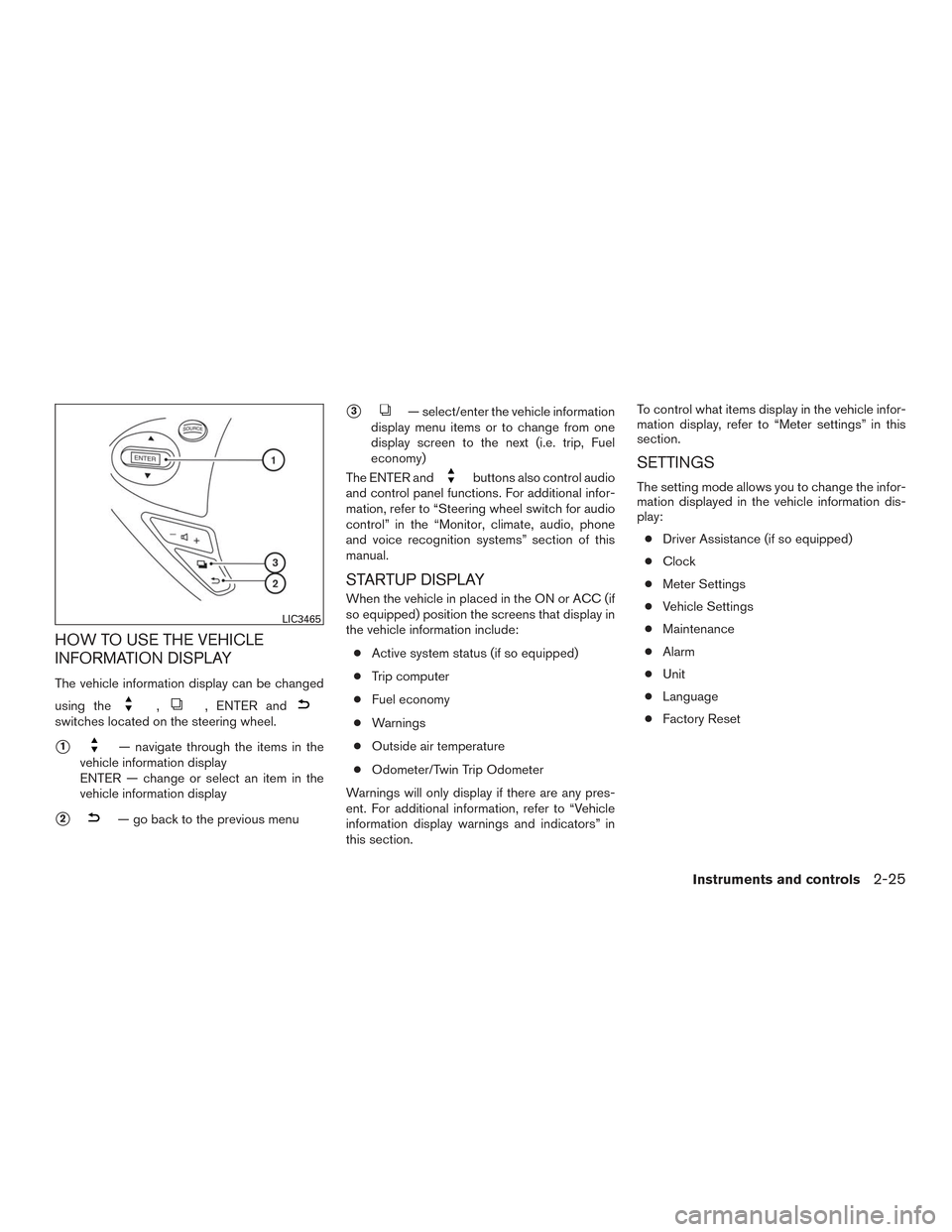
The vehicle information display can be changed
using the
,, ENTER andswitches located on the steering wheel.
�1— navigate through the items in the
vehicle information display
ENTER — change or select an item in the
vehicle information display
�2— go back to the previous menu
�3— select/enter the vehicle information
display menu items or to change from one
display screen to the next (i.e. trip, Fuel
economy)
The ENTER and
buttons also control audio
and control panel functions. For additional infor-
mation, refer to “Steering wheel switch for audio
control” in the “Monitor, climate, audio, phone
and voice recognition systems” section of this
manual.
STARTUP DISPLAY
When the vehicle in placed in the ON or ACC (if
so equipped) position the screens that display in
the vehicle information include:
● Active system status (if so equipped)
● Trip computer
● Fuel economy
● Warnings
● Outside air temperature
● Odometer/Twin Trip Odometer
Warnings will only display if there are any pres-
ent. For additional information, refer to “Vehicle
information display warnings and indicators” in
this section. To control what items display in the vehicle infor-
mation display, refer to “Meter settings” in this
section.
SETTINGS
The setting mode allows you to change the infor-
mation displayed in the vehicle information dis-
play:
● Driver Assistance (if so equipped)
● Clock
● Meter Settings
● Vehicle Settings
● Maintenance
● Alarm
● Unit
● Language
● Factory Reset
LIC3465
Instruments and controls2-25
Page 105 of 491
Driver Assistance (if so equipped)
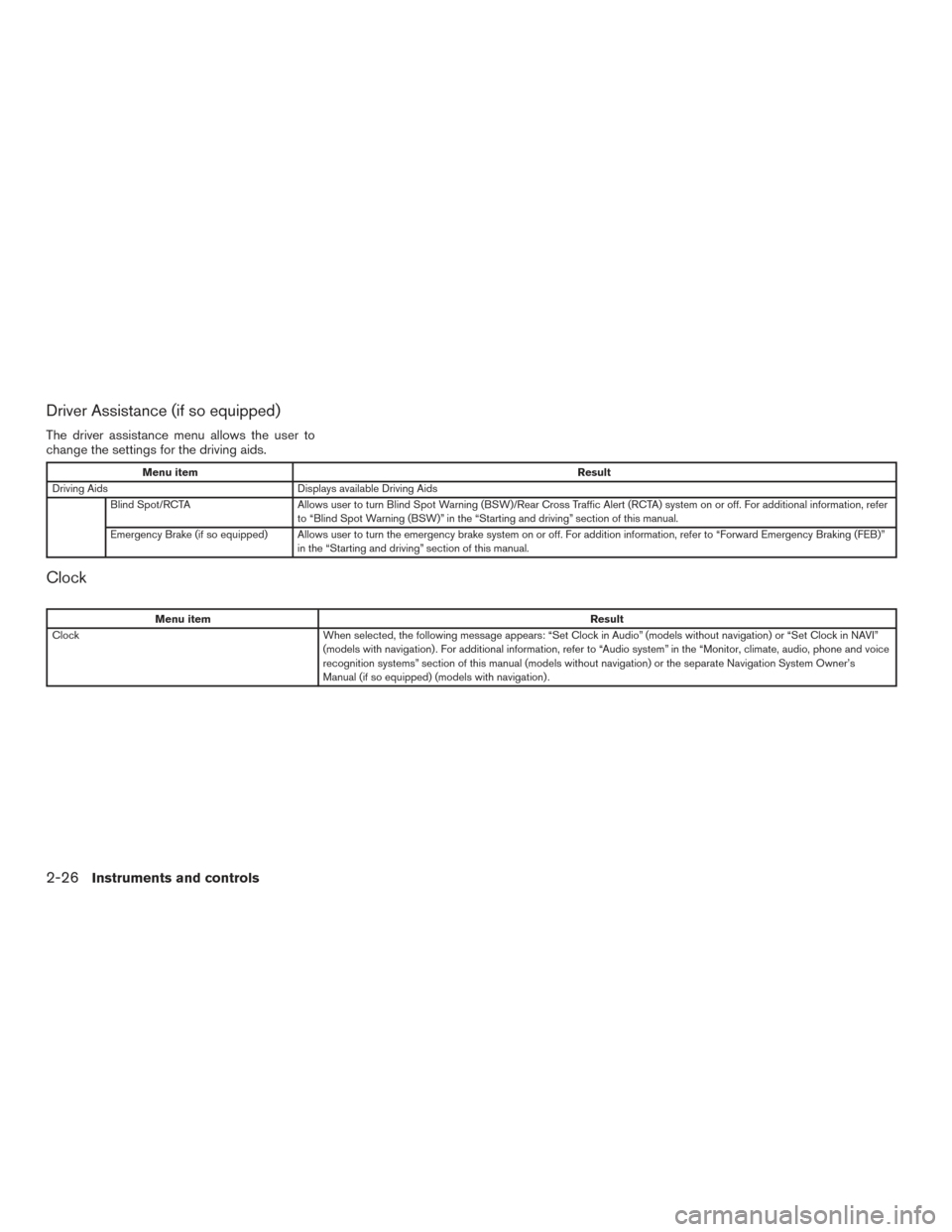
The driver assistance menu allows the user to
change the settings for the driving aids.
Menu itemResult
Driving Aids Displays available Driving Aids
Blind Spot/RCTA Allows user to turn Blind Spot Warning (BSW)/Rear Cross Traffic Alert (RCTA) system on or off. For additional information, refer
to “Blind Spot Warning (BSW)” in the “Starting and driving” section of this manual.
Emergency Brake (if so equipped) Allows user to turn the emergency brake system on or off. For addition information, refer to “Forward Emergency Braking (FEB)” in the “Starting and driving” section of this manual.
Clock
Menu item Result
Clock When selected, the following message appears: “Set Clock in Audio” (models without navigation) or “Set Clock in NAVI”
(models with navigation) . For additional information, refer to “Audio system” in the “Monitor, climate, audio, phone and voice
recognition systems” section of this manual (models without navigation) or the separate Navigation System Owner’s
Manual (if so equipped) (models with navigation) .
2-26Instruments and controls
Page 106 of 491
Meter Settings
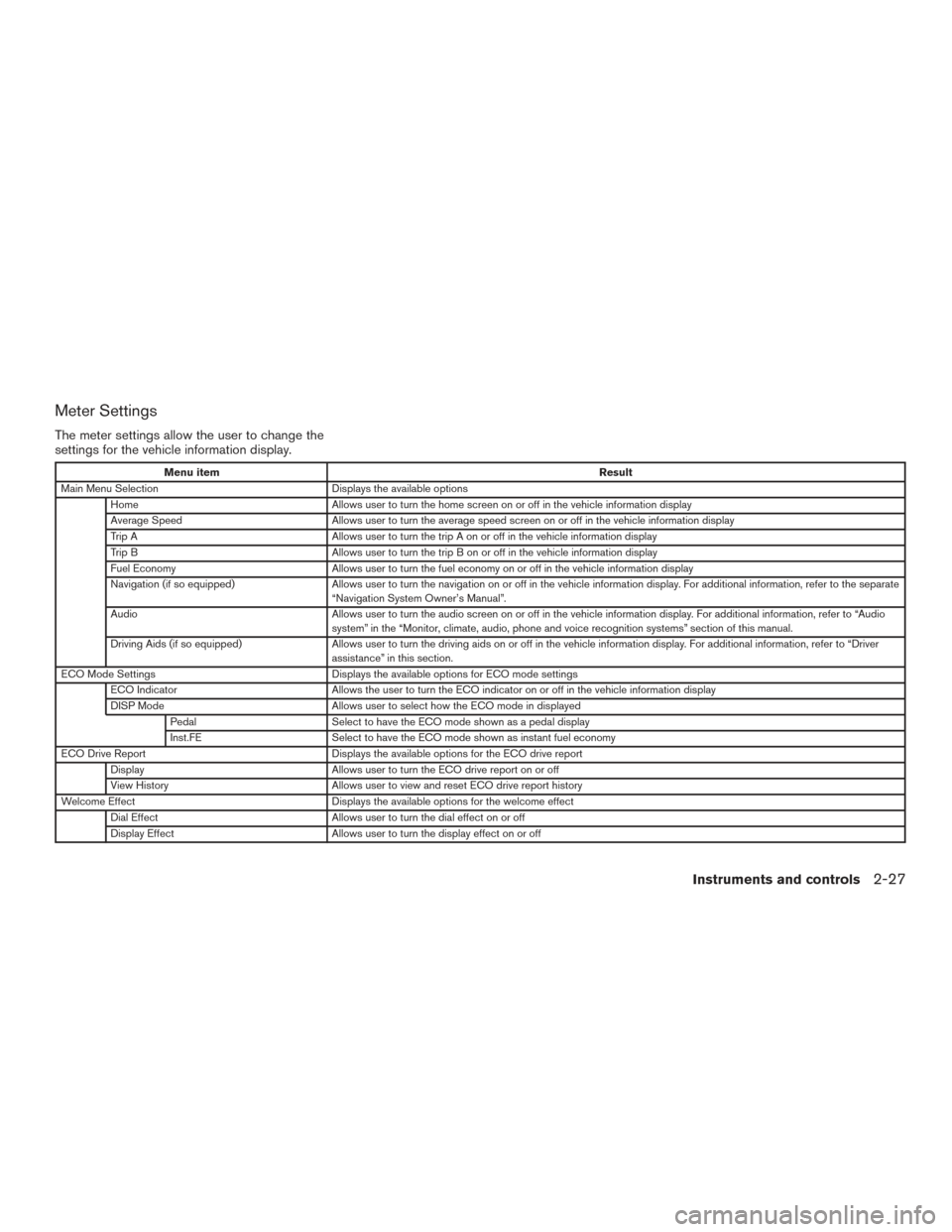
The meter settings allow the user to change the
settings for the vehicle information display.
Menu itemResult
Main Menu Selection Displays the available options
Home Allows user to turn the home screen on or off in the vehicle information display
Average Speed Allows user to turn the average speed screen on or off in the vehicle information display
Trip A Allows user to turn the trip A on or off in the vehicle information display
Trip B Allows user to turn the trip B on or off in the vehicle information display
Fuel Economy Allows user to turn the fuel economy on or off in the vehicle information display
Navigation (if so equipped) Allows user to turn the navigation on or off in the vehicle information display. For additional information, refer to the separate
“Navigation System Owner’s Manual”.
Audio Allows user to turn the audio screen on or off in the vehicle information display. For additional information, refer to “Audio
system” in the “Monitor, climate, audio, phone and voice recognition systems” section of this manual.
Driving Aids (if so equipped) Allows user to turn the driving aids on or off in the vehicle information display. For additional information, refer to “Driver
assistance” in this section.
ECO Mode Settings Displays the available options for ECO mode settings
ECO Indicator Allows the user to turn the ECO indicator on or off in the vehicle information display
DISP Mode Allows user to select how the ECO mode in displayed
Pedal Select to have the ECO mode shown as a pedal display
Inst.FE Select to have the ECO mode shown as instant fuel economy
ECO Drive Report Displays the available options for the ECO drive report
Display Allows user to turn the ECO drive report on or off
View History Allows user to view and reset ECO drive report history
Welcome Effect Displays the available options for the welcome effect
Dial Effect Allows user to turn the dial effect on or off
Display Effect Allows user to turn the display effect on or off
Instruments and controls2-27
Page 109 of 491
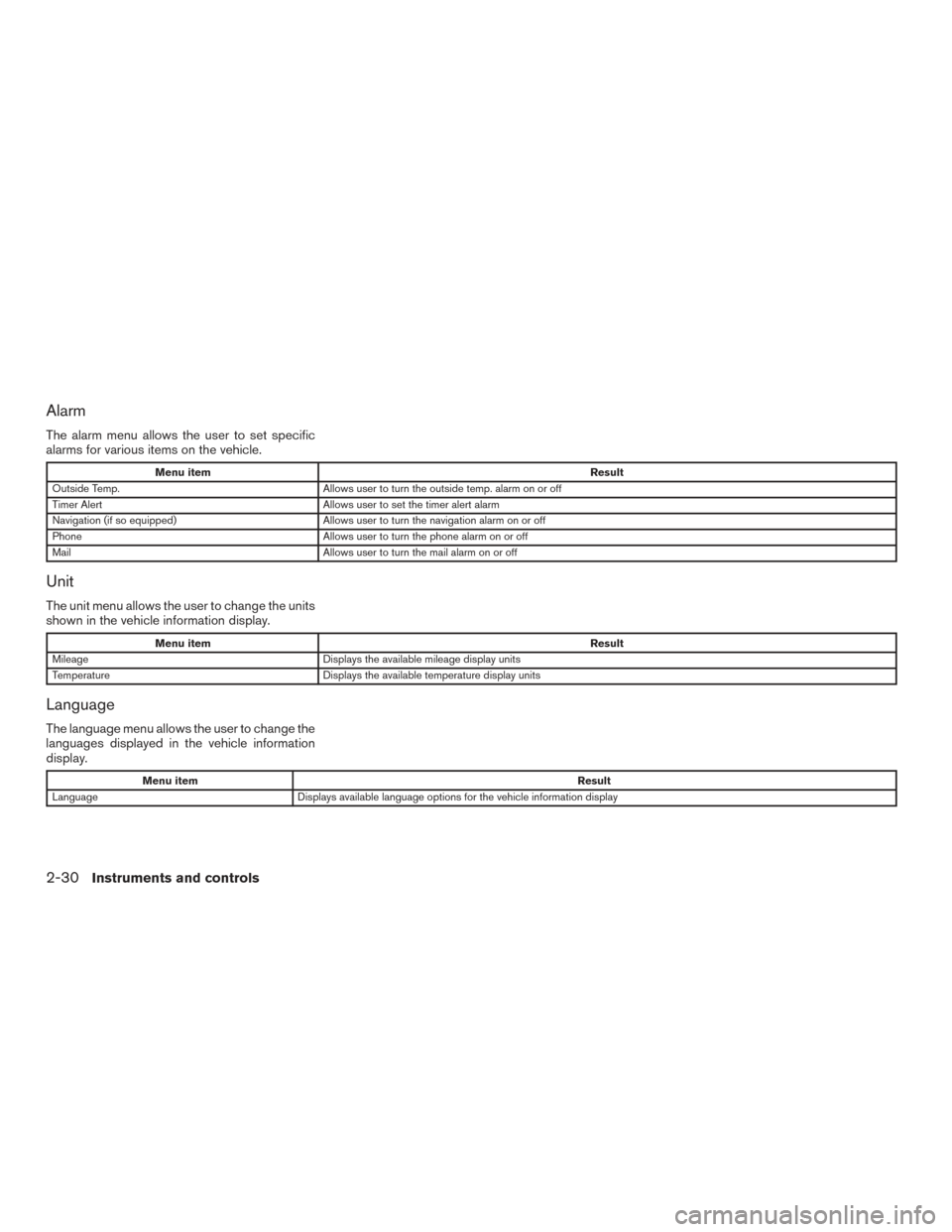
Alarm
The alarm menu allows the user to set specific
alarms for various items on the vehicle.
Menu itemResult
Outside Temp. Allows user to turn the outside temp. alarm on or off
Timer Alert Allows user to set the timer alert alarm
Navigation (if so equipped) Allows user to turn the navigation alarm on or off
Phone Allows user to turn the phone alarm on or off
Mail Allows user to turn the mail alarm on or off
Unit
The unit menu allows the user to change the units
shown in the vehicle information display.
Menu item Result
Mileage Displays the available mileage display units
Temperature Displays the available temperature display units
Language
The language menu allows the user to change the
languages displayed in the vehicle information
display.
Menu item Result
Language Displays available language options for the vehicle information display
2-30Instruments and controls