2017 NISSAN QUEST steering
[x] Cancel search: steeringPage 228 of 520
SAA1898
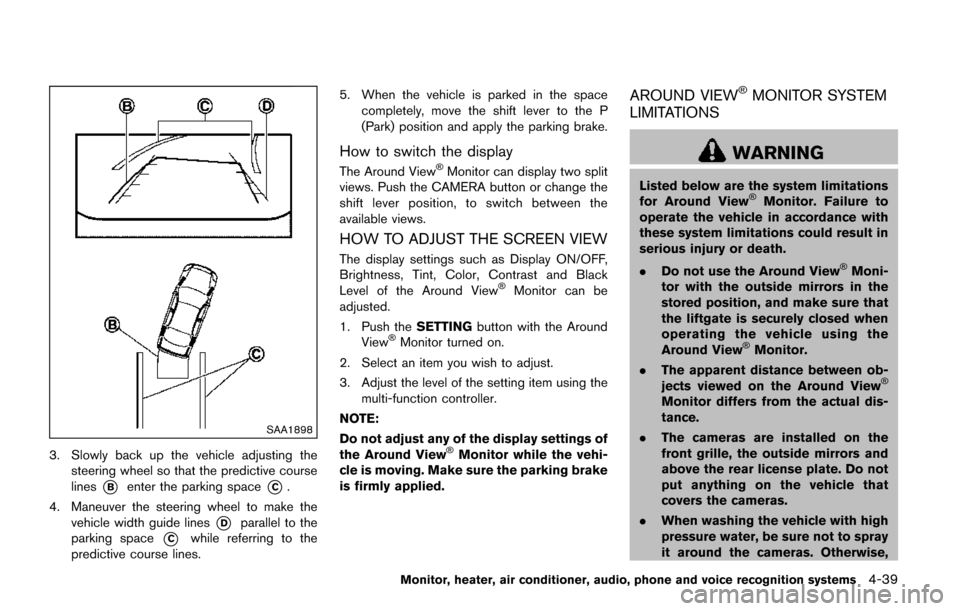
3. Slowly back up the vehicle adjusting thesteering wheel so that the predictive course
lines
*Benter the parking space*C.
4. Maneuver the steering wheel to make the vehicle width guide lines
*Dparallel to the
parking space
*Cwhile referring to the
predictive course lines. 5. When the vehicle is parked in the space
completely, move the shift lever to the P
(Park) position and apply the parking brake.
How to switch the display
The Around ViewŠMonitor can display two split
views. Push the CAMERA button or change the
shift lever position, to switch between the
available views.
HOW TO ADJUST THE SCREEN VIEW
The display settings such as Display ON/OFF,
Brightness, Tint, Color, Contrast and Black
Level of the Around View
ŠMonitor can be
adjusted.
1. Push the SETTINGbutton with the Around
View
ŠMonitor turned on.
2. Select an item you wish to adjust.
3. Adjust the level of the setting item using the multi-function controller.
NOTE:
Do not adjust any of the display settings of
the Around View
ŠMonitor while the vehi-
cle is moving. Make sure the parking brake
is firmly applied.
AROUND VIEWŠMONITOR SYSTEM
LIMITATIONS
WARNING
Listed below are the system limitations
for Around ViewŠMonitor. Failure to
operate the vehicle in accordance with
these system limitations could result in
serious injury or death.
. Do not use the Around View
ŠMoni-
tor with the outside mirrors in the
stored position, and make sure that
the liftgate is securely closed when
operating the vehicle using the
Around View
ŠMonitor.
. The apparent distance between ob-
jects viewed on the Around View
Š
Monitor differs from the actual dis-
tance.
. The cameras are installed on the
front grille, the outside mirrors and
above the rear license plate. Do not
put anything on the vehicle that
covers the cameras.
. When washing the vehicle with high
pressure water, be sure not to spray
it around the cameras. Otherwise,
Monitor, heater, air conditioner, audio, phone and voice recognition systems4-39
Page 297 of 520
4-108Monitor, heater, air conditioner, audio, phone and voice recognition systems
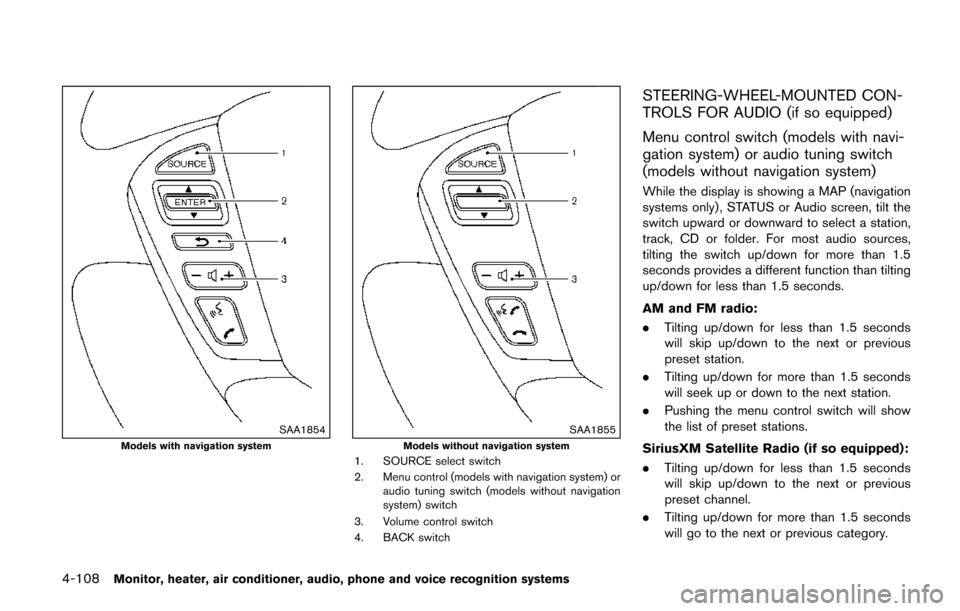
SAA1854Models with navigation systemSAA1855Models without navigation system1. SOURCE select switch
2. Menu control (models with navigation system) oraudio tuning switch (models without navigation
system) switch
3. Volume control switch
4. BACK switch
STEERING-WHEEL-MOUNTED CON-
TROLS FOR AUDIO (if so equipped)
Menu control switch (models with navi-
gation system) or audio tuning switch
(models without navigation system)
While the display is showing a MAP (navigation
systems only) , STATUS or Audio screen, tilt the
switch upward or downward to select a station,
track, CD or folder. For most audio sources,
tilting the switch up/down for more than 1.5
seconds provides a different function than tilting
up/down for less than 1.5 seconds.
AM and FM radio:
. Tilting up/down for less than 1.5 seconds
will skip up/down to the next or previous
preset station.
. Tilting up/down for more than 1.5 seconds
will seek up or down to the next station.
. Pushing the menu control switch will show
the list of preset stations.
SiriusXM Satellite Radio (if so equipped):
. Tilting up/down for less than 1.5 seconds
will skip up/down to the next or previous
preset channel.
. Tilting up/down for more than 1.5 seconds
will go to the next or previous category.
Page 317 of 520
4-128Monitor, heater, air conditioner, audio, phone and voice recognition systems
allow easy dialing using the NISSAN Voice
Recognition system. (See “NISSAN Voice
Recognition system (models with navigation
system)” (P.4-154) .)
To delete an entry, select the “Delete” key at
step 3.
JVH0479X
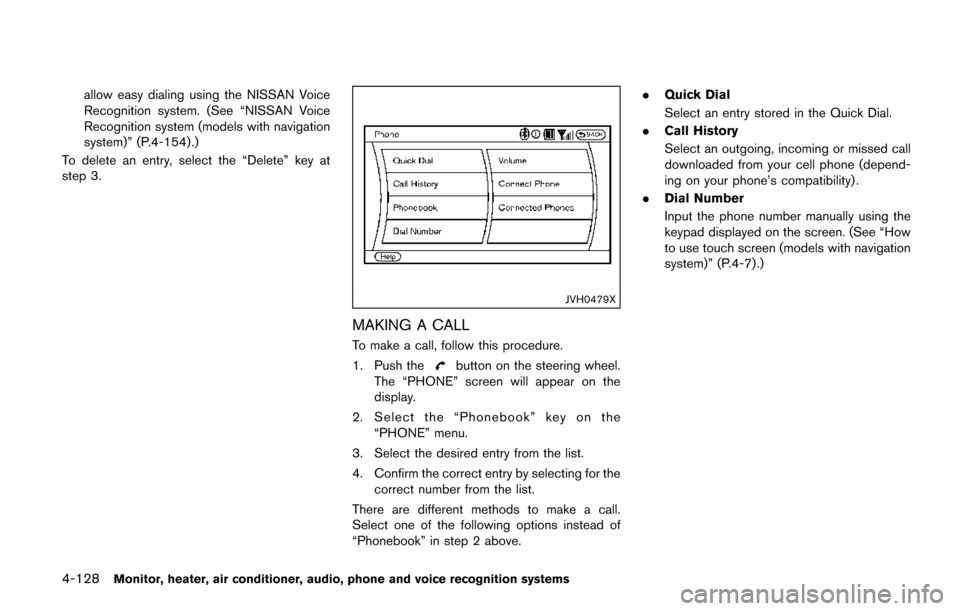
MAKING A CALL
To make a call, follow this procedure.
1. Push the
button on the steering wheel.
The “PHONE” screen will appear on the
display.
2. Select the “Phonebook” key on the “PHONE” menu.
3. Select the desired entry from the list.
4. Confirm the correct entry by selecting for the correct number from the list.
There are different methods to make a call.
Select one of the following options instead of
“Phonebook” in step 2 above. .
Quick Dial
Select an entry stored in the Quick Dial.
. Call History
Select an outgoing, incoming or missed call
downloaded from your cell phone (depend-
ing on your phone’s compatibility) .
. Dial Number
Input the phone number manually using the
keypad displayed on the screen. (See “How
to use touch screen (models with navigation
system)” (P.4-7) .)
Page 318 of 520
SAA2525
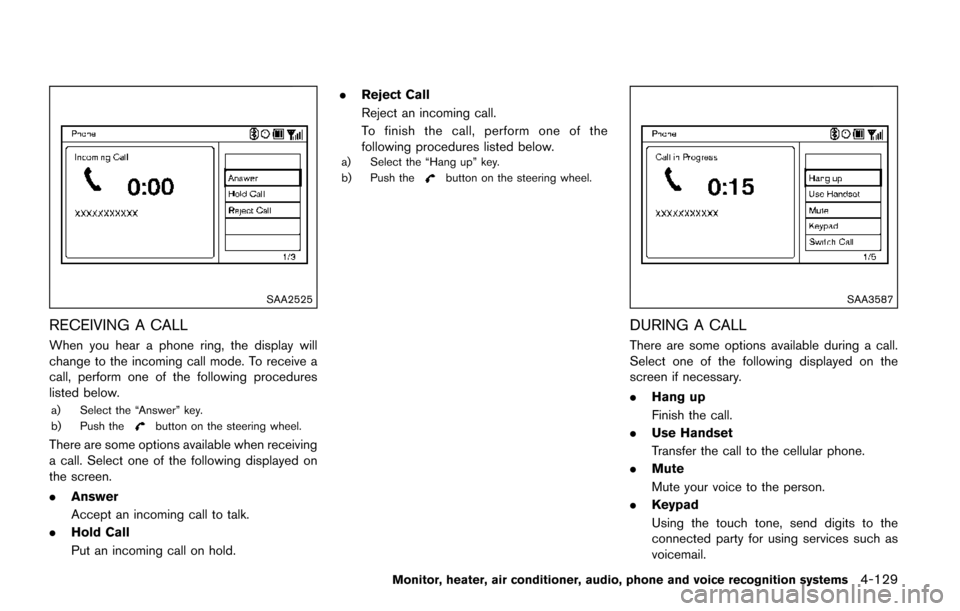
RECEIVING A CALL
When you hear a phone ring, the display will
change to the incoming call mode. To receive a
call, perform one of the following procedures
listed below.
a) Select the “Answer” key.
b) Push thebutton on the steering wheel.
There are some options available when receiving
a call. Select one of the following displayed on
the screen.
.Answer
Accept an incoming call to talk.
. Hold Call
Put an incoming call on hold. .
Reject Call
Reject an incoming call.
To finish the call, perform one of the
following procedures listed below.
a) Select the “Hang up” key.
b) Push thebutton on the steering wheel.
SAA3587
DURING A CALL
There are some options available during a call.
Select one of the following displayed on the
screen if necessary.
.Hang up
Finish the call.
. Use Handset
Transfer the call to the cellular phone.
. Mute
Mute your voice to the person.
. Keypad
Using the touch tone, send digits to the
connected party for using services such as
voicemail.
Monitor, heater, air conditioner, audio, phone and voice recognition systems4-129
Page 319 of 520
4-130Monitor, heater, air conditioner, audio, phone and voice recognition systems
.Cancel Mute
This will appear after “Mute” is selected.
Mute will be canceled.
. Switch Call*
Select “Switch Call” to answer another
incoming call. By selecting “Hang up”, you
can end a call and can speak to a caller who
is on hold again.
* This function may not be usable, depend-
ing on the model of phone.
To adjust the person’s voice to be louder or
quieter, push the volume control switch (+ or í)
on the steering wheel or turn the volume control
knob on the instrument panel while talking on
the phone. This adjustment is also available in
the SETTING mode.
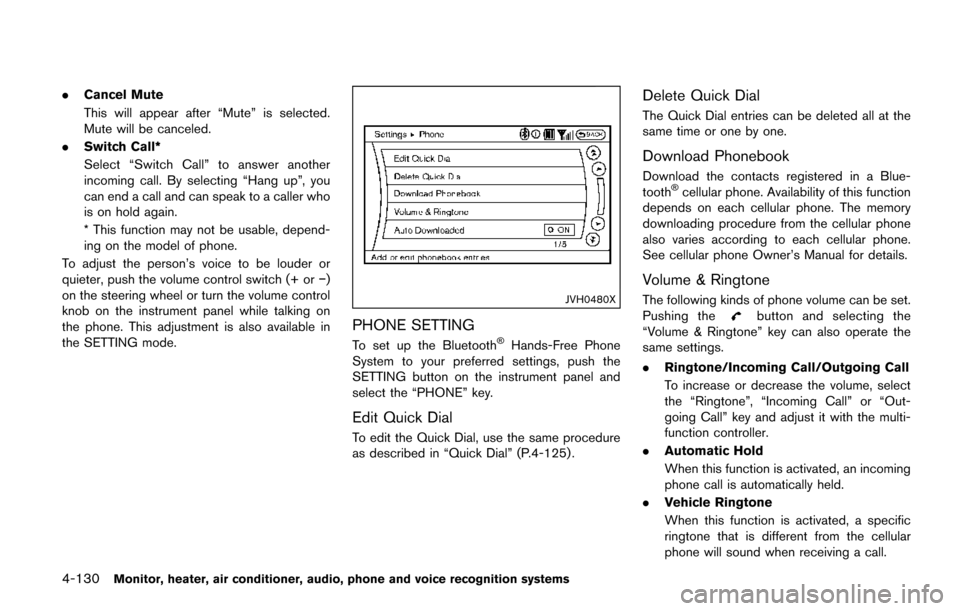
JVH0480X
PHONE SETTING
To set up the BluetoothŠHands-Free Phone
System to your preferred settings, push the
SETTING button on the instrument panel and
select the “PHONE” key.
Edit Quick Dial
To edit the Quick Dial, use the same procedure
as described in “Quick Dial” (P.4-125) .
Delete Quick Dial
The Quick Dial entries can be deleted all at the
same time or one by one.
Download Phonebook
Download the contacts registered in a Blue-
toothŠcellular phone. Availability of this function
depends on each cellular phone. The memory
downloading procedure from the cellular phone
also varies according to each cellular phone.
See cellular phone Owner’s Manual for details.
Volume & Ringtone
The following kinds of phone volume can be set.
Pushing thebutton and selecting the
“Volume & Ringtone” key can also operate the
same settings.
. Ringtone/Incoming Call/Outgoing Call
To increase or decrease the volume, select
the “Ringtone”, “Incoming Call” or “Out-
going Call” key and adjust it with the multi-
function controller.
. Automatic Hold
When this function is activated, an incoming
phone call is automatically held.
. Vehicle Ringtone
When this function is activated, a specific
ringtone that is different from the cellular
phone will sound when receiving a call.
Page 324 of 520
Bluetooth trademark:
BluetoothŠis a trademark owned
by Bluetooth SIG, Inc., and
licensed to Visteon Corporation.
USING THE SYSTEM
The NISSAN Voice Recognition system allows
hands-free operation of the BluetoothŠHands-
Free Phone System.
If the vehicle is in motion, some commands may
not be available so full attention may be given to
vehicle operation.
Initialization
When the ignition switch is pushed to the ON
position, NISSAN Voice Recognition is initia-
lized, which may take up to one minute. If the
button is pushed before the initialization
completes, the system will accept any com-
mand.
Operating tips
To get the best performance out of the NISSAN
Voice Recognition system, observe the follow-
ing:
. Keep the interior of the vehicle as quiet as
possible. Close the windows to eliminate
surrounding noises (traffic noises, vibration
sounds, etc.) , which may prevent the system
from recognizing voice commands correctly. .
Wait until the tone sounds before speaking a
command. Otherwise, the command will not
be received properly.
. Start speaking a command within 5 seconds
after the tone sounds.
. Speak in a natural voice without pausing
between words.
Giving voice command
To operate NISSAN Voice Recognition, push
and release thebutton located on the
steering wheel. After the tone sounds, speak a
command.
The command given is picked up by the
microphone, and voice feedback is given when
the command is accepted.
. If you need to hear the available commands
for the current menu again, say “Help” and
the system will repeat them.
. If a command is not recognized, the system
announces, “Command not recognized.
Please say again.” Repeat the command in
a clear voice.
. If you want to go back to the previous
command, you can say “Go back” or
“Correction” anytime the system is waiting
for a response.
. You can cancel a command when the
system is waiting for a response by saying, “Cancel” or “Quit.” The system announces
“Cancel” and ends the VR session. You can
also push and hold the
button for 5
seconds on the steering wheel at any time to
cancel the VR session. Whenever the VR
session is cancelled, a double beep is
played to indicate you have exited the
system.
Voice prompt inturrpt:
In most cases you can interrupt the voice
feedback to speak the next command by
pressing the
button on the steering wheel.
One Shot Call:
To use the system faster, you may speak the
second level commands with the main menu
command on the main menu. For example, press
the
button and after the tone say, “Call
Redial.” Note: The combined command of Call
and (Speak Name) cannot be used.
How to say numbers
NISSAN Voice Recognition requires a certain
way to speak numbers in voice commands.
Refer to the rules and examples below.
. Either “zero” or “oh” can be used for “0”.
Example: 1-800-662-6200
— “One eight oh oh six six two six two oh
oh”, or
Monitor, heater, air conditioner, audio, phone and voice recognition systems4-135
Page 326 of 520
SAA1858
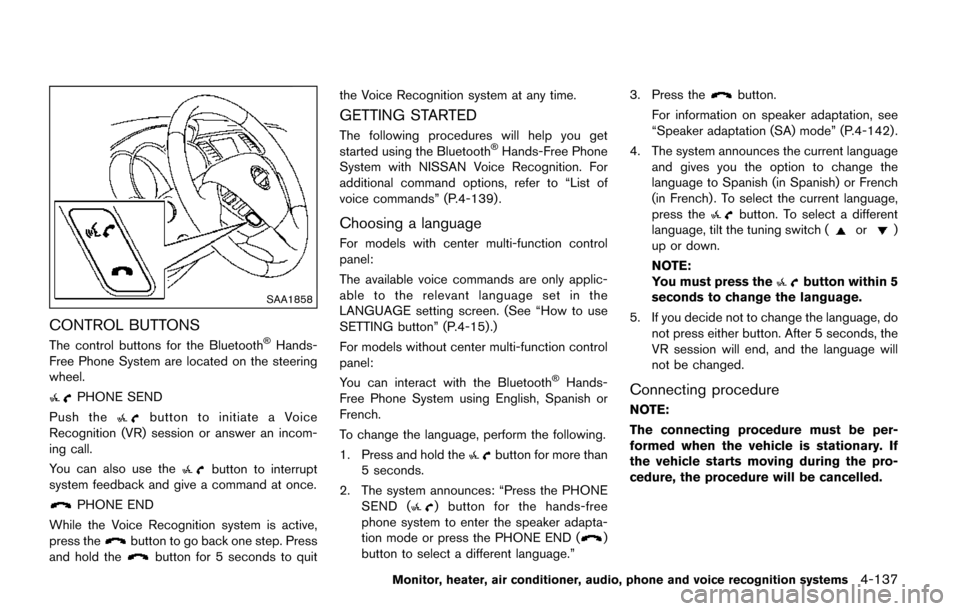
CONTROL BUTTONS
The control buttons for the BluetoothŠHands-
Free Phone System are located on the steering
wheel.
PHONE SEND
Push the
button to initiate a Voice
Recognition (VR) session or answer an incom-
ing call.
You can also use the
button to interrupt
system feedback and give a command at once.
PHONE END
While the Voice Recognition system is active,
press the
button to go back one step. Press
and hold thebutton for 5 seconds to quit the Voice Recognition system at any time.
GETTING STARTED
The following procedures will help you get
started using the BluetoothŠHands-Free Phone
System with NISSAN Voice Recognition. For
additional command options, refer to “List of
voice commands” (P.4-139) .
Choosing a language
For models with center multi-function control
panel:
The available voice commands are only applic-
able to the relevant language set in the
LANGUAGE setting screen. (See “How to use
SETTING button” (P.4-15).)
For models without center multi-function control
panel:
You can interact with the Bluetooth
ŠHands-
Free Phone System using English, Spanish or
French.
To change the language, perform the following.
1. Press and hold the
button for more than
5 seconds.
2. The system announces: “Press the PHONE SEND (
) button for the hands-free
phone system to enter the speaker adapta-
tion mode or press the PHONE END (
)
button to select a different language.” 3. Press the
button.
For information on speaker adaptation, see
“Speaker adaptation (SA) mode” (P.4-142) .
4. The system announces the current language and gives you the option to change the
language to Spanish (in Spanish) or French
(in French) . To select the current language,
press the
button. To select a different
language, tilt the tuning switch (or)
up or down.
NOTE:
You must press the
button within 5
seconds to change the language.
5. If you decide not to change the language, do not press either button. After 5 seconds, the
VR session will end, and the language will
not be changed.
Connecting procedure
NOTE:
The connecting procedure must be per-
formed when the vehicle is stationary. If
the vehicle starts moving during the pro-
cedure, the procedure will be cancelled.
Monitor, heater, air conditioner, audio, phone and voice recognition systems4-137
Page 327 of 520
4-138Monitor, heater, air conditioner, audio, phone and voice recognition systems
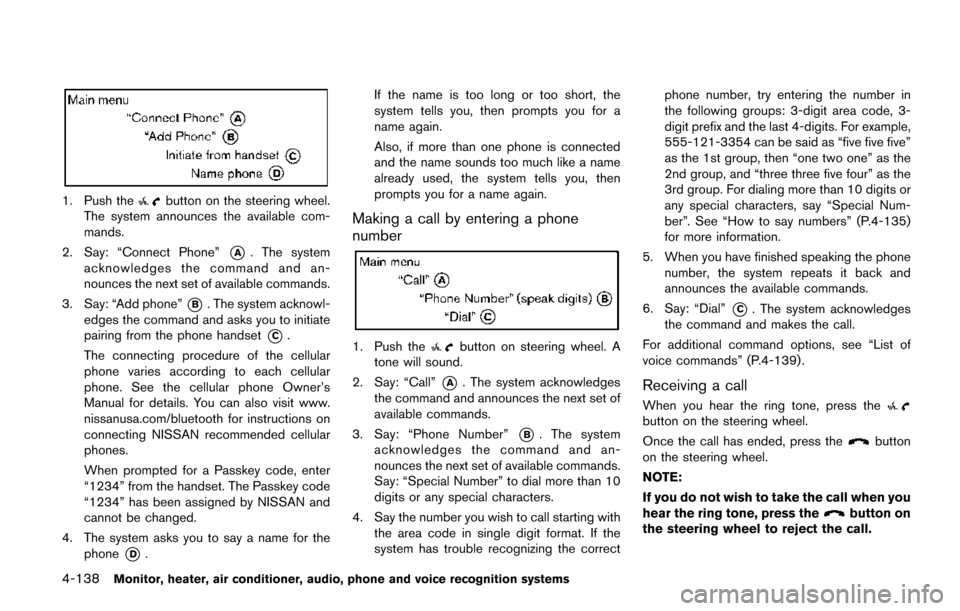
1. Push thebutton on the steering wheel.
The system announces the available com-
mands.
2. Say: “Connect Phone”
*A. The system
acknowledges the command and an-
nounces the next set of available commands.
3. Say: “Add phone”
*B. The system acknowl-
edges the command and asks you to initiate
pairing from the phone handset
*C.
The connecting procedure of the cellular
phone varies according to each cellular
phone. See the cellular phone Owner’s
Manual for details. You can also visit www.
nissanusa.com/bluetooth for instructions on
connecting NISSAN recommended cellular
phones.
When prompted for a Passkey code, enter
“1234” from the handset. The Passkey code
“1234” has been assigned by NISSAN and
cannot be changed.
4. The system asks you to say a name for the phone
*D. If the name is too long or too short, the
system tells you, then prompts you for a
name again.
Also, if more than one phone is connected
and the name sounds too much like a name
already used, the system tells you, then
prompts you for a name again.
Making a call by entering a phone
number
1. Push thebutton on steering wheel. A
tone will sound.
2. Say: “Call”
*A. The system acknowledges
the command and announces the next set of
available commands.
3. Say: “Phone Number”
*B. The system
acknowledges the command and an-
nounces the next set of available commands.
Say: “Special Number” to dial more than 10
digits or any special characters.
4. Say the number you wish to call starting with the area code in single digit format. If the
system has trouble recognizing the correct phone number, try entering the number in
the following groups: 3-digit area code, 3-
digit prefix and the last 4-digits. For example,
555-121-3354 can be said as “five five five”
as the 1st group, then “one two one” as the
2nd group, and “three three five four” as the
3rd group. For dialing more than 10 digits or
any special characters, say “Special Num-
ber”. See “How to say numbers” (P.4-135)
for more information.
5. When you have finished speaking the phone number, the system repeats it back and
announces the available commands.
6. Say: “Dial”
*C. The system acknowledges
the command and makes the call.
For additional command options, see “List of
voice commands” (P.4-139) .
Receiving a call
When you hear the ring tone, press thebutton on the steering wheel.
Once the call has ended, press the
button
on the steering wheel.
NOTE:
If you do not wish to take the call when you
hear the ring tone, press the
button on
the steering wheel to reject the call.