2017 NISSAN QUEST ECO mode
[x] Cancel search: ECO modePage 190 of 520

4 Monitor, heater, air conditioner, audio, phoneand voice recognition systems
Safety note ........................................................................\
.......... 4-4
Center multi-function control panel (if so equipped) ...... 4-5
How to use multi-function controller .............................. 4-7
How to use touch screen (models with
navigation system) .............................................................. 4-7
Menu options (models with navigation system) .......... 4-9
How to select menus on the screen ........................... 4-10
Vehicle information and settings (models with center
multi-function control panel) ............................................... 4-10 How to use STATUS button .......................................... 4-10
How to use brightness control and display
ON/OFF button ................................................................ 4-10
How to use DISP button (models without
navigation system) ........................................................... 4-10
How to use ECON button (models without
navigation system) ........................................................... 4-11
How to use INFO button ............................................... 4-11
How to use SETTING button ....................................... 4-15
RearView Monitor (if so equipped) ................................... 4-25
RearView Monitor system operation .......................... 4-25
How to read the displayed lines .................................. 4-26
Difference between predictive and actual distances
(if so equipped) ................................................................ 4-26
How to park with predictive course lines
(models with center multi-function control panel) ..... 4-28
Adjusting the screen ....................................................... 4-29 Predictive course line settings (if so equipped) ..... 4-29
RearView Monitor system limitations ........................ 4-30
System maintenance ..................................................... 4-31
Around View
ŠMonitor (if so equipped) .......................... 4-32
Around ViewŠMonitor system operation ................. 4-33
How to adjust the screen view ................................... 4-39
Around View
ŠMonitor system limitations ................ 4-39
System maintenance ..................................................... 4-41
Moving Object Detection (MOD) (if so equipped) ...... 4-42 MOD system operation ................................................ 4-43
Turning on and off the MOD system ........................ 4-44
MOD system limitations ............................................... 4-44
System maintenance ..................................................... 4-45
Ventilators ........................................................................\
........ 4-46 Center ventilators ........................................................... 4-46
Side ventilators ............................................................... 4-46
Rear ventilators ............................................................... 4-47
Heater and air conditioner .................................................. 4-47 Operating tips (for automatic air conditioner) ........ 4-48
Manual air conditioner .................................................. 4-49
Automatic air conditioner ............................................. 4-54
Servicing air conditioner .............................................. 4-60
In-cabin microfilter ......................................................... 4-60
Audio system ........................................................................\
.. 4-61 Audio operation precautions ....................................... 4-61
Page 191 of 520
 player ......... 4-74
FM-AM-SAT radio with Compact Disc (CD) player
(Type A) ........................................................................\
...... 4-77
FM")
FM-AM radio with Compact Disc (CD) player ......... 4-74
FM-AM-SAT radio with Compact Disc (CD) player
(Type A) ........................................................................\
...... 4-77
FM-AM-SAT radio with Compact Disc (CD) player
(Type B) ........................................................................\
...... 4-87
DVD (Digital Versatile Disc) player operation (if
so equipped) ..................................................................... 4-91
USB (Universal Serial Bus) connection port
(models with center multi-function control panel) ..... 4-94
iPod
Šplayer operation (models with center
multi-function control panel) ......................................... 4-99
Bluetooth
Šstreaming audio (models with
navigation system) ........................................................ 4-101
Auxiliary input jacks (if so equipped) ....................... 4-106
CD/DVD/USB memory care and cleaning ............. 4-107
Steering-wheel-mounted controls for audio (if
so equipped) .................................................................. 4-108
Antenna ........................................................................\
.... 4-109
NISSAN Mobile Entertainment System (MES) (if
so equipped) ........................................................................\
4-110 Digital Versatile Disc (DVD)
system components ...................................................... 4-111
Before operating the DVD Mobile
Entertainment System .................................................. 4-116
Playing a DVD ................................................................ 4-117
Care and maintenance ................................................. 4-121
Car phone or CB radio ..................................................... 4-121
Bluetooth
Šhands-free phone system (Type A) (if
so equipped) ........................................................................\
4-122
Regulatory information ................................................. 4-123 Voice commands ......................................................... 4-124
Control buttons ............................................................ 4-124
Connecting procedure ............................................... 4-124
Phone selection ........................................................... 4-125
Quick Dial ..................................................................... 4-125
Making a call ................................................................ 4-128
Receiving a call ........................................................... 4-129
During a call ................................................................. 4-129
Phone setting ............................................................... 4-130
Troubleshooting guide ............................................... 4-132
Bluetooth
Šhands-free phone system (Type B) (if
so equipped) ....................................................................... 4-133
Regulatory information ............................................... 4-134
Using the system ........................................................ 4-135
Control buttons ............................................................ 4-137
Getting started ............................................................ 4-137
List of voice commands ............................................ 4-139
Speaker adaptation (SA) mode ............................... 4-142
Troubleshooting guide ............................................... 4-145
Bluetooth
Šhands-free phone system (Type C) (if
so equipped) ....................................................................... 4-146
Regulatory information ............................................... 4-147
Using the system ........................................................ 4-147
NISSAN Voice Recognition system (models with
navigation system) ............................................................. 4-154 NISSAN Voice Recognition standard mode ........ 4-155
Using the system ........................................................ 4-157
NISSAN Voice Recognition alternate
command mode ........................................................... 4-166
Page 194 of 520
SAA3020
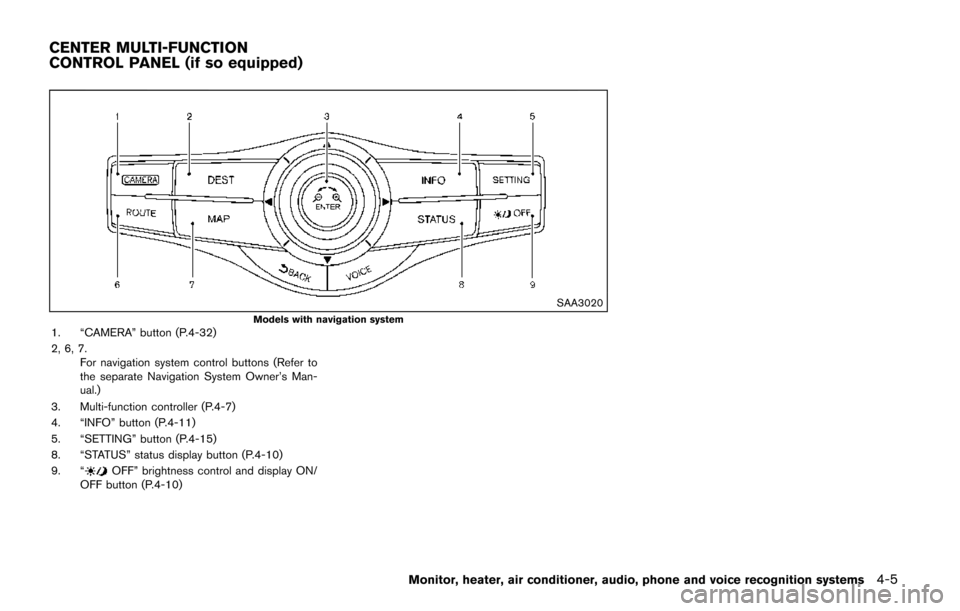
Models with navigation system1. “CAMERA” button (P.4-32)
2, 6, 7.For navigation system control buttons (Refer to
the separate Navigation System Owner’s Man-
ual.)
3. Multi-function controller (P.4-7)
4. “INFO” button (P.4-11)
5. “SETTING” button (P.4-15)
8. “STATUS” status display button (P.4-10)
9. “
OFF” brightness control and display ON/
OFF button (P.4-10)
Monitor, heater, air conditioner, audio, phone and voice recognition systems4-5
CENTER MULTI-FUNCTION
CONTROL PANEL (if so equipped)
Page 195 of 520
4-6Monitor, heater, air conditioner, audio, phone and voice recognition systems
SAA3613
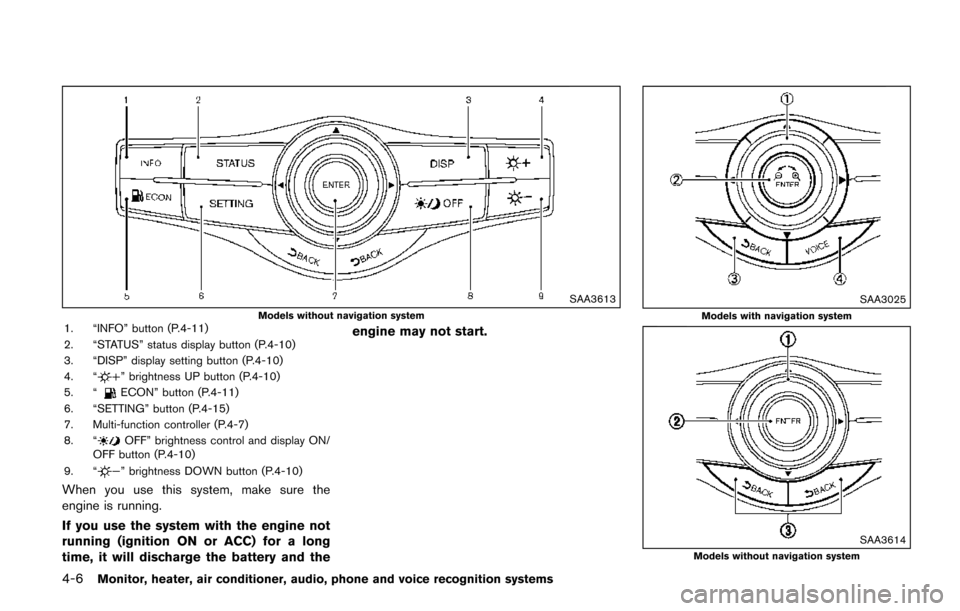
Models without navigation system1. “INFO” button (P.4-11)
2. “STATUS” status display button (P.4-10)
3. “DISP” display setting button (P.4-10)
4. “
” brightness UP button (P.4-10)
5. “ECON” button (P.4-11)
6. “SETTING” button (P.4-15)
7. Multi-function controller (P.4-7)
8. “
OFF” brightness control and display ON/
OFF button (P.4-10)
9. “
” brightness DOWN button (P.4-10)
When you use this system, make sure the
engine is running.
If you use the system with the engine not
running (ignition ON or ACC) for a long
time, it will discharge the battery and the engine may not start.
SAA3025
Models with navigation system
SAA3614Models without navigation system
Page 196 of 520
HOW TO USE MULTI-FUNCTION
CONTROLLER
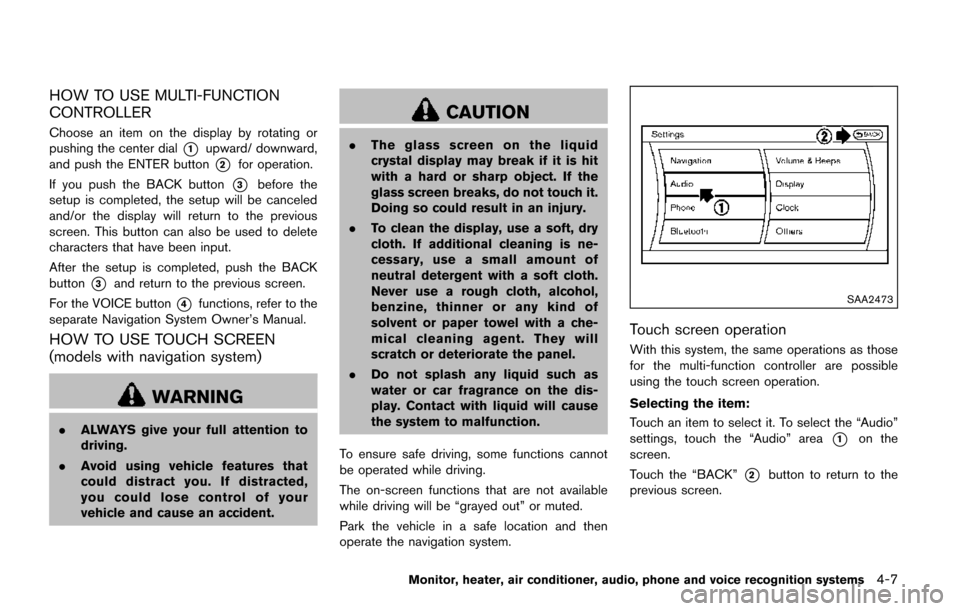
Choose an item on the display by rotating or
pushing the center dial
*1upward/ downward,
and push the ENTER button
*2for operation.
If you push the BACK button
*3before the
setup is completed, the setup will be canceled
and/or the display will return to the previous
screen. This button can also be used to delete
characters that have been input.
After the setup is completed, push the BACK
button
*3and return to the previous screen.
For the VOICE button
*4functions, refer to the
separate Navigation System Owner’s Manual.
HOW TO USE TOUCH SCREEN
(models with navigation system)
WARNING
. ALWAYS give your full attention to
driving.
. Avoid using vehicle features that
could distract you. If distracted,
you could lose control of your
vehicle and cause an accident.
CAUTION
.The glass screen on the liquid
crystal display may break if it is hit
with a hard or sharp object. If the
glass screen breaks, do not touch it.
Doing so could result in an injury.
. To clean the display, use a soft, dry
cloth. If additional cleaning is ne-
cessary, use a small amount of
neutral detergent with a soft cloth.
Never use a rough cloth, alcohol,
benzine, thinner or any kind of
solvent or paper towel with a che-
mical cleaning agent. They will
scratch or deteriorate the panel.
. Do not splash any liquid such as
water or car fragrance on the dis-
play. Contact with liquid will cause
the system to malfunction.
To ensure safe driving, some functions cannot
be operated while driving.
The on-screen functions that are not available
while driving will be “grayed out” or muted.
Park the vehicle in a safe location and then
operate the navigation system.
SAA2473
Touch screen operation
With this system, the same operations as those
for the multi-function controller are possible
using the touch screen operation.
Selecting the item:
Touch an item to select it. To select the “Audio”
settings, touch the “Audio” area
*1on the
screen.
Touch the “BACK”
*2button to return to the
previous screen.
Monitor, heater, air conditioner, audio, phone and voice recognition systems4-7
Page 198 of 520
SAA3673
MENU OPTIONS (models with naviga-
tion system)
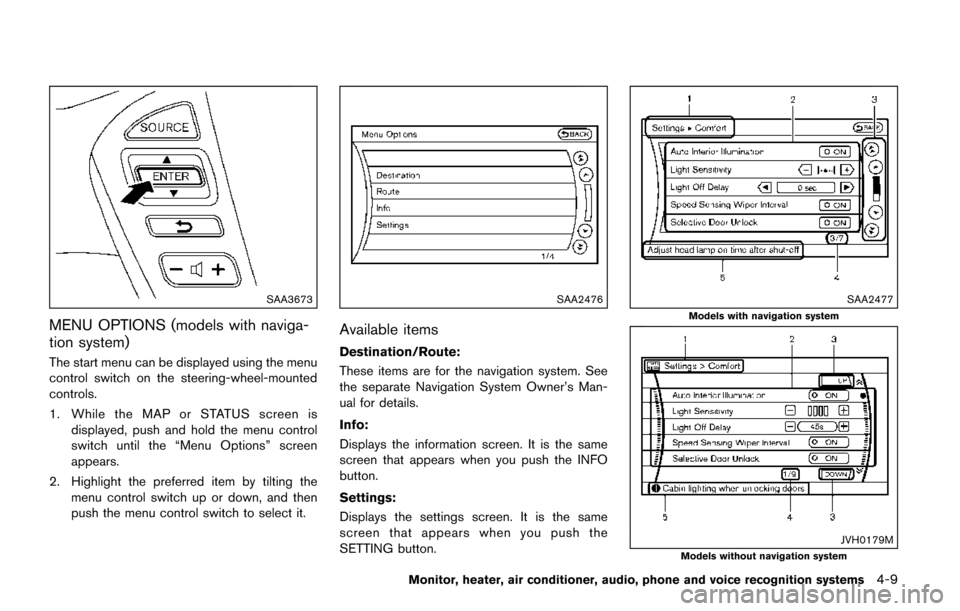
The start menu can be displayed using the menu
control switch on the steering-wheel-mounted
controls.
1. While the MAP or STATUS screen isdisplayed, push and hold the menu control
switch until the “Menu Options” screen
appears.
2. Highlight the preferred item by tilting the menu control switch up or down, and then
push the menu control switch to select it.
SAA2476
Available items
Destination/Route:
These items are for the navigation system. See
the separate Navigation System Owner’s Man-
ual for details.
Info:
Displays the information screen. It is the same
screen that appears when you push the INFO
button.
Settings:
Displays the settings screen. It is the same
screen that appears when you push the
SETTING button.
SAA2477
Models with navigation system
JVH0179MModels without navigation system
Monitor, heater, air conditioner, audio, phone and voice recognition systems4-9
Page 199 of 520
4-10Monitor, heater, air conditioner, audio, phone and voice recognition systems
HOW TO SELECT MENUS ON THE
SCREEN
Vehicle functions are viewed on the display
screen in menus. To select each key item,
highlight the preferred item using the multi-
function controller and push the ENTER button.
Whenever a menu selection is made or menu
item is highlighted, different areas on the screen
provide you with important information. See the
following for details.
1. Header:Shows the path used to get to the current
screen. (for example, push SETTING button
> choose “Comfort” menu item.)
2. Menu Selections: Shows the options to choose within that
menu screen.
3. UP/DOWN Movement indicator: Shows that the multi-function controller may
be used to move UP/DOWN on the screen
and select more options.
4. Menu Items Counter: Shows the total number of items listed
across all pages for the current menu (for
example, 3/7) .
5. Footer/Information Line: Provides more information (if available) about the menu selection currently high-
lighted. (for example, Adjust head lamp on
time after shut-off.)
HOW TO USE STATUS BUTTON
You can check information related to the audio,
climate control system, fuel consumption and
navigation system (if so equipped) by pressing
the STATUS button repeatedly.
HOW TO USE BRIGHTNESS CON-
TROL AND DISPLAY ON/OFF BUTTON
Push the “OFF” button to switch the display
brightness to the daytime mode or the nighttime
mode, and to adjust the display brightness using
the multi-function controller while the indicator is
displayed at the bottom of the screen.
Push and hold the “
OFF” button for more
than 2 seconds to turn the display off. Push the
button again to turn the display on.
Models without navigation system:
. The display brightness can also be adjusted
using the brightness UP button (
)or
brightness DOWN button ().
HOW TO USE DISP BUTTON (models
without navigation system)
Push the DISP button to show the display
setting screen. (See “Display settings (models
without navigation system)” (P.4-18).)
VEHICLE INFORMATION AND
SETTINGS (models with center
multi-function control panel)
Page 200 of 520
HOW TO USE ECON BUTTON (models
without navigation system)
Push the “ECON” button to show fuel
economy information. (See “How to use INFO
button” (P.4-11).)
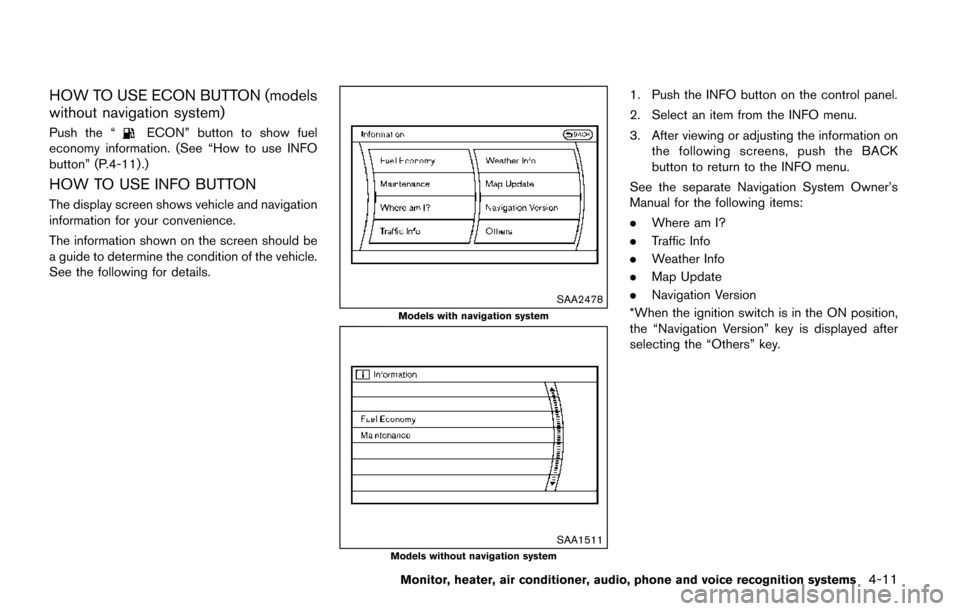
HOW TO USE INFO BUTTON
The display screen shows vehicle and navigation
information for your convenience.
The information shown on the screen should be
a guide to determine the condition of the vehicle.
See the following for details.
SAA2478
Models with navigation system
SAA1511Models without navigation system
1. Push the INFO button on the control panel.
2. Select an item from the INFO menu.
3. After viewing or adjusting the information on the following screens, push the BACK
button to return to the INFO menu.
See the separate Navigation System Owner’s
Manual for the following items:
. Where am I?
. Traffic Info
. Weather Info
. Map Update
. Navigation Version
*When the ignition switch is in the ON position,
the “Navigation Version” key is displayed after
selecting the “Others” key.
Monitor, heater, air conditioner, audio, phone and voice recognition systems4-11