2017 NISSAN QUEST ECO mode
[x] Cancel search: ECO modePage 332 of 520
Training procedure
1. Position the vehicle in a reasonably quietoutdoor location.
2. Sit in the driver’s seat with the engine running, the parking brake on, and the
transmission in Park.
3. Press and hold the
button for more than
5 seconds.
4. The system announces: “Press the PHONE SEND (
) button for the hands-free
phone system to enter the speaker adapta-
tion mode or press the PHONE END (
)
button to select a different language.”
5. Press the
button.
For information on selecting a different
language, see “Choosing a language” (P.4-
137) .
6. If the connected phone is already in use, the system will prompt you to overwrite. Follow
the instructions provided by the system.
7. When preparation is complete and you are ready to begin, press the
button.
8. The SA mode will be explained. Follow the instructions provided by the system.
9. When training is finished, the system will tell you an adequate number of phrases have
been recorded. 10. The system will announce that speaker
adaptation has been completed and the
system is ready.
The SA mode will stop if:
. The
button is pressed for more than 5
seconds in SA mode.
. The vehicle is driven during SA mode.
. The ignition switch is turned to the OFF or
LOCK position.
Training phrases
During the SA mode, the system instructs you to
say the following phrases.
(The system will prompt you for each phrase.)
.phonebook transfer entry
. dial 3 0 4 2 9
. delete call back number
. Incoming
. Transfer entry
. 8 pause 9 3 2 pause 7
. delete all entries
. call 7 2409
. phonebook delete entry
. next entry
. dial star 2 1 7 0
. yes .
no
. select
. Missed
. dial 8 5 6 9 2
. Bluetooth on
. Outgoing
. call 3 1 9 0 2
. 9 7 pause pause 3 0 8
. cancel
. call back number
. call star 2 0 9 5
. delete phone
. dial 8 3 0 5 1
. Record Name
. 4 3 pause 2 9 pause 0
. delete redial number
. phonebook list names
. call 8 0 5 4 1
. correction
. connect phone
. dial 7 4 0 1 8
. previous entry
. delete
. dial 9 7 2 6 6
. call 7 6 3 0 1
Monitor, heater, air conditioner, audio, phone and voice recognition systems4-143
Page 334 of 520
TROUBLESHOOTING GUIDE
The system should respond correctly to all voice commands without difficulty. If problems are encountered, try the following solutions.
Where the solutions are listed by number, try each solution in turn, starting with number 1, until the problem is resolved.
SymptomSolution
The system fails to interpret the command correctly. 1. Ensure that the command is valid. See “List of voice commands” (P.4-139) . 2. Ensure that the command is spoken after the tone.
3. Speak clearly without pausing between words and at a level appropriate to the ambient noise level in the vehicle.
4. Ensure that the ambient noise level is not excessive (for example, windows open or defroster on) . NOTE: If it is too
noisy to use the phone, it is likely that the voice commands will not be recognized.
5. If more than one command was said at a time, try saying the commands separately.
6. If the system consistently fails to recognize commands, the voice training procedure should be carried out to
improve the recognition response for the speaker. See “Speaker adaptation (SA) mode” (P.4-142) .
The system consistently selects the wrong entry from
the phonebook. 1. Ensure that the phonebook entry name requested matches what was originally stored. This can be confirmed by
using the “List Names” command. See “Phonebook (phones without automatic phonebook download function)”
(P.4-140) .
2. Replace one of the names being confused with a new name.
Monitor, heater, air conditioner, audio, phone and voice recognition systems4-145
Page 335 of 520
4-146Monitor, heater, air conditioner, audio, phone and voice recognition systems
* Type C is models without navigation
system/with text message function.
WARNING
.Use a phone after stopping your
vehicle in a safe location. If you
have to use a phone while driving,
exercise extreme caution at all
times so full attention may be given
to vehicle operation.
. If you are unable to devote full
attention to vehicle operation while
talking on the phone, pull off the
road to a safe location and stop
your vehicle.
CAUTION
To avoid draining the vehicle battery,
use a phone after starting the engine.
Your vehicle is equipped with the Bluetooth
Š
Hands-Free Phone System. If you have a
compatible BluetoothŠenabled cellular phone,
you can set up the wireless connection between
your cellular phone and the in-vehicle phone module. With Bluetooth
Šwireless technology,
you can make or receive a hands-free telephone
call with your cellular phone in the vehicle.
Once your cellular phone is connected to the in-
vehicle phone module, no other phone connect-
ing procedure is required. Your phone is
automatically connected with the in-vehicle
phone module when the ignition switch is
placed in the ACC or ON position with the
previously connected cellular phone turned on
and carried in the vehicle.
NOTE:
Some devices require the user to accept
connections to other Bluetooth
Šdevices. If
your phone does not connect automatic
ally to the system, consult the phone’s
Owner’ s Manual for details on device
operation.
You can connect up to 5 different Bluetooth
Š
cellular phones to the in-vehicle phone module.
However, you can talk on only one cellular phone
at a time.
Before using the Bluetooth
ŠHands-Free Phone
System, refer to the following notes.
. Set up the wireless connection between a
compatible cellular phone and the in-vehicle
phone module before using the hands-free
phone system. .
Some Bluetooth
Šenabled cellular phones
may not be recognized or work properly. For
information about Bluetooth
Šdevices that
are available for use with this system, it is
recommended that you contact a NISSAN
dealer.
. You will not be able to use a hands-free
phone under the following conditions:
— Your vehicle is outside of the cellular
service area.
— Your vehicle is in an area where it is difficult to receive a cellular signal; such
as in a tunnel, in an underground parking
garage, near a tall building or in a
mountainous area.
. When the radio wave condition is not ideal
or ambient sound is too loud, it may be
difficult to hear the other person’s voice
during a call.
. Do not place the cellular phone in an area
surrounded by metal or far away from the in-
vehicle phone module to prevent tone quality
degradation and wireless connection dis-
ruption.
. While a cellular phone is connected through
the Bluetooth
Šwireless connection, the
battery power of the cellular phone may
discharge quicker than usual. The Blue-
tooth
ŠHands-Free Phone System cannot
BluetoothŠHANDS-FREE PHONE
SYSTEM (Type C) (if so equipped)
Page 337 of 520
4-148Monitor, heater, air conditioner, audio, phone and voice recognition systems
quit the Voice Recognition system at any time.
Microphone:
Microphone is located near the map lights.
Manual control:
While using the Voice Recognition system, it is
possible to select menu options by using the
steering wheel controls instead of speaking
voice commands. To activate manual control
mode, push the
button on the steering
wheel to access the phone menu and then tilt
the tuning switch (
or) up or down.
The manual control mode does not allow dialing
a phone number by digits. The user may select
an entry from the Phonebook or Recent Calls
lists. To reactivate Voice Recognition, exit the
manual control mode by pushing and holding the
button. At that time, pushing thebutton
will start the Hands Free Phone System.
Choosing a language
You can interact with the BluetoothŠHands-
Free Phone System using several languages
that are available. For operations to change the
language, see “Audio main operation” (P.4-78).
Changing voice feedback volume
If you want to adjust the volume of the voice
feedback, push the volume control switch on the
steering wheel while being provided with feed-
back. You can also use the VOL (volume) control
knob on the audio unit.
Initialization
When the ignition switch is placed in the ACC
or ON position, the Voice Recognition system is
initialized, which takes a few seconds. If the
button is pushed before the initialization com-
pletes, the system will announce “Hands-free
phone system not ready” and will not react to
voice commands.
Connecting procedure:
NOTE:
The connecting procedure must be per-
formed when the vehicle is stationary. If
the vehicle starts moving during the pro-
cedure, the procedure will be cancelled.
You can register up to 5 different Bluetooth
Š
cellular phones in the in-vehicle phone module.
However, you can talk on only one cellular phone
at a time. To connect a phone to the Bluetooth
ŠHands-
Free Phone System;
1. Push the ENTER/SETTING button.
2. Use the TUNE·SCROLL control knob to select “Bluetooth” and then push the
ENTER/SETTING button.
3. Select “Add Phone” and then push the ENTER/SETTING button.
4. When a message with a PIN appears on the screen, operate the Bluetooth
Šphone to
enter the PIN.
The connecting procedure varies according to
each phone. See the phone’s Owner’s Manual
for details.
Giving voice commands
To operate voice recognition, push and release
thebutton located on the steering wheel.
After the tone sounds, speak a command.
The command given is picked up by the
microphone, and voice feedback is given when
the command is accepted.
. If you need to hear the available commands
for the current menu again, say “Help” and
the system will repeat them.
. If a command is not recognized, the system
announces, “Command not recognized.
Please try again.” Make sure the command
Page 343 of 520
4-154Monitor, heater, air conditioner, audio, phone and voice recognition systems
.Show Incoming TextSelect “Driver Only” to have incoming
text messages displayed only in the
vehicle information display. Select “Both”
to have incoming text messages dis-
played in both the vehicle information
display and the center display screen.
Select “None” to have no display of
incoming text messages.
.Edit Custom MessagesSelect to set a custom message that will
be available with the standard options
when sending a text message. To set a
custom message, send a text message to
your own phone number while the phone
is connected to the system. Three
custom messages can be set. Custom
messages can only be set while the
vehicle is stationary.
.Auto ReplySelect to turn on or off the Auto Reply
function. When enabled, the vehicle will
automatically send a predefined text
message to the sender when a text
message is received while driving.
.Auto Reply Message
Select to choose the message that is
sent when the Auto Reply function is
enabled. Choose from “I’m Driving” or
one of the three custom messages
stored in the system.
.Vehicle Signature On/OffSelect to choose whether or not the vehicle signature is added to outgoing
text messages from the vehicle. This
message cannot be changed or custo-
mized.
NISSAN Voice Recognition allows hands-free
operation of the Phone, Navigation, Information
and Audio systems in one of two modes,
Standard Mode or Alternate Command Mode.
In Standard Mode, commands that are available
are always shown on the display and announced
by the system. You can complete your desired
operation by simply following the prompts given
by the system. (See “NISSAN Voice Recogni-
tion standard mode” (P.4-155) for details.)
For advanced operation, you can use the
Alternate Command Mode. (See “NISSAN
Voice Recognition alternate command mode”
(P.4-166) for details.) When this mode is active,
an expanded list of commands can be spoken
after pushing the TALK
switch, and the
voice command menu prompts are turned off.
Review the expanded command list, which is
available when this mode is active. Note that in
this mode the recognition success rate may be
affected as the number of available commands
and the ways of speaking each command are
increased.
To switch one mode to another, see each mode
description later in this section.
To improve the recognition success rate when
Alternate Command Mode is active, try using the
Speaker Adaptation Function available in that
mode. Otherwise, it is recommended that
NISSAN VOICE RECOGNITION
SYSTEM (models with navigation
system)
Page 344 of 520
Alternate Command Mode be turned off and
Standard Mode be used for the best recognition
performance.
For the voice commands for the navigation
system, refer to the Navigation System Owner’s
Manual of your vehicle.
NISSAN VOICE RECOGNITION
STANDARD MODE
The following section is applicable when the
Standard Mode is activated.
The Standard Mode enables you to complete
the desired operation by simply following the
prompts that appear on the display and also are
announced by the system.
SAA3008
Activating Standard Mode
When the Alternate Command Mode is active,
perform the following steps to switch to the
Standard Mode.
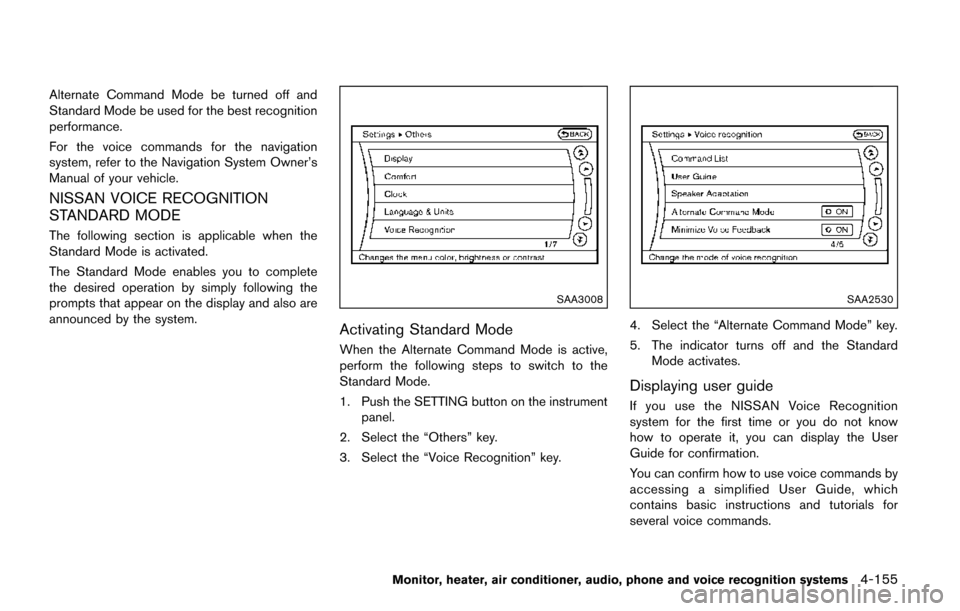
1. Push the SETTING button on the instrumentpanel.
2. Select the “Others” key.
3. Select the “Voice Recognition” key.
SAA2530
4. Select the “Alternate Command Mode” key.
5. The indicator turns off and the Standard Mode activates.
Displaying user guide
If you use the NISSAN Voice Recognition
system for the first time or you do not know
how to operate it, you can display the User
Guide for confirmation.
You can confirm how to use voice commands by
accessing a simplified User Guide, which
contains basic instructions and tutorials for
several voice commands.
Monitor, heater, air conditioner, audio, phone and voice recognition systems4-155
Page 345 of 520
4-156Monitor, heater, air conditioner, audio, phone and voice recognition systems
SAA2531
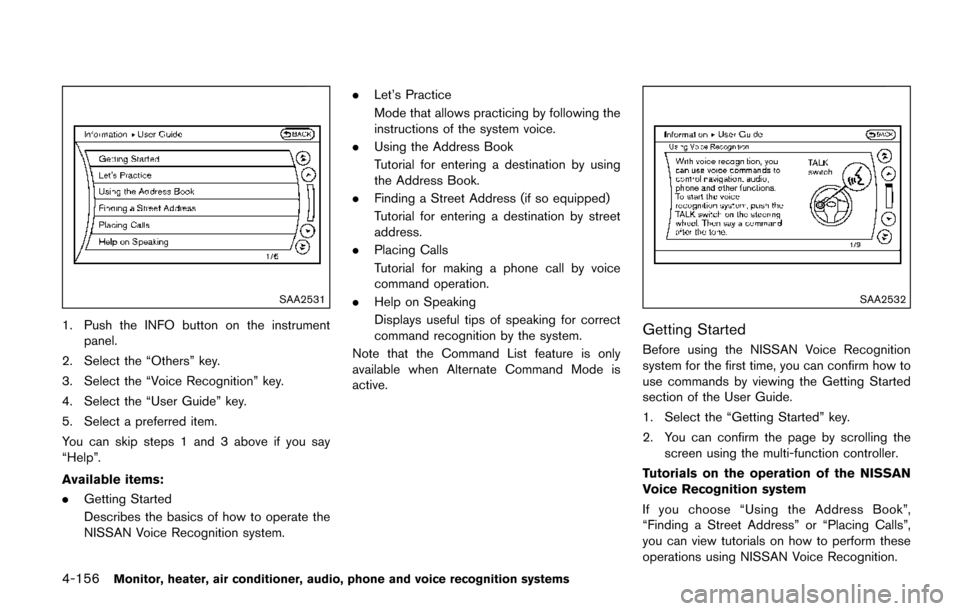
1. Push the INFO button on the instrumentpanel.
2. Select the “Others” key.
3. Select the “Voice Recognition” key.
4. Select the “User Guide” key.
5. Select a preferred item.
You can skip steps 1 and 3 above if you say
“Help”.
Available items:
. Getting Started
Describes the basics of how to operate the
NISSAN Voice Recognition system. .
Let’s Practice
Mode that allows practicing by following the
instructions of the system voice.
. Using the Address Book
Tutorial for entering a destination by using
the Address Book.
. Finding a Street Address (if so equipped)
Tutorial for entering a destination by street
address.
. Placing Calls
Tutorial for making a phone call by voice
command operation.
. Help on Speaking
Displays useful tips of speaking for correct
command recognition by the system.
Note that the Command List feature is only
available when Alternate Command Mode is
active.
SAA2532
Getting Started
Before using the NISSAN Voice Recognition
system for the first time, you can confirm how to
use commands by viewing the Getting Started
section of the User Guide.
1. Select the “Getting Started” key.
2. You can confirm the page by scrolling the screen using the multi-function controller.
Tutorials on the operation of the NISSAN
Voice Recognition system
If you choose “Using the Address Book”,
“Finding a Street Address” or “Placing Calls”,
you can view tutorials on how to perform these
operations using NISSAN Voice Recognition.
Page 346 of 520
SAA2534
Let’s Practice
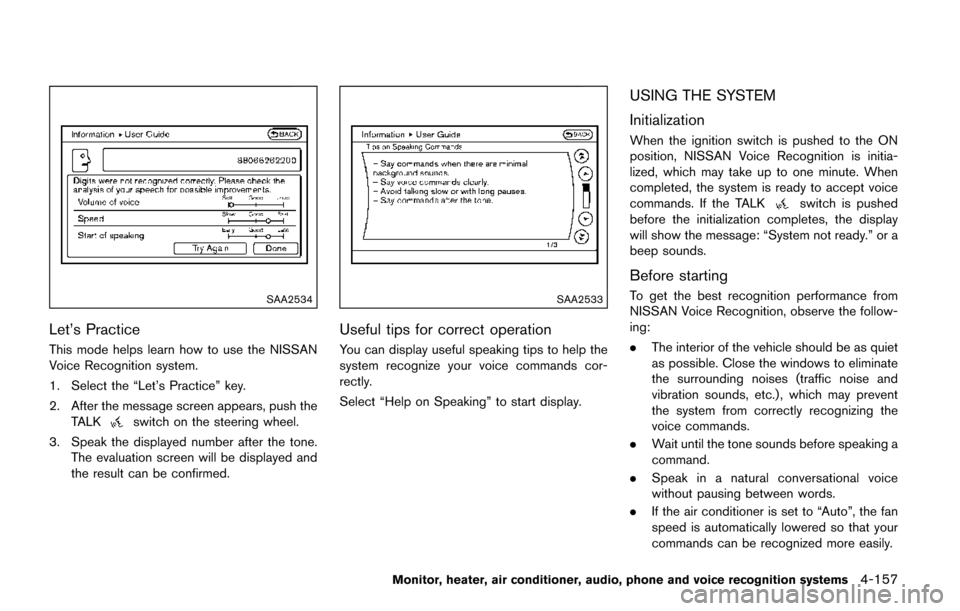
This mode helps learn how to use the NISSAN
Voice Recognition system.
1. Select the “Let’s Practice” key.
2. After the message screen appears, push theTALK
switch on the steering wheel.
3. Speak the displayed number after the tone. The evaluation screen will be displayed and
the result can be confirmed.
SAA2533
Useful tips for correct operation
You can display useful speaking tips to help the
system recognize your voice commands cor-
rectly.
Select “Help on Speaking” to start display.
USING THE SYSTEM
Initialization
When the ignition switch is pushed to the ON
position, NISSAN Voice Recognition is initia-
lized, which may take up to one minute. When
completed, the system is ready to accept voice
commands. If the TALK
switch is pushed
before the initialization completes, the display
will show the message: “System not ready.” or a
beep sounds.
Before starting
To get the best recognition performance from
NISSAN Voice Recognition, observe the follow-
ing:
. The interior of the vehicle should be as quiet
as possible. Close the windows to eliminate
the surrounding noises (traffic noise and
vibration sounds, etc.) , which may prevent
the system from correctly recognizing the
voice commands.
. Wait until the tone sounds before speaking a
command.
. Speak in a natural conversational voice
without pausing between words.
. If the air conditioner is set to “Auto”, the fan
speed is automatically lowered so that your
commands can be recognized more easily.
Monitor, heater, air conditioner, audio, phone and voice recognition systems4-157