2017 NISSAN JUKE lock
[x] Cancel search: lockPage 205 of 416

4-46Heater, air conditioner, audio and phone systems
Balance adjusts the sound between the left
and right speakers. Fade adjusts the sound
between the front and rear speakers.
Select the “Bass”, “Treble”, “Balance” or
“Fade” using the TUNE·FOLDER knob, and
then push the ENTER/SETTING button.
Turn the TUNE·FOLDER knob to adjust the
Bass, Treble, balance and Fade of the
screen to the preferred level. Push the
ENTER/SETTING button to apply the
setting.
. Speed Sensitive Vol.
To change the Speed Sensitive Volume
(Speed Sensitive Vol.) level from off (0) to
5, turn the TUNE·FOLDER knob.
. AUX Vol.
Controls the volume level of incoming sound
when an auxiliary device is connected to the
system. Choose a setting between +1 and
+3 or choose 0 to disable the feature
entirely.
. Brightness and Contrast
Adjust the brightness and contrast of the
screen.
Select “Brightness” or “Contrast” using the
TUNE·FOLDER knob and then push the
ENTER/SETTING button. Turn the
TUNE·FOLDER knob to adjust the bright-
ness and contrast of the screen to the preferred level. Push the ENTER/SETTING
button to apply the setting.
. Clock Adjust
Adjust the clock according to the following
procedure.
1) Select “Clock Adjust” using the
TUNE·FOLDER knob and then push
the ENTER/SETTING button.
2) Adjust the hour with the TUNE·FOLDER knob and then push the ENTER/
SETTING button.
3) Adjust the minute with the TUNE·FOLDER knob and then push
the ENTER/SETTING button.
24 hour clock is not available.
. On-Screen Clock
When this item is turned on, a clock is
always displayed in the upper right corner of
the screen.
Select the “On-Screen Clock” using the
TUNE·FOLDER knob and then push the
ENTER/SETTING button. You can toggle
between ON and OFF using the
TUNE·FOLDER knob.
. RDS Display (if so equipped)
RDS (radio data system) information can be
shown on the display. Select “RDS Display”
using the TUNE·FOLDER knob and then
push the ENTER/SETTING button. You can toggle between ON and OFF using the
TUNE·FOLDER knob. Push the ENTER/
SETTING button to apply the setting.
. Language Select
The language settings can be changed.
Select “Language Select” using the
TUNE·FOLDER knob and then push the
ENTER/SETTING button. Use the
TUNE·FOLDER knob to select the preferred
language. Push the ENTER/SETTING but-
ton to apply the setting.
DISP button:
Display of the screen can be canceled by
pushing the
button. You can still listen to
music that is being played back even while the
screen display is turned off. If you want to
display the screen again, push the
button
once more. Pushing some of the audio source
buttons will also turn the screen back on and
display the screens of the corresponding
sources.
MEDIA button:
Pushing the
button will switch the audio
source as follows:
USB/iPod ?Bluetooth Audio ?AUX ?USB/
iPod
Page 212 of 416

JVH1055X
1. XM band select button
2. CD eject button
3. FM·AM button
4. MEDIA button
5. Color display
6. Apps button
7. Radio CAT (category)/REW (rewind) button forSEEK/TRACK 8. Radio SCAN tuning button
9. Radio CAT (category)/FF (fast forward) button
for SEEK/TRACK
10. BACK button
11. DISP (display) button
12. Power button/VOL (volume) control knob
13. RPT (repeat) play button 14. RDM (random) play button
15. Radio station preset select buttons
16. ENTER/SETTING button/TUNE·SCROLL con-
trol knob
FM-AM-SAT RADIO WITH COMPACT
DISC (CD) PLAYER (Type A) (if so
equipped)
For all operation precautions, see “Audio opera-
tion precautions” (P.4-35) .
.No satellite radio reception is available when
the SAT band option is selected unless the
optional satellite receiver and antenna are
installed, and there is an active SiriusXM
Satellite Radio subscription.
. The satellite radio mode requires an active
SiriusXM Satellite Radio subscription. The
satellite radio is not available in Alaska,
Hawaii and Guam.
. It may take some time to receive the
activation signal after subscribing the Sir-
iusXM Satellite Radio. After receiving the
activation signal, an available channel list will
be automatically updated in the radio. Push
the ignition switch from LOCK to ACC to
update the channel list.
Heater, air conditioner, audio and phone systems4-53
Page 213 of 416

4-54Heater, air conditioner, audio and phone systems
Audio main operation
The audio system operates when the ignition
switch is placed in the ON or ACC position.
Head unit:
The auto loudness circuit enhances the low and
high frequency ranges automatically.
Power button / VOL (volume) control
knob:
Push the Power button/VOL (volume) control
knob to turn on and off the audio system.
Turn the Power button/VOL (volume) control
knob to adjust the volume.
Audio settings:
The settings screen will appear when pushing
the ENTER/SETTING button.
The following items are available in the settings
screen.
. Bluetooth
It is possible to set the Bluetooth
Šsettings.
For details of the BluetoothŠsettings, see
“BluetoothŠsettings” (P.4-88).
. Bass, Treble, Balance and Fade
Controls the sound of the audio system.
Balance adjusts the sound between the left
and right speakers. Fade adjusts the sound
between the front and rear speakers.
Select the “Bass”, “Treble”, “Balance” or “Fade” using the TUNE·SCROLL control
knob and then push the ENTER/SETTING
button. Turn the TUNE·SCROLL control
knob to adjust the Bass, Treble, balance
and Fade of the screen to the preferred
level. Push the ENTER/SETTING button to
apply the setting.
. Brightness and Contrast
Adjust the brightness and contrast of the
screen.
Select the “Brightness” or “Contrast” using
the TUNE·SCROLL control knob and then
push the ENTER/SETTING button. Turn the
TUNE·SCROLL control knob to adjust the
brightness and contrast of the screen to the
preferred level. Push the ENTER/SETTING
button to apply the setting.
. Clock Adjust
Adjust the clock according to the following
procedure.
1) Select “Clock Adjust” using the TU-
NE·SCROLL control knob and then
push the ENTER/SETTING button.
2) Adjust the hour with the TUNE·SCROLL control knob and then push the ENTER/
SETTING button.
3) Adjust the minute with the TUNE·SC- ROLL control knob and then push the
ENTER/SETTING button. 24 hour clock is not available.
. On-Screen Clock
When this item is turned on, a clock is
always displayed in the upper right corner of
the screen.
Select the “On-Screen Clock” using the
TUNE·SCROLL control knob and then push
the ENTER/SETTING button. You can tog-
gle between ON and OFF using the
TUNE·SCROLL control knob.
. RDS Display (if so equipped)
RDS (radio data system) information can be
shown on the display. Select “RDS Display”
using the TUNE·SCROLL control knob and
then push the ENTER/SETTING button. You
can toggle between ON and OFF using the
TUNE·SCROLL control knob. Push the
ENTER/SETTING button to apply the
setting.
. Speed Sensitive Vol.
To change the Speed Sensitive Volume
(Speed Sensitive Vol.) level from off (0) to
5, turn the TUNE·SCROLL control knob.
. AUX Vol.
Controls the volume level of incoming sound
when an auxiliary device is connected to the
system. Choose a setting between +1 and
+3 or choose 0 to disable the feature
entirely.
Page 234 of 416
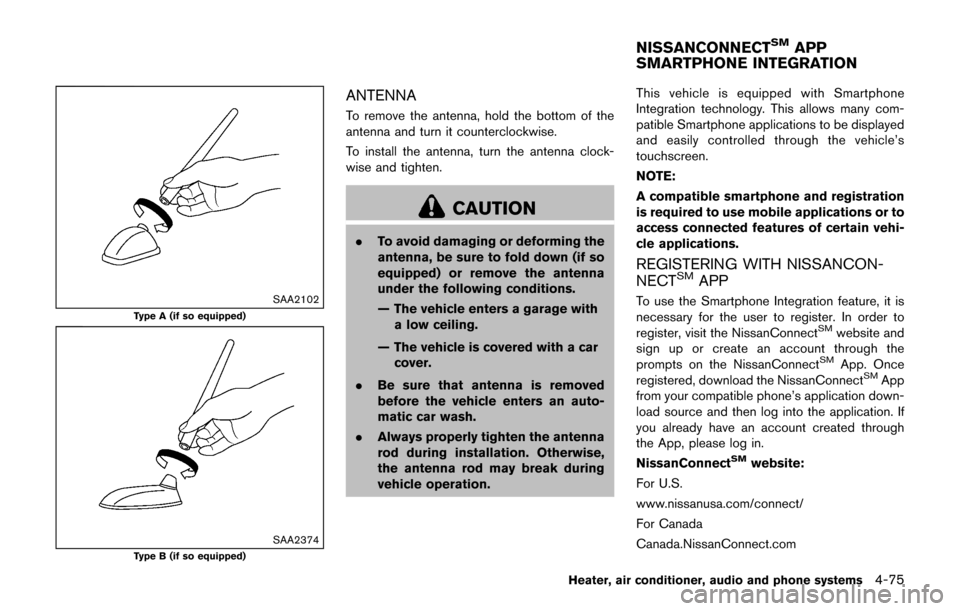
SAA2102
Type A (if so equipped)
SAA2374Type B (if so equipped)
ANTENNA
To remove the antenna, hold the bottom of the
antenna and turn it counterclockwise.
To install the antenna, turn the antenna clock-
wise and tighten.
CAUTION
.To avoid damaging or deforming the
antenna, be sure to fold down (if so
equipped) or remove the antenna
under the following conditions.
— The vehicle enters a garage with
a low ceiling.
— The vehicle is covered with a car cover.
. Be sure that antenna is removed
before the vehicle enters an auto-
matic car wash.
. Always properly tighten the antenna
rod during installation. Otherwise,
the antenna rod may break during
vehicle operation. This vehicle is equipped with Smartphone
Integration technology. This allows many com-
patible Smartphone applications to be displayed
and easily controlled through the vehicle’s
touchscreen.
NOTE:
A compatible smartphone and registration
is required to use mobile applications or to
access connected features of certain vehi-
cle applications.
REGISTERING WITH NISSANCON-
NECTSMAPP
To use the Smartphone Integration feature, it is
necessary for the user to register. In order to
register, visit the NissanConnect
SMwebsite and
sign up or create an account through the
prompts on the NissanConnect
SMApp. Once
registered, download the NissanConnectSMApp
from your compatible phone’s application down-
load source and then log into the application. If
you already have an account created through
the App, please log in.
NissanConnect
SMwebsite:
For U.S.
www.nissanusa.com/connect/
For Canada
Canada.NissanConnect.com
Heater, air conditioner, audio and phone systems4-75
NISSANCONNECTSMAPP
SMARTPHONE INTEGRATION
Page 236 of 416

REQUIREMENTS
SiriŠis available on the iPhoneŠ4S or later.
Devices released before iPhoneŠ4S are not
supported by the SiriŠEyes Free system.
Visit www.apple.com/ios/siri for details about
device compatibility.
Siri
Šmust be enabled on the phone. Please
check phone settings.
If the device has a lock screen, Siri
Šmust be
accessible from the lock screen. Please check
phone settings.
For best results, always update your device to
the latest software version.
SAA3385
SIRIŠEYES FREE ACTIVATION
SiriŠEyes Free function can be activated by
using theTALK switch on the steering
wheel.
Models with navigation system
1. Connect a Siri
ŠEyes Free enabled iPhoneŠ
to the vehicle. (See “Connecting procedure”
(P.4-92) .)
2. After the Bluetooth
Šconnection is estab-
lished, push and hold theTALK switch
to activate the SiriŠEyes Free function.
Models without navigation system
1. Connect a Siri
ŠEyes Free enabled iPhoneŠ
to the vehicle. (See “Initialization” (P.4-83) .) 2. After the Bluetooth
Šconnection is estab-
lished, the switch operation select screen is
displayed.
3. Select “Short Press” or “Long Press” for Siri
ŠEyes Free activation. Switch action can
also be changed from the BluetoothŠ
settings menu. (See “Changing SiriŠEyes
Free Settings (models without navigation
system)” (P.4-78) .)
OPERATING SIRIŠEYES FREE
1. Push or push and hold theTALK switch.
2. Speak your command and then listen to the Siri
ŠEyes Free reply.
After starting SiriŠEyes Free, push theTALK switch again within 5 seconds of the end
of the SiriŠEyes Free announcement to extend
the session.
Example 1 - Playing music
1. Push or push and hold the
TALK switch.
2. Say “Play (artist name, song name, etc.)”.
3. Your vehicle will automatically change to Bluetooth
ŠAudio or iPodŠmode* when the
music starts playing. Mode selection is
determined by the phone.
*: If the iPhone
Šis also connected with the
USB cable.
If the audio track does not start playing
Heater, air conditioner, audio and phone systems4-77
Page 238 of 416

TROUBLESHOOTING GUIDE
SymptomCause and Countermeasure
Cannot access SiriŠEyes Free from the switch on the steering wheel Check if a BluetoothŠconnection is established between the iPhoneŠand the system.
Check if SiriŠis enabled on the device. On your phone, go to SiriŠsetting.
Check that SiriŠcan be accessed from the device lock screen. This can be set in the settings menu
of your phone.
Models without navigation system:
Check the settings for Siri
ŠEyes Free activation on the vehicle audio system. If the setting is “Long
Press”, you must push and hold theTALK switch on the steering wheel for more than 1.5
seconds to start SiriŠEyes Free. If the setting is “Short Press”, a short push and release of the switch
should start SiriŠEyes Free.
Audio source does not change automatically to iPodŠor BluetoothŠ
Audio mode For best results, use the native music app. Performance of music control function while using
Podcasts, Audiobook or other 3rd party music apps may vary.
For best results, play media already stored on your device. Streaming music or playback from cloud
storage may degrade performance.
Switch the source manually by pushing the AUX or MEDIA button on the vehicle audio system or the
SOURCE select switch on the steering wheel.
Play, pause, next track, previous track or play timer does not work For best results, use the native music app. Performance of music control function while using Podcasts, Audiobook or other 3rd party music apps may vary and is controlled by the device.
Cannot hear any music/audio being played back from a connected
iPhone
ŠCheck that the audio source is set to BluetoothŠAudio or iPodŠmode. A USB connection is
required for iPodŠmode.
Cannot hear map turn-by-turn direction guidance from a connected
iPhone
ŠCheck that the audio source is set to BluetoothŠAudio or iPodŠmode. A USB connection is
required for iPodŠmode.
Cannot receive text message notifications on the vehicle audio
system Check if “Show Notifications” is enabled on your phone. On your phone, go to BluetoothŠsettings.
Find the device name, like “My Car”. Tapon your phone. Turn on “Show Notifications”.
Cannot reply to text message notifications using SiriŠEyes Free After receiving an incoming text message, follow the on-screen guidance. Push or push and hold theTALK switch on the steering wheel for SiriŠEyes Free. After SiriŠEyes Free starts, say “Text
Message”.
Heater, air conditioner, audio and phone systems4-79
Page 249 of 416

4-90Heater, air conditioner, audio and phone systems
SAA3446
1. Volume control switchí/+
2. PHONE SENDbutton
3. PHONE ENDbutton
4. Microphone
The phonebutton is located on the control
panel can also use to control the BluetoothŠ
Hands-Free Phone System. (See “Control but-
tons and functions (models with navigation
system)” (P.4-3) .)
Your vehicle is equipped with the Bluetooth
Š
Hands-Free Phone System. If you have a
compatible BluetoothŠenabled cellular phone,
you can set up the wireless connection between
your cellular phone and the in-vehicle phone
module. With Bluetooth
Šwireless technology, you can make or receive a hands-free telephone
call with your cellular phone in the vehicle.
Once your cellular phone is connected to the in-
vehicle phone module, no other phone connect-
ing procedure is required. Your phone is
automatically connected with the in-vehicle
phone module when the ignition switch is
placed in the ON position with the connected
cellular phone turned on and carried in the
vehicle.
You can register up to 5 different Bluetooth
Š
cellular phones to the in-vehicle phone module.
However, you can talk on only one cellular phone
at a time.
NISSAN Voice Recognition system supports the
phone commands, so dialing a phone number
using your voice is possible. For more details,
see “NISSAN Voice Recognition System (mod-
els with navigation system)” (P.4-96).
Before using the Bluetooth
ŠHands-Free Phone
System, refer to the following notes.
. Set up the wireless connection between a
cellular phone and the in-vehicle phone
module before using the Hands-Free Phone
System.
. Some Bluetooth
Šenabled cellular phones
may not be recognized by the in-vehicle
phone module. Please visit www.nissanusa.
com/bluetooth for a recommended phone list and connecting.
. You will not be able to use a hands-free
phone under the following conditions:
— Your vehicle is outside of the cellular
service area.
— Your vehicle is in an area where it is difficult to receive cellular signal; such as
in a tunnel, in an underground parking
garage, near a tall building or in a
mountainous area.
— Your cellular phone is locked to prevent it from being dialed.
. When the radio wave condition is not ideal
or ambient sound is too loud, it may be
difficult to hear the other person’s voice
during a call.
. Immediately after the ignition switch is
placed in the ON position, it may be
impossible to receive a call for a short
period of time.
. Do not place the cellular phone in an area
surrounded by metal or far away from the in-
vehicle phone module to prevent tone quality
degradation and wireless connection dis-
ruption.
. While a cellular phone is connected through
the BluetoothŠwireless connection, the
battery power of the cellular phone may
discharge quicker than usual. The Blue-
Page 262 of 416

5 Starting and driving
Precautions when starting and driving ................................ 5-2Exhaust gas (carbon monoxide) ...................................... 5-2
Three-way catalyst .............................................................. 5-3
Tire Pressure Monitoring System (TPMS) .................... 5-3
Avoiding collision and rollover ......................................... 5-6
Off-road recovery ................................................................ 5-6
Rapid air pressure loss ...................................................... 5-6
Drinking alcohol/drugs and driving ................................. 5-7
Driving safety precautions ................................................. 5-7
Push-button ignition switch .................................................... 5-9
Operating range for engine start function ................. 5-10
Push-button ignition switch operation ........................ 5-10
Push-button ignition switch positions ......................... 5-11
Emergency engine shut off ............................................ 5-11
Intelligent Key battery discharge .................................. 5-12
Before starting the engine ................................................... 5-12
Starting the engine ................................................................ 5-13
Driving the vehicle ................................................................. 5-14 Continuously Variable Transmission (CVT) ................ 5-14
Manual Transmission (MT) ............................................. 5-19
Integrated control system (if so equipped) ..................... 5-21 Drive mode ........................................................................\
. 5-22
Parking brake ........................................................................\
.. 5-25
Cruise control ........................................................................\
. 5-26 Precautions on cruise control ....................................... 5-26 Cruise control operations ............................................ 5-26
Break-in schedule ................................................................. 5-27
Fuel Efficient Driving Tips ................................................... 5-28
Increasing fuel economy ...................................................... 5-29
All-Wheel Drive (AWD) (if so equipped) ........................ 5-29 All-Wheel Drive (AWD) mode
switch operations ........................................................... 5-29
AWD warning light ........................................................ 5-31
Parking/parking on hills ........................................................ 5-33
Electric power steering ........................................................ 5-34
Brake system ........................................................................\
.. 5-35 Braking precautions ...................................................... 5-35
Brake assist ........................................................................\
.... 5-36
Brake assist ..................................................................... 5-36
Anti-lock Braking System (ABS) ............................... 5-36
Vehicle Dynamic Control (VDC) system ......................... 5-37
Cold weather driving ............................................................ 5-39 Freeing a frozen door lock ........................................... 5-39
Anti-freeze ........................................................................\
5-39
Battery ........................................................................\
....... 5-39
Draining of coolant water ............................................. 5-39
Tire equipment ................................................................ 5-39
Special winter equipment ............................................ 5-39
Driving on snow or ice ................................................. 5-39
Engine block heater (if so equipped) ....................... 5-40