2017 NISSAN ARMADA buttons
[x] Cancel search: buttonsPage 178 of 614
Opening/closing liftgate (if so equipped)
1. Push the power liftgate button*Cfor more than 1 second.
2. The liftgate will automatically open.
The hazard indicator flashes 4 times and the
outside chime sounds for approximately 3
seconds.
To close the liftgate, push the power liftgate
button
for more than 1 second.
The liftgate will automatically close.
If the button
is pushed while the liftgate is
being opened or closed, the liftgate will reverse.
Using panic alarm
If you are near your vehicle and feel threatened,
you may activate the alarm to call attention as
follows:
1. Push the PANIC
button*Don the
Intelligent Key for more than 1 second.
2. The theft warning alarm and headlights will stay on for 25 seconds.
3. The panic alarm stops when:
.It has run for 25 seconds, or.Any of the buttons on the Intelligent Key are pushed. (Note: Panic button or power
liftgate button should be pushed for more
than 1 second.)
Remote engine start (if so equipped)
The remote engine startbutton*Eis on
the Intelligent Key if the vehicle has remote
engine start function. This function allows the
engine to start from outside the vehicle. See
“Remote engine start” (P.3-19) for more details.
Setting hazard indicator and horn mode
This vehicle is set in hazard indicator and horn
mode when you first receive the vehicle.
In hazard indicator and horn mode, when the
LOCK
button is pushed, the hazard
indicator flashes twice and the horn chirps
once. When the UNLOCK
button is
pushed, the hazard indicator flashes once.
If horns are not necessary, the system can be
switched to the hazard indicator mode.
In hazard indicator mode, when the LOCK
button is pushed, the hazard indicator flashes
twice. When the UNLOCKbutton is
pushed, neither the hazard indicator nor the
horn operates.
Pre-driving checks and adjustments3-17
Page 179 of 614
3-18Pre-driving checks and adjustments
Hazard indicator and horn mode:
DOOR LOCKDOOR UNLOCK
Intelligent Key system
(Using door handle request switch) HAZARD -
twice
OUTSIDE CHIME - twiceHAZARD -
once
OUTSIDE CHIME - once
Remote keyless entry system (Using
orbutton) HAZARD -
twice
HORN - once HAZARD -
once
HORN - none
Hazard indicator mode:
DOOR LOCK DOOR UNLOCK
Intelligent Key system
(Using door handle request switch) HAZARD -
twice HAZARD - none
Remote keyless entry system (Using
orbutton) HAZARD -
twice HAZARD - none
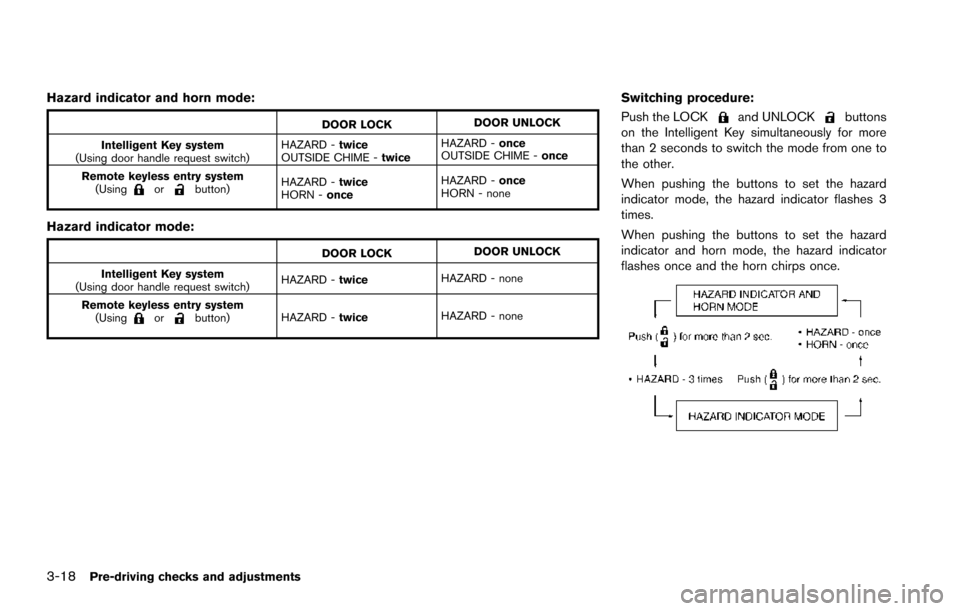
Switching procedure:
Push the LOCK
and UNLOCKbuttons
on the Intelligent Key simultaneously for more
than 2 seconds to switch the mode from one to
the other.
When pushing the buttons to set the hazard
indicator mode, the hazard indicator flashes 3
times.
When pushing the buttons to set the hazard
indicator and horn mode, the hazard indicator
flashes once and the horn chirps once.
Page 199 of 614
Linking Intelligent Key (if so equipped) ...................... 4-58
In-cabin microfilter ........................................................... 4-58
Servicing air conditioner ................................................. 4-58
Audio system ........................................................................\
... 4-59
Audio operation precautions ......................................... 4-59
FM-AM-SAT radio with Compact Disc
(CD) player ........................................................................\
4-70
DVD (Digital Versatile Disc) player operation ........... 4-74
USB (Universal Serial Bus) connection port ............ 4-77
Bluetooth
Šstreaming audio .......................................... 4-81
iPodŠplayer operation .................................................... 4-86
Front auxiliary input jacks (if so equipped) ................ 4-88
CD/DVD/USB memory care and cleaning ................ 4-90
Steering-wheel-mounted controls for audio .............. 4-91
Antenna ........................................................................\
....... 4-92
DVD Entertainment System (if so equipped) ................. 4-92 Licenses ........................................................................\
...... 4-93
System components ........................................................ 4-93
Before operating DVD Entertainment System .......... 4-99
Playing Digital Versatile Disc (DVD)/USB .............. 4-100
Operating tips ................................................................ 4-105
Care and maintenance ................................................. 4-105 Car phone or CB radio ..................................................... 4-106
Bluetooth
ŠHands-Free Phone System ........................ 4-106
Regulatory information ............................................... 4-108
Voice commands ......................................................... 4-108
Control buttons ............................................................ 4-108
Connecting procedure ............................................... 4-109
Phone selection ........................................................... 4-109
Quick Dial ..................................................................... 4-109
Making a call ................................................................ 4-112
Receiving a call ........................................................... 4-113
During a call ................................................................. 4-113
Phone setting ............................................................... 4-114
Troubleshooting guide ............................................... 4-116
NISSAN Voice Recognition system .............................. 4-117
NISSAN Voice Recognition Standard Mode ....... 4-117
Using the system ........................................................ 4-120
NISSAN Voice Recognition Alternate
Command Mode ......................................................... 4-130
Using the system ........................................................ 4-138
Troubleshooting guide ............................................... 4-143
Page 201 of 614
4-4Monitor, heater, air conditioner, audio, phone and voice recognition systems
SAA3020Type A (if so equipped)
SAA3021Type B (if so equipped)
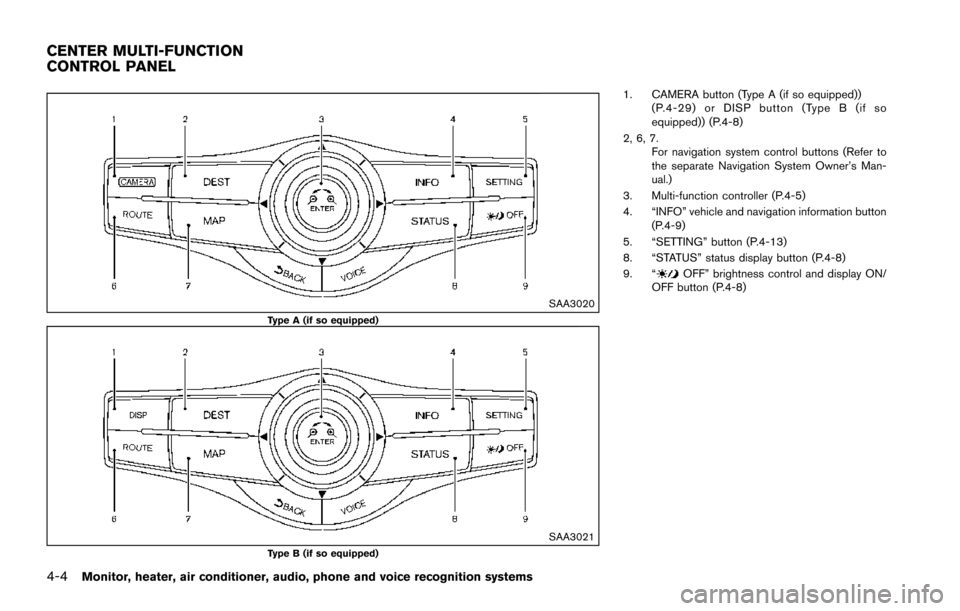
1. CAMERA button (Type A (if so equipped))(P.4-29) or DISP button (Type B (if so
equipped)) (P.4-8)
2, 6, 7. For navigation system control buttons (Refer to
the separate Navigation System Owner’s Man-
ual.)
3. Multi-function controller (P.4-5)
4. “INFO” vehicle and navigation information button (P.4-9)
5. “SETTING” button (P.4-13)
8. “STATUS” status display button (P.4-8)
9. “
OFF” brightness control and display ON/
OFF button (P.4-8)
CENTER MULTI-FUNCTION
CONTROL PANEL
Page 252 of 614
A visible mist may be seen coming from the
ventilators in hot, humid conditions as the air is
cooled rapidly. This does not indicate a mal-
function.
Dehumidified defrosting or defogging:
1. Push the “
” front defroster button. (The
indicator light on the button will illuminate.)
2. Turn the temperature control dial to set the desired temperature.
. To quickly remove ice from the outside of the
windows, push the fan speed increase
button “
” and set it to the maximum
position.
. As soon as possible after the windshield is
clean, push the “AUTO” button to return to
the auto mode.
. When the “
” front defroster button is
pushed, the air conditioner will automatically
be turned on at outside temperatures above
238F( í58C) to defog the windshield, and
the air recirculate mode will automatically be
turned off.
Outside air is drawn into the passenger
compartment to improve the defogging
performance.
Manual operation
Fan speed control:
Push the fan speed increase “
” or decrease
“” buttons to manually control the fan speed.
Push the “AUTO” button to return to automatic
control of the fan speed.
Temperature control:
Turn the temperature control dial to set the
desired temperature.
Air flow control:
Pushing the “MODE” manual air flow control
button selects the air outlet to:
: Air flows from center and side ventilators.
: Air flows from center and side ventilators and foot outlets.
: Air flows mainly from foot outlets.
: Air flows from defroster and foot outlets.
Air intake control:
. Push the “
” air recirculation button to
recirculate interior air inside the vehicle. The
“
” indicator light on the button will come
on. The air recirculation mode cannot be
activated when the air conditioner is in the
front defrosting mode “
”.
. Push the “
” outside air circulation button
to draw outside air into the passenger
compartment. The “
” indicator light on the button will come on.
. To control the air intake automatically, push
and hold either the “
” air recirculation
button or the “” outside air circulation
button (whichever indicator light is illumi-
nated) . The indicator lights (both air recir-
culation and outside air circulation buttons)
will flash twice, and then the air intake will
switch to automatic control.
Turning the system off
Push the OFF button.
Upper vent system
When the upper vent “” button is pushed,
the air flow against the driver’s or passenger’s
upper body becomes gentle. The indicator light
on the button will illuminate.
In this mode, air from the upper ventilator flows
in order to control the cabin temperature without
blowing air directly on the occupants.
Push the upper vent “
” button when you
want the air conditioner to work quickly.
To turn the system off, push the upper vent
“
” button to turn the indicator light off.
Monitor, heater, air conditioner, audio, phone and voice recognition systems4-55
Page 254 of 614
.Air flow control
Push the “MODE” button to change the air
flow mode.
: The air outlet is fixed at foot level.
: The air outlet is fixed at both the head and foot
level.
: The air outlet is fixed at the head level.
Turning the system off:
Use the following method to turn the rear
automatic air conditioning system off.
. Operating the front air conditioner control
panel:
Push the “OFF” button on the front air
conditioner control panel when the rear air
conditioner screen is displayed on the front
display.
. Operating the rear air conditioner control
panel:
Push the “OFF” button on the rear air
conditioner control panel when the rear air
conditioner screen is not displayed on the
front display.
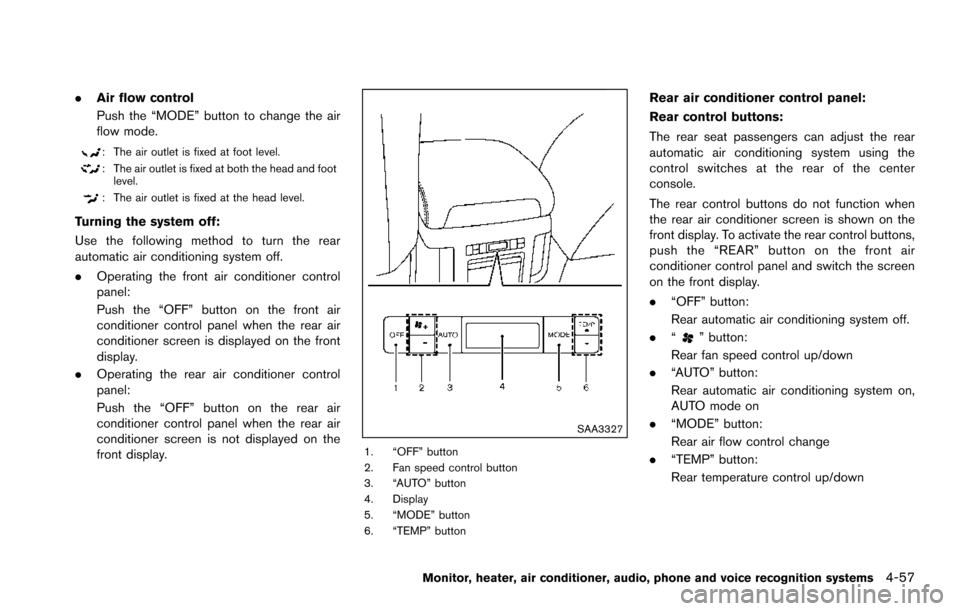
SAA3327
1. “OFF” button
2. Fan speed control button
3. “AUTO” button
4. Display
5. “MODE” button
6. “TEMP” button
Rear air conditioner control panel:
Rear control buttons:
The rear seat passengers can adjust the rear
automatic air conditioning system using the
control switches at the rear of the center
console.
The rear control buttons do not function when
the rear air conditioner screen is shown on the
front display. To activate the rear control buttons,
push the “REAR” button on the front air
conditioner control panel and switch the screen
on the front display.
.“OFF” button:
Rear automatic air conditioning system off.
. “
” button:
Rear fan speed control up/down
. “AUTO” button:
Rear automatic air conditioning system on,
AUTO mode on
. “MODE” button:
Rear air flow control change
. “TEMP” button:
Rear temperature control up/down
Monitor, heater, air conditioner, audio, phone and voice recognition systems4-57
Page 267 of 614
4-70Monitor, heater, air conditioner, audio, phone and voice recognition systems
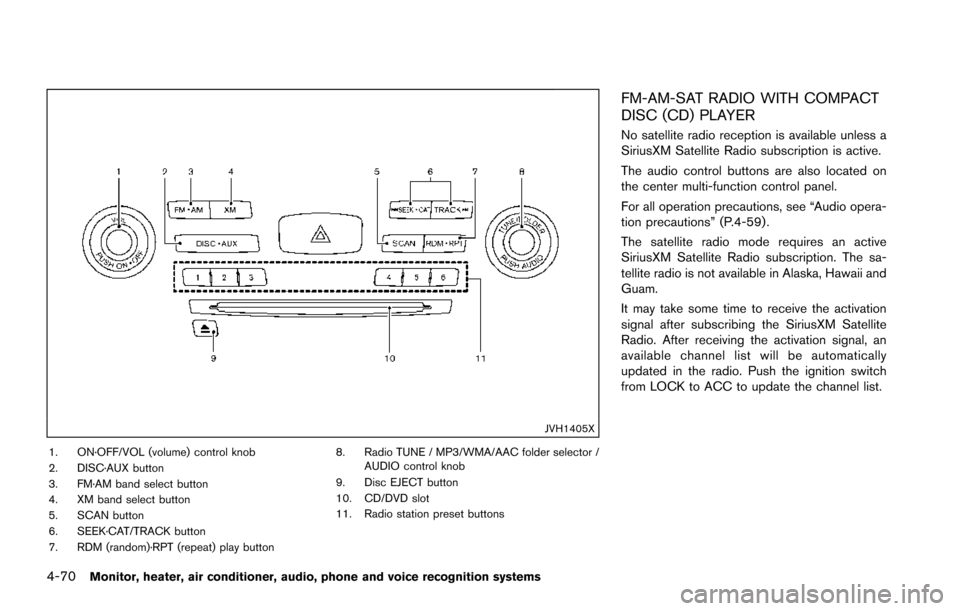
JVH1405X
1. ON·OFF/VOL (volume) control knob
2. DISC·AUX button
3. FM·AM band select button
4. XM band select button
5. SCAN button
6. SEEK·CAT/TRACK button
7. RDM (random)·RPT (repeat) play button8. Radio TUNE / MP3/WMA/AAC folder selector /
AUDIO control knob
9. Disc EJECT button
10. CD/DVD slot
11. Radio station preset buttons
FM-AM-SAT RADIO WITH COMPACT
DISC (CD) PLAYER
No satellite radio reception is available unless a
SiriusXM Satellite Radio subscription is active.
The audio control buttons are also located on
the center multi-function control panel.
For all operation precautions, see “Audio opera-
tion precautions” (P.4-59) .
The satellite radio mode requires an active
SiriusXM Satellite Radio subscription. The sa-
tellite radio is not available in Alaska, Hawaii and
Guam.
It may take some time to receive the activation
signal after subscribing the SiriusXM Satellite
Radio. After receiving the activation signal, an
available channel list will be automatically
updated in the radio. Push the ignition switch
from LOCK to ACC to update the channel list.
Page 269 of 614
4-72Monitor, heater, air conditioner, audio, phone and voice recognition systems
tions.
.NO SIGNAL (No signal is received while the
SAT tuner is connected.)
. OFF AIR (Broadcasting signed off)
. CHECK ANTENNA (Antenna connection
error)
. LOADING (When the initial setting is
performed)
. UPDATING (When the satellite radio sub-
scription is not active)
. INVALID CH (Invalid channel is received.)
SCAN tuning:
Push the SCAN tuning button to tune from low
to high frequencies and stop at each broad-
casting station/channel for 5 seconds. Pushing
the button again during this 10 seconds period
will stop SCAN tuning and the radio will remain
tuned to that station/channel.
If the SCAN tuning button is not pushed within 5
seconds, SCAN tuning moves to the next
station/channel.
*1to*6Station memory operations:
12 stations/channels can be set for the FM band
(6 each for FM1 and FM2) , 18 for SiriusXM
Satellite Radio (6 each for XM1, XM2 and XM3)
and 6 stations can be set for the AM band. 1. Choose the radio band using the radio band
select button.
2. Tune to the desired station/channel using the SEEK·CAT, TRACK, SCAN button or the
radio TUNE knob.
3. Push and hold the desired station preset button
*1to*6until the radio mutes.
4. The station indicator will then come on and the sound will resume. Memorizing is now
complete.
5. Other buttons can be set in the same manner.
If the battery cable is disconnected, or if the fuse
opens, the radio memory will be erased. In that
case, reset the desired stations/channels.
Menu (SiriusXM Satellite Radio):
When the “Menu” key on the display is selected
while the SiriusXM Satellite Radio is being
played, the menu list will be displayed.
The following items are available.
. Preset List
Displays the preset channel list. If 1 of the 6
preset stations listed is touched and held,
the current station will be stored as the new
preset.
. Customize Channel List
Selects specific channels to skip while using the TUNE, SEEK·CAT or Menu-Categories
feature.
. Favorite Artists & Songs
Stores the current artist or song that is being
played. Touch the “Alert” key to be reminded
when the stored artist or song is playing on a
station while listening to SiriusXM Satellite
Radio.
. Categories
Selecting a category will go to the first
channel in that category as defined by
SiriusXM Satellite Radio.
. Direct Tune
Inputs the channel number by using a
keypad.
Compact Disc (CD) player operation
Push the ignition switch to the ACC or ON
position and insert the Compact Disc (CD) into
the slot with the label side facing up. The CD will
be guided automatically into the slot and start
playing.
After loading the CD, the number of tracks on
the CD and the play time will appear on the
display.
If the radio is already operating, it will auto-
matically turn off and the CD will play.
If the system has been turned off while the CD
was playing, pushing the ON·OFF button will