2017 NISSAN ARMADA key
[x] Cancel search: keyPage 270 of 614
start the CD.
PLAY:
When the DISC·AUX (CD play) button is
pushed with the system off and the CD loaded,
the system will turn on and the CD will start to
play.
When the DISC·AUX button is pushed with the
CD loaded and the radio playing, the radio will
automatically be turned off and the CD will start
to play.
Menu:
When the “Menu” key on the display is selected
while the CD is being played, the menu screen
will be displayed. The following menu options
are available.
. Folder List (for CD with compressed audio
files)
Displays the folder list.
. Track List
Displays the track list.
. Play Mode
Select a play mode from the following items.
— Normal
— 1 Folder Repeat (for CD with com-
pressed audio files) — 1 Track Repeat
— 1 Disc Random
— 1 Folder Random (for CD with com-
pressed audio files)
Next/Previous Track and Fast
Forward/Rewind:
When the
orbutton is pushed for more
than 1.5 seconds while the CD is being played,
the CD will play while fast forwarding or
rewinding. When the button is released, the
CD will return to normal play speed.
When the
orbutton is pushed for less
than 1.5 seconds while the CD is being played,
the next track or the beginning of the current
track on the CD will be played.
When the rewind button is pushed for less than
1.5 seconds within 3 seconds after the current
track starts playing, the previous track will be
played.
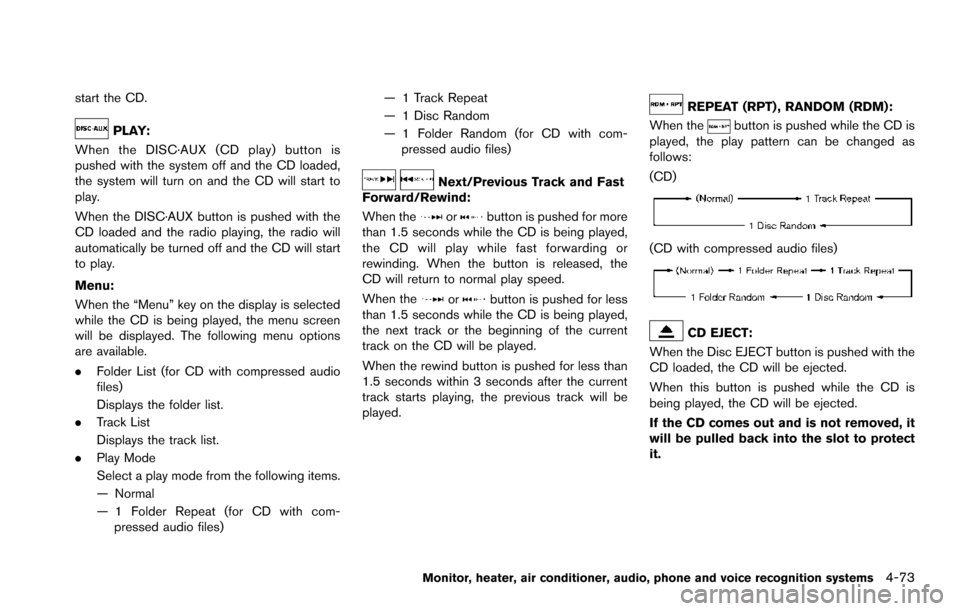
REPEAT (RPT) , RANDOM (RDM):
When the
button is pushed while the CD is
played, the play pattern can be changed as
follows:
(CD)
(CD with compressed audio files)
CD EJECT:
When the Disc EJECT button is pushed with the
CD loaded, the CD will be ejected.
When this button is pushed while the CD is
being played, the CD will be ejected.
If the CD comes out and is not removed, it
will be pulled back into the slot to protect
it.
Monitor, heater, air conditioner, audio, phone and voice recognition systems4-73
Page 272 of 614
The operation screen will be turned on when the
DISC·AUX button located on the instrument
panel is pushed while a DVD is being played,
and it will turn off automatically after a period of
time. To turn it on again, push the DISC·AUX
button again.
DVD operation keys:
When the DVD is playing without the operation
screen being shown as illustrated, you may use
the touch screen to select items from the
displayed video. You may also use the multi-
function controller to select an item from the
displayed video. When the operation screen is
being shown, use the multi-function controller or
touch screen to select an item from the
displayed menus.
PAUSE:
Select the “
” key to pause the DVD. To
resume playing the DVD, use the “PLAY” key.
PLAY:
Select the “
” key to start playing the DVD,
for example, after pausing the DVD.
STOP:
Select the “
” key to stop playing the DVD.
/Next/Previous Chapter:
Select the “
”or“” key to skip the
chapter(s) of the disc forward/backward. The
chapters will advance/go back the number of
times this key is selected.
/Commercial Skip:
This function is only for DVD-VIDEO, DVD-VR.
Select the “
”or“” key to skip forward or
backwards by the set amount as defined in the
DVD Settings menu.
Top Menu:
When the “Top Menu” key is selected in the
screen while a DVD is being played, the top
menu specific to each disc will be displayed. For
details, see the instructions on the disc.
SAA2498Example
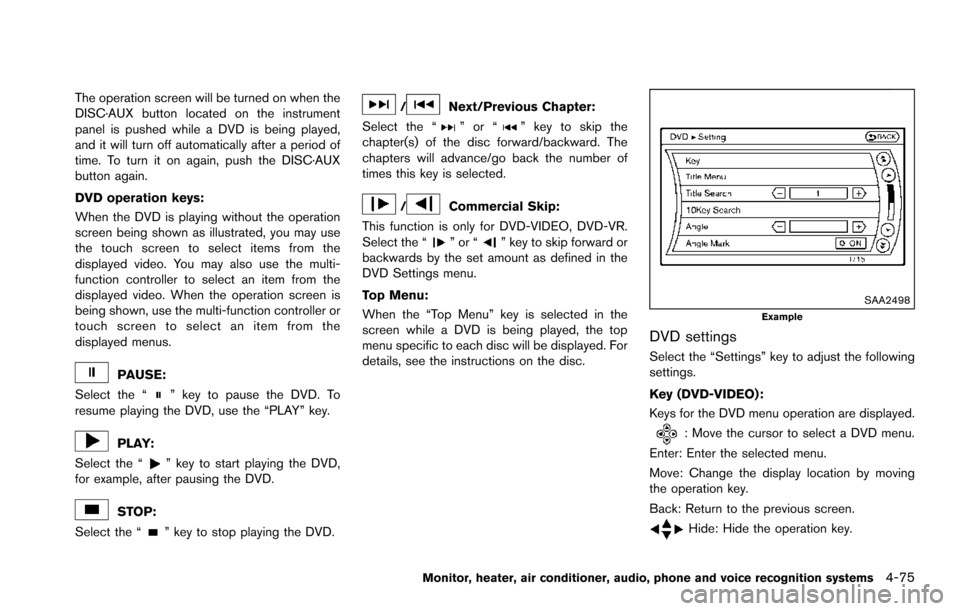
DVD settings
Select the “Settings” key to adjust the following
settings.
Key (DVD-VIDEO) :
Keys for the DVD menu operation are displayed.
: Move the cursor to select a DVD menu.
Enter: Enter the selected menu.
Move: Change the display location by moving
the operation key.
Back: Return to the previous screen.
Hide: Hide the operation key.
Monitor, heater, air conditioner, audio, phone and voice recognition systems4-75
Page 273 of 614
4-76Monitor, heater, air conditioner, audio, phone and voice recognition systems
Title Menu (DVD-VIDEO) :
Some menus specific to each disc will be
shown. For details, see the instructions on the
disc.
Title Search (DVD-VIDEO, DVD-VR):
The scene with the specified title will be
displayed each time the “+” side or “í” side is
selected.
Group Search (VIDEO CD):
A scene in the specified group will be displayed
each time the “+” side or “í” side is selected.
10 Key Search (DVD-VIDEO, VIDEO-CD,CD-
DA, DVD-VR):
Select the “10 Key Search” key to open the
number entry screen. Input the number to be
searched and select the “OK” key. The specified
Title/Chapter or Group/Track will be played.
Select No. (VIDEO-CD):
Select the “Select No.” key to open the number
entry screen. Input the number to be searched
and select the “OK” key. The specified scene
will be played.
Angle (DVD-VIDEO):
If the DVD contains different angles (such as
moving images) , the current image angle can be
switched to another one. Select the “Angle” key.
The angle will change each time the “+” side or“í” side is selected.
Angle Mark (DVD-VIDEO):
When this item is turned on, an angle mark will
be shown on the bottom of the screen if the
scene can be seen from a different angle.
Menu Skip (DVD-VIDEO):
DVD menus are automatically configured and
the contents will be played directly when the
“Menu Skip” key is turned on. Note that some
discs may not be played directly even if this item
is turned on.
CM Skip (DVD-VIDEO):
Select the “CM Skip” key. Choose the setting
time from 15, 30 or 60 seconds by selecting the
“+” side or “í” side.
DRC (DVD-VIDEO, DVD-VR):
DRC (Dynamic Range Compression) automati-
cally adjusts the soundtrack volume level to
maintain a more even sound to the speakers.
DVD Language (DVD-VIDEO, VIDEO-CD):
Select the “DVD Language” key to open the
number entry screen. Input the number corre-
sponding to the preferred language and select
the “OK” key. The DVD top menu language will
be changed to the one specified.
Display:
To adjust the image quality of the screen, select
the preferred adjustment items.
Audio:
Select the preferred language for audio.
Subtitle (DVD-VIDEO, DVD-VR):
Select the preferred language for subtitles.
Display Mode (DVD-VIDEO, VIDEO-CD,
DVD-VR):
Select from the “Full”, “Wide”, “Normal” or
“Cinema” modes.
Title List (DVD-VR):
Select the preferred title from the list.
Play Mode:
Select the preferred play mode.
PG/PL Mode (DVD-VR):
Select the “PG” or “PL” mode.
Display settings
To adjust the front display mode, push the
SETTING button while the DVD is being played,
select the “Others” key and then select the
“Display” key.
To adjust the display ON/OFF, brightness, tint,
color, contrast and black level, select the “Dis-
play Adjustment” key and then select each key.
Page 276 of 614
than 1.5 seconds while a USB memory is being
played, the USB memory will play while for-
warding or rewinding. When the button is
released, the USB memory will return to normal
play speed.
When the
orbutton is pushed for less
than 1.5 seconds while the USB memory is
being played, the next track or the beginning of
the current track on the USB memory will be
played.
When the rewind button is pushed for less than
1.5 seconds within 3 seconds after the current
track starts playing, the previous track will be
played.
The multi-function controller can also be used to
select tracks when the USB memory is being
played.
Folder selection:
To change to another folder in the USB memory,
turn the folder selector or choose a folder
displayed on the screen using the multi-function
controller.
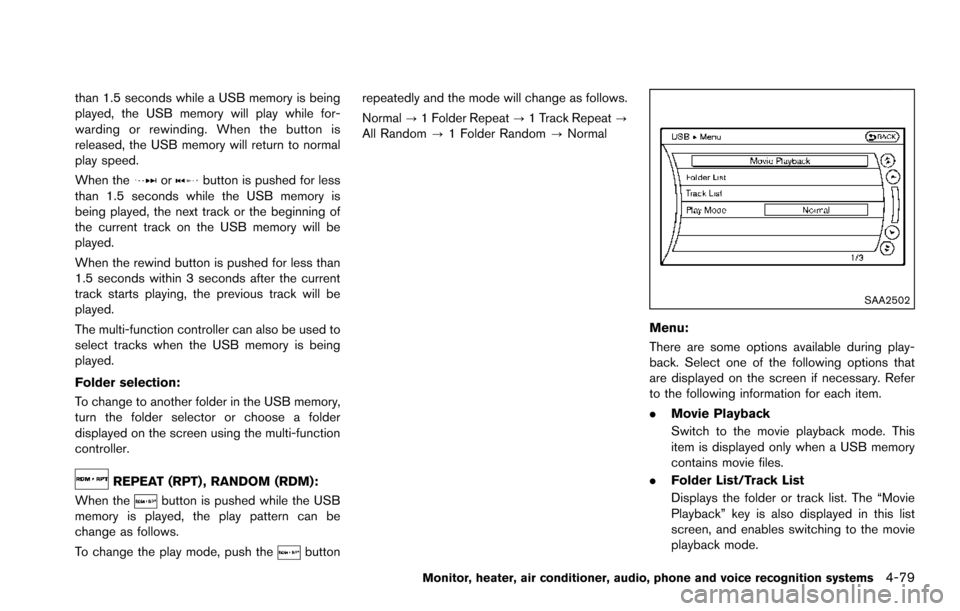
REPEAT (RPT) , RANDOM (RDM):
When the
button is pushed while the USB
memory is played, the play pattern can be
change as follows.
To change the play mode, push the
button repeatedly and the mode will change as follows.
Normal
?1 Folder Repeat ?1 Track Repeat ?
All Random ?1 Folder Random ?Normal
SAA2502
Menu:
There are some options available during play-
back. Select one of the following options that
are displayed on the screen if necessary. Refer
to the following information for each item.
. Movie Playback
Switch to the movie playback mode. This
item is displayed only when a USB memory
contains movie files.
. Folder List/Track List
Displays the folder or track list. The “Movie
Playback” key is also displayed in this list
screen, and enables switching to the movie
playback mode.
Monitor, heater, air conditioner, audio, phone and voice recognition systems4-79
Page 277 of 614
4-80Monitor, heater, air conditioner, audio, phone and voice recognition systems
.Play Mode
Select the preferred play mode.
JVH1406XExample
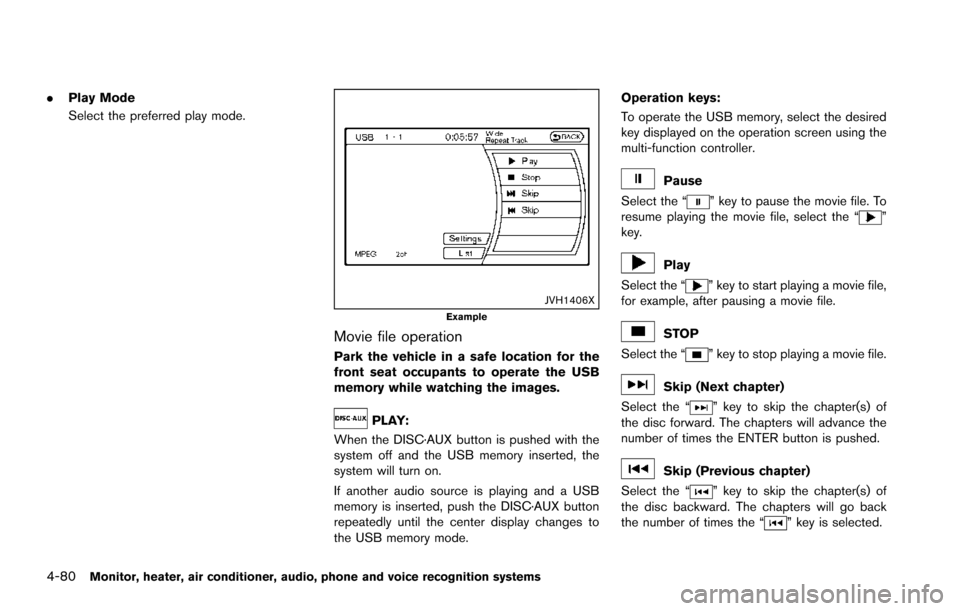
Movie file operation
Park the vehicle in a safe location for the
front seat occupants to operate the USB
memory while watching the images.
PLAY:
When the DISC·AUX button is pushed with the
system off and the USB memory inserted, the
system will turn on.
If another audio source is playing and a USB
memory is inserted, push the DISC·AUX button
repeatedly until the center display changes to
the USB memory mode. Operation keys:
To operate the USB memory, select the desired
key displayed on the operation screen using the
multi-function controller.
Pause
Select the “
” key to pause the movie file. To
resume playing the movie file, select the “”
key.
Play
Select the “
” key to start playing a movie file,
for example, after pausing a movie file.
STOP
Select the “
” key to stop playing a movie file.
Skip (Next chapter)
Select the “
” key to skip the chapter(s) of
the disc forward. The chapters will advance the
number of times the ENTER button is pushed.
Skip (Previous chapter)
Select the “
” key to skip the chapter(s) of
the disc backward. The chapters will go back
the number of times the “
” key is selected.
Page 278 of 614
List:
Select the “List” key on the movie file operation
screen to display the file list.
SAA2504Example
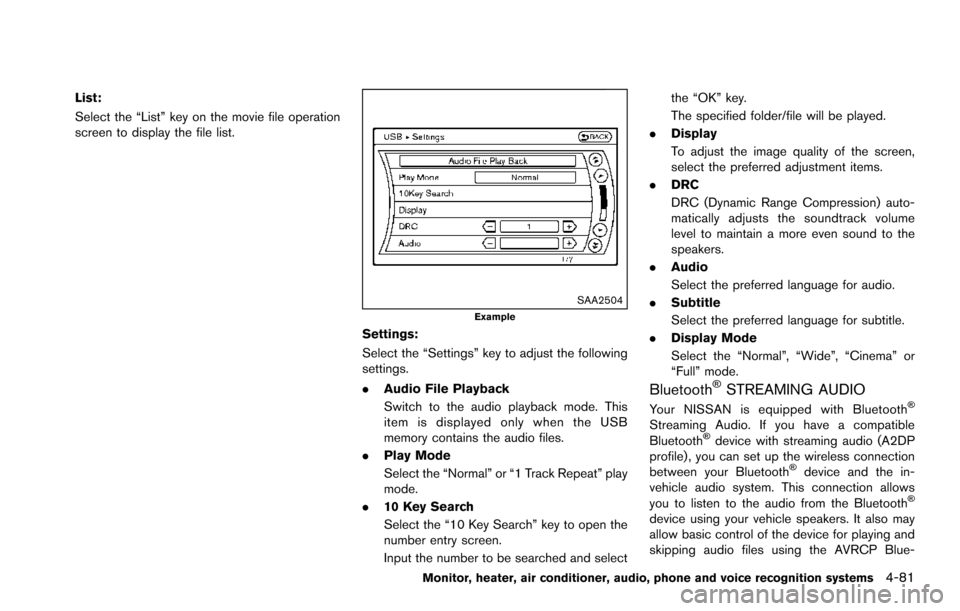
Settings:
Select the “Settings” key to adjust the following
settings.
.Audio File Playback
Switch to the audio playback mode. This
item is displayed only when the USB
memory contains the audio files.
. Play Mode
Select the “Normal” or “1 Track Repeat” play
mode.
. 10 Key Search
Select the “10 Key Search” key to open the
number entry screen.
Input the number to be searched and select the “OK” key.
The specified folder/file will be played.
. Display
To adjust the image quality of the screen,
select the preferred adjustment items.
. DRC
DRC (Dynamic Range Compression) auto-
matically adjusts the soundtrack volume
level to maintain a more even sound to the
speakers.
. Audio
Select the preferred language for audio.
. Subtitle
Select the preferred language for subtitle.
. Display Mode
Select the “Normal”, “Wide”, “Cinema” or
“Full” mode.
BluetoothŠSTREAMING AUDIO
Your NISSAN is equipped with BluetoothŠ
Streaming Audio. If you have a compatible
BluetoothŠdevice with streaming audio (A2DP
profile) , you can set up the wireless connection
between your Bluetooth
Šdevice and the in-
vehicle audio system. This connection allows
you to listen to the audio from the Bluetooth
Š
device using your vehicle speakers. It also may
allow basic control of the device for playing and
skipping audio files using the AVRCP Blue-
Monitor, heater, air conditioner, audio, phone and voice recognition systems4-81
Page 279 of 614
4-82Monitor, heater, air conditioner, audio, phone and voice recognition systems
toothŠprofile. All BluetoothŠDevices do not
have the same level of controls for AVRCP.
Please consult the manual for your Bluetooth
Š
Device for more details.
Once your BluetoothŠdevice is connected to
the in-vehicle audio system, it will automatically
reconnect whenever the device is present in the
vehicle and you select Bluetooth
ŠAudio from
your audio system. You do not need to manually
reconnect for each usage.
Wireless LAN (Wi-Fi) and the Bluetooth
Š
functions share the same frequency band (2.4
GHz) . Using the BluetoothŠand the wireless
LAN functions at the same time may slow down
or disconnect the communication and cause
undesired noise. It is recommended that you
turn off the wireless LAN (Wi-Fi) when using the
Bluetooth
Šfunctions.
Regulatory information
FCC Regulatory information:
. CAUTION: To maintain compliance with
FCC’s RF exposure guidelines, use only
the supplied antenna. Unauthorized antenna,
modification, or attachments could damage
the transmitter and may violate FCC regula-
tions.
. Operation is subject to the following two
conditions: 1) This device may not cause interference
and
2) This device must accept any interfer- ence, including interference that may
cause undesired operation of the device
IC Regulatory information:
. Operation is subject to the following two
conditions:
1) This device may not cause interference,
and
2) This device must accept any interfer- ence, including interference that may
cause undesired operation of the device.
. This Class B digital apparatus meets all
requirements of the Canadian Interference-
Causing Equipment Regulations.
Bluetooth
Štrademark:
BluetoothŠis a trademark owned
by Bluetooth SIG, Inc., and
licensed to Clarion Co., Ltd.
SAA3159
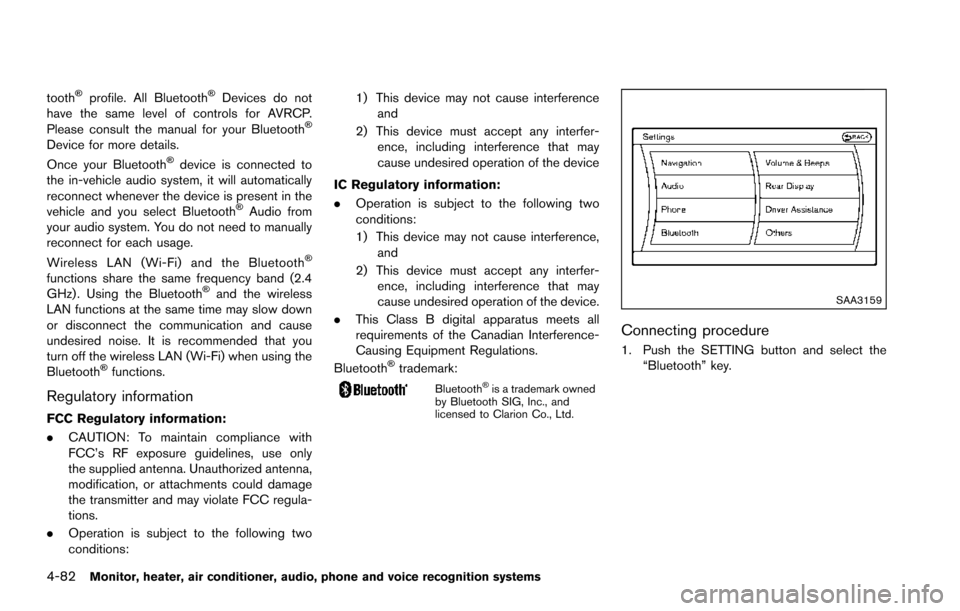
Connecting procedure
1. Push the SETTING button and select the
“Bluetooth” key.
Page 280 of 614
SAA2506
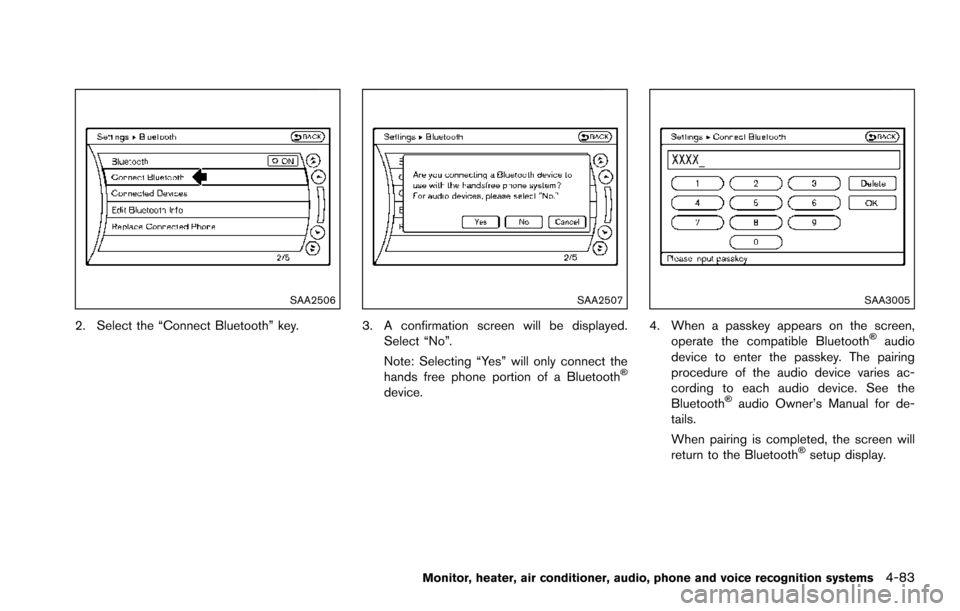
2. Select the “Connect Bluetooth” key.
SAA2507
3. A confirmation screen will be displayed.Select “No”.
Note: Selecting “Yes” will only connect the
hands free phone portion of a Bluetooth
Š
device.
SAA3005
4. When a passkey appears on the screen,operate the compatible BluetoothŠaudio
device to enter the passkey. The pairing
procedure of the audio device varies ac-
cording to each audio device. See the
Bluetooth
Šaudio Owner’s Manual for de-
tails.
When pairing is completed, the screen will
return to the Bluetooth
Šsetup display.
Monitor, heater, air conditioner, audio, phone and voice recognition systems4-83