2017 MERCEDES-BENZ S-Class MAYBACH engine
[x] Cancel search: enginePage 193 of 382
Rif the camera lens fogs up, e.g. when driving
into a heated garage in winter, causing a rapid
change in temperature
Rif the camera lens is dirty or obstructed
Rif the rear of your vehicle is damaged. In this
event, have the camera position and setting
checked at a qualified specialist workshop
The field of vision and other functions of the rear
view camera may be restricted due to additional
accessories on the rear of the vehicle (e.g.
license plate holder, bicycle rack).
The guide lines on the multimedia system show
the distances to your vehicle. The distances only
apply to road level.
The rear view camera is protected from rain-
drops and dust by means of a flap. When the rear
view camera is activated, this flap opens.
The flap closes again when:
Ryou have finished the maneuvering process
Ryou switch off the engine
Ryou open the trunk
Observe the notes on cleaning (
Ypage 323).
For technical reasons, the flap may remain open
briefly after the rear view camera has been
deactivated.
Activating/deactivating the rear view
camera
XTo activate: make sure that the Activa‐
tion by R gearfunction is selected in the
multimedia system; see Digital Operator's
Manual.
XEngage reverse gear.
The rear view camera flap opens. The multi-
media system shows the area behind the vehi-
cle with guide lines.
The image from the rear view camera is avail-
able throughout the maneuvering process.
XShift the transmission to position P.
or
XDrive forwards a short distance.
Displays in the multimedia system
The rear view camera may show a distorted view
of obstacles, show them incorrectly or not at all.
The rear view camera does not show objects in
the following positions:
Rvery close to the rear bumper
Runder the rear bumper
Rin the area immediately above the handle in
the trunk lid
!Objects not at ground level may appear to
be further away than they actually are, e.g.:
Rthe bumper of a parked vehicle
Rthe drawbar of a trailer
Rthe ball coupling of a trailer tow hitch
Rthe rear section of an HGV
Ra slanted post
Use the guidelines only for orientation.
Approach objects no further than the bottom-
most guideline.
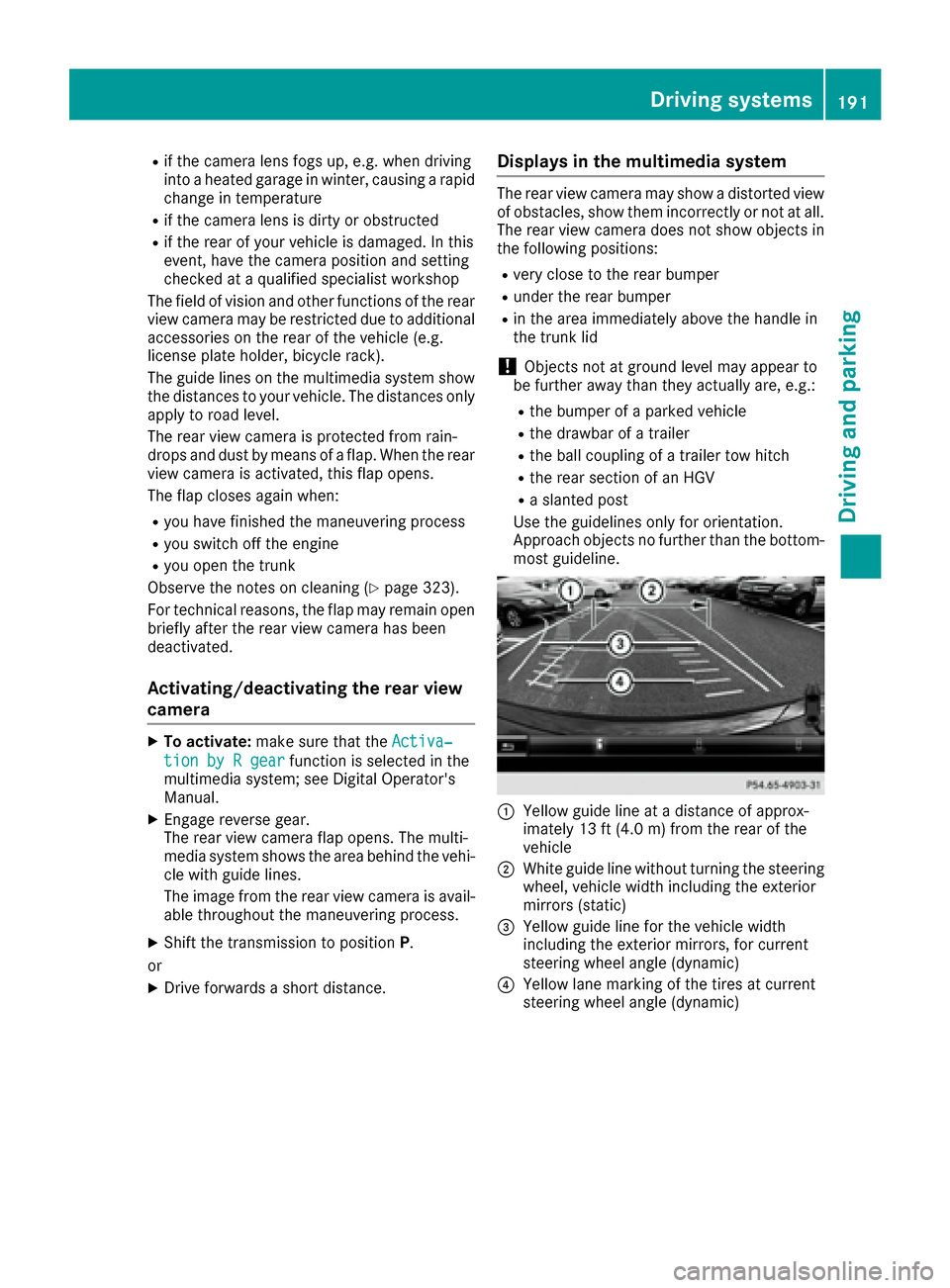
:Yellow guide line at a distance of approx-
imately 13 ft (4.0 m) from the rear of the
vehicle
;White guide line without turning the steering
wheel, vehicle width including the exterior
mirrors (static)
=Yellow guide line for the vehicle width
including the exterior mirrors, for current
steering wheel angle (dynamic)
?Yellow lane marking of the tires at current
steering wheel angle (dynamic)
Driving systems191
Driving and parking
Z
Page 200 of 382
iYou can also select the side camera setting
for the rear-facing view.
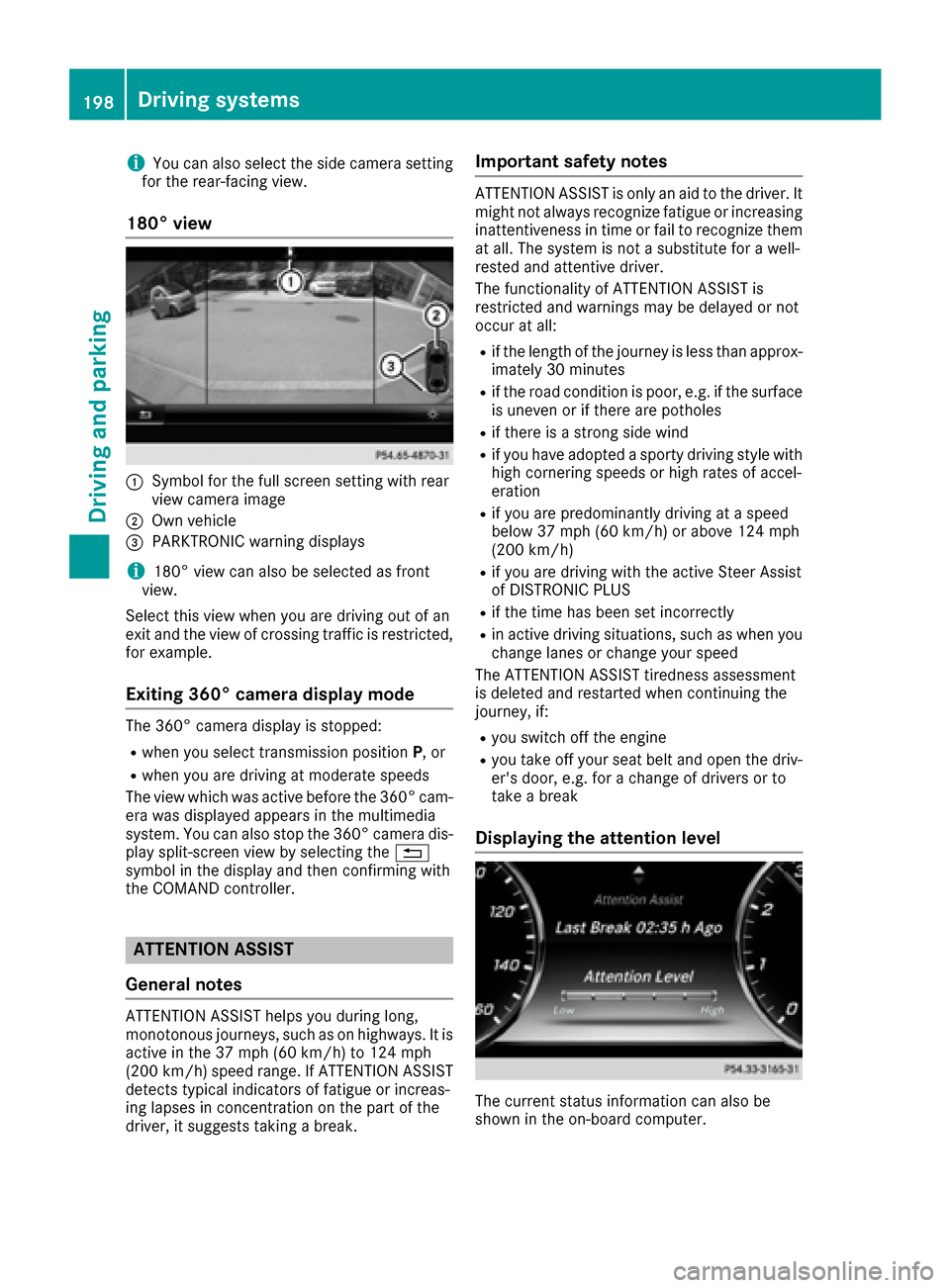
180° view
:Symbol for the full screen setting with rear
view camera image
;Own vehicle
=PARKTRONIC warning displays
i180° view can also be selected as front
view.
Select this view when you are driving out of an
exit and the view of crossing traffic is restricted,
for example.
Exiting 360° camera display mode
The 360° camera display is stopped:
Rwhen you select transmission position P, or
Rwhen you are driving at moderate speeds
The view which was active before the 360° cam-
era was displayed appears in the multimedia
system. You can also stop the 360° camera dis-
play split-screen view by selecting the %
symbol in the display and then confirming with
the COMAND controller.
ATTENTION ASSIST
General notes
ATTENTION ASSIST helps you during long,
monotonous journeys, such as on highways. It is
active in the 37 mph (60 km/h) to 124 mph
(200 km/h) speed range. If ATTENTION ASSIST
detects typical indicators of fatigue or increas-
ing lapses in concentration on the part of the
driver, it suggests taking a break.
Important safety notes
ATTENTION ASSIST is only an aid to the driver. It
might not always recognize fatigue or increasing inattentiveness in time or fail to recognize them
at all. The system is not a substitute for a well-
rested and attentive driver.
The functionality of ATTENTION ASSIST is
restricted and warnings may be delayed or not
occur at all:
Rif the length of the journey is less than approx-
imately 30 minutes
Rif the road condition is poor, e.g. if the surface
is uneven or if there are potholes
Rif there is a strong side wind
Rif you have adopted a sporty driving style with
high cornering speeds or high rates of accel-
eration
Rif you are predominantly driving at a speed
below 37 mph (60 km/h) or above 124 mph
(200 km/h)
Rif you are driving with the active Steer Assist
of DISTRONIC PLUS
Rif the time has been set incorrectly
Rin active driving situations, such as when you change lanes or change your speed
The ATTENTION ASSIST tiredness assessment
is deleted and restarted when continuing the
journey, if:
Ryou switch off the engine
Ryou take off your seat belt and open the driv-
er's door, e.g. for a change of drivers or to
take a break
Displaying the attention level
The current status information can also be
shown in the on-board computer.
198Driving systems
Driving and parking
Page 201 of 382
XCallup the assistance graphic and select
ATTENTION AS SIST(Ypage 221).
The foll owing information appears:
RLength of the journey since the last break.
RThe attention level determined byATTENTION
AS SIST (Attention Level),displ ayed ina
bar displ ayinfive leve lsfrom high to low
RIfATTENTION AS SIST isunableto calculate
the attention level and cannot issue a warn-
ing, the System Suspended
message
appears. The bar display then changes the
displ ay, e.g. ifyou are driving at a speed below
37 mph (60 km/h) or above 124 mph
(200 km/h).
Activating ATTENTION ASSIST
XActivate ATTENTION AS SISTusing the on-
board computer (Ypage 223).
The system determines the attention level of
the driver dependin g on the setting selected:
If Standard
is selected: the sensitivit ywit h
whic h the system determines the attention level
is set to normal.
If Sensitive
is selected: the sensitivit yis set
higher. The attention level detected byAttention
Assist isadapted according lyand the driveris
warned earlier.
When ATTENTION AS SIST isdeactivate d,the
é symbol appears inthe multifunction dis-
play in the assistance graphic display.
When ATTENTION AS SISThas been deactivate d,
it is automatically reactivated after the engine
has been stopped. The sensitivity selected cor-
responds to the last selection activated ( Stand‐
ard/Sensitive).
Warning in the multifunction display
If fatigue or increasing lapses inconcentration
are detected, a warning appears inthe mult i-
function display:ATTENTION
ASSIST:TakeaBreak!.
In addit ion to the message shown in the multi-
function display, you willthen hear a warning
tone.
XIf necessary, take a break.
XConfirm the message bypressing the a
button on the steering wheel.
On long journeys, take regular breaks ingood
time to allow yourself to rest properly. Ifyou do
not take a break and ATTENTION AS SISTcon- tinues to detect increasing lapses
inconcentra-
tion, you will bewarned again after 15 minutes
at the earliest. This will only happen ifATTEN-
TION ASSI STstill detects typical indicators of
fatigue or increasing lapses inconcentration.
If a warning is given in the multifunction display,
the multimedia system offers a service station
search. You can select a service station and
navigation to th isservice station will then begin.
This function can beactivated and deactivated
in the multimedia system.
Traffic Sign Assist
General notes
Traffic Sign Assist displays the maximum speed
permitted to the driver in the instrument cluster.
The data and general traffic regulations stored in
the navigation system are used to determine the
current speed limit.
Traffic Sign Assist isa map-based system, and
for th isreason, traffic signs put up temporarily
(e.g. near roadworks) are not detected. There is also no display for changing traffic signs.
Traffic signs with a restriction indicated by an
additional sign (e.g. in wet conditions) are also
shown.
The sign indicating the end of a restriction only
appears with the restriction inthe instrument
cluster when:
Rthe regulation must be observed with the
restriction, or
RTraffic Sign Assist isunable to determine
whether the restriction applies
If Traffic Sign Assist is unable to determine a
maximum permitted speed from any of the avail-
able sources, no speed limit appears in the
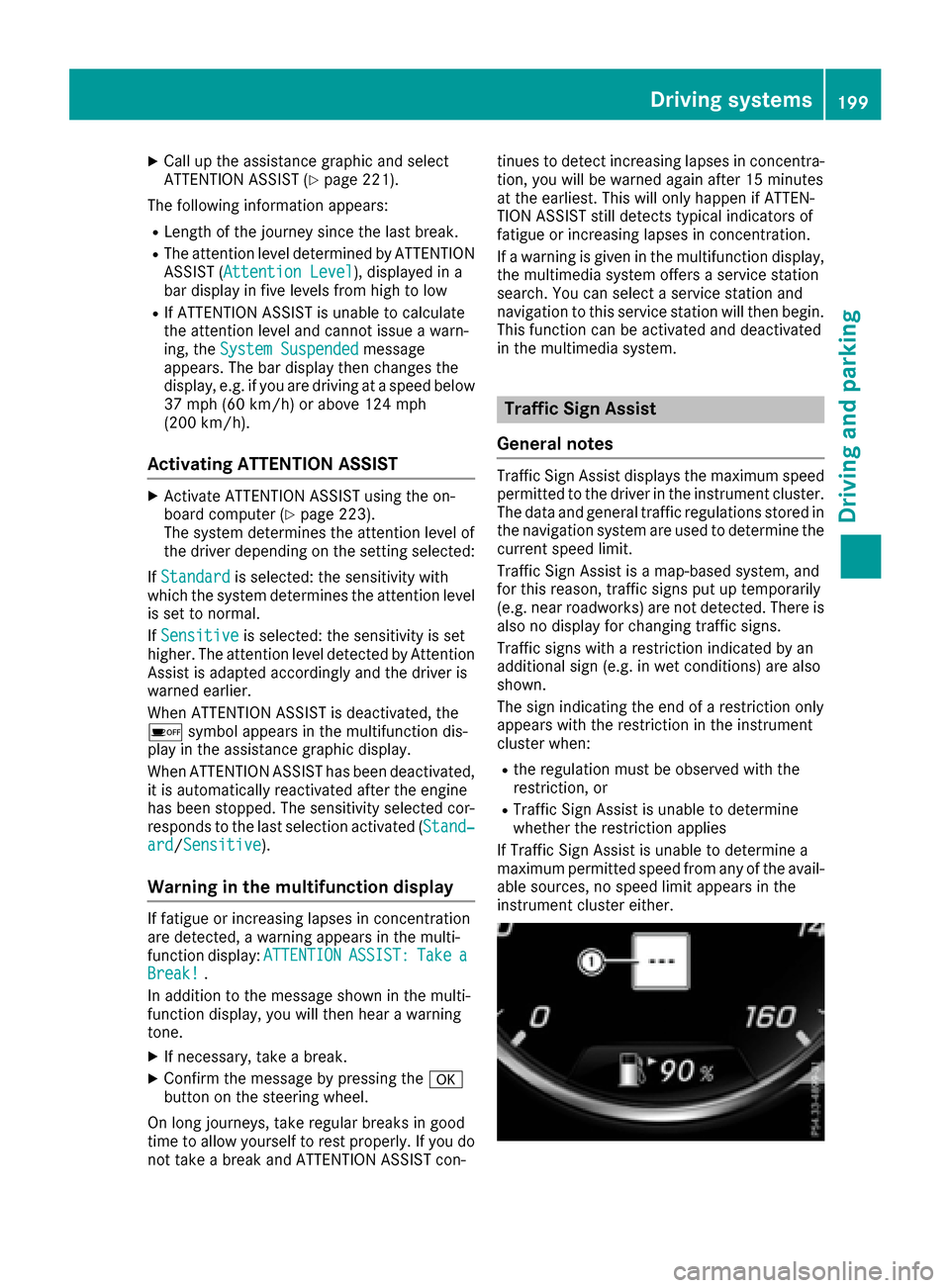
instrument cluster either.
Driving systems199
Driving and parking
Z
Page 204 of 382

objects and pedestrians cannot be gaged accu-
rately by looking at a screen.
Animal recognition
Animals can be recognized in the following sit-
uations:
Rdarkness
Routside built-up areas
Rbelow an ambient temperature of 90 ‡
(32 †).
Night View Assist Plus can recognize larger ani-
mals such as deer, cows or horses using typical
characteristics.
The system does not detect:
Rsmaller animals, e.g. dogs and cats
Ranimals whose silhouette is not clearly rec-
ognizable
When detected, animals are marked with small
color frame corners. In contrast to pedestrian
recognition, there is no separate readiness sym-
bol in the multifunction display.
Activating/deactivating Night View
Assist Plus
Activation conditions
You can only activate Night View Assist Plus if all
of the following conditions are met:
Rthe ignition is switched on (Ypage 145) or the
engine has been started.
Rthe light switch is in the ÃorL posi-
tion.
Rreverse gear has not been engaged.
Activating/deactivating
XPress button :.
If Night View Assist Plus is activated, the
Night View Assist Plus display is shown in the multifunction display.
The infrared headlamps only switch on in the
dark from speeds of approximately 6 mph
(10 km/h) . This means that you do not have the
full visual range while the vehicle is stationary
and cannot check whether Night View Assist
Plus is working. The infrared headlamps are
deactivated at speeds below 3 mph (5 km/h).
The Night View image continues to be displayed
until you deactivate it by pressing button :.
Automatic activation
You can select theNightViewAssistAuto‐matic Activationoption via the Night View
Assist menu. The pedestrian and animal search function remains active even when the Night
View image is not displayed. In the dark, in unlit
surroundings and at speeds of more than
60 km/h, the Night View image is automatically
displayed in the multifunction display as soon as
pedestrians or animals are detected.
XIn the assistance menu, select automatic acti-
vation of Night View Assist Plus
(
Ypage 222).
Spotlight function
General notes
Under certain conditions, the spotlight function
uses the headlamps to flash at detected pedes- trians.
The spotlight function is only active if:
Rpedestrian recognition is active
Rthe road surface is not lit
Rthe driving speed is at least 40 mph
(60 km/h)
Rthe "Adaptive Highbeam Assist PLUS" func-
tion is activated (Ypage 127).
The spotlight function is not active or is active
only to a limited extent if:
Ryou are driving in city traffic
Rthere are pedestrians located in the area of an
oncoming vehicle or a vehicle in front
Activating the spotlight function
The pedestrian detection with spotlight function is running the background. If the prerequisites
are met, the spotlight function uses the head-
202Driving systems
Driving and parking
Page 212 of 382

Important safety notes
GWARNING
If you operate information systems and com-
munication equipmen tintegrate din th evehi-
cle while driving ,you will be distracte dfrom
traffic conditions. You could also lose control
of th evehicle. Ther eis aris kof an accident.
Only operate th eequipmen twhen th etraffic
situation permits. If you are no tsur ethat this
is possible ,park th evehicl epayin gattention
to traffic condition sand operate th eequip-
men twhen th evehicl eis stationary.
You must observ eth elegal requirements for th e
country in whic hyou are currentl ydriving when
operating th eon-board computer.
GWARNIN G
If th einstrumen tcluste rhas faile dor mal-
functioned, you may no trecognize function
restriction sin systems relevan tto safety. The
operating safet yof your vehicl emay be
impaired .Ther eis aris kof an accident.
Drive on carefully. Hav eth evehicl echecke d
at aqualified specialist workshop immedi-
ately.
If th eoperating safet yof your vehicl eis
impaired ,pull ove ras soo nas it is saf eto do so.
Contac t aqualified specialist workshop.
The on-board computer only shows message sor
warning sfrom certain systems in th emultifunc-
tion display. You should therefor emak esur e
your vehicl eis operating safely at all times .
Fo ran overview, see th einstrumen tpanel illus-
tration (
Ypage 35).
Hybrid vehicles: makesur ethat you read th e
separat eOperator's Manual. Otherwise, you
may no trecognize dangers.
Displays and operation
Instrument cluster lighting
The ligh tsensor in th einstrumen tcluste rauto -
matically control sth ebrightness of th emulti-
function display. In daylight, th edisplays in th einstrumen
tcluste rare illuminated. Adimming
function is no tpossible in daylight.
The lighting in th einstrumen tcluster, in th edis-
plays and th econtrol sin th evehicl einterior can
be adjusted usin gth ebrightness control knob.
The brightness control is locate dbetween th e
instrumen tcluste rand th emultimedia system
display (
Ypage 36).
XTurn thebrightness control knob clockwise or
counter-clockwise.
If you tur nth eligh tswitch (
Ypage 124) to th e
T, ÃorL position ,th ebrightness
will depend upon th ebrightness of th eambi -
en tlight.
Speedometer segments
The segments in th espeedometer indicat e
whic hspee drange is available.
RCruis econtrol activated (Ypage 169):
The segments ligh tup from th estore dspee d
to th een dof th escale.
RDISTRONI CPLU Sactivated (Ypage 171):
On eor two segments in th eset spee drange
ligh tup.
RDISTRONI CPLU Sdetects avehicl ein fron t
moving mor eslowly than th estore dspeed:
The segments between th espee dof th evehi-
cle in fron tand th estore dspee dligh tup.
Tachometer
!
Do no tdriv ein th eoverrevving range, as this
could damag eth eengine.
The red ban din th etachometer indicates th e
engine's overrevving range.
The fuel suppl yis interrupted to protect th e
engin ewhen th ered ban dis reached.
Outside temperature display
You should pay special attention to road condi-
tion swhen temperatures are aroun dfreezing
point.
Bea rin min dthat th eoutside temperature dis-
play indicates th etemperature measured and
does no trecord th eroad temperature.
The outside temperature display is in th emulti-
function display (
Ypage 212).
210Displays and operation
On-board computer and displays
Page 213 of 382
There is a short delay before a change in outside
temperature is shown in the multifunction dis-
play.
Coolant temperature gauge
GWARNING
Opening the hood when the engine is over-
heated or when there is a fire in the engine
compartment could expose you to hot gases
or other service products. There is a risk of
injury.
Let an overheated engine cool down before
opening the hood. If there is a fire in the
engine compartment, keep the hood closed
and contact the fire department.
!A display message is shown if the coolant
temperature is too high.
If the coolant temperature is above 257 ‡
(125 †) do not drive any further. The engine
will otherwise be damaged.
The coolant temperature gauge is in the lower
section of the tachometer (
Ypage 35).
Under normal operating conditions and with the
specified coolant level, the coolant temperature
may rise to 255 ‡ (124 †).
Operating the on-board computer
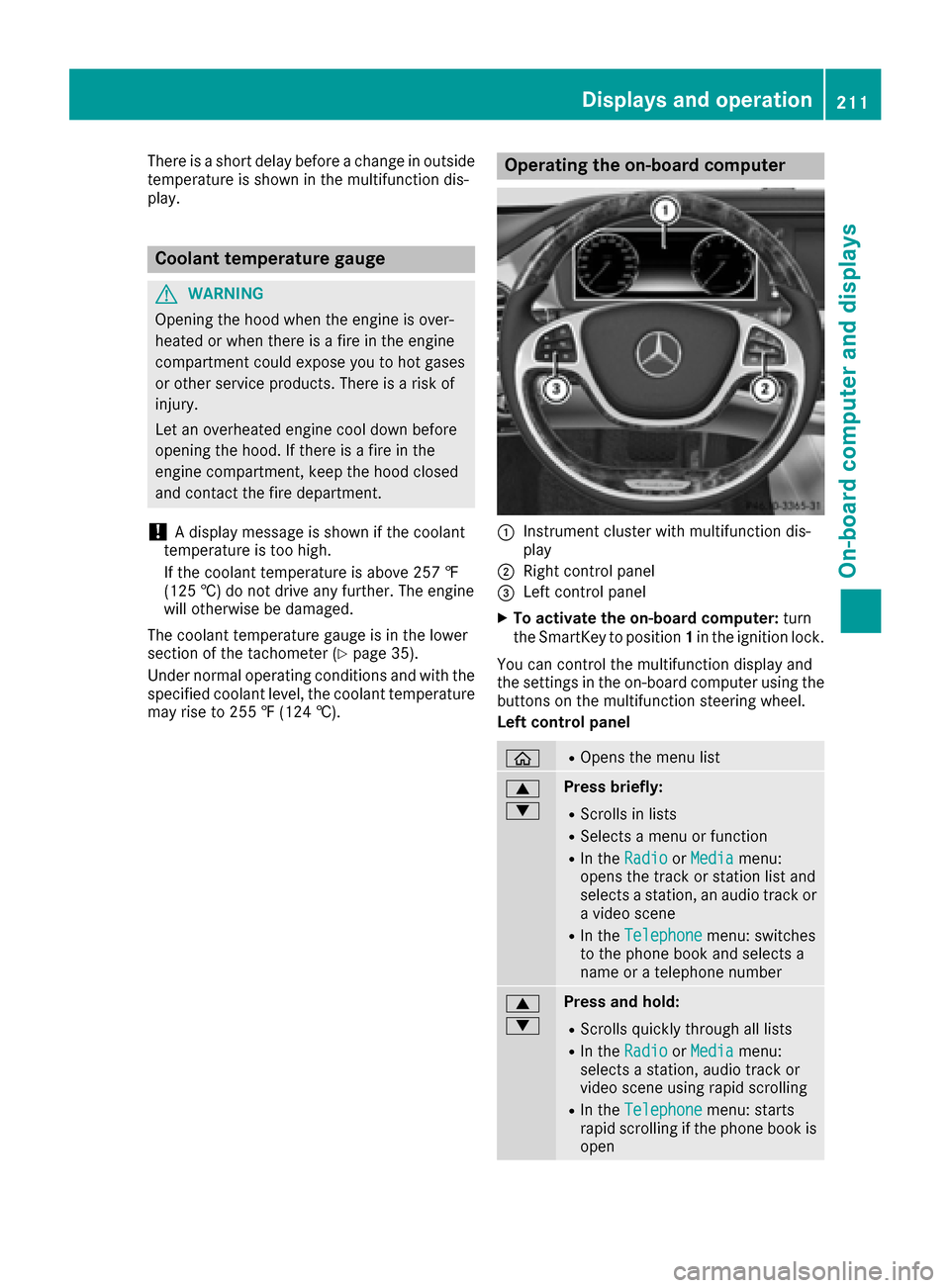
:Instrument cluster with multifunction dis-
play
;Right control panel
=Left control panel
XTo activate the on-board computer: turn
the SmartKey to position 1in the ignition lock.
You can control the multifunction display and
the settings in the on-board computer using the
buttons on the multifunction steering wheel.
Left control panel
òROpens the menu list
9
:Press briefly:
RScrolls in lists
RSelects a menu or function
RIn the RadioorMediamenu:
opens the track or station list and
selects a station, an audio track or
a video scene
RIn the Telephonemenu: switches
to the phone book and selects a
name or a telephone number
9
:Press and hold:
RScrolls quickly through all lists
RIn the RadioorMediamenu:
selects a station, audio track or
video scene using rapid scrolling
RIn the Telephonemenu: starts
rapid scrolling if the phone book is
open
Displays and operation211
On-board computer and displays
Z
Page 215 of 382
driver to see all of the information without hav-
ing to take their eyes off the road.
A requirement for the display of the contents is
that the following functions are available in the
vehicle and are switched on:
RCruise control
RDISTRONIC PLUS
RTraffic Sign Assist
RNavigation
Important safety notes
The Head-up Display is only an aid and is not a
substitute for attentive driving.
Speed limits and overtaking restrictions are not
always correctly displayed. Traffic signs always
have priority over the Traffic Sign Assist display.
The visibility of the Head-up Display is influ-
enced by the following conditions:
Rthe driver's seat position
Rthe positioning of the display image
Rthe general ambient light
Rsunglasses with polarization filters
Rwet roads
Rblocking of sunlight by objects on the display
cover
In the event of extreme sunlight, sections of the
display may fade. This can be reversed by
switching the Head-up Display off and on again.
iVehicles with the head-up display are equip-
ped with a special windshield. Should repairs
be necessary, have the windshield replaced at
a qualified specialist workshop.
Displays and operation
Switching the Head-up Display on/off
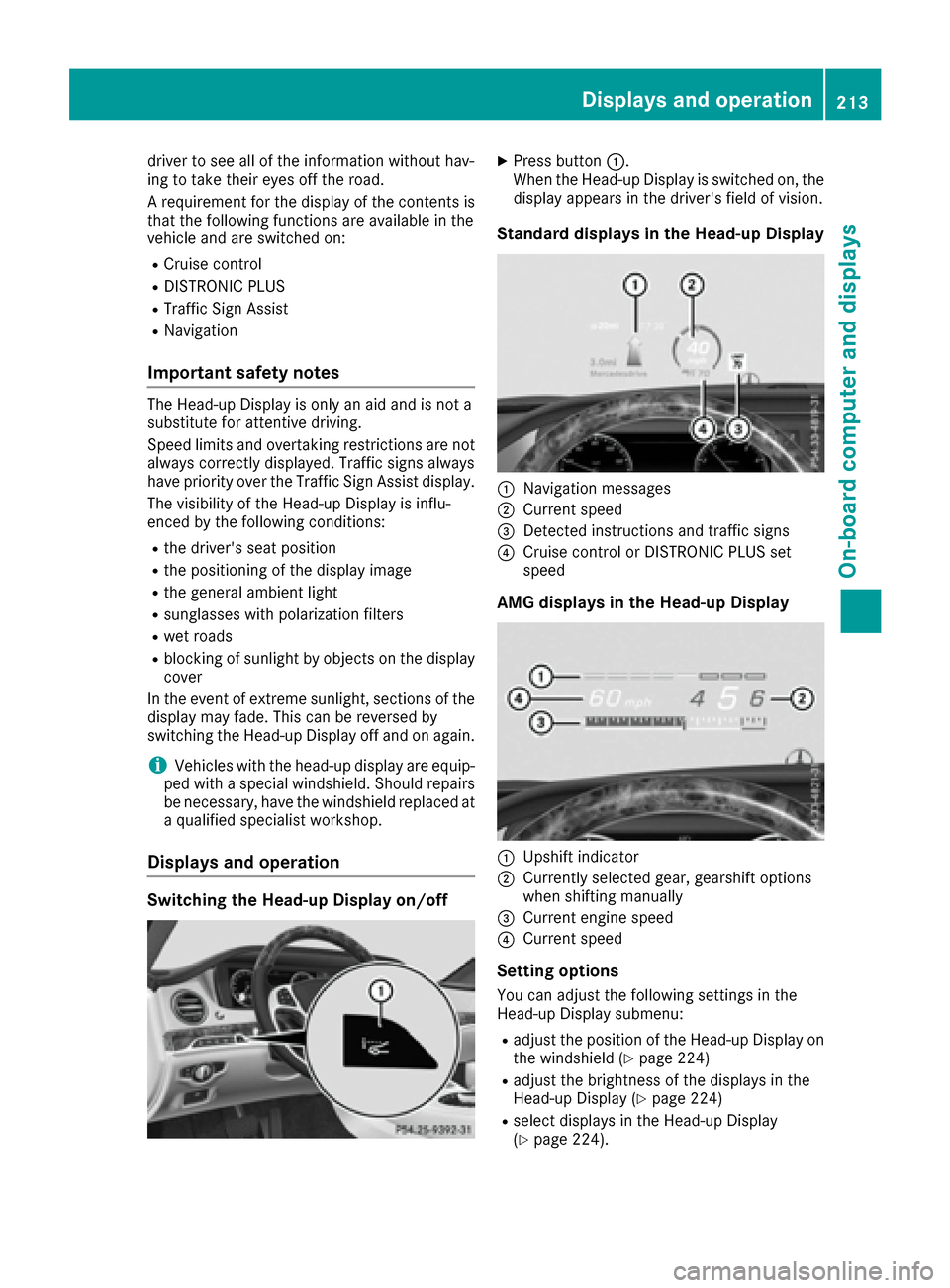
XPress button :.
When the Head-up Display is switched on, the display appears in the driver's field of vision.
Standard displays in the Head-up Display
:Navigation messages
;Current speed
=Detected instructions and traffic signs
?Cruise control or DISTRONIC PLUS set
speed
AMG displays in the Head-up Display
:Upshift indicator
;Currently selected gear, gearshift options
when shifting manually
=Current engine speed
?Current speed
Setting options
You can adjust the following settings in the
Head-up Display submenu:
Radjust the position of the Head-up Display on
the windshield (Ypage 224)
Radjust the brightness of the displays in the
Head-up Display (Ypage 224)
Rselect displays in the Head-up Display
(Ypage 224).
Displays and operation213
On-board computer and displays
Z
Page 216 of 382
Using theDisplay Contentfunction, you
can, depending on your vehicle's equipment,
choose between four standard displays. The
selected contents then appear in the Head-up
Display.
In Mercedes-AMG vehicles, you can also
choose between two AMG displays. If you
select an AMG display, the Head-up Display
shows AMG-specific contents.
If you select a display with traffic signs, detec-
ted traffic signs from Traffic Sign Assist
appear in the Head-up Display.
Menus and submenus
Menu overview
Press the òbutton on the steering wheel to
open the menu list.
Operating the on-board computer (
Ypage 211).
Depending on the vehicle equipment, you can
select the following menu:
RTripmenu (Ypage 214)
RNavimenu (navigation instructions)
(Ypage 215)
RRadiomenu (Ypage 217)
RMediamenu (Ypage 218)
RTelephonemenu (Ypage 219)
RAssistance Graphicmenu (Ypage 221)
RServicemenu (Ypage 221)
RSettingsmenu (Ypage 221)
RAMGmenu (Mercedes-AMG vehicles)
(Ypage 226)
Trip menu
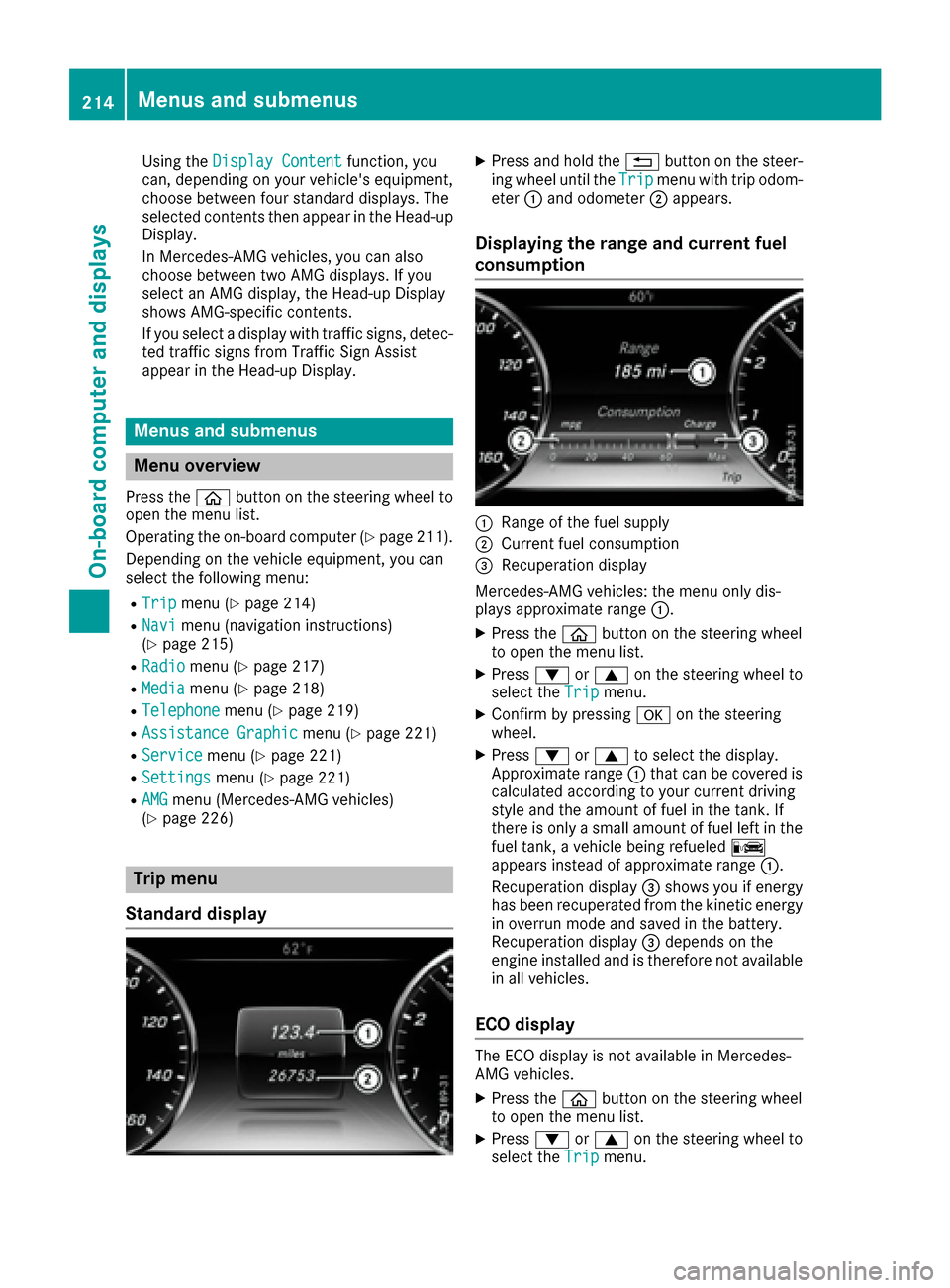
Standard display
XPress and hold the %button on the steer-
ing wheel until the Tripmenu with trip odom-
eter :and odometer ;appears.
Displaying the range and current fuel
consumption
:Range of the fuel supply
;Current fuel consumption
=Recuperation display
Mercedes-AMG vehicles: the menu only dis-
plays approximate range :.
XPress theòbutton on the steering wheel
to open the menu list.
XPress :or9 on the steering wheel to
select the Tripmenu.
XConfirm by pressing aon the steering
wheel.
XPress :or9 to select the display.
Approximate range :that can be covered is
calculated according to your current driving
style and the amount of fuel in the tank. If
there is only a small amount of fuel left in the
fuel tank, a vehicle being refueled C
appears instead of approximate range :.
Recuperation display =shows you if energy
has been recuperated from the kinetic energy in overrun mode and saved in the battery.
Recuperation display =depends on the
engine installed and is therefore not available
in all vehicles.
ECO display
The ECO display is not available in Mercedes-
AMG vehicles.
XPress the òbutton on the steering wheel
to open the menu list.
XPress :or9 on the steering wheel to
select the Tripmenu.
214Menus and submenus
On-board computer and displays