2017 MERCEDES-BENZ S-Class MAYBACH change time
[x] Cancel search: change timePage 81 of 230

Requirement for "Viewing thevicinity of the destination" and "Calling up the website for the desti-
nation" (USA): mbrace must be activated for Internet access (Ypage 142).
Requirement for "Viewing the vicinity of the destination" and "Calling up the website for the desti-
nation" (Canada): a mobile phone must be connected via Bluetooth
®(Ypage 113) or USB
(Ypage 183) with the multimedia system.
XTo view the vicinity of the destination: to select:, turnand press th econtroller.
If stree t images are available, the street in the vicinity of the destination address is shown.
XTo call up th emap: select Map.
XMovethe map, change the map scale and select the POI (Ypage 80).
XTo call up a POI:selectCall.
If a phone number is available, the multimedia system switches to the telephone function.
XTo call up th e websitefor the destination: selectwww.
If an Internet address is available, data is loaded from theInternet .
XTo saveaPOI: selectSaveby turning thecontroller and pressing to confirm.
The POI can be saved as:
Ra navigable address book contact
Ra home address
XTo start route calculation: press thecontroller to select Start(Ypage 74).
Destination entry79
Navigation
Z
Page 82 of 230

Using the map
:Crosshair
;Distance of crosshair position from current vehicle position
XTo switch to navigation mode:press theßbutton.
XTo show the menu: slide6the controller.
XTo select Destination: turn and press the controller.
XSelectUsing Map.
The map with crosshair is shown.
XTo move the map: slide1, 4or2 the controller.
XTo change the map scale: turn the controller until the desired map scale is selected.
The scale is displayed at the bottom. Turning clockwise zooms out from the map; turning counter-
clockwise zooms in.
XTo select a destination: press the controller.
If several destinations are available in the area around the crosshair, these are also displayed.
XTo select a destination from the selection list: turn and press the controller.
If the digital map provides navigable address data, you will see the destination address in the
address entry menu.
XTo start route calculation: selectStart(Ypage 74).
Entering intermediate destinations
Introduction
You can also map the route to the destination
yourself by entering up to four intermediate des-
tinations. The sequence of the intermediate des-
tinations can be changed at any time.
The navigation system provides a selection of
predefined destinations in eight categories for
this purpose, e.g. Gas Station
orRestau‐rants. You can also use the destination entry
options to enter intermediate destinations.
Creating intermediate destinations
XTo switch to navigation mode: press the
Ø button.
XTo show the menu: slide6the controller.
XTo select Destination: turn and press the
controller.
XSelect Intermediate Destinations.
XTo select a category or Other: turn and press
the controller.
After selecting a category, the POIs which are
available along the route and in the vicinity are displayed.
First, a search for destinations along the route
is performed. The search for destinations is
80Destination entry
Navigation
Page 83 of 230

then initiated in the area around the vehicle
position.
XAfter selectingOther, select one of the des-
tination entry options.
SelectionStep
AddressEntryXEnter a destination by
address (Ypage 72).
KeywordSearchXSelect a destination
using a keyword search
(
Ypage 75).
From Previ‐ous Destina‐tions
XSelect a destination
from the list of last des-
tinations (
Ypage 76).
FromContactsXSelect a contact from
the address book as the
destination (
Ypage 77).
From POIsXSelect a point of interest (Ypage 77).
Using MapXEnter a destination using
the map (Ypage 80).
From MemoryCardXSelect a personal POI
(Ypage 85).
FromMercedes-Benz Apps
XEnter a destination from
Mercedes-Benz Apps
(
Ypage 82).
Using Geo-CoordinatesXEnter a destination using
the geo-coordinates
(
Ypage 83).
XTo select a POI: turn the controller and pressto confirm.
After selecting a POI or entering a destination,
the address of the intermediate destination is
displayed. After entering a destination using the map,
the address entry menu is displayed.
Start
is
highlighted.
XTo call up a map: selectMapby turning and
pressing the controller.
You can move the map and select the desti-
nation.
XTo make a call: selectCall.
If the intermediate destination has a tele-
phone number and a mobile phone is con-
nected to the multimedia system
(
Ypage 113), the call is connected.
XTo load data from the Internet: selectwww.
If an Internet address is available, data is loa- ded from the Internet.
XTo store an intermediate destination in
the destination memory: selectSave
(Ypage 99).
XTo accept an intermediate destination:
selectOK
by pressing the controller.
The immediate destination is entered into
position 1 of the intermediate destinations
menu.
XTo enter another intermediate destina-
tion: slide5the controller and highlight
Add New:
.
XPress the controller.
XProceed as described above.
Editing intermediate destinations
You can perform the following functions:
Rchange intermediate destinations
Rswitch the sequence of the intermediate des-
tinations in the intermediate destinations
menu
Rdelete intermediate destinations
iYou cannot edit POIs.
Destination entry81
Navigation
Z
Page 84 of 230

XTo select an intermediate destination in the
intermediate destinations menu: turn and
press the controller.
A menu appears.
XTo change an intermediate destination:
selectEdit
in the menu.
XChange the address, e.g. the city and street.
XTo select OK: turn and press the controller.
The intermediate destinations menu appears
and displays the changed intermediate desti-
nation.
You can change the order of the intermediate
destinations entered and the destination. To
change the order, at least one intermediate des- tination and the destination must have been
entered.
XTo change the order: in the menu, select
Move
.
XTurn the controller and move the intermediate
destination or destination to the desired posi-
tion.
XPress the controller.
XTo delete an intermediate destination:
select Delete
in the menu.
Accepting intermediate destinations
for the route
XInsert the SD memory card (Ypage 170).
XTo select Start Route Guidancein the
intermediate destinations menu: press the
controller.
The route is calculated with the entered inter-
mediate destinations.
If an intermediate destination was passed
during route guidance, a green tick mark will
be entered in the intermediate destinations
menu. Once the route has been recalculated,
the intermediate destination is deleted from
the intermediate destinations menu.
Saving as a personal route
You can save a route including intermediate
destinations on the SD card.
Requirements: the SD card has the FAT data
system format (e.g. FAT32).
XInsert the SD memory card (Ypage 170).
XTo select Save As Personal Routein the
intermediate destinations menu: press the
controller.
The route is saved on the SD card under Per‐
sonal Routes.
Searching for a gas station when the
fuel level is low
Requirement: the settingGasonReservemust
be enabled (Ypage 70).
If the fuel tank reserve level is displayed, you will
see the Reserve Fuel Would you like to
start a search for surrounding gasstations?message.
XTo select YesorNo: turn and press the con-
troller.
If you select Yes
: the gas station search
starts. When the search is complete, a list of
the gas stations available along the route or in
the vicinity is displayed.
If you select No
: the search is canceled.
XSelect the gas station.
The address of the gas station is displayed.
XTo selectStart: press the controller.
The selected gas station is entered into posi-
tion 1 of the intermediate destinations menu.
Route guidance begins.
If the intermediate destinations menu already
contains four intermediate destinations, a
prompt will be displayed, asking you whether you wish to enter the gas station into position
1. If you select Yes
, the gas station is trans-
ferred into the list and intermediate destina-
tion 4 is deleted.
Entering a destination from
Mercedes-Benz Apps
Requirement (USA): mbrace is activated for the
Mercedes-Benz Apps (Ypage 142).
Requirement (Canada): a mobile phone is con-
nected to the multimedia system via Bluetooth
®
(Ypage 113) or USB (Ypage 183).
XTo switch to navigation mode: press the
Ø button.
XTo show the menu: slide6the controller.
82Destination entry
Navigation
Page 88 of 230

XTo return to the menu: press the%button.
XTo place a call to the personal POI: select
Call
.
If a mobile phone is connected to the multi-
media system and the telephone number is
available, the call is connected (
Ypage 120).
XTo change the name and symbol: select
Edit
.
XSelect Change NameorEdit Icon.
XTo change name: enter character (Ypage 34).
XTo change symbol: select a symbol.
The symbol is saved.
XTo delete a personal POI or route: select
Delete
.
A prompt will appear.
XSelect YesorNo.
If you select Yes, the personal destination or
personal route is deleted.
XTo select the outward and return route:
select Swap
.
The starting and destination positions of your
personal route, and thus the direction for
route guidance, are switched round. One-way
streets or restricted intersections are taken
into consideration. Therefore, the outward
and return routes may differ from each other.
XTo save a personal POI: selectSave.
XContinue saving (Ypage 99).
XTo start route guidance: selectStart.
Recording the route
General notes
Routes are recorded using the SD card.
Requirements: the SD card has the FAT data
system format (e.g. FAT32).
When recording the route, bear in mind the fol-
lowing:
RIf the SD card is inserted, it must not be
removed during recording.
RIf route recording is started manually, it must
be finished manually before the multimedia
system is switched off (e. g. when the engine
is switched off).
RThe multimedia system minimizes the num-
ber of route points recorded. Therefore when
the recorded route is subsequently com-
menced, it may differ from the route that was
originally recorded.
Starting/finishing route recording
XInsert the SD memory card (Ypage 170).
XTo switch to navigation mode: press the
ß button.
XTo show the menu: slide6the controller.
XTo select Destination: turn and press the
controller.
XSelect From Memory Card.
XSelectStart Route Recording.
The route is recorded and REC appears at the
bottom edge of the screen.
XTo stop recording, select End RouteRecordingfrom the menu.
The route is stored under Personal Routes.
Displaying/editing the recorded route
XInsert the SD memory card (Ypage 170).
XTo switch to navigation mode: press the
ß button.
XTo show the menu: slide6the controller.
XTo select Destination: turn and press the
controller.
XSelect From Memory Card.
XSelectPersonal Routes.
Previously recorded routes are displayed.
XTo select a route: turn and press the control-
ler.
The map appears with a menu. The recorded
route is shown on the map in blue.
XTo start route calculation: selectStart.
XTo change the name and symbol: select
Edit
.
XSelect Change NameorEdit Icon.
XTo change name: enter character (Ypage 34).
XTo change symbol: select a symbol.
The symbol is saved.
Route guidance
General notes
The multimedia system calculates the route to
the destination without taking account of the
following, for example:
Rtraffic lights
Rstop and yield signs
Rparking or stopping restrictions
86Route guidance
Navigation
Page 89 of 230

Rroad narrowing
Rtemporary traffic rules and regulations
The navigation system can give differing driving
recommendations if the actual street/traffic sit-
uation does not correspond with the digital
map's data. For example, if the road layout or
the direction of a one-way street has been
changed.
For this reason, you must always observe road
and traffic rules and regulations during your
journey. Road and traffic rules and regulations
always have priority over system driving recom-
mendations.
Route guidance begins once a route has been
calculated (
Ypage 74).
The navigation system guides you to your des-
tination by means of driving recommendations
in the form of audible navigation announce-
ments and route guidance displays. The route guidance displays can be seen if nav-
igation mode is switched on.
If you do not follow the navigation announce-
ments or if you leave the calculated route, the
navigation system automatically calculates a
new route to the destination.
If the digital map contains the corresponding
information, the following applies:
RDuring route guidance, the navigation system
tries to avoid roads with restricted access.
Those roads, for example, that are closed to
through-traffic.
RRoads that have time restrictions (e.g. closed
on Sundays and public holidays) are consid-
ered for route guidance on days when they are
open. For this purpose, the relevant times
must be correctly stored in the database.
Displays during route guidance
Change of direction
Changes of direction have three phases:
RPreparation phase
RAnnouncement phase
RChange-of-direction phase
Changes in direction are also shown in the multifunction display (see the vehicle Operator's Man-
ual).
Preparation phase: the navigation system prepares you for the upcoming change of direction.
Based on the example display below, the change of direction is announced by the "Prepare to turn
right message", for instance. You see the full-screen map.
Announcement phase: the navigation system announces the imminent change of direction. The
change of direction is announced ahead of time, such as with the announcement "Turn right in
0.5 miles".
The display is now split into two sectors. The map is shown on the left side of the display, and a
detailed image of the intersection or a 3D image of the imminent change of direction is shown on
the right side of the display.
Route guidance87
Navigation
Z
Page 90 of 230
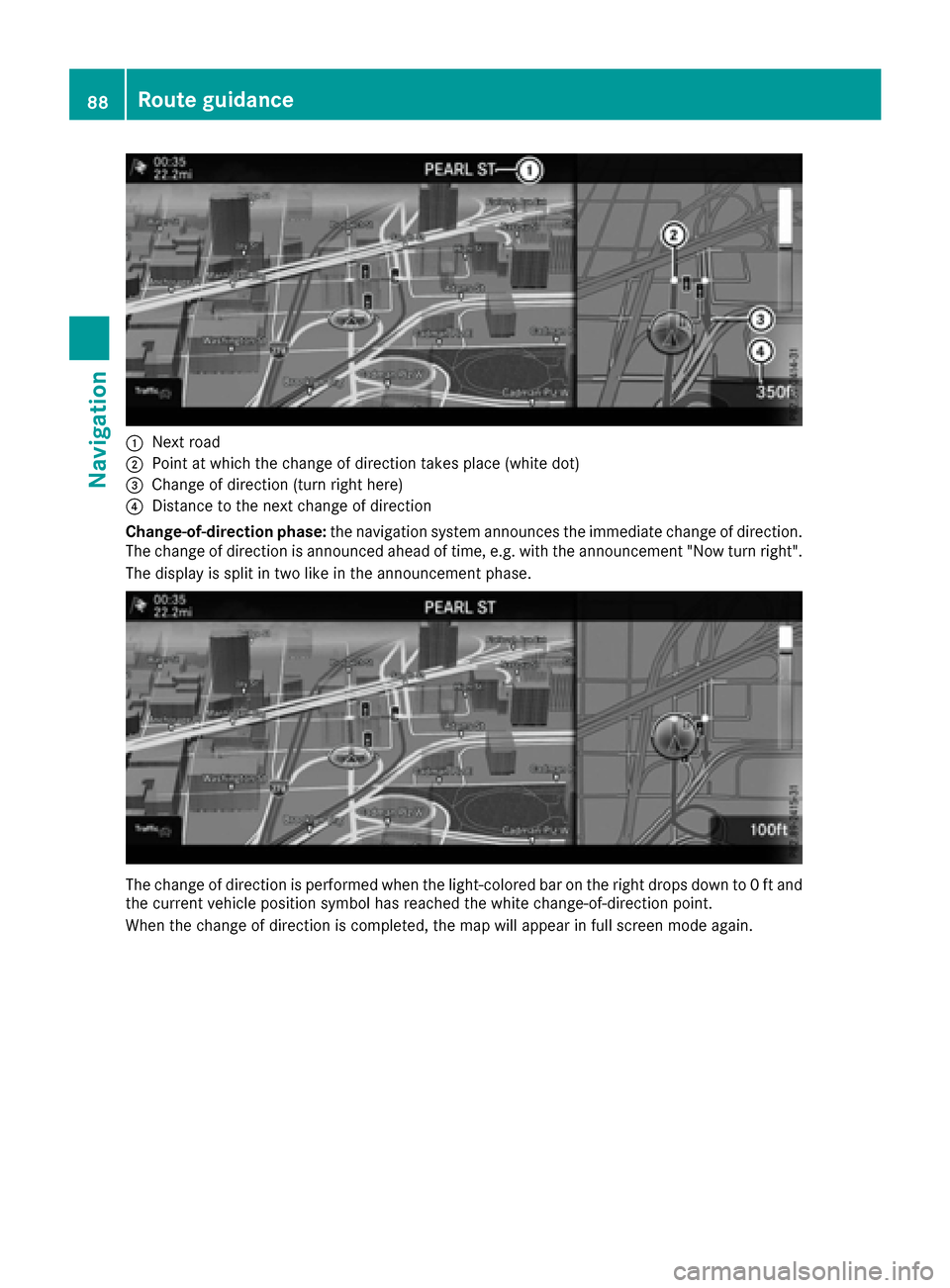
:Next road
;Point at which the change of direction takes place (white dot)
=Change of direction (turn right here)
?Distance to the next change of direction
Change-of-direction phase: the navigation system announces the immediate change of direction.
The change of direction is announced ahead of time, e.g. with the announcement "Now turn right".
The display is split in two like in the announcement phase.
The change of direction is performed when the light-colored bar on the right drops down to 0 ft and
the current vehicle position symbol has reached the white change-of-direction point.
When the change of direction is completed, the map will appear in full screen mode again.
88Route guidance
Navigation
Page 95 of 230

XSelectSave.
The destination or intermediate destination can be saved as:
Ra navigable address book contact
Ra home address
XTo call up the map, select Map.
XMove the map, change the map scale and select the destination or the intermediate destination
(Ypage 80).
XTo call the destination or intermediate destination, select Call.
If a phone is connected and a phone number is available, the multimedia system switches to the
telephone function.
Taking an alternative route
If the Calculate Alternative Routessetting is activated O, different routes will be offered
each time a route is calculated (Ypage 69).
The multimedia system can also display these for the current route.
The economic route is displayed with a green line. The other routes are displayed with a dark blue
line.
XTo switch to navigation mode: press theØbutton.
XTo show the menu: slide6the controller.
XTo select Route: turn and press the controller.
XSelectAlternative Route.
Route 1 is shown.
XTo display additional routes: select NextorPrevious.
XTo start a new route guidance: selectStart.
Route guidance93
Navigation
Z