2017 MERCEDES-BENZ S-Class MAYBACH change time
[x] Cancel search: change timePage 175 of 230
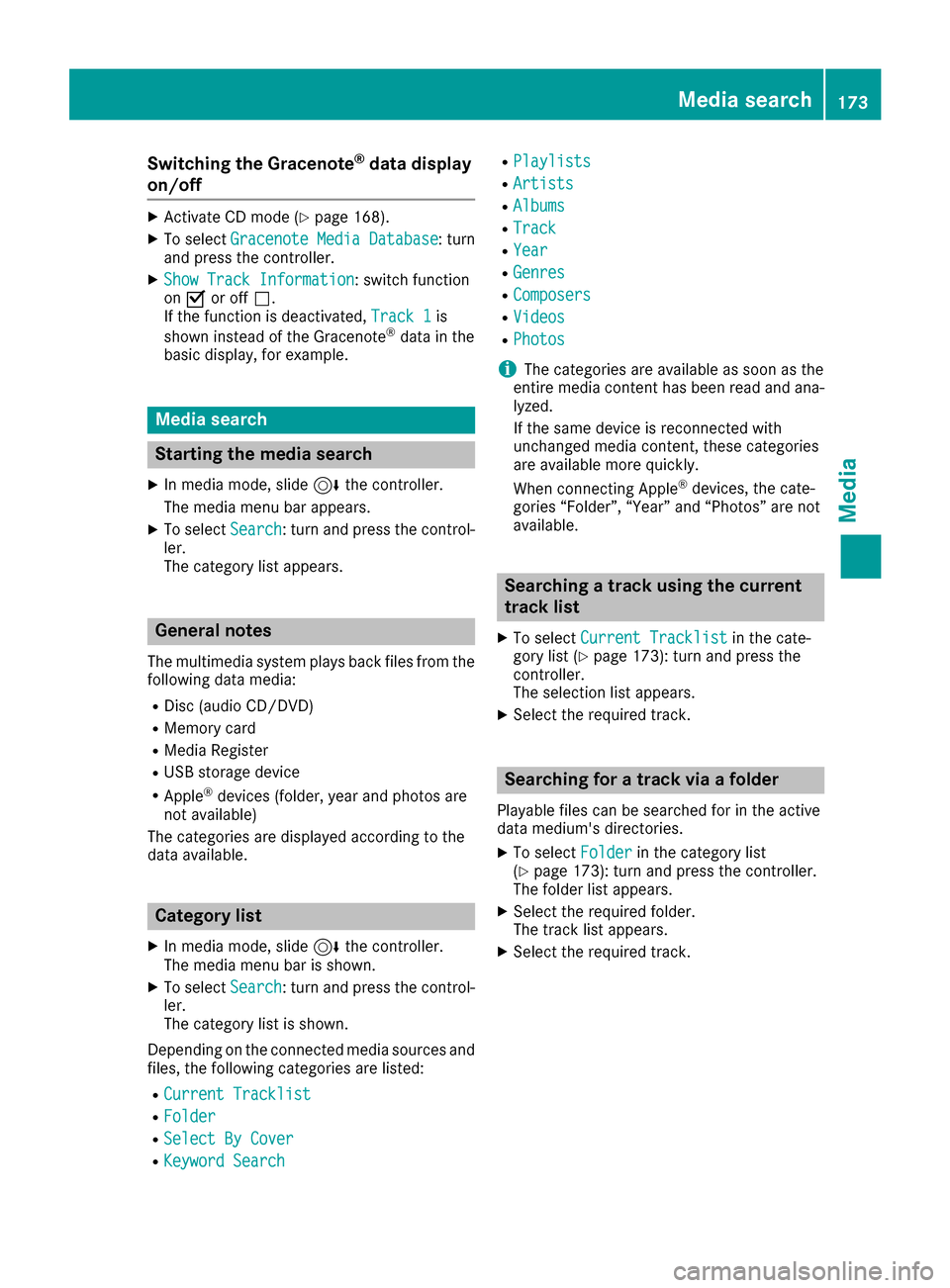
Switching the Gracenote®data display
on/off
XActivate CD mode (Ypage 168).
XTo select Gracenote Media Database: turn
and press the controller.
XShow Track Information: switch function
on O or off ª.
If the function is deactivated, Track 1
is
shown instead of the Gracenote®data in the
basic display, for example.
Media search
Starting the media search
XIn media mode, slide 6the controller.
The media menu bar appears.
XTo select Search: turn and press the control-
ler.
The category list appears.
General notes
The multimedia system plays back files from the following data media:
RDisc (audio CD/DVD)
RMemory card
RMedia Register
RUSB storage device
RApple®devices (folder, year and photos are
not available)
The categories are displayed according to the
data available.
Category list
XIn media mode, slide 6the controller.
The media menu bar is shown.
XTo select Search: turn and press the control-
ler.
The category list is shown.
Depending on the connected media sources and
files, the following categories are listed:
RCurrent Tracklist
RFolder
RSelect By Cover
RKeyword Search
RPlaylists
RArtists
RAlbums
RTrack
RYear
RGenres
RComposers
RVideos
RPhotos
iThe categories are available as soon as the
entire media content has been read and ana-
lyzed.
If the same device is reconnected with
unchanged media content, these categories
are available more quickly.
When connecting Apple
®devices, the cate-
gories “Folder”, “Year” and “Photos” are not
available.
Searching a track using the current
track list
XTo select Current Tracklistin the cate-
gory list (Ypage 173): turn and press the
controller.
The selection list appears.
XSelect the required track.
Searching for a track via a folder
Playable files can be searched for in the active
data medium's directories.
XTo select Folderin the category list
(Ypage 173): turn and press the controller.
The folder list appears.
XSelect the required folder.
The track list appears.
XSelect the required track.
Media search173
Media
Z
Page 177 of 230

Media Register basic display
:Main function bar
;Artist and album
=Display for the active data medium
?Display of current track in the track list
AMedia menu bar
BNumerical time display
CGraphic time display
DCover view (if available)
Copying files to the Media Register
General notes
You can copy photos, music files and videos
from the following data mediums:
Rdiscs in a DVD changer or a single DVD drive
RSD card
RUSB storage device
RMP3
iData can be copied from an MP3 player if the
MP3 player can be configured as a mass stor- age device.
Video files from DVD-V cannot be copied.
While copying, several functions will not be
available. If this is the case, you will see a
message to this effect.
1. Selecting a data medium
XIn media mode: press the Õbutton.
The menu appears with the available media
sources.
XTo select the media source: turn the control-
ler and press to confirm.
XTo switch to the menu bar: slide 6the con-
troller.
XTo select Options: turn and press the con-
troller.
Media Register175
Media
Z
Page 178 of 230

XSelectSave Files to Media Register.
The media list appears. A data medium from
which files can be copied is selected auto-
matically.
iThe Save Files to Media Registerfunction can be reached from any media
application.
XSelect the displayed data medium.
The data medium is loaded.
If the data medium contains files that can be
copied, a selection menu appears.
2. Selecting files
XTo select All Media Files: turn and press
the controller.
This command copies all files from the selec-
ted data medium. The symbol next to All
Media Filesis filled in. All subsequent
entries have a checkmark Obeside them.
XSelect a folder.
A checkmark Onext to the folder entry high-
lights the selection.
XTo select Continue: turn and press the con-
troller.
The copying menu appears.
3. Starting the copying process
In the example, files are copied from a USB stick
to the MEDIA REGISTER.
XTo select Start: press the controller.
iThe selection of a target folder is optional. If
there is no target folder given, the selected
files are saved to the main directory of the
Media Register.
XTo select TargetFolder: turn and press the
controller.
XSelect a folder.
XSelect Continue.
XTo select Start: press the controller.
The copying procedure starts and is shown in
the progress bar.
It may take some time for the copying process
to be completed, depending on the amount of
data. If there is not enough memory space, a
message to this effect appears.
Once the copying procedure is complete, you
will hear the first track of the copied album.
You can now copy more files to the Media
Register.
XTo cancel copying: selectCancel.
Files are stored in the Media Register up until
the point of cancellation.
iIt is possible to change to a different func-
tion (e.g. radio) during the copying procedure.
The copying procedure continues in the back-
ground. While the copying procedure is taking
place, this is shown by a symbol in the status bar.
Renaming/deleting files
XIn media mode: press the Õbutton.
The menu appears with the available media
sources.
XTo select the media source: turn the control-
ler and press to confirm.
176Media Register
Media
Page 179 of 230

XTo switch to the menu bar: slide6the con-
troller.
XTo select Options: turn and press the con-
troller.
XSelect Manage Media Register.
XSelectRename / Delete Files.
The file list is displayed.
XTo highlight the file: turn and press the con-
troller.
XSlide 9the controller.
You can select between EditandDelete.
iOnly folders can be renamed.
Renaming a file
XTo select Edit: turn and press the controller.
An input field appears.
XRename folder.
XTo save changes with ¬: turn and press
the controller.
Renaming a folder only changes the file name.
Depending on whether or not the Show
Track Informationoption has been selec-
ted, this change may not be seen in the main
display field.
Deleting a file
XTo select Delete: turn and press the control-
ler.
Deleting all files
!
In order to prevent malfunctions, do not use
COMAND during this time.
This function deletes all files from the Media
Register.
XIn media mode: press the Õbutton.
The menu appears with the available media
sources.
XTo select the media source: turn the control-
ler and press to confirm.
XTo switch to the menu bar: slide 6the con-
troller.
XTo select Options: turn and press the con-
troller.
XSelect Manage Media Register.
XSelectDelete All Media Files.
A message appears.
XTo select Yes: turn and press the controller.
All files are deleted.
Calling up memory space info
XIn media mode: press the Õbutton.
The menu appears with the available media
sources.
XTo select the media source: turn the control-
ler and press to confirm.
XTo switch to the menu bar: slide 6the con-
troller.
XTo select Options: turn and press the con-
troller.
XSelect Manage Media Register.
XSelectMemory Info.
Playback options
General notes
The following options are available:
RNormal Track Sequence: the tracks are
played in the normal order (e.g. track 1, 2, 3
etc.).
RRandom Medium: all tracks on the data
medium are played in random order (e.g.
track 3, 8, 5 etc.).
RRandomTrackList: the current track list is
played in random order (e.g. 3, 8, 5 etc.).
iThe Normal Track Sequenceoption is
automatically selected when you change the
disc you are currently listening to or when you
select a different medium. If an option is
selected, it remains selected after the multi-
media system has been switched on or off.
Media Register177
Media
Z
Page 180 of 230

Selecting Play mode
XIn media mode: press theÕbutton.
The menu appears with the available media
sources.
XTo select Media Register: turn and press
the controller.
XTo switch to the menu bar: slide 6the con-
troller.
XTo select Options: turn and press the con-
troller.
XSelect Playback Mode.
The options list appears. The #dot indicates
the current setting.
XSelect the desired option.
The option is switched on. For all options
except Normal Track Sequence
, a corre-
sponding icon appears in the main display.
Bluetooth®audio mode
Requirements
The Bluetooth®function must be activated in
the multimedia system (Ypage 45).
Bluetooth®audio mode requires a Bluetooth®-
capable audio device.
Check your Bluetooth
®audio device for the fol-
lowing; see the manufacturer's operating
instructions:
RBluetooth®audio profile
The Bluetooth®audio device must support
the A2DP and AVRCP Bluetooth®audio pro-
files.
RBluetooth®visibility
Certain Bluetooth®audio devices do not just
require activation of the Bluetooth®function.
In addition, your device must be made "visi-
ble" to other devices.
RBluetooth®device name
This device name is predetermined but can
usually be changed. For a clear selection of
the Bluetooth
®device, Mercedes-Benz rec-
ommends that you customize the device
name.
iA2DP (Advanced AudioDistribution Profile):
Bluetooth®audio profile for audio data trans-
mission AVRCP (Audio
VideoRemote ControlProfile):
Bluetooth
®audio profile for audio data play-
back
iThe Bluetooth®device must be visible to the
multimedia system for authorization. After
authorization, the multimedia system even
finds the Bluetooth
®device when it is not
visible.
General notes
Before using your Bluetooth®audio device with
the multimedia system for the first time, you will
need to authorize it.
When you authorize a new Bluetooth
®audio
device, it is connected automatically. Connec-
tion involves first searching for a Bluetooth
®
audio device and then authorizing it.
You can authorize up to 15 Bluetooth®devices.
iIf you authorize a mobile phone that sup-
ports Bluetooth®audio, the A2DP and AVRCP
Bluetooth®audio profiles are connected
automatically.
The mobile phone is then entered:
Rin the Bluetooth®telephone list
(Ypage 115)
Rin the Bluetooth®device list
(Ypage 179)
Mercedes-Benz recommends authorizing a
mobile phone in Bluetooth
®telephony
(Ypage 116).
Bluetooth®audio basic display
:Audio transmission status (depending on
the Bluetooth®audio device, also title name
and artist)
;Data medium position in the media list
178Bluetooth®audio mode
Media
Page 186 of 230
iVideo files from Apple®devices cannot be
played using the USB port.
Selecting a music file
Selecting with the controller
XTo display the current track list: press the
controller in the basic display.
XSelect Current Tracklist.
The track list for the active data medium
appears.
XTo select a track: turn the controller and press
to confirm.
XTo skip forward or back to a track: turn the
controller in the basic display.
The selected track is played.
Selecting with fast forward/rewind
XWith the media source active in the basic dis- play, slide 1the controller and hold it
until the desired position has been reached.
Searching for a track
Selecting Search using media menu bar
XTo switch to the menu bar: slide 6the con-
troller.
XTo select Search: turn and press the control-
ler.
The category list appears.
Overview
The following categories are listed:
RCurrent Tracklist
RFolder
RSelect By Cover
RKeyword Search
RPlaylists
RArtists
RAlbums
RTrack
RGenres
RYear
RComposers
RVideos
RPhotos
RPodcasts
RAudiobooks
iThe functions are available as soon as the
entire media content has been read and ana-
lyzed.
If the same device is reconnected with
unchanged media content, these functions
are available more quickly.
The audio books and podcasts categories are
only available for Apple
®devices.
When connecting Apple®devices, the cate-
gories “Folder”, “Year” and “Photos” are not
available.
XTo select a category, e.g. Current Track‐list: turn and press the controller.
The selection list appears.
XSelect the required track.
Searching for tracks via keywords
XTo select Keyword Searchin the category
list: turn and press the controller.
XEnter and confirm the characters of the
desired search using the controller
(
Ypage 174).
Search results are sorted according to the
available categories, displayed and can then
be selected.
Selecting the playback option
XIn media mode, slide 6the controller.
The media menu bar is shown.
XTo select Options: turn and press the con-
troller.
XTo select the desired playback option: turn
and press the controller.
Additional information on playback options
(
Ypage 170).
Selecting video settings
If playable video files are found, they will be
played by the multimedia system.
XTo switch on full-screen mode: press the con-
troller in the basic display.
XTo show the video menu: slide 6the con-
troller in full-screen mode.
The Media Interface menu bar appears.
184Operation with the Media Interface
Media
Page 187 of 230

XTo selectOptions: turn and press the con-
troller.
XSelect Video Settings.
XChange the settings (Ypage 189).
Audio AUX mode
Notes on audio AUX mode
External audio sources may have different vol-
umes, which can mean that system messages
such as traffic announcements and navigation
system announcements are much louder. If nec-
essary, deactivate the system messages or
adjust their volume manually.
AUX also provides the option of connecting a
Media Player to the multimedia system.
To connect an external audio source to the audio
AUX, you will require an audio AUX cable.
iYou will find further information online at
http://www.mercedes-benz.com/connec t.
Or call the Mercedes-Benz Customer Assis-
tance Center at 1-800-FOR-MERCedes
(1-800-367-6372) (for the USA) or Customer
Relations at 1-800-387-0100 (for Canada).
Switching to audio AUX mode
XConnect an external audio source.
The AUX port is located in the stowage com-
partment in the center console.
The audio AUX is not selected automatically.
XPress the Õbutton.
The menu for the last accessed media source
appears.
XTo select Media: slide5and press the con-
troller.
The menu appears with the available media
sources.
XTo select Aux: turn and press the controller.
The medium is played if the audio source is
switched on and playback is activated.
iPlease see the manufacturer's operating
instructions for how to operate the external
audio source.
Setting the audio AUX options
XTo show the menu bar: slide 6the control-
ler.
XTo select Options: turn and press the con-
troller.
A menu appears. You can set Mono/Stereo
or
Volume.
Selecting Mono or Stereo
XTo select Mono/Stereo: turn and press the
controller.
A menu appears.
XSelect MonoorStereo.
The #dot indicates the current setting.
Selecting volume settings
XTo select Volume: turn and press the control-
ler.
XSelect StandardorBoost.
Standard: the volume of the external audio
source is adjusted to a standard value.
Boost
: the volume of the external audio
source is raised by approximately 10 dB.
The #dot indicates the current setting.
iA device which is connected as an external
audio source may seem quieter or louder in
the vehicle, or the usual maximum volume
cannot be achieved. On some devices, it is
possible to adjust the volume separately. In
this case, start at a medium volume and
increase it gradually. This enables you to
determine whether the system is able to play
the music at high volume without distorting it.
Video AUX mode
Notes on video AUX mode
External video sources may have different vol-
umes, which can mean that system messages
such as traffic announcements and navigation
system announcements are much louder. If nec-
essary, deactivate the system messages or
adjust their volume manually.
Video AUX is another option for playing videos
via the multimedia system.
To connect an external video source to the video
AUX, you will require a video AUX cable.
iIf you only use an audio AUX cable, you will
only be able to hear the sound from the video being played.
Video AUX mode185
Media
Z
Page 189 of 230

Video DVD mode
Important safety notes
GWARNING
The CD/DVD drive is a class 1 laser product.
If you open the housing of the CD/DVD drive,
there is a risk of exposure to invisible laser
radiation. This laser radiation could damage
your retina. There is a risk of injury.
Never open the housing. Always have main-
tenance and repair work carried out at a quali- fied specialist workshop.
GWARNING
Handling discs while driving may distract you from traffic conditions. You could also lose
control of the vehicle. There is a risk of an
accident.
Handle discs only when the vehicle is station-
ary.
Bear in mind that at a speed of only 30 mph
(approximately 50 km/h) your vehicle covers a
distance of 44 feet (approximately 14 m) every
se cond.
General notes
Notes on discs
!Do not affix stickers or labels to the discs.
They could peel off and damage the drive.
The drive is designed to receive EN 60908 standard discs. Therefore, you can
only use discs with a maximum thickness of
1.3 mm.
If you insert thicker discs, e.g. those that con-
tain data on both sides (DVD on one side and
audio data on the other), they cannot be ejec-
ted and can damage the drive.
Do not use discs with an 8 cm diameter, even
when using an adapter. Only use round discs
with a 12 cm diameter.
The variety of data media, writers and writing
software means that the multimedia system
may not be able to play discs that you have cop-
ied yourself.
DVD playback conditions
The multimedia system can play back video
DVDs produced according to the following
standards:
RRegion code 1 or region code 0 (no region
code)
RPAL or NTSC standard
You will generally find the relevant details either
on the DVD itself or on the DVD case.
With DVDs that do not meet the standard
requirements, you may encounter playback
problems.
iObserve the following notes:
RIt is also possible to play video DVDs with a
different region code, provided that they
are produced in accordance with the PAL or
NTSC standard. If you insert a video DVD
with a different region code, a message to
this effect appears.
RThe multimedia system is set to region
code 1 at the factory. This setting can be
changed at an authorized Mercedes-Benz
Center. The region code can be changed up
to five times.
RIf a DVD cannot be played back according
to national color transfer methods (PAL or
NTSC standards), problems with the image,
sound or playback may occur.
Control options
There are four control menus available in video
DVD mode.
Most DVDs have their own control menu. The
DVD is operated directly using the controller or
DVD functions.
Control menu and
functionOperation
RDVD's control
menu
Selection of title,
scene, language,
subtitles ...Operation with the
controller
ROptionsmenu
Selection of bright-
ness, contrast,
color, formatOperation using the
Optionsmenu bar,
video settings
Video DVD mode187
Media
Z